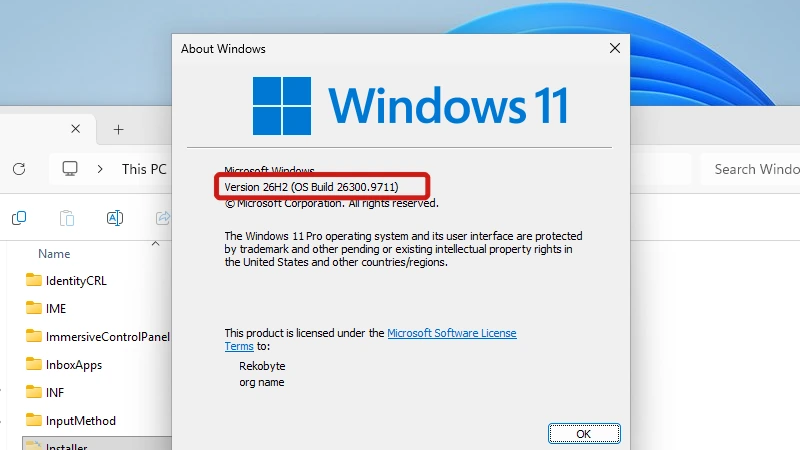
The Windows Installer folder at C:\Windows\Installer can grow very large, and a disk-space tool may point straight at it. It is a hidden cache Windows needs to repair, update and uninstall your programs, so it should stay. Below we cover what is inside, how to show it, what a deletion breaks and the supported way to free the space. We tested on Windows 11 Pro, OS Build 26300.9711.
Prefer to watch? See the video guide.
What the Windows Installer Folder Is
The Windows Installer folder is a hidden system folder where the Windows Installer service keeps a copy of the installation data for each program installed from an .msi package, plus that program’s patches. It grows over time as you install and update software. Microsoft’s page on what an installation package is describes the .msi file as holding all the information Windows Installer needs to install or uninstall an application.
What Is Inside the Windows Installer Folder
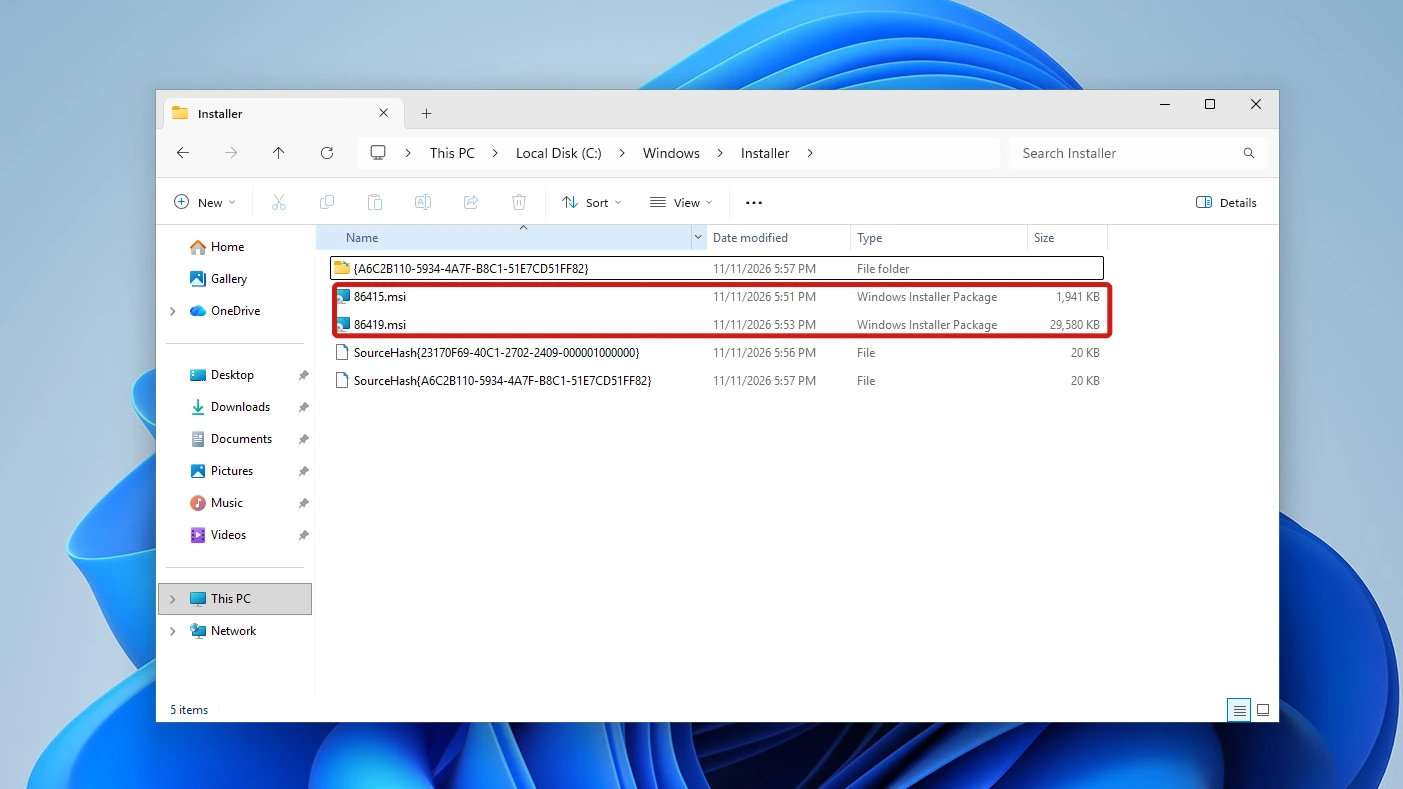
On our test PC we installed two small .msi programs, 7-Zip and Node.js, and the folder then held five items: two .msi files with short generated names (86415.msi and 86419.msi in our screenshots), two SourceHash files, and one folder named in braces that contained a single icon file. Your own folder will have different names, with one set for each program you have installed this way. The file names are generated per install: when we repeated the test they came out as 49d68.msi and 49d6c.msi, and after reinstalling 7-Zip as 37356f.msi, so read every file name here as an example.
| Kind | What it is | What it does for you |
|---|---|---|
| .msi | The installation package for a program | Lets Windows repair, modify or uninstall that program |
| .msp | A patch that updates an installed program; Windows Installer patches can be much smaller than the full .msi | Lets Windows apply or remove that update later |
| $PatchCache$ | A folder Windows Installer can use for older versions of files, saved when a patch is applied | Can speed up later installs; the MaxPatchCacheSize policy caps the cache, at 10% of the disk by default |
Note: Our test PC had no .msp file and no $PatchCache$ folder, so the last two rows come from Microsoft documentation, not a screenshot. We found no Microsoft page that says $PatchCache$ is safe to delete by hand, and Microsoft’s policy page describes the cache of old files but does not name the folder.
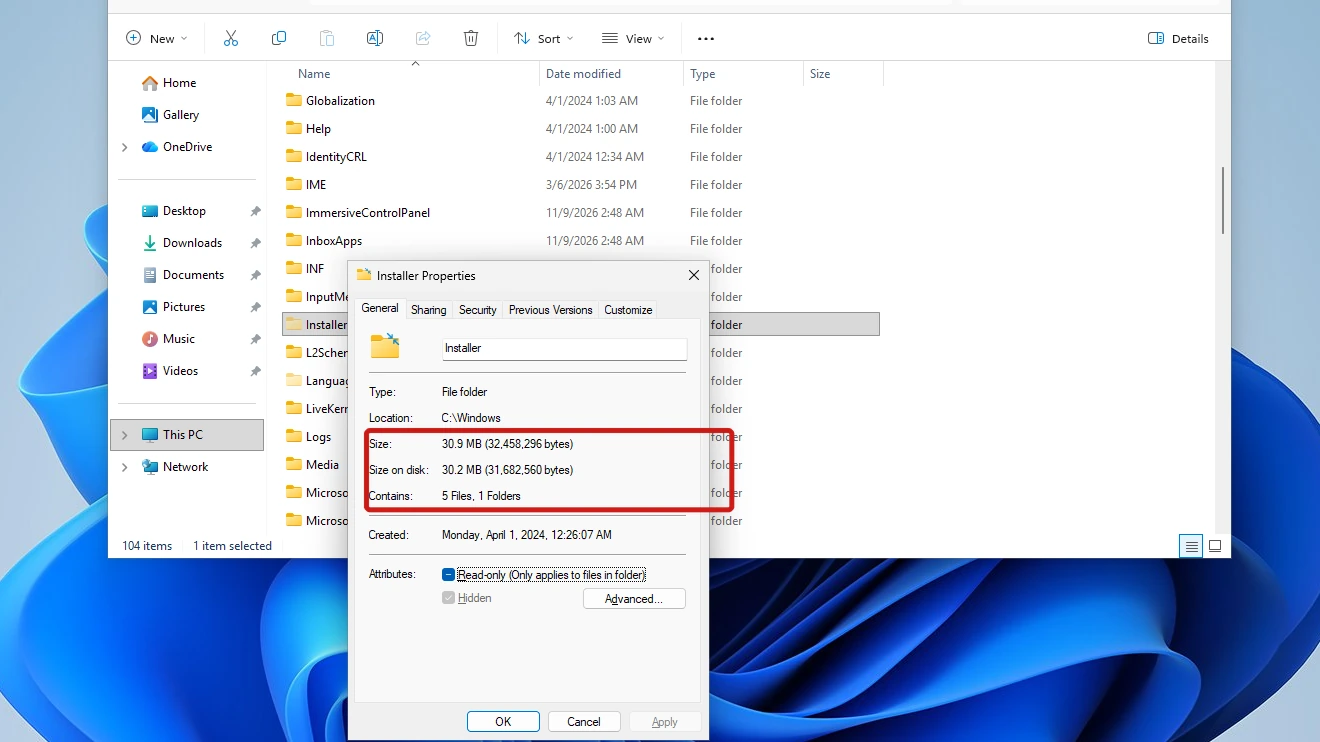
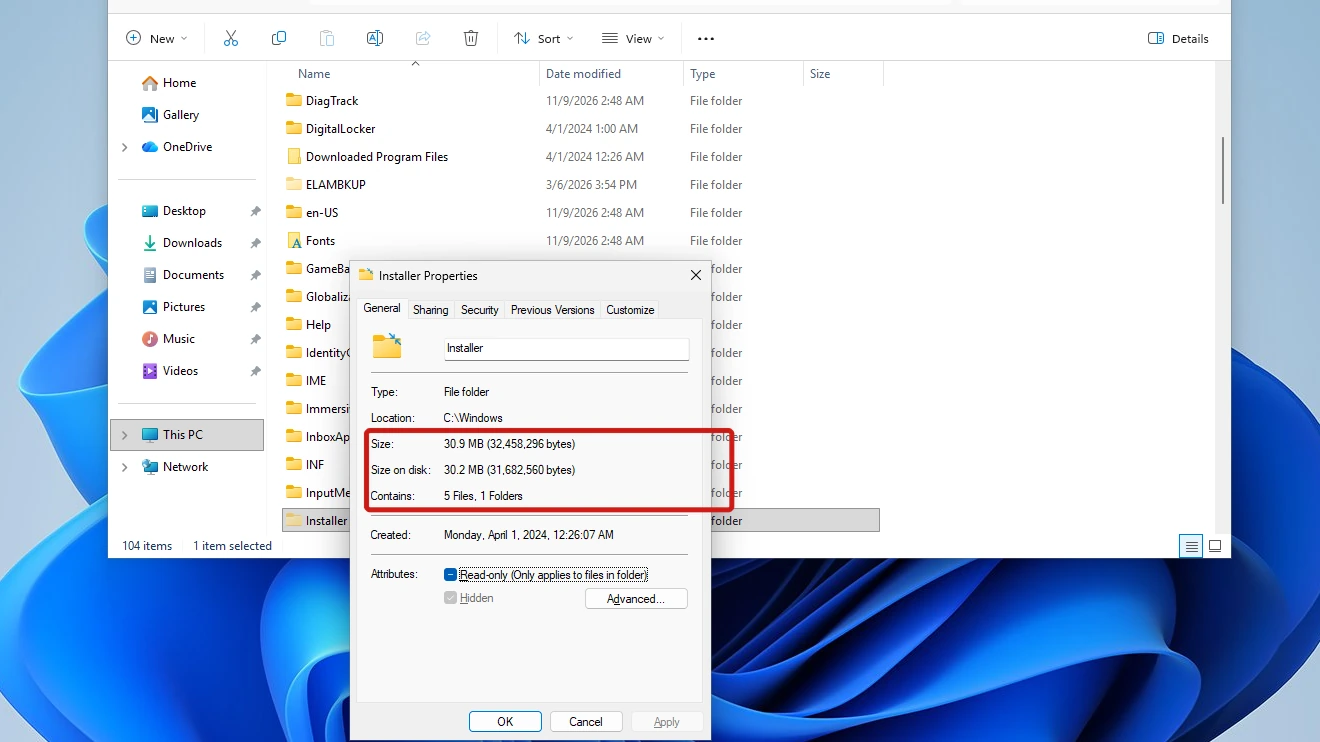
The folder’s Properties dialog shows how much the cache weighs. With only those two programs installed, it read 30.9 MB (32,458,296 bytes), 5 files and 1 folder, and opening it asked for no extra permission in our administrator session.
The file names do not say which program a file belongs to. The delete prompt in the next section showed us: its file card listed the Subject of 86415.msi as “7-Zip (x64 edition) Package”.
Why Windows Keeps These Files
Windows reads these files later, when you uninstall, repair or update a program. Treat the cached file as Windows’ working copy, not as a spare installer to reinstall from. A Microsoft setup-team blog post on the Windows Installer cache adds that Windows strips the embedded cabinet streams (the compressed files) from an .msi when the package is installed, while patches keep theirs. The two packages on our test PC were exactly the same size as the files we downloaded, so we could not confirm that for them.
Show the Windows Installer Folder in File Explorer
The Windows Installer folder is Hidden, and once a program has been installed from an .msi package it is marked System as well. On our test PC the folder was only Hidden on a fresh Windows image, and Windows added the System attribute after the first .msi install, so Show hidden items alone does not reveal it.
- Open File Explorer and go to This PC > Local Disk (C:) > Windows. The folder list runs from InputMethod straight to L2Schemas with nothing between them.
- Click View, point to Show, and click Hidden items. The Installer folder still does not appear while protected files stay hidden.
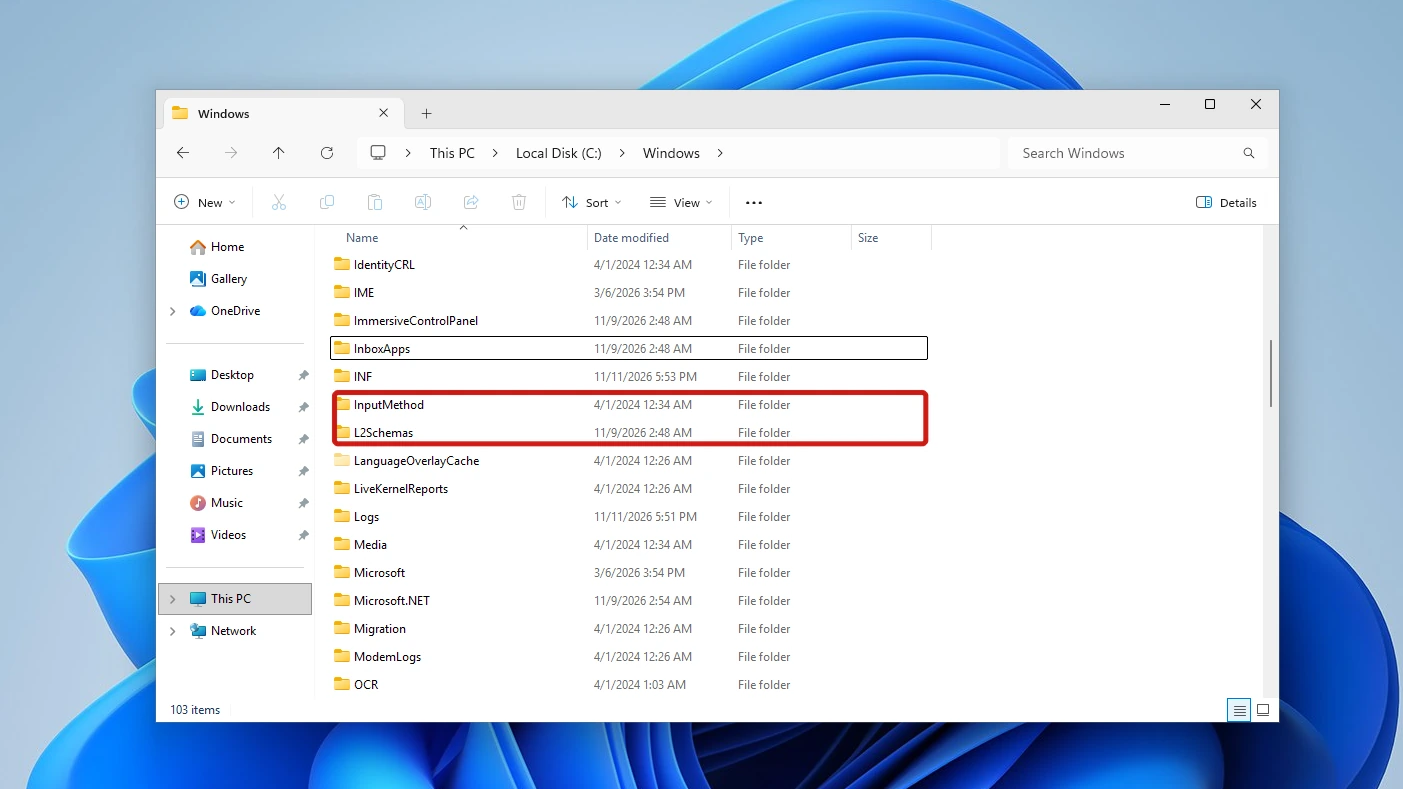
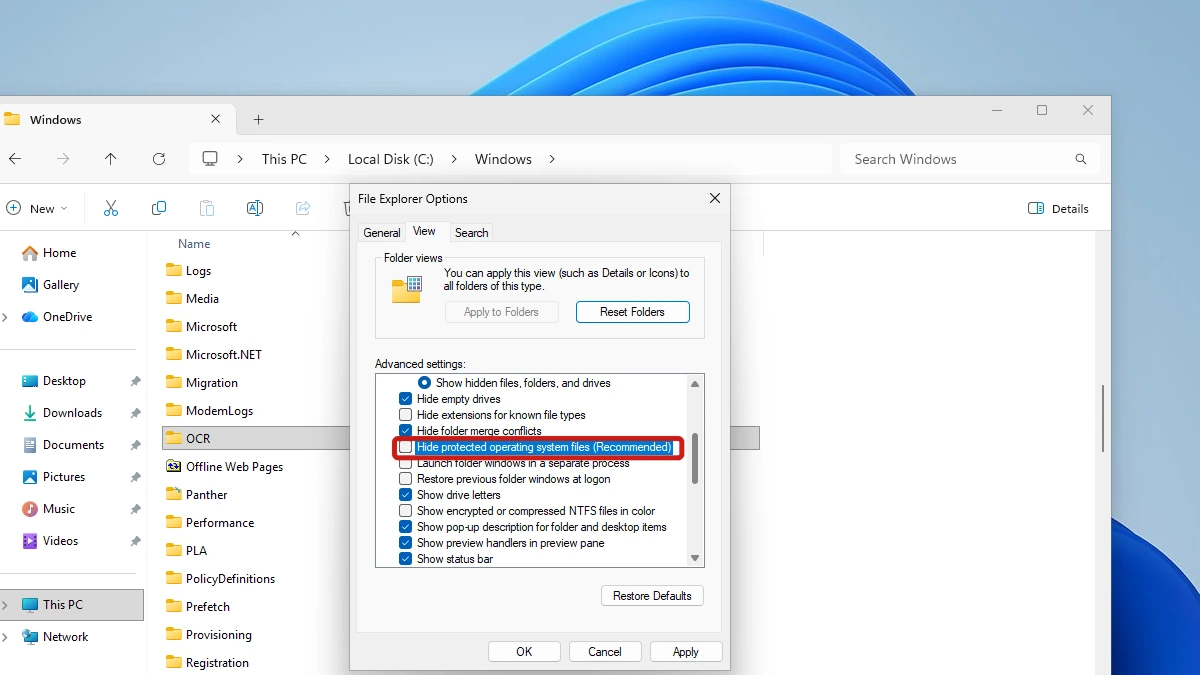
- Click More options (the three dots) on the toolbar, choose Options, select the View tab in the dialog that opens, and untick Hide protected operating system files (Recommended). A Warning dialog appears. That dialog is titled Folder Options in our video, while the title bar in the screenshot below reads File Explorer Options; the View tab and the setting are the same.
- Read the warning, which says these files “are required to start and run Windows” and that deleting or editing them can make your computer inoperable, then click Yes and OK.
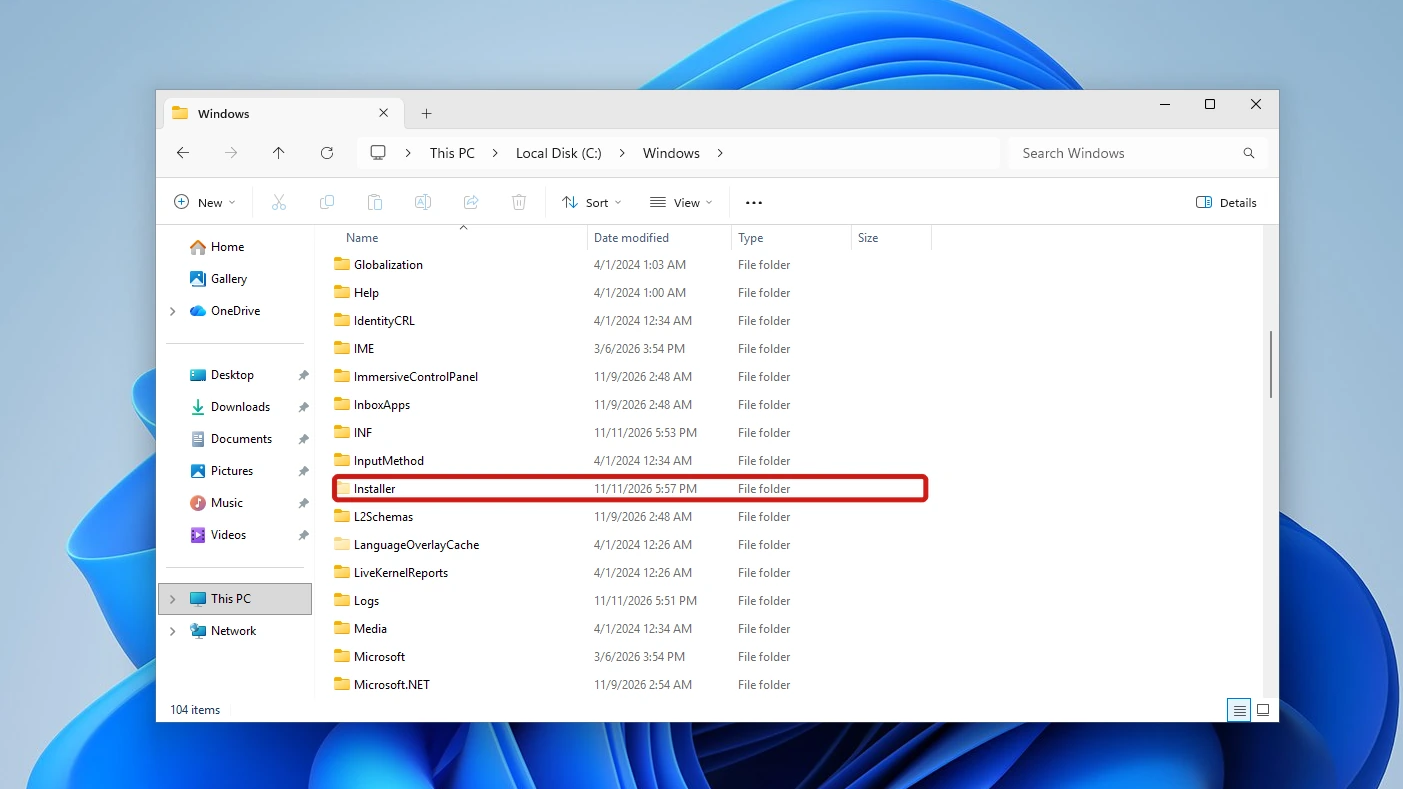
- Look in the Windows folder again. Installer now sits between InputMethod and L2Schemas, listed as a File folder.
The full method to show hidden files in File Explorer, including every route to the Options dialog, is in a separate Rekobyte guide. When you are done, tick Hide protected operating system files (Recommended) again to hide the folder.
Is It Safe to Delete the Windows Installer Folder?
No. Microsoft’s guidance on a missing Windows Installer cache says the cache should not be deleted, and that you may not see problems until you uninstall, repair or update a program. Programs that are already installed can keep running, which is why a deletion can look harmless at first. A 2012 post on an archived Microsoft blog, Can you safely delete files in the %windir%\Installer directory, is blunter: the answer is “No”, and manual removal is not supported. Removing the cache costs you:
- A clean uninstall of the affected programs.
- Repairs when a program’s own files go wrong.
- Updates and patches that need the original package.
Note: Microsoft’s cache guidance says it cannot recommend or endorse the third parties that claim to rebuild or repair the Windows Installer cache. We found no supported cleanup tool for this folder in Microsoft’s documentation.
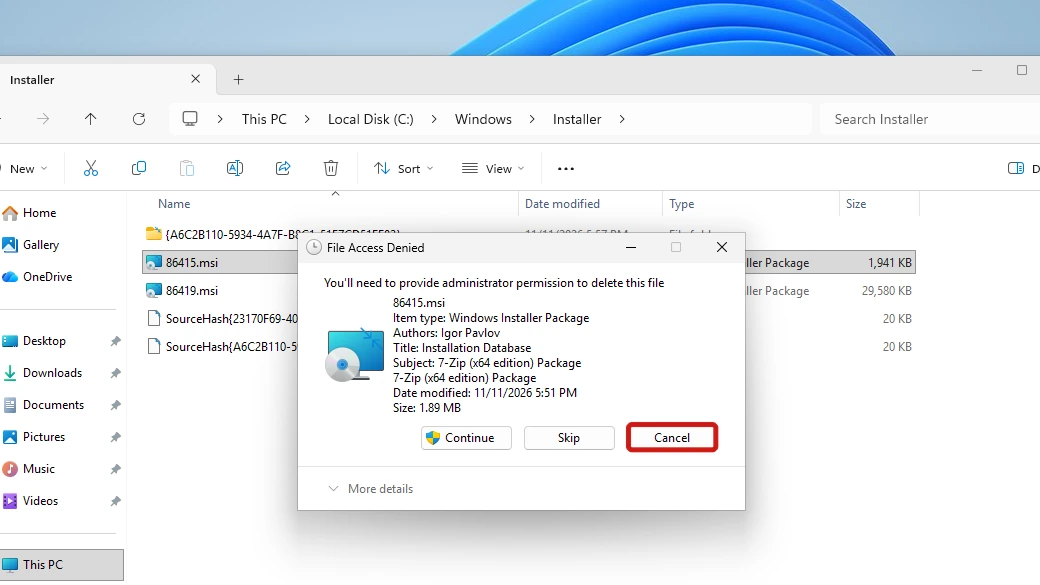
We also tried a single delete on our test PC. With the 7-Zip package, 86415.msi, selected, pressing Delete raised a File Access Denied dialog: “You’ll need to provide administrator permission to delete this file”, with Continue, Skip and Cancel buttons. We clicked Cancel, and the listing afterwards showed all five items unchanged. The prompt only asks for permission and says nothing about whether removal is safe.
Subfolders and Temporary Files: Leave Them Alone
The same verdict covers everything else in the folder. The folders named in braces, one of which held a single icon file on our test PC, belong to installed programs. Temporary or empty subfolders are not documented by Microsoft, and it describes no supported way to remove them, so leave those too. Moving the whole folder to another drive is not something we recommend or cover here.
What Happens If You Deleted the Windows Installer Folder
If you have already deleted the Windows Installer folder or its files, the trouble shows up when you try to uninstall, repair or update a program. Microsoft’s page says these errors might be triggered, and lists them, among others:
1612  The installation source for this product is not available. Verify that the source exists and that you can access it.
1620  This installation package could not be opened. Contact the application vendor to verify that this is a valid Windows Installer package.
1635  Unable to install Windows Installer MSP file
1636  Unable to install Windows Installer MSP file
Missing files cannot be copied from another PC, because the cached files are unique to each machine. Microsoft support engineers cannot recover them either. Work through these options in order:
- Ask the program’s vendor whether it can supply the package or a repair route.
- Restore from a System Restore point or a system-state backup made before the deletion. Where Windows stores restore points, and how to see what you have, is covered in our System Volume Information guide. Microsoft notes it is not possible to replace only the missing files from a previous backup.
- Rebuild Windows and reinstall the programs. In some cases, Microsoft says, you may have to rebuild the operating system and reinstall the application.
Free Up Space Without Deleting the Windows Installer Folder
The folder is big because it holds a copy for every program and patch you have installed. Only one route in this section shrinks it: uninstalling programs. The built-in cleanup tools turned out not to touch it, and third-party cleaners are the one option we cannot call safe.
Method 1: Uninstall Programs You No Longer Use
The 2012 Microsoft blog post above says the proper way to relieve space pressure in this folder is to uninstall applications you do not need. Our measurement fits that: removing a program also removed its cached files, so its own uninstaller is what clears them.
- Open Settings and go to Apps > Installed apps. Find the program in the list, using the search box if it is not near the top. For us it was 7-Zip 24.09 (x64 edition); where yours appears depends on what else is installed, and your version number will differ.
- Click the three-dot menu beside the program and choose Uninstall. A flyout reading “This app and its related info will be uninstalled.” appears, with its own Uninstall button.
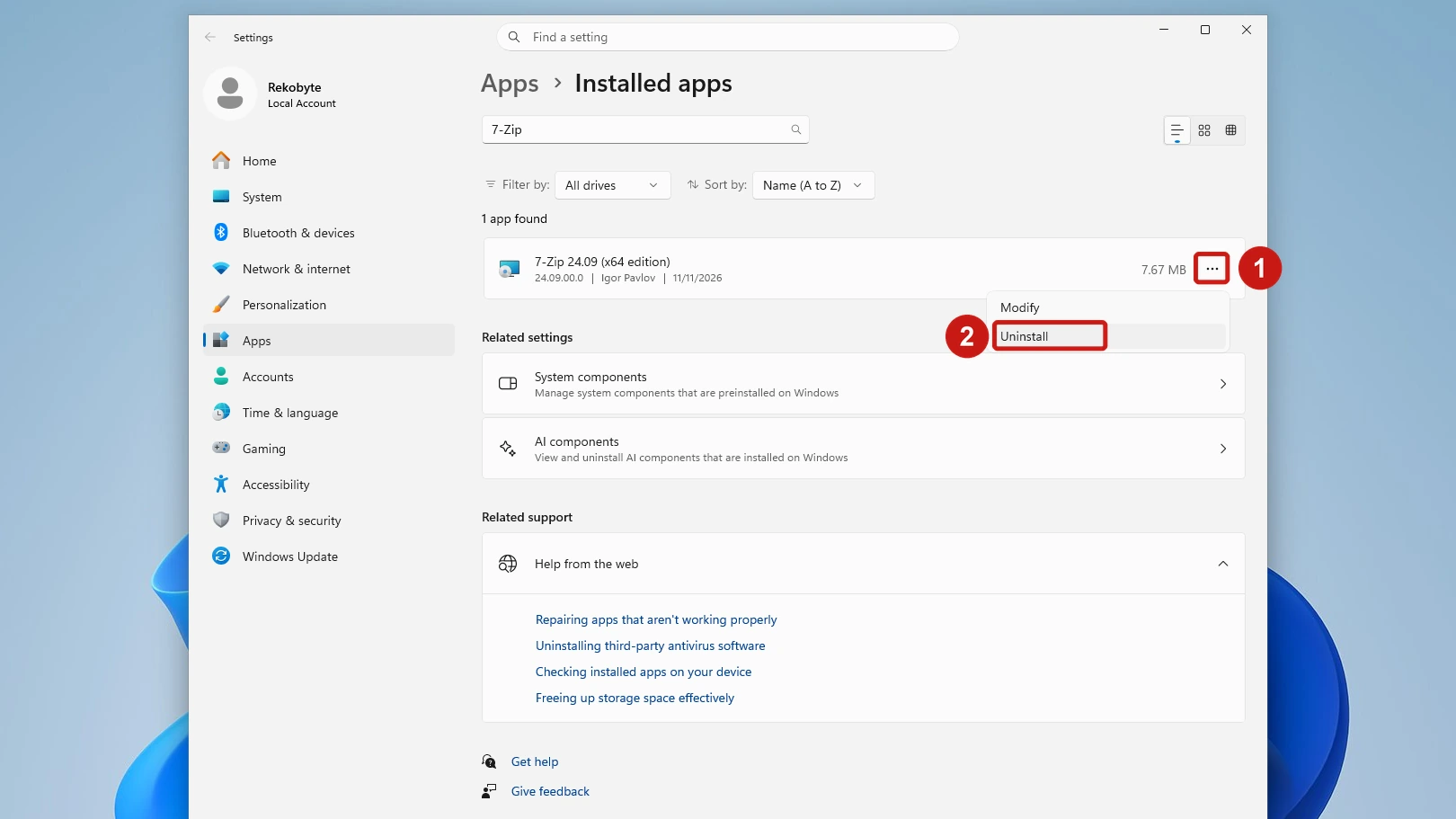
- Click Uninstall in the flyout and approve the Windows permission prompt if one appears. Wait for the removal to finish.
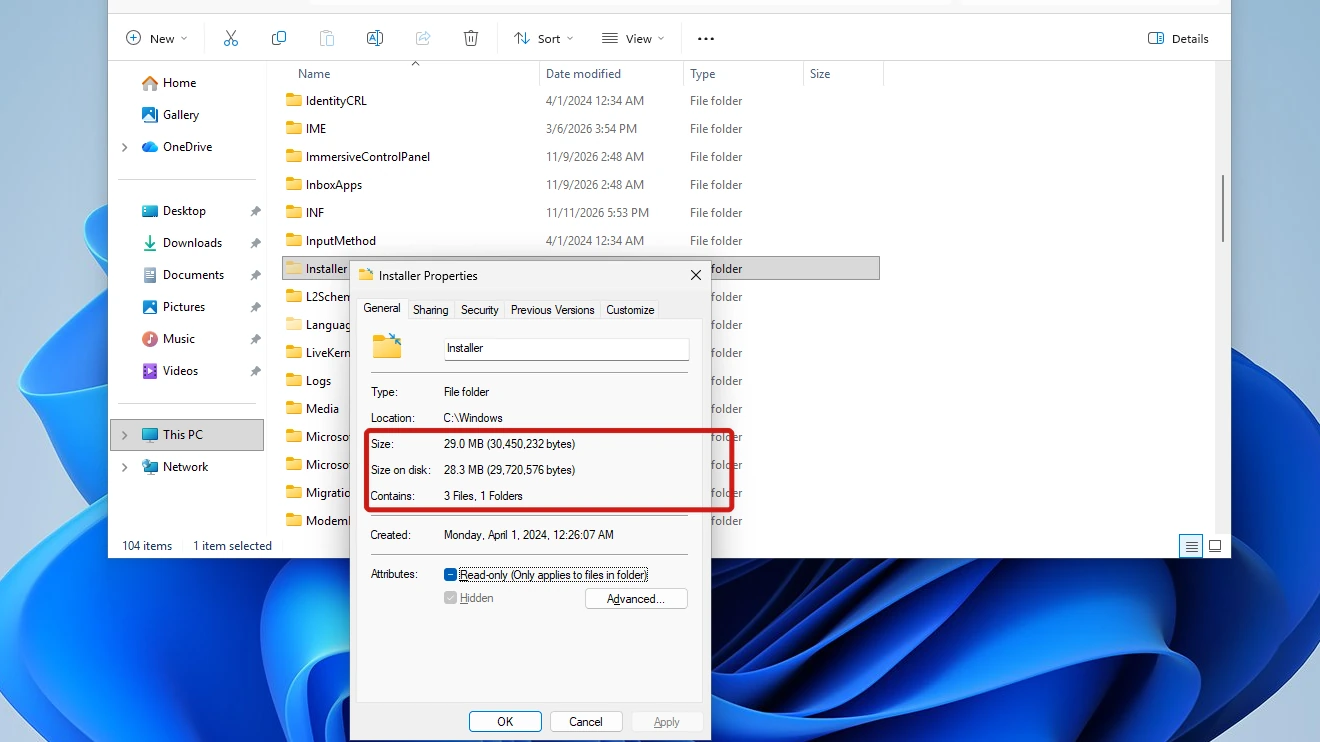
The measurement itself did not come from those Settings steps. We could not screenshot the approval prompt, so we ran the removal with msiexec /x instead. The folder’s Properties changed from 30.9 MB and 5 files to 29.0 MB and 3 files. The 7-Zip package, 86415.msi, and its SourceHash file were gone, and the difference of 2,008,064 bytes equals those two files.
Five ways to remove an app, including winget, and how to find leftover files, are covered in a Rekobyte guide to uninstalling a program properly.
Method 2: Check Disk Cleanup and Storage Sense
This check comes back empty, which is the useful part. Neither tool names the Windows Installer folder on build 26300.9711 (Windows 11 Pro, version 26H2), and Microsoft’s guide to freeing up drive space does not list the folder either. We ran both and measured the cache.
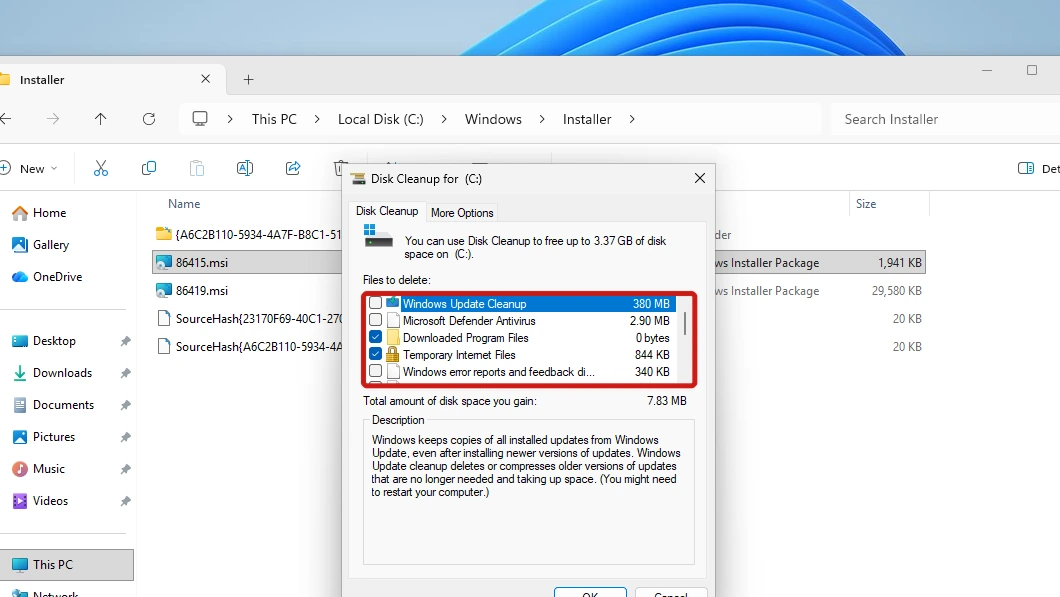
- Open Disk Cleanup for drive C:. Run as an administrator, it opened straight onto the system-files list; on your PC you may need to click Clean up system files first.
- Read the Files to delete list. Ours had 12 entries, including Windows Update Cleanup (380 MB), Delivery Optimization Files (2.99 GB) and Thumbnails (7.01 MB). No entry names the Installer folder.
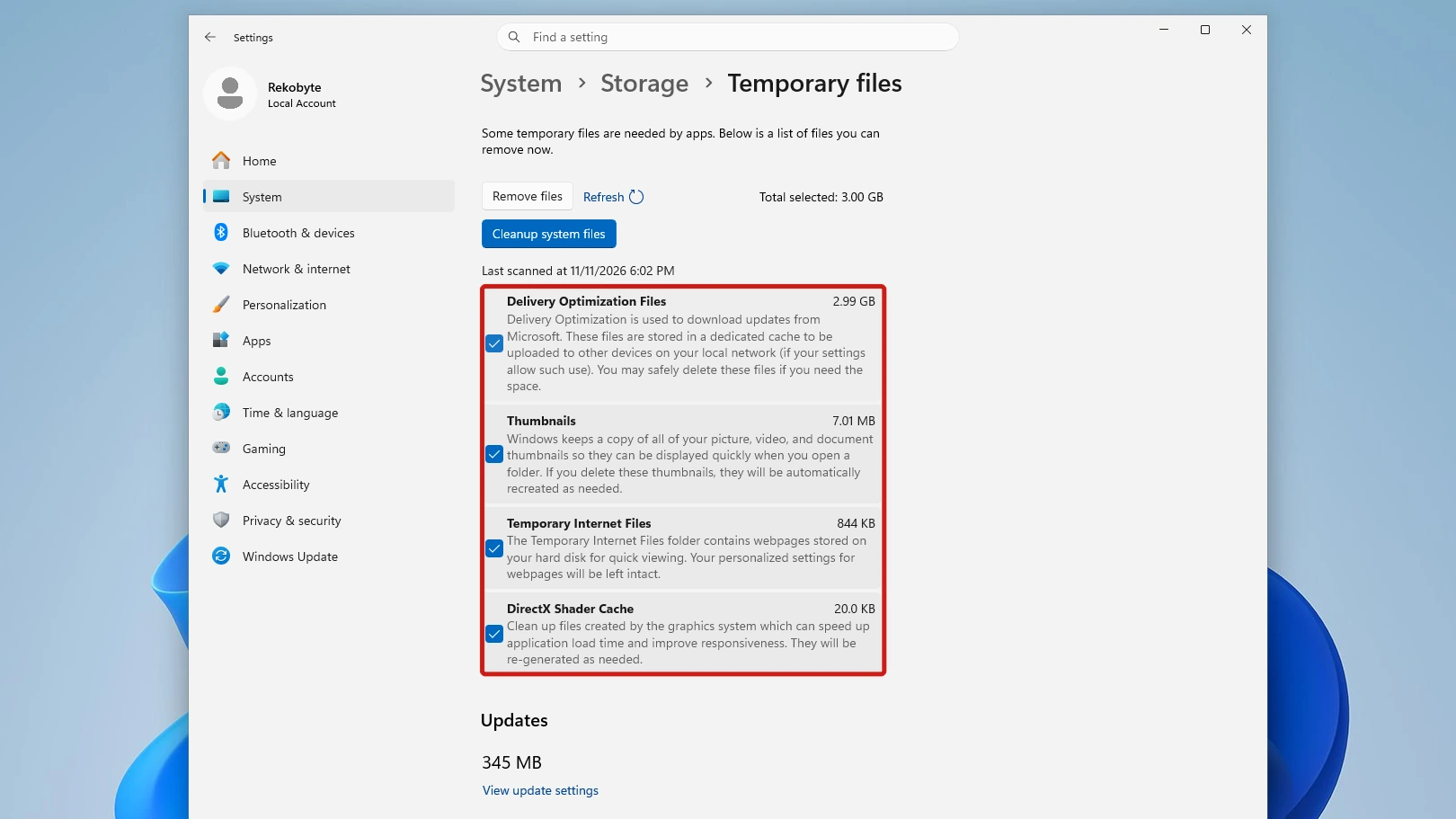
- Open Settings > System > Storage and go to Temporary files. The list held Delivery Optimization Files, Thumbnails, Temporary Internet Files and DirectX Shader Cache, again with no Installer entry.
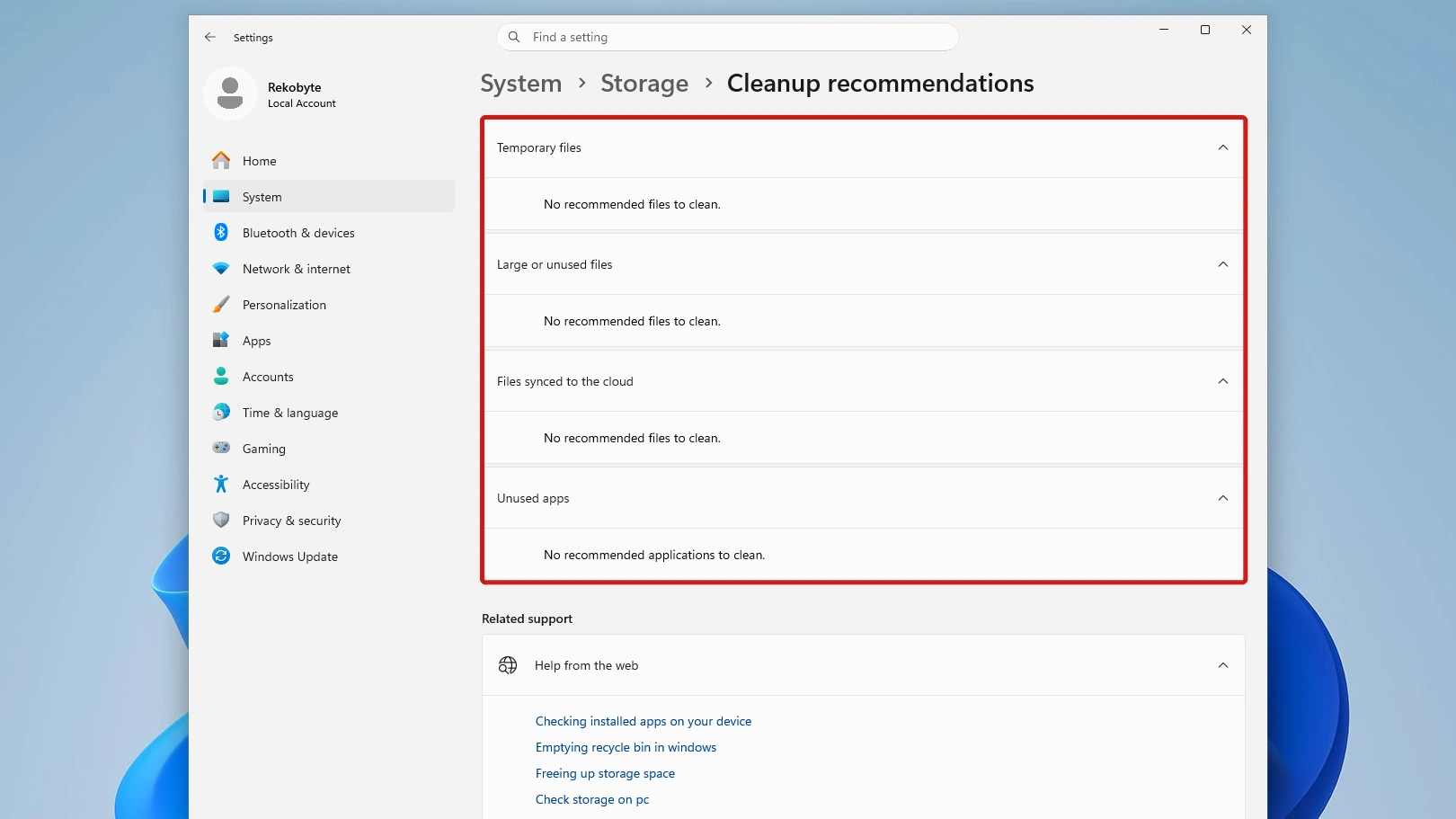
- Open Cleanup recommendations. On our PC every category read “No recommended files to clean.” or “No recommended applications to clean.”
Then we ran the cleanups. We ticked Windows Update Cleanup in Disk Cleanup and confirmed with Delete Files, then clicked Run Storage Sense now. The folder still read 30.9 MB (32,458,296 bytes), 5 files and 1 folder, with no change after either run.
Windows Update Cleanup shrinks a different folder, WinSxS, where the before-and-after sizes are measured. Setting up a regular cleanup routine is part of keeping Windows 11 updated.
About Third-Party Cleaners Such as PatchCleaner
PatchCleaner is the tool most often named for this folder. It compares the .msi and .msp files in the folder with the list Windows reports, tags the rest as orphaned, and can move or delete them. Its vendor says it cannot guarantee a false positive will not happen and recommends Move over Delete. We found no supported cleanup tool for the cache in Microsoft’s documentation, so we do not give a safe verdict on any of them.
Conclusion
Do not delete the Windows Installer folder or the files in it by hand. It is the cache Windows uses to repair, update and uninstall programs installed from .msi packages and .msp patches. Programs may keep running without it, but they can no longer be cleanly updated or removed. Uninstall programs you no longer use to free the space.
Video Guide
Watch the folder shown, the delete prompt cancelled and the uninstall measured on screen.