An empty inetpub folder in your C: drive looks like leftover junk, but it should stay. A Windows security update created it, and Microsoft says to leave it alone. Below: what the folder is, what Windows does when you try to delete it, and how to restore it with Microsoft’s own script if it is already gone. We checked each on-screen detail on a Windows 11 PC and flag what we did not test.
Prefer to watch? See the video guide.
What the inetpub Folder Is
C:\inetpub is a folder in the root of your system drive. The name looks like a leftover because IIS (Internet Information Services), Microsoft’s web server, creates a default website in a folder of that name, as Microsoft’s guide to creating an IIS web site describes. On Windows 11 the folder appears even though IIS is off.
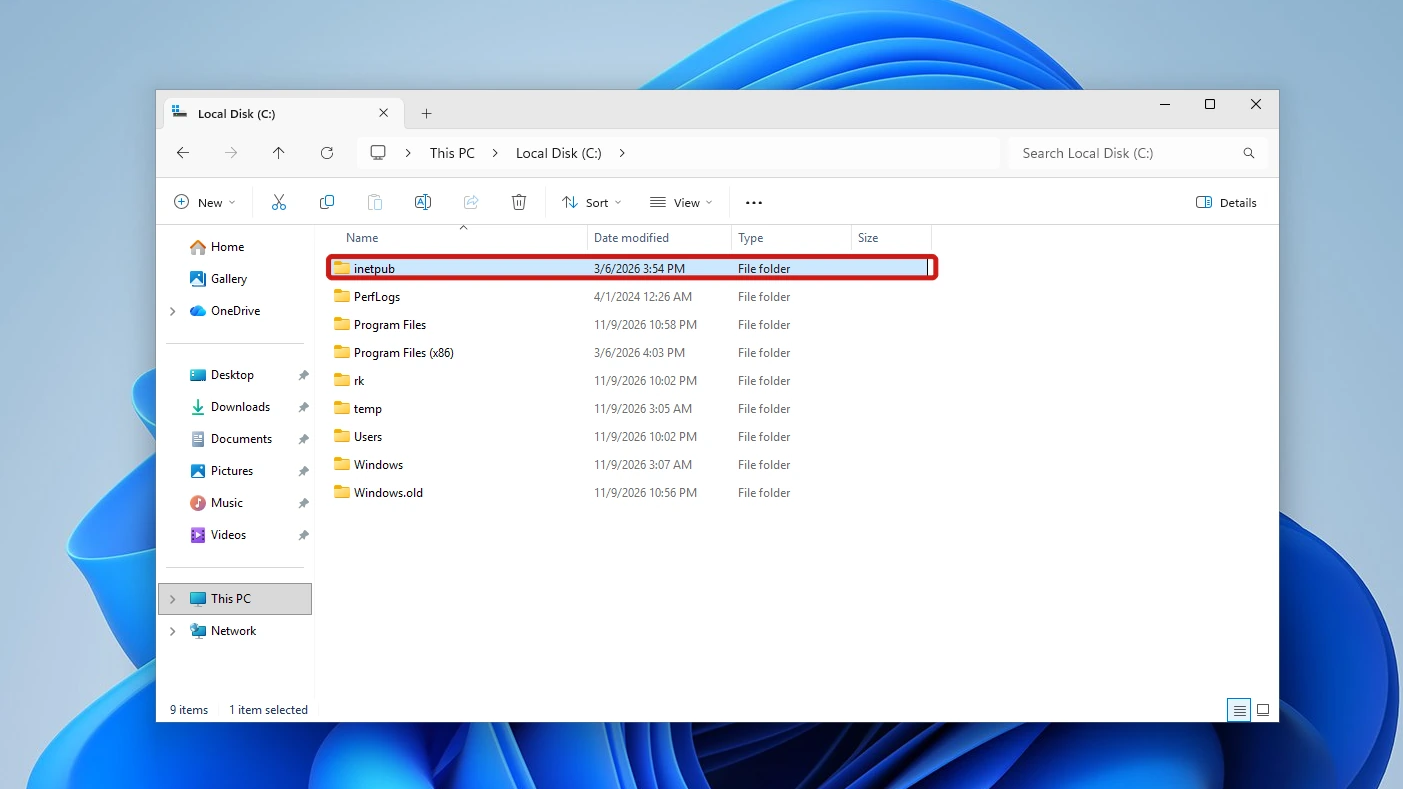
On our PC the folder showed in the C: drive with default File Explorer settings, as a File folder, with no hidden-items toggle needed. Hovering over it showed the tooltip “Empty folder”. It is not malware: Microsoft’s own update note lists it as part of changes that increase protection. Microsoft’s update note does not say how an empty folder does that.
Why the inetpub Folder Is Empty
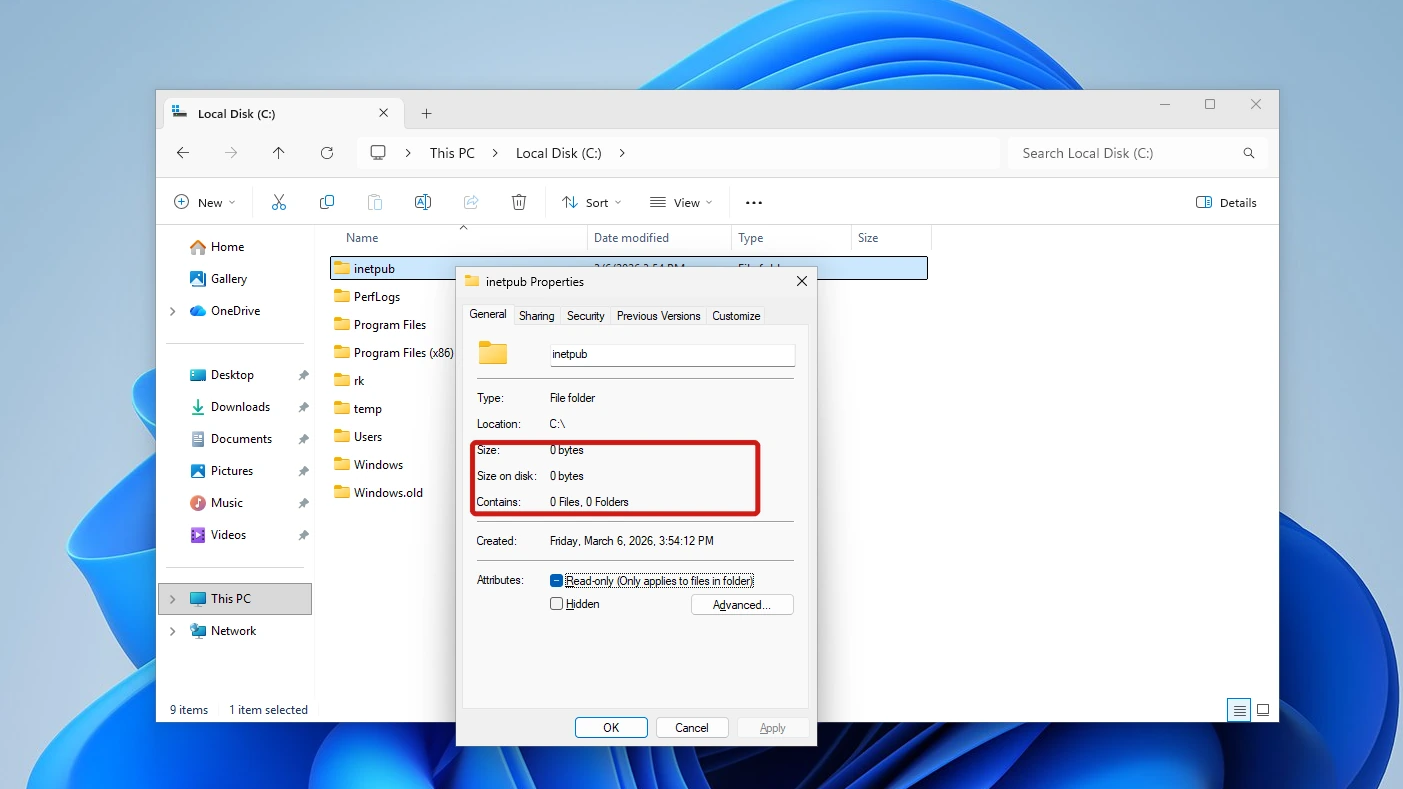
The inetpub folder is normally empty, and Microsoft documents no contents for it on Windows 11. The Properties dialog showed Size 0 bytes, Size on disk 0 bytes and Contains 0 Files, 0 Folders.
The only subfolder Microsoft names is DeviceHealthAttestation, which its security FAQ says certain Server versions got from the February 2025 updates. Ours did not have it, and a PowerShell check that included hidden items found nothing inside, so we saw no sign of a failed update.
Where the inetpub Folder Came From
A Windows update created the inetpub folder. In Microsoft’s note for update KB5055523, the April 8, 2025 security update for Windows 11 24H2, the company says:
“After installing this update or a later Windows update, a new %systemdrive%\inetpub folder will be created on your device. This folder should not be deleted regardless of whether Internet Information Services (IIS) is enabled on the target device.”
Microsoft’s record for CVE-2025-21204 carries the same folder note and describes an elevation-of-privilege flaw in the Windows Update stack, caused by improper link resolution (link following). An attacker who exploited it could perform file operations as SYSTEM. Microsoft rates it Important, with “Exploitation Less Likely”, and lists it as neither publicly disclosed nor exploited.
Can You Delete the inetpub Folder?
No, do not delete the inetpub folder. Microsoft says it should not be deleted whether or not IIS is enabled, and it documents no case where removing it is fine. A security update created it for protection, and because it is empty, deleting it frees no space.
For contrast, PerfLogs is another empty-looking folder, but it is safe to delete for most people once you have checked it holds none of your own logs. The Windows Installer folder is one Microsoft says to keep, and that guide lists the errors you get if you remove it.
What Windows Shows When You Try to Delete It
Microsoft does not say deletion is blocked, so we tried it. We selected the folder and pressed Delete. Windows opened a Folder Access Denied dialog that read “You’ll need to provide administrator permission to delete this folder”, with the folder name and its creation date, and three buttons: Continue (with a UAC shield), Skip and Cancel. There was no Recycle Bin confirmation.
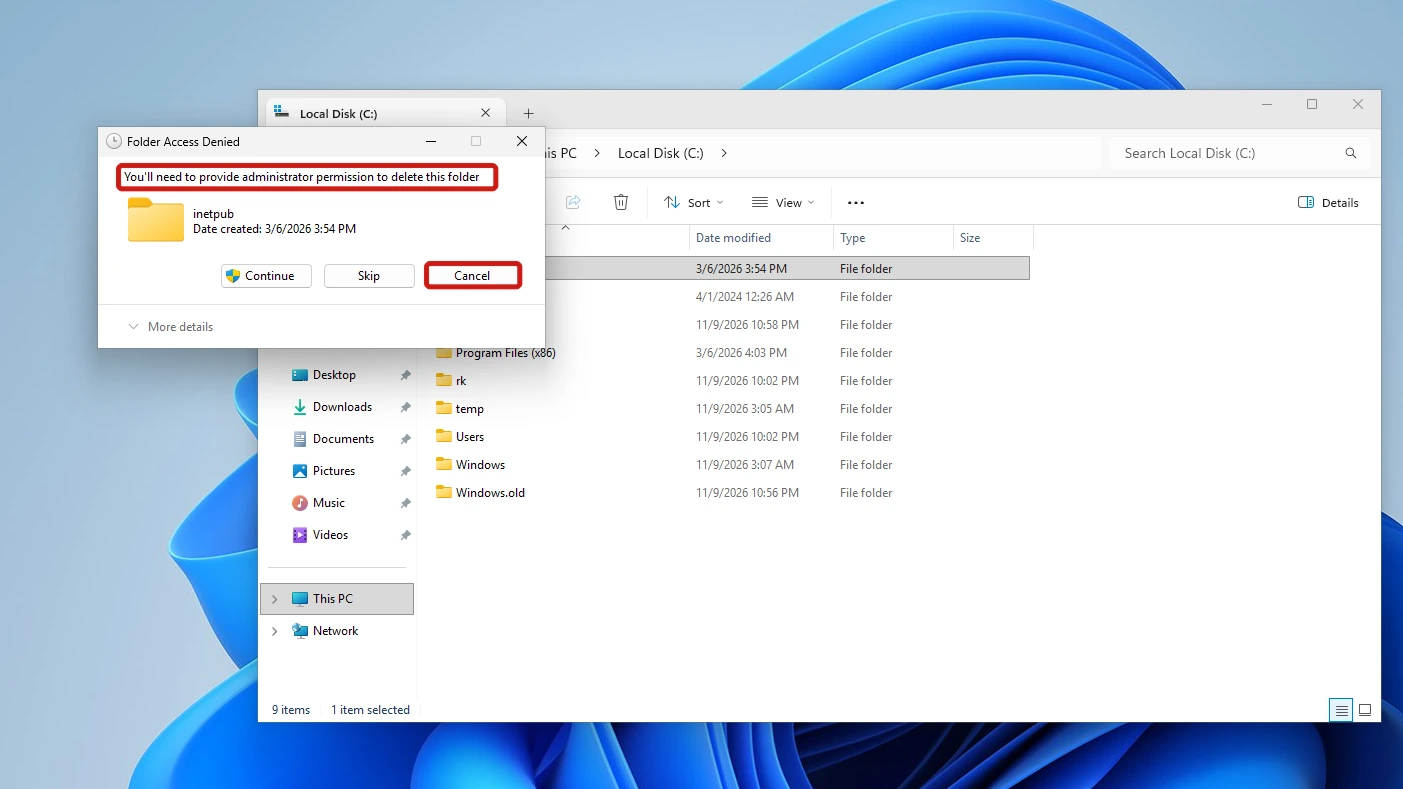
We clicked Cancel. The dialog closed, and after a refresh the folder was still listed. We did not click Continue, and you should not either. We cannot say what happens after it, and nothing in the dialog says whether the folder is needed, so the verdict stands.
Check the Permissions on the inetpub Folder
The inetpub folder has a short permissions list that explains the prompt above. To see it, right-click the folder, choose Properties and open the Security tab. The tab listed five names, and the Advanced button opened the full list without a prompt, showing SYSTEM as the owner.
| Account | What it can do |
|---|---|
| SYSTEM | Full control |
| Administrators | Full control |
| TrustedInstaller | Full control |
| Standard accounts (Security tab > Users) | Read & execute |
| CREATOR OWNER | Full control, on subfolders and files only |
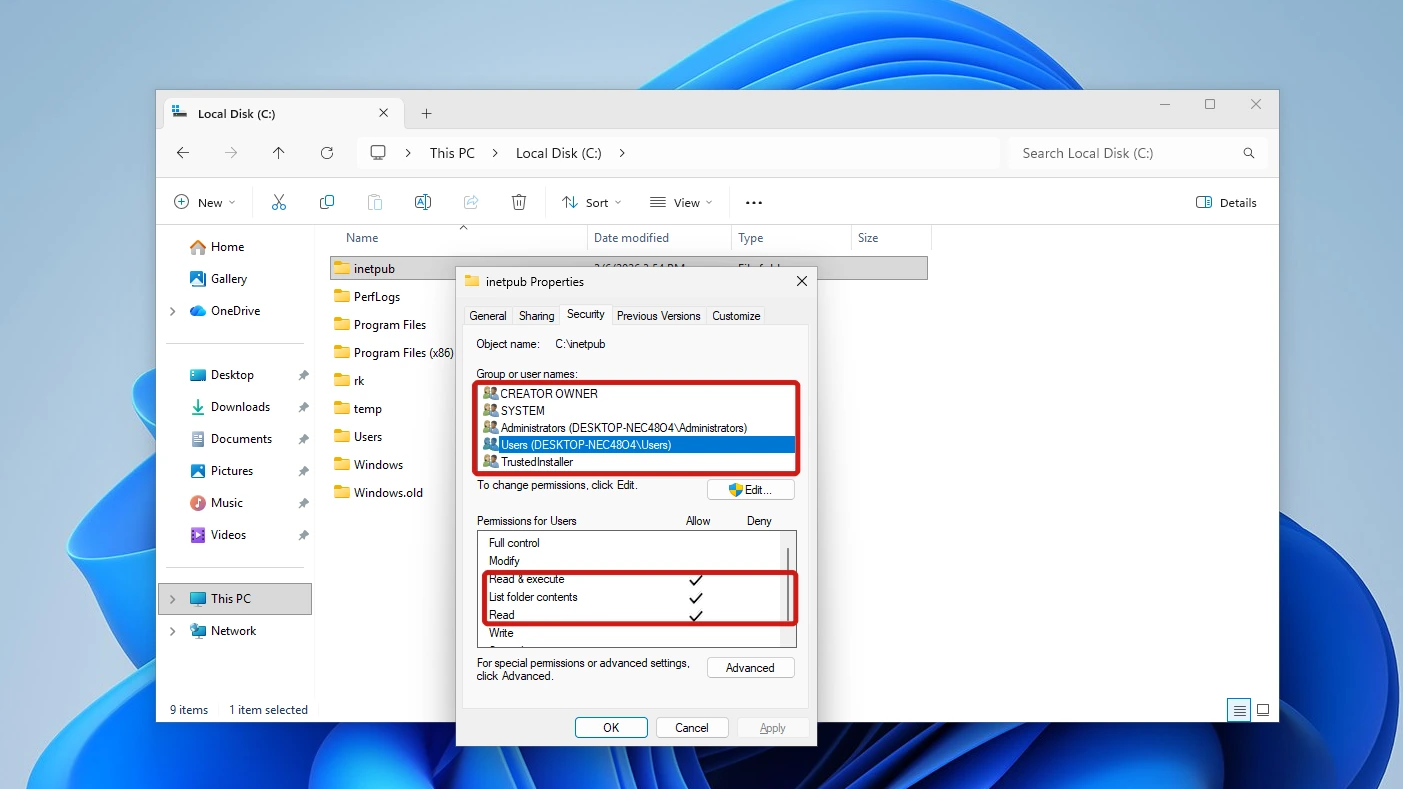
In plain terms, ordinary accounts can look inside the folder but not change it. The Edit button carries a UAC shield. Microsoft’s remediation script applies the same five accounts, so a restored folder should list the same names.
What to Do If You Already Deleted It
If the inetpub folder is missing, whether an update, a cleaner or you removed it, Microsoft’s instruction in its CVE-2025-21204 record is to run the remediation script Set-InetpubFolderAcl. If the folder is intact, the record says no additional action is required. We found nothing in Microsoft’s documents saying a later cumulative update recreates a deleted folder by itself.
Run Microsoft’s Set-InetpubFolderAcl Script
The script recreates the inetpub folder if it is missing, applies the permissions for those accounts and updates the permissions on DeviceHealthAttestation if that subfolder exists. It exits without making any changes if the folder holds any other subfolders, and it refuses to run if inetpub is a reparse point. Microsoft’s Set-InetpubFolderAcl script on the PowerShell Gallery has the script’s source and its own help text.
- Open Windows Terminal or PowerShell as administrator. The script is designed to run as administrator.
- Install the script from the PowerShell Gallery. The Gallery page shows this command:
Install-Script -Name Set-InetpubFolderAcl
- Preview the changes first. The script’s own help text includes the example below, and -WhatIf shows what the script would do without changing anything. The .\ form runs a script from the current folder, so it assumes you are in the folder the script was installed to. Microsoft Learn’s Install-Script page says the command adds that install location to your PATH by default, but neither it nor the Gallery page gives a run command for this script, so we show only the help text’s:
.\Set-InetpubFolderAcl.ps1 -whatif
- Run the same command again without -WhatIf.
- Open the C: drive in File Explorer and confirm the inetpub folder is back, then compare its Security tab with the table in the previous section.
These steps follow the Gallery page and the script’s help text. We did not run the script.
About the Turn Windows Features On or Off Route
Turning on the Internet Information Services feature is another place the folder comes up. It is in Control Panel > Programs and Features > Turn Windows features on or off. On our PC the Internet Information Services row had an empty, unticked checkbox, and we only viewed the dialog and closed it with Cancel.
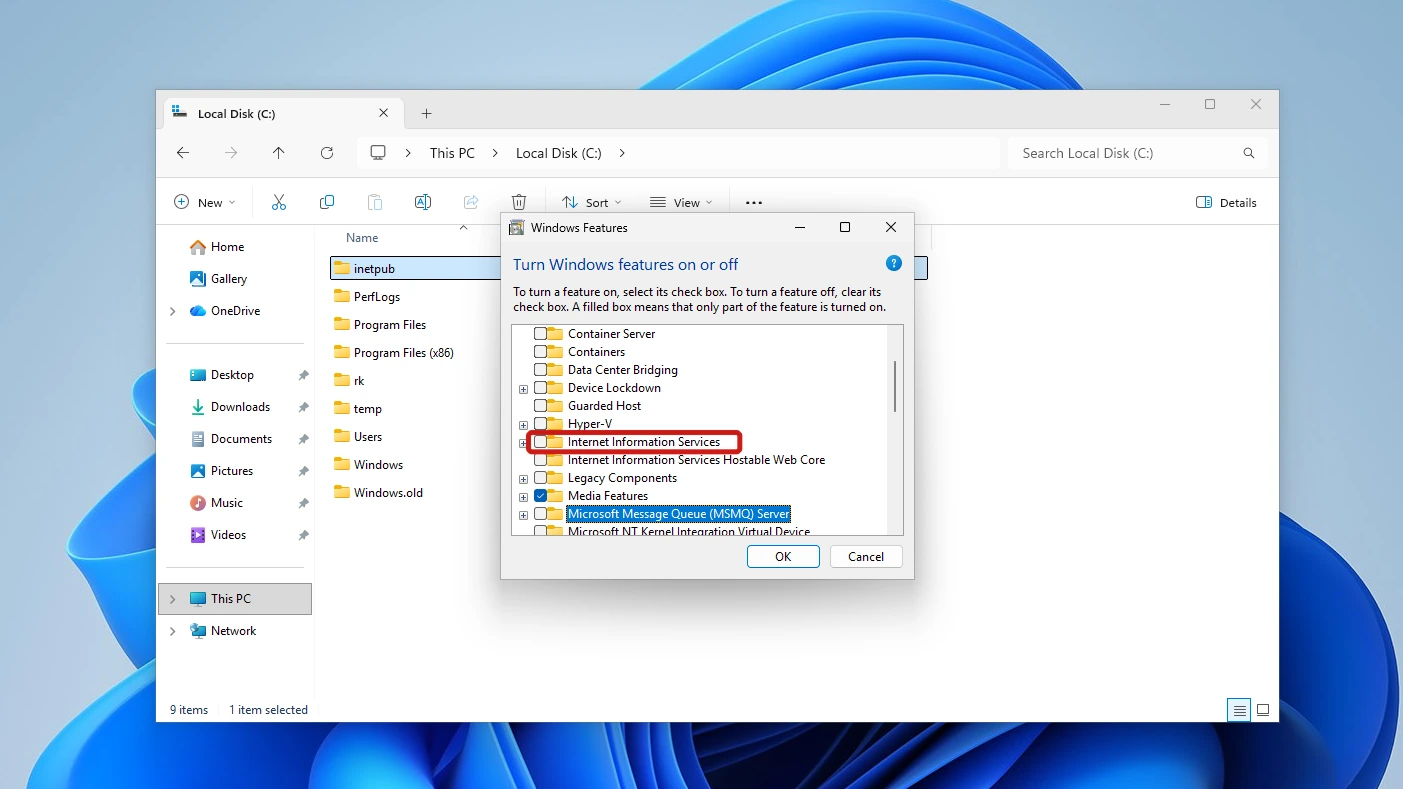
Not confirmed: We found no Microsoft document saying turning this feature on recreates the folder or applies the permissions listed above, and it adds web-server components you may not want. Microsoft documents only the script as the fix, so use that.
Conclusion
No, do not delete the inetpub folder. A Windows security update from April 2025 creates it, and Microsoft says it should stay whether or not IIS is enabled. If you already deleted it, run Microsoft’s Set-InetpubFolderAcl script as administrator to recreate it with the right permissions.
Video Guide
Watch the folder in the C: drive, the delete prompt cancelled and the permissions read on screen.