The Windows.db file is a hidden system file, and before you remove one of those you want to know what it does. Third-party guides say it only holds the Windows Search index, and the Rebuild button in Settings, the route Windows itself provides, replaces it for you.
This guide explains what the Windows.db file is, where to see it in File Explorer, how to rebuild the search index in six steps, and what to expect while Windows indexes again. We ran the rebuild on a Windows 11 test PC and measured the folder before and after.
Prefer to watch? See the video guide.
What the Windows.db File Is
The Windows.db file is where Windows Search keeps its index. Per Microsoft’s page on search indexing, that index records:
- File names and paths.
- File properties.
- The contents of text files, plus extra data that apps such as Outlook add.
File Explorer search, Edge address-bar history results and Outlook offline search all read from it. It is an index of your files, not a copy of them.
Windows Vista through Windows 10 kept the index in a single database called Windows.edb. A security firm’s write-up says Windows 11 uses SQLite files instead: Windows.db, Windows-gather.db and Windows-usn.db. All three were present on our build 26300 test PC. If you searched for the old .edb name, Windows.db is the Windows 11 equivalent. Thumbs.db is a different database, and our Thumbs.db guide covers what that one holds and when deleting it makes sense.
Where the Windows.db file lives
The Windows.db location is this folder, shown as text to recognise, not to type:
C:\ProgramData\Microsoft\Search\Data\Applications\Windows\
Nothing is removed in this part, and a rebuild replaces only the search index, never your own files. The safety section below gives the reasoning. The folder is hidden, so you reach it by double-clicking down through the folders. Typing the path into the address bar gave us “Access denied” on our test PC, and the route below worked. Looking is optional, but it lets you compare the folder before and after the rebuild.
- Open File Explorer, click This PC, and double-click Local Disk (C:).
- Click View > Show > Hidden items, which makes the ProgramData folder appear. The File Explorer switch is one of two ways to turn on hidden items; the other is in Folder Options.
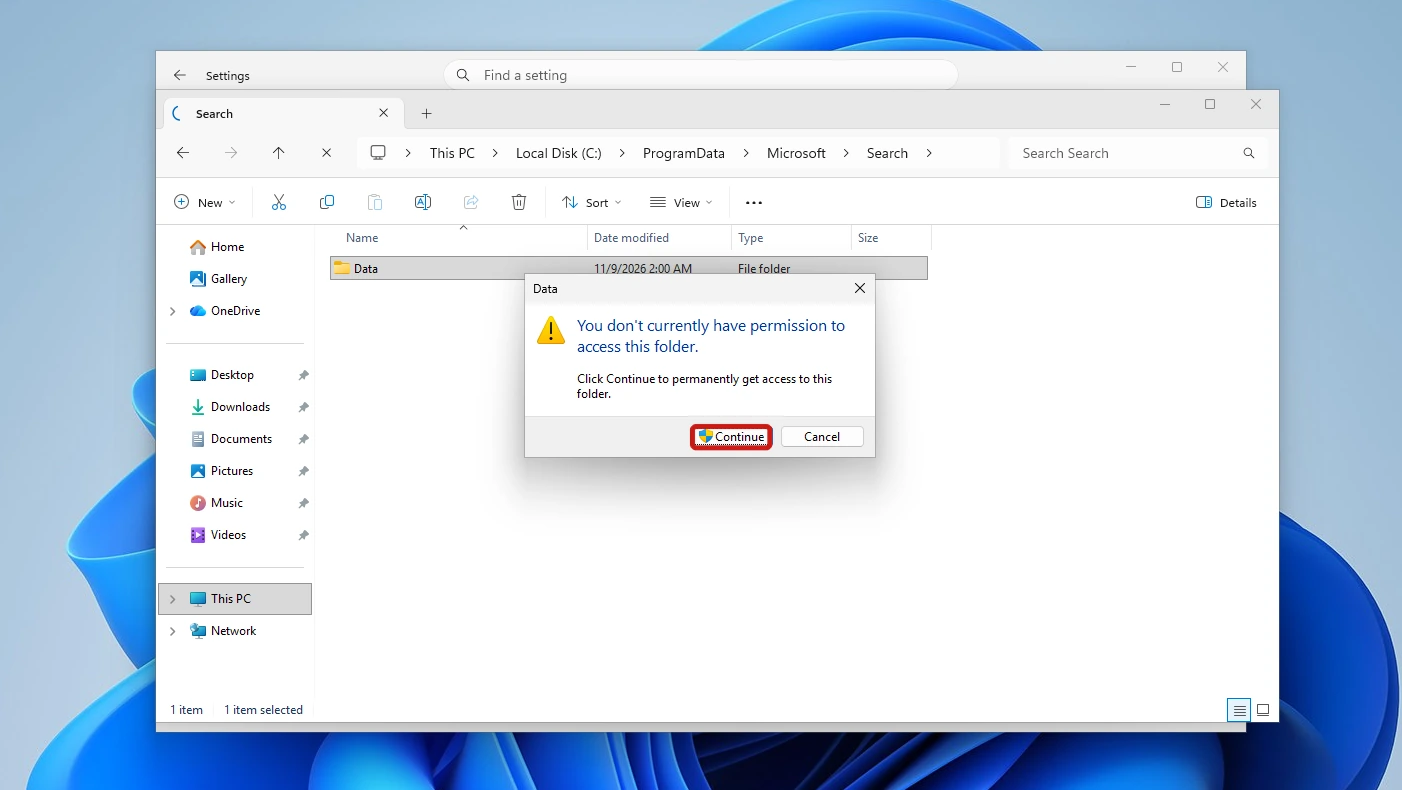
- Double-click ProgramData, then Microsoft, then Search, then Data. Windows asks “You don’t currently have permission to access this folder. Click Continue to permanently get access to this folder.” Click Continue, which gives you access to that folder.
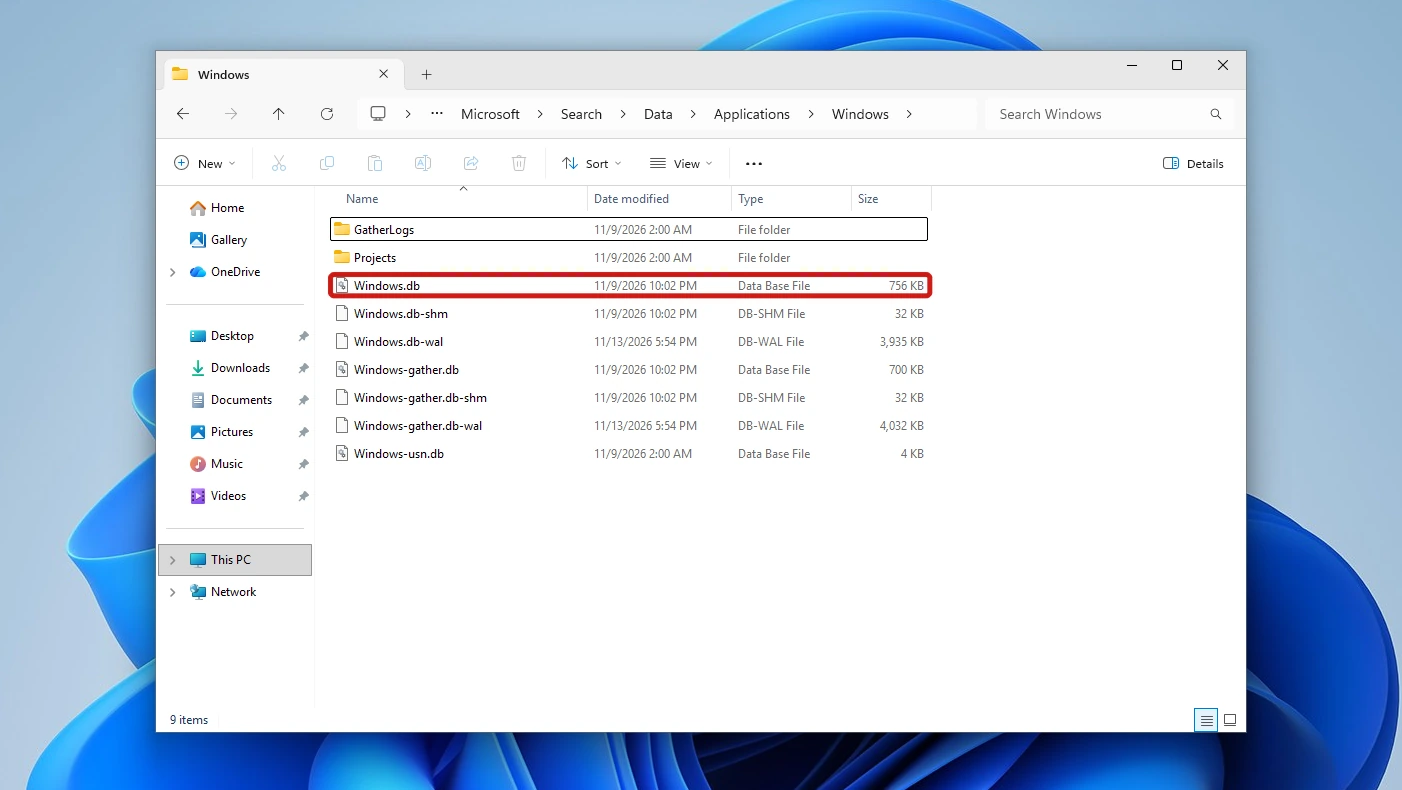
- Double-click Applications, then Windows. This folder holds Windows.db and its companions, and no further prompt appeared on this VM. If you do not see the .db ending, look for the “Data Base File” entry named Windows. Note the size and Date modified of the Windows.db file, because step 6 of the rebuild steps below compares them.
Why the index grows
Microsoft says the index is normally less than 10 percent of the size of the files it covers. It can run larger in a few situations:
- You have many very small files (under 4 KB) or a lot of code.
- Outlook PST files are indexed, which Pure Infotech names as a cause of a large Windows.db.
- You set Find my files to the second radio button, Search your entire PC, instead of only Documents, Pictures, Music and the desktop.
Is It Safe to Delete the Windows.db File?
The Windows.db file holds an index and none of your own files, so third-party guides such as woshub and The Windows Club call removing it safe: only the search index is reset, and you lose no data. Both are written about the older Windows.edb. We found no Microsoft page that documents deleting the file by hand, so the Rebuild button is the supported route and the only one we teach. It deletes the old file and creates a new one. Older pages still teach esentutl defragmenting, but woshub says esentutl cannot defragment the SQLite databases Windows 11 uses.
| What you lose | What you pay |
|---|---|
| Nothing but the index itself. Your own files stay. | Incomplete search results until Windows finishes indexing again. |
Rebuilding is worth it when the file is eating space or search results are wrong. Do not do it to fix an unrelated problem, because it resets search for a while.
How to Shrink the Windows.db File from Settings
These steps replace the Windows.db file using only Settings and the Indexing Options dialog. No command line, registry edit or manual deletion is involved. The page is called Search on current builds of Windows 11, and older builds label it Searching Windows.
- Open Settings, go to Privacy & security > Search, and scroll down to Related settings. The link you need is in that list, below Manage accounts on this device and Personalize Windows Search on the taskbar.
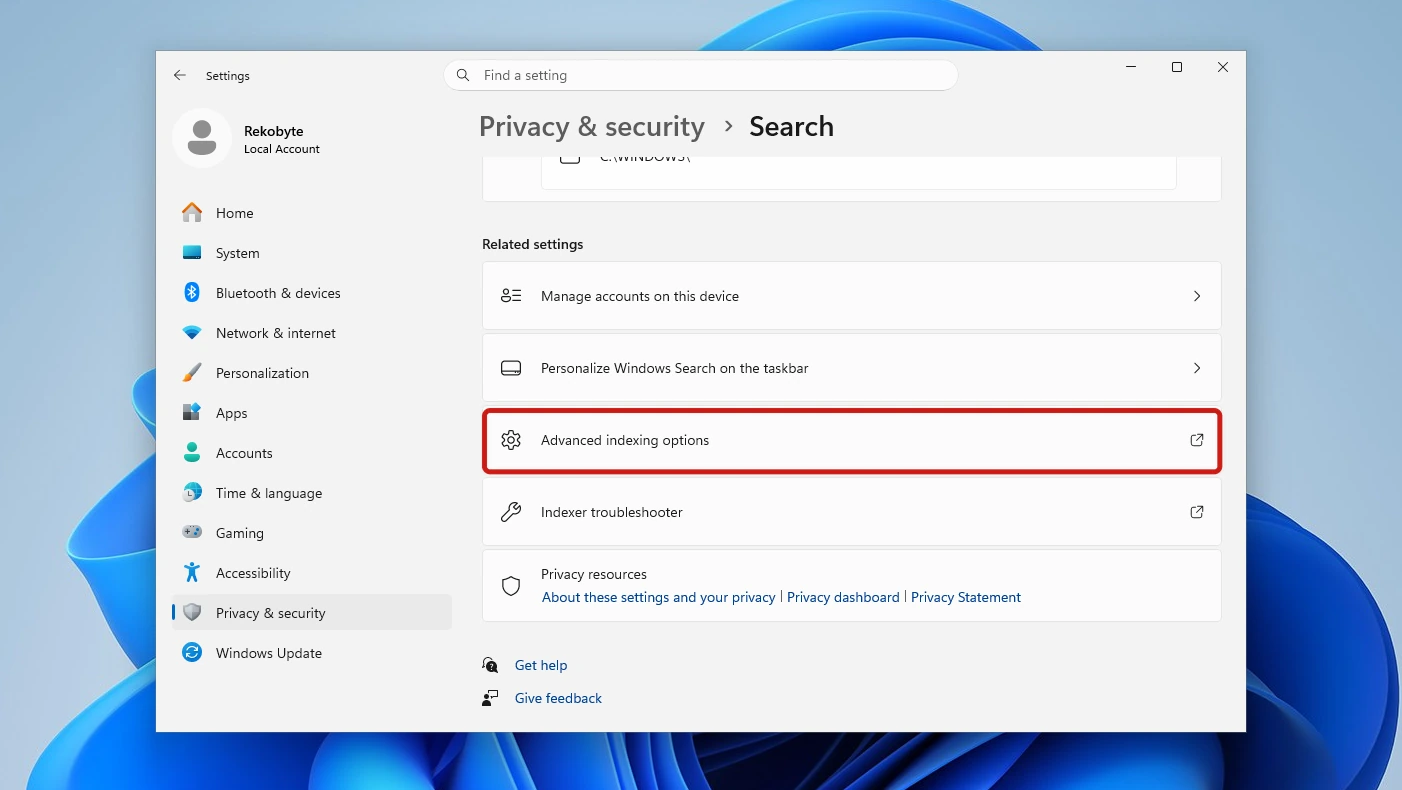
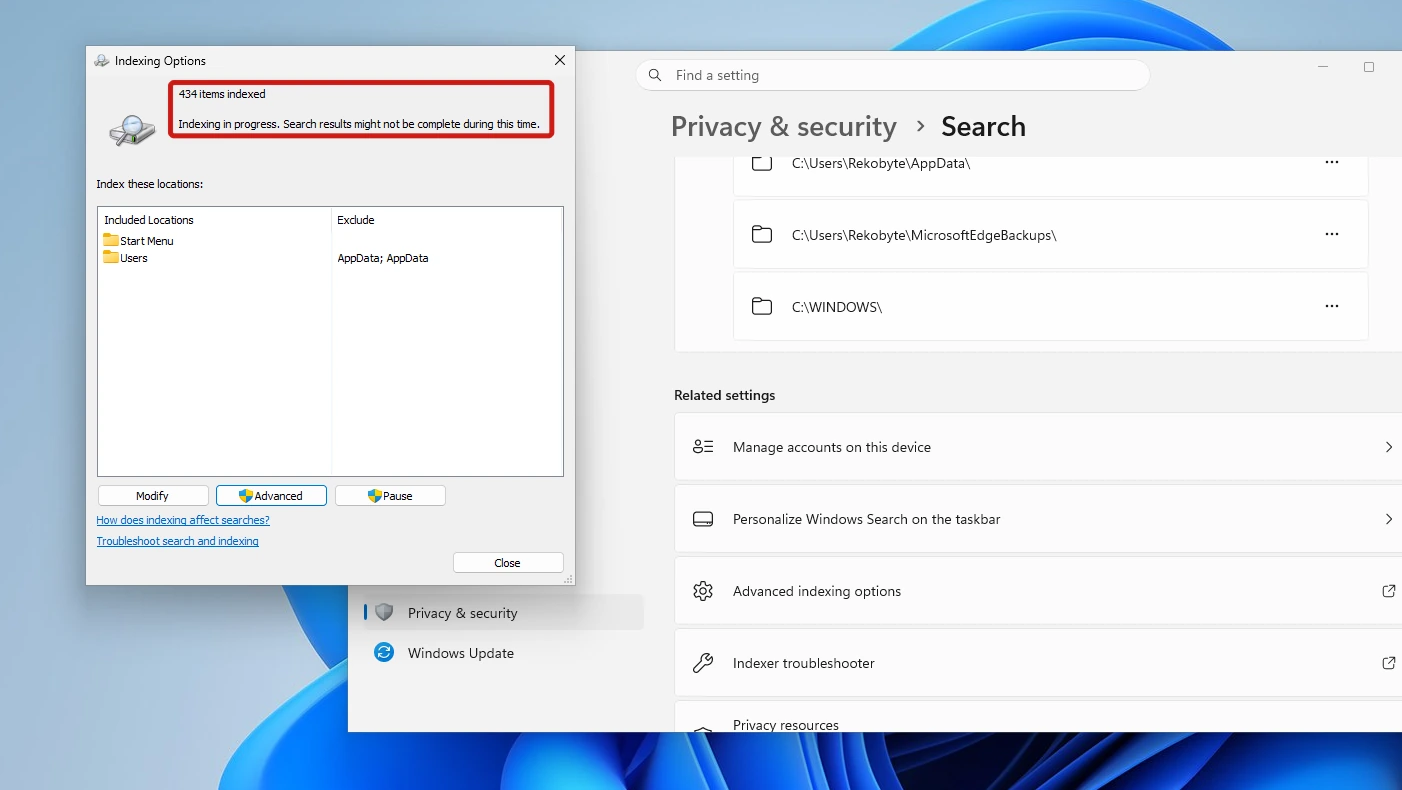
- Click Advanced indexing options. The classic Indexing Options dialog opens and shows how many items are indexed and the current status.
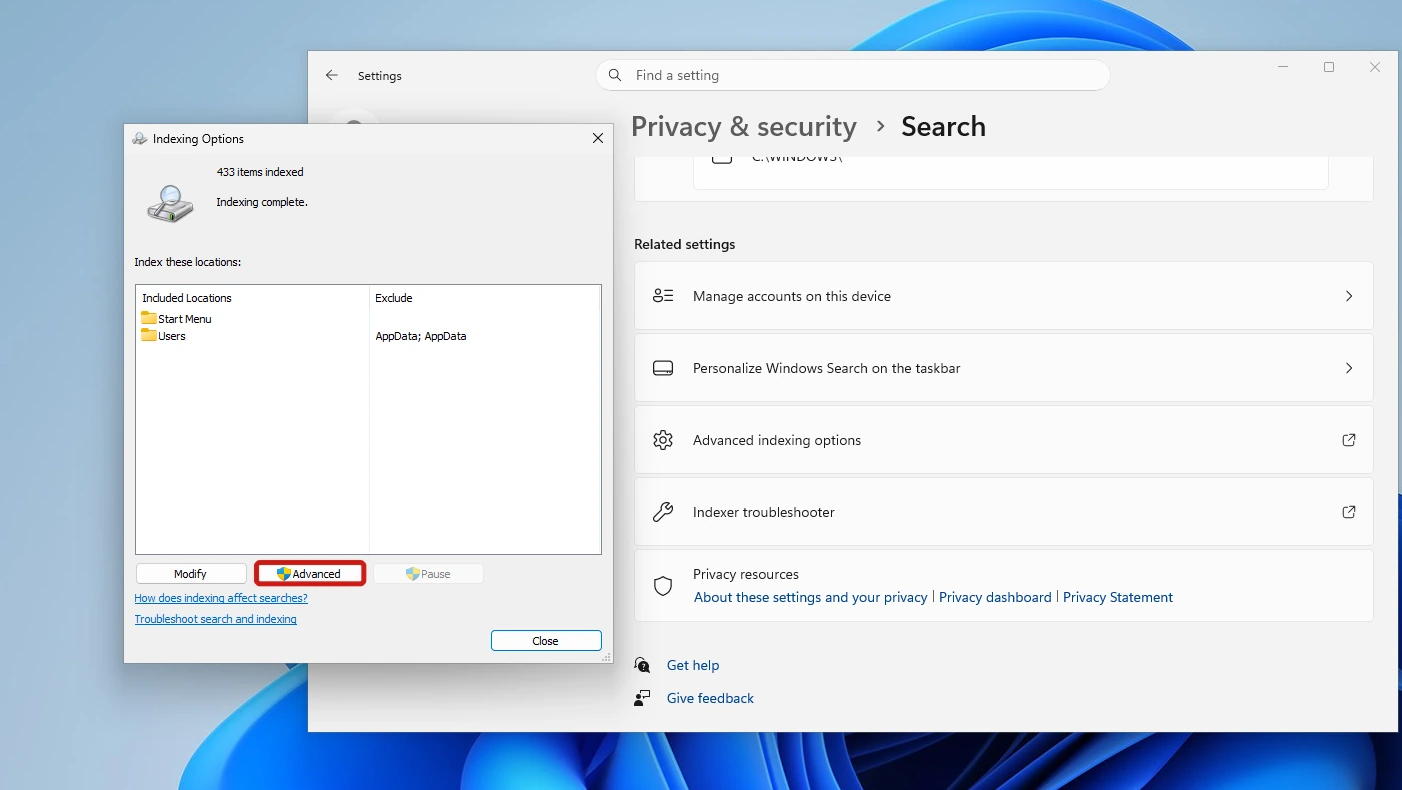
- Click Advanced, then stay on the Index Settings tab. A shield icon sits on the button, but no admin prompt appeared on our test PC. Under Troubleshooting, Delete and rebuild index has the Rebuild button.
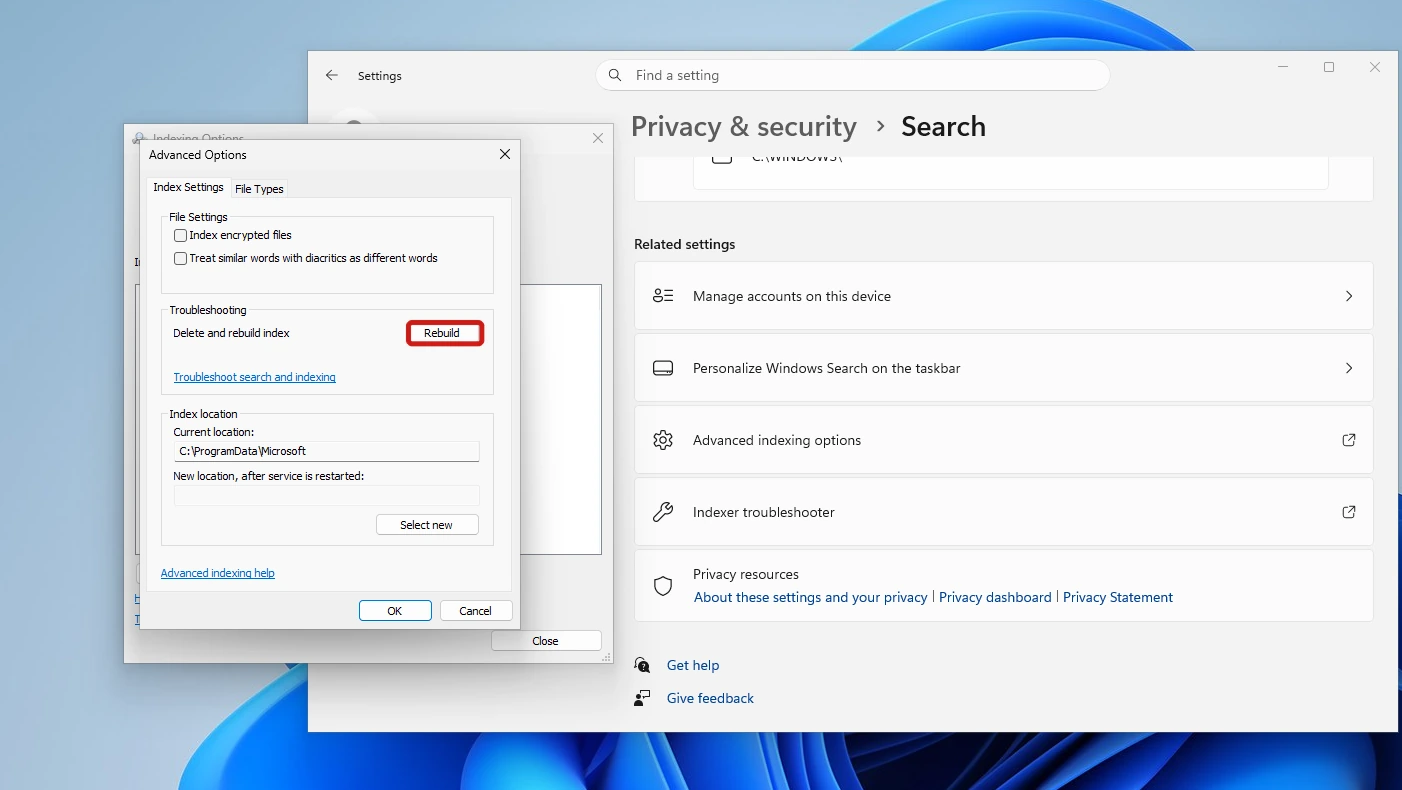
- Click Rebuild. The Advanced Options dialog closes by itself and the Rebuild Index prompt appears. Read it, then click OK to start. Windows deletes the old index and creates a new one.
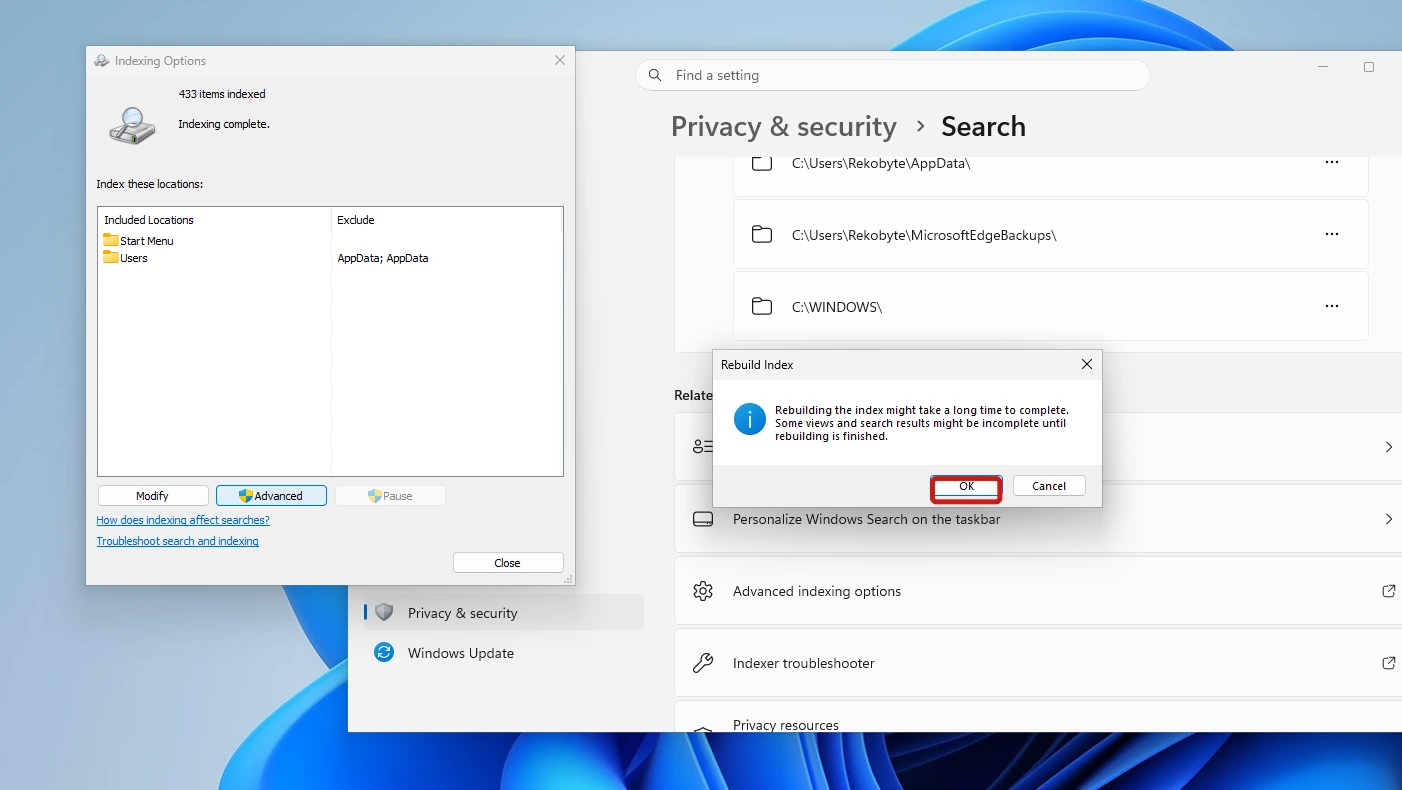
- Leave the Indexing Options dialog open, or reopen it, and watch the status line. The Pause button is enabled while indexing runs and greyed out when it is idle. The status reads “Indexing in progress.” during the rebuild and “Indexing complete.” when it is done.
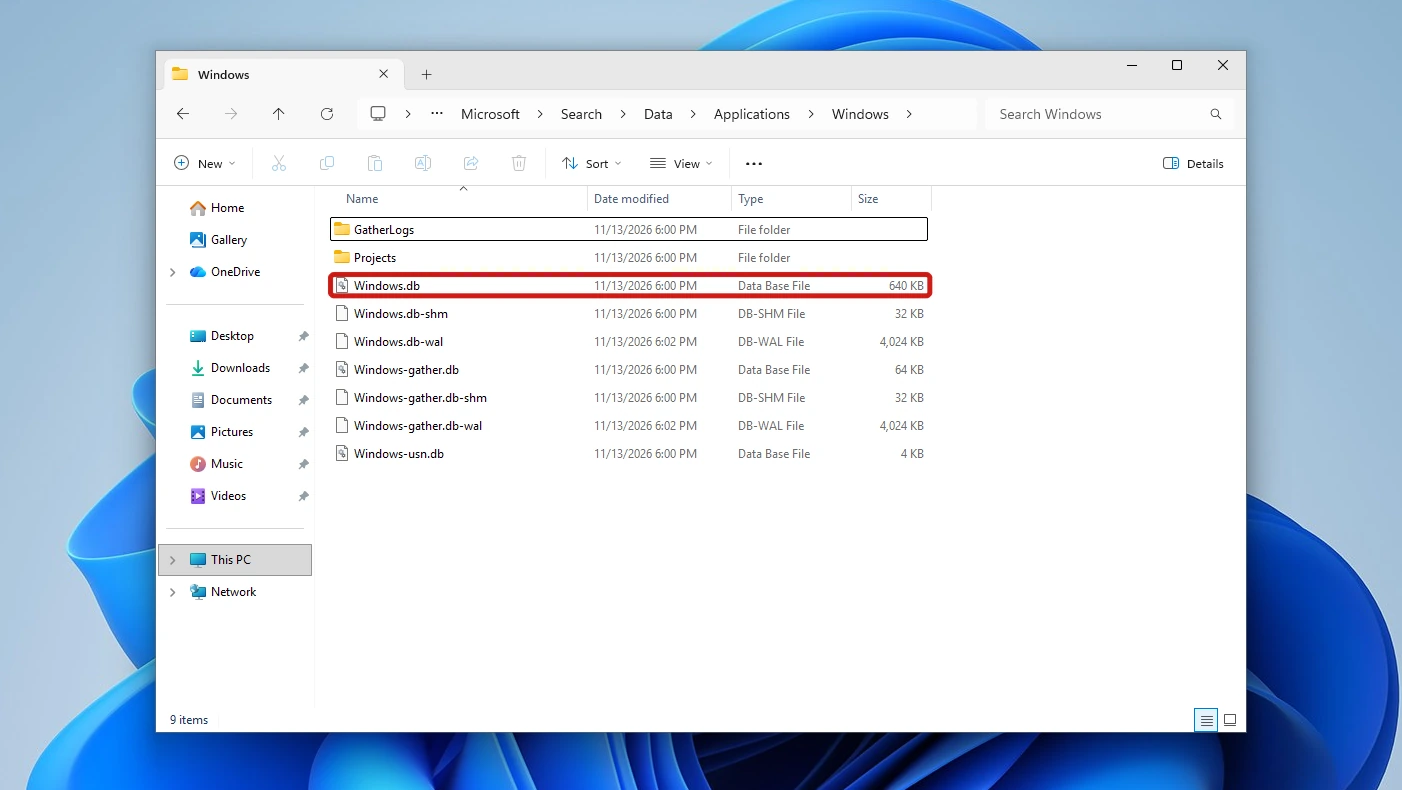
- Open the Windows folder again in File Explorer and compare it with what you noted earlier (optional). In our run the Continue prompt appeared a second time; click Continue if it does. Windows.db then shows a new Date modified and, in our run, a smaller size.
What to Expect While the Index Rebuilds
The Rebuild Index prompt gives the warning itself: “Rebuilding the index might take a long time to complete. Some views and search results might be incomplete until rebuilding is finished.” We did not test search during the rebuild, so that sentence is all we can quote on it.
The folder listing from step 6 showed this on one machine; it is not a promise that your files shrink by the same amount.
| File | Before | After |
|---|---|---|
| Windows.db | 756 KB | 640 KB |
| Windows-gather.db | 700 KB | 64 KB |
| Windows-usn.db | 4 KB | 4 KB |
The folder also lists Windows.db-wal beside these three. It went from 3,935 KB to 4,024 KB on this VM, so if Windows.db does not shrink, compare that file too.
- Microsoft: the first-ever indexing run can take up to a couple of hours, and after that Windows only re-indexes data that has changed. It gives no figure for a rebuild.
- Our run: short because the test index was tiny. On one Windows 11 VM (build 26300, Classic mode, about 434 items), the status showed “Indexing complete.” about two minutes after we clicked OK in one run and more than four minutes in another, so times vary. That says nothing about how long a PC with many files will take.
Keep the Windows.db File From Growing Again
A rebuilt Windows.db file starts small and grows as Windows indexes more. Two settings on the Search page in Settings control what gets indexed.
- Find my files: Classic searches only your Documents, Pictures and Music folders plus the desktop. The second button searches your entire PC, and Microsoft says that may use more system resources. On the test PC its screen text adds that it may affect battery life and CPU consumption, and that the PC must be plugged in for initial indexing.
- Customize search locations: the list of indexed locations. Pure Infotech’s fix for a large Windows.db is to clear Microsoft Outlook under Modify in the classic Indexing Options dialog.
Conclusion
Third-party guides call the Windows.db file safe to delete because it holds only the Windows Search index, not your files. Microsoft documents no manual deletion, so use the Rebuild button in Settings: it replaces the file, which can shrink it. Results might be incomplete until indexing finishes, and Microsoft says first-ever indexing can take up to a couple of hours.
Video Guide
Watch the Search settings, the Rebuild button and the folder before and after on screen.