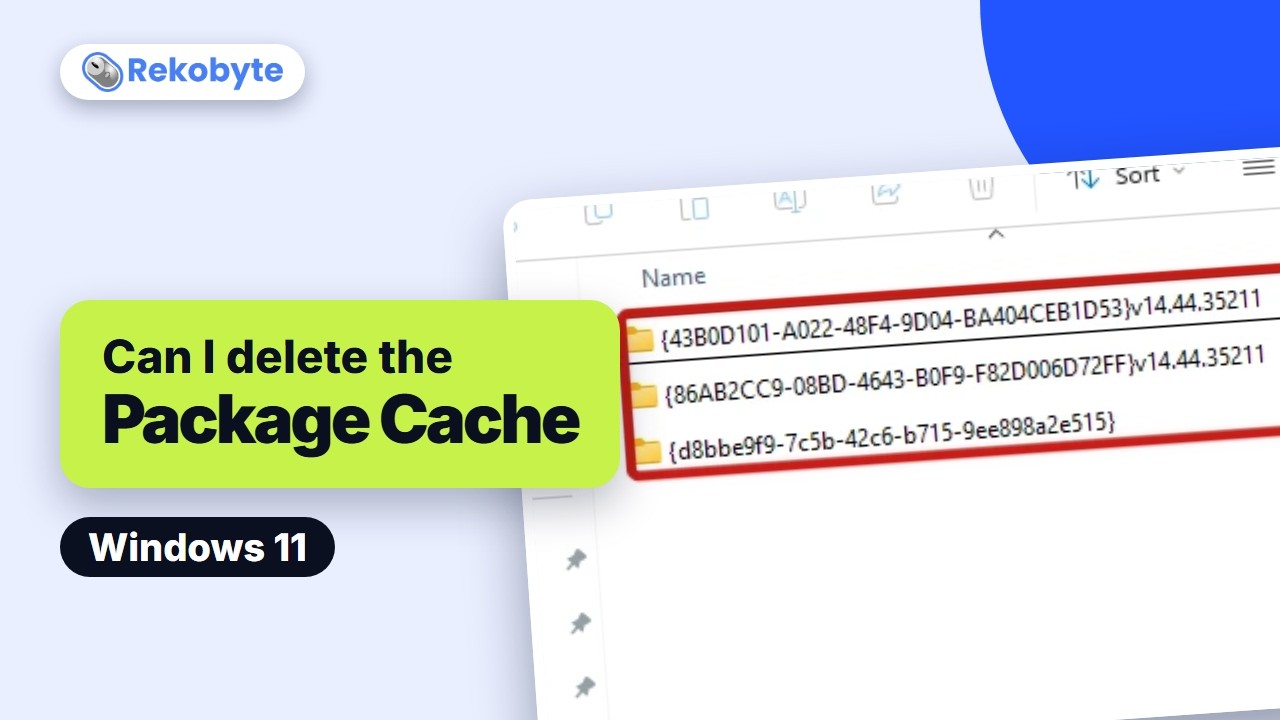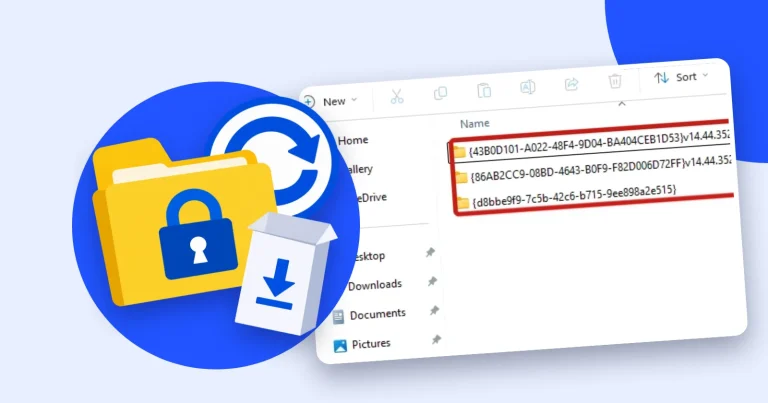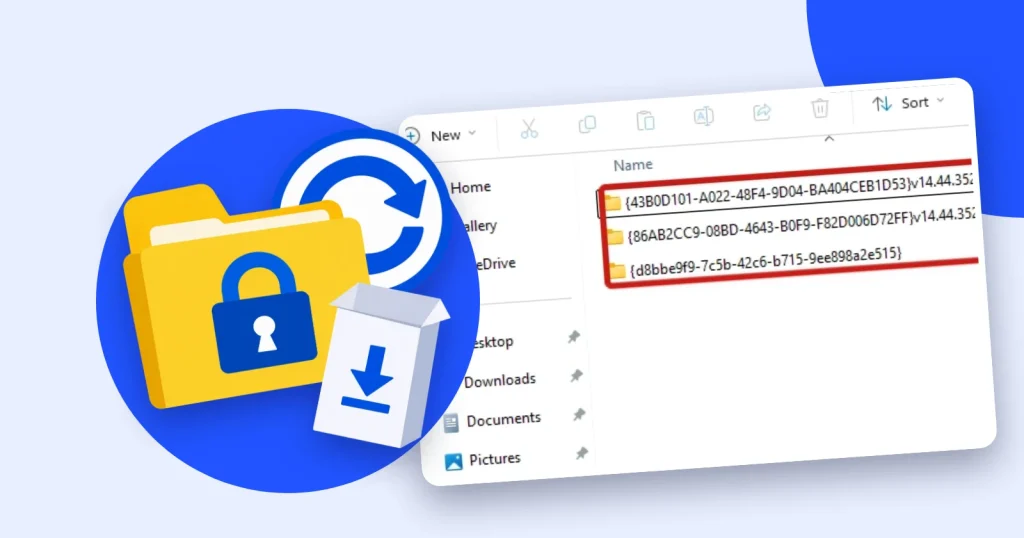
The Package Cache folder at C:\ProgramData\Package Cache can grow large, but do not delete it. On our Windows 11 machine we deleted one subfolder, and the Visual C++ program it belonged to could then be neither modified nor uninstalled. The folder keeps setup copies that programs read back when you change or remove them, and uninstalling programs you no longer use is the safer way to get space back.
Prefer to watch? See the video guide.
What the Package Cache Folder Is
It is a hidden folder where setup programs keep a copy of their own installer. On our machine it was made by the Visual C++ Redistributable. Not every program uses it: 7-Zip, installed from its MSI, created no entry in our test. Microsoft’s Visual Studio documentation describes the cache as a source of installed packages needed to repair the product when there is no internet connection.
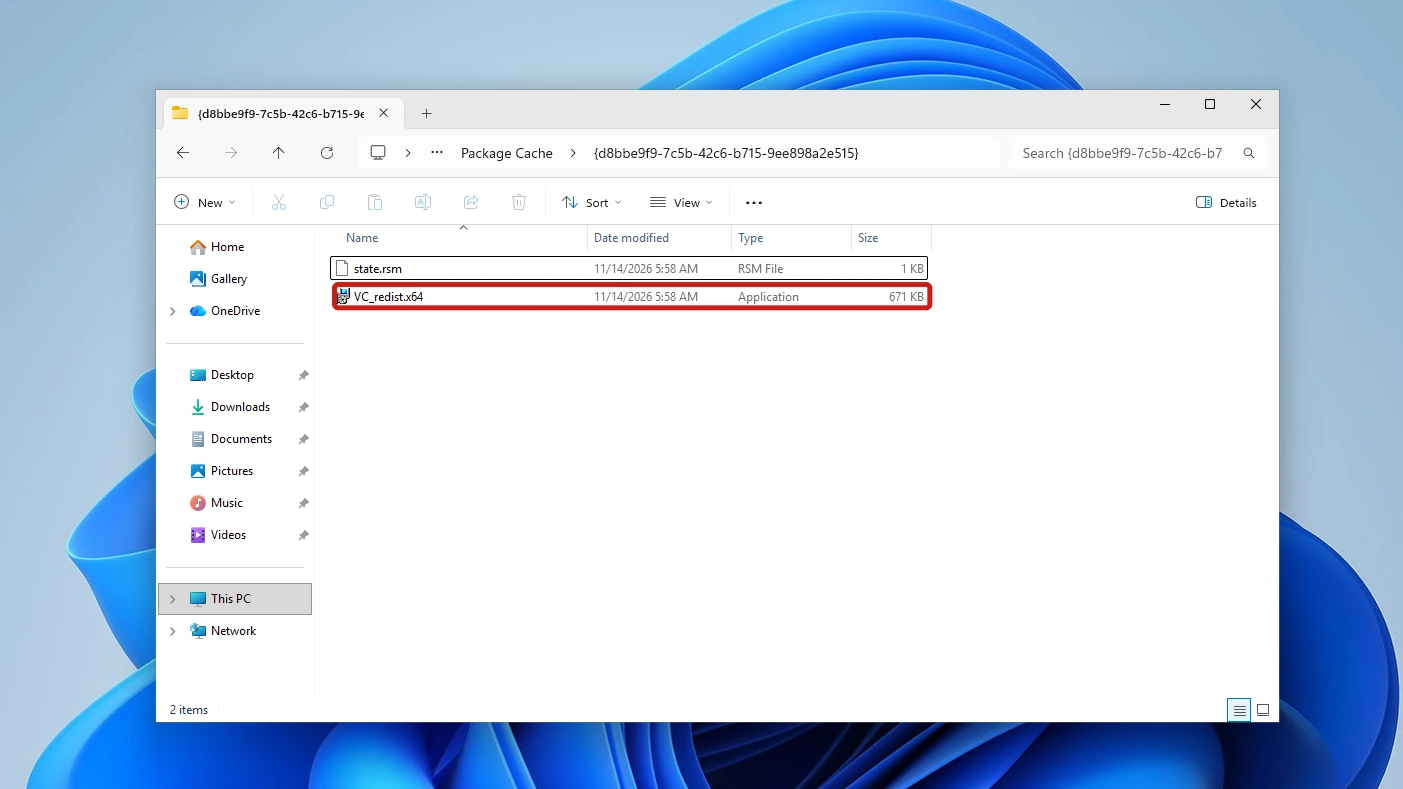
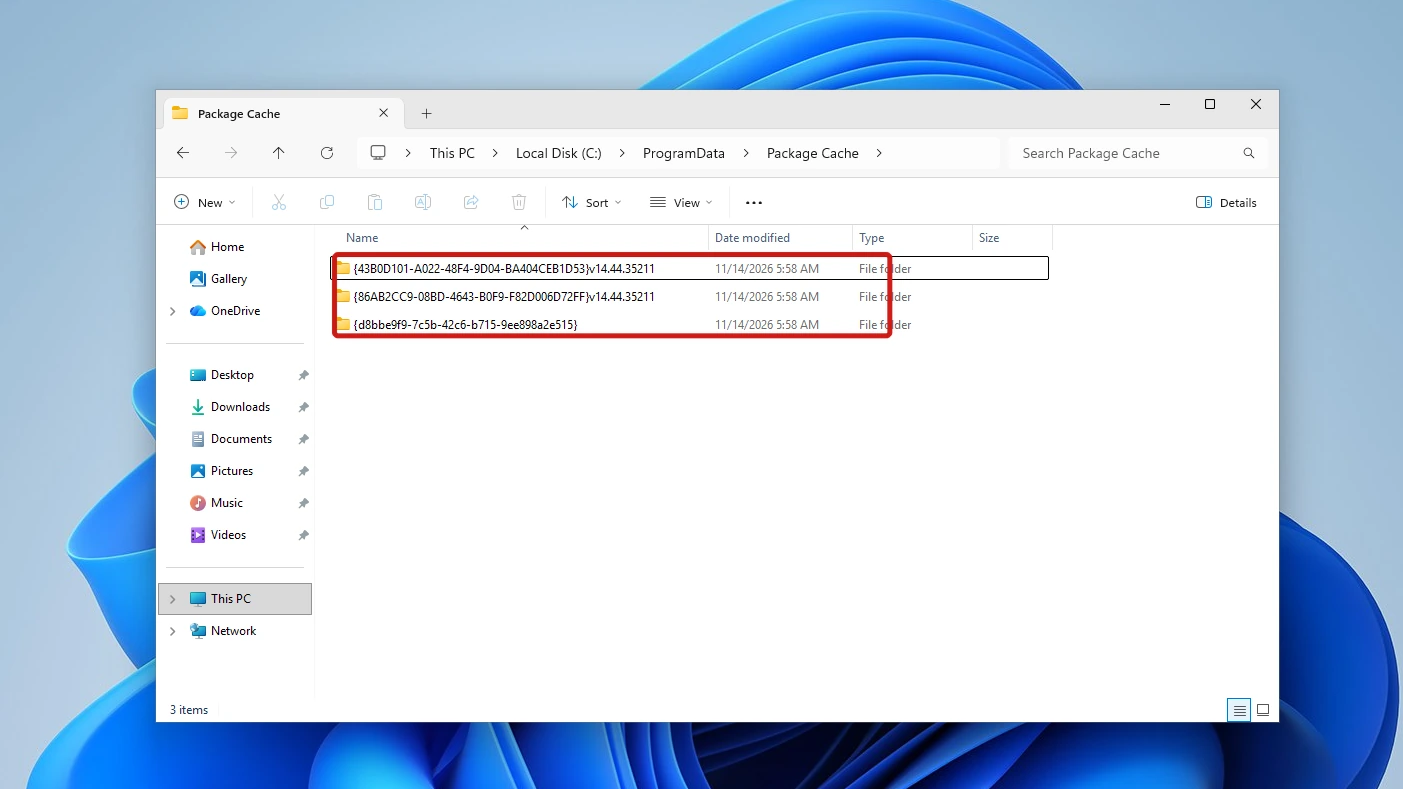
Each subfolder is named by a GUID, a long string of letters and numbers in braces, and one program can leave several. Our Visual C++ install left three. One held the bundle itself: a file named VC_redist.x64.exe next to a small state.rsm file. The other two held the MSI packages and cab files, with no executable.
Size varies widely. A 2021 Microsoft Q&A thread reports 27 subfolders totaling 69.5 MB, a 2025 thread reports 48 folders over 1.3 GB, and other threads report tens of gigabytes. Treat these as reports from individual PCs, not an average.
This is not the other installer cache, C:\Windows\Installer. The Windows Installer folder guide explains what its .msi and .msp files are and which cleanups are safe.
Why Deleting the Package Cache Folder Is Risky
Microsoft’s Visual C++ troubleshooting page describes Windows Installer error 1714, which can stop an older version from being removed during an upgrade. In 2014 a Microsoft setup engineer wrote that the bundle executables in the cache are likely needed to repair, service or uninstall a program, and cannot be restored without re-downloading or reinstalling.
We tested it on a Windows 11 Pro PC (build 26300.9711) with Microsoft Visual C++ 2015-2022 Redistributable (x64) 14.44.35211 installed. We deleted the subfolder holding VC_redist.x64.exe, and File Explorer asked for admin permission first. The dialog is titled Folder Access Denied and says “You’ll need to provide administrator permission to delete this folder.”
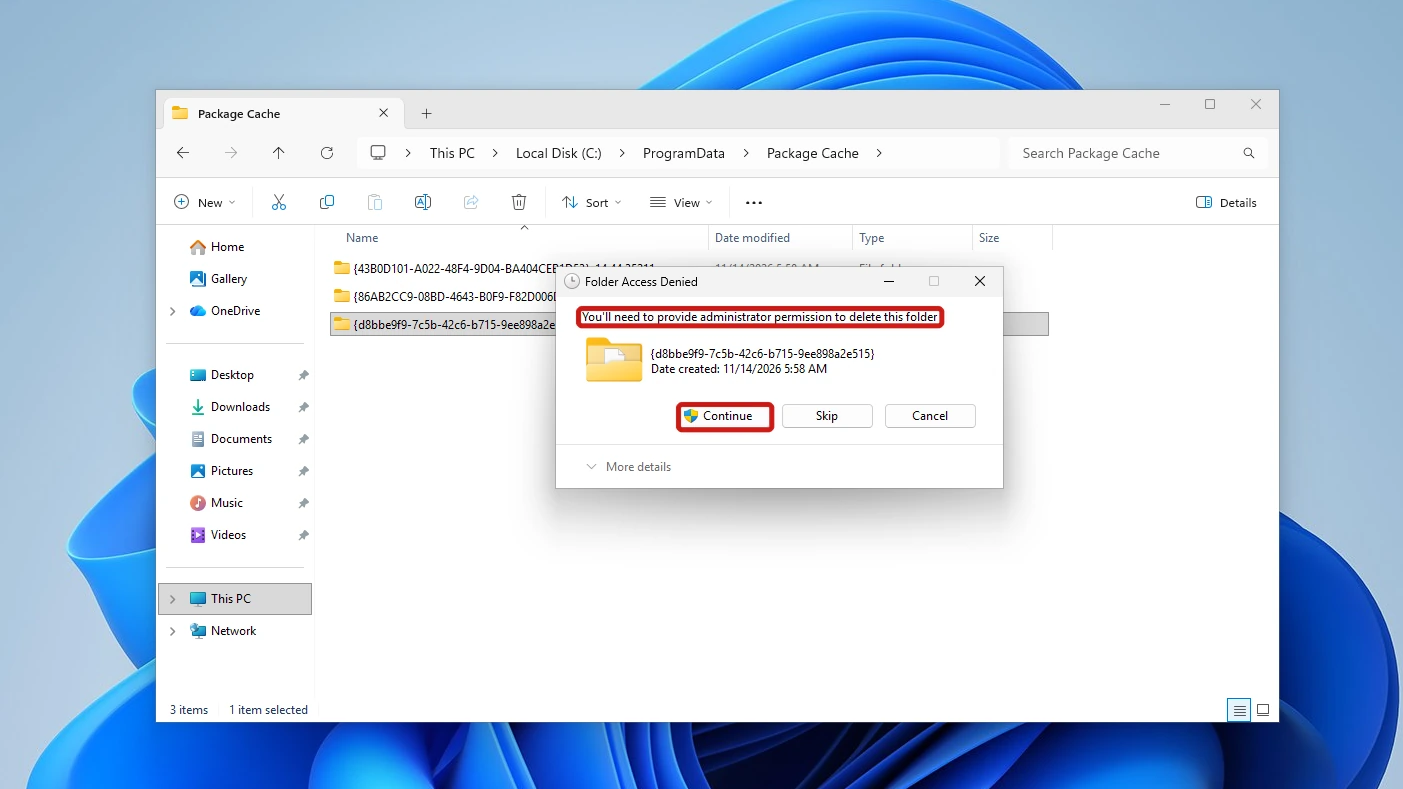
Clicking Continue deleted the folder with no further prompt. We did this on our machine only, and none of the methods below asks you to delete anything.
Afterward, both Modify and Uninstall on the Visual C++ entry in Installed apps gave the same dialog, with only an OK button:
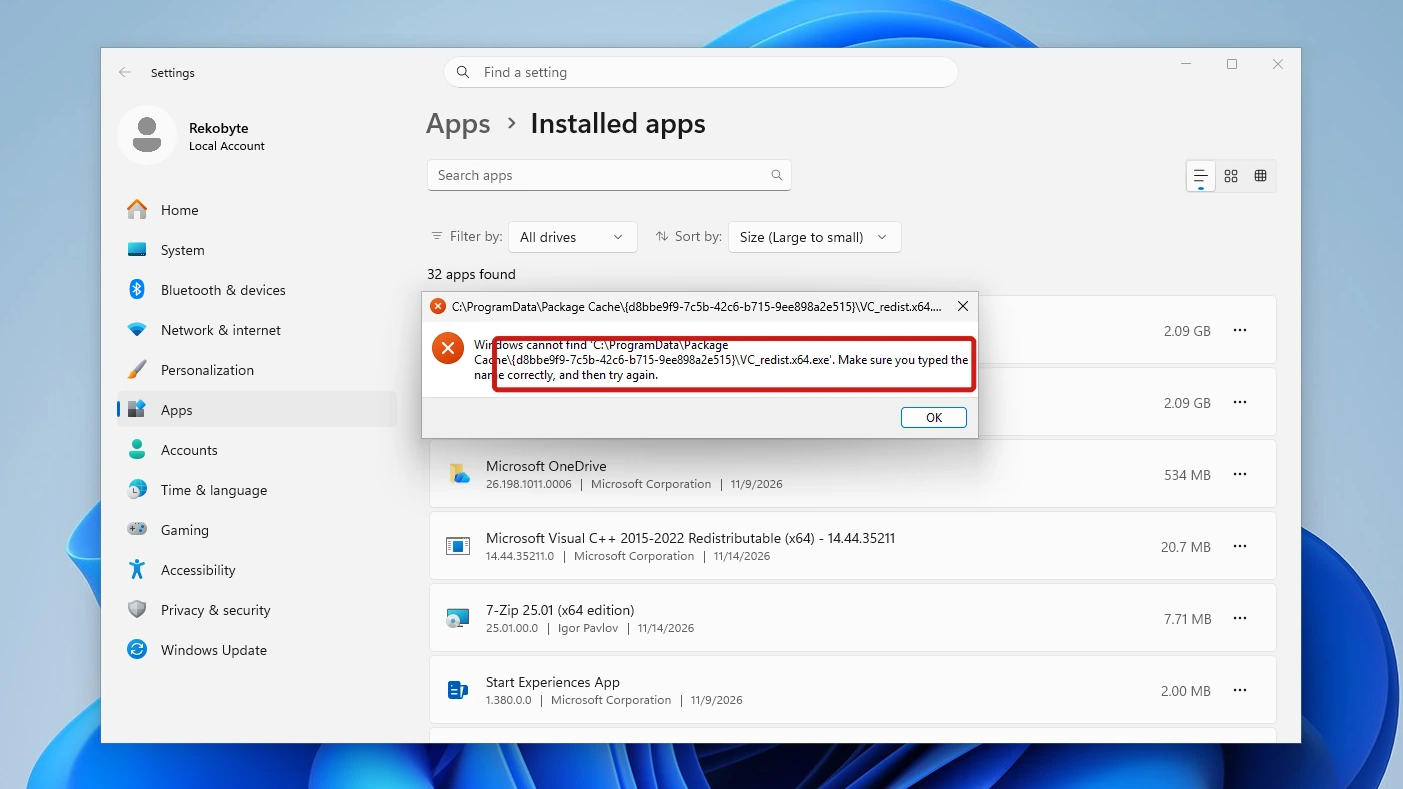
Windows cannot find ‘C:\ProgramData\Package Cache\{d8bbe9f9-7c5b-42c6-b715-9ee898a2e515}\VC_redist.x64.exe’. Make sure you typed the name correctly, and then try again.
The dialog showed no error number, and the program stayed in the list.
Note: This is one machine and one program: a Visual C++ bundle, 14.44.35211, on Windows 11 build 26300.9711. We did not test Repair before deleting, or a scanner, or Storage Sense. Other programs may behave differently.
We do not teach deleting only the old subfolders. We found no Microsoft source that says which subfolders are safe to remove, and the test above shows a single subfolder is enough to break a program.
Method 1: Check the Package Cache Folder in File Explorer
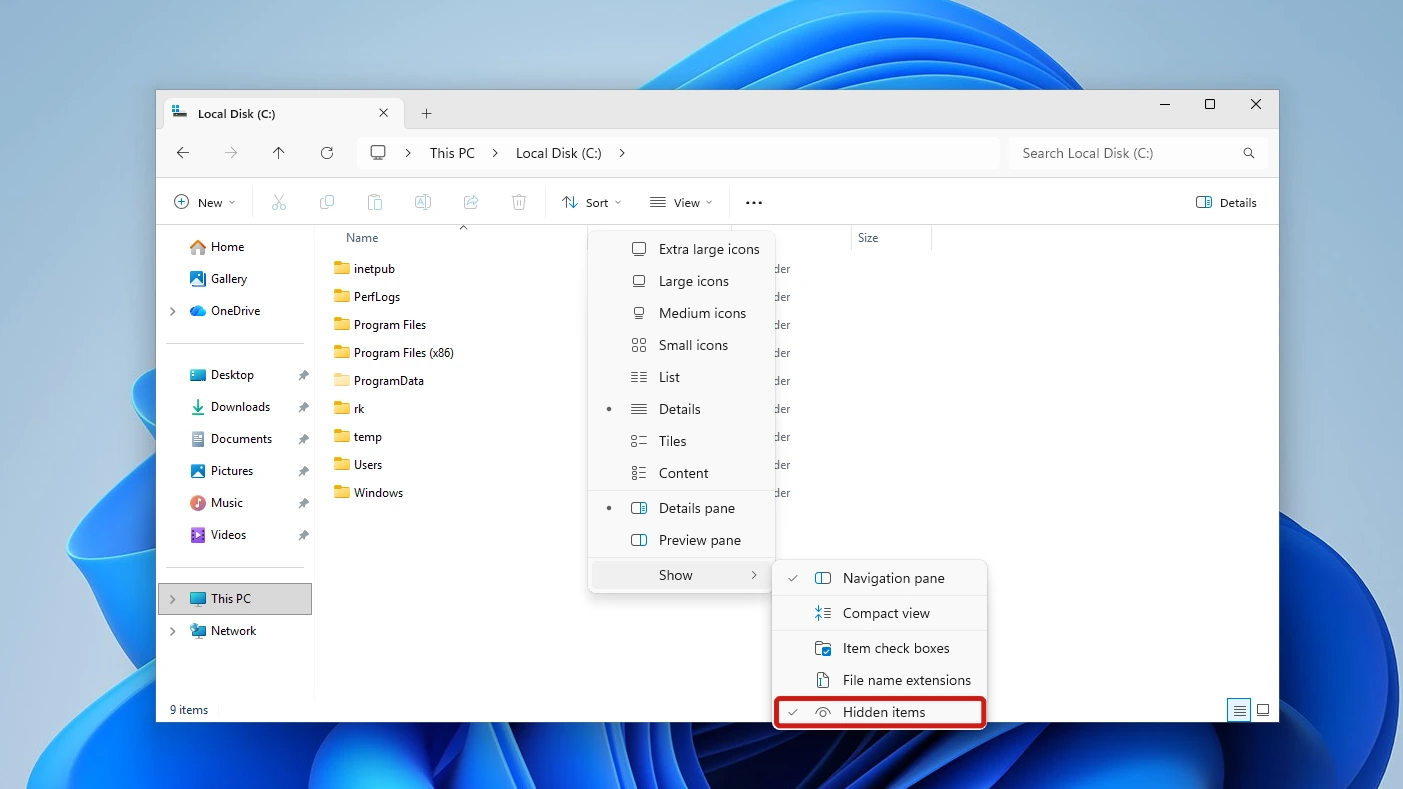
Checking shows you what is in the folder and how big it is, without changing anything. ProgramData is hidden, so turn on hidden items first. The guide to showing hidden files in Windows 11 covers this setting and the other ways to turn it on.
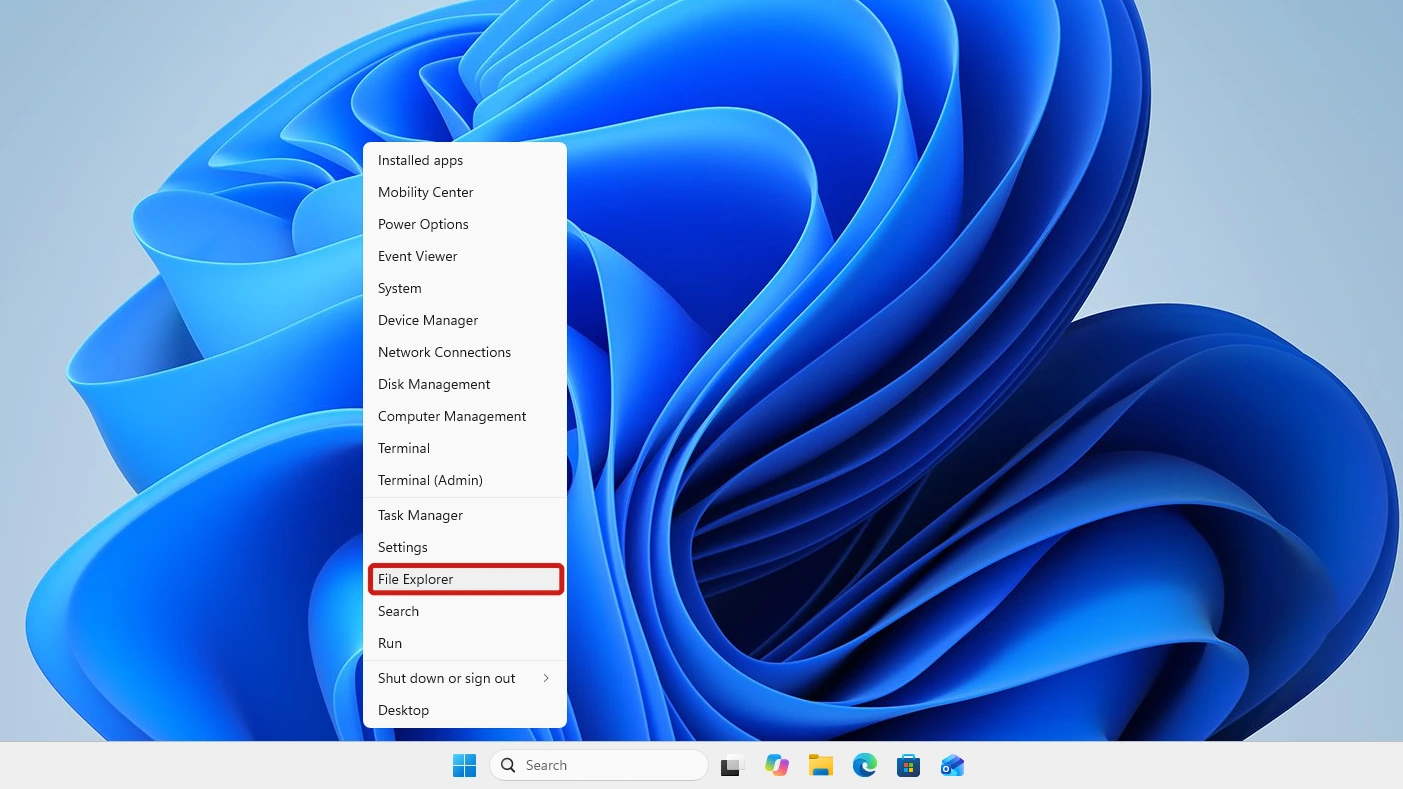
- Right-click Start, then click File Explorer.
- Click View, point to Show, and click Hidden items so it has a tick. ProgramData now appears under Local Disk (C:).
- Open Local Disk (C:), then ProgramData, then Package Cache. No prompt appeared for us when opening the folder or a GUID subfolder inside it. The Size column stays empty for folders.
- Right-click the Package Cache folder and click Properties. The General tab shows Size, Size on disk and how many files and folders it holds.
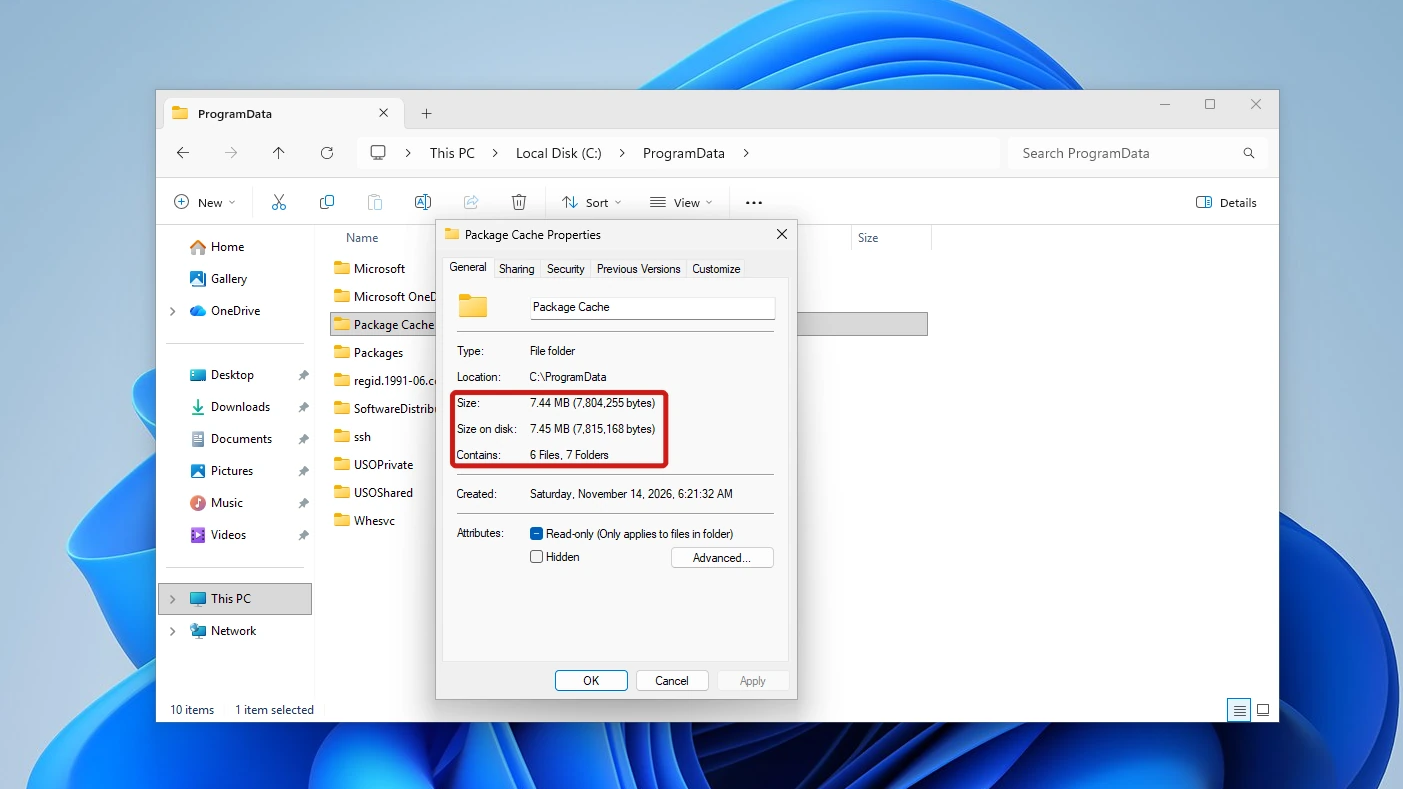
On our machine the folder held 3 GUID subfolders and Properties reported 7.44 MB, with 6 files and 7 folders. That is one fresh Visual C++ install, so a PC with many programs will show a larger number.
Why the Folder Can Show Up Twice
One 2025 Microsoft Q&A asker saw the folder listed under a second path in a disk analyzer. The cause is a link: in the profiles folder on drive C, one entry points to C:\ProgramData, and dir /AL listed it as a SYMLINKD. It did not appear with hidden items on.
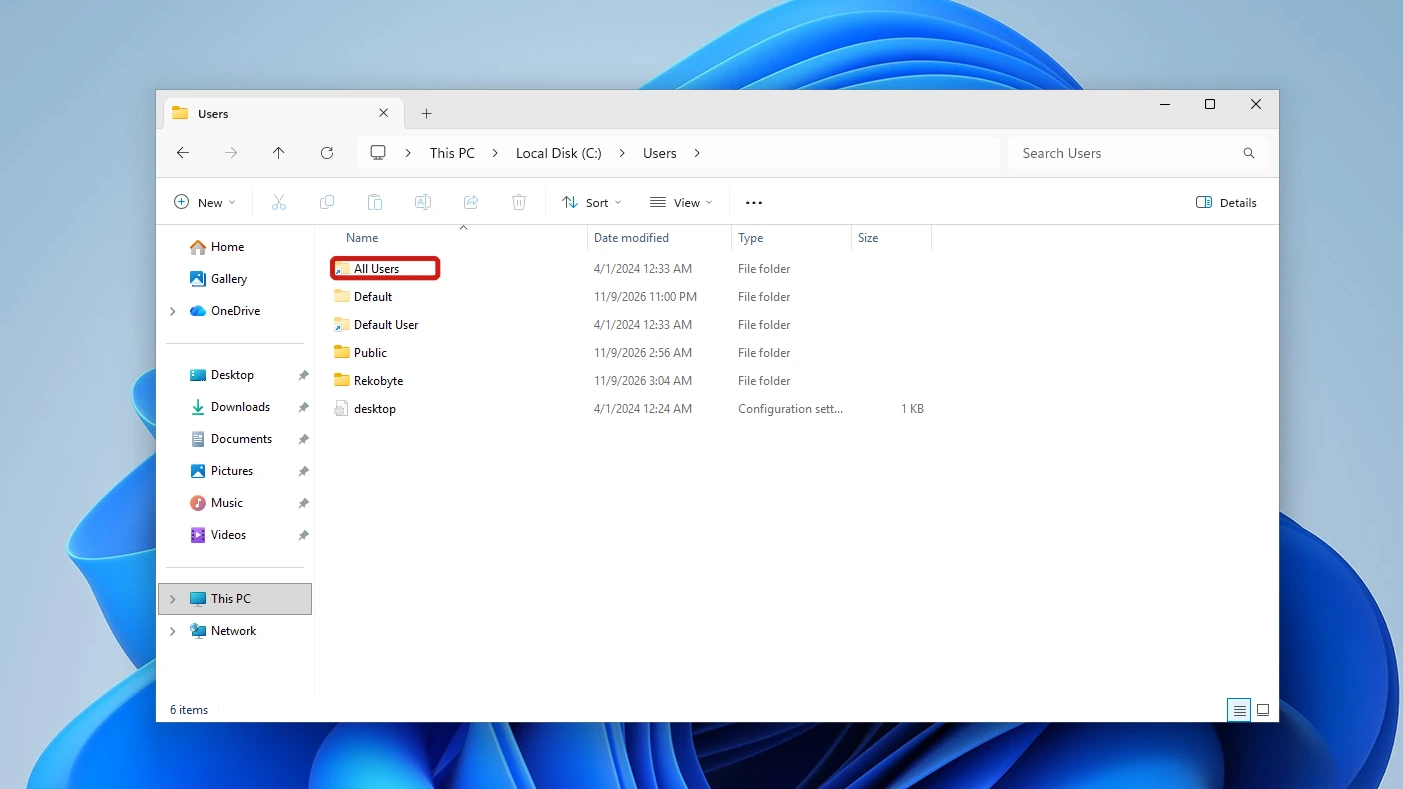
It is the same folder, with the same three subfolders, so deleting through either path removes the same files. The Q&A reply says the link takes no extra disk space.
Method 2: Free Space by Uninstalling in Installed Apps
Uninstalling a program you no longer use is the safe way to shrink the folder. In our test, uninstalling the Visual C++ bundle removed all three of its GUID subfolders and the Package Cache folder itself. For other ways to remove a program, the guide to uninstalling apps in Windows 11 compares five of them, including one that works when Installed apps will not.
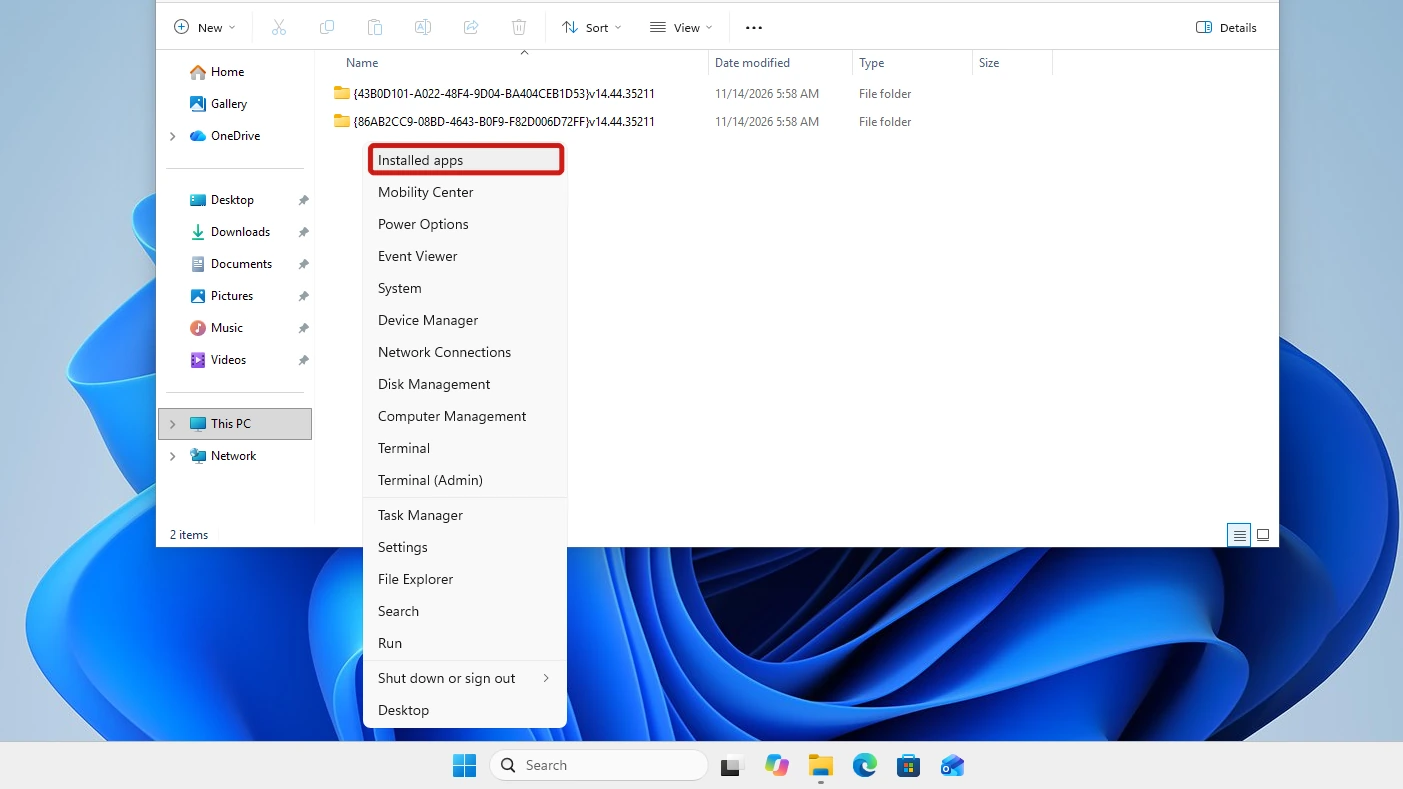
- Right-click Start, then click Installed apps.
- Open the Sort by list and choose Size (Large to small). The biggest programs move to the top.
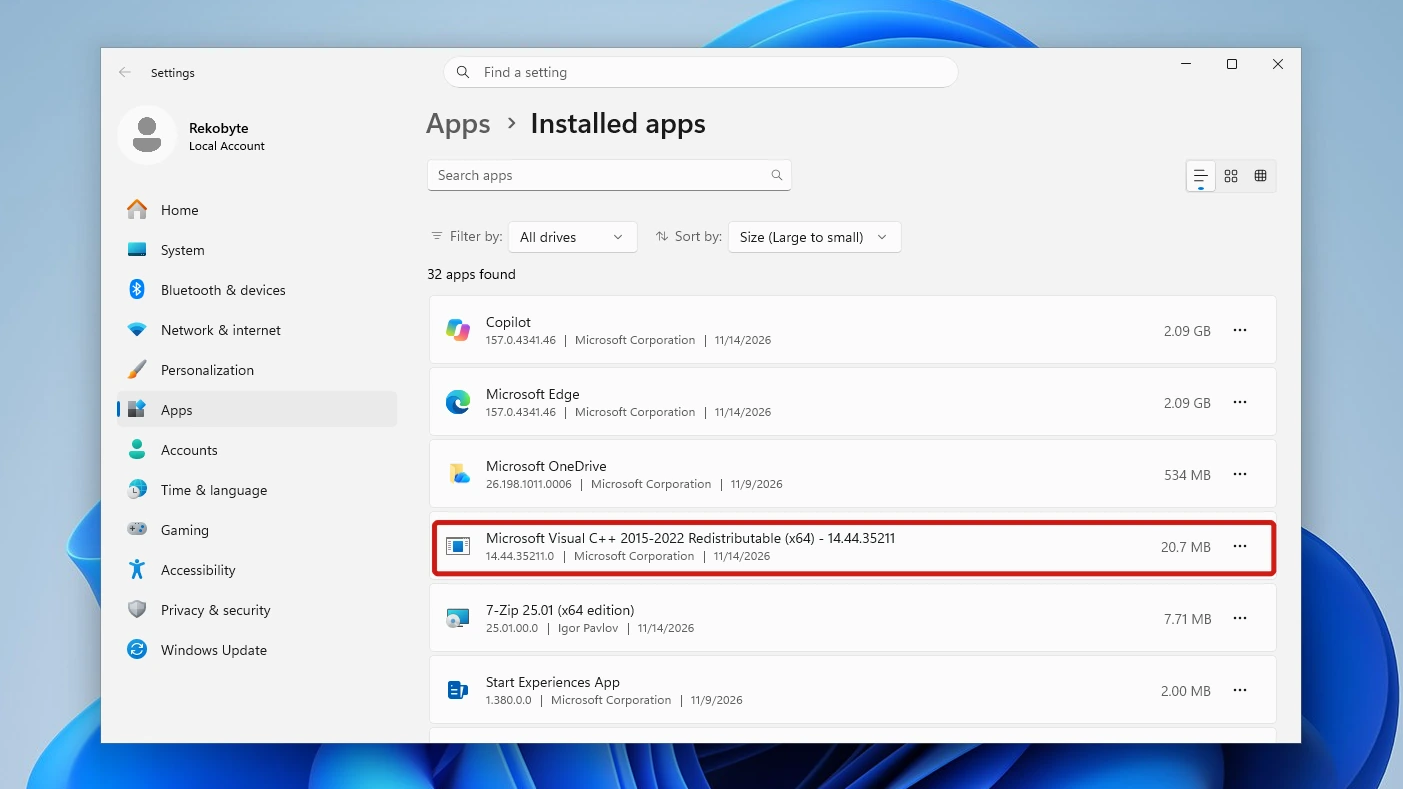
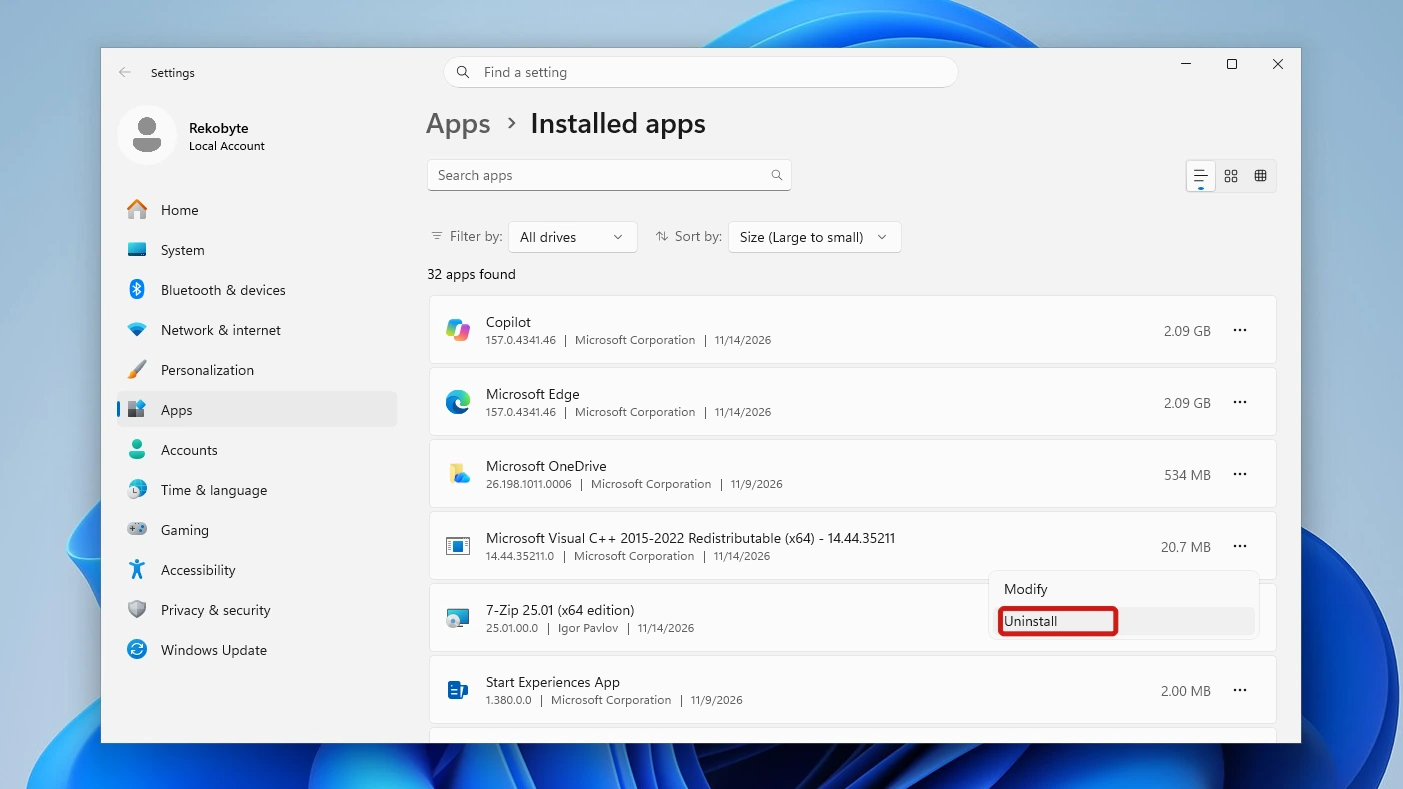
- Click the three dots on a program you no longer use and click Uninstall, then confirm.
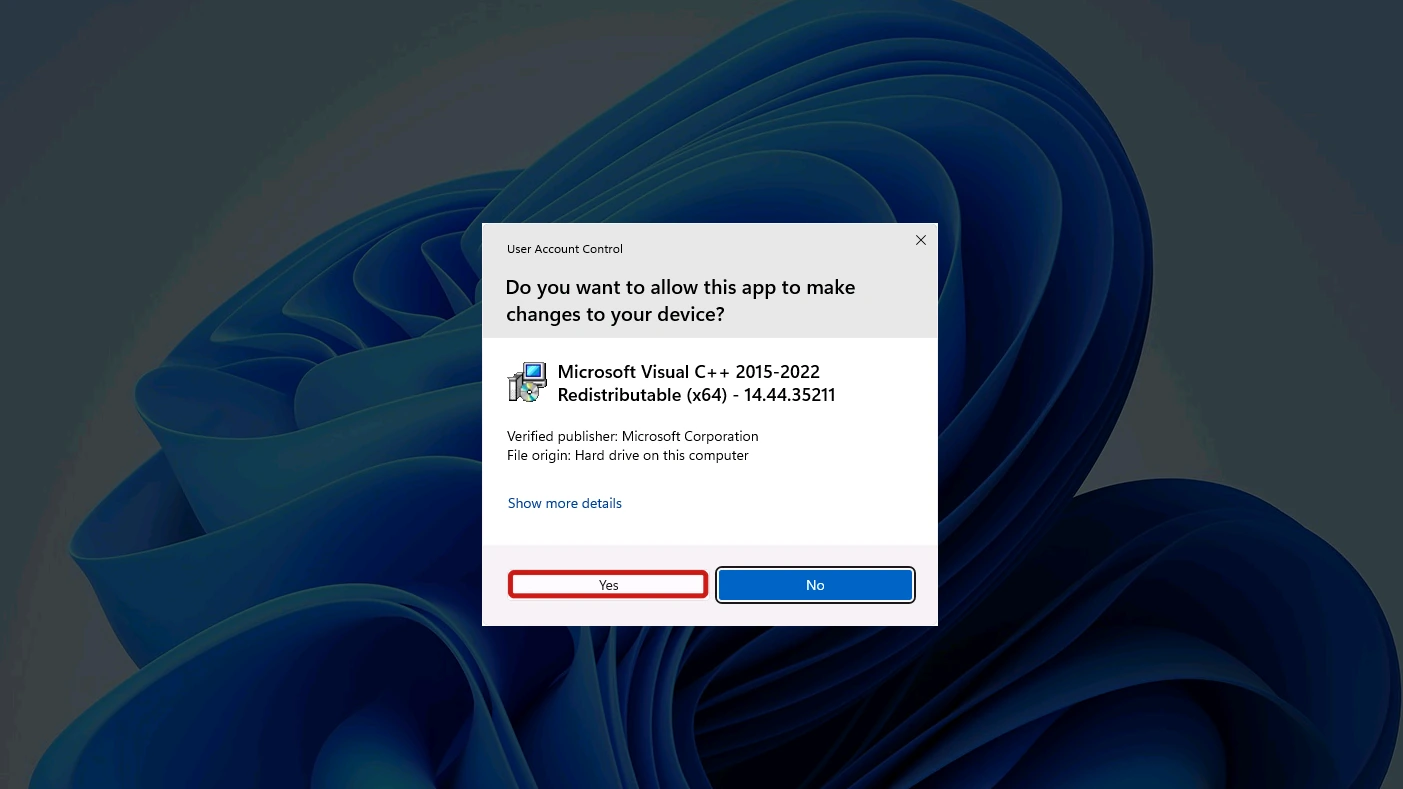
- Click Yes if the User Account Control prompt asks whether to allow changes to your device. For our test entry it showed Microsoft Corporation as the verified publisher, and an account without admin rights gets a password box instead, which we did not test. The Visual C++ entry then opened its own Modify Setup window, where we clicked Uninstall again.
We found no reliable way to match a GUID folder to its program, so judge by program, not by folder.
Leave Visual C++ entries alone unless you know nothing you use depends on them; Microsoft’s troubleshooting page says the installer is often run as a prerequisite of other products, and we removed one only on our machine.
In the same test, Disk Cleanup with every category ticked and the Temporary files option in Settings both left the folder at exactly 7,804,255 bytes.
If Visual Studio Is the Big One
Microsoft’s Visual Studio documentation offers disabling or moving the cache as the way to recover disk space. The page is dated November 2025 and says:
- Visual Studio can be set to keep no cache with vs_installer.exe –nocache, and –cache turns it back on.
- With the cache off, the installer downloads the packages it needs later and removes them after installation.
- Moving the cache works only if the CachePath policy was set before the install, modify or repair.
Microsoft’s setup team also published a registry policy for redirecting the Visual Studio cache in 2015. We give no registry steps here.
If You Already Deleted the Package Cache Folder
If Windows says “Windows cannot find” when you modify or remove a program, it has lost its cached setup copy. The folder does not come back on its own, and in our test a plain repair did not bring it back either: Repair ended in “Setup Successful” within about 15 seconds, and the folder stayed missing.
The fix on our machine was to run the installer again. For error 1714, Microsoft’s Visual C++ troubleshooting page likewise says to download the installer for the affected version and run it to uninstall. The uninstall-then-reinstall order below is our own test, not Microsoft’s advice.
- Run the same installer again, vc_redist.x64.exe for our test. The window titled Microsoft Visual C++ 2015-2022 Redistributable (x64) – 14.44.35211 opens with Repair, Uninstall and Close.
- Click Uninstall in that window. It finished with “Setup Successful”, and the program disappeared from Installed apps.
- Run the installer again, tick I agree to the license terms and conditions, and click Install. The three GUID folders and the Installed apps entry came back.
We tested only the Visual C++ bundle and have no tested route for other programs.
Conclusion
Do not delete the Package Cache folder. On our machine, deleting one subfolder left a program that could be neither modified nor removed until we uninstalled and reinstalled it. To free space, uninstall programs you no longer use, and for Visual Studio use its cache setting.
Video Guide
Watch the folder opened, its size checked, then the uninstall run through the permission prompt to the finished result.