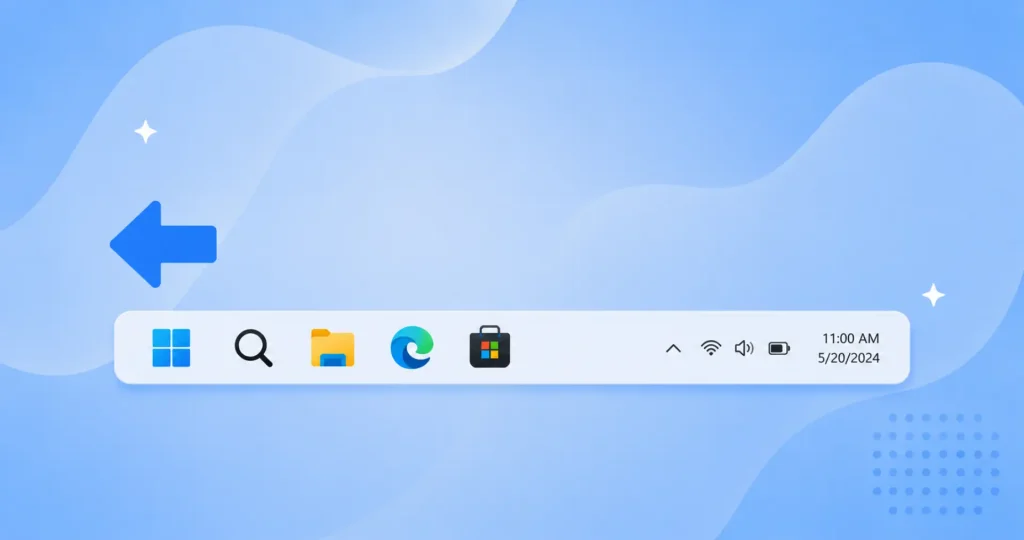
Windows 11 centers the taskbar icons by default, which throws off anyone used to the left-aligned Start button from Windows 10 and earlier versions. The fix is a single built-in setting that moves every icon, including Start, back to the left corner in seconds. This guide covers the quick Settings toggle, a registry method for locking the change in or rolling it out across several machines, what actually shifts on the taskbar, how to switch back to center, and what to do when the alignment option is greyed out or missing. Every menu path below was checked against a current Windows 11 install.
If you’re still settling into Windows 11 more broadly, our Windows 11 for Beginners guide covers the essentials before fine-tuning details like taskbar alignment.
How to Move Taskbar Icons to the Left in Windows 11
Two methods do the same job. The Taskbar settings toggle is the right choice for a single PC, while the registry edit suits scripting the change or forcing it when the toggle refuses to stick. Both are reversible, and neither touches a single file.
Method 1: Move the Icons Left in Taskbar Settings
The Taskbar settings page holds the alignment switch, and it applies the moment it is changed. This is the method for almost everyone.
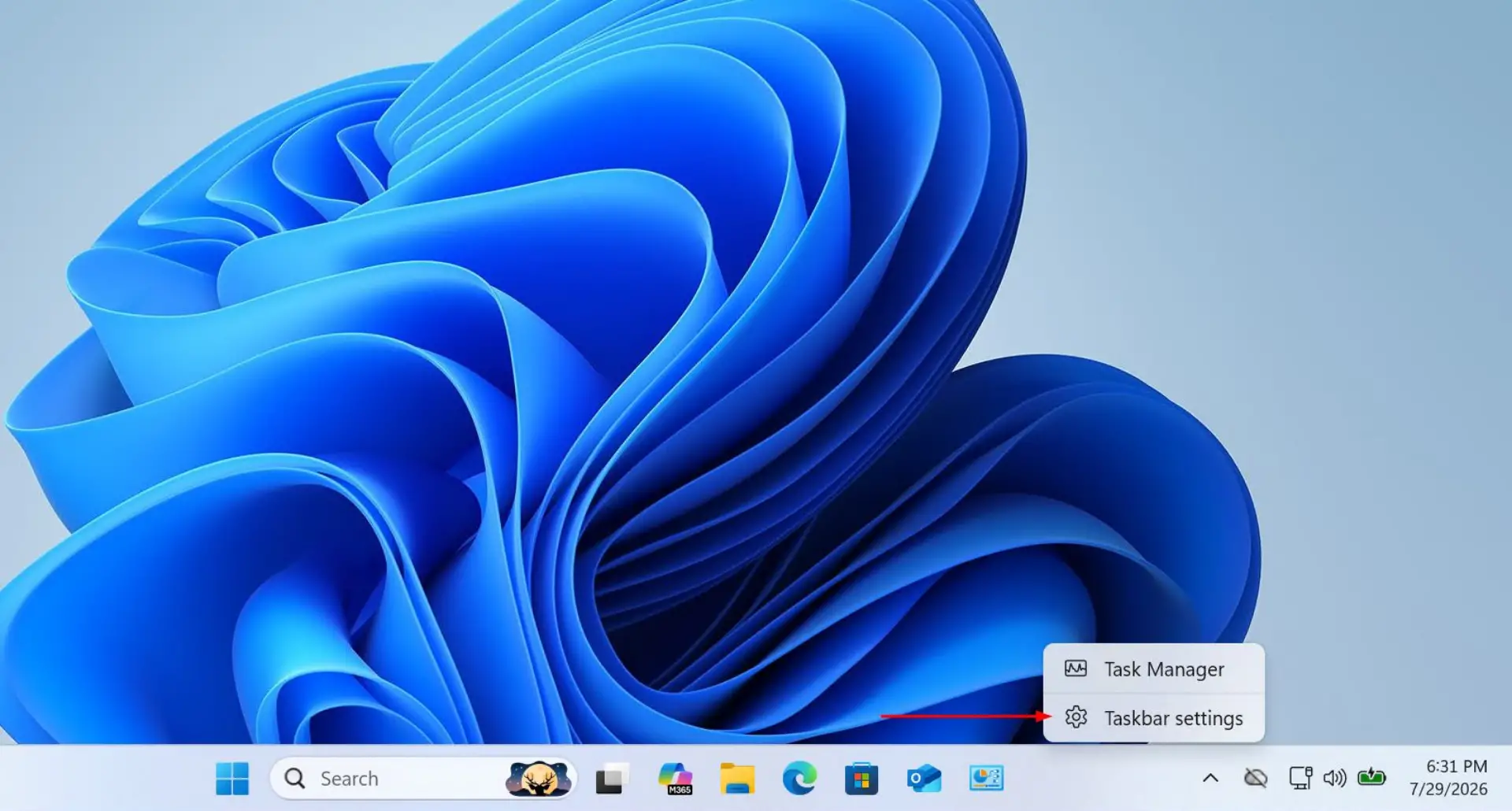
- Right-click an empty part of the taskbar and click Taskbar settings. The Settings app opens directly on the Taskbar page.
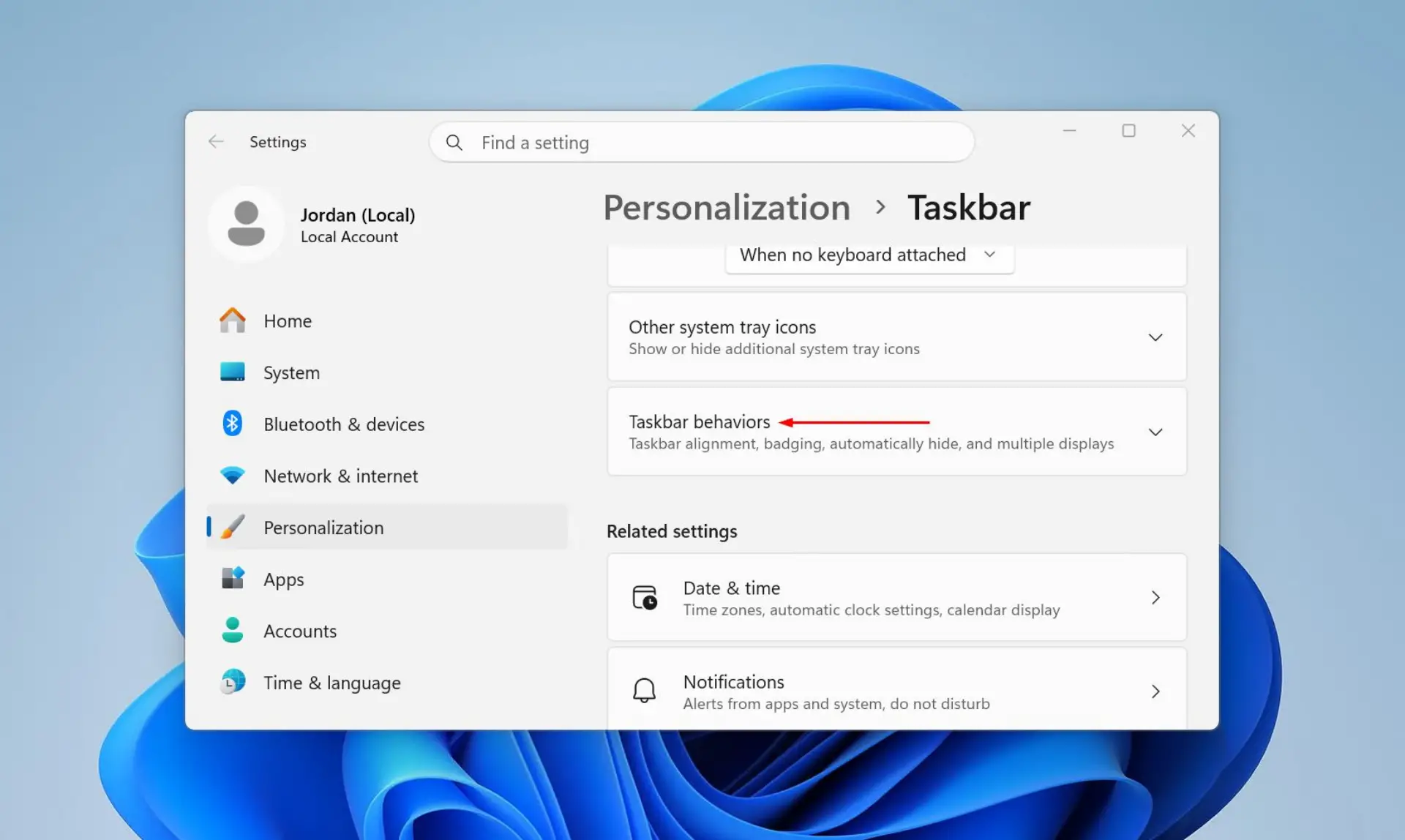
- Scroll down and expand Taskbar behaviors by clicking the heading. The alignment control sits at the top of this section.
- Open the Taskbar alignment dropdown and choose Left. The Start button and every taskbar icon shift to the left corner straight away.
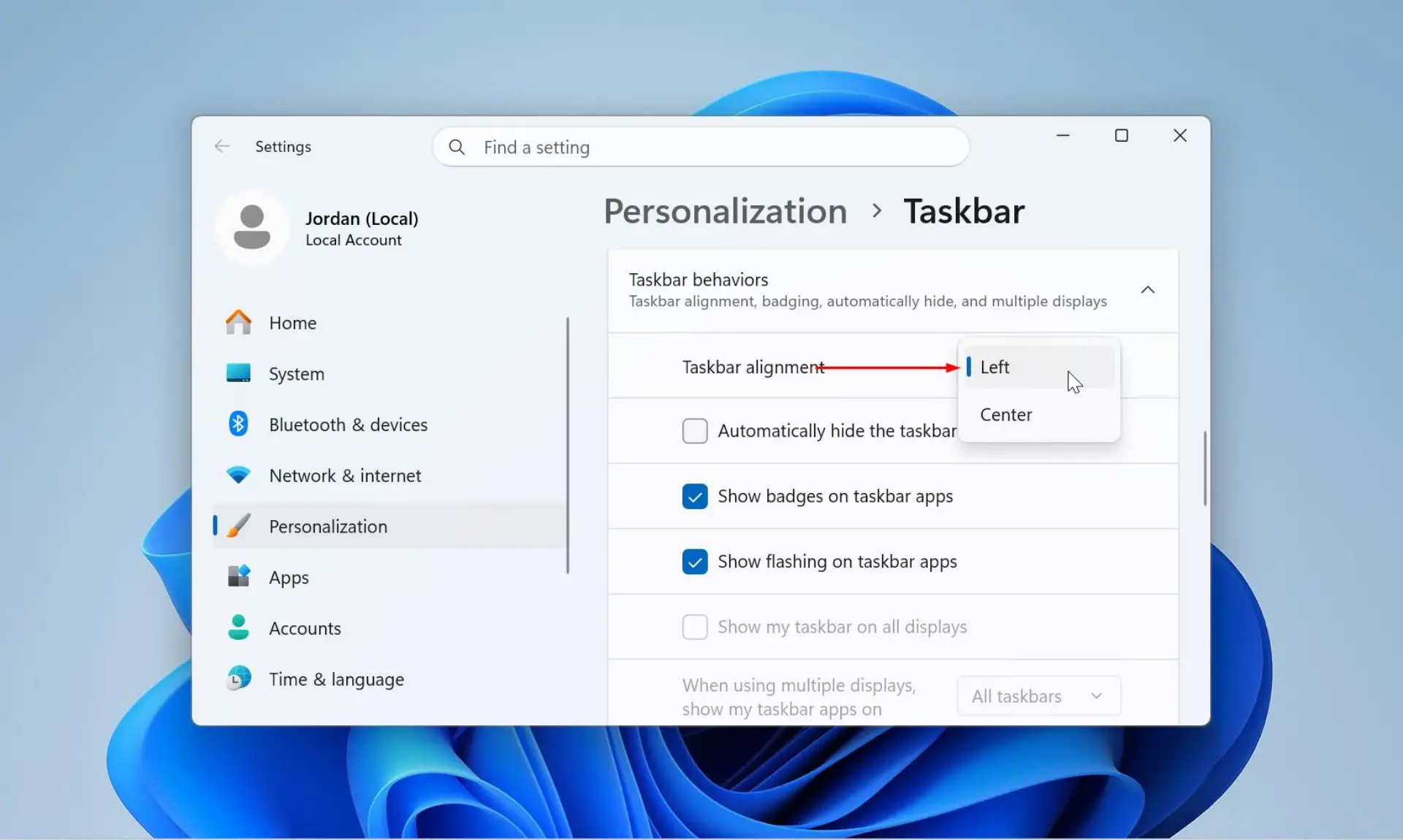
The same page is reachable through Settings, then Personalization, then Taskbar for anyone who prefers to start from the Settings app. Nothing needs saving or restarting, as the layout changes the instant Left is selected.
Method 2: Move the Icons Left with the Registry Editor
The alignment is stored in the registry as a value named TaskbarAl, so editing it directly does the same job as the Settings toggle. This method is worth using when the change has to be scripted onto several machines, or when the Settings dropdown is missing or unresponsive.
Before editing the registry: a wrong change in Registry Editor can stop Windows features working correctly or leave the system unstable. Create a System Restore point first, and export a backup of the key with File then Export before changing any value.
The alignment value lives under the Advanced key shown below.
HKEY_CURRENT_USER\Software\Microsoft\Windows\CurrentVersion\Explorer\Advanced
- Press Windows + R, type regedit, and press Enter to open Registry Editor.

- Go to the Advanced key above by pasting the path into the address bar at the top of the window and pressing Enter.

- Find the TaskbarAl value in the right pane. If it is not there, right-click an empty area, choose New then DWORD (32-bit) Value, and name it TaskbarAl.

- Double-click TaskbarAl, set the value data to 0 for left alignment, then click OK. Setting it to 1 returns the icons to the center.
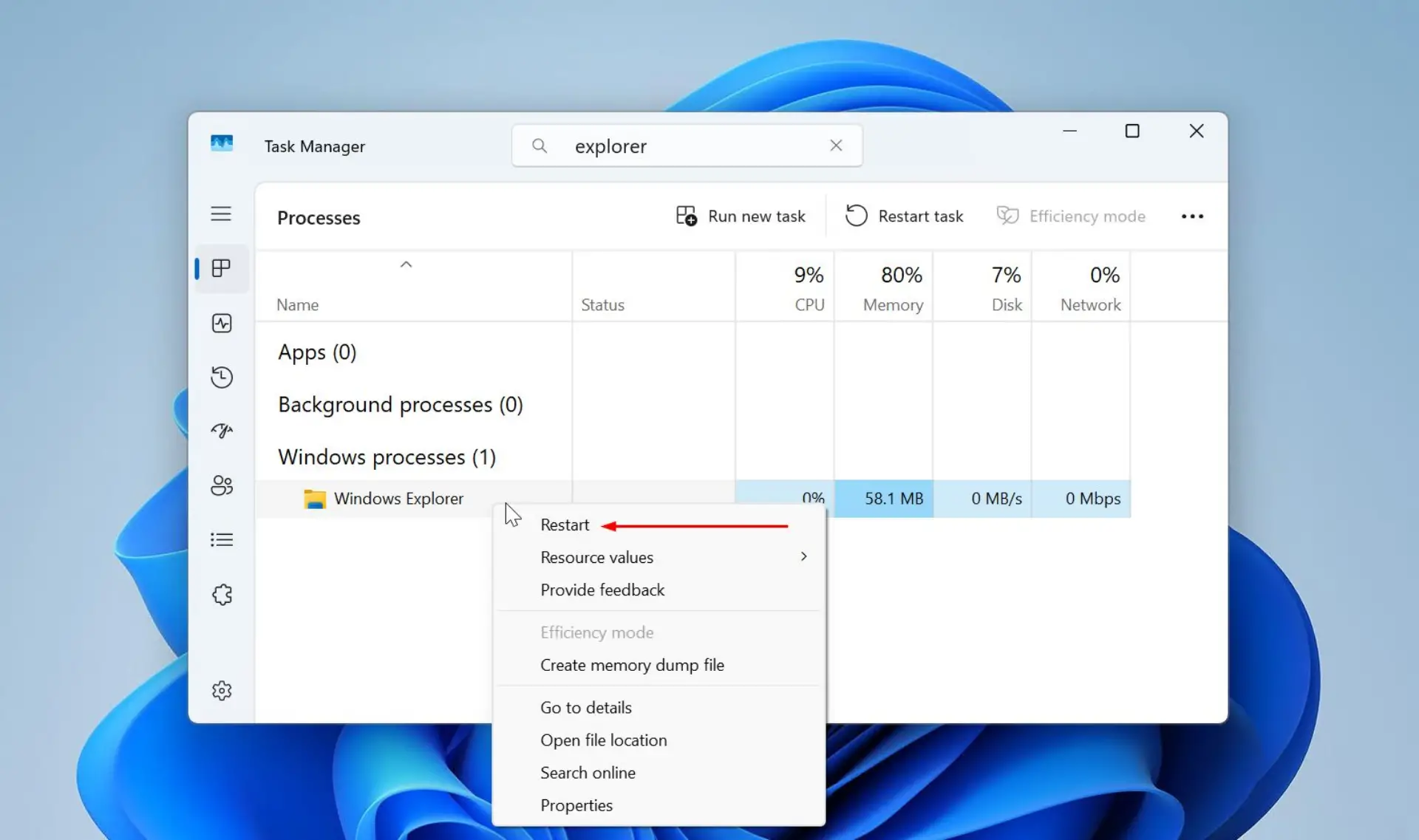
- Restart File Explorer so the change takes effect. Open Task Manager, right-click Windows Explorer, and choose Restart, or sign out and back in.
To apply the same edit without opening Registry Editor at all, the command below sets left alignment in one line from Command Prompt, a script, or a deployment tool.
reg add "HKCU\Software\Microsoft\Windows\CurrentVersion\Explorer\Advanced" /v TaskbarAl /t REG_DWORD /d 0 /f
What Moves When the Taskbar Aligns Left
Left alignment shifts the icon group, not the taskbar itself. The Start button leads the row, followed by Search, Task View, and every pinned or running app icon, all sitting against the left corner the way they did in Windows 10. The system tray, clock, and notification area stay on the right where they always are.
One limit is worth being clear about. This setting only changes where the icons sit along the bottom bar. Windows 11 still has no built-in way to move the whole taskbar to the top or side of the screen, which earlier versions allowed, so achieving that needs a third-party tool. Aligning left also pairs well with other taskbar tweaks, such as choosing to hide the taskbar when it is not in use.
How to Move the Taskbar Icons Back to the Center
Switching back is the same process in reverse. In Taskbar settings, expand Taskbar behaviors and set Taskbar alignment to Center. For the registry method, change TaskbarAl back to 1 and restart File Explorer. The center layout is the Windows 11 default, so no other setting has to change.
Taskbar Alignment Option Greyed Out or Missing
The alignment dropdown is part of every Windows 11 edition, so when it is missing or will not respond, the cause is usually a stalled Explorer process or a third-party taskbar tool overriding it. The checks below resolve the most common cases.
- Restart File Explorer. A frozen Explorer session can leave Settings unresponsive. Open Task Manager, right-click Windows Explorer, choose Restart, then reopen Taskbar settings.
- Check for a third-party taskbar tool. Utilities such as ExplorerPatcher, StartAllBack, and Start11 replace the stock taskbar and take over its alignment. When one of these is installed, the alignment is set inside that tool rather than in Windows Settings.
- Confirm Windows is up to date. Go to Settings, then Windows Update, and install anything pending. A half-applied update can leave Settings pages incomplete until it is repaired.
- Try a different user account. If the option is still missing, a corrupt user profile may be the cause. Signing into another account, or a new one, confirms whether the profile is at fault.
If the taskbar is unresponsive across the board rather than just the alignment setting, that points to a wider fault. The steps for a taskbar that has stopped working cover the deeper fixes, from restarting services to re-registering the taskbar.
Conclusion
To move taskbar icons to the left in Windows 11, right-click the taskbar, click Taskbar settings, expand Taskbar behaviors, and set Taskbar alignment to Left. The Start button and all icons shift to the left corner instantly. Switching back to Center, or editing the TaskbarAl registry value, reverses it at any time.
With the layout back where it belongs, it is a natural point to pin the apps used most often to the taskbar so the tools that matter sit right next to the Start button.