Every sign-in starts with the same box: Can not find script file “C:\Windows\system32\maintenance.vbs”. The maintenance.vbs error is not asking you to restore a missing file. It is telling you that something on the machine is still trying to run a script that has already been removed, and that something is what needs deleting.
What the maintenance.vbs Error Means

Windows Script Host is the built-in component that runs script files such as .vbs and .js. When something instructs it to run a script at a path where no file exists, it reports the failure in a dialog box. That is the whole of the Windows Script Host can not find script file message: a request to run something, and nothing there to run.
The important detail is what maintenance.vbs actually is. It is not a Windows system file. Neither it nor the ServiceInstaller.msi that sits alongside it appears on the Windows 10 installation media, and the scheduled task that launches it is absent from a clean install.
That explains why the file has gone. In most cases antivirus software quarantined it, or a cleanup tool removed it during a scan. The removal worked. What survived was the scheduled task pointing at the file, and that task still fires at every sign-in.
So nothing here needs repairing. Something needs deleting.
Is maintenance.vbs a Virus?
The popup itself is not malware. It is the trace left behind after something was removed, which is why the machine otherwise behaves normally.
The file it names is a different matter, and it has a name. A maintenance.vbs in System32, a ServiceInstaller.msi beside it and an InstallWinSAT task in Task Scheduler are the opening stage of Crackonosh, cryptomining malware that Avast researchers documented in 2021 and that India’s CERT-In issued its own advisory for. It travels inside cracked copies of paid software, mostly games.
What the script does is the reason to take it seriously. It keeps a count of sign-ins in a file named updatesettings.dbf, and on the seventh or tenth start, depending on the version, it silently installs ServiceInstaller.msi, switches hibernation off, and sets Windows to boot into Safe Mode next time.
Safe Mode is the whole point. Antivirus does not run there, so the newly registered service is free to disable and delete Microsoft Defender before the machine boots normally again. The script then wipes the counter file and deletes both itself and the task that called it.
That is also why you are seeing an error at all. The chain is built to leave nothing behind, so a visible popup means it broke partway through, or a scanner took the script away before it finished.
The companion errors people report alongside this one belong to the same infection rather than to a similar one. The same script drops a coin miner named winlogui.exe and registers further tasks, including StartupCheckLibrary under Task Scheduler’s Application Experience branch, which throws its own missing-file error at sign-in. Microsoft detects the module behind that one as Trojan:Win32/Tiggre!plock, and Malwarebytes classifies the family as Trojan.FakeMS because the files carry forged Microsoft version information.
So the honest answer is that the error is harmless and what put it there was not. Nothing is running now. But a machine that carried this task has hosted software whose specific purpose was to remove its antivirus, which is why the checks after the fix matter as much as the fix.
Why SFC and DISM Will Not Fix the maintenance.vbs Error
Most guides for this problem recommend running sfc /scannow and the DISM repair commands. Neither can resolve it, and the reason is worth understanding.
System File Checker compares protected Windows system files against known-good copies held in the component store, then restores any that are corrupt or missing. DISM repairs that component store when it is damaged. Both tools work only on files that belong to Windows.
Maintenance.vbs never belonged to Windows. There is no reference copy of it anywhere on the machine, so there is nothing for SFC to restore and nothing for DISM to repair. Running them takes twenty minutes or more and finishes with the maintenance.vbs error still appearing at the next sign-in.
How to Fix the maintenance.vbs Error
The methods below run from the actual fix down to a workaround of last resort. Most machines are sorted after the first one, so there is no need to work through all of them unless the error survives.
Method 1: Delete the Scheduled Task That Calls the Script
The InstallWinSAT task in Task Scheduler is the usual trigger, and it sits inside the Maintenance branch where its name blends in with genuine Windows entries.
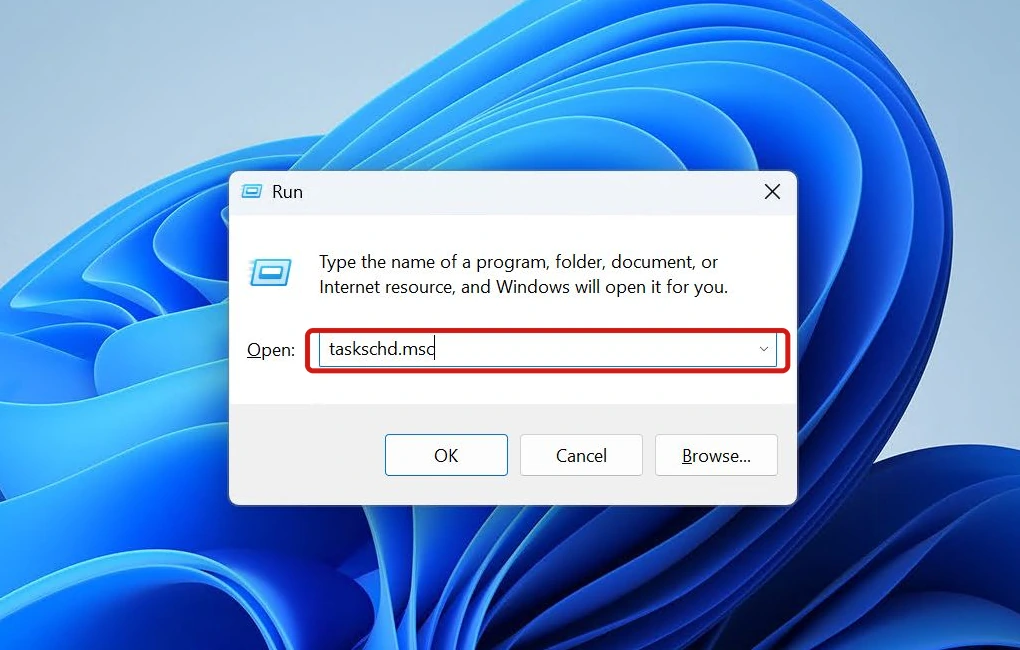
- Press the Windows key + R to open the Run dialog, type taskschd.msc, and press Enter.
- Expand Task Scheduler Library in the left panel, then expand Microsoft, then Windows.

- Select the Maintenance folder. The center panel lists the tasks it contains.

- Click the task named InstallWinSAT to select it, then open the Actions tab in the lower pane. Confirm it runs wscript.exe against the maintenance.vbs path shown in the error before going further.

- Right-click InstallWinSAT and choose Delete, then confirm.

- Restart the computer and sign in again to check the popup is gone.
Step 4 matters more than it looks. A legitimate Windows task called WinSAT lives in the same folder and runs the Windows System Assessment Tool, which is a real part of the operating system. Only InstallWinSAT should be removed, and checking the Actions tab confirms which one is which.
Delete rather than Disable, too. Some write-ups suggest disabling it, but a disabled task stays on the machine and can be switched back on by an installer, an update, or an accidental click.
Method 2: Find Remaining Triggers With Autoruns
If the Maintenance folder holds no such task, or the popup continues after deleting it, the trigger is somewhere less obvious. Autoruns, a free tool published by Microsoft on the Sysinternals site, gathers every startup entry on the machine into a single window.
- Download Autoruns from the Microsoft Sysinternals website and extract the archive.

- Right-click autoruns64.exe and choose Run as administrator.

- Select the Scheduled Tasks tab, then type maintenance into the Quick Filter box at the top to narrow the list to matching entries.

- Right-click any row referencing the missing script and choose Delete. Repeat the filter with startupcheck and winlogui, the sibling entries this infection leaves behind.

- Restart afterwards.
Leave the filters in the Options menu switched off while you do this. Hiding Microsoft entries is the standard advice for spotting third-party startup items, but the task launches wscript.exe, which is a signed Microsoft file, so that filter can hide the exact row you came for.
Because Autoruns comes from Microsoft rather than a third party, it is a safe download for anyone who has just been told their machine may once have carried unwanted software.
Method 3: Check Startup Apps and the Startup Folder
Scheduled tasks are the usual cause here, but they are not the only way a script can be set to run at sign-in. Two other locations are worth checking if the error persists.
- Open Task Manager and select the Startup apps tab, which Windows 10 labels simply Startup. Right-click any entry with a blank or unfamiliar name and choose Properties to see the file it actually launches, then disable it if it points at the missing script.
- Press the Windows key + R, type shell:startup, and press Enter. This opens the Startup folder for your own account. Delete any shortcut referencing the missing script.
- Repeat the previous step with shell:common startup to check the Startup folder that applies to everyone on the PC.
That tab lists what runs when you sign in, and there are several ways to open Task Manager in Windows 11 if the usual shortcut is not responding.
Last resort: Create a Placeholder maintenance.vbs File
A widely shared workaround is to give the task something harmless to run. Creating an empty script at the expected path satisfies the request, and the popup stops.
- Open Notepad and type a single line: Wscript.Quit

- Choose File, then Save As, and set Save as type to All Files.
- Save the file as maintenance.vbs on the desktop.

- Copy it into the System32 folder shown below and approve the administrator prompt when asked.
C:\Windows\System32

- Restart the computer.
This works, but it is a workaround, and the trade-off should be clear before you choose it. The scheduled task still runs at every sign-in. An unexplained script now sits in System32 permanently, and anyone auditing the machine later has no way of knowing why it is there.
Two other things limit it. A fresh .vbs in System32, on a machine whose antivirus has just removed one, is a fair candidate for being quarantined again.
VBScript itself is also being retired. Microsoft made it a feature on demand in Windows 11 version 24H2, still enabled by default, with a published plan to stop enabling it around 2027 and remove it from Windows after that. The placeholder has an expiry date. The scheduled task does not.
System32 hides some items by default, so it helps to show hidden files first when checking what is already in the folder.
What to Do Once the maintenance.vbs Error Stops
Restart and sign in to confirm the popup no longer appears. Then check the machine’s defences rather than trusting them, because switching them off is precisely what the software behind this task was built to do.
- Open Windows Security from the Start menu. Confirm the real app opens and that Virus & threat protection reports real-time protection on with a recent definition date. A blank or stripped-back Security page is a known symptom, and this malware installs a fake security icon so an unprotected machine still looks protected.
- Open Settings, then Windows Update, and check for updates. Automatic updates are turned off as part of the same infection.
- Back in Task Scheduler, check three more branches for leftovers: Wininet for a Winlogui task, WDI for SrvHost, and Windows Error Reporting for winrmsrv. Delete any that are there.
- Run one full scan. If Defender was removed, or is not behaving normally, run a reputable second opinion scanner rather than relying on whatever is already installed.
One outcome deserves attention. If the task reappears after deletion, something is actively recreating it, and that is beyond what this guide covers. A machine in that state needs proper malware removal, and where cracked software was the way in, a clean reinstall is the more honest answer.
Conclusion
The “Can not find script file C:\Windows\system32\maintenance.vbs” error appears when a leftover scheduled task tries to run a script that antivirus has already removed. Deleting the InstallWinSAT task in Task Scheduler under Microsoft, Windows, Maintenance clears it for good on most machines. The missing file does not need to be restored.
Where the trigger sits elsewhere, Autoruns finds it in a couple of minutes. To remove the maintenance.vbs error properly, treat the missing file as a symptom and the surviving task as the cause, then confirm that Defender and Windows Update survived whatever put the task there.