Everything you need to organize files in Windows 11 is already built into File Explorer, and none of it runs on its own. Screenshots, installers and documents pile into whatever folder happened to be open, and browsing turns into searching. We work through the routine in order, from the structure you decide once to finding a file you already filed, and every step here traces to Microsoft’s own documentation.
What It Takes to Organize Files in Windows 11
Everything below assumes File Explorer is already familiar ground: it opens for you from the taskbar, from the Start menu or with Windows key + E, and the navigation pane down the left already lists Desktop, Documents, Downloads, Pictures, Music and Videos.
If any of that is still unfamiliar, our Windows 11 beginner’s guide maps where File Explorer sits among the taskbar, the Start menu and the desktop. On a machine you have only just unboxed, setting up a new Windows 11 PC comes first, because the account and OneDrive choices made during setup decide where your files land by default.
What follows is the part the tour never reaches: a top-level structure you decide once. Microsoft’s own advice on creating new folders to keep files in order is to separate the high-level categories from the lower-level ones that sit inside them, so related files stay in one place. Four folders cover most of what a personal PC holds:
- Work for anything tied to a job or a client.
- Personal for bills, insurance and medical records.
- Media for photos, video and music that did not come from a streaming service.
- Archive for finished projects you are not ready to delete.
Create Folders to Organize Files in Windows 11
Windows will not build a folder for you. Start at the top level and add subfolders only once a folder is genuinely crowded. Microsoft’s reference for File Explorer in Windows documents the Cut, Paste and View commands this article uses, and all three sit on the command bar.

From the keyboard, Ctrl + Shift + N creates a folder in whatever location is currently open. It is one of the few worth committing to memory, and the full Windows keyboard shortcuts reference sorts them by category so you can pick out the handful you will use daily.
- Open File Explorer and go to the location the new folder belongs in, such as Documents or an existing project folder.
- Select New on the command bar, the row of buttons above the file list.
- Choose Folder. Windows creates the folder and leaves its name ready to edit.
- Type the name straight away and press Enter to replace the default text before it has a chance to stick.
Name Folders So They Still Make Sense in a Year
Nothing in Windows enforces a naming style, which is why most folder structures come apart within a few months. Two habits do the heavy lifting: put the subject first so alphabetical sorting groups related folders together, and keep names short enough that Windows does not cut them off in the left-hand pane.
Where several folders hold versions of the same thing, adding a date after the subject, written largest unit first as in 2026-03, sorts them chronologically and alphabetically at once.
- New folder (2) becomes Invoices 2026.
- Photos from phone becomes Photos 2026-06 Italy.
- Stuff for accountant becomes Tax 2026 Accountant.
Move, Copy and Rename Files in File Explorer
Folders only organize files in Windows 11 once the files are actually inside them, and moving a file is a two-part command rather than a single action.

Cut lifts the file out of its current folder and holds it; Paste drops it into the next folder you open. Copying is the identical sequence with Copy in place of Cut, which leaves the original exactly where it was. A whole batch moves the same way: select the first file, then hold Shift and use the arrow keys to extend the selection before you Cut.
- Select the file in the folder it is sitting in. One click is enough.
- Select Cut, either from the command bar or from the right-click menu.
- Open the destination folder from the navigation pane or from a second tab.
- Select Paste. The file disappears from the first folder and appears in the second.
Windows 11 lifts Cut, Copy, Rename, Share and Delete out of the list and into a row of buttons across the top edge of the right-click menu, so look up rather than scanning down for them. Some builds label those buttons, others name them only when you hover. Everything the older Windows 10 menu carried is still there, one click further down under Show more options.
Quicker for one file: dragging a file or folder into another folder on the same drive does the same job in one movement. That is the better option whenever both folders are already on screen.
Renaming runs off that same row: right-click the file and select Rename. If a file never shows up in the folder at all, it may simply be hidden, and four separate ways to reveal hidden and protected system files are covered in their own walkthrough.
Sorting and Views That Organize Files in Windows 11
Sort a crowded folder before you start rebuilding it. In Details view the sorting controls are the column headers themselves, and clicking one reorders the whole folder by that column.
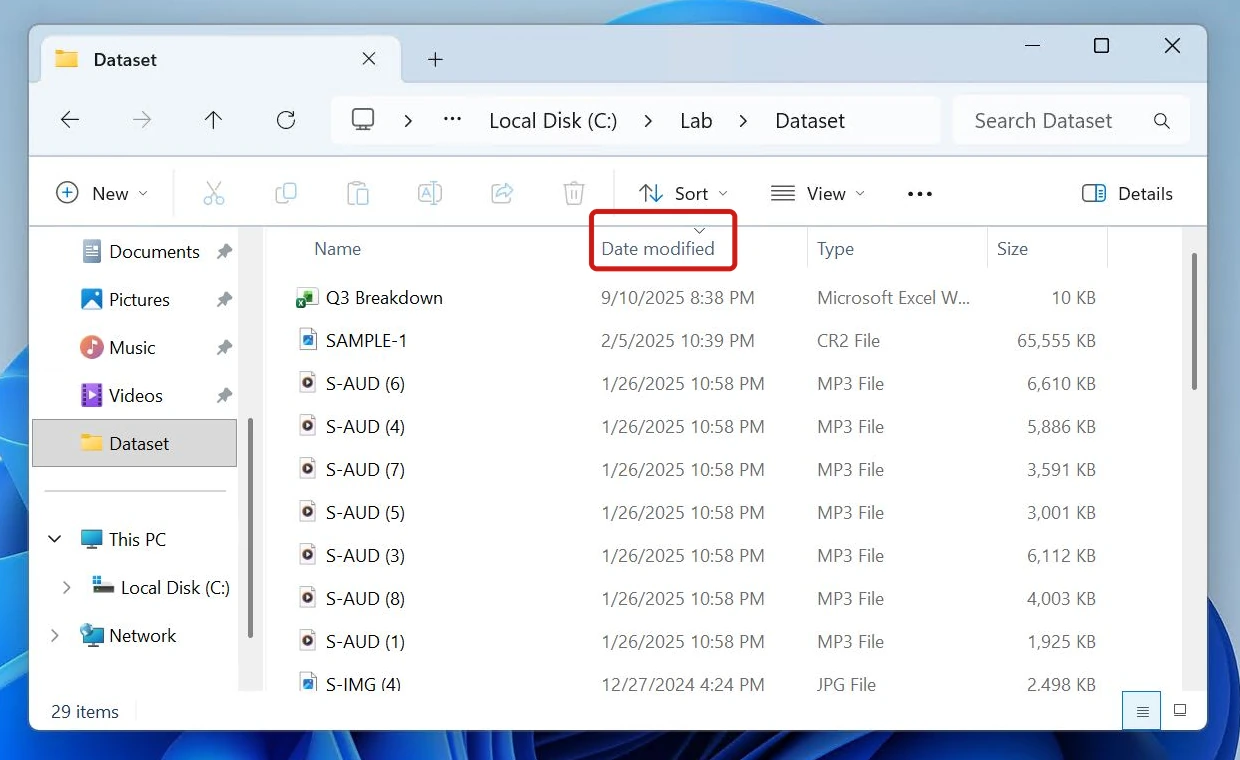
From the keyboard, F6 or Shift + F6 moves focus to the column headers, and Enter sorts by whichever one is selected, such as Name or Date modified. That behavior is documented on Microsoft’s page for exploring File Explorer with a screen reader, which sets out the column-header controls themselves.
Date modified is the header worth reaching for most often, since it floats whatever you touched last to the top of the folder. Name is the one that rewards the naming habits above.
Change the View Layout to Suit the Folder
View on that same command bar changes how files are drawn, while the column headers handle the order. Eight layouts ship with File Explorer, each drawing your files either as thumbnails or as standard icons based on file type:
- Extra large icons
- Large icons, the sensible choice for photos, where a big thumbnail is what tells two similar shots apart
- Medium icons
- Small icons
- List
- Details, which carries the sortable column headers and suits folders of documents
- Tiles
- Content
Pin Everyday Folders to Quick Access
The folders you open every day belong in Quick access, the pinned list that sits near the top of the navigation pane and on File Explorer’s Home page, and pinning them there is the fastest way to organize files in Windows 11 without moving anything at all.

Quick access holds two kinds of entry side by side: the folders you have pinned yourself, and the six known Windows folders that are there by default.
- Find the folder you want pinned, wherever it currently lives.
- Right-click that folder, or press and hold it on a touchscreen.
- Select Pin to Quick access. It joins the list straight away.
One catch: Cut and Paste do not work on a folder you reach through Quick access itself. Right-click it, select Open first, then cut and paste from there.
Pin sparingly. The known Windows folders already have a place there, so a pin earns its keep on locations outside them: the project folder you are living in this month, a drive you share with someone else, or the Archive folder you file into every Friday. When one of those stops being a daily folder, right-click it and select Unpin from Quick access.
File Explorer Tabs Organize Windows 11 Folders in One Window
A second folder does not need a second window. Tabs let you switch between folders inside one File Explorer window much as a browser handles several pages, so a move between two distant folders becomes one drag instead of a round trip back through the folder tree.

Tabs reached all editions of Windows 11, version 22H2 in the November 2022 security update, announced in a Windows Experience Blog post of 18 October 2022.
- Open File Explorer at the first folder you want in front of you, such as Downloads.
- Select Add a new tab on the tab strip, the row across the very top of the window that shows every tab you have open.
- Go to the second folder inside that new tab. Selecting either tab now switches the window to it.
Pair tabs with Cut and Paste: one tab on the folder full of loose files, another on the destination, then Cut in the first and Paste in the second.
Search When You Cannot Find a File You Organized in Windows 11
Search is the backstop for the day something goes missing, and there are two places to run one once you organize files in Windows 11 properly. They reach different ground, which is why the same search comes back empty in one and full in the other.
| Where you search | What it covers | When to use it |
|---|---|---|
| The taskbar search box | File names across the PC and OneDrive, and the contents of documents | First stop when you remember a word from inside the file |
| File Explorer, from Home | Files on the PC and in the cloud | The fast scope, so start here |
| File Explorer, from This PC | Every drive and folder under This PC | A slow, in-depth sweep for when Home finds nothing |
The support page on finding your files and apps in Windows sets out what each scope reaches. Start from the taskbar:
- Select Search on the taskbar and type the file name, or a keyword from inside the document.
- If what you are after is a document, select the Documents tab above the results to drop everything else.
If it is not there, run the search again inside File Explorer:
- In File Explorer, select Home in the sidebar.
- Type the file name in the search box on the toolbar.
- Select This PC and search again when Home comes back with nothing.
On a Copilot+ PC, search adds semantic indexing, which matches on meaning rather than on the exact file name. None of what it indexes is stored by Microsoft or used to train AI models. It runs alongside the standard indexing every Windows 11 PC already has, so treat it as an extra on that hardware.
Where OneDrive Fits Into Your Folders
When you organize files in Windows 11 inside a folder OneDrive backs up, the structure is kept in the cloud copy too, not flattened into a pile of loose files.
The other half of that safety net is version history. An older copy of a file stays recoverable after you have saved over it, and restoring a previous OneDrive file version is a short job in its own right, with steps for the web, for File Explorer and for rolling back an entire folder at once.
Conclusion
The work to organize files in Windows 11 is nearly all front-loaded. Decide the top level once, give folders names that sort themselves, and file each download as you save it, so nothing is left waiting for a monthly clear-out.
To organize files in Windows 11, open File Explorer, create folders with Ctrl + Shift + N, then move each file in with Cut and Paste. Sort a folder from its column headers in Details view, pin the folders you open daily to Quick access, and keep several folders open as tabs in one window.