Windows 11 keeps most programs tucked away in the Start menu or behind a search, so opening an app often means typing its name or scrolling a long list every time. Pinning an app to the taskbar solves that by placing a permanent, one-click icon along the bottom of the screen. This guide covers every practical way to pin apps in Windows 11, from the Start menu, search, and a running window to dragging a shortcut out of File Explorer, plus how to pin websites and folders and what to do when the Pin to taskbar option is missing.
If you’re still settling into Windows 11 overall, our Windows 11 for Beginners guide covers the basics before customizing the taskbar further.
How to Pin Apps to the Taskbar in Windows 11
There are several ways to add an app to the taskbar, and the right one depends on where the app currently sits. The four methods below are ordered from simplest to most manual, and each works on current Windows 11 releases, including 24H2 and 25H2.
Option 1: Pin an App from the Start Menu
The Start menu lists every installed program under All, which makes it the most direct place to pin something that is not already open.
- Open the Start menu.
- Scroll down to the app you want to pin, then right-click it. Click Pin to taskbar.
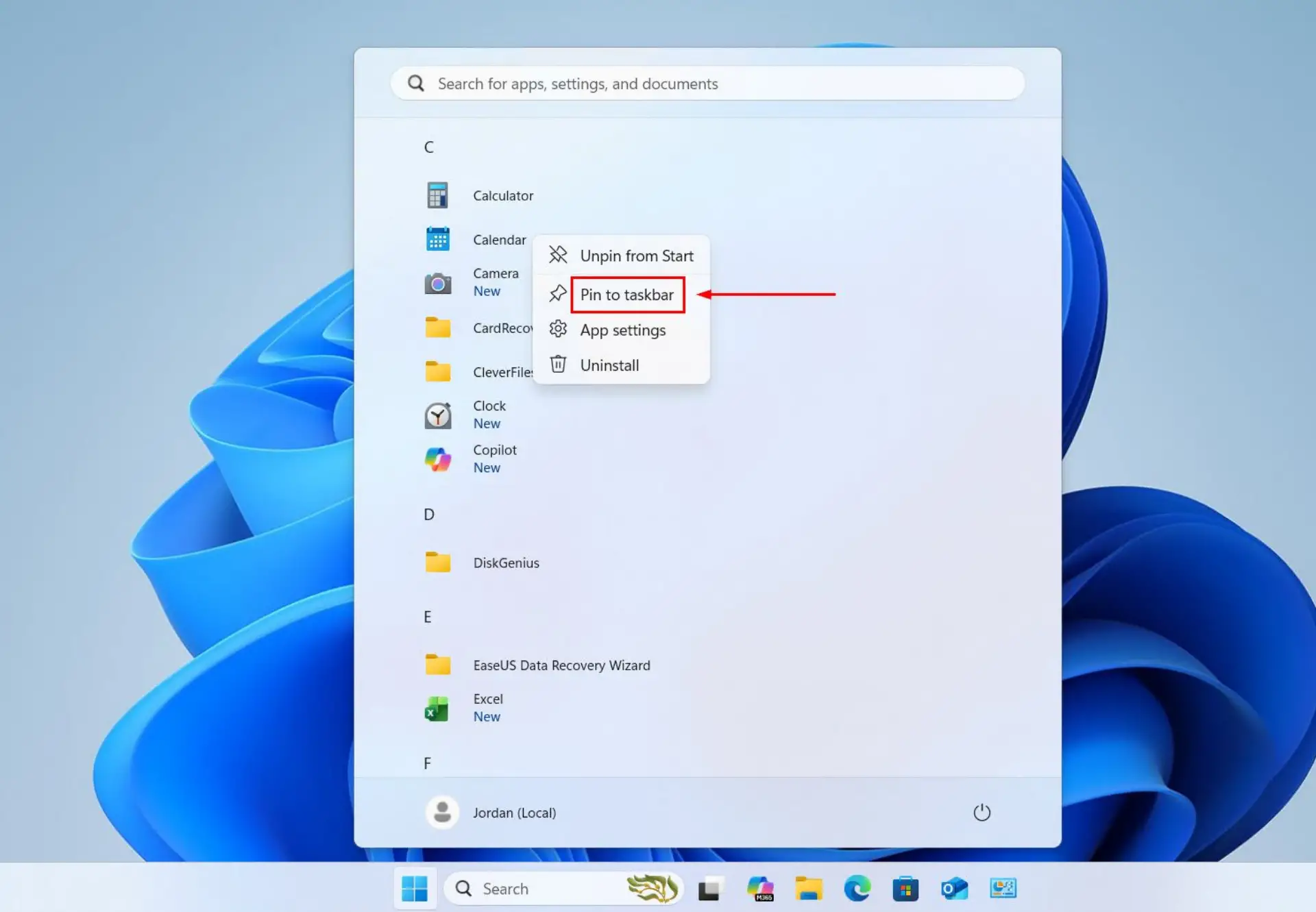
Apps already pinned to the top of the Start menu offer the same More menu, so there is no need to open the full list first. Anyone who wants extra room for those tiles can show more pinned tiles in the Start menu.
Option 2: Pin an App from Windows Search
Windows Search is quicker when the app’s name is known, since it finds the program without any scrolling.
- Click the Search box or icon on the taskbar and type the app’s name. The best match appears at the top of the results.

- Right-click the top result, or select the arrow beside it to open more options. A context menu appears.
- Choose Pin to taskbar. Windows adds the icon straight away.

Option 3: Pin an App That Is Already Open
Any program that is currently running shows a temporary icon on the taskbar. That icon can be pinned so it remains once the window is closed, which is the most reliable method for tools that offer no direct Pin option elsewhere.
- Open the app by any method, so its icon appears on the taskbar.
- Right-click the app’s taskbar icon. The Jump List and pin options appear above it.
- Select Pin to taskbar. The icon now stays in place after the app closes.
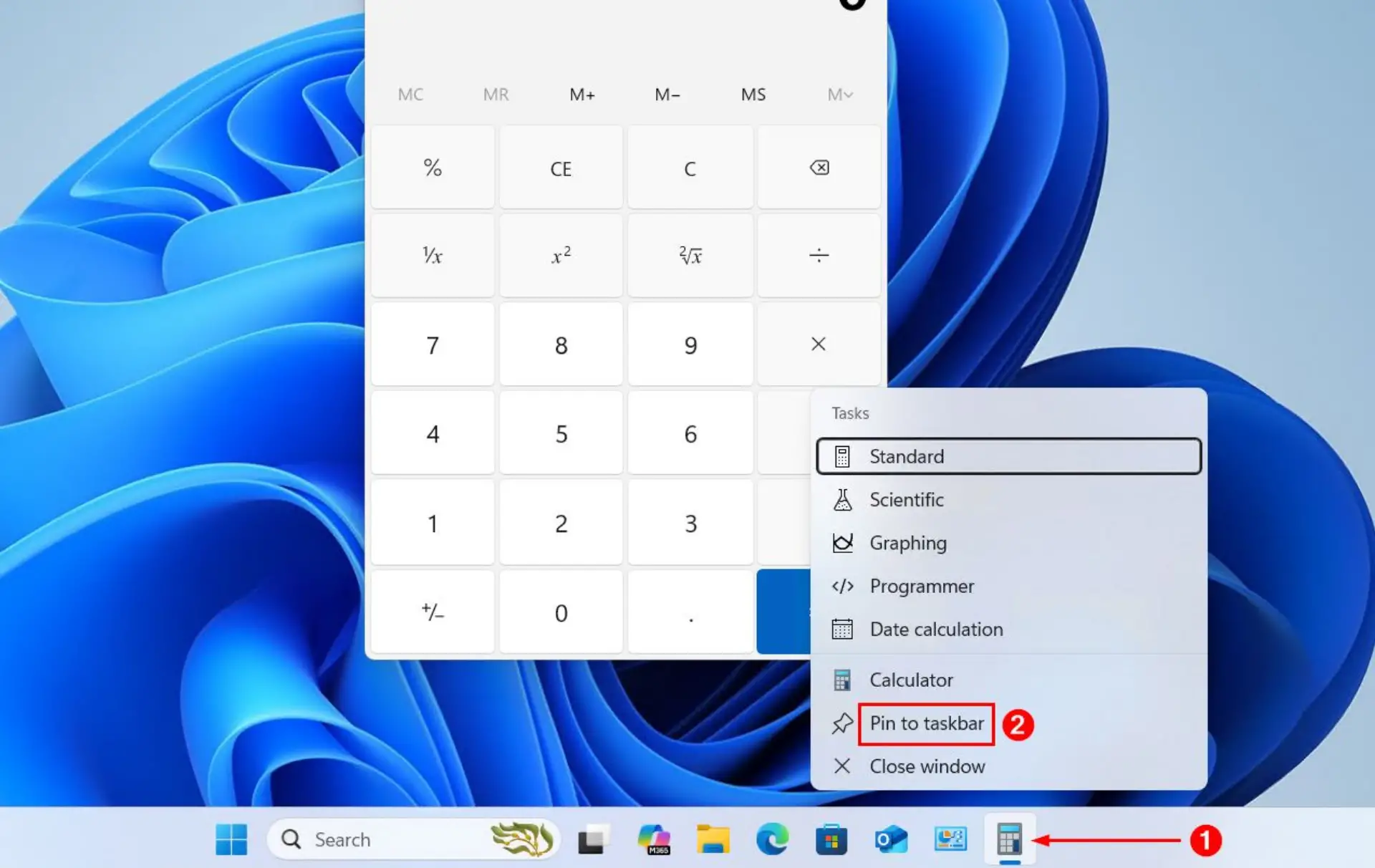
This approach works for any running program, including system tools such as Control Panel. The steps for pinning Control Panel the same way use the identical right-click method.
Option 4: Pin an App by Dragging It from File Explorer
Dragging suits programs whose file or shortcut is already visible in File Explorer or on the desktop. One point is worth noting first: Start menu tiles cannot be dragged onto the taskbar in current Windows 11 versions, so this method works only from File Explorer or the desktop.
- Open File Explorer and go to the program’s .exe file, or find its shortcut on the desktop.
- Drag the file or shortcut toward the taskbar. A Pin to taskbar tooltip appears as the pointer reaches the bar.
- Release the mouse button. The icon settles into the taskbar as a permanent pin.
How to Pin a Website to the Taskbar
The taskbar is not limited to applications. A frequently visited website can sit beside the pinned apps and open in its own window, which suits web apps such as email or a dashboard.
Option 1: Pin a Website Using Microsoft Edge
Microsoft Edge has a built-in option to pin the current page directly to the taskbar.
- Open the website in Microsoft Edge.
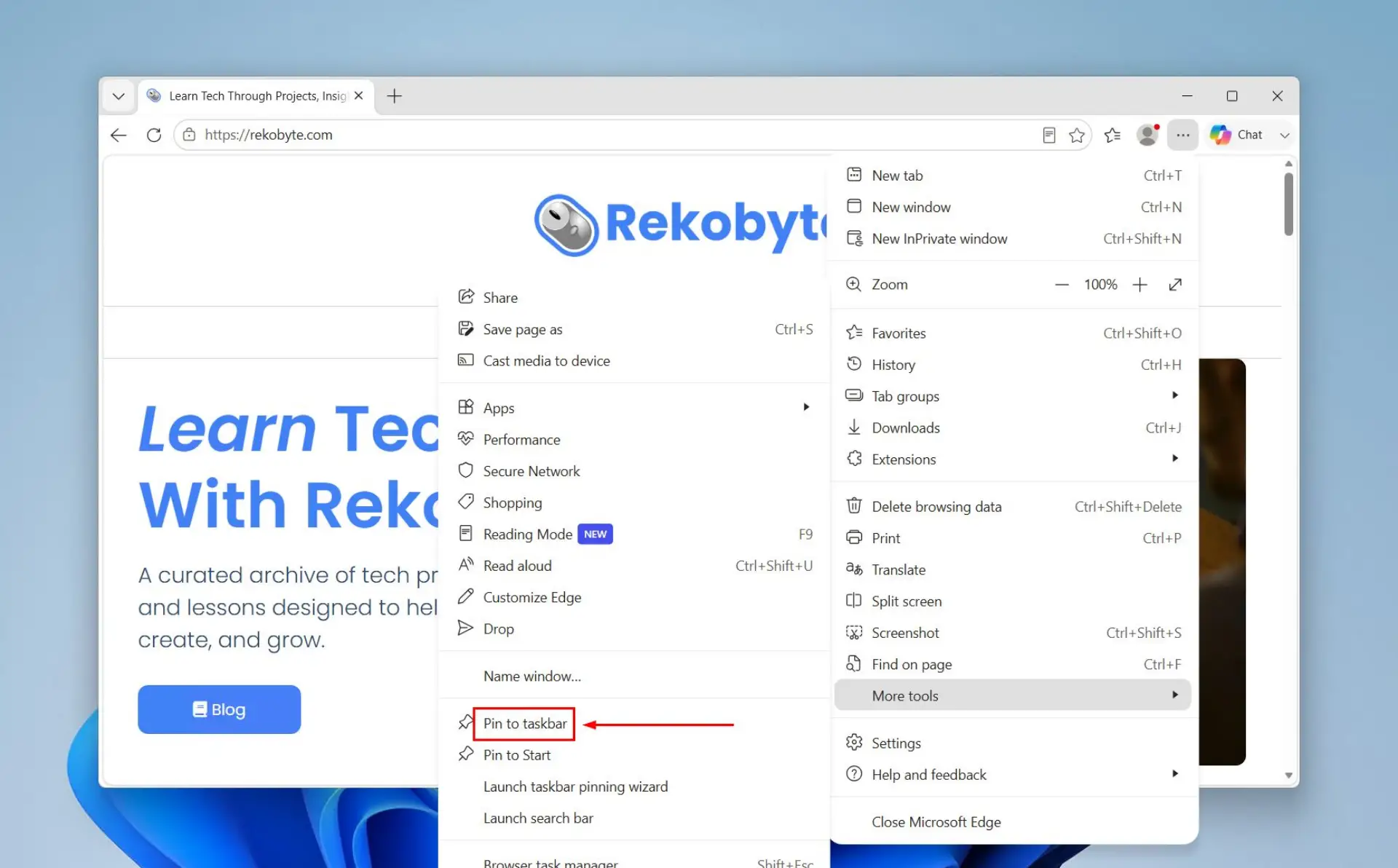
- Click the Settings and more button (the three dots) in the top right, then hover over More tools.

- Select Pin to taskbar and confirm the name. Edge adds an icon that opens the site in a dedicated window.
Option 2: Pin a Website Using Google Chrome
Google Chrome does not pin to the taskbar in one step, so the site is first saved as a windowed shortcut and then pinned from its running icon.
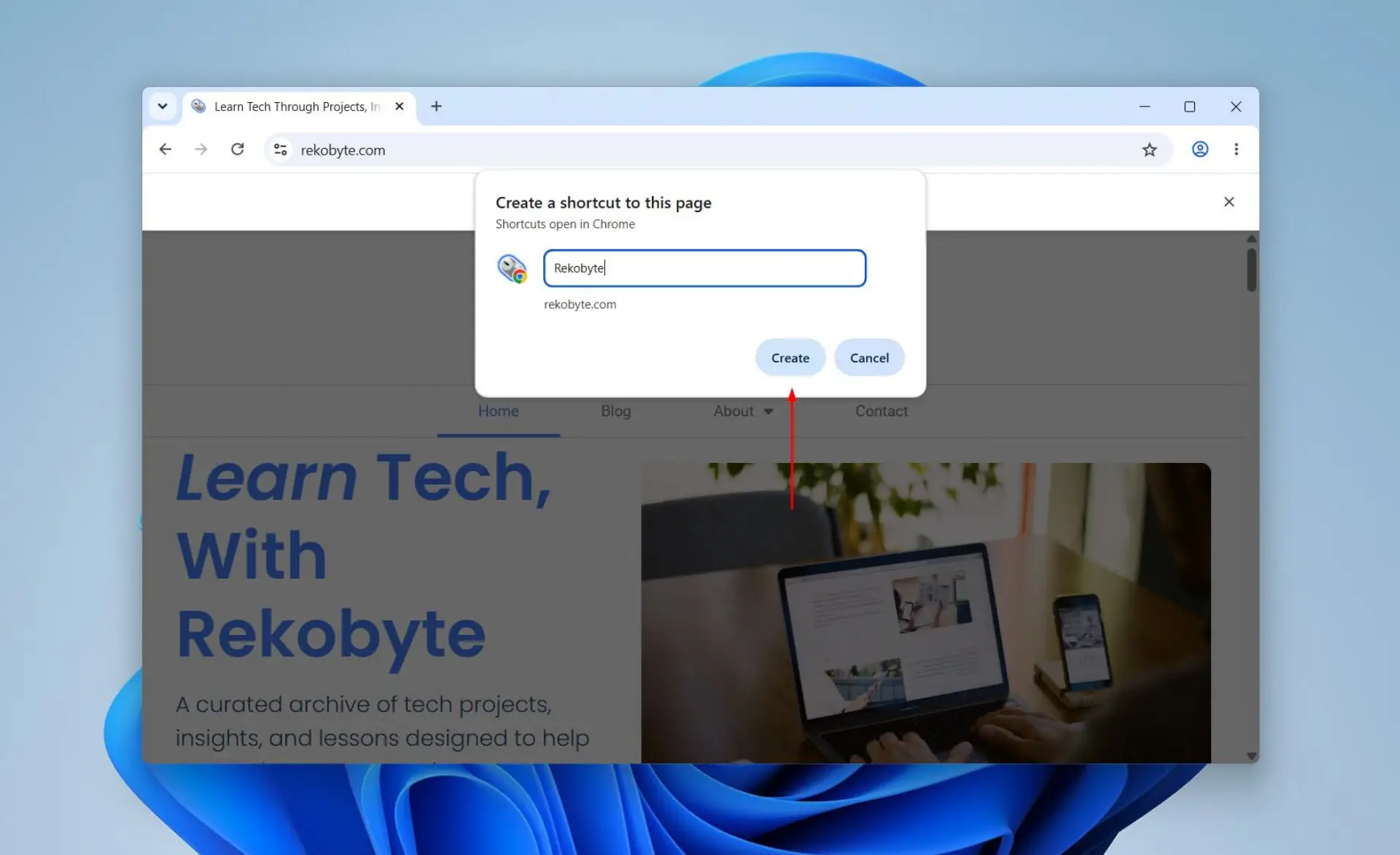
- Open the website in Google Chrome, click the three-dot menu, and go to Cast, save and share, then Create shortcut (older versions list this under More tools).

- Click Create. File Explorer will open the folder containing the shortcut.

- Drag the shortcut to the taskbar to pin it.
How to Pin a Folder or File to the Taskbar
Windows 11 removed the ability to pin folders and drives to the taskbar directly, so right-clicking a folder shows no Pin to taskbar option. A shortcut that opens the folder through File Explorer brings the option back.
- Right-click an empty area of the desktop, choose New, then Shortcut. The Create Shortcut wizard opens.
- In the location box, type explorer followed by a space and the full folder path in quotation marks, then click Next. The example below opens a Projects folder.
explorer "C:\Users\<YourName>\Documents\Projects"
- Name the shortcut and click Finish. Right-click the new shortcut, choose Show more options, then Pin to taskbar, and delete the desktop copy afterward.
The pinned icon uses the generic File Explorer icon by default. It can be changed back to a folder look through the shortcut’s Properties, under Change Icon, by pointing to shell32.dll. A single file cannot be pinned on its own, but the app that opens it can be pinned, and the file then shows up in that app’s Jump List once it has been opened.
How to Rearrange or Unpin Taskbar Icons
Pinned icons are not fixed in the order they were added. They can be reordered at any time, and any pin can be removed just as easily.
To change the order, drag any pinned icon left or right to its new position and release. The surrounding icons shift to make room. To remove a pin, right-click the icon and select Unpin from taskbar. The app stays installed and can be pinned again later.
By default the pinned group sits in the center of the taskbar. Anyone who prefers the classic layout can move the taskbar icons to the left alongside the Start button.
What to Do When “Pin to Taskbar” Is Missing or Greyed Out
Sometimes the Pin to taskbar option does not appear, or it shows but does nothing. The cause is usually the type of item being pinned or a temporary glitch in the taskbar itself.
- The wrong object is selected: folders, single files, and some Settings links have no Pin to taskbar option. Pin the app instead, or use the File Explorer shortcut workaround above.
- The option is under More: in the Start menu, Pin to taskbar sits inside the More submenu rather than at the top level of the right-click menu.
- Explorer needs a restart: if pins fail across the board, restarting the desktop process usually clears it.
To restart that process, open Task Manager, find Windows Explorer under the Processes tab, right-click it, and choose Restart. The taskbar vanishes for a second and returns. If the taskbar stays frozen or icons are still missing afterward, a deeper fault may be at play, and this guide to fixing a Windows 11 taskbar that is not responding covers the remaining causes.
Conclusion
To pin an app to the taskbar in Windows 11, open the Start menu, select All apps, right-click the app, hover over More, and choose Pin to taskbar. For an app that is already open, right-click its taskbar icon and select Pin to taskbar so it stays after the window closes. The same right-click approach pins websites through Edge or Chrome, and a File Explorer shortcut brings folders onto the taskbar as well. With the right method for each type of item, any program or location can sit a single click away.