Windows 11 fills the top of the Start menu with a default set of pinned apps, most of which go unused. Reaching a program that is actually needed often means opening All apps and scrolling. Pinning fixes that by putting the apps and folders used most in a fixed, one-click spot. This guide covers pinning apps from search and the All apps list, pinning a File Explorer folder, grouping pins into Start menu folders, and rearranging or removing them.
If you’re newer to Windows 11 in general, our Windows 11 for Beginners guide is a good place to start before organizing the Start menu.
How to Pin Apps to the Start Menu in Windows 11
An app can be pinned in two ways, depending on whether its name is already known or it needs to be found in the full list. Both add a tile to the pinned area at the top of Start.
Option 1: Pin an App from Search
Searching is the fastest route when the app name is known.
- Press the Windows key and type the app name. The best match appears at the top of the results.
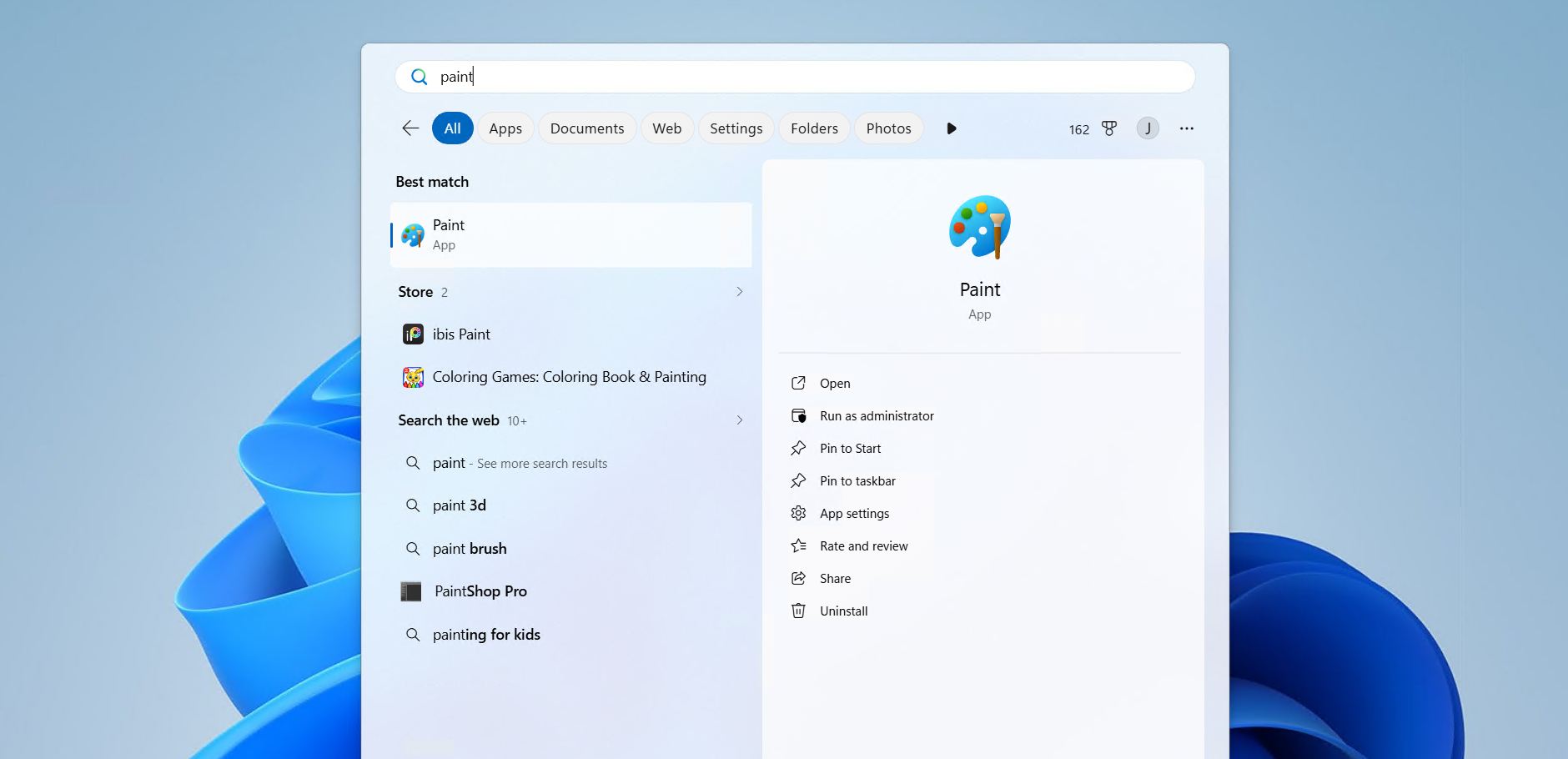
- Right-click the app and select Pin to Start. A tile is added to the pinned section of the Start menu.

Option 2: Pin an App from the All Apps List
The All apps list is useful for pinning something whose exact name is unclear.
- Open the Start menu
- Click View: Category and change it to View: List.

- Scroll through the list to find the app, then right-click and pin it.
The same approach pins a program to the taskbar instead, covered in the guide to pinning apps to the taskbar. A specific system tool such as Control Panel pins the same way, shown in the guide to pinning Control Panel to Start.
How to Pin a Folder to the Start Menu
Folders from File Explorer can be pinned to Start as well, which is handy for a project directory or a downloads location that gets opened often.
- Open File Explorer and locate the folder to pin. Any folder on the system works.
- Right-click the folder and select Pin to Start. In Windows 11 this option sits in the main right-click menu.

How to Group Pinned Apps into Folders
Windows 11 can gather several pinned tiles into a single folder, which keeps the pinned area tidy once it fills up. This works on Windows 11 version 22H2 and later.
- Drag one pinned tile directly on top of another and release. Both tiles shrink into a new folder.
- Click the folder to open it, then select Edit name and type a label. A clear name such as Work or Games makes it easy to find.
- Drag any other tiles onto the folder to add them. Dragging a tile back out removes it, and the folder disappears once only one app is left.
How to Rearrange and Unpin Start Menu Items
Pinned tiles can be reordered at any time, and the top row is the most useful spot since it stays visible without scrolling.
- To reorder a pin, drag the tile to a new position, or right-click it and choose Move to top.
- To remove a pin, right-click the tile or folder and select Unpin from Start.
If the pinned area feels cramped, Windows 11 can show an extra row of pins by changing one setting, explained in the guide to showing more pins or recommendations.
Why Pin Apps and Folders to Start?
Pinning turns the Start menu into a personal launcher rather than a default one. The apps and folders that matter sit together in a fixed place, which removes the repeated search or scroll that Windows 11 otherwise needs.
- Faster launching: frequently used apps open in one click from a known spot.
- Less clutter: folders keep related pins grouped instead of spread across the menu.
- Quick file access: a pinned folder opens a working directory without browsing to it.
Conclusion
To pin an app to the Start menu in Windows 11, press the Windows key, type the app name, then right-click it and choose Pin to Start. Folders from File Explorer pin the same way through their right-click menu, and dragging one pinned tile onto another groups them into a named Start menu folder. Together these options keep the Start menu organized around the apps and folders that get used most.