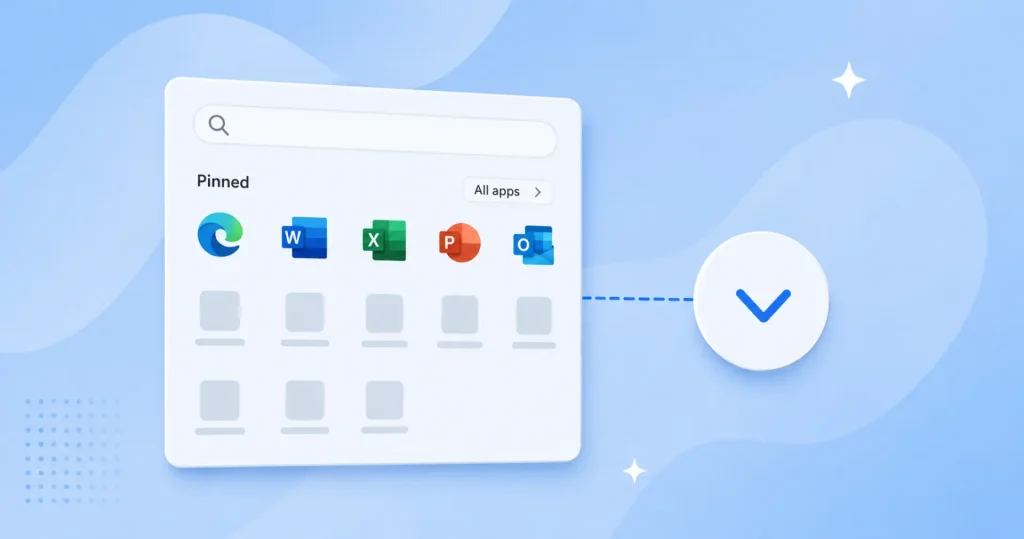
The Windows 11 Start menu splits its space between pinned apps and a Recommended feed, and neither half feels big enough by default. Making one side larger used to be a single setting, but Microsoft has since rebuilt the Start menu, and the old More pins and More recommendations options are gone on updated PCs. This guide shows how to give pins or recommendations more room in both versions of the Start menu, and explains what changed so the missing setting makes sense.
How to Show More Pins or Recommendations in Windows 11
Windows 11 now ships in two different Start menu designs, and the steps depend on which one a PC has. The quickest way to tell them apart is the settings page.
Open Settings, go to Personalization, and select Start. If the page opens with a Layout section holding three thumbnails labeled Default, More pins, and More recommendations, the PC has the classic Start menu. If the page opens straight into groups of switches (Recommended, All, and Other) with no Layout thumbnails, the PC has the new Start menu that rolled out with Windows 11 24H2 and 25H2. The sections below cover both.
Show More Pins in the Windows 11 Start Menu
Pins are the app icons at the top of the Start menu. How they expand depends on the menu version, so use the path that matches the layout found above.
In the New Start Menu: Windows 11 24H2 and 25H2
The new Start menu dropped the More pins preset. Instead, the pinned area expands on demand, and Windows keeps it that way once it is opened.
- Open the Start menu by pressing the Windows key or clicking the Start button. The Pinned row sits at the top.
- Click Show all at the top-right of the Pinned section. The menu expands to display every pinned app rather than the first row.
- Leave it as is. Windows remembers the expanded view, so the Start menu keeps showing all pins the next time it opens.
A larger pin area is only useful when there is something to fill it. Adding more shortcuts is the real way to get value from the extra space, so it is worth taking a minute to pin more apps to the Start menu. System tools work the same way, and it is possible to pin Control Panel to Start for quick access to older settings. For apps that need to be one click away without opening Start at all, pinning them to the taskbar is the better option.
In the Classic Start Menu: Windows 11 23H2 and Earlier
On builds that still have the Layout section, one preset shifts the balance toward pins in a single click.
- Right-click an empty part of the Start menu and select Start settings. This opens Personalization > Start directly. The same page opens through Settings > Personalization > Start.
- Select More pins in the Layout section. The thumbnail highlights to confirm the choice.
- Open the Start menu again. It now shows an extra row of pinned apps and a smaller Recommended area below them.
Show More or Fewer Recommendations in the Start Menu
The Recommended section lists recently added apps, recent files, and occasional tips. Its size is handled very differently in the two menu versions.
In the New Start Menu: Windows 11 24H2 and 25H2
The new menu has no More recommendations preset. What appears in the Recommended section is controlled by three switches, and turning them off shrinks or removes the section entirely.
- Open Settings > Personalization > Start. The Recommended group sits at the top of the page.
- Turn each switch on to include more in the section: Show recently added apps, Show recommended files in Start, recent files in File Explorer, and items in Jump Lists, and Show recommendations for tips, shortcuts, new apps, and more.
- Turn all three off to clear the Recommended section and hand its space back to the pinned apps and the app list.
One point is worth knowing before flipping the second switch: Show recommended files in Start also governs the Recent files view in File Explorer and the Jump Lists on taskbar icons, so turning it off affects those places too. The new menu can enable each recommendation type, but it cannot force a larger Recommended block the way the old preset did.
In the Classic Start Menu: Windows 11 23H2 and Earlier
The Layout section handles this in one step on older builds.
- Open Settings > Personalization > Start, or right-click the Start menu and choose Start settings.
- Select More recommendations in the Layout section. The Start menu now devotes an extra row to recommended files and apps, with fewer pins above them.
Why the More Pins and More Recommendations Options Disappeared
The Layout presets were not a bug that got removed. They arrived with Windows 11 version 22H2 on 20 September 2022, giving the Start menu a Default, More pins, or More recommendations choice for the first time.
Microsoft then rebuilt the Start menu into a single, vertically scrolling page that stacks the pinned apps, the Recommended feed, and the full app list on one surface, with Category, Grid, and List views for browsing all apps. That redesign replaced the fixed presets, so the three-way Layout selector was dropped. After a long preview period, the new menu rolled out to all Windows 11 24H2 and 25H2 PCs around July 2026 (builds 26100.7019 and 26200.7019). Version 23H2 and earlier did not receive it, which is why some machines still show the old Layout section. Microsoft has said more granular controls, including the ability to resize Start and switch whole sections on or off, are due with the 26H2 update later on.
The redesign is only one of several recent Start and taskbar changes, and it can be paired with other tweaks such as a fresh desktop background in Windows 11 to finish personalizing the look.
Conclusion
To show more pins or recommendations in the Windows 11 Start menu, first check which menu the PC has in Settings > Personalization > Start. On the new 24H2 and 25H2 menu, click Show all beside Pinned to expand the pins, and use the three Recommended switches to add or remove recommendations. On Windows 11 23H2 and earlier, open the Layout section and pick More pins or More recommendations.