The SystemTemp folder can look alarming, as a huge block in a disk-usage tool or as a permission prompt in File Explorer. The short answer is no, do not delete it by hand. Below we cover what it is, how to look inside, what happens if you delete it anyway, and how to free space. We checked it on a Windows 11 test machine.
Prefer to watch? See the video guide.
What Is the SystemTemp Folder?
The SystemTemp folder, at C:\Windows\SystemTemp, is the temporary folder for programs running as SYSTEM, the account Windows itself uses. Microsoft documents the folder as inaccessible to non-SYSTEM processes.
Microsoft says the permissions are set “to prevent common path redirection issues” without spelling out the attack. The path is documented, so a folder with this name is expected. Here the permissions list Administrators as well as SYSTEM, which fits an admin account getting a prompt rather than a hard block.
C:\Windows\SystemTemp
This is a different place from C:\Windows\Temp and from your own temp folder, which hold other programs’ leftovers and have their own rules.
Heads up: Do not take ownership of the folder or reset its permissions. Windows set those permissions on purpose.
How to Look Inside the SystemTemp Folder
You can look inside the SystemTemp folder in File Explorer. Do this only if you want to see what is there.
- Open File Explorer, click the address bar, type C:\Windows\SystemTemp and press Enter. A prompt titled SystemTemp appears.
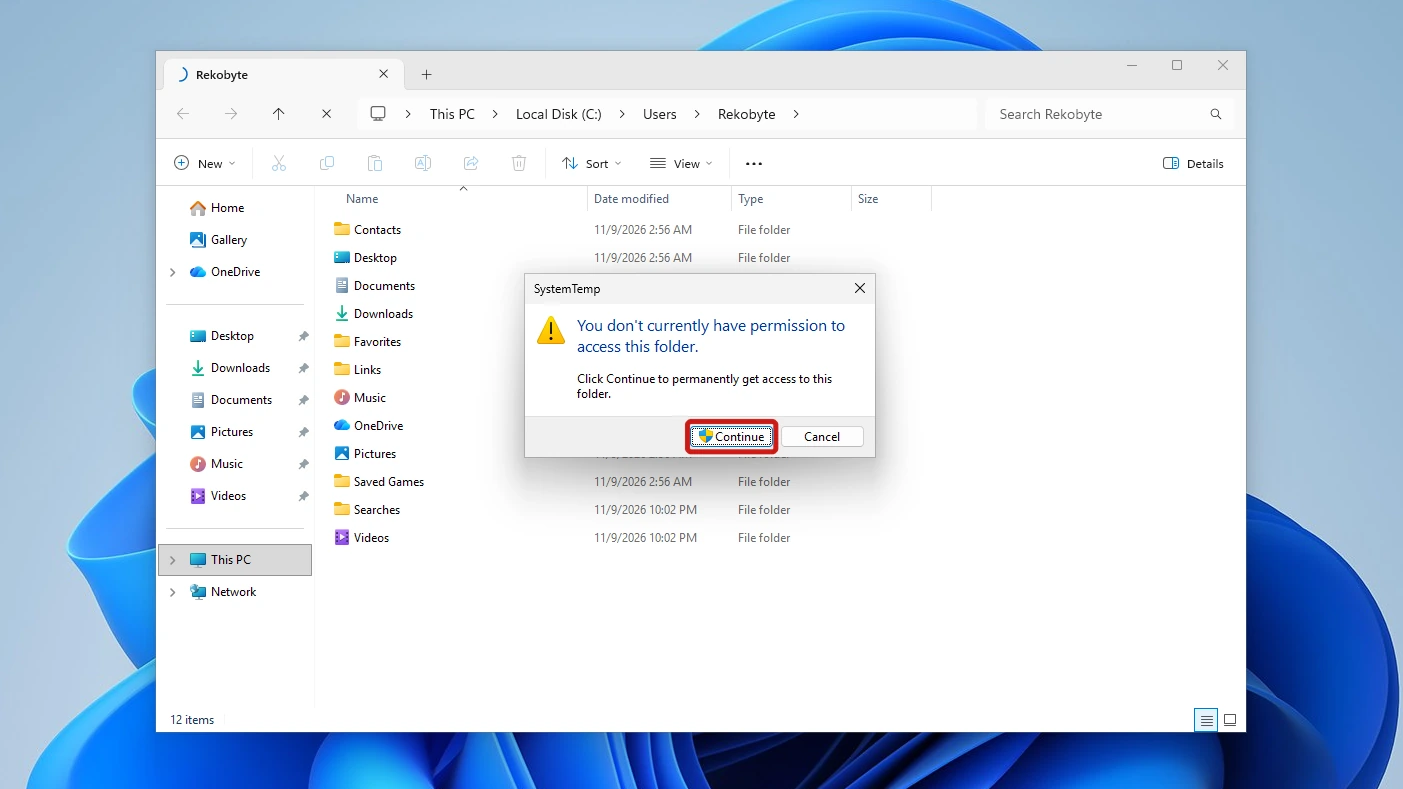
- Read the prompt, then click Continue. It says “You don’t currently have permission to access this folder” and “Click Continue to permanently get access to this folder.” With an administrator account, as on our test PC, no further prompt followed. A standard account may see something different.
- Look at the list and leave it alone. The folder opened at once and showed 78 items at the top level: five GUID-named folders, three other folders, event logs and many .tmp files.
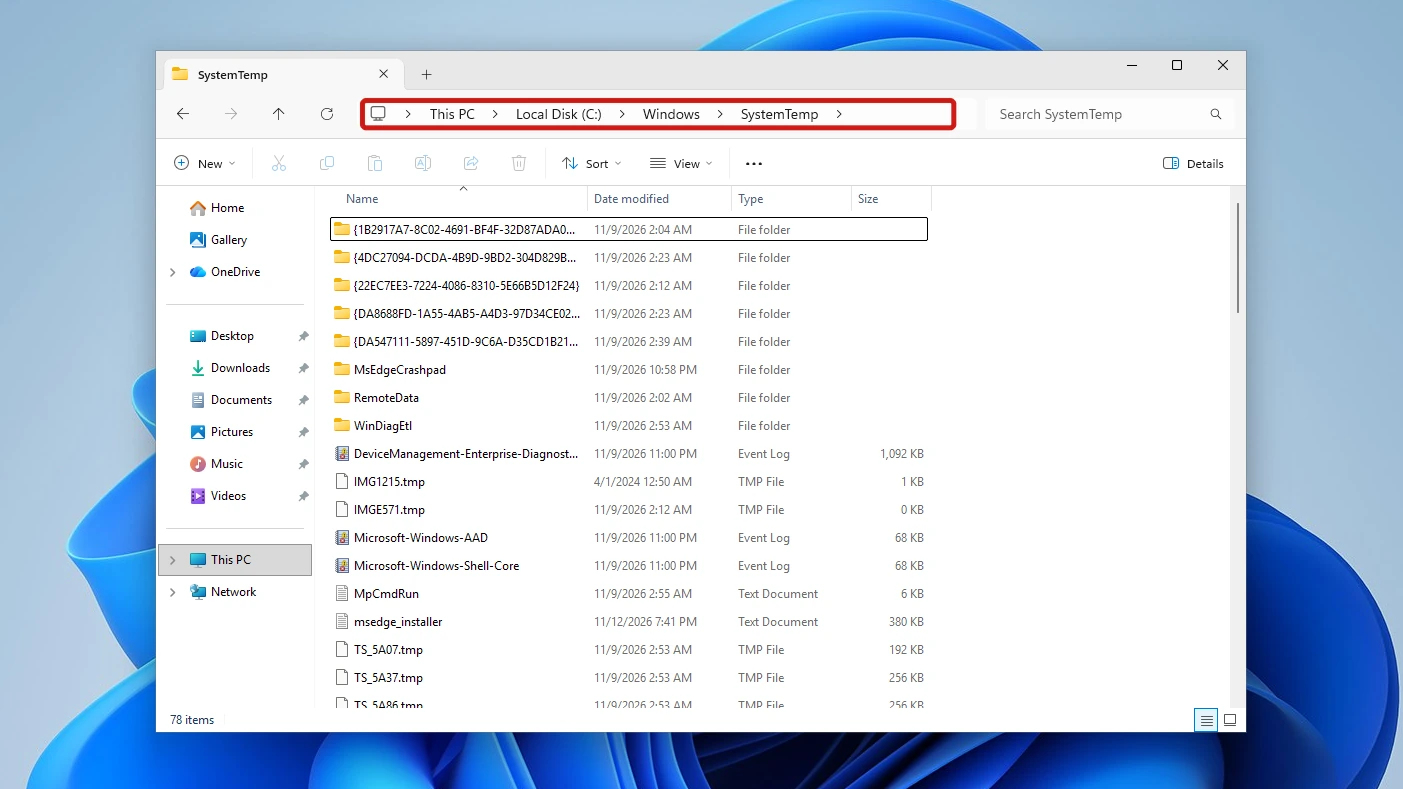
- Press Back. When we typed the path again in the same window, the prompt did not return.
Warning: Clicking Continue permanently changes the folder’s access list so your account can open it, as the dialog says. Never modify what is inside.
Something is writing to these files: an Edge installer log grew from 380 KB to 594 KB while we looked. Changing files in use could interrupt whatever is writing. Sizes differ by PC. The 78 items counted at the top level include each folder as one item.
Is It Safe to Delete the SystemTemp Folder?
No, it is not safe to delete the SystemTemp folder by hand, whether you remove the folder or the files in it. Programs are using it, and deleting the folder costs you its permissions, as the next section shows. Storage Sense is the one built-in cleanup we tested that removed files without deleting the folder, and Microsoft does not say it reaches this one.
| Do this | Not this |
|---|---|
| Look at the folder in File Explorer, accepting the permanent access prompt (only if curious) | Delete the folder |
| Let Windows clean temporary files with Storage Sense | Delete or edit files inside it |
| Contact the app maker’s support if one app keeps refilling it | Take ownership or change its permissions |
What Happens If You Delete the SystemTemp Folder?
On our test PC, Windows rebuilt the folder: an admin PowerShell session (not Explorer) deleted it with no error, and Windows recreated it within about 45 seconds without a restart. We are not showing you how, because you should not.
- The folder came back on its own.
- The new folder has weaker permissions. The original listed only SYSTEM and Administrators, while the rebuilt one also let ordinary accounts read it.
- In a separate test that cleared only the contents, one Edge installer log was in use and stayed behind.
If you already deleted it, expect Windows to have rebuilt it. We have no verified way to put the old permissions back, so do not edit them by hand.
How to Free Space Safely
Windows has a built-in cleaner for temporary files, and Storage Sense is the one to check first, though it is not a fix for a huge active folder.
- Open Settings, then go to System > Storage > Storage Sense. Look at the checkbox Keep Windows running smoothly by automatically cleaning up temporary system and app files. Ours was ticked and the Storage Sense toggle was already On. If yours is Off, switch it On.
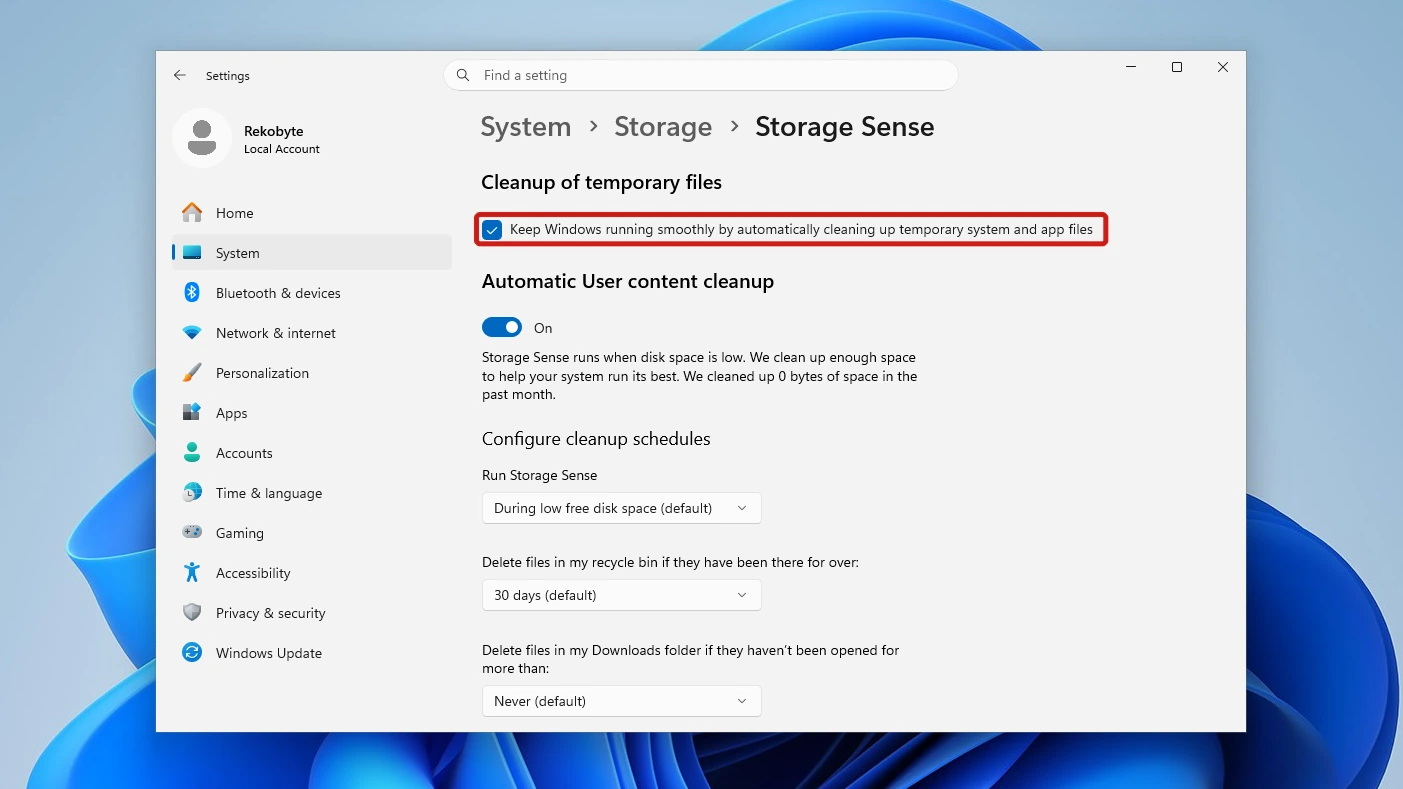
- Go back to Storage and open Temporary files to see what Windows offers to remove. It listed Delivery Optimization Files, Thumbnails, Temporary Internet Files and DirectX Shader Cache. SystemTemp is not listed.
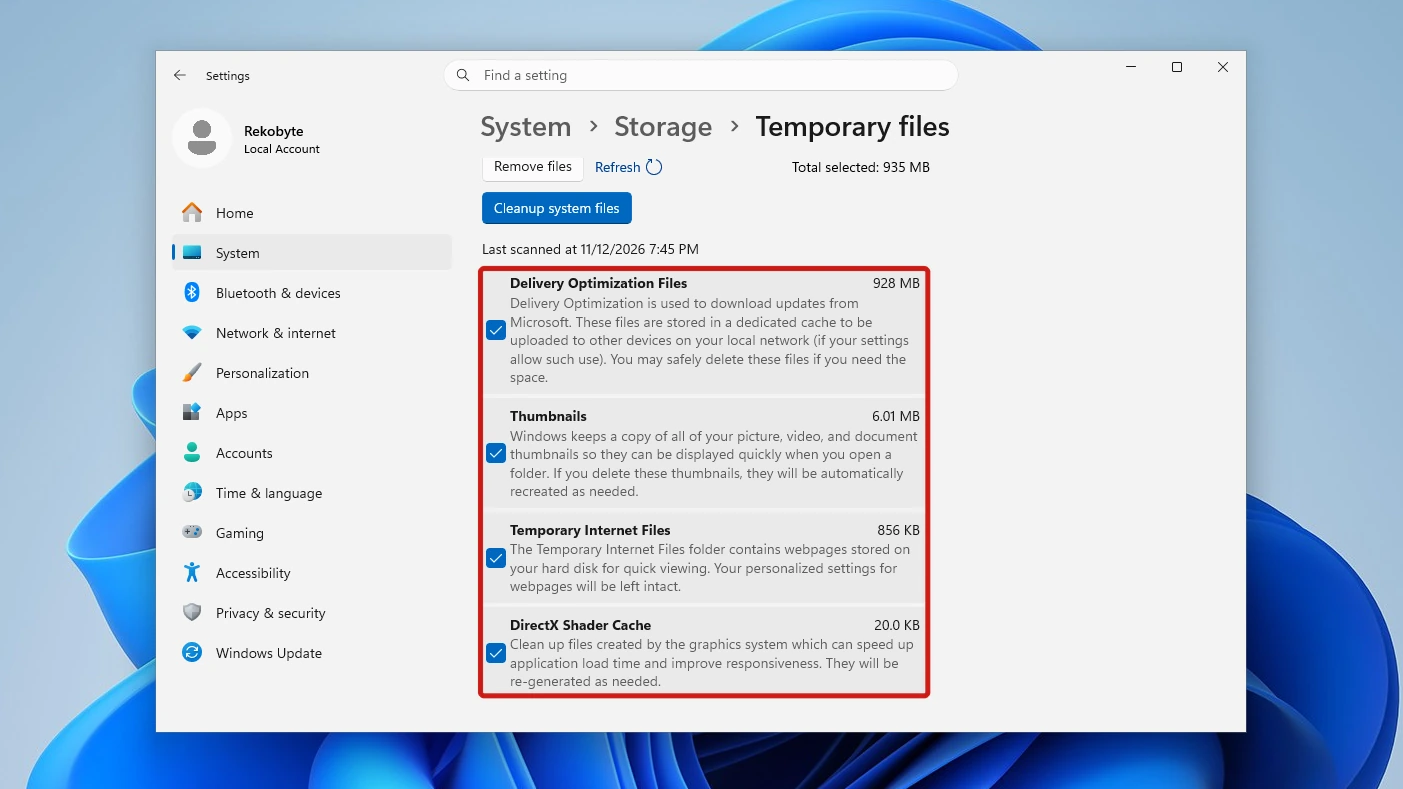
In a separate test, files we had backdated to 120 days old left the folder after Storage Sense ran, while files created minutes earlier stayed. It cleared old test files on our PC, so it is not a fix for a huge active folder. For Storage Sense and Disk Cleanup settings you can leave running, see keeping Windows 11 updated. Microsoft’s page on freeing up drive space lists other built-in cleanups.
In the forum reports we found, one app was the writer. Posts on a Razer support forum in 2025 describe:
- software from the hardware maker filling the folder with over 100 GB (456 GB in one report);
- in the 456 GB report, Windows showing those files as 0 KB while a disk-size tool showed the real size;
- in that same report, the folders remaining after the poster uninstalled the software.
These are posters’ claims, not confirmed by Razer or Microsoft. Uninstalling the app may stop it refilling the folder, but in the 456 GB report the folders stayed afterward. We have no verified step beyond the app maker’s own support, so start there. If you need to remove the app, other ways to uninstall an app go beyond Settings.
Conclusion
No, do not delete the SystemTemp folder or change what is inside it. Programs running as SYSTEM are using it, and Windows set its permissions on purpose. When we deleted it, Windows recreated it in about 45 seconds with weaker permissions. To free space, check Storage Sense; if one app keeps filling it, start with that app’s support.
Video Guide
Watch the access prompt, a look inside the folder and the Storage Sense settings on screen.