Windows switches on the settings that keep Windows 11 updated, and things drift anyway: restarts land in the middle of something, drivers stay on whatever shipped with the machine, Store apps fall behind, and free space vanishes until an install has nowhere to go. We set each of those controls here, and that is most of keeping Windows 11 running smoothly. Update scheduling, drivers, Store apps, free space, startup apps, and the cleaner-app question.
Why Keeping Windows 11 Updated Matters
Two things arrive on a fixed schedule, and keeping Windows 11 updated mostly means not getting in their way. Monthly cumulative updates ship on the second Tuesday of each month and carry the security and quality fixes. Feature updates arrive once a year, in the second half of the calendar year, and change how parts of the operating system look and work.
Each feature update comes with its own support window. Home, Pro, Pro for Workstations and Pro Education get 24 months of support from a feature update’s release, while Enterprise and Education get 36. Microsoft’s Windows 11 release information page lists which releases are still being serviced and when each one stops. Once a version drops out of that window, the monthly fixes stop arriving for it.
What Ships Every Month, and What Ships Once a Year
Keep the two kinds apart in your head, because only one of them changes anything you can see. The monthly one is invisible when it works, and the annual one rearranges things whose position you had already learned.
| Update type | What it contains | How it arrives | How long it is supported |
|---|---|---|---|
| Monthly cumulative update | Security and quality fixes, rolled together | Through Windows Update, on the second Tuesday of each month | Delivered for as long as the feature update you are running stays in support |
| Annual feature update | New and changed features across the operating system | Through Windows Update, released in the second half of the calendar year | 24 months on Home, Pro, Pro for Workstations and Pro Education; 36 months on Enterprise and Education |
The Settings That Keep Windows 11 Updated on Your Schedule
Two controls decide when an update actually lands, and between them they keep Windows 11 updated without taking over your afternoon. Active hours mark out the window Windows leaves alone. Pausing buys a fixed number of days. Leave both untouched and Windows downloads and installs on its own, asking only for a restart at a moment active hours has already approved, which is the right arrangement for most machines.
Checking by hand is still one trip to Settings then Windows Update, and the moment it earns is the week before travel or a deadline. When an install fails and leaves a code behind, our Windows error code lookup turns that code into a plain description of what went wrong, which is a better first move than a reinstall. If an update keeps failing, clear the SoftwareDistribution folder: Microsoft’s reset for the update cache.
Active Hours Decide When Your PC Restarts
Active hours exist to let Windows know when you are usually using the PC, so it can avoid inconvenient restarts. That is Microsoft’s own description of the setting, on its guide to keeping your PC up to date with active hours. Set it Automatically and Windows works the window out from when you actually use the machine. Set it Manually and you pick the start and end times yourself.
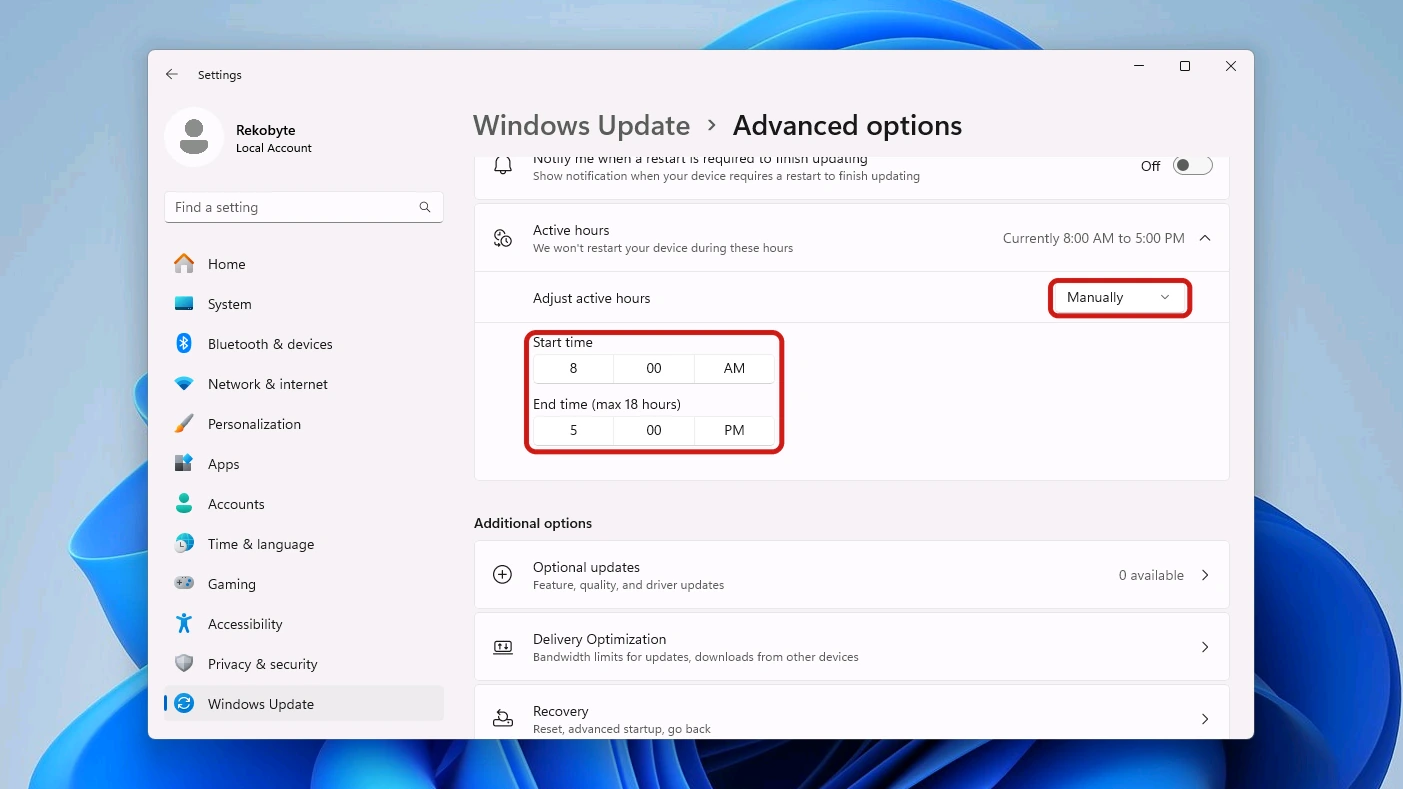
Opening Settings from the keyboard with Windows key + I saves a click when the Start menu is not already open.
- Open Settings and select Windows Update at the bottom of the list down the left.
- Select Advanced options, where the timing settings live.
- Open Active hours. The window currently in force is shown beside it.
- Choose Automatically to hand the timing to Windows, or Manually to set a start and end time that match your own working day.
Pausing Updates for Up to 35 Days
A pause holds updates back for a set stretch, up to 35 days from the date you set it. Microsoft’s page on pausing updates in Windows sets out exactly what stops: updates that need a restart are not downloaded, and the device will not restart itself while the pause runs.
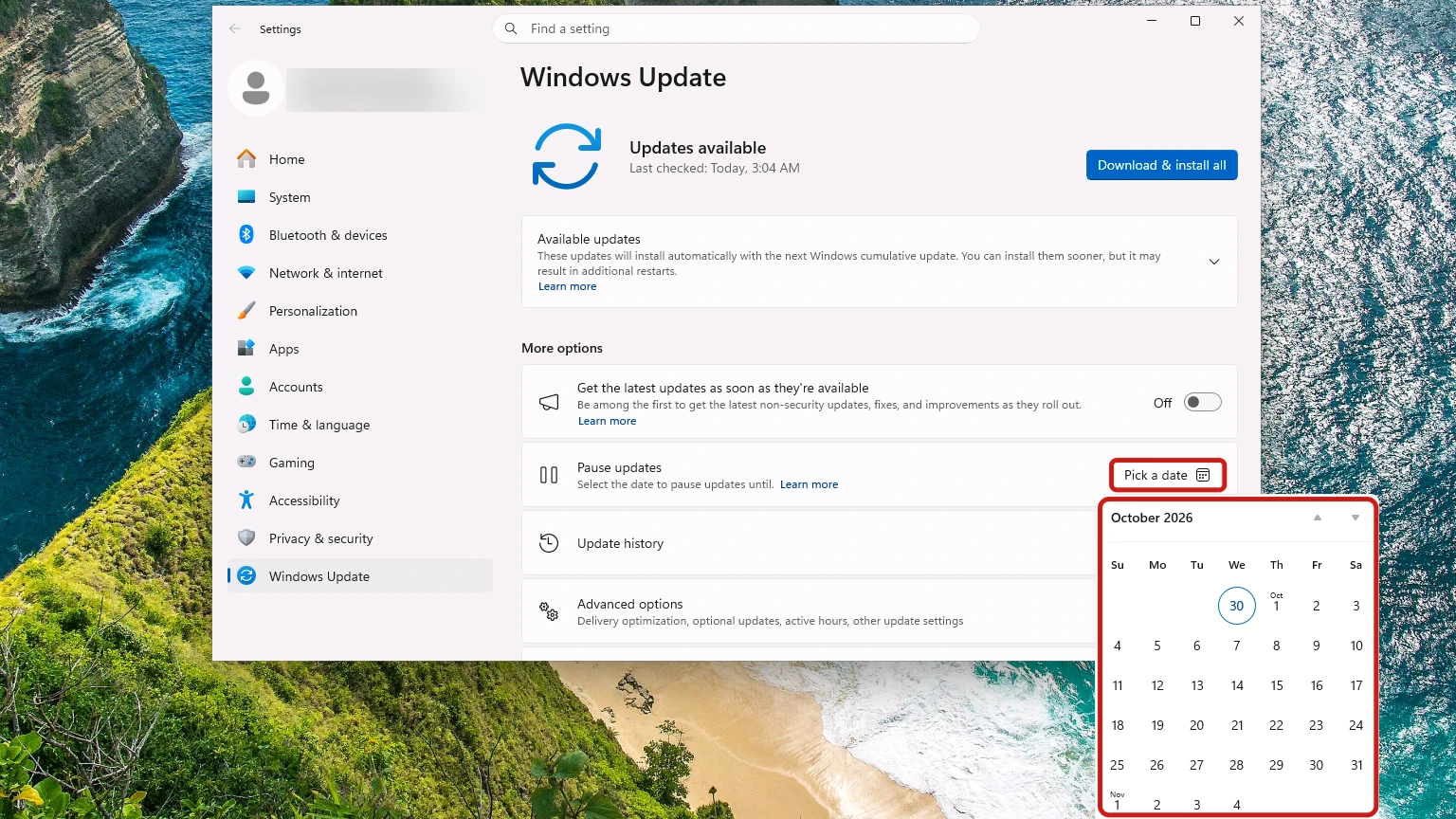
You can extend a pause up to the same 35-day limit, and you can end one early. Once the pause expires, Windows checks for, downloads and installs the latest updates automatically without asking again.
- Open Settings then Windows Update, where Pause updates sits under More options.
- Select Pick a date beside it to open a calendar of the dates you can choose.
- Select a date in the calendar. The furthest it reaches is 35 days ahead, and Windows holds everything back until then.
- Select Resume updates at any point to end the pause early and let the queued updates install.
Heads up: a pause is a delay, not an opt-out. The delay lands on the month’s security fixes, so use the shortest pause that carries you past whatever you were protecting, then resume it yourself instead of waiting for the ceiling.
Keep Drivers Updated on Windows 11
How to update drivers in Windows 11 has a one-line answer from Microsoft: Windows Update is the best way to get them. That same automatic route keeps Windows 11 updated and brings recommended drivers with it, so most machines need nothing here. The catch is that there are two kinds.
- Recommended drivers install on their own through Windows Update, with no decision to make and nothing to check.
- Optional driver updates do not install automatically. They wait under Advanced options then Optional updates then Driver updates, where you tick the ones you want and install them yourself.
That optional pass belongs to the first hour with a machine far more than to a monthly routine. Our first-hour checklist for a new PC names where that pass lives, along with the opening update sequence and the initial startup-app choices this page assumes are already behind you.
When Device Manager Is the Right Route
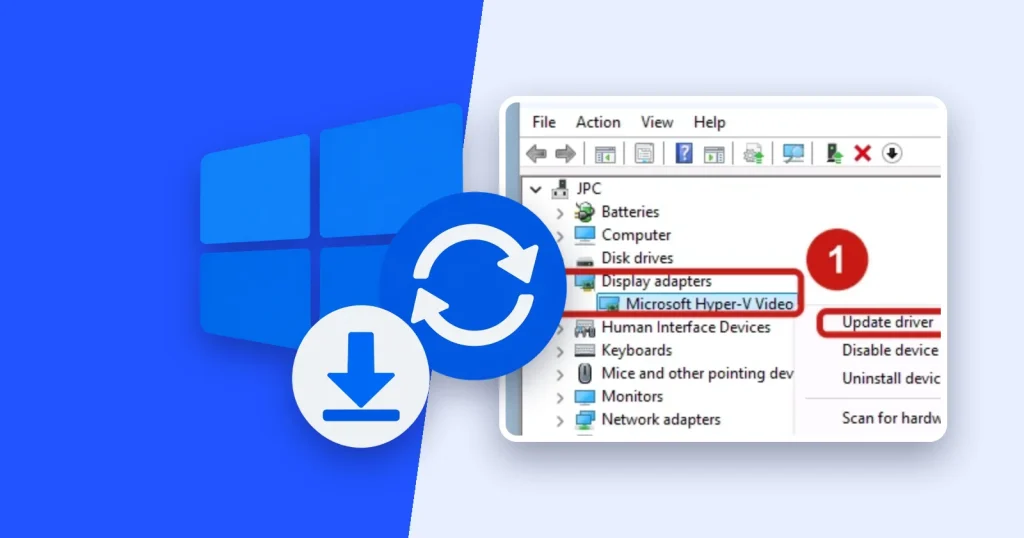
Device Manager is the fallback for what Windows Update does not reach: unusual hardware, or a device with nothing listed for it under optional updates. Microsoft sets the route out in its documentation on updating drivers through Device Manager, and the job it suits is one device at a time.
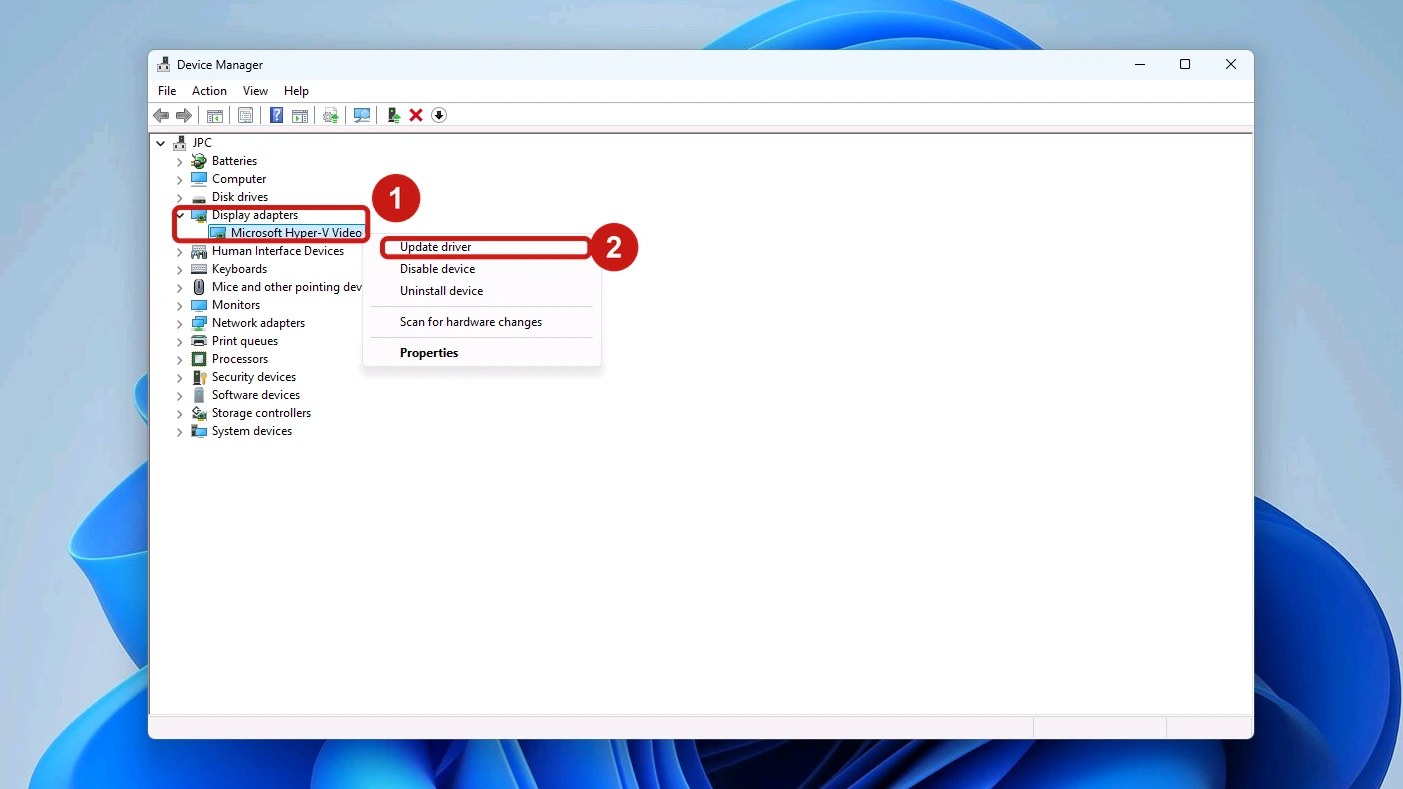
- Right-click Start and choose Device Manager from the menu that opens.
- Expand the category the device belongs to, such as Display adapters or Network adapters.
- Right-click the device itself and choose Update driver.
- Select Search automatically for drivers to let Windows look, or Browse my computer for drivers to point at a file you already downloaded from the manufacturer.
Keep Microsoft Store Apps Updated on Windows 11
Ask Windows Update to handle the apps you installed yourself and nothing happens, because Microsoft Store app updates run on a switch of their own. The Store handles everything it delivered, and keeping Windows 11 updated is only half done while that switch is off.
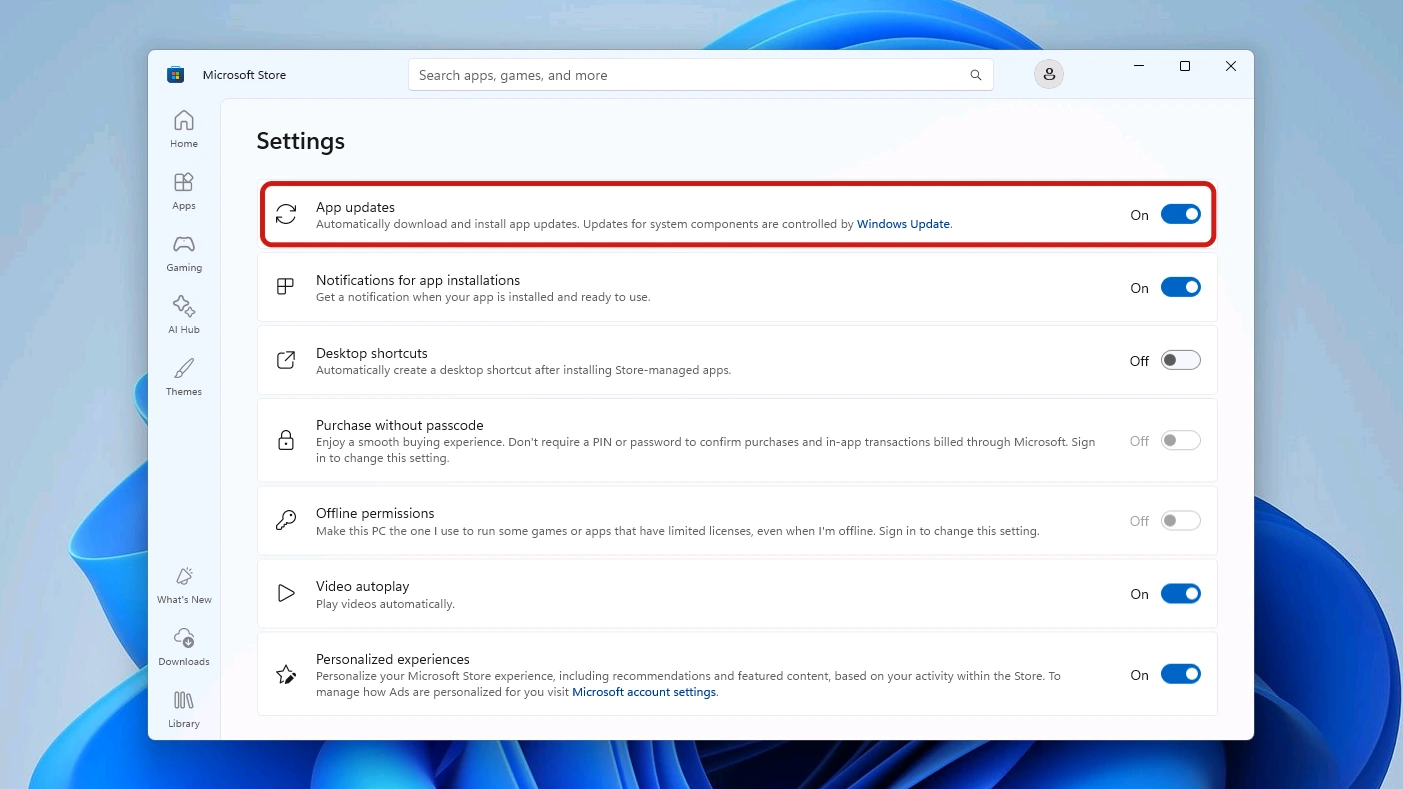
- Open the Microsoft Store from the taskbar or the Start menu.
- Select your Profile, the account photo in the top-right corner of the window.
- Choose Store settings from the menu that appears.
- Make sure App updates is switched On, the setting Microsoft describes under turning on automatic app updates.
Two things sit outside that toggle. Some publishers manage their own updates independently of it, so those apps keep to their own timetable whatever the setting says. You can also update an app by hand with the Store’s Check for Updates button, the quicker route when one app needs to be current right now, and Microsoft covers that under getting updates for apps and games in Microsoft Store.
Keep Space Free for Windows 11 Updates
An update is an install, and an install needs somewhere to go. Free space is the quiet precondition under everything above, because the effort to keep Windows 11 updated stalls at the download on a drive with nothing left on it.
Microsoft’s page on freeing up drive space in Windows names the symptom: a PC running out of storage space may show slower performance or trouble installing Windows updates. Checking where you stand takes about ten seconds. Open File Explorer, select This PC, and the space left on each drive is listed under Devices and drives.
Windows gives you two ways to free up space in Windows 11, one that runs to a schedule and one you open when you want the room back now. The scheduled one matters more, because the manual one only helps on the day you remember to run it.
Storage Sense, Set Once and Left Alone
Storage Sense lives at Settings then System then Storage. Turn it on and it either runs to a schedule you choose or only when disk space runs low, and Microsoft’s page on managing drive space with Storage Sense covers each option in turn.
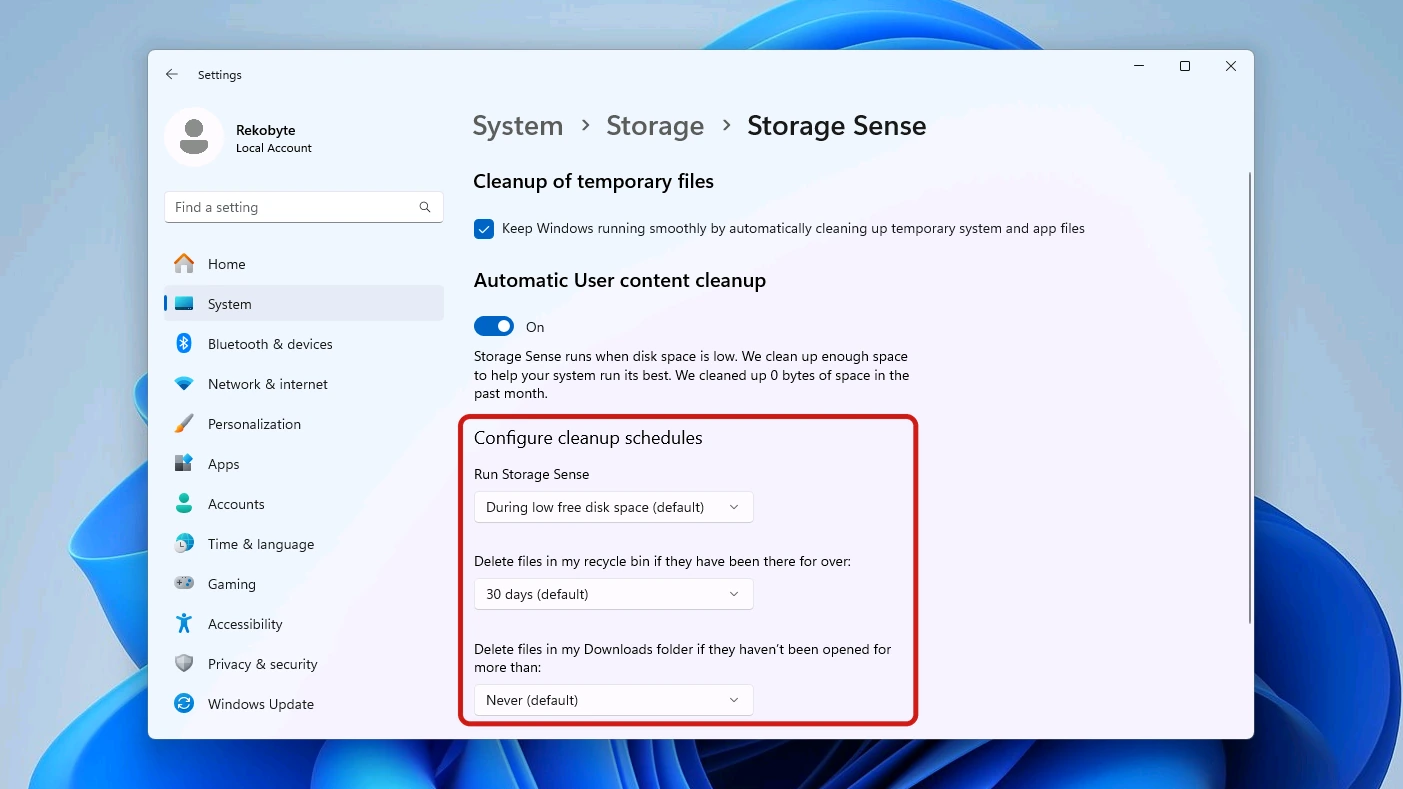
You decide what it clears, one setting at a time:
- Temporary files that apps and Windows leave behind are deleted automatically.
- The Recycle Bin empties itself once files have sat in it for a period you choose.
- The Downloads folder is cleared of files that have gone unopened for a period you choose, the one setting to think about before switching anything on.
- OneDrive files that have not been opened in more than 30 days default to online-only, from Windows 11 version 22H2 onward.
Storage Sense stops at the system drive. A second drive filling up with games or video needs the Advanced storage settings section instead.
Disk Cleanup for a One-Off Clear-Out
Disk Cleanup is the manual counterpart: a one-off Windows 11 storage cleanup you run the day a low-space warning appears, when waiting for a schedule is no use. Press the Windows key, type Disk Cleanup, open the first result and pick your system drive when it asks.
The tool hands you a checkbox list of file types, and you tick the ones you want gone. Temporary internet files and the thumbnail cache are both on it.
When stale image previews in File Explorer are the whole complaint, clearing the thumbnail cache is the targeted fix, and it uses the Thumbnails checkbox in that same Disk Cleanup list. Behind the Clean up system files button sits Windows Update Cleanup, which is how the WinSxS folder shrinks safely instead of being deleted.
Startup Apps Are Worth Reviewing Twice a Year
Startup apps are the one item here that gets worse on its own, because newly installed apps add themselves to the list without asking. Keeping Windows 11 updated runs quietly in the background once configured, but this list needs your eyes every few months. Task Manager’s Startup apps tab is where to look, and there are six ways to open Task Manager, with the fastest depending on what is already on screen.
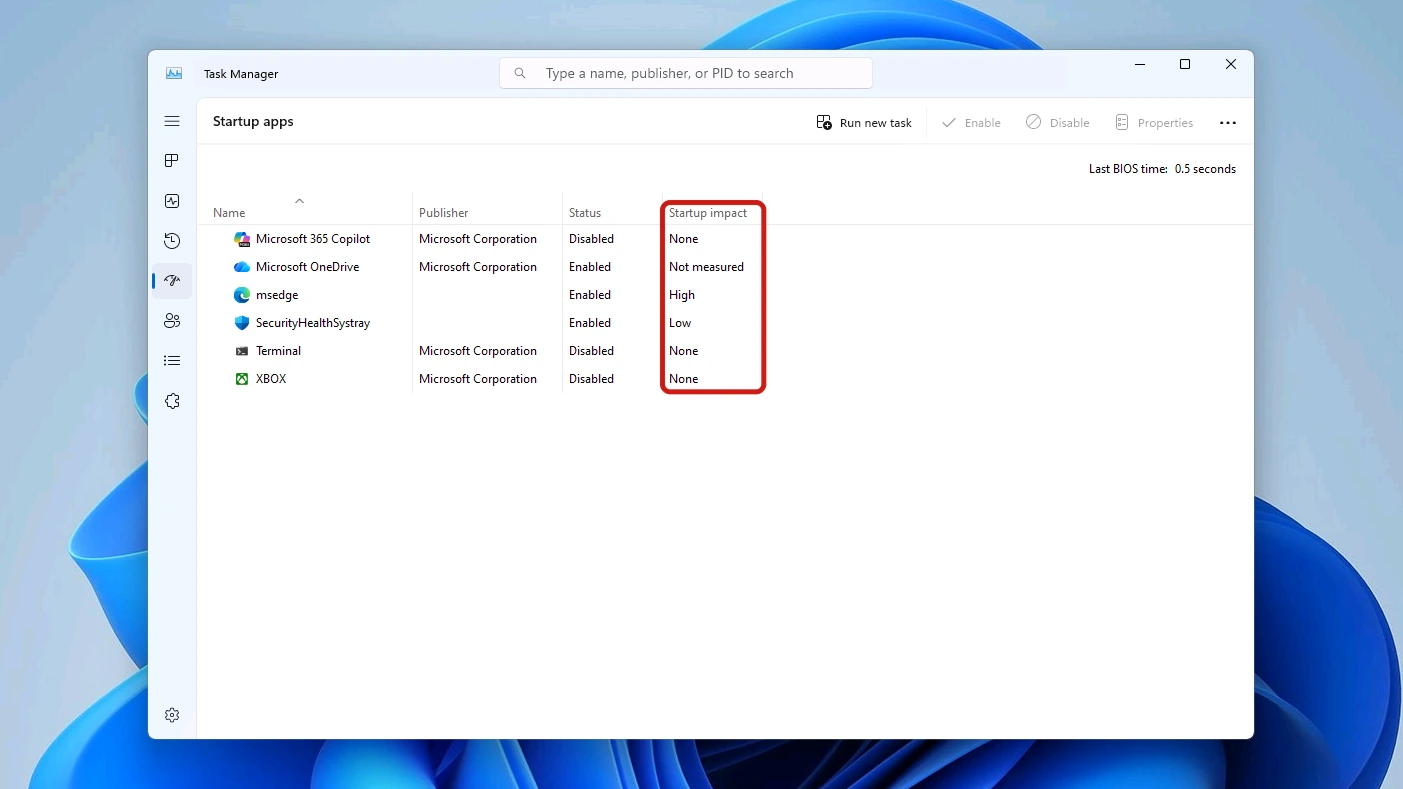
Read the startup impact column rather than the app names. Microsoft explains the ratings on its page for configuring startup applications in Windows, where every label is a measured threshold with numbers behind it.
| Rating | What Windows measured |
|---|---|
| None | The app is disabled and does not run at startup |
| Not measured | Windows has no data for the app yet |
| Low | CPU under 300ms and disk under 292KB |
| Medium | CPU 300ms to 1 second, or disk 292KB to 3MB |
| High | CPU over 1 second, or disk over 3MB |
Each row comes down to how much you actually use the app. An app rated High that you open every morning has earned its place, and one rated Low that you installed once and forgot has not. To stop one loading, right-click it in the Startup apps tab and choose Disable, which leaves the app installed and only changes what happens at sign-in.
Do You Need a Cleaner App for Windows 11?
For the maintenance in this article, no. Every control that keeps Windows 11 updated, frees space and manages startup apps is already in Settings, the Microsoft Store and Task Manager, and none of them charge for the privilege. That covers this specific list of jobs. It is not a verdict on an entire shelf of software.
No live independent source debunks disk optimizers or PC-boost apps as a whole category, so we do not make that claim about them. What is documented, and what the two sections below cover, is the registry-cleaning side of the category and the pop-ups that sell it.
The Case Against Registry Cleaners
A registry cleaner edits the Windows registry, and Wikipedia’s article on registry cleaners collects both the history and the technical case against them. Three points carry the argument:
- Registry cleaners are no longer supported by Microsoft, which distributed one of its own and then stopped.
- Removing or changing the wrong registry data can stop the system starting, or cause application errors and crashes.
- Slowdown from registry bloat is far less of an issue in modern Windows than it was on Windows 9x-era systems, and Microsoft’s own Windows Performance Toolkit does not list registry cleaning among its optimizations.
Pop-Ups That Claim Your PC Is Infected
The other way these apps arrive is a scare. A page or a pop-up announces that your PC is infected or dangerously slow, then offers the fix on the next click. Microsoft’s guidance on protecting yourself from online scams and attacks has a tech-support-scam section that describes the pattern, and these tells hold up:
- An alarming full-screen warning that takes over the browser and claims an infection or a failure.
- A phone number to call. Genuine Microsoft error messages never include one, so that alone settles it.
- Pressure to act immediately, by calling or paying, before you have had a chance to check anything.
Close the browser window rather than any button inside the pop-up.
A Maintenance Rhythm That Keeps Windows 11 Updated
Everything above is a setting you change once. What is left is a short Windows 11 maintenance rhythm that costs a few minutes at a time. Three intervals cover the lot, and none of them needs a reminder app to hold together.
- Monthly: the settings already in place keep Windows 11 updated on their own, so this is a two-minute confirmation. Open Windows Update after the second Tuesday and check nothing is sitting there waiting on a restart.
- Quarterly: confirm Storage Sense is still doing its job by looking at free space on the system drive, then open the Microsoft Store and select Check for Updates so every app is on its latest version.
- Twice a year: read down the Startup apps tab and disable what you no longer use, then check Optional updates for driver updates that have appeared in the meantime.
Conclusion
To keep Windows 11 updated, leave Windows Update on and set active hours so restarts wait until you are away. Pause updates only when you must, for at most 35 days. Let Microsoft Store apps update themselves, run Storage Sense to protect free space, and take driver updates through Windows Update first.
Start with our beginner’s guide to Windows 11 if the machine itself is still unfamiliar, because the taskbar, the desktop and backup all come before any of this. Set these controls once and the rest is a few minutes a month.