A Windows update keeps failing or sits stuck, a forum told you to delete the SoftwareDistribution folder, and you want to know whether that breaks anything before you try it. It is safe once the Windows Update service is stopped, and Microsoft’s own troubleshooting steps include clearing it. We renamed it on a Windows 11 PC on build 26300 and checked what changed afterwards.
Below: what it holds, what clearing it does to your update history, when it is worth doing, and two ways to do it.
What Is the SoftwareDistribution Folder?
The SoftwareDistribution folder is where Windows Update keeps its working files. Microsoft’s troubleshooting page treats it as the Windows Update cache and warns that corrupt files in it can cause update errors. It sits here:
C:\Windows\SoftwareDistribution
It shows in C:\Windows with hidden items turned off, so you don’t need to show hidden files to open it. Here is what it held on our test PC:
| Item | Size |
|---|---|
| DataStore | 38.3 MB |
| Download | 0.6 MB |
| SLS | 0.2 MB |
| PostRebootEventCache.V2 | 0 MB |
| ReportingEvents.log | 689 KB |
| Whole folder | 39.7 MB, 17 files |
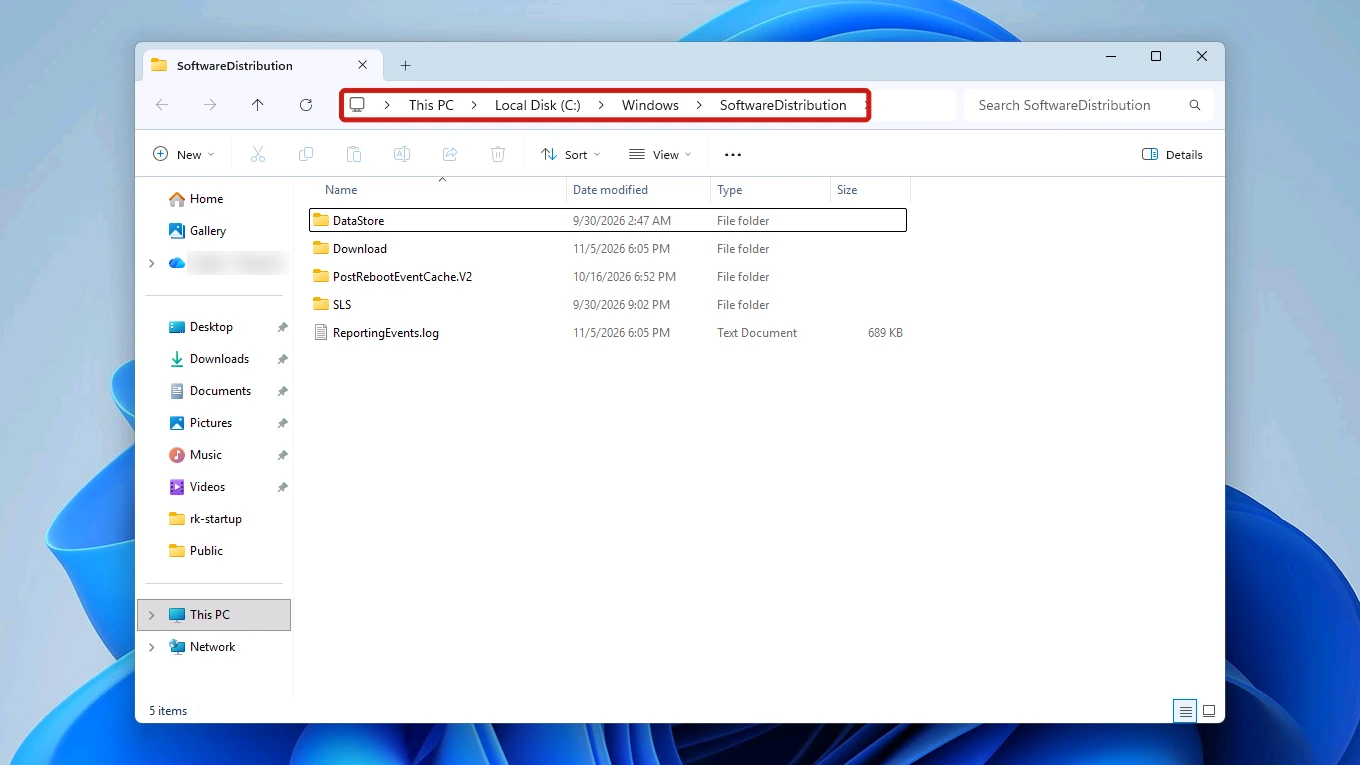
At under 40 MB in total, clearing it would not have freed any meaningful space on that PC.
Is It Safe to Delete the SoftwareDistribution Folder?
Yes, once Windows Update is stopped. Microsoft’s fix for update errors deletes everything inside it, and its Learn page gives a command that removes the whole folder as a last resort. When we renamed it, Windows created a new folder as soon as the service started again. Nothing we had installed was removed.
Does Deleting It Erase Your Update History?
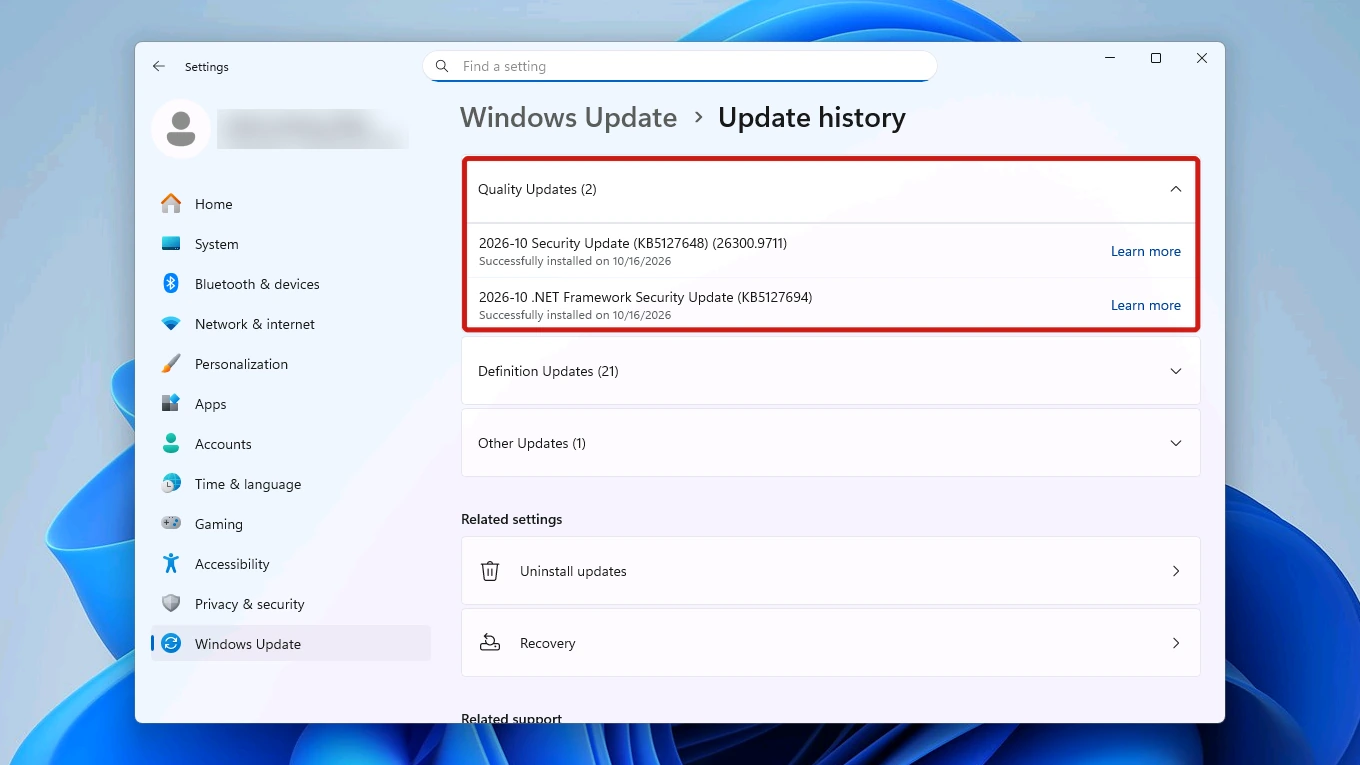
Not all of it. On our test PC, the rename cost two entries in Settings > Windows Update > Update history, and the rest of the list stayed.
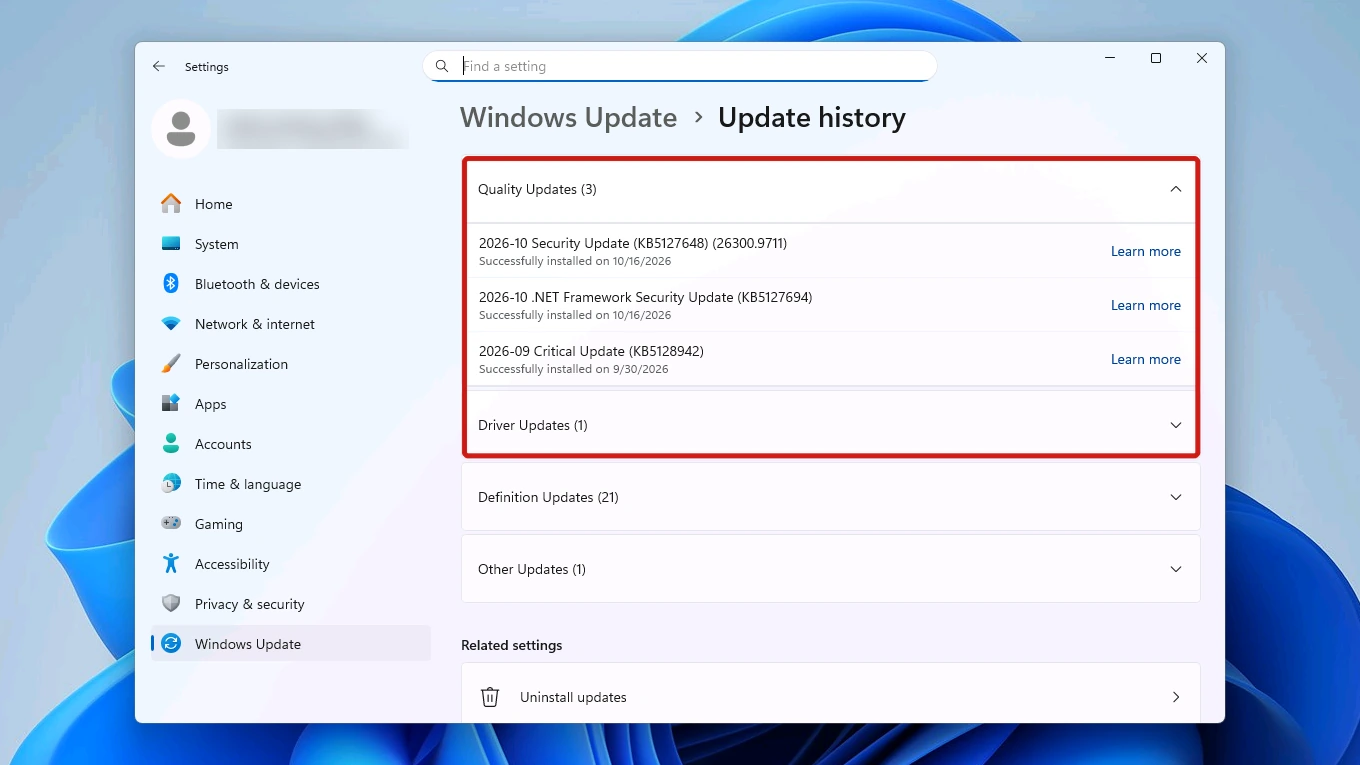
Before the rename, the page listed Quality Updates (3), Driver Updates (1), Definition Updates (21) and Other Updates (1). Afterwards it showed Quality Updates (2): the older September critical update was gone, and both October entries were still there. The Driver Updates group had disappeared, while Definition Updates and Other Updates kept their counts.
When to Clear the SoftwareDistribution Folder
Clear the SoftwareDistribution folder when an update fails or will not finish, not as routine tidying. On Microsoft’s troubleshooting page it is step 5 of 10:
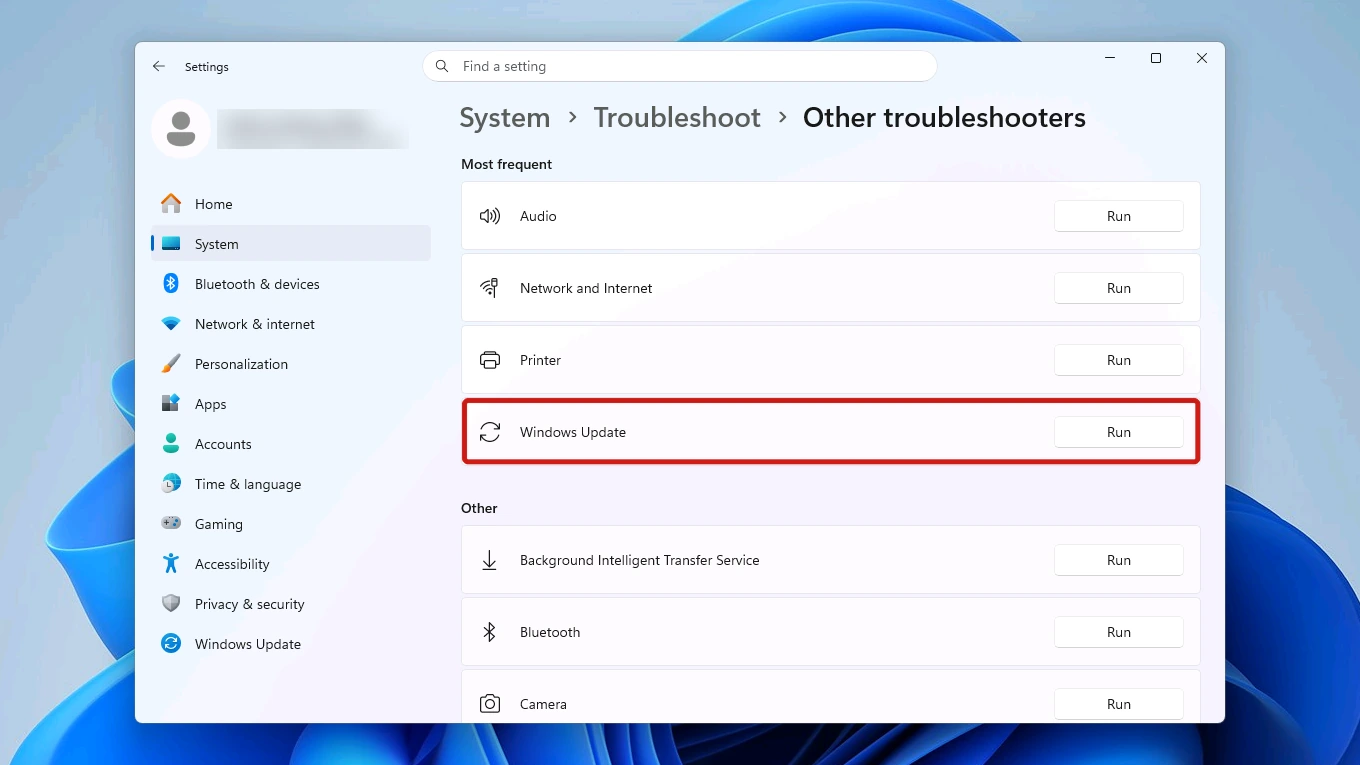
- Run the Windows Update troubleshooter first. Open Settings > System > Troubleshoot > Other troubleshooters, then select Run next to Windows Update.
- Check the three things that page lists next: that the PC is plugged in and online, that you have administrator access, and that external hardware is disconnected.
- Clear the folder if the update still fails. Microsoft Learn reserves deleting it for when all else fails.
If the update fails with a code, look it up in our Windows error code lookup first, because several update codes have a fix that has nothing to do with this folder.
If you are trying to free room for an upgrade, this folder is the wrong place to look. Microsoft asks for at least 20 GB free to upgrade 64-bit Windows, and as the table above shows, the whole folder came to under 40 MB. Our guide to keeping Windows 11 updated covers the Disk Cleanup and Storage Sense housekeeping that frees room for updates.
How to Delete the SoftwareDistribution Folder in Windows 11
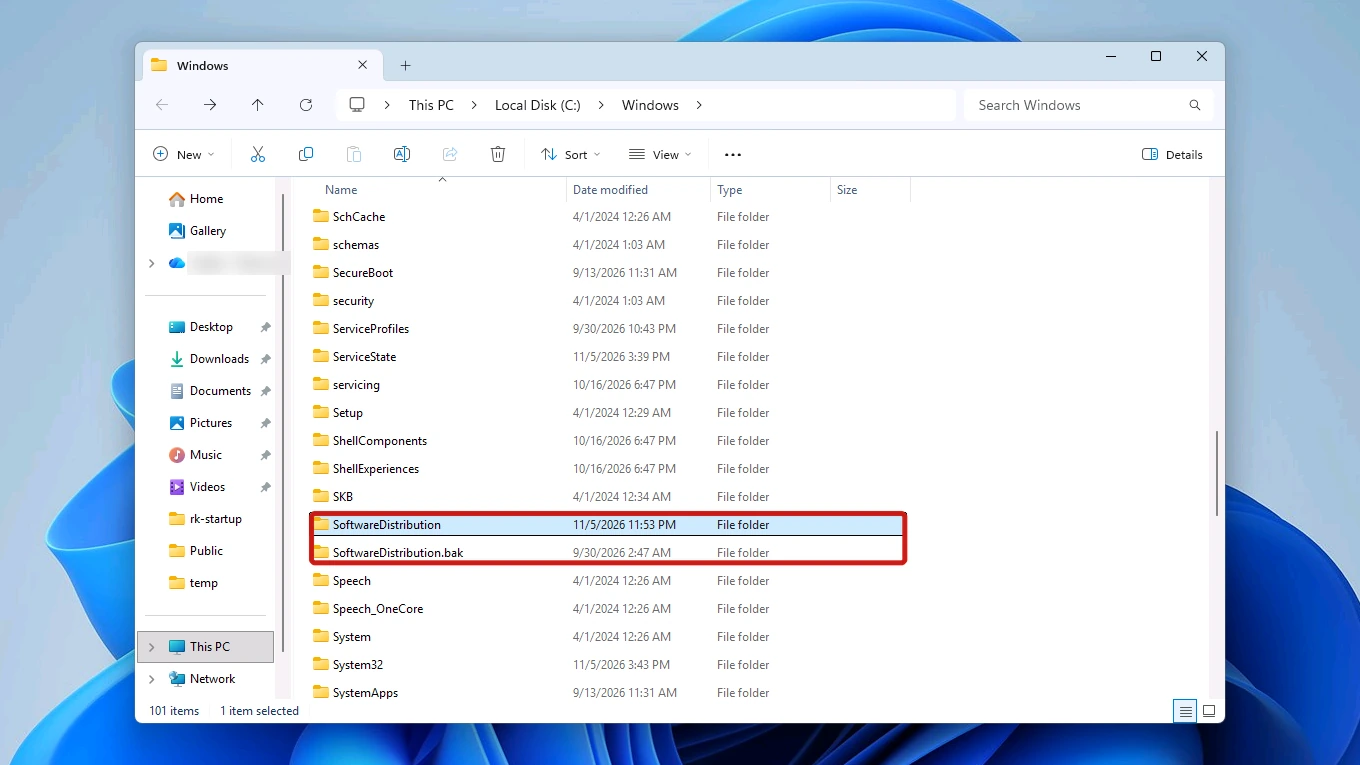
Both methods start by stopping Windows Update, because in our test the folder could not even be renamed while the service was running. Method 1 comes first because renaming leaves the old folder in place as a way back. Method 2 deletes its contents outright.
Method 1: Rename the Folder From Command Prompt
This follows Microsoft’s rename route: the folder becomes SoftwareDistribution.bak instead of being deleted.
Heads up: If Windows Update is running when you try, the rename fails with “Access is denied.” and nothing changes.
These commands need administrator permissions. Press the Windows key, type cmd, choose Run as administrator and approve the UAC prompt that follows. Then type each command below and press Enter.
- Stop Windows Update. Command Prompt confirms the service stopped, or says it “is not started” if it was already idle.
net stop wuauserv
- Stop the Background Intelligent Transfer Service (BITS), the Windows service that downloads files in the background. The same “is not started” message with a NET HELPMSG 3521 line just means BITS was already stopped.
net stop bits
- Rename the folder to SoftwareDistribution.bak. The command prints nothing when it works.
ren C:\Windows\SoftwareDistribution SoftwareDistribution.bak
- Start Windows Update again. When we ran it, the new folder appeared straight away.
net start wuauserv
- Start BITS again.
net start bits
- Restart your PC to finish.
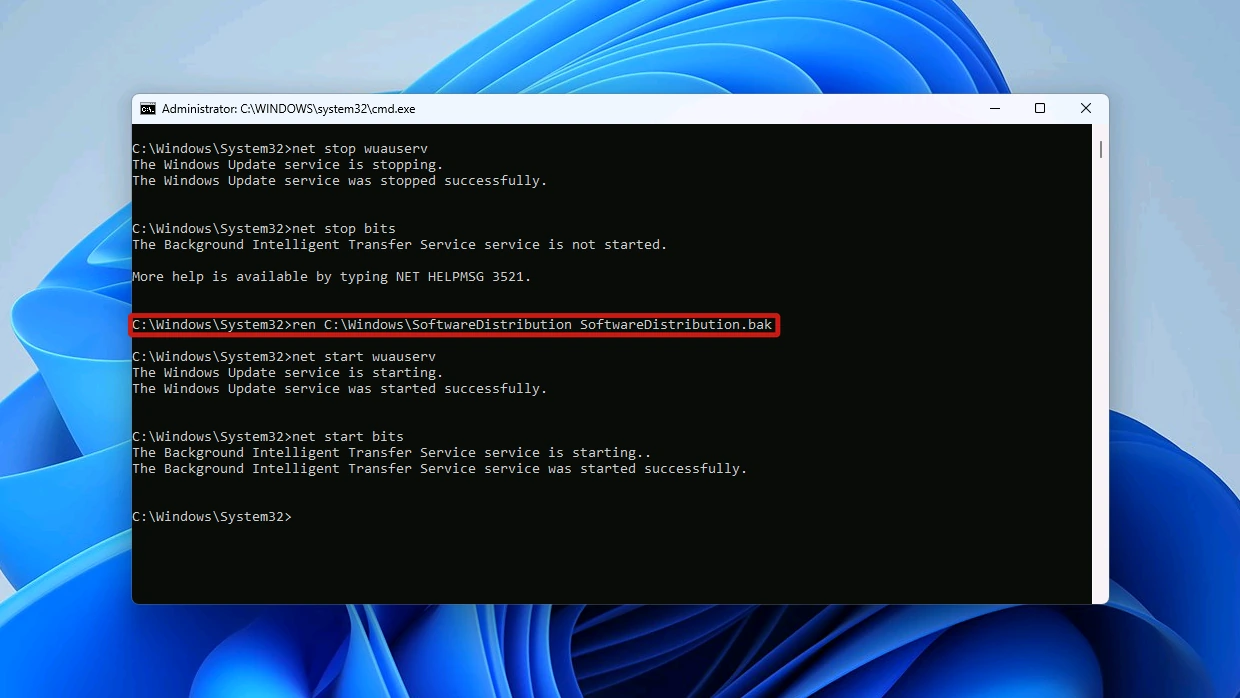
The official version also renames a second folder, catroot2, to catroot2.bak. The steps above leave catroot2 alone and change only the update cache.
Method 2: Empty the Folder in File Explorer
Microsoft’s “Clear the Windows Update Cache” step does the same job without commands: you stop the service, delete what is inside the folder, then start the service again.
- Press Windows key + R, type services.msc and press Enter. This opens the list of Windows services.
- Select Windows Update and choose Stop. Leave the Services window open for the last step.
- Open C:\Windows\SoftwareDistribution in File Explorer and delete everything inside it. Delete the contents only, not the folder itself.
- Go back to Services, select Windows Update and choose Start.
This route leaves no .bak copy to rename back. Microsoft Learn’s page on how to reset Windows Update components adds a separate, last-resort command that removes the whole folder rather than what is inside it. Run it from an administrator prompt between net stop wuauserv and net start wuauserv:
rd /s /q %systemroot%\SoftwareDistribution
Check That Windows Update Works Again
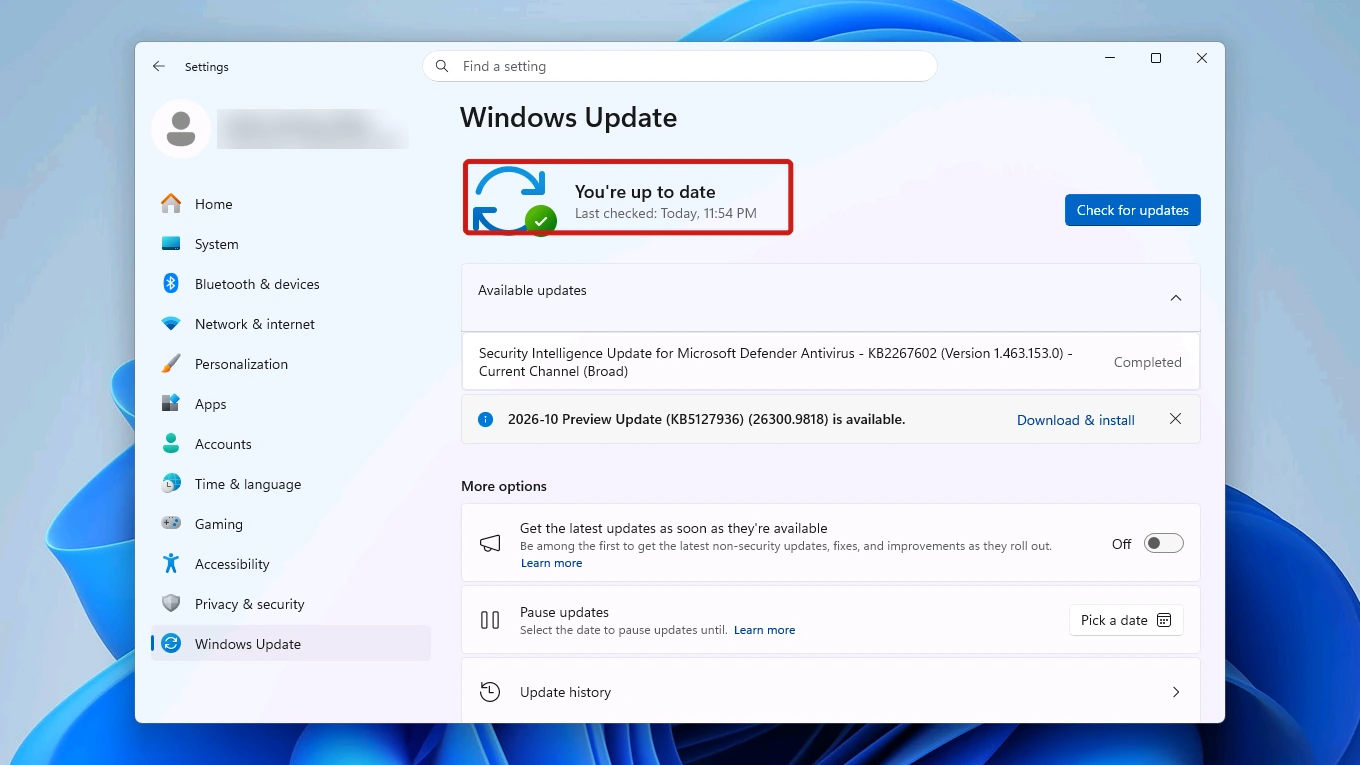
Open Settings > Windows Update and select Check for updates to confirm the service works with the new folder.
On our test PC, the first check took about 80 seconds. It installed one Defender definition update, then showed You’re up to date. Only that first check ran long: a second one straight afterwards finished within about a minute.
If the update you were trying to fix still fails, run its error code through the lookup tool. With no code to go on, go back to the troubleshooting page: it carries on past the cache step, including a check that you have enough free space.
Remove the Old SoftwareDistribution.bak Folder
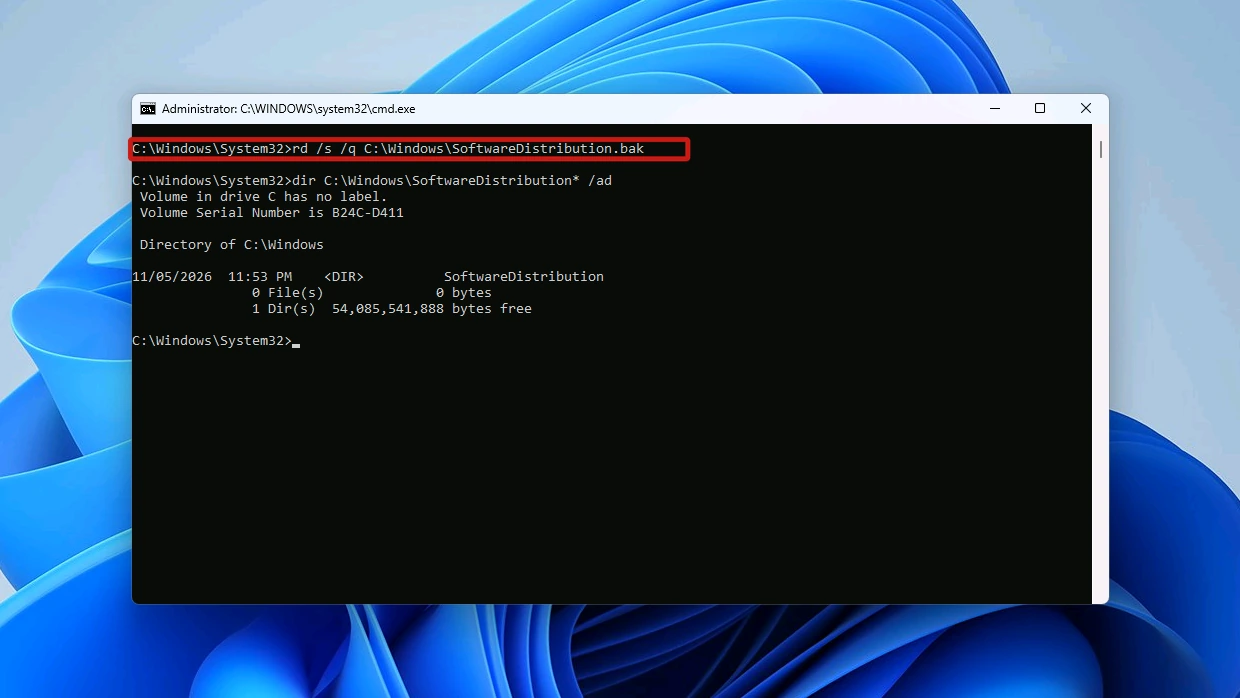
This step applies to Method 1 only. Once updates work again, you no longer need the .bak copy, and you can delete it without stopping any services.
Open an administrator Command Prompt the same way as in Method 1, then run this command:
rd /s /q C:\Windows\SoftwareDistribution.bak
Is the SoftwareDistribution Folder in Disk Cleanup?
No. Disk Cleanup has no entry named for the SoftwareDistribution folder, either in its standard list or after you click Clean up system files.
The nearest item, Windows Update Cleanup, is a different thing. Its description in Disk Cleanup reads: “Windows keeps copies of all installed updates from Windows Update, even after installing newer versions of updates. Windows Update cleanup deletes or compresses older versions of updates that are no longer needed and taking up space.”
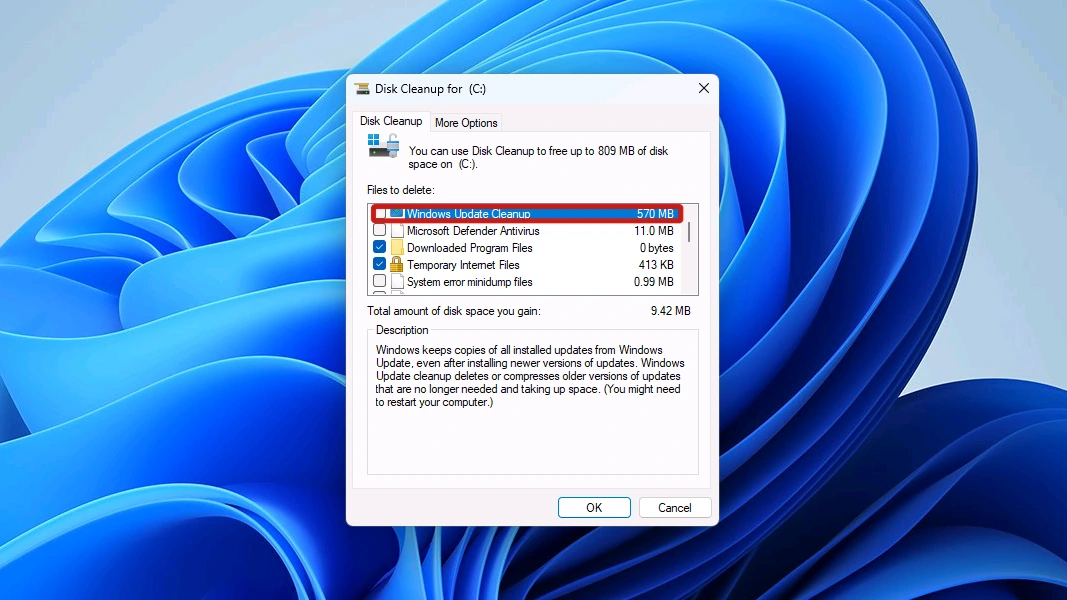
It listed 570 MB on the same PC, many times the folder’s 39.7 MB, so it is the item to try if free space is the goal. We did not test whether it clears this folder. Three other things are not this folder either:
- Delivery Optimization Files is its own Disk Cleanup item, at 212 MB when we checked. Delivery Optimization is a separate mechanism that downloads Windows update packages from web sources and, optionally, from other PCs.
- WinSxS should never be deleted by hand. Microsoft’s WinSxS cleanup page warns that deleting it can leave your PC unable to boot or update, and describes the supported cleanup tools instead. We ran those tools in our guide to the WinSxS folder.
- Windows.old holds the files for going back to your previous version of Windows after an upgrade. Microsoft’s guide to freeing drive space explains that deleting it removes that route back and cannot be undone.
Conclusion
Yes, it is safe to delete or rename the SoftwareDistribution folder in Windows 11 once you stop the Windows Update service. Windows creates a new folder as soon as the service starts again, and your installed updates stay installed. Do it to fix a failing update, not to free space, and rename it if you want a way back.
Expect some entries to drop out of the update history list, and delete the .bak copy once updates work again.