You usually find the Thumbs.db file in a folder of pictures on a network drive, in a zip someone sent you, or as the thing stopping Windows from deleting a folder. It is a thumbnail cache, it is safe to delete, and one setting stops Windows creating it. We generated a real one on a stock Windows 11 Pro PC and tested the delete fixes and the Group Policy setting against it.
First we cover what the Thumbs.db file holds and why it appears on a modern PC: network folders, copied folders and zip files. Then come the steps to find and delete it, the fix for when Windows says the file is in use, the Group Policy and registry settings that switch it off, and how it differs from the thumbcache files Windows 11 uses for your own drives.
What Is the Thumbs.db File?
The Thumbs.db file is a hidden thumbnail cache that File Explorer keeps inside a folder so it can show picture previews without rebuilding them each time. It is a small database in Compound File Binary Format, and each preview inside it is stored as a JPEG.
Keeping one in every folder is how Windows XP did it. Windows Vista moved local previews to a single global thumbnail cache, and Windows 11 still works that way, so most people never see a Thumbs.db on their own drives. The file carries the Hidden and System file attributes, and File Explorer hides it twice over.
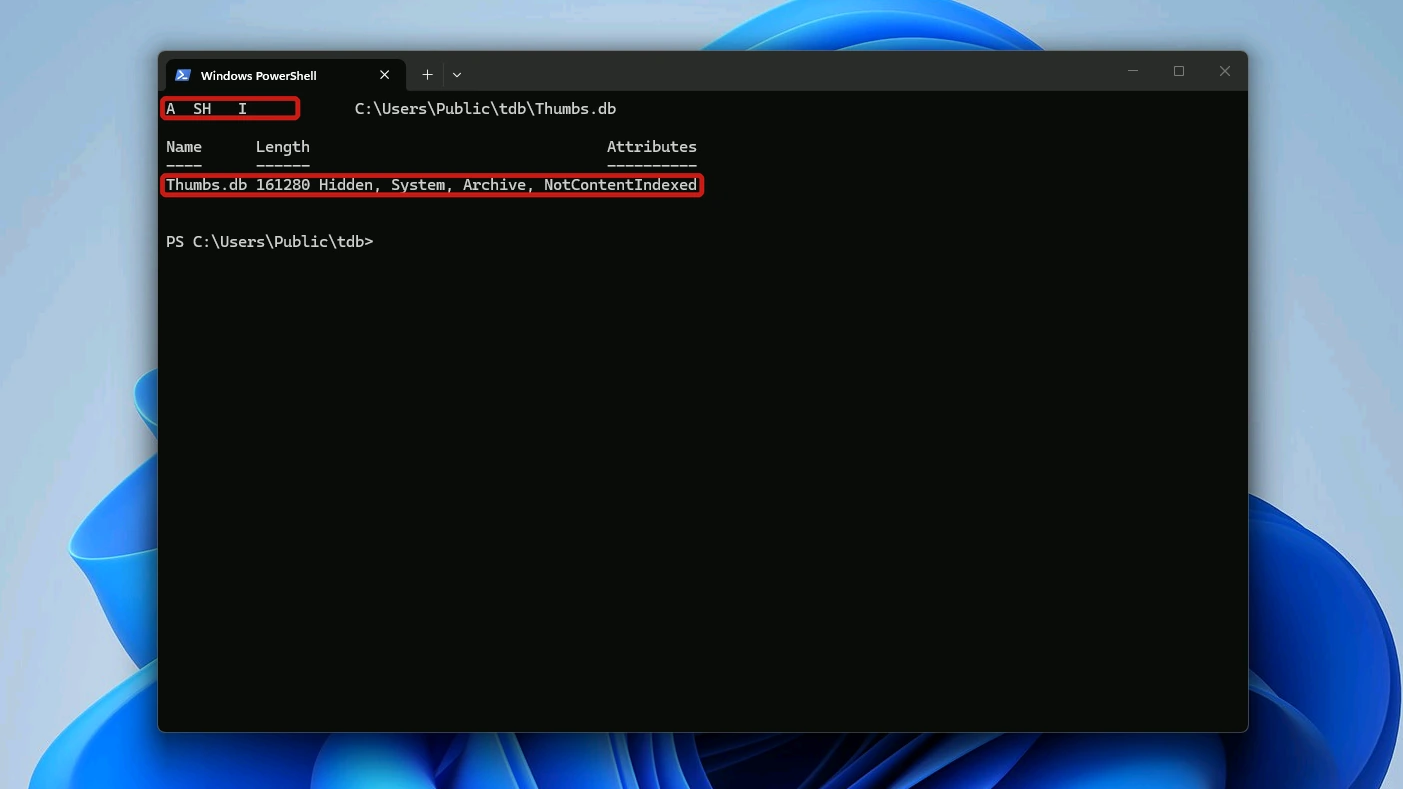
The Thumbs.db our test PC wrote when we opened a folder of 20 photos over the network showed:
- Attributes: Hidden, System, Archive and Not content indexed
- Size: 161,280 bytes, about 157 KB in File Explorer
- Location: inside the folder it describes, not in AppData
Why a Thumbs.db File Appears on Windows 11
In our test, a local folder of the same 20 photos in Large icons view never got a Thumbs.db. When you find one, it almost always came from one of the two places below.
Network Folders
Open a network folder in a thumbnail view, such as Large icons, and File Explorer writes a Thumbs.db into that folder within seconds. That is what our stock Windows 11 Pro PC did, with no policy set. Details view showed plain icons.
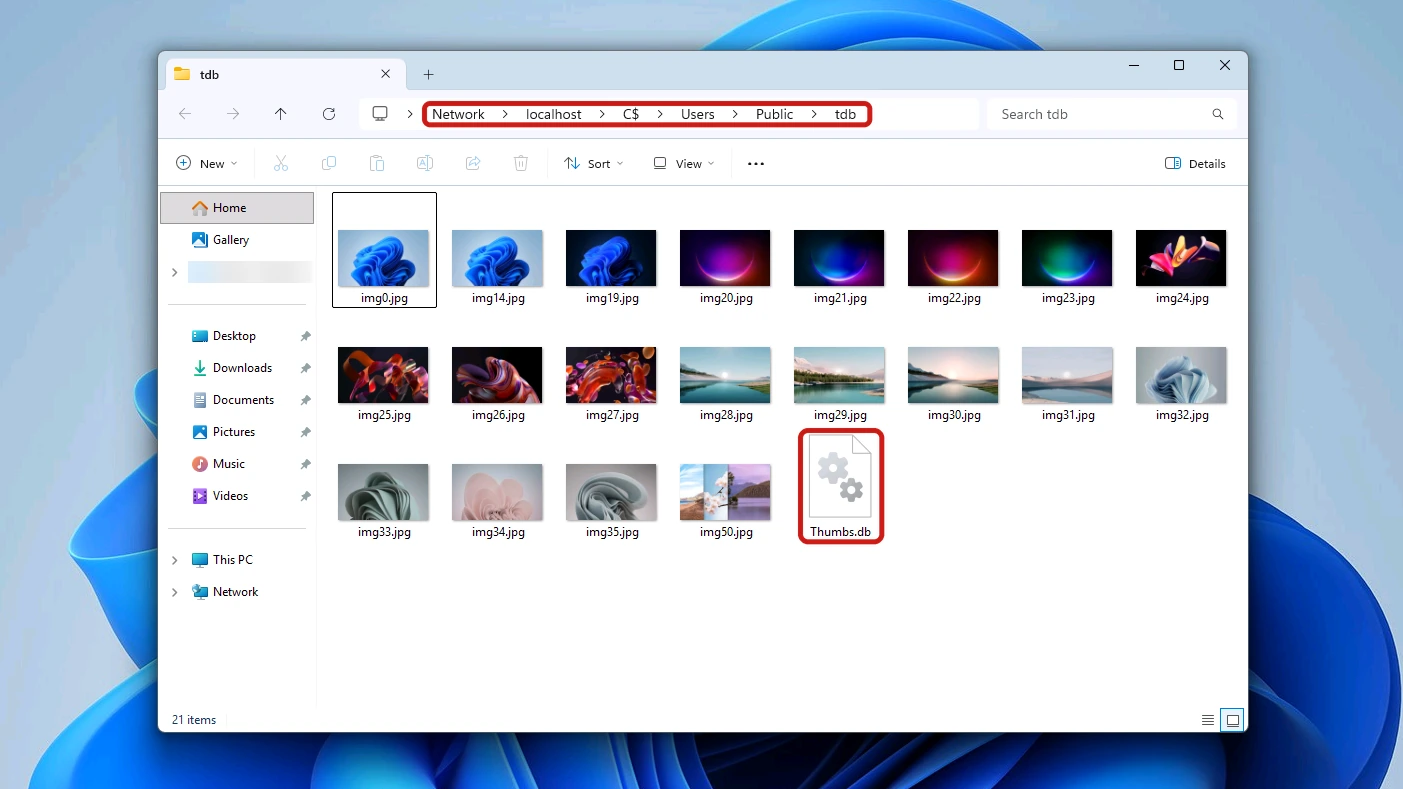
The file lands on the share itself, wherever your PC has permission to write there. Windows can also keep it locked while the folder is in use, and that lock causes the delete problems covered further down.
Copied Folders and Zip Files
The file lives inside the folder, so a folder copied from an older PC, a backup drive or a network share brings its Thumbs.db with it. It stays hidden after the copy and can surprise you months later.
Zip files carry it too. When we used Windows’ own Compress to ZIP on a folder holding a Thumbs.db, the zip included it, and opening the zip in File Explorer showed it beside the pictures, although with default settings the folder itself shows only the photos.
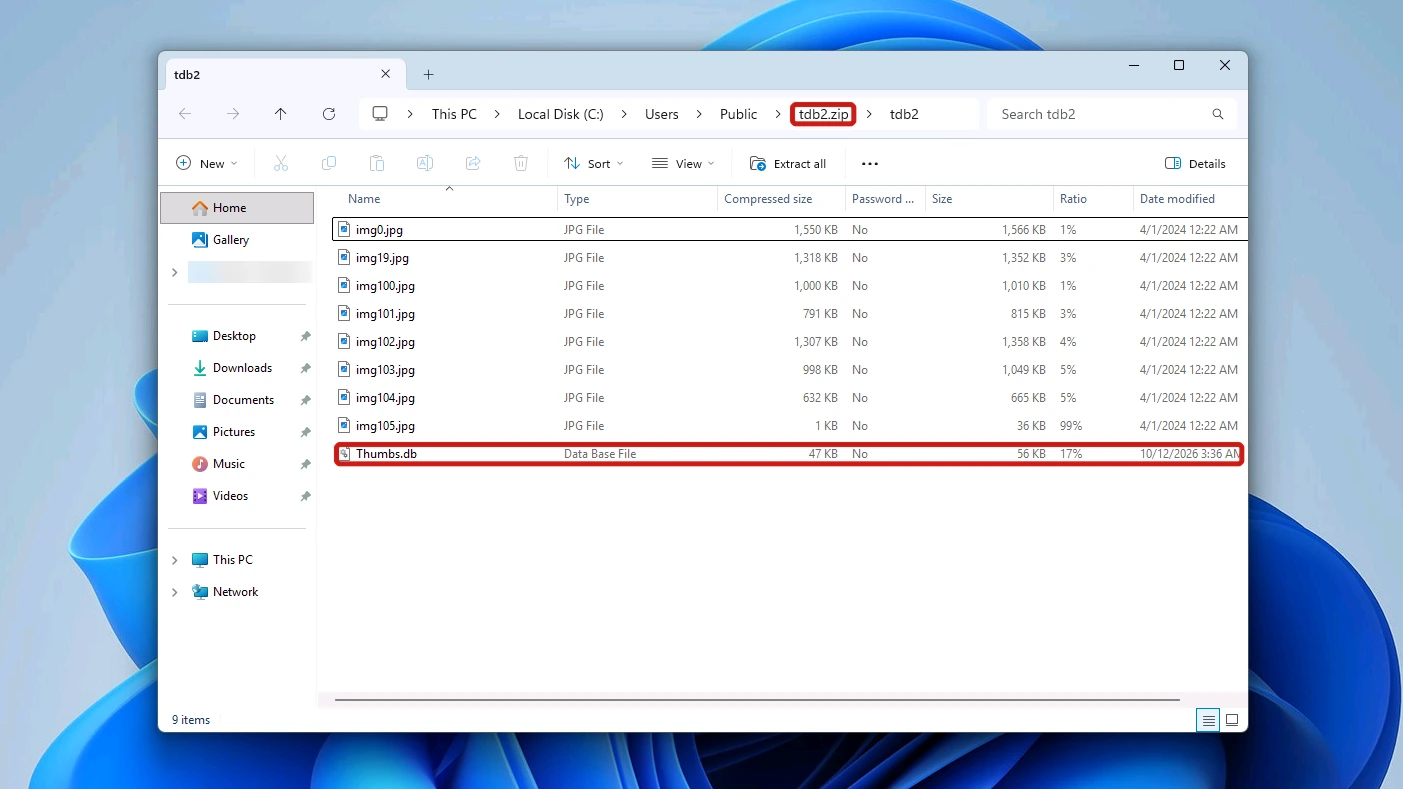
To keep it out of a zip, delete it from the folder before you compress. To remove it from a zip someone sent you, an archive tool that can edit zip files will delete the entry.
Is the Thumbs.db File Safe to Delete?
Yes. It is only a cache of previews, and deleting it removes no photos. File Explorer works without it: Microsoft’s own policy for these files can turn them off entirely, at which point File Explorer “doesn’t create, read from, or write to thumbs.db files”.
The only cost is speed. The next time you open that folder in a thumbnail view, Explorer has to generate its previews again. In our test it did not write a new Thumbs.db when we reopened the folder.
How to Find and Delete Thumbs.db
To delete the Thumbs.db file, you first have to make it visible, and turning on Hidden items alone is not enough because it is also a System file.
Open the folder in File Explorer, click the three dots (See more) on the toolbar, and choose Options to open the Folder Options dialog. Our guide to showing hidden files in Windows 11 covers four ways to show them, including this dialog (it uses the name File Explorer Options, which is what Start search finds), and explains the hidden-versus-protected split this file sits behind.
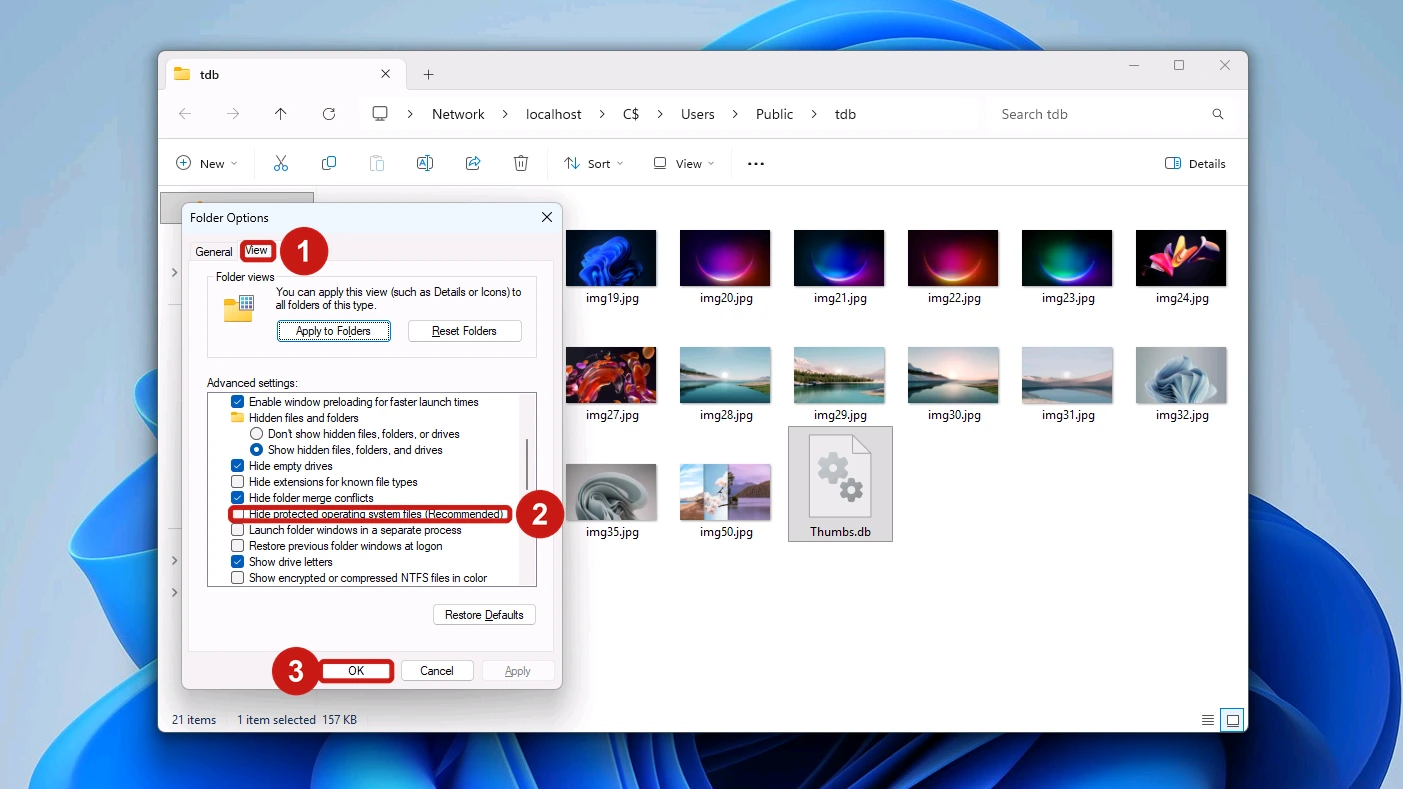
- Select the View tab in Folder Options. The list of advanced settings opens underneath.
- Untick Hide protected operating system files (Recommended). Click Yes on the warning that follows.
- Click OK to close the dialog. Thumbs.db now shows in the folder.
- Right-click Thumbs.db and choose Delete. On a network folder Windows asks twice, the second time warning that it is a system file, so click Yes both times. If you get File In Use instead, which is common on network folders, use the fix in the next section.
- Reopen Folder Options and tick Hide protected operating system files (Recommended) again.
Tip: The same option hides system files that Windows does need, and leaving them on show makes them easy to delete by mistake.
If Thumbs.db is spread through dozens of copied folders, one command clears them all. Open Command Prompt, go to the top folder with cd /d and its path, then run the command below. It deletes every Thumbs.db in that folder and all its subfolders, and in our test it left the photos alone.
del /s /a:s /f Thumbs.db
When the Thumbs.db File Won’t Delete
The usual cause is a lock: Windows still has the file open, most often on a network folder. Delete it while the folder is on screen and you get a File In Use message saying the action can’t be completed because the file is open in Windows Explorer.
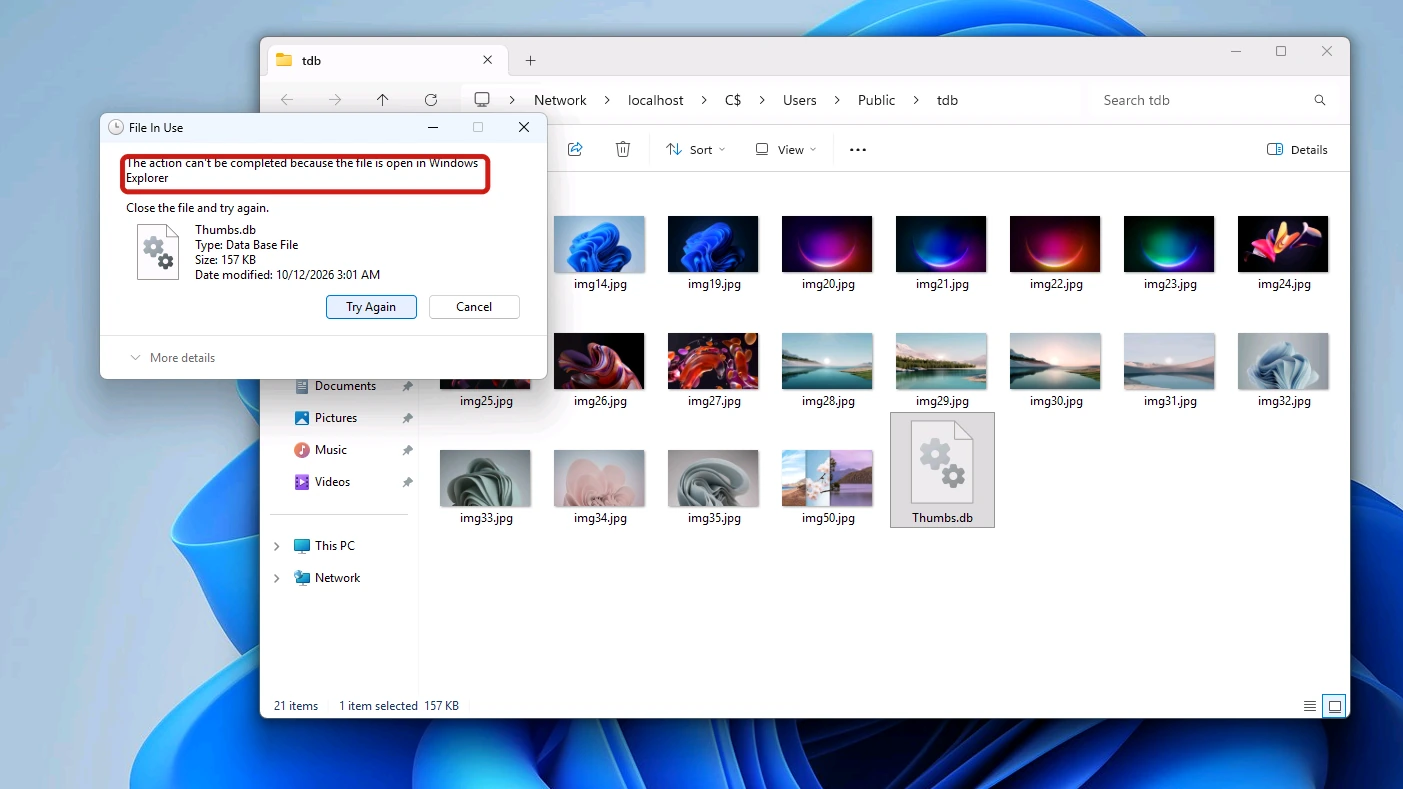
In our test, the two fixes suggested in Microsoft’s community forum, Always show icons, never thumbnails and renaming the file to Thumbs.dat, hit the same message. What worked was closing File Explorer completely and deleting the file from Command Prompt.
- Click the folder’s address bar in File Explorer and press Ctrl + C. This copies the folder’s path, which you need after File Explorer closes.
- Open Command Prompt from the Start menu. Keep it open, because the next step closes the taskbar and every File Explorer window.
- Type taskkill /f /im explorer.exe and press Enter. The taskbar and desktop icons disappear for now.
- Type del /a:s /f “, paste the path with a right-click, then type \Thumbs.db” and press Enter. The full command looks like the example below. The /a:s switch lets del find a file marked System, and /f would also remove it if it were marked read-only.
- Run start explorer.exe to bring the taskbar back. You can now delete the folder itself as normal.
del /a:s /f "\\server\share\folder\Thumbs.db"
To stop Windows writing the file to a share in the first place, use the settings in the next section.
How to Stop Windows 11 Creating Thumbs.db Files
One setting does it, and it reads backwards: setting the policy to Enabled turns Thumbs.db off. It only affects network folders, previews still show, and it applies per user. It does not remove Thumbs.db files that already exist, so delete those as above. Use Group Policy on Windows 11 Pro, or the registry on PCs without it.
Method 1: Turn It Off With Group Policy on Windows 11 Pro
Microsoft lists this policy for Windows 11 Pro, Enterprise, Education and IoT Enterprise, but not Home, and documents it on its thumbnail policy reference. With it enabled on our test PC, a new network folder opened in Large icons showed its thumbnails and got no Thumbs.db.
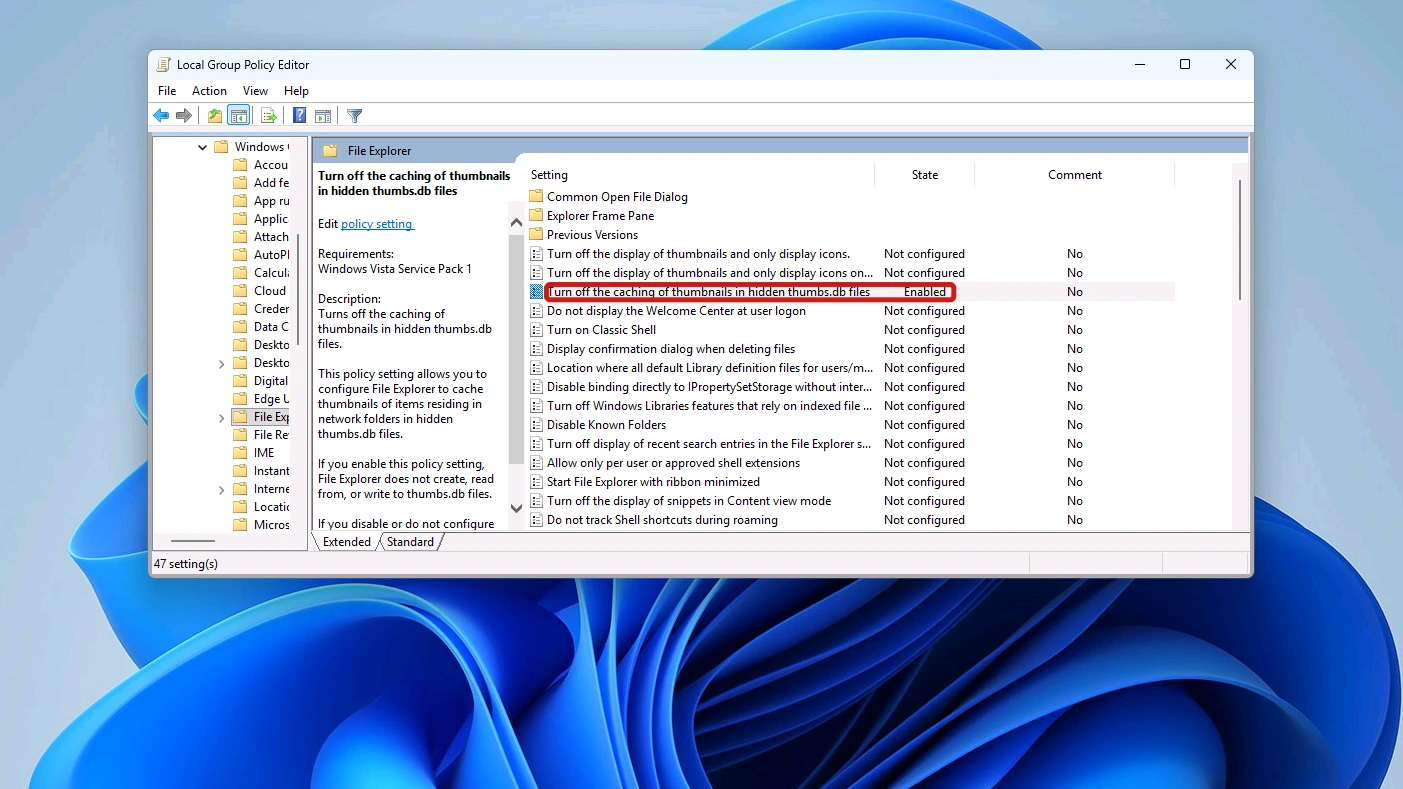
- Press Windows + R, type gpedit.msc and press Enter. Click Yes if Windows asks for permission.
- Go to User Configuration > Administrative Templates > Windows Components > File Explorer in the left pane. The policies fill the right pane.
- Double-click Turn off the caching of thumbnails in hidden thumbs.db files. Its settings window opens.
- Select Enabled, then click OK. The policy’s state changes to Enabled in the list.
Method 2: Turn It Off in the Registry on Windows 11 Home
This is the same setting, set directly in the registry, for PCs without the Local Group Policy Editor, such as Windows 11 Home. The value below is the one the Group Policy setting writes on Windows 11 Pro, under your own user account.
HKEY_CURRENT_USER\Software\Policies\Microsoft\Windows\Explorer
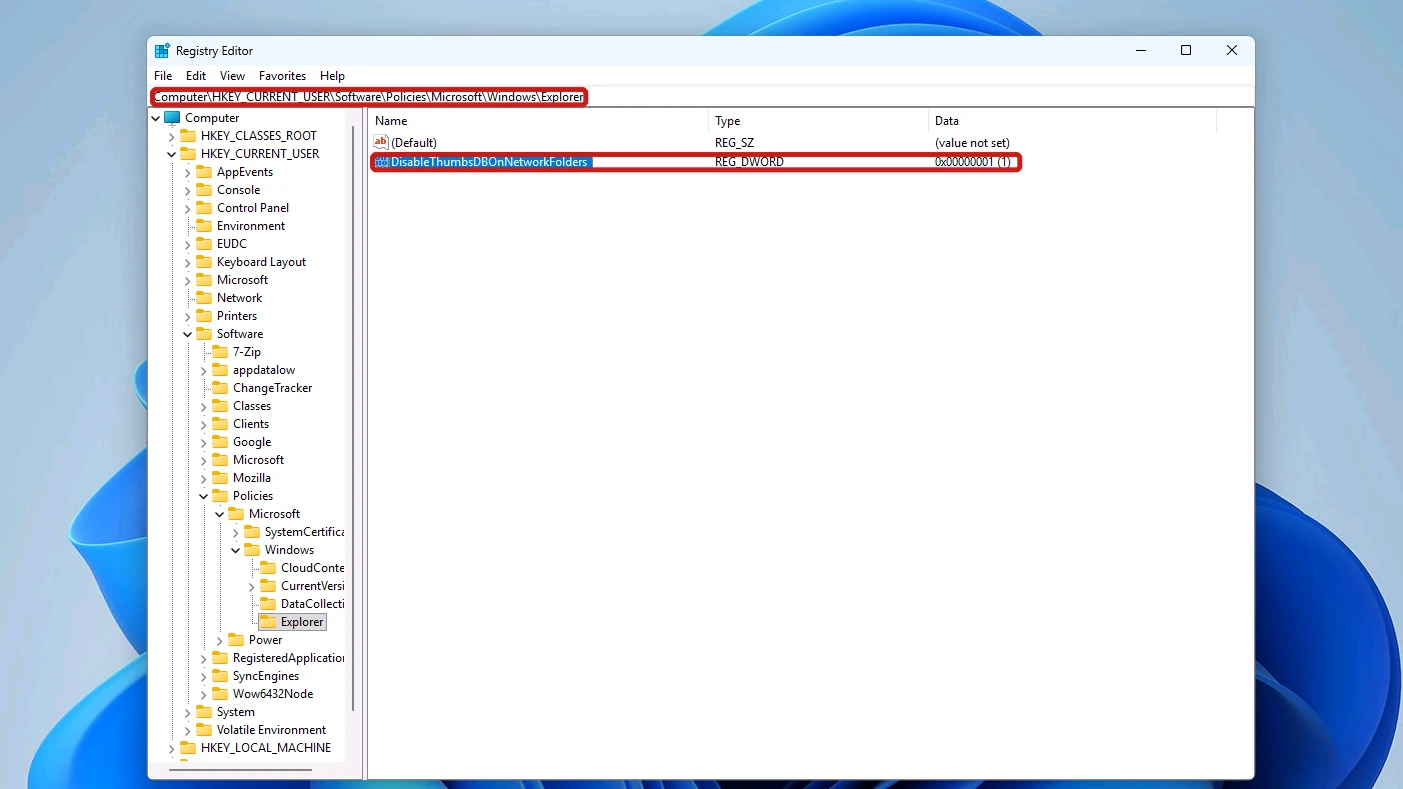
- Press Windows + R, type regedit and press Enter. Click Yes if Windows asks for permission.
- Paste the key above into the address bar under the menu and press Enter. If Explorer is missing, right-click Windows, choose New > Key and name it Explorer.
- Right-click an empty space in the right pane and choose New > DWORD (32-bit) Value. A new value appears, ready to rename.
- Name it DisableThumbsDBOnNetworkFolders. Spelling and capitals have to match exactly.
- Double-click it, set Value data to 1, and click OK.
Heads up: Change only this value. Other entries under the same key control other parts of File Explorer, and a mistyped change there can be harder to track down than a Thumbs.db.
Three Thumbnail Policies With Similar Names
Two neighboring policies look like the right one. Both change what File Explorer displays, and only the first is the setting Microsoft documents for Thumbs.db itself.
| Policy | Registry value | What it does |
|---|---|---|
| Turn off the caching of thumbnails in hidden thumbs.db files | DisableThumbsDBOnNetworkFolders | Stops Thumbs.db on network folders. Previews still show |
| Turn off the display of thumbnails and only display icons on network folders | DisableThumbnailsOnNetworkFolders | Shows plain icons instead of previews on network folders |
| Turn off the display of thumbnails and only display icons | DisableThumbnails | Shows plain icons instead of previews everywhere on the PC |
Thumbs.db vs. the Windows 11 Thumbnail Cache
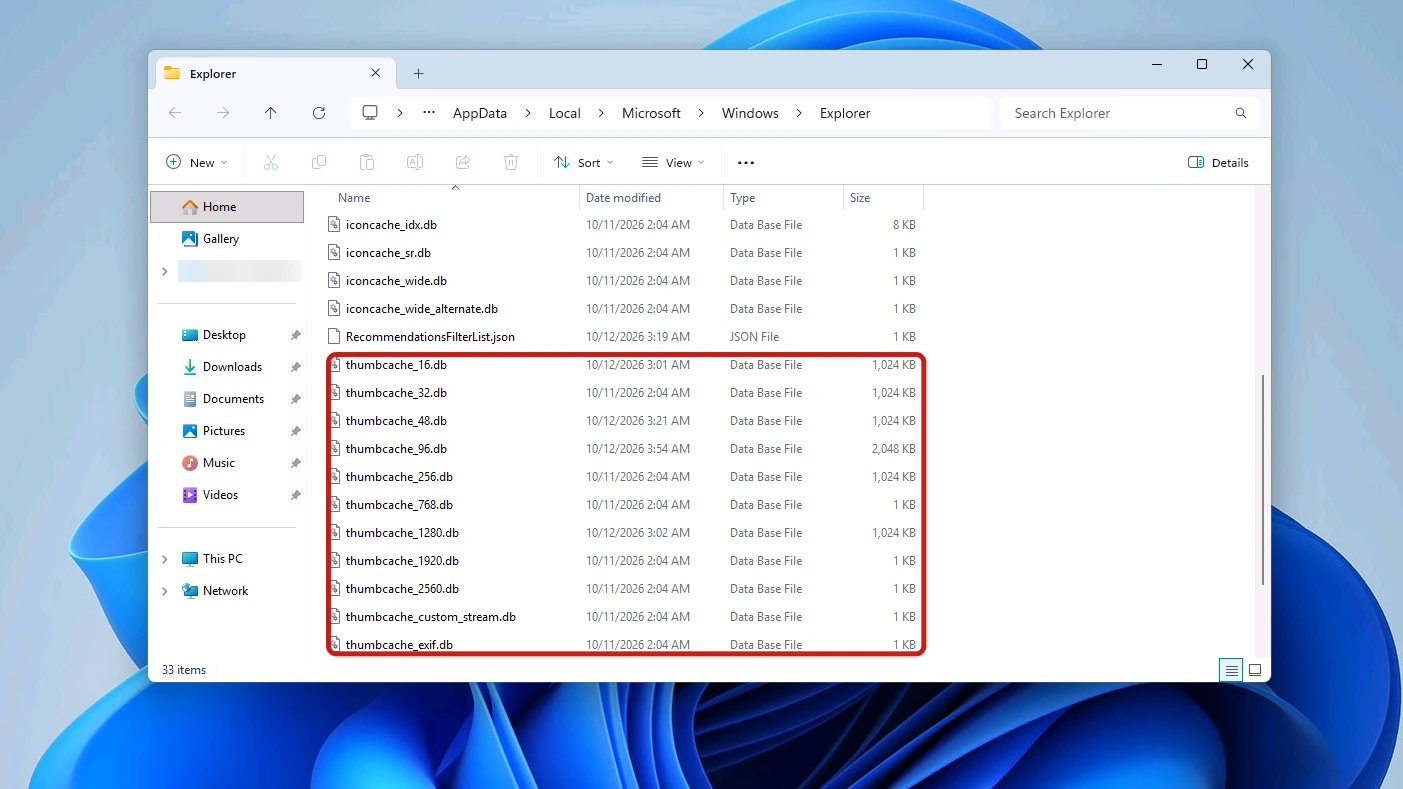
Previews for your own drives live in a set of thumbcache files in your user profile. If those are blurry or wrong, clearing the thumbnail cache with Disk Cleanup or by hand rebuilds the files Windows 11 actually uses for local previews.
| Thumbs.db | Thumbnail cache | |
|---|---|---|
| Location | Inside each folder it describes | %userprofile%\AppData\Local\Microsoft\Windows\Explorer |
| File names | Thumbs.db | thumbcache_16.db, thumbcache_32.db and more, mostly one per preview size |
| Used for on Windows 11 | Network folders | Local folders |
| History | The per-folder cache Windows XP used | Windows Vista onward, one global cache |
Conclusion
The Thumbs.db file is a hidden thumbnail cache that File Explorer stores inside a folder of pictures. It is safe to delete, because Explorer works without it and your photos are untouched. Windows 11 keeps local previews in one central cache, so a Thumbs.db usually comes from a network folder, a copied folder or a zip file.
If the shares you use collect them, enable Turn off the caching of thumbnails in hidden thumbs.db files in Group Policy, or set DisableThumbsDBOnNetworkFolders to 1 in the registry, and Windows stops writing them.