A PerfLogs folder sits in the root of your C: drive, nothing tells you what it is for, and you want to know whether you can delete the PerfLogs folder to tidy up. You can, unless it holds Performance Monitor logs you made yourself, so look inside before you remove it.
Is It Safe to Delete the PerfLogs Folder?
Yes, for most people. A Microsoft Community support specialist says that deleting the folder will not normally harm performance, though the same answer recommends keeping the folder and clearing the logs inside it. An Independent Advisor on another Windows 11 thread says it is safe to remove. The exception is a folder that holds logs you still want.
| Question | Answer |
|---|---|
| Where is it? | The root of your C: drive, as C:\PerfLogs |
| What writes there? | Performance Monitor: logman traces, remote logs and, on our test machine, Windows’ built-in sets |
| What does deleting cost? | On our test machine, nothing: the folder was empty, at 0 bytes |
What the PerfLogs Folder Is and Where It Came From
PerfLogs is the folder where Windows keeps the output of Performance Monitor, the built-in tool that records how your PC uses its processor, memory and disk. According to Microsoft’s support documentation, Performance Monitor stores its data in Data Collector Sets and shows it as reports. The PerfLogs folder in the C drive is where some of that data lands.
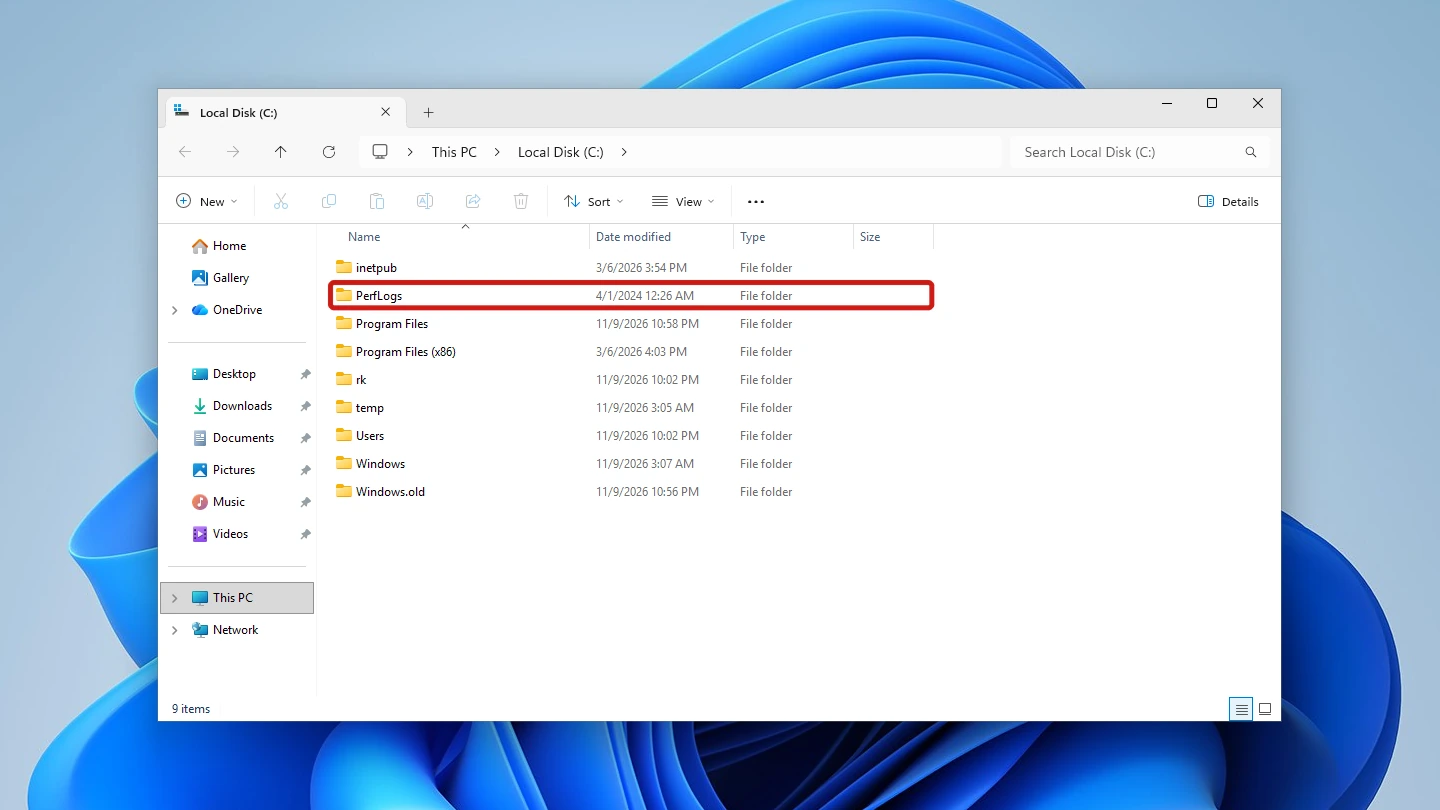
A Microsoft Community thread about a clean Windows 11 22H2 install reports a PerfLogs folder on C: dated to the Windows image, so it ships with Windows rather than appearing when you use it. On our fresh test machine, running Windows 11 build 26300, the folder was already there, created April 1, 2024. You can see the folder in File Explorer without changing any settings.
What Writes to PerfLogs
Microsoft’s support documentation names two ways data ends up in this folder, and a third showed up on our test machine.
- A trace you run with the logman command from an administrator command prompt, which Microsoft says is stored under c:\perflogs\Admin.
- A remote Performance Monitor log, which Microsoft says will be located in the C:\PERFLOGS folder.
- Windows’ own Data Collector Sets. The built-in System Diagnostics and System Performance sets both had %systemdrive%\perflogs\System\Performance as their Root directory.
For another item Windows leaves in the C: root, see what dumpstack.log.tmp is, which also explains why we advise leaving it alone.
When You Should Not Delete the PerfLogs Folder
Keep the folder if it holds logs you want, such as a logman trace you ran or a Performance Monitor log you saved there. Before you delete it, check whether anything of yours is stored there.
- Open C:\PerfLogs in File Explorer and look for files you recognise as your own. Opening the folder brings up a prompt that reads “You don’t currently have permission to access this folder. Click Continue to permanently get access to this folder.” If you would rather not grant that, right-click the folder, choose Properties and read the Size and Contains lines instead, which is the lighter way to see what is inside.
- If you have made your own Performance Monitor logs, open Performance Monitor by pressing the Windows key, typing Performance Monitor and pressing Enter.
- Expand Data Collector Sets in the left pane, then click User Defined. Any set you created appears in the list. Ours was empty.
- Right-click a set, choose Properties, and read the path in the Root directory field on the Directory tab. That is where the set saves its files. If it points into C:\PerfLogs and you want that data, copy it somewhere else first.
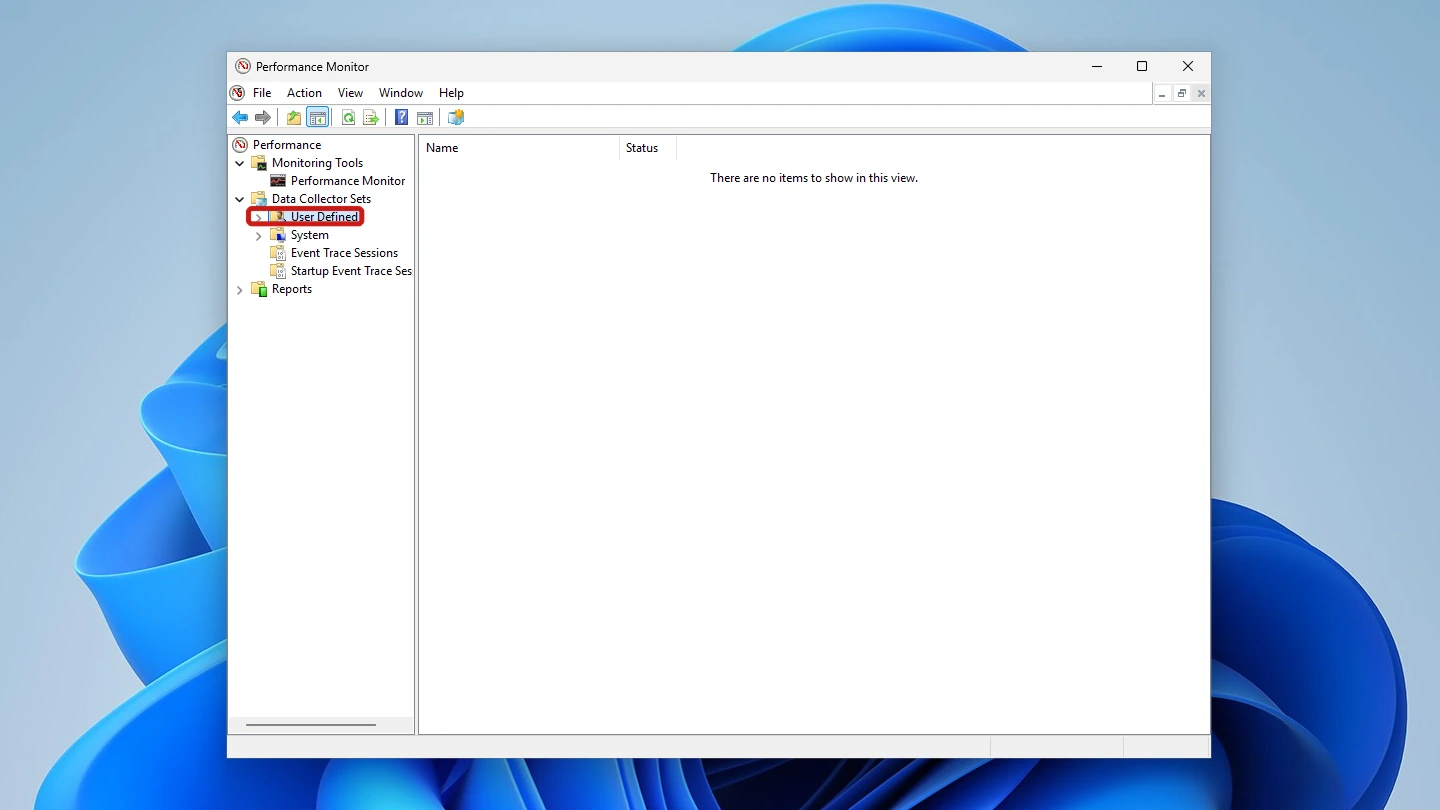
Heads up: your User Defined list shows sets, not every file in the folder, so an empty list does not prove C:\PerfLogs is empty. Check the folder itself as well, and check each set’s path before you press Delete.
How to Delete the PerfLogs Folder in Windows 11
Three short steps in File Explorer: check the size, delete the folder, then confirm it is gone.
Check How Big It Is
The Properties window shows how much space the delete would return, so you can decide whether it is worth doing.
- Open File Explorer and click This PC, then double-click your C: drive.
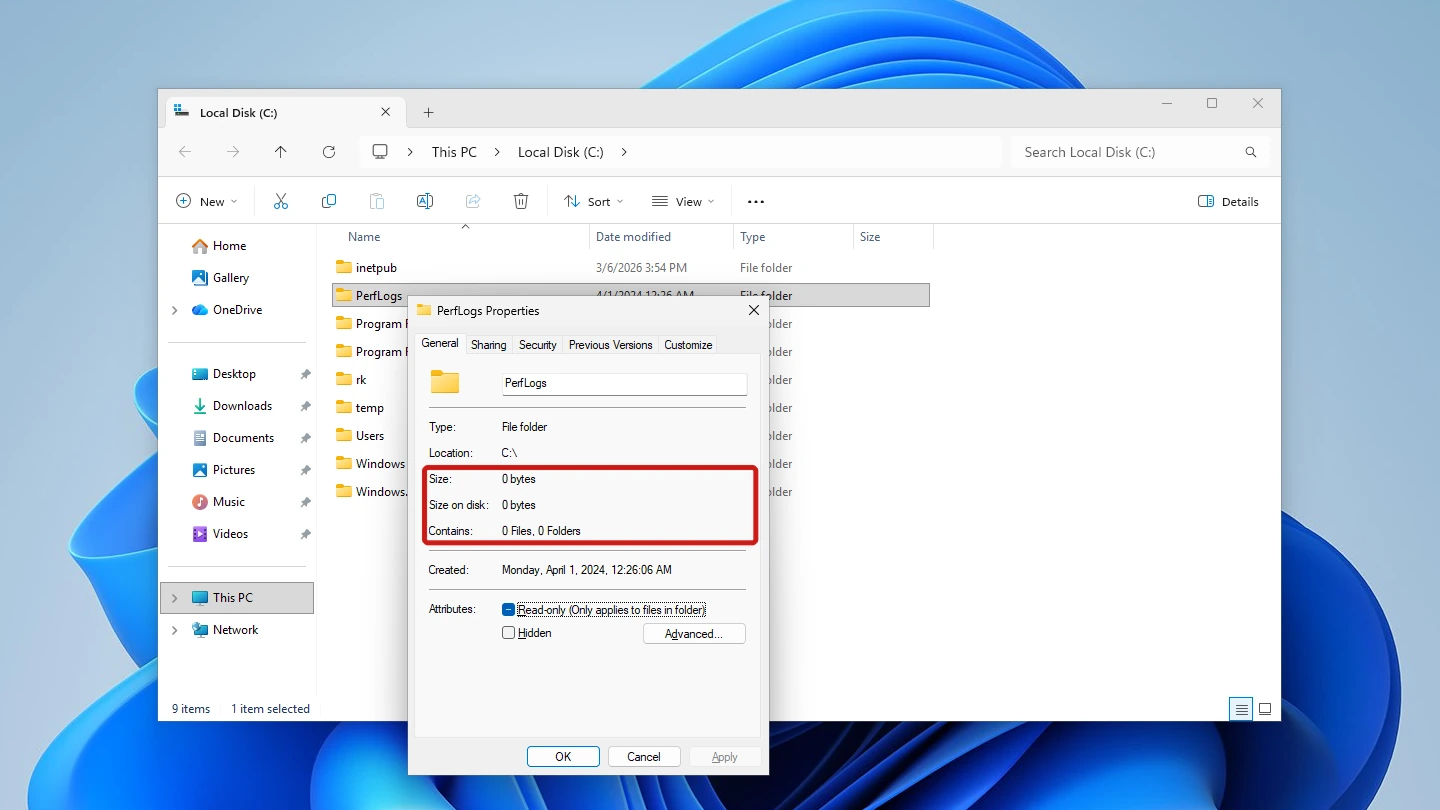
- Right-click the PerfLogs folder and choose Properties.
- Read the Size and Contains lines on the General tab. Ours showed Size and Size on disk at 0 bytes, with Contains reading 0 Files, 0 Folders. Yours may show more.
Delete It From File Explorer
These steps assume you have already checked that nothing of yours is inside.
- Select the PerfLogs folder in your C: drive.
- Press Delete on your keyboard, or right-click the folder and choose Delete.
- When the Folder Access Denied box says you need to provide administrator permission, click Continue, the button with the shield icon. The other buttons are Skip and Cancel.
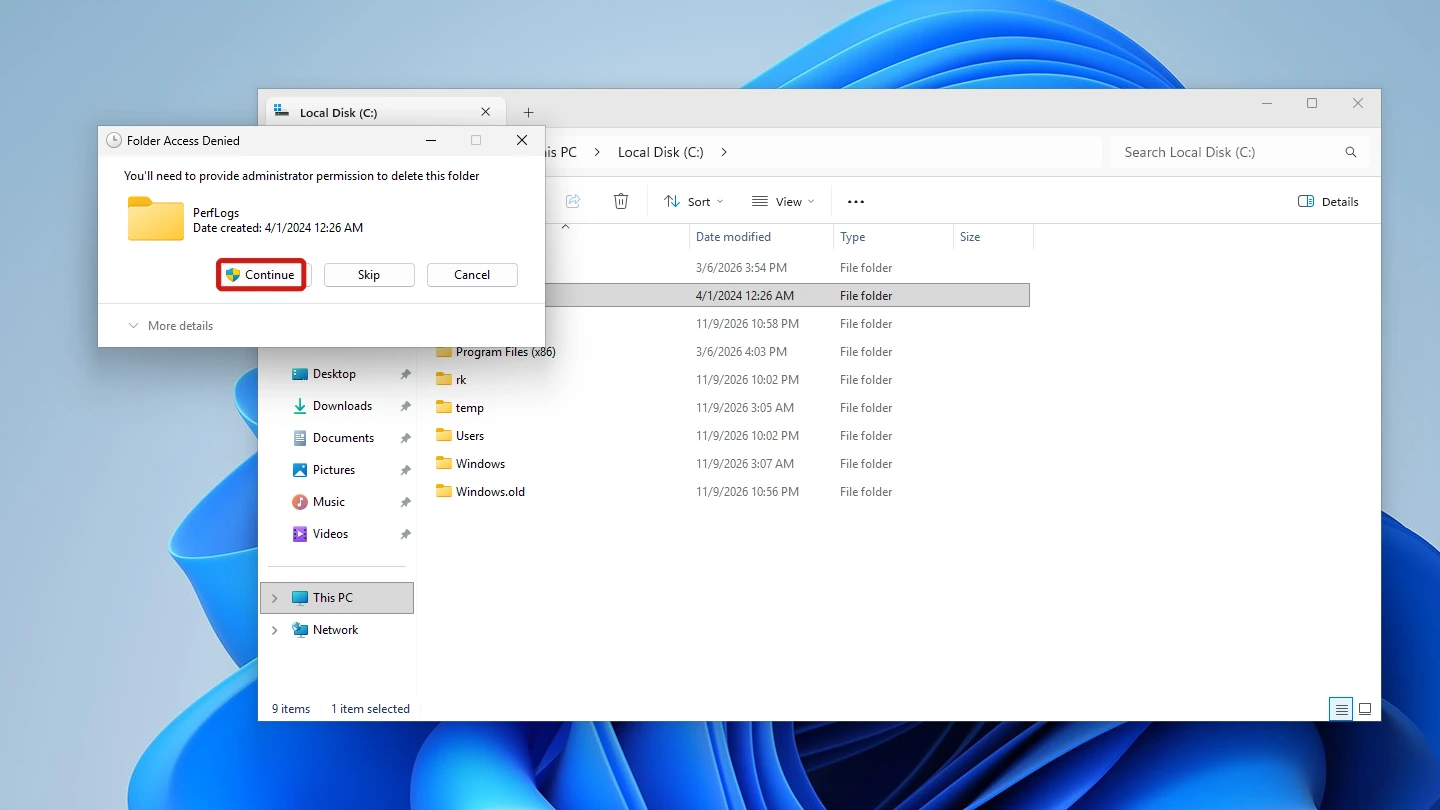
In our run, opening the folder showed one prompt and deleting it showed only this Folder Access Denied box: Continue deleted the folder with no further UAC prompt. The write-up on deleting the Prefetch folder shows a similar Continue box, with a before-and-after file count for another C:\Windows folder people ask about.
Confirm It Is Gone
Refresh the C: drive by pressing F5 and check that PerfLogs no longer appears in the list. On our machine the folder went to the Recycle Bin, so Restore there is the first thing to try if you change your mind.
What Happens After You Delete the PerfLogs Folder
Once the logs are gone, the Microsoft Community answer quoted earlier says deleting them does not directly affect system operation, though it adds that they are useful for diagnosing problems.
Does Windows Recreate It?
The same answer says the system may regenerate the folder if needed. We did not test a restart. We did test another route: after deleting the folder, we ran logman start “System\System Performance”, which recreated C:\PerfLogs\System\Performance with an NtKernel.etl file and a Performance Counter.blg file inside. So running the System Performance set brought the folder back on our machine.
Where to Free Real Space Instead
PerfLogs only holds logs, and ours was empty, so it is rarely the right place to look for space. These are better targets:
- Storage Sense, which clears temporary files automatically.
- Disk Cleanup, which lists the temporary file categories Windows can remove right now.
- The SoftwareDistribution folder, which holds Windows Update’s working files and, unlike PerfLogs, is worth clearing when an update fails or will not finish. The steps are in how to clear the SoftwareDistribution folder.
Conclusion
Yes, unless it holds Performance Monitor logs you made yourself. Once you have looked inside, you can remove the folder from Windows 11; a Microsoft Community answer says it will not normally harm performance, though it prefers you clear the logs and keep the folder. That answer says Windows may regenerate it, and when we ran a built-in set, it created the folder again.