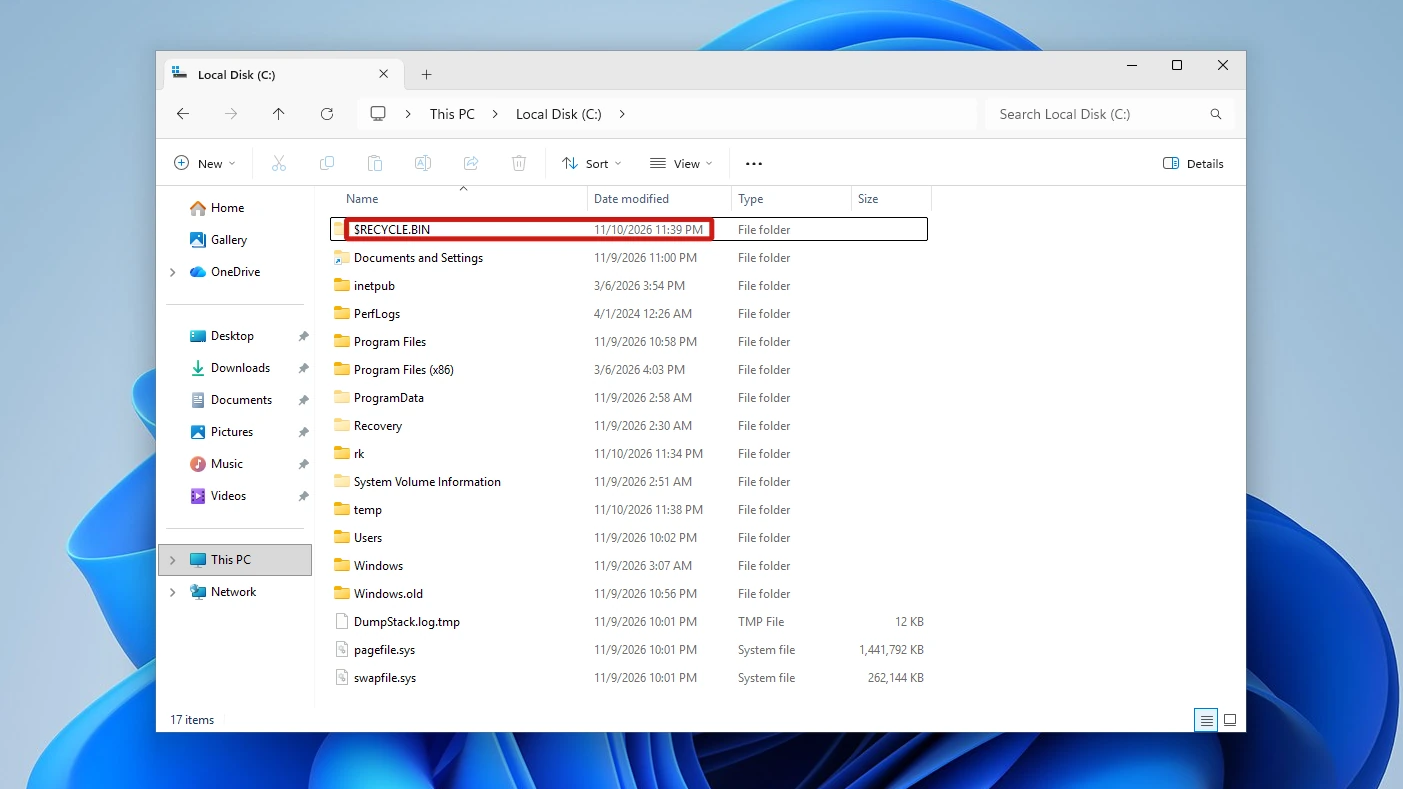
The Recycle Bin folder, C:\$Recycle.Bin, is hidden by default. Emptying the bin from the desktop is the first move, and if that fails, deleting the folder from a Command Prompt run as administrator is the fallback. This guide explains what the folder holds, walks through both methods, and shows that Windows creates the folder again, so the deletion may not last.
Prefer to watch? See the video guide.
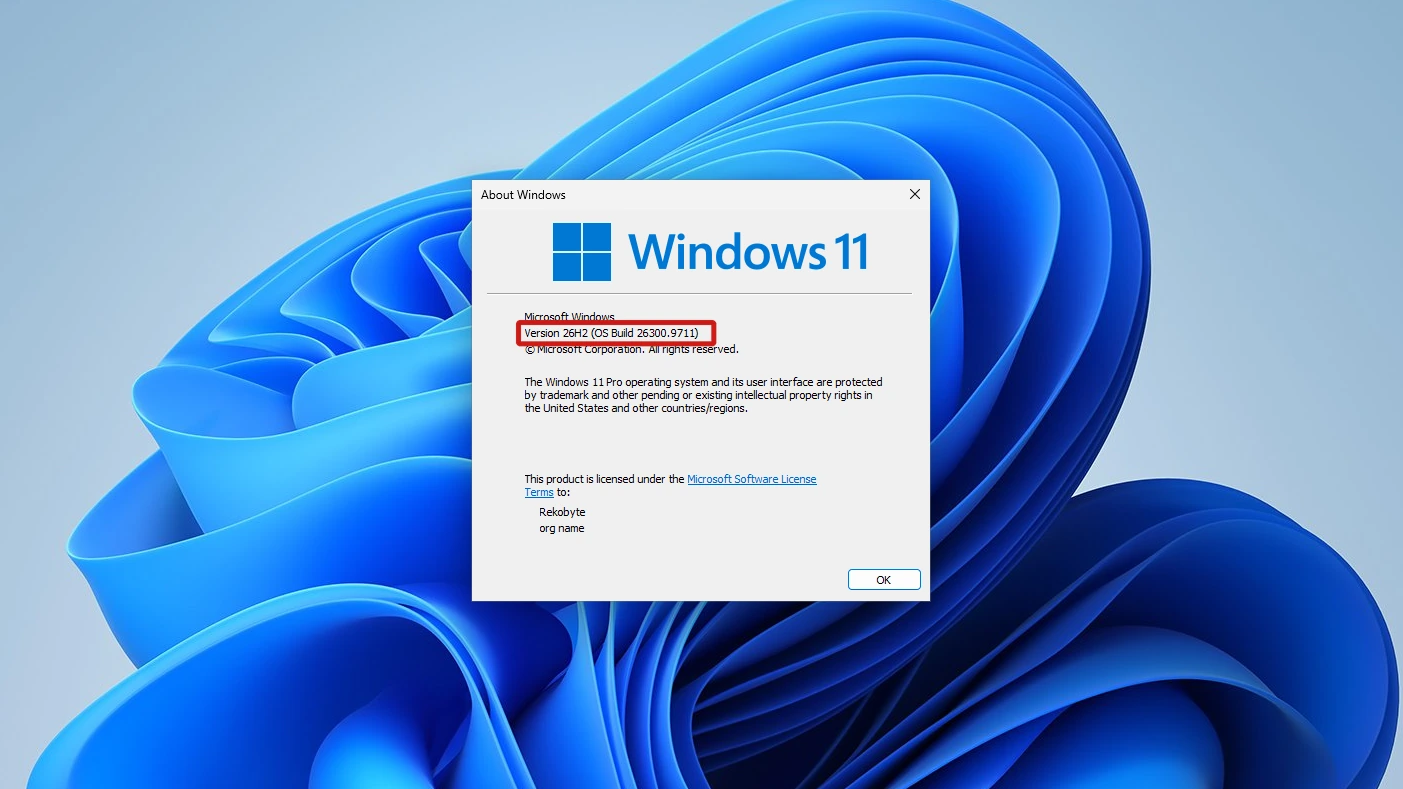
What the Recycle Bin Folder on Your C: Drive Is
The Recycle Bin folder is the hidden system folder where Windows keeps the files you delete from that drive. Its path is C:\$Recycle.Bin, and it holds one subfolder per account, with each deleted item stored as a renamed copy of the file plus a small info file. Older versions of Windows used a different folder name, and Windows Vista introduced the current one.
The folder is not the same thing as the icon on your desktop. The three ways to show or hide that icon are in our post on hiding the Recycle Bin icon from the desktop, and none of them touch the folder this article deals with.
What Is Inside the Recycle Bin Folder
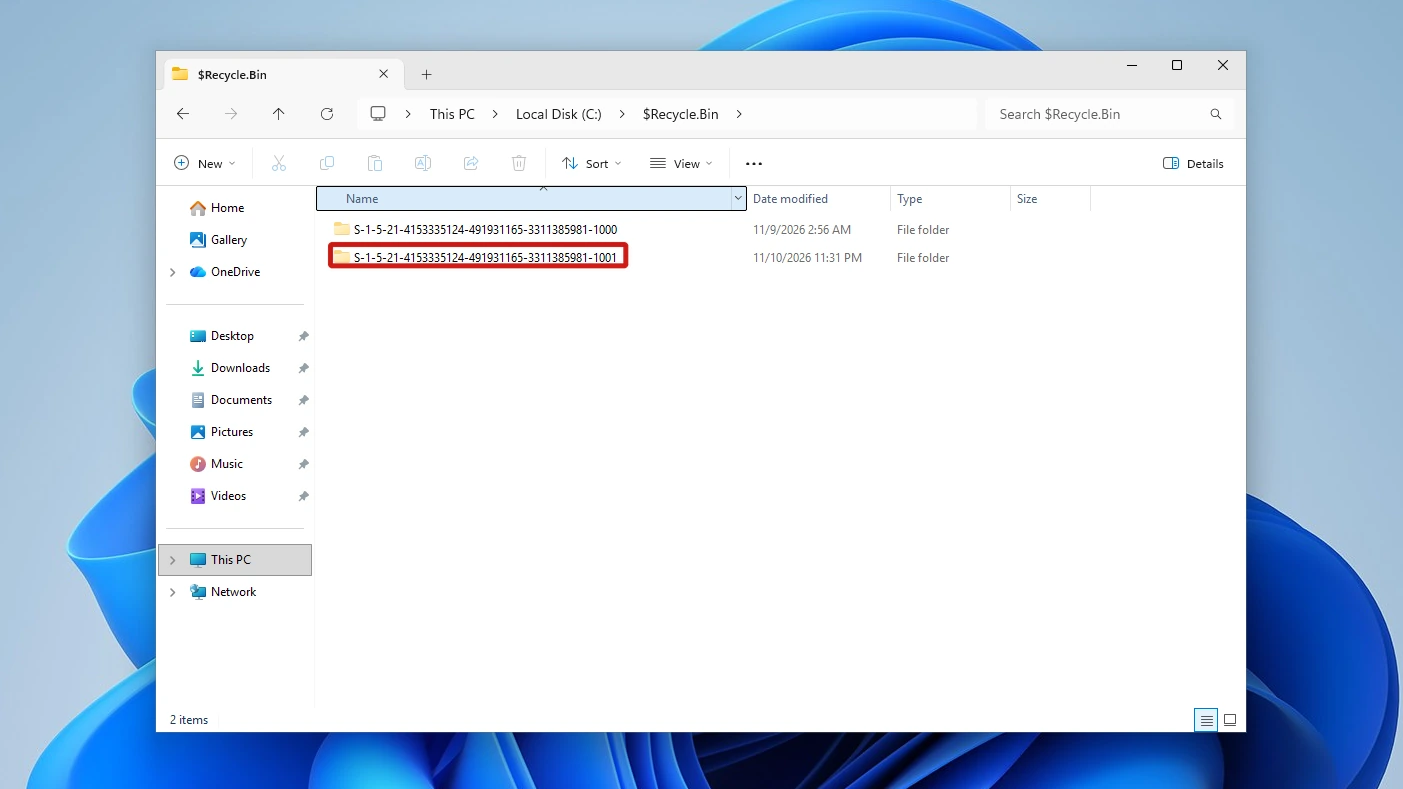
Open it and you will see one subfolder per user account, each named with that account’s security identifier. A security identifier (SID) is a unique value Windows generates when an account is created, and it is never reused for another user or group. Run whoami /user in a Command Prompt and the SID it prints matches your subfolder’s name.
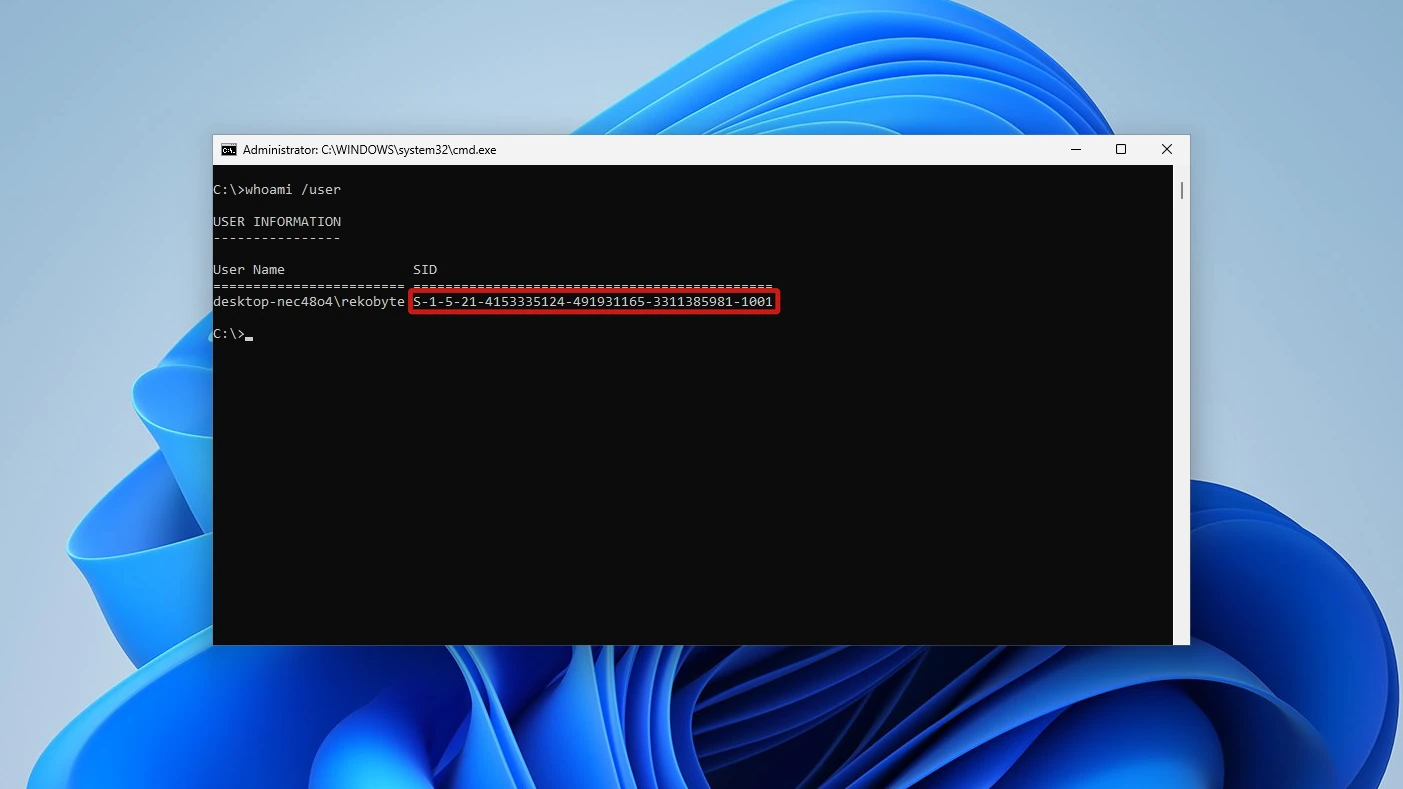
On our test account the SID ends in -1001, and the folder held a second subfolder, from another account, ending in -1000.
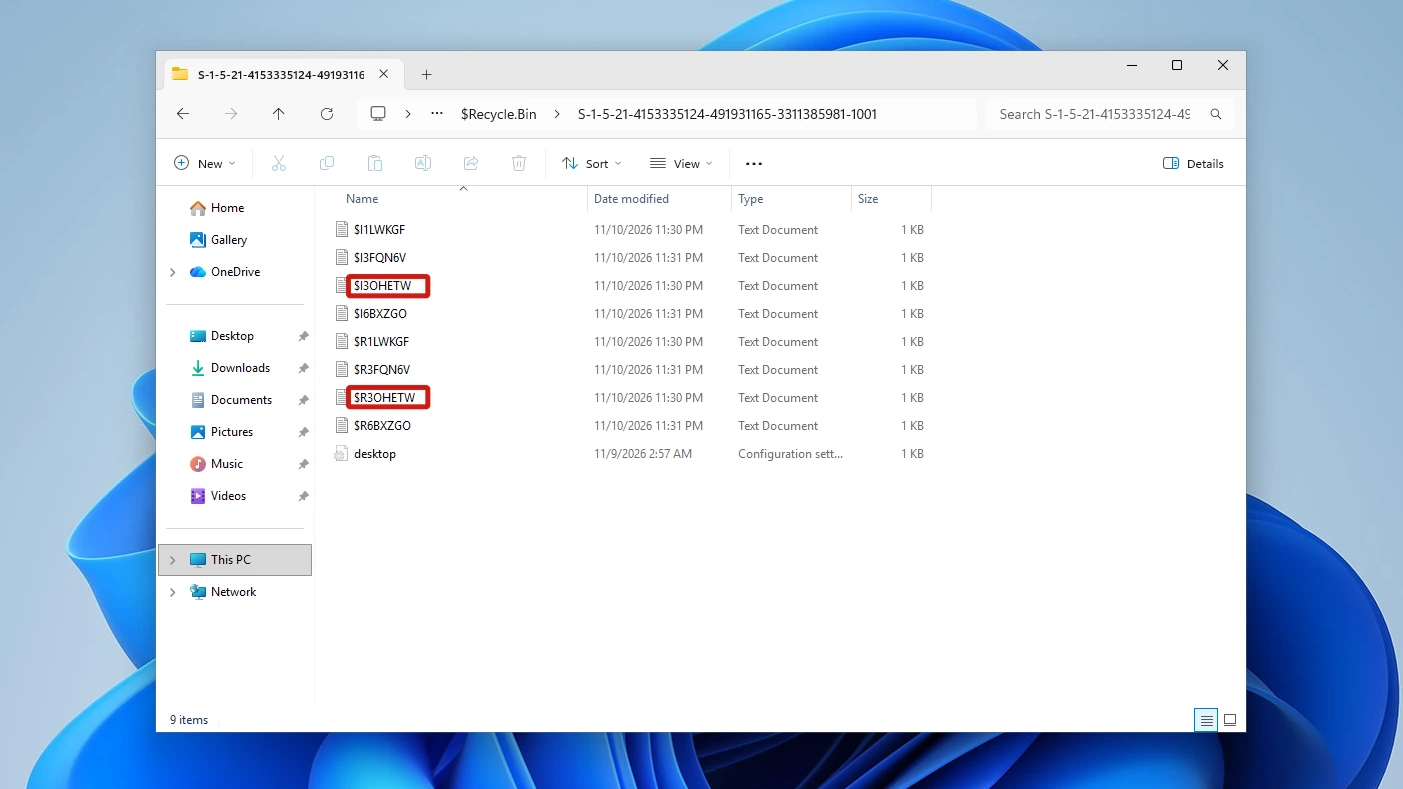
Inside your subfolder, every deleted item produces two files. The $R file is the renamed file itself, and the $I file records the original path, the deletion time and the original size. Magnet Forensics documents the byte layout if you want the technical detail.
When You Should Not Delete the Recycle Bin Folder
It is safe to delete in general, because it holds only files you already deleted, and the desktop icon and the Recycle Bin feature are not stored inside it. There are a few cases where you should stop first:
- Files still in the bin: anything inside is lost once the folder is removed, and you can get it back only the way you would any other deleted file (see the recovery section below).
- Another person’s account: their deleted items live in their own subfolder, so deleting the folder removes those too.
- A bin you can still empty normally: if the desktop Empty Recycle Bin command works, you do not need to remove the folder at all.
Show Hidden and Protected Files in File Explorer
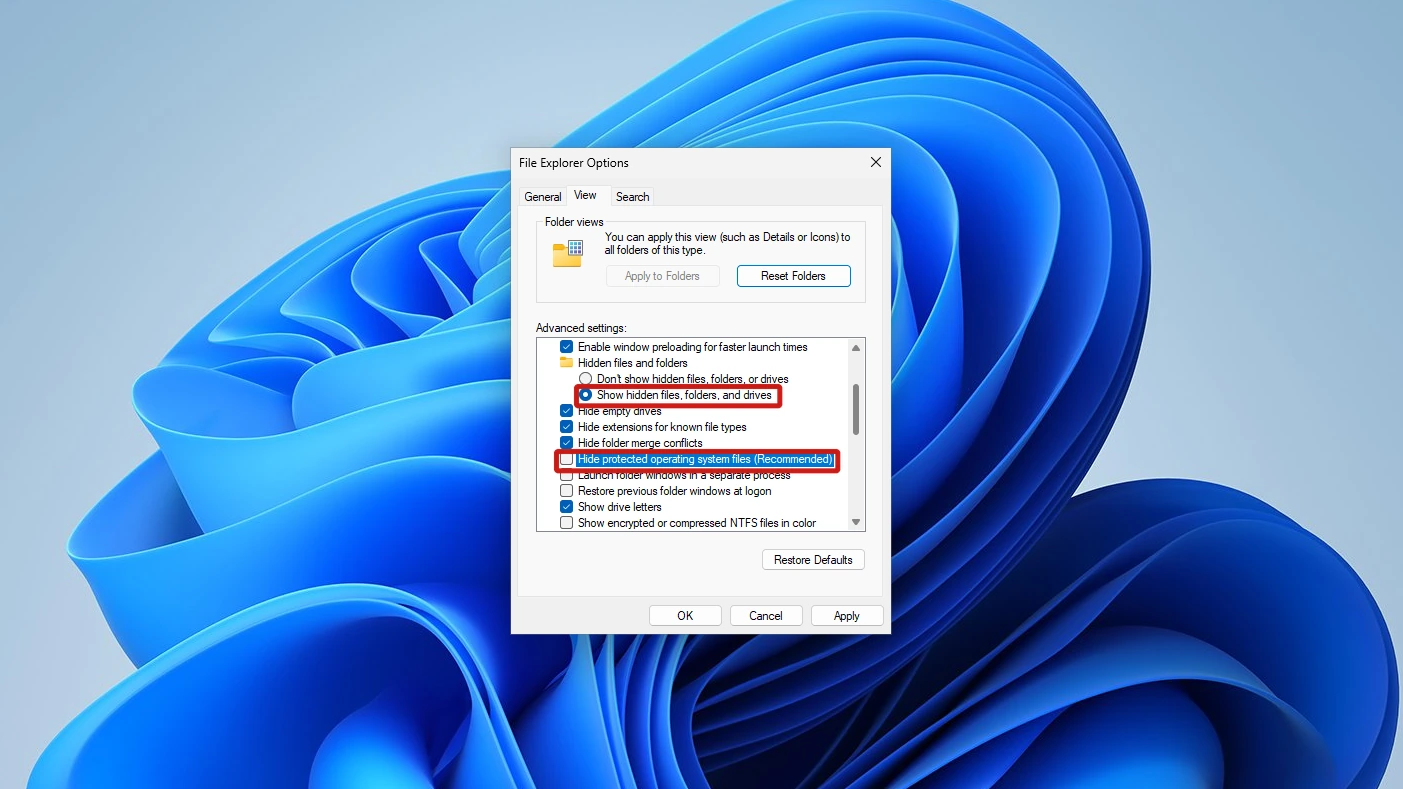
You need this section only to see the folder. Method 1 and the rd command in Method 2 both work without it. The folder does not appear until you turn on hidden items and also clear the protected-files box. For the general method, including why protected system files stay invisible even with hidden items on, see our walkthrough on showing hidden and protected files in File Explorer, which covers four methods. Here the File Explorer Options route is enough.
- Open File Explorer, select the three-dot menu in the toolbar, then choose Options. The File Explorer Options window opens.
- Select the View tab. The list of advanced settings is under it.
- Select Show hidden files, folders, and drives. This reveals ordinary hidden items.
- Clear the Hide protected operating system files (Recommended) box and click Yes on the warning. The folder stays invisible until this box is cleared.
- Click OK, then open the C: drive. The $Recycle.Bin folder now appears.
When you finish, select Hide protected operating system files again and switch Show hidden files, folders, and drives back to its previous setting to hide the folder once more.
How to Delete the Recycle Bin Folder in Windows 11
The two methods do different things. Method 1 empties the bin and is where you should start. Method 2 removes the folder itself and is for the case where Empty Recycle Bin fails.
Method 1: Empty the Recycle Bin First
Emptying the bin deletes the files inside it and leaves the folder in place, with each account’s subfolder still there. We checked this by emptying the bin through PowerShell’s Clear-RecycleBin, the same Windows call Empty Recycle Bin uses.
- Right-click the Recycle Bin icon on the desktop. The context menu opens.
- Select Empty Recycle Bin. Windows asks you to confirm.
- Click Yes. The files are deleted and the icon changes to its empty state.
Method 2: Delete the Recycle Bin Folder From Command Prompt
The rd (remove directory) command, which is the same as rmdir, removes the folder itself, not only its contents. Nothing stops to ask you first, so check the bin before you start.
Warning: this command removes the folder and every file still inside it.
- Press the Windows key, type cmd, then right-click Command Prompt and select Run as administrator. Click Yes on the prompt.
- Type this command and press Enter. The command runs without a confirmation prompt.
rd /s /q C:\$Recycle.Bin
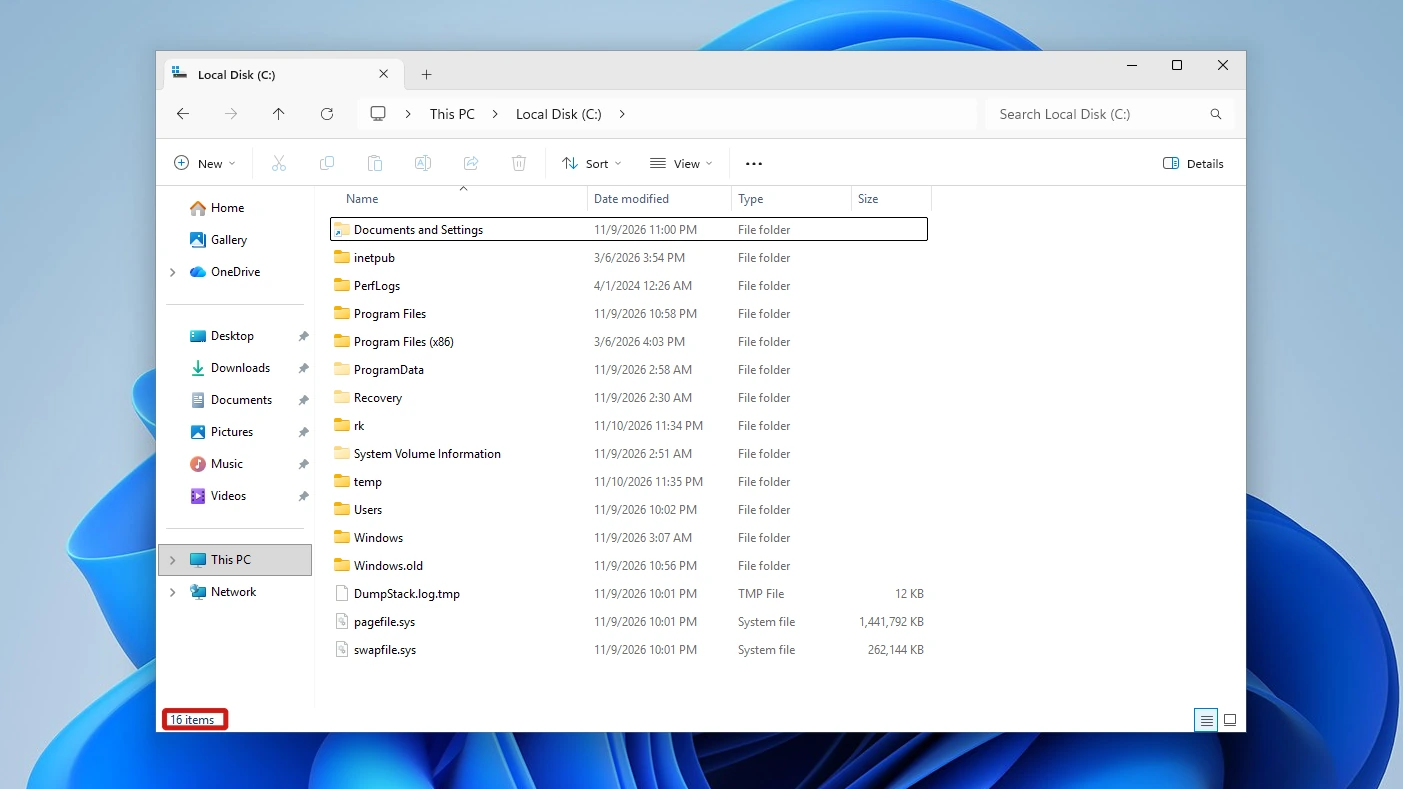
- Refresh File Explorer on the C: drive (turn on the hidden-files options above first). The folder is gone from disk straight after the command, but it may already be back by your first refresh, as the next section shows. rd printed no message.
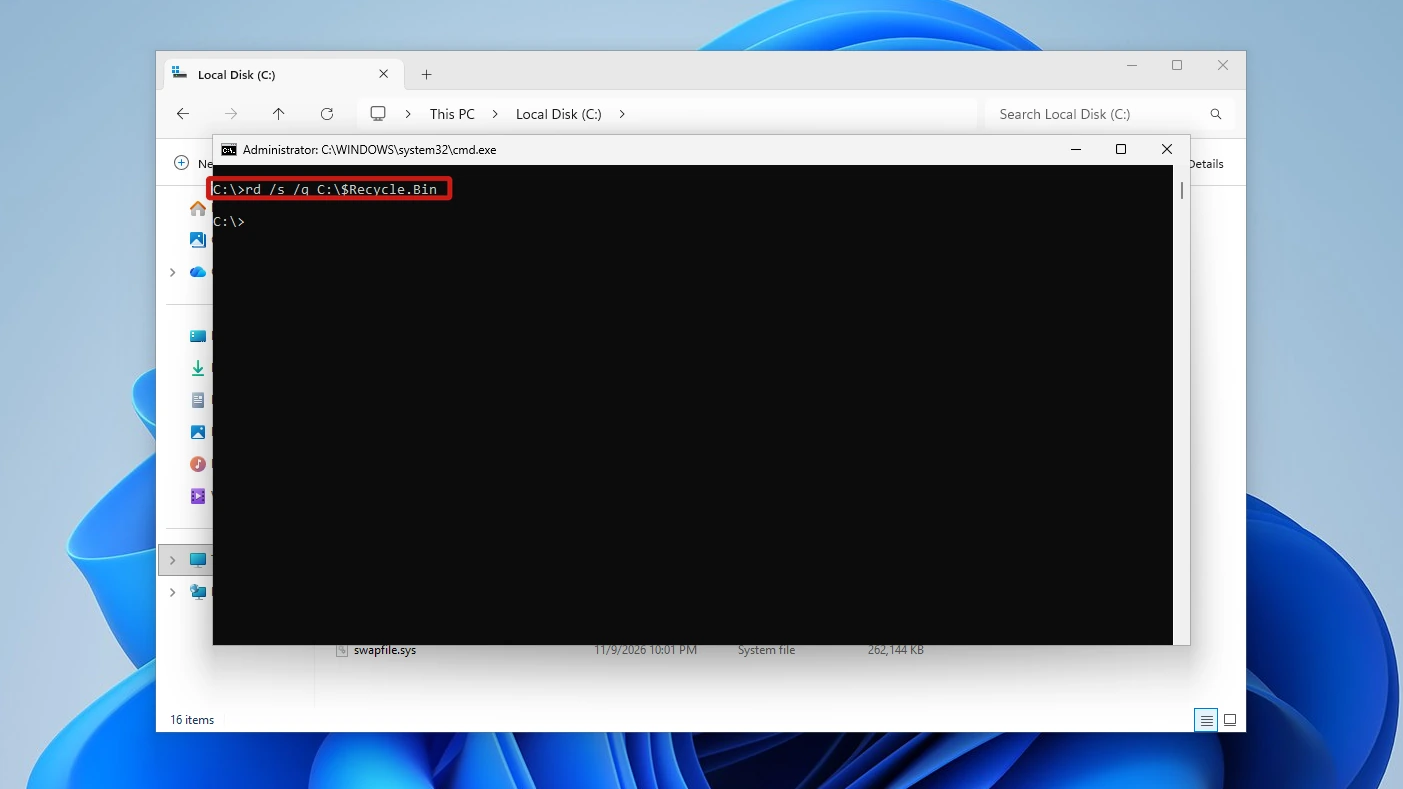
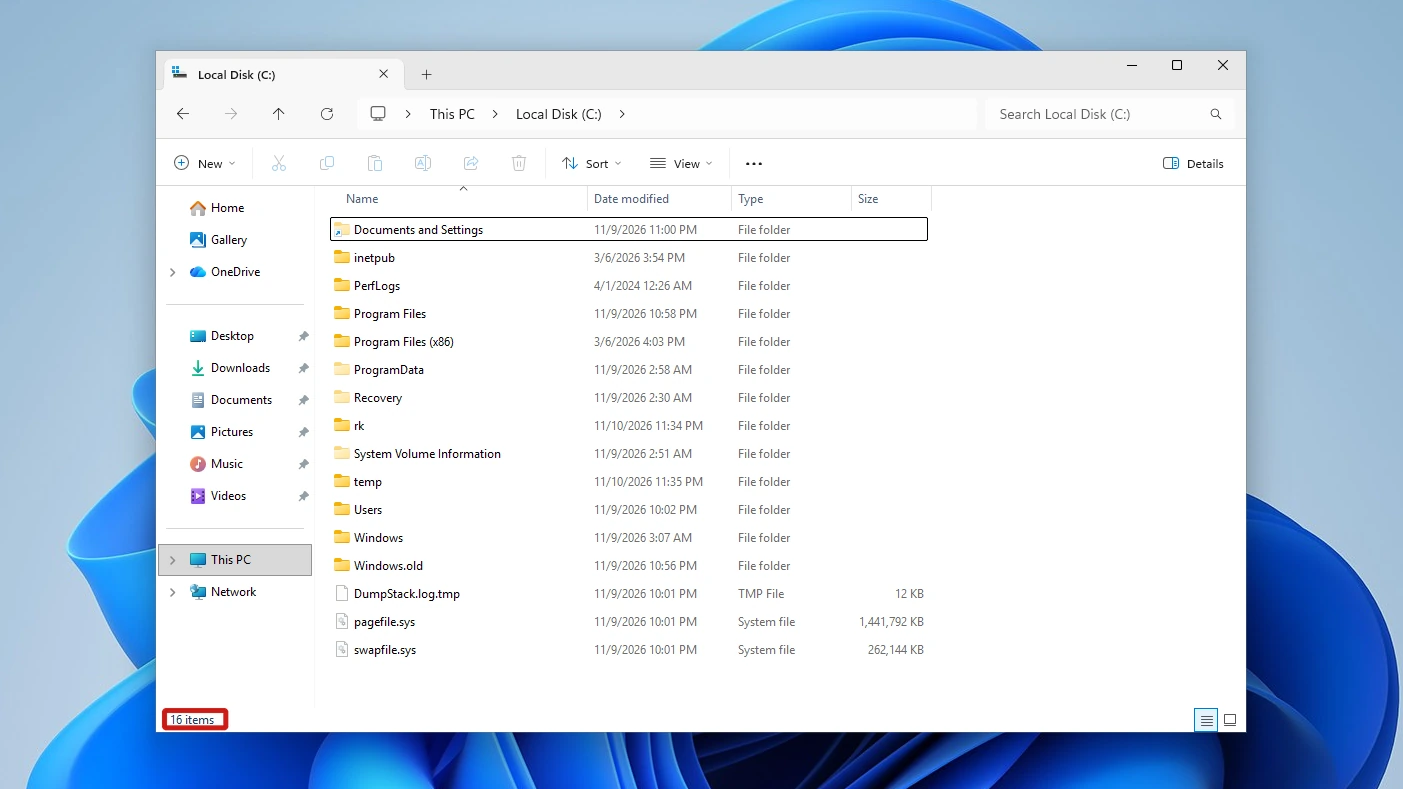
The /s switch removes the directory and everything inside it, and /q turns off the confirmation prompt, which works only when /s is also present. Without /s, rd fails on a folder that holds files, including hidden or system files. The full syntax is in the rmdir command reference.
What Happens After You Delete the Recycle Bin Folder
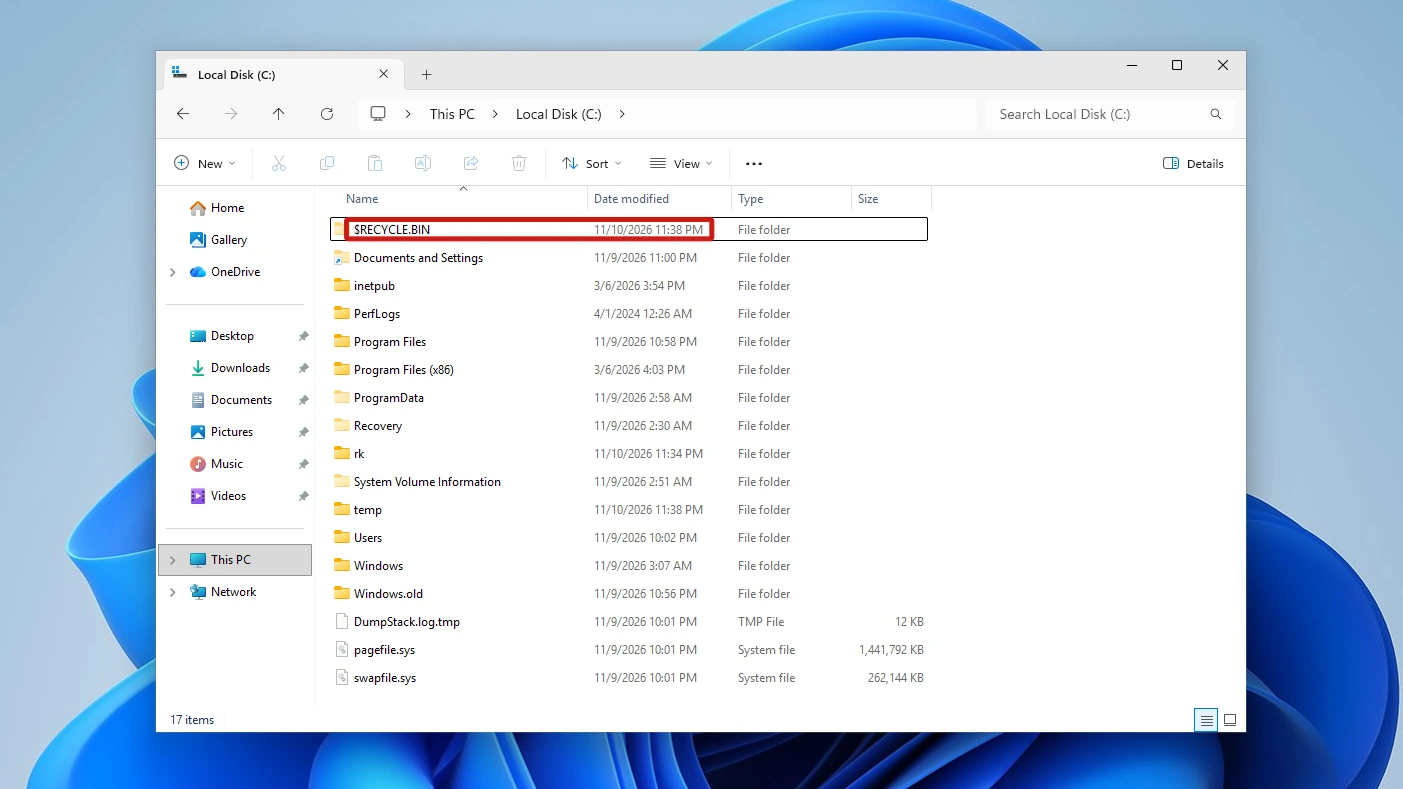
We checked the C: drive at three moments. Windows created the folder again every time we deleted a file to the bin or clicked Empty Recycle Bin, and sometimes it came back within seconds with nobody using the bin.
| Moment checked | Does the folder exist? |
|---|---|
| Right after running the rd command | Gone on disk straight after the command. In the first video take it was back as $RECYCLE.BIN by the first refresh, about 10 seconds after the command, with nothing deliberately using the bin. The second video take also showed it back at the refresh. In the stills check it was still gone after 60 seconds. |
| After deleting another file | Yes. In our test it returned at once as $RECYCLE.BIN, in capitals, with only our account’s subfolder. |
| After emptying the bin with no folder present | Yes. In our test it returned as soon as Empty Recycle Bin was clicked, before we confirmed the dialog. |
In the stills check the folder stayed gone for 60 seconds once, with nothing using the bin, and opening File Explorer or refreshing it did not bring it back. After another rd it came back about 40 seconds later without our deliberately using the bin. The other account’s subfolder was not recreated. So deleting the folder is not permanent, and we did not test a restart.
Fix Access Denied When You Delete the Recycle Bin Folder
If you see Access Denied, the folder’s permissions are blocking the delete. Microsoft’s takeown page says you might have to give yourself full permissions before you can delete such files, and the two commands below do that from the same administrator Command Prompt.
- Take ownership. The takeown command makes you the owner, /r applies it to everything inside, and /d y suppresses the prompt shown when you lack permission to list a folder and takes ownership anyway. That replaces the permissions on any folder you cannot list with full control for your account only.
takeown /f C:\$Recycle.Bin /r /d y
- Grant full access. The icacls command gives the Administrators group full control (F), and /t applies it to subfolders.
icacls C:\$Recycle.Bin /grant Administrators:F /t
- Run the rd command from Method 2 again.
Get Deleted Files Back With Windows File Recovery
A file removed from the bin is not erased at once. Windows marks the space as free, so the data can still be recovered until new writes overwrite it. Microsoft’s Windows File Recovery is a command-line app from the Microsoft Store that works on Windows 11.
Its command follows the pattern below, where the source and destination drives must be different. Use /regular for recently deleted files on a healthy NTFS drive such as C:, and /extensive for other file systems or corrupted drives. It does not support cloud storage or network shares, and Microsoft’s page lists the full switches.
For example, with C: as the source and D: as the destination:
winfr C: D: /regular
Conclusion
To delete the Recycle Bin folder, empty the bin from the desktop first, then run rd /s /q C:\$Recycle.Bin from a Command Prompt opened as administrator. The command runs without a confirmation prompt, so anything still in the bin is lost. Windows created the folder again as $RECYCLE.BIN every time we deleted a file to the bin or clicked Empty Recycle Bin, and sometimes within seconds with nobody using the bin, so the deletion may not stay gone. We did not test a restart.
Video Guide
Prefer to follow along on screen? This short video shows the folder deleted from an admin Command Prompt, and Windows bringing it back.