You turned on hidden files, or a backup tool flagged a file called DumpStack.log.tmp at the root of your C: drive, and now it refuses to go away. This article explains what the file is, whether deleting it is safe, why Windows says it is in use, and the optional registry switch that turns its logging off. We checked each step on Windows 11 (build 26300) and show the error Windows gives.
Prefer to watch? See the video guide.
What Is DumpStack.log.tmp?
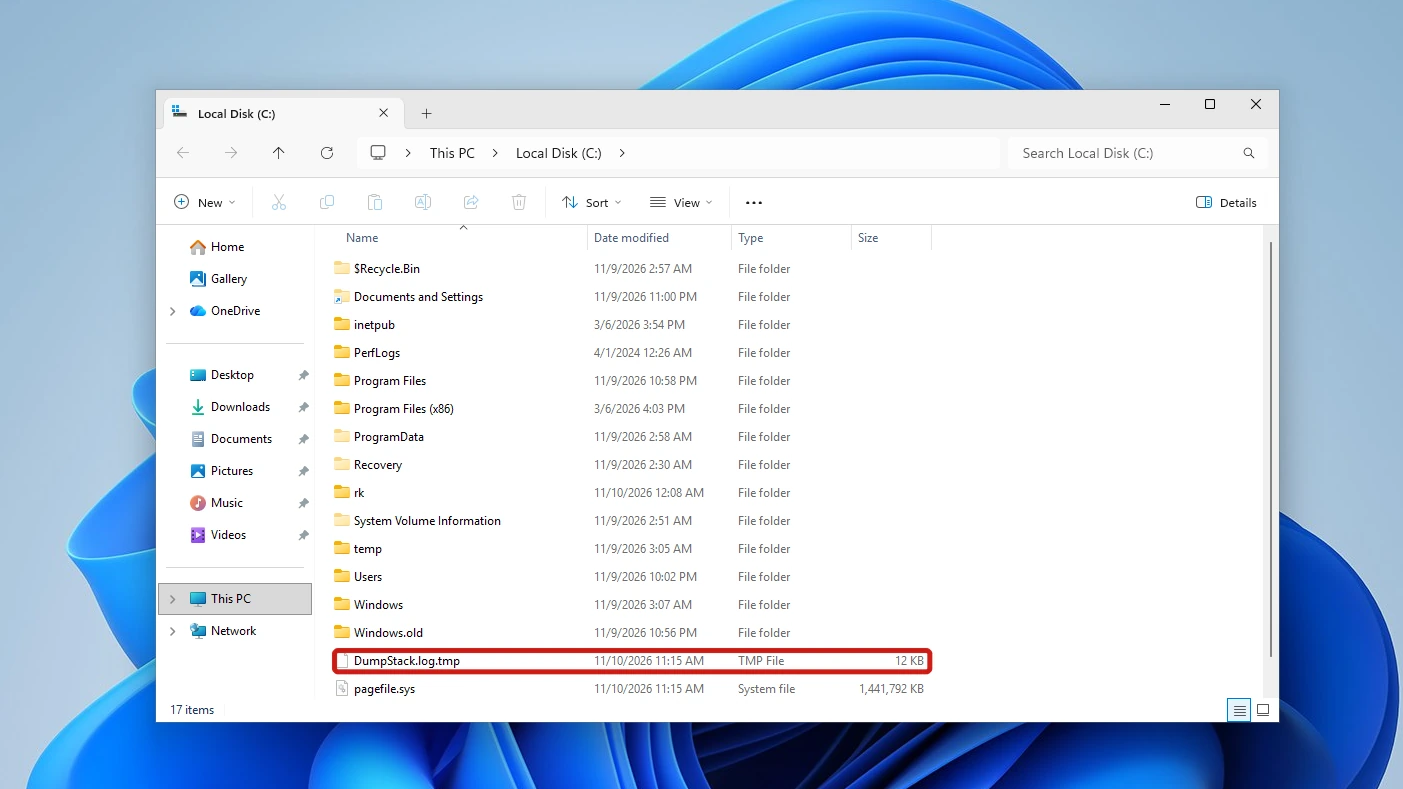
DumpStack.log.tmp is a small file Windows keeps at the root of the system drive as part of its crash dump handling. A crash dump is the snapshot Windows saves when it stops with a blue screen, and Microsoft’s page on it lists the Memory.dmp and Minidump files that hold the snapshot itself.
The .tmp file is not one of those. It has a companion, DumpStack.log, in the same folder, and Microsoft’s page documents neither. Two Microsoft Q&A threads fill the gap. The accepted community answer says dump stack logging arrived in Windows 8, and an Independent Advisor on a second thread describes the file as a log used during dump creation when a blue screen occurs.
It is not a virus. Windows writes it. On our test PC it was there with no blue screen in sight.
| File | Typical attributes | Can you delete it |
|---|---|---|
| DumpStack.log | Not present | Yes, per the community answer |
| The .tmp file | Archive, System, Hidden | No, Windows holds it open |
The .tmp file was 12,288 bytes (about 12 KB) on our test PC.
Is DumpStack.log.tmp Safe to Delete?
Leave it alone; that is the safe choice. The Microsoft Q&A advisor calls it a system file that Windows re-creates if needed, and says a backup without it is harmless.
Deleting it gains you nothing worth having. The file is about 12 KB, so removing it frees no meaningful space and does not speed up the PC. In practice you cannot remove it anyway, because Windows keeps it open (the in-use section below shows the error). Nor can you read what is inside: it is locked, and it would not open for us.
Do not:
- Force it off: skip unlockers, boot-time deletes and ownership changes. Windows holds the file open.
- Delete it while chasing a blue screen: keep both files. The advisor describes the log as used during dump creation, so removing it discards something Windows wrote for that purpose.
- Treat the rest of the root of C: as harmless: do not delete anything else there because this one is. Files such as pagefile.sys and the System Volume Information folder are part of how Windows runs.
How to See DumpStack.log.tmp in File Explorer
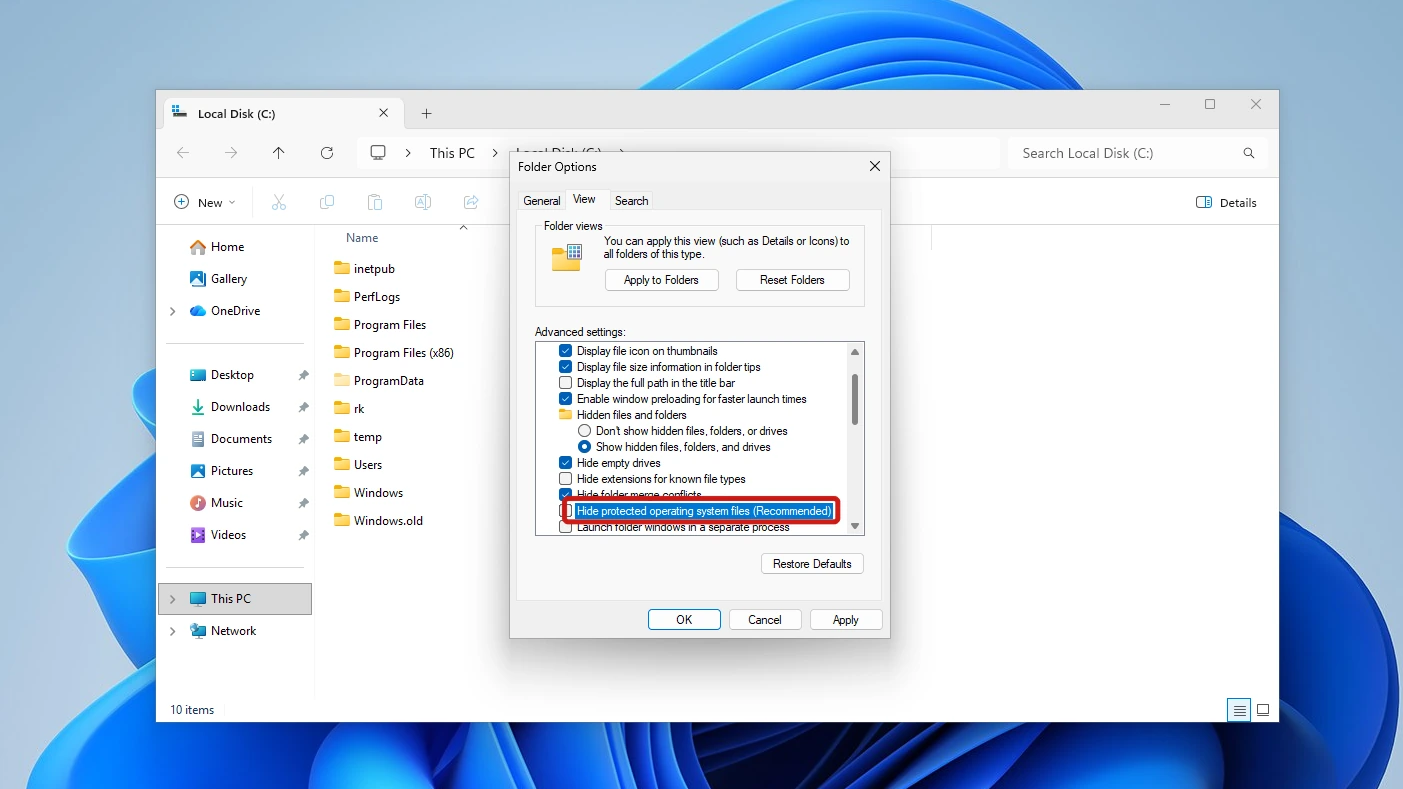
The file carries the Hidden and System attributes, so ticking View > Show > Hidden items alone may not reveal it. The box that matters is Hide protected operating system files.
Our walkthrough on showing hidden and protected files covers all four reveal methods in full, so the steps below only summarize it. The same Hidden-plus-System pairing applies to desktop.ini, and that guide explains why a plain Hidden items tick leaves such files out of sight.
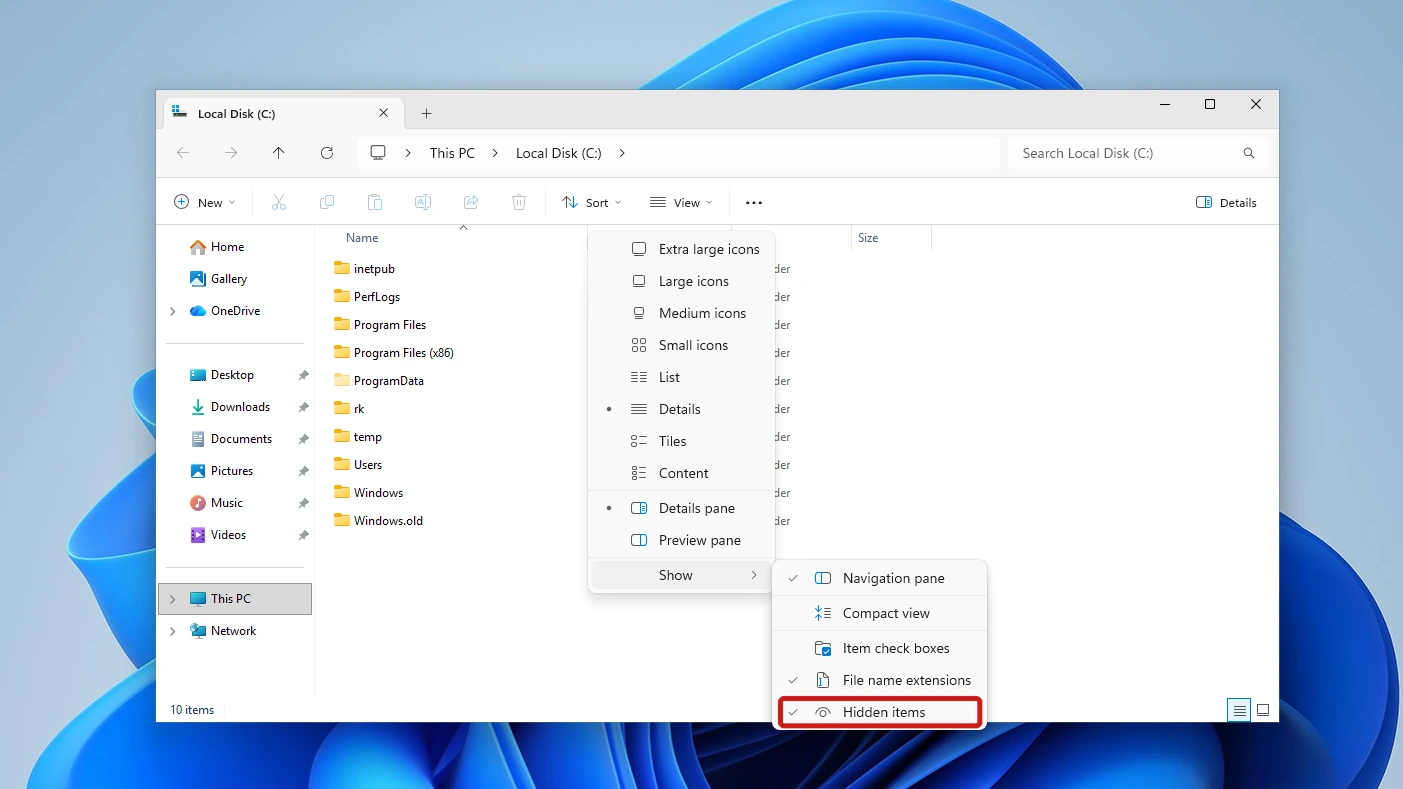
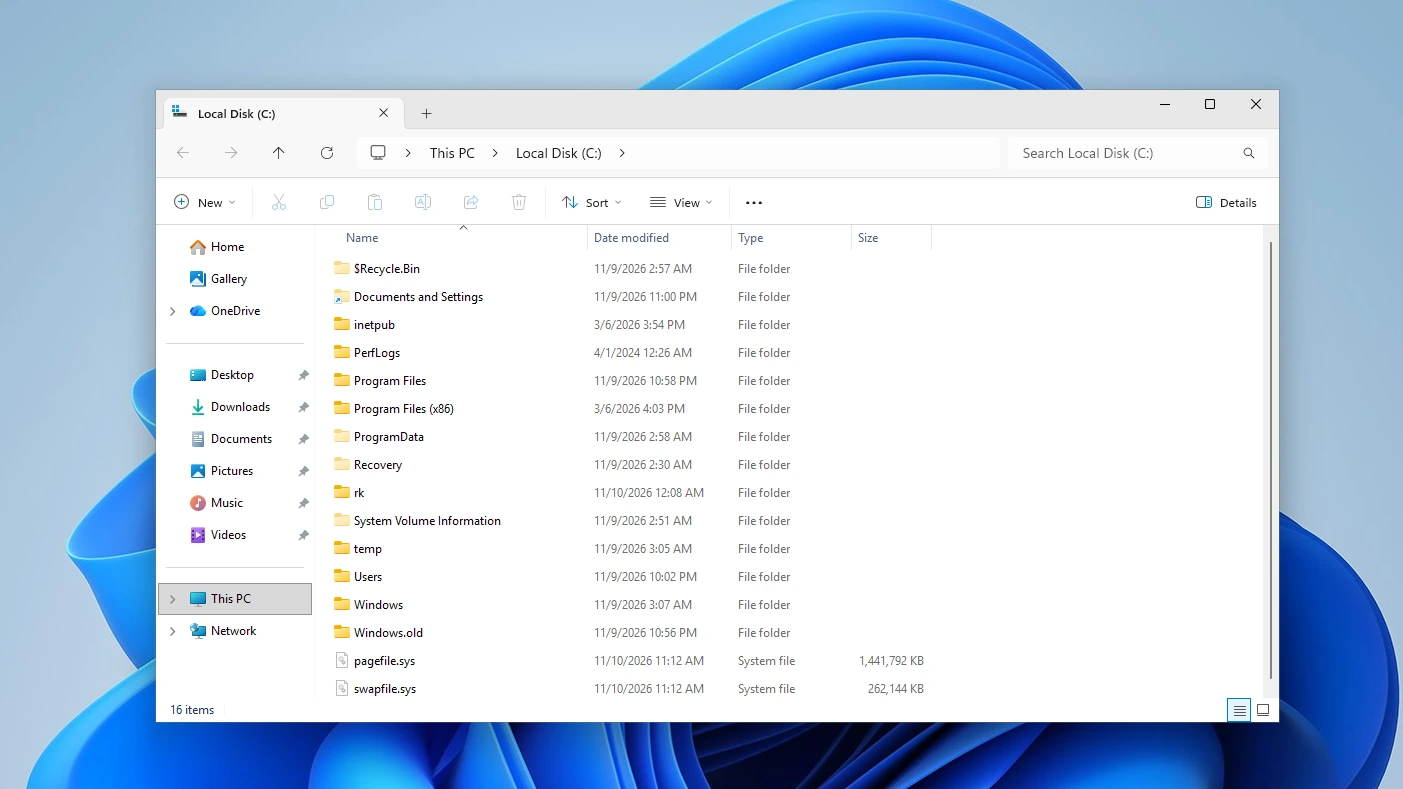
- Open File Explorer, select This PC, then double-click your C: drive.
- Select See more (the three dots) > Options, open the View tab, untick Hide protected operating system files (Recommended), and click Yes on the warning prompt (“You have chosen to display protected operating system files…”). Windows 11 opens it as Folder Options (the Options item in the … menu).
- Click OK, then look for both DumpStack files in the C: listing.
- Right-click either file and choose Properties. The General tab shows the size and the Read-only and Hidden boxes. Here Read-only was unticked, and Hidden was ticked but greyed out because the file is also System.
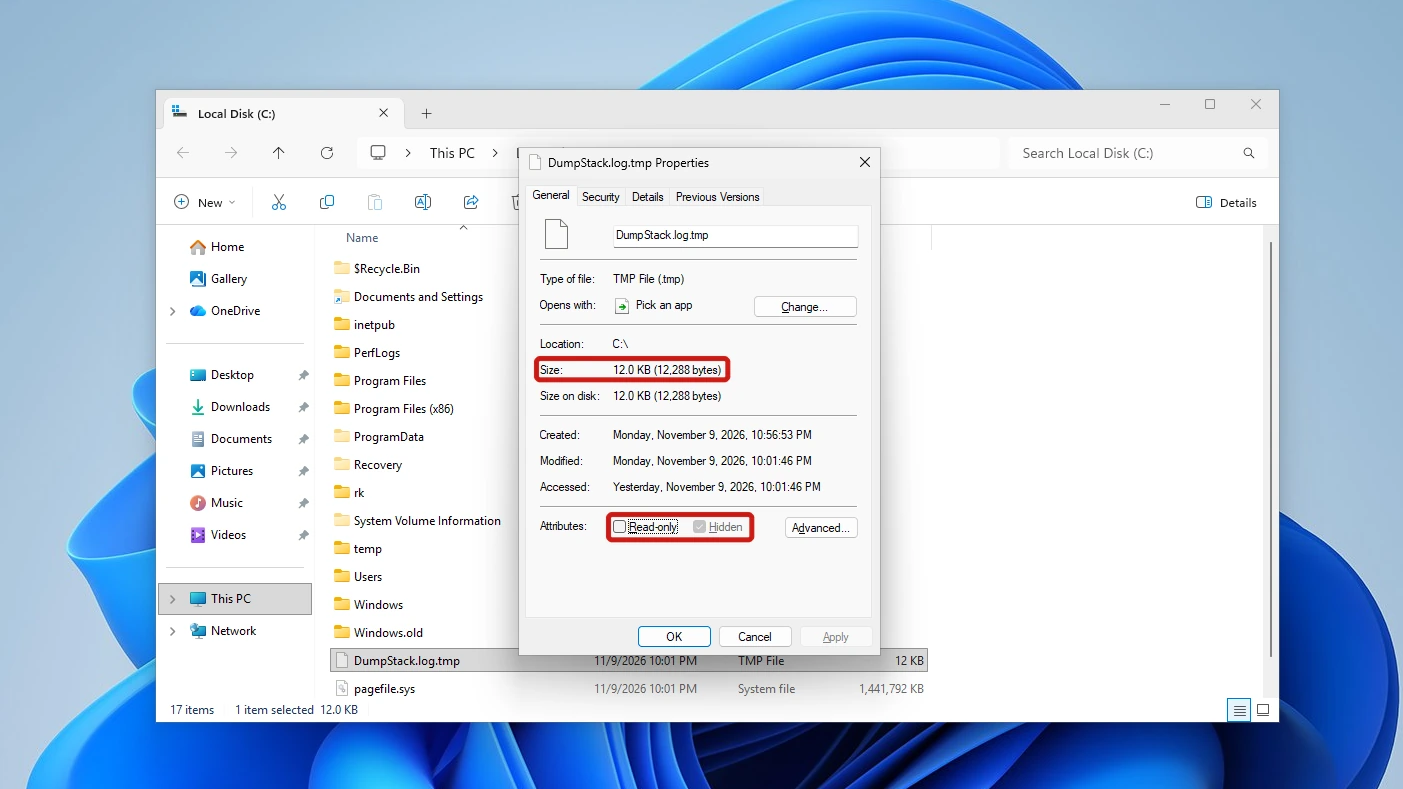
Check it yourself: open Command Prompt and run the first command below to list hidden files at the root of C:. The second shows one file’s attributes using attrib, which prints an H for Hidden and an S for System. In our check the second command printed A, S and H flags before the path, and the first listed the file among other hidden items.
dir C:\ /a:h
attrib C:\DumpStack.log.tmp
Why DumpStack.log.tmp Says It Is in Use
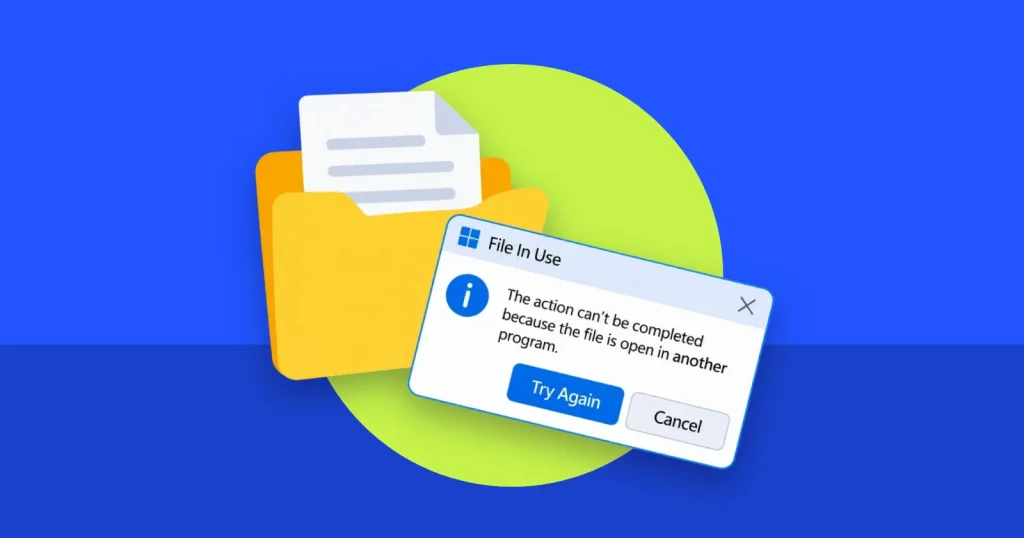
Windows opens the file for itself and keeps it open, so Delete, Open, Copy, Rename and Move all fail. In File Explorer, Delete shows no confirmation and then a File In Use dialog: “The action can’t be completed because the file is open in another program. Close the file and try again.” Command Prompt and PowerShell say the file is being used by another process, whether you use del, copy or ren.
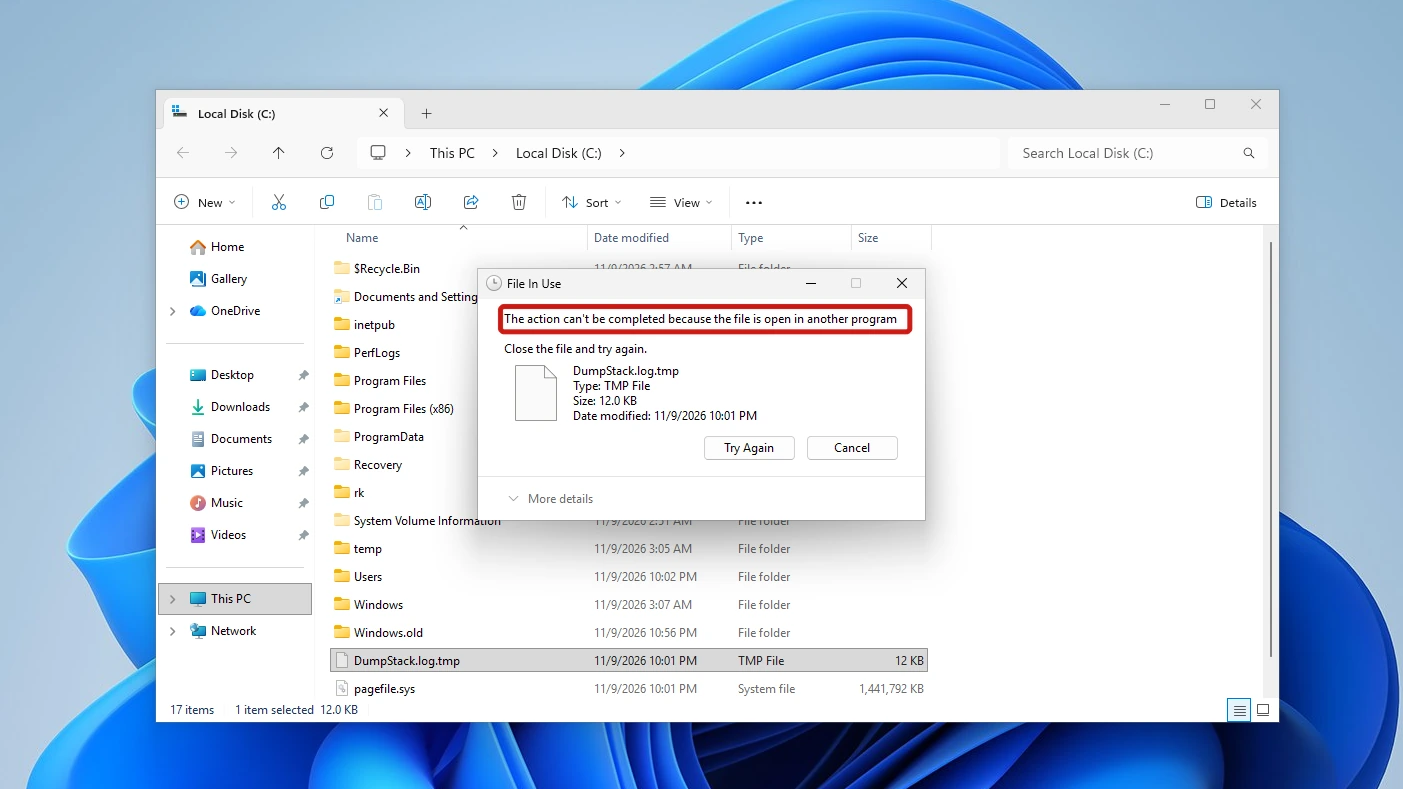
A restart on its own does not release it. The optional registry switch near the end is the route we cover if you still want it gone.
What About DumpStack.log?
The accepted community answer says you can always delete DumpStack.log, while the .tmp is always in use. Our test PC had no DumpStack.log, only the .tmp, even after three restarts, so we could not check that claim.
If a Backup Complains About the File
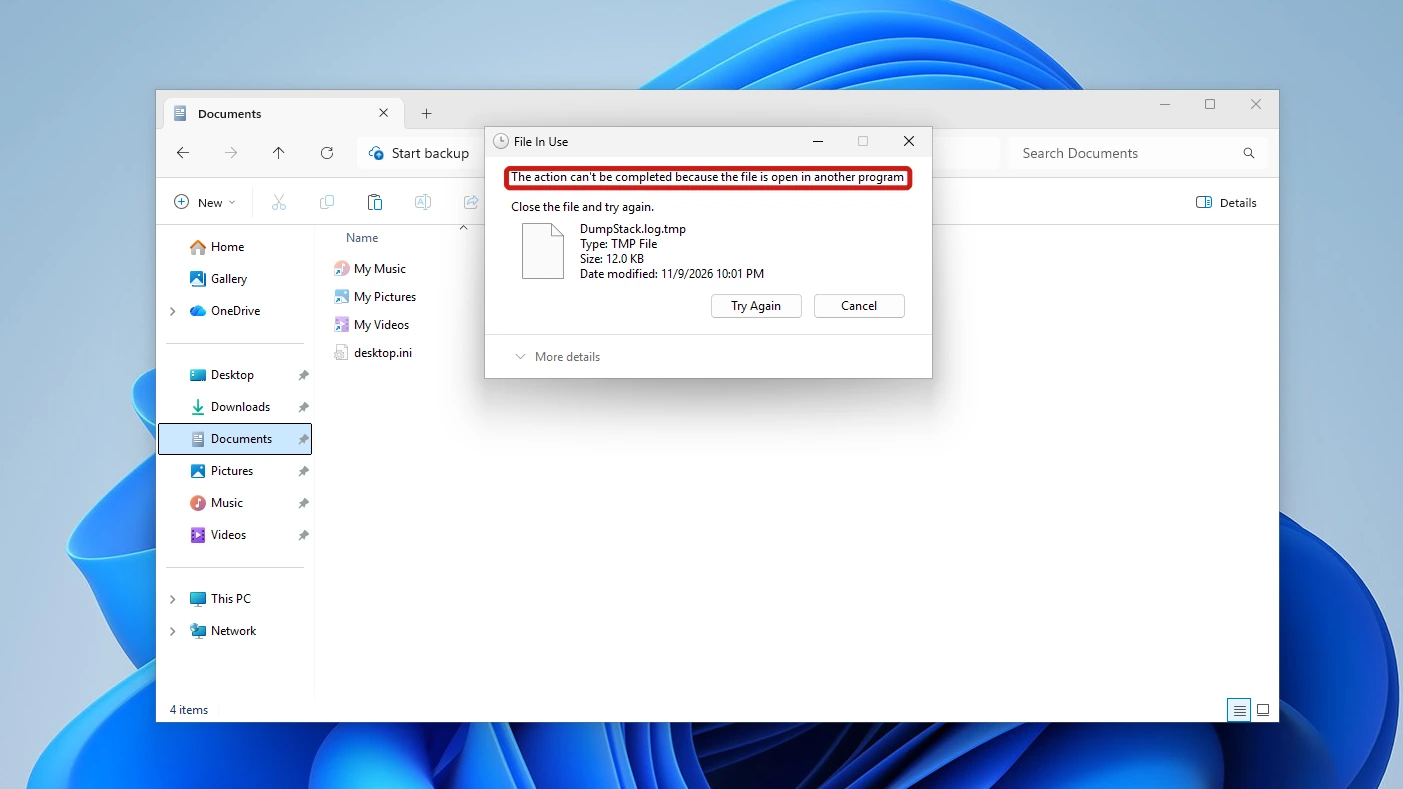
A file-level copy cannot read DumpStack.log.tmp because Windows holds it open: our copy test in File Explorer failed with the File In Use dialog. That is why a backup job can report it as skipped or failed. Because Windows re-creates the log, skipping it loses nothing.
How to Stop Windows Creating DumpStack.log.tmp (Optional)
You only need this if you want DumpStack.log.tmp gone. One registry value controls the logging. The accepted community answer says setting EnableLogFile to 0 stops dump stack logging. A researcher’s configuration notes, an undated blog with no named author, say the same value disables the dumpstack.log file.
Heads up: Microsoft’s memory dump page documents the CrashControl registry key but never mentions EnableLogFile, so this method rests on the community answer and the blog above. Turning the log off removes something Windows writes during dump creation.
- Press the Windows key, type regedit and open Registry Editor. Click Yes when Windows asks for permission.
- Go to this key by pasting the path into the address bar:
HKEY_LOCAL_MACHINE\SYSTEM\CurrentControlSet\Control\CrashControl
- Right-click CrashControl, choose Export and save the file somewhere safe as your backup.
- Find EnableLogFile (it was set to 1 for us), double-click it and change its data from 1 to 0. If it is missing, right-click an empty area, choose New > DWORD (32-bit) Value, name it EnableLogFile and set it to 0.
- Restart your PC. The file is no longer held open, so open C: and delete DumpStack.log.tmp if it is still listed. It was for us; after a second restart it was gone and stayed gone. With Hide protected operating system files still unticked from earlier, it will show.
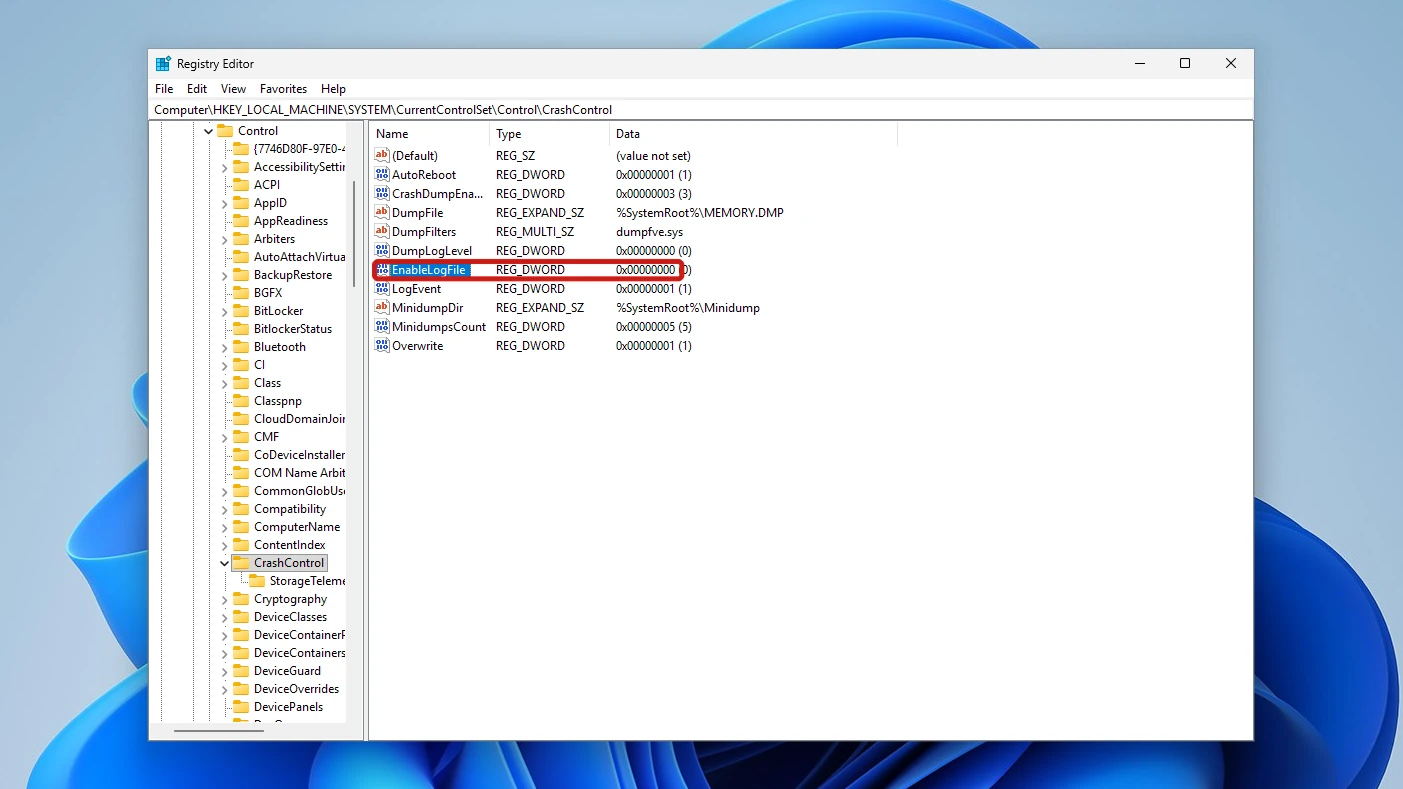
To undo the change, set EnableLogFile back to 1 and restart. The file comes back after the restart. You may also see a neighboring DumpLogLevel value, and the researcher’s notes say it sets the log level. Leave it alone.
Conclusion
DumpStack.log.tmp is a small hidden file Windows keeps at the root of the system drive as part of its crash-dump handling. It is not a virus. Windows holds it open, so it normally cannot be deleted, and there is no benefit in forcing it.
If you still want it gone, the community answer’s EnableLogFile switch turns the logging off, at the cost of a log Windows writes during crash-dump handling.
Video Guide
Prefer to follow along on screen? This short video shows where DumpStack.log.tmp lives and how to remove it safely.