You extracted a zip file from a Mac user and found a __MACOSX folder sitting next to the files you wanted. It is Mac metadata, and deleting it is safe. Here is what the folder is, two ways to remove it, and how to re-zip without it.
Removing the __MACOSX folder takes a few clicks in File Explorer, or one command when you have many zips. The same zip can also hold small ._ files and a .DS_Store file, and both are covered below, with screenshots captured on Windows 11 build 26300.
Prefer to watch? See the video guide.
What the __MACOSX Folder in a Zip Is, and Why a Mac Adds It
When a Mac compresses files (Finder’s Compress option or the ditto tool), it stores a copy of each file’s metadata in a __MACOSX folder inside the zip. Windows does not use that data, so it extracts as an ordinary folder. NTFS keeps extra file information in its own data streams.
A Mac hides the folder when it opens the zip, so the sender usually never sees it.
| Item | What it is | What it holds |
|---|---|---|
| __MACOSX | A folder next to the real folder | Metadata copies for each file |
| ._ files | Small companion files inside __MACOSX, usually one per real file | Resource fork and Finder information |
| .DS_Store | A single file macOS writes into a folder | Folder view options and icon positions |
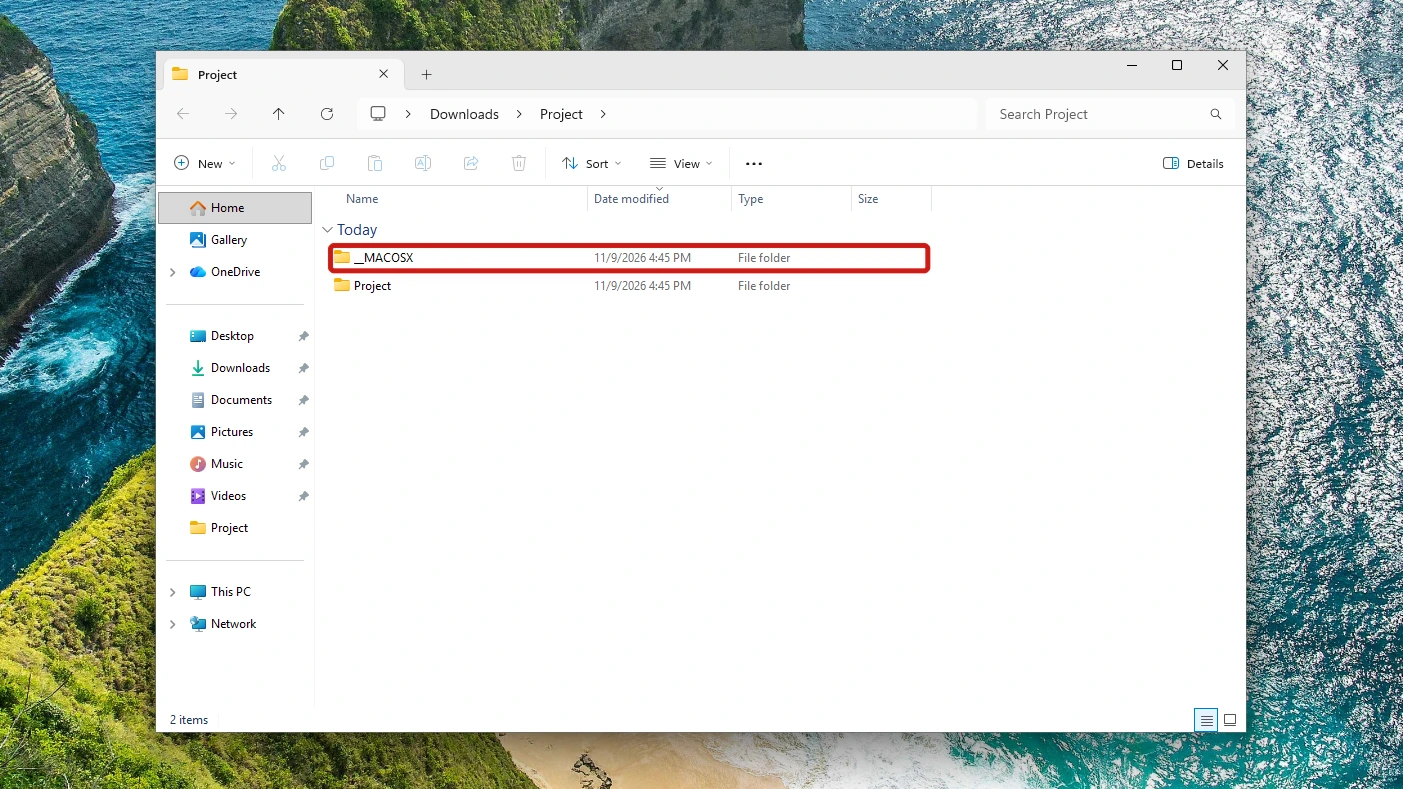
The zip in this guide was built to match the layout a Mac produces. It was not made on a Mac.
A zip made on Windows 11, by contrast, has no __MACOSX folder.
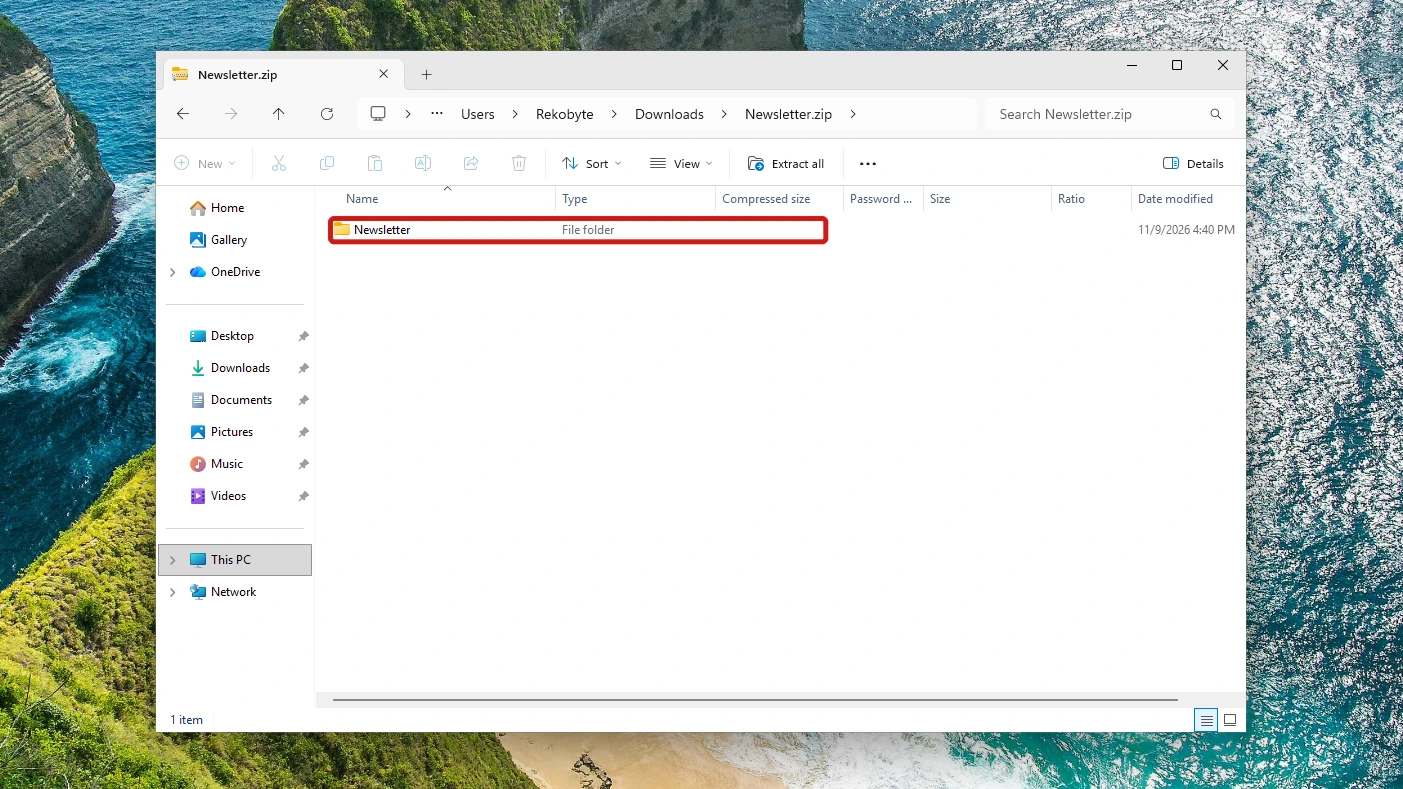
What Is Inside the __MACOSX Folder
Open the folder and you will find a subfolder named after the real project folder, holding a ._ file for each file that carried metadata, such as ._readme.txt. Each is an AppleDouble companion: its name is the real file name with ._ in front, and it holds the resource fork and Finder information. The real file keeps its data in its original format, so deleting a ._ file never touches it.
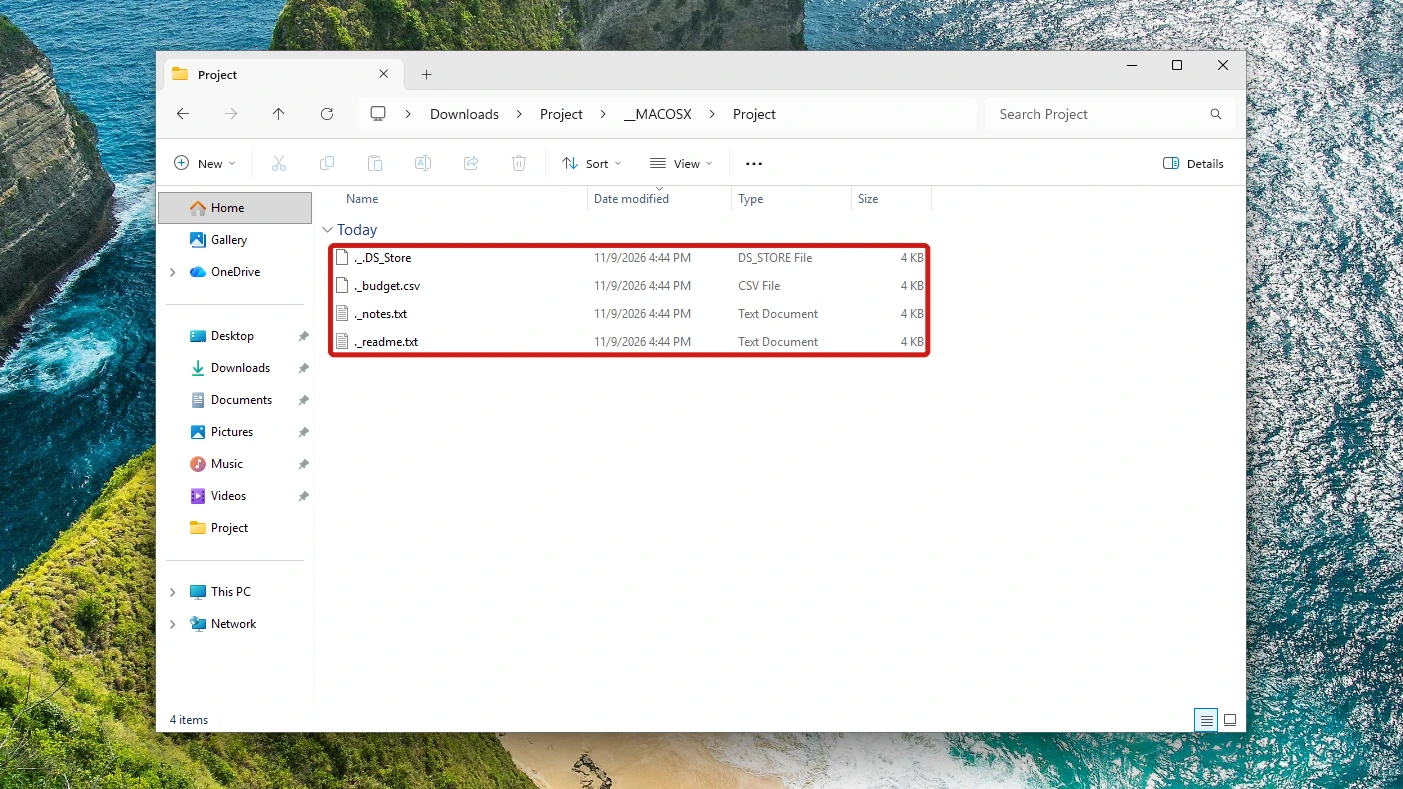
The pairing exists because a resource fork cannot be copied to another operating system’s file system unchanged, so the Mac splits it into its own file. Windows leaves similar hidden clutter in the form of Thumbs.db, and the Thumbs.db guide covers how to delete it and how to stop it appearing in network folders.
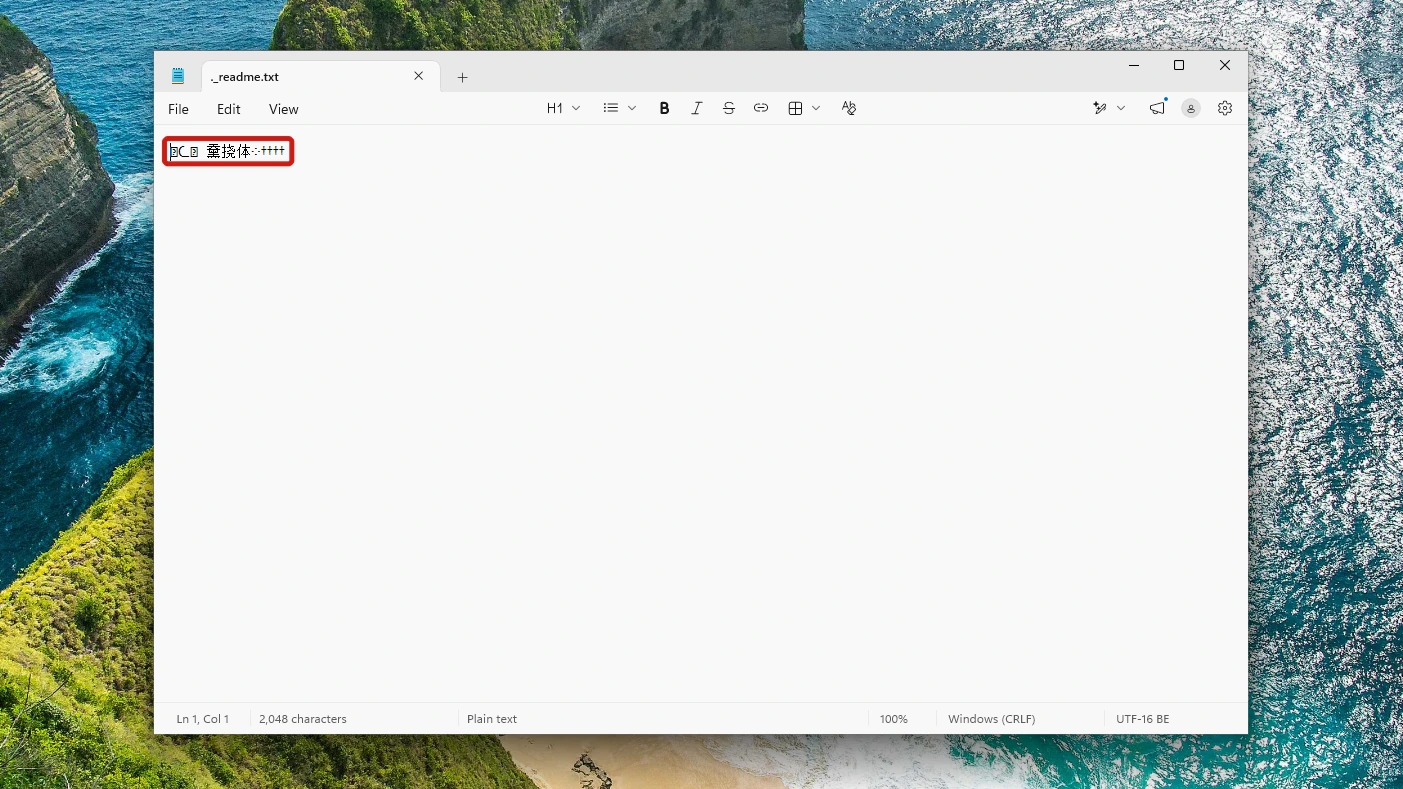
Note: Double-clicking a ._ file opens it in Notepad as unreadable characters, because it holds metadata, not your document.
Can You Open a .DS_Store File on Windows 11?
Not usefully, and there is nothing to gain by trying. Double-clicking it only offers a “Select an app to open this .DS_Store file” prompt. A .DS_Store file is something macOS writes to store a folder’s custom attributes, such as view options, icon positions and Spotlight comments, so it is safe to delete. Windows keeps similar folder settings in desktop.ini, and how to hide desktop.ini is covered in its own walkthrough.
Is It Safe to Delete the __MACOSX Folder?
Yes, delete it. Nothing you can see in the real folder changes when the __MACOSX folder goes. You can check this yourself in three steps:
- Open a couple of the real files, such as the readme, to confirm they work. Close them again.
- Delete the folder, as shown in Method 1 below.
- Open the same files again. They open as before.
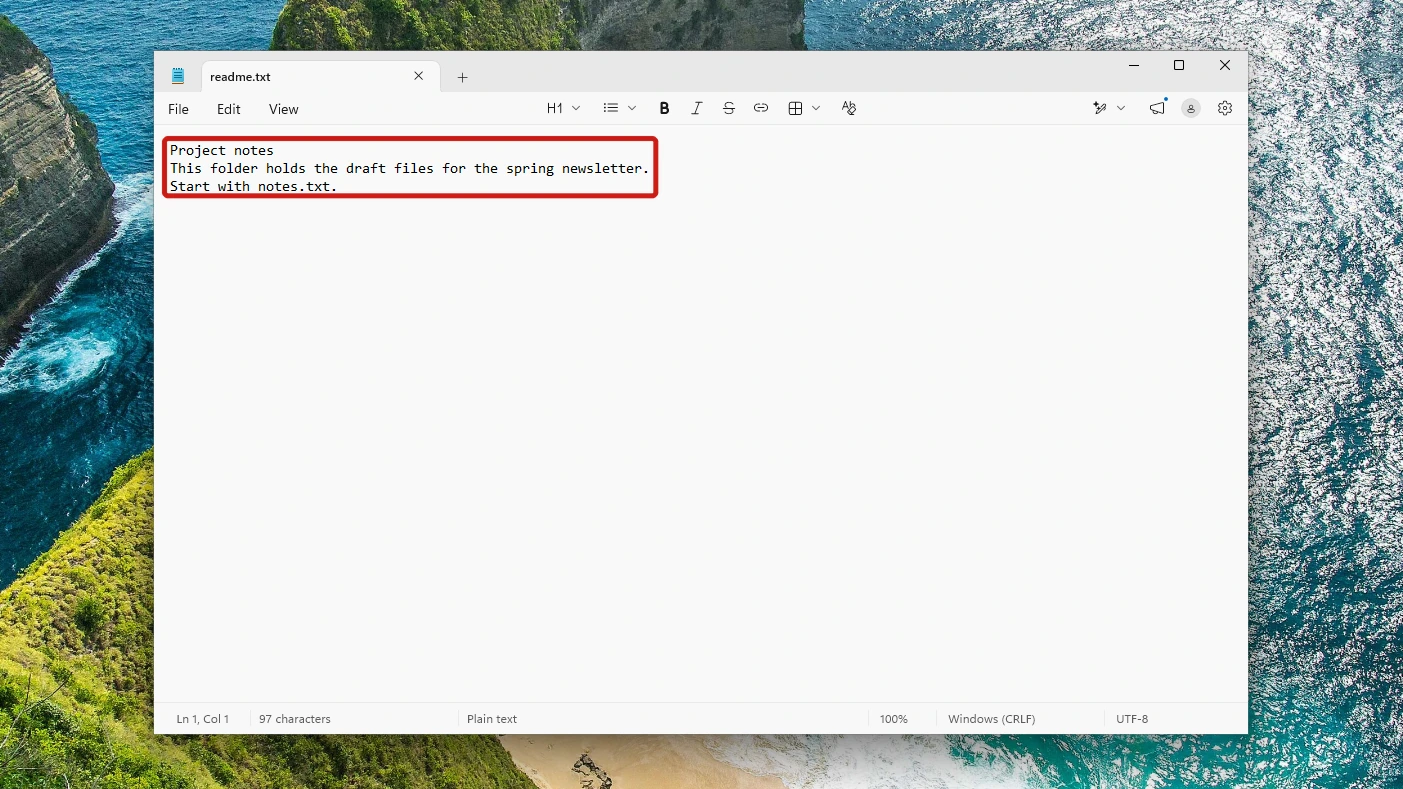
The check is worth doing once on a zip you care about. After that you can delete the folder without opening anything first.
How to Delete the __MACOSX Folder From a Zip on Windows 11
Method 1 removes the __MACOSX folder from one extracted zip, and Method 2 handles a whole folder of them. If you still need a zip, re-zip the folder after Method 1.
Method 1: Delete the __MACOSX Folder in File Explorer
Extract the zip first, then delete the folder like any other.
- Right-click the zip file and choose Extract All. Microsoft documents it on its zip and unzip page.
- Click Extract. Windows unpacks the zip into a folder beside it.
- Open the extracted folder and select __MACOSX.
- Press Delete. Windows moves the folder to the Recycle Bin.
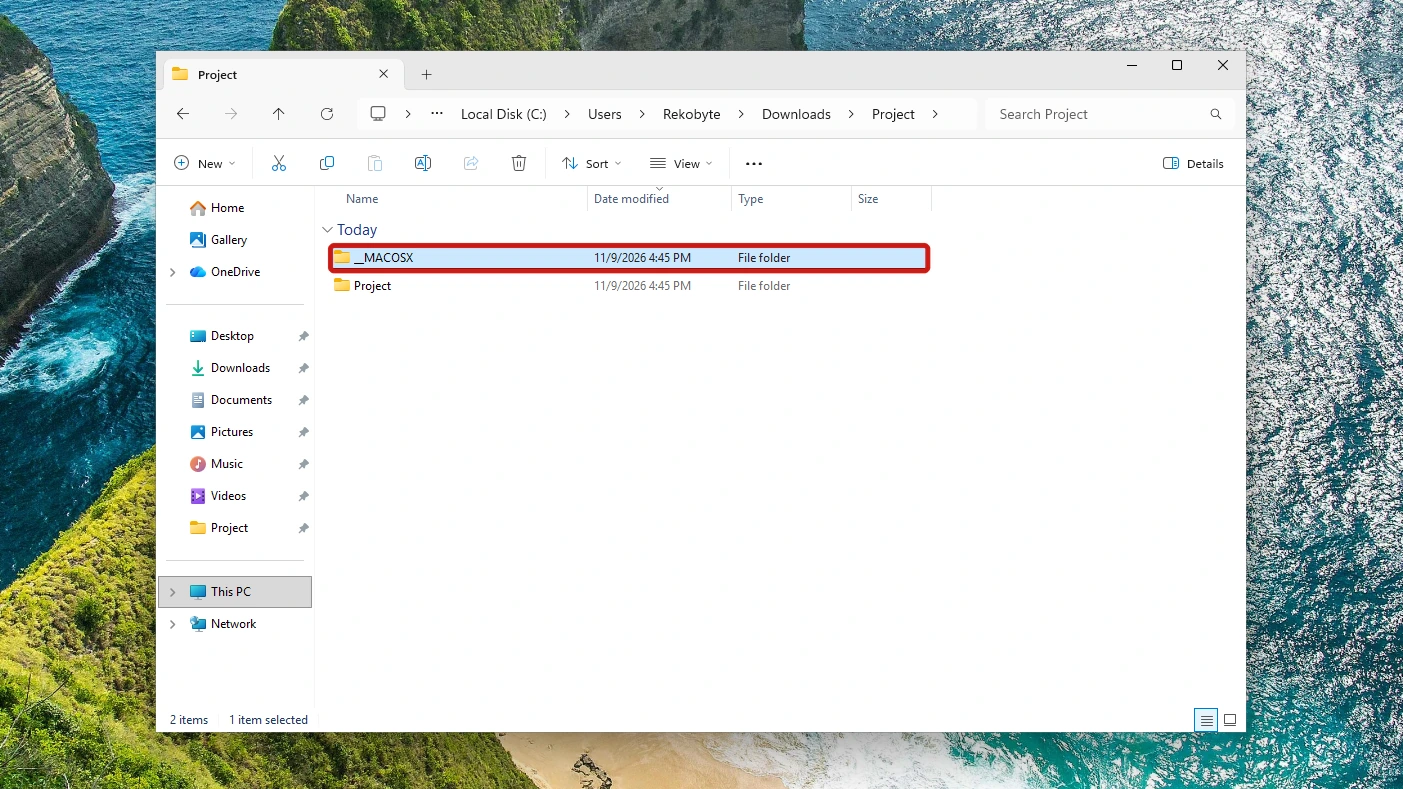
With the __MACOSX folder gone, the files you opened earlier are unchanged.
Warning: You can also open the zip in File Explorer and try to delete __MACOSX inside it, but this is unreliable on Windows 11. It asks to permanently delete the folder and then often stops with an unexpected error (0x80004005), sometimes leaving the zip unchanged. Extract the zip first and delete the folder as in Method 1.
Re-Zip the Folder Without the __MACOSX Folder
Use this when you still need a zip, for example to send it on, just without the Mac leftovers.
- Follow Method 1 to extract the zip and delete the __MACOSX folder.
- Open your real folder and delete .DS_Store if you see it, or it goes into the new zip. Go back up one level.
- Right-click the folder, choose Compress to, then ZIP File.
- Press Enter to accept the name.
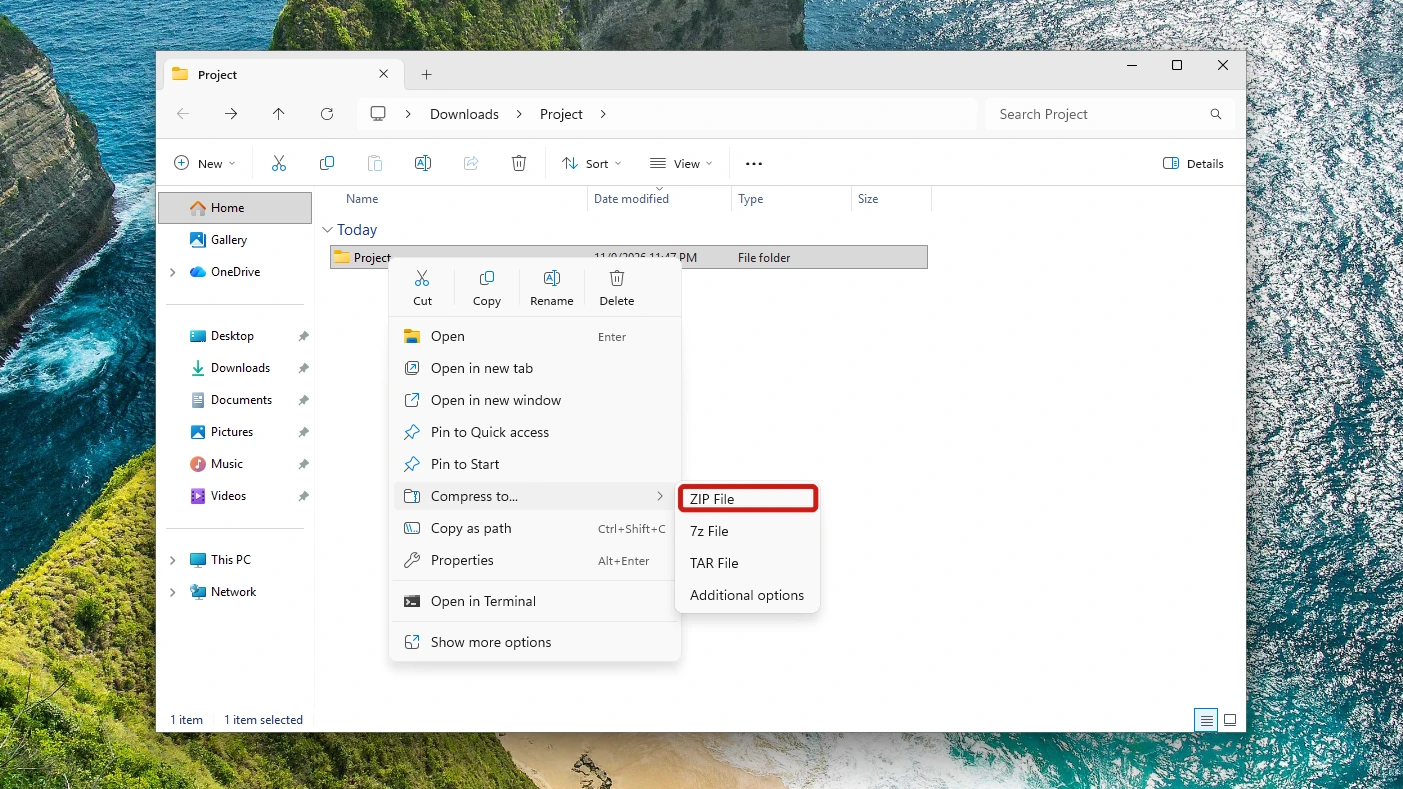
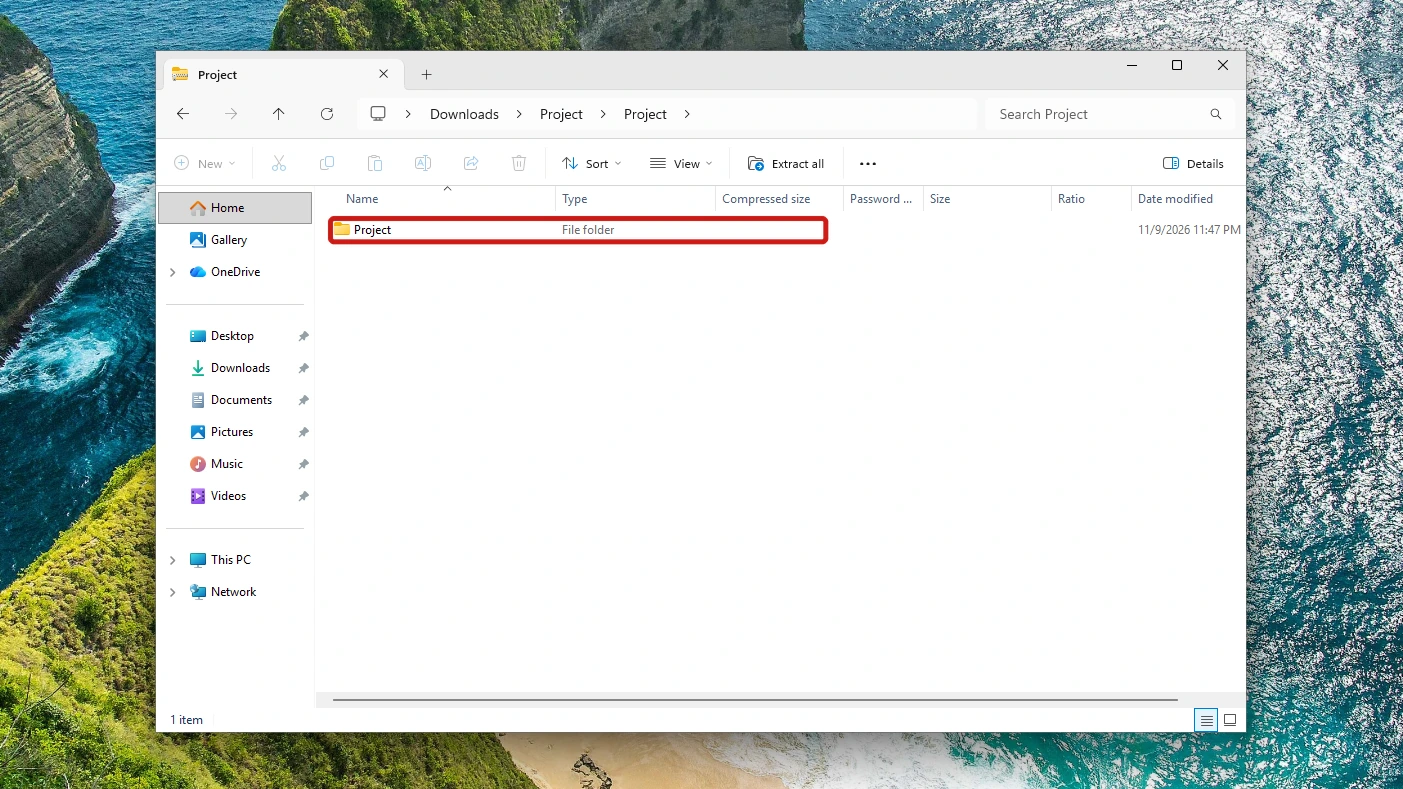
Windows puts the new zip next to the folder. Open it to check: it holds your files and no __MACOSX folder. The original zip is unchanged, so send the new one.
Method 2: Clean Up Many Zips at Once With PowerShell
Use PowerShell when you have extracted many zips into one folder. It finds the leftovers first, so you can check the list before anything is deleted.
Run this to list every Mac leftover under your Downloads folder. It matches any item named __MACOSX or .DS_Store, and any file whose name starts with ._, wherever it sits under that path. Change the path to a narrower folder if the list is long:
Get-ChildItem -Path "$HOME\Downloads" -Recurse -Force | Where-Object { $_.Name -eq "__MACOSX" -or $_.Name -eq ".DS_Store" -or $_.Name -like "._*" }
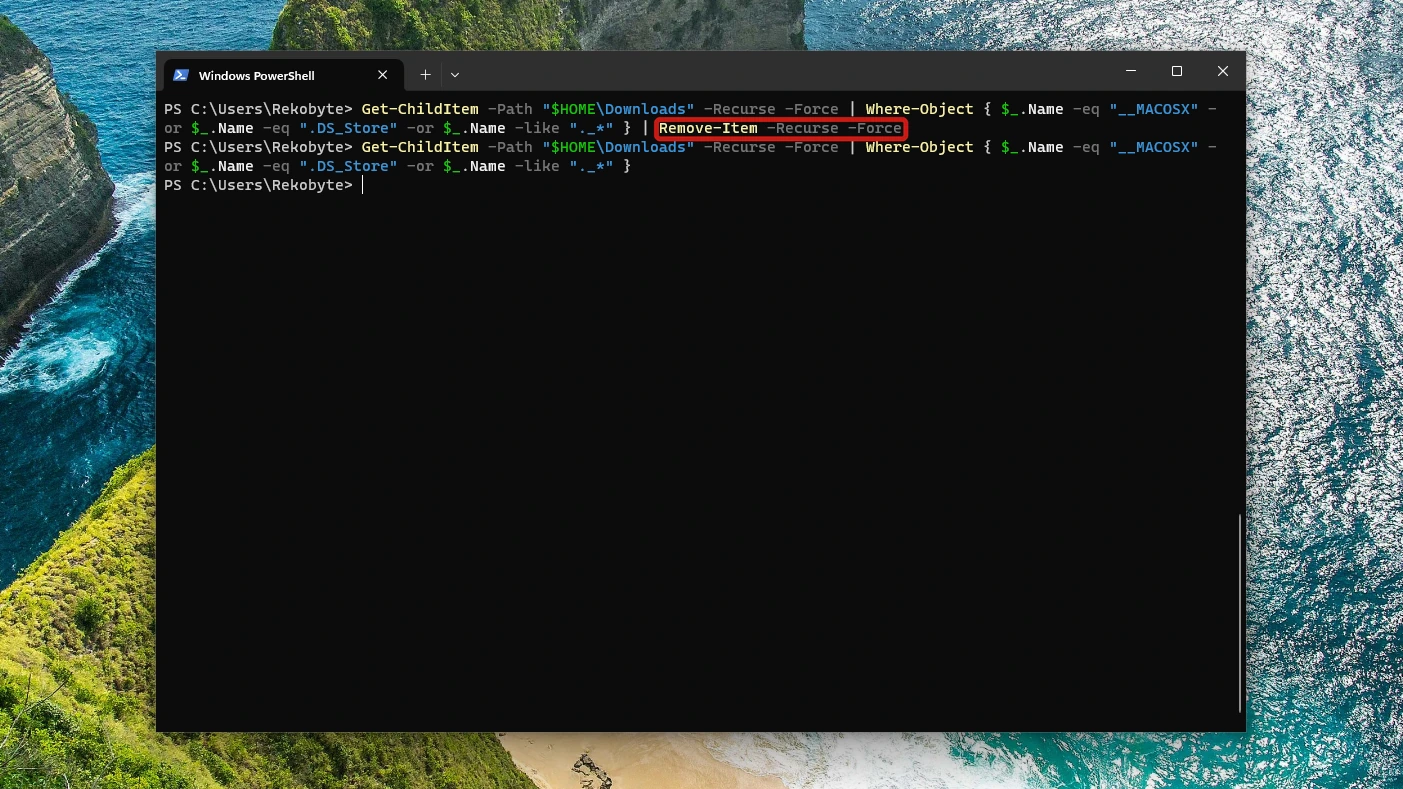
If the list shows only Mac leftovers, run this to delete them. -Recurse takes the ._ files inside __MACOSX with it.
Get-ChildItem -Path "$HOME\Downloads" -Recurse -Force | Where-Object { $_.Name -eq "__MACOSX" -or $_.Name -eq ".DS_Store" -or $_.Name -like "._*" } | Remove-Item -Recurse -Force
Remove-Item has two switches that matter here:
- -Recurse deletes the folder and everything inside it. Without it, PowerShell asks you to confirm before removing a folder that has contents.
- -Force removes hidden or read-only items that would otherwise block the delete.
Conclusion
Yes, the __MACOSX folder is safe to delete. A Mac adds it to a zip as metadata, Windows 11 does not use it, and removing it takes the ._ files inside it too, with your real files untouched. Delete it in File Explorer after extracting, or use PowerShell to clear many zips at once. Re-zip the folder afterwards if you need a clean zip. Stray .DS_Store files can go the same way.
Video Guide
Prefer to follow along on screen? This short video explains what the folder is, then walks through both methods and the re-zip.