You suspect something on your PC is infected, and you want to remove a virus from Windows 11 right away. Windows Security, built into Windows 11, can scan the PC and quarantine or delete what it finds, with nothing to install.
Below, we show you how to remove a virus from Windows 11 using the four scans Windows Security offers (Quick, Full, Custom and offline), how to act on a detection in Protection history, what to do when a scan can’t clear the problem, and what to change once the PC is clean.
How to Scan and Remove a Virus from Windows 11
A Windows Defender virus scan comes in four types. Start with a Quick scan, run a Full scan for a whole-PC pass, use a Custom scan on one folder you suspect, and save the offline scan for when a normal scan can’t clear the problem.
The screens below come from a Windows 11 test PC, and the threat shown is the harmless EICAR test file, so wording and timing can differ on yours. If a label doesn’t match, compare it with the description Microsoft gives for each scan type. If Windows Security has already flagged something, skip ahead to the Protection history steps.
Method 1: Run a Quick Scan in Windows Security
A Quick scan “checks folders in your system where threats are commonly found,” and its button sits on the main Virus & threat protection page.
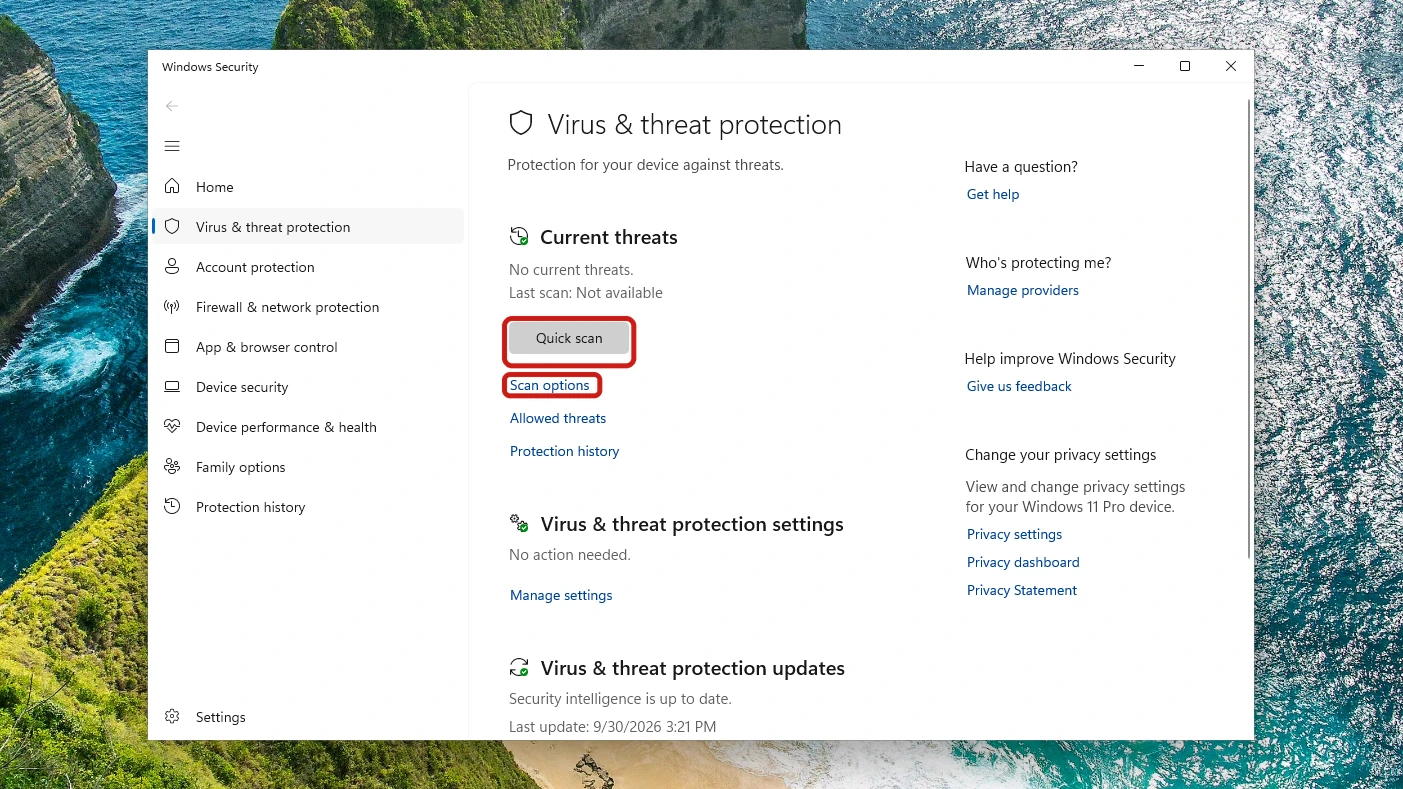
- Open Settings, then go to Privacy & security > Windows Security to reach the app.
- Select Virus & threat protection to reach the page shown above.
- Select Quick scan. The scan starts straight away.
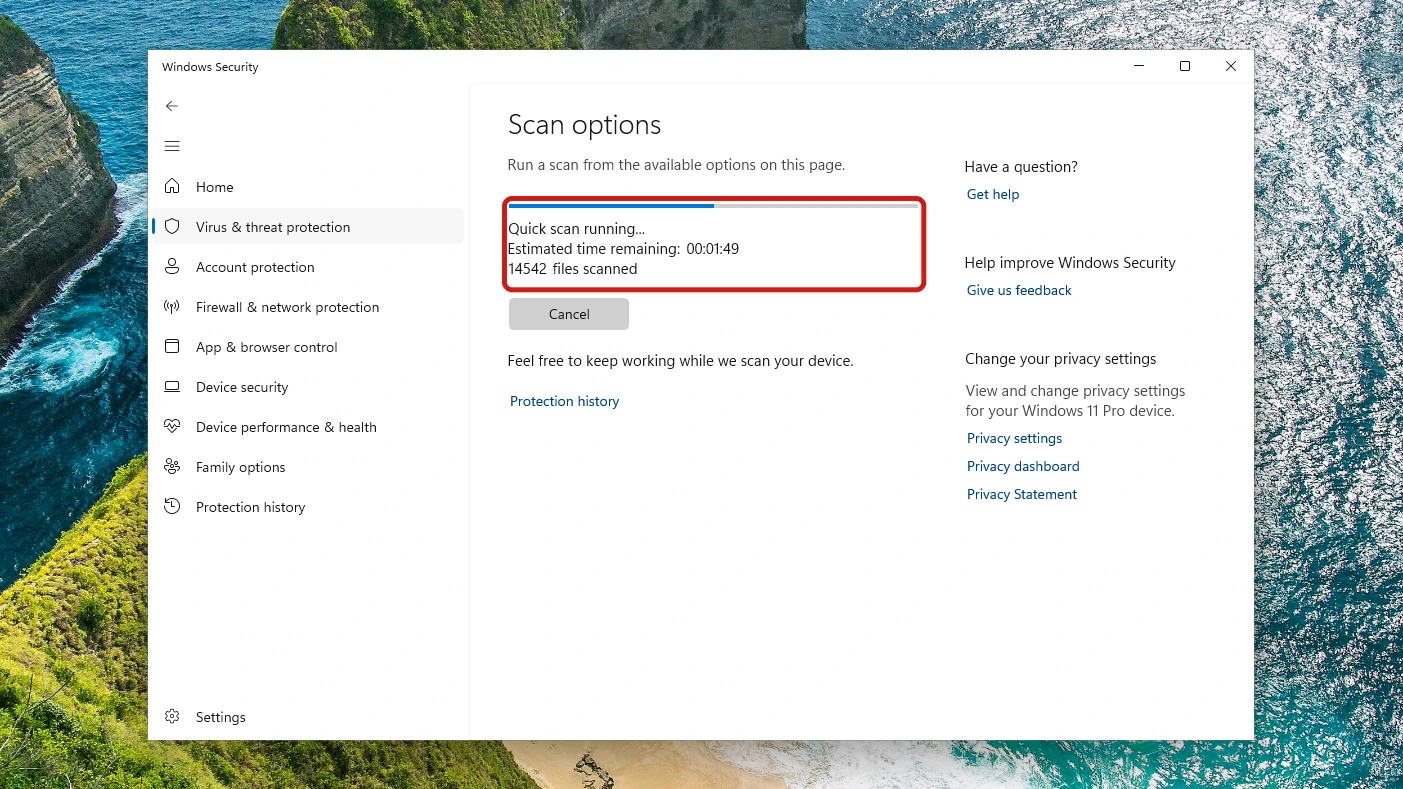
The scan page shows an estimated time and the number of files scanned, along with a Cancel button and a line saying you can keep working. The estimate can move as the scan runs, so wait for it to finish rather than judging by the first figure. On our fresh test PC it took a few minutes.
When the scan ends, the same page reports how many threats it found, how long it lasted and how many files it checked.
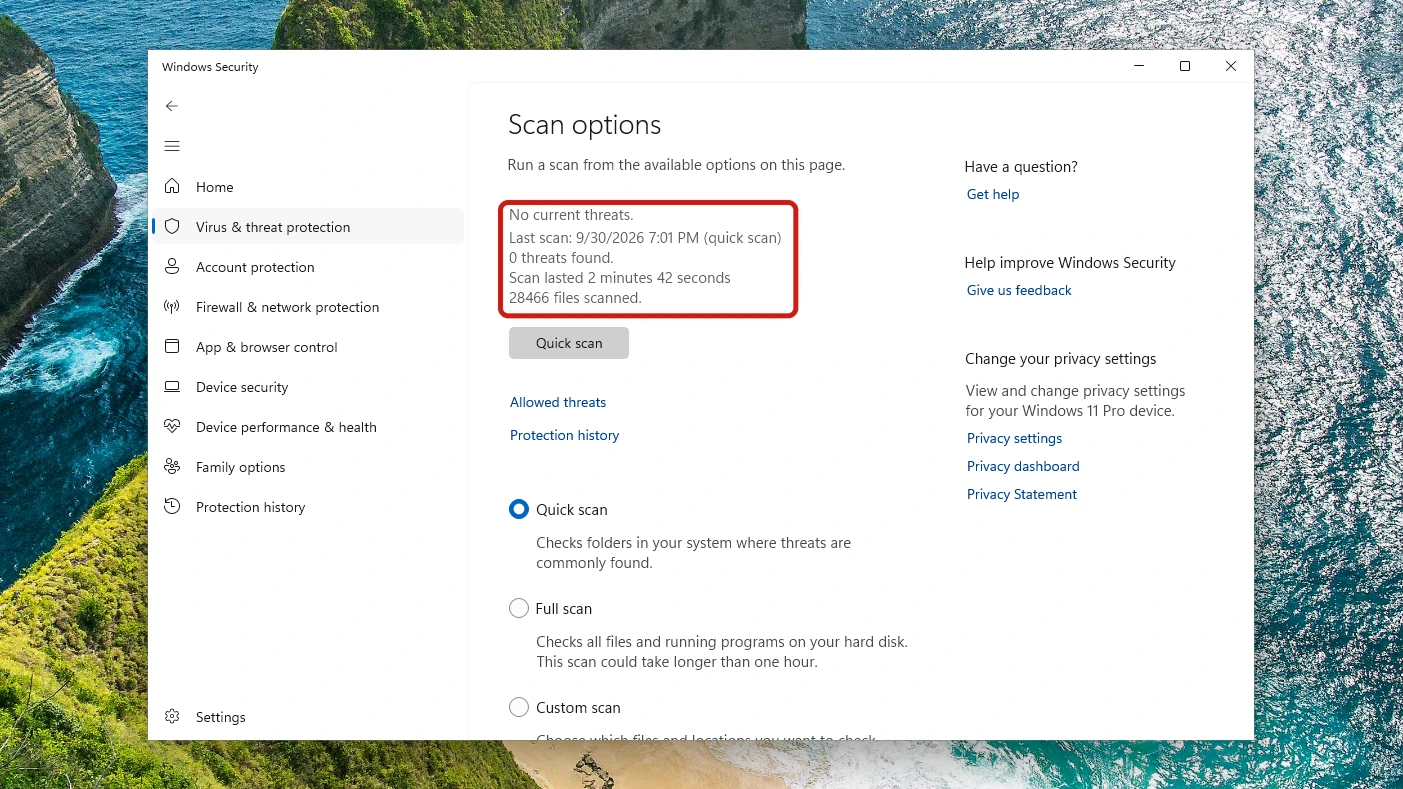
A result of 0 threats doesn’t settle the matter if the PC still misbehaves: run Method 2, then Method 4. If the scan lists a threat, go to the quarantine section below to deal with it.
Method 2: Run a Full Scan of the Whole PC
A Full scan “checks all files and running programs on your hard disk,” and the screen warns that it “could take longer than one hour.” Use it when a Quick scan comes back clean but the problem hasn’t gone away.
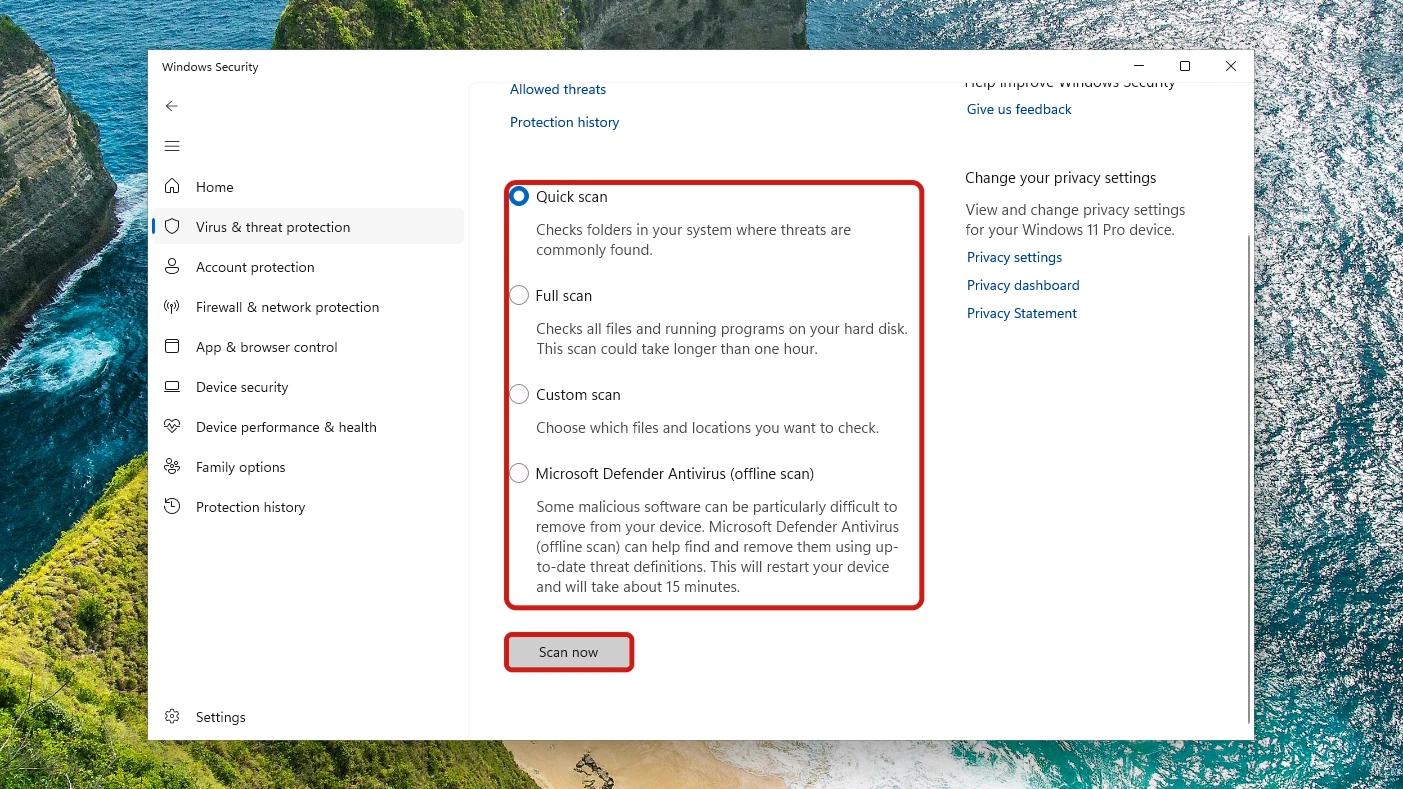
- Select Scan options on the Virus & threat protection page to list all four scans.
- Select Full scan, the second option in the list.
- Select Scan now and let it run, then treat anything it lists the same way as a Quick scan result.
Method 3: Run a Custom Scan on One Folder
A Custom scan lets you “choose which files and locations you want to check,” which suits a folder you don’t trust, such as one holding a suspect download. It runs from the same screen as the Full scan.
- Select Custom scan on the Scan options screen.
- Select Scan now, which moves you on to choosing what to check.
- Pick the folder you suspect, and the scan covers only that location.
Method 4: Run the Microsoft Defender Antivirus Offline Scan
The offline scan is how you remove a virus from Windows 11 when a normal scan can’t clear it. It runs outside the normal Windows kernel, so it can target malware that bypasses the Windows shell, including rootkits.
Microsoft’s page on the Microsoft Defender Offline scan lists every requirement, including being signed in with local administrator privileges, and these two come first.
Check two things first. The offline scan needs x64 Windows 11 and doesn’t support ARM, so on an ARM PC go to When to Reset or Reinstall Windows below. If BitLocker is on for your system drive, suspend BitLocker protection before you start the scan and resume it afterwards. If you don’t suspend it, the restart may ask for your recovery key.
- Save your work and close your apps, because this scan restarts the PC.
- Select Scan options on the Virus & threat protection page, then select Microsoft Defender Antivirus (offline scan).
- Select Scan now and approve the prompts that follow. The PC restarts, and the scan takes about 15 minutes.
When the scan finishes, Windows loads normally. Open Protection history to see the results, since that page lists the actions Defender has taken.
If the offline scan never starts and no error appears, the Windows Recovery Environment (WinRE) may be disabled. In a Command Prompt opened as administrator, run reagentc /info to check it. If the status reads Disabled, run reagentc /enable, then start the scan again.
How to Remove a Quarantined Virus from Windows 11
If Defender has already caught the file, you remove a virus from Windows 11 by deleting it from Windows Security Protection history. Check this page even before you scan, because Defender can act alone.
The test file in our screenshots was quarantined within seconds of being written, with no scan run, though real malware may not be caught that fast. For what each kind of event in the list means, Microsoft Support breaks down the event types.
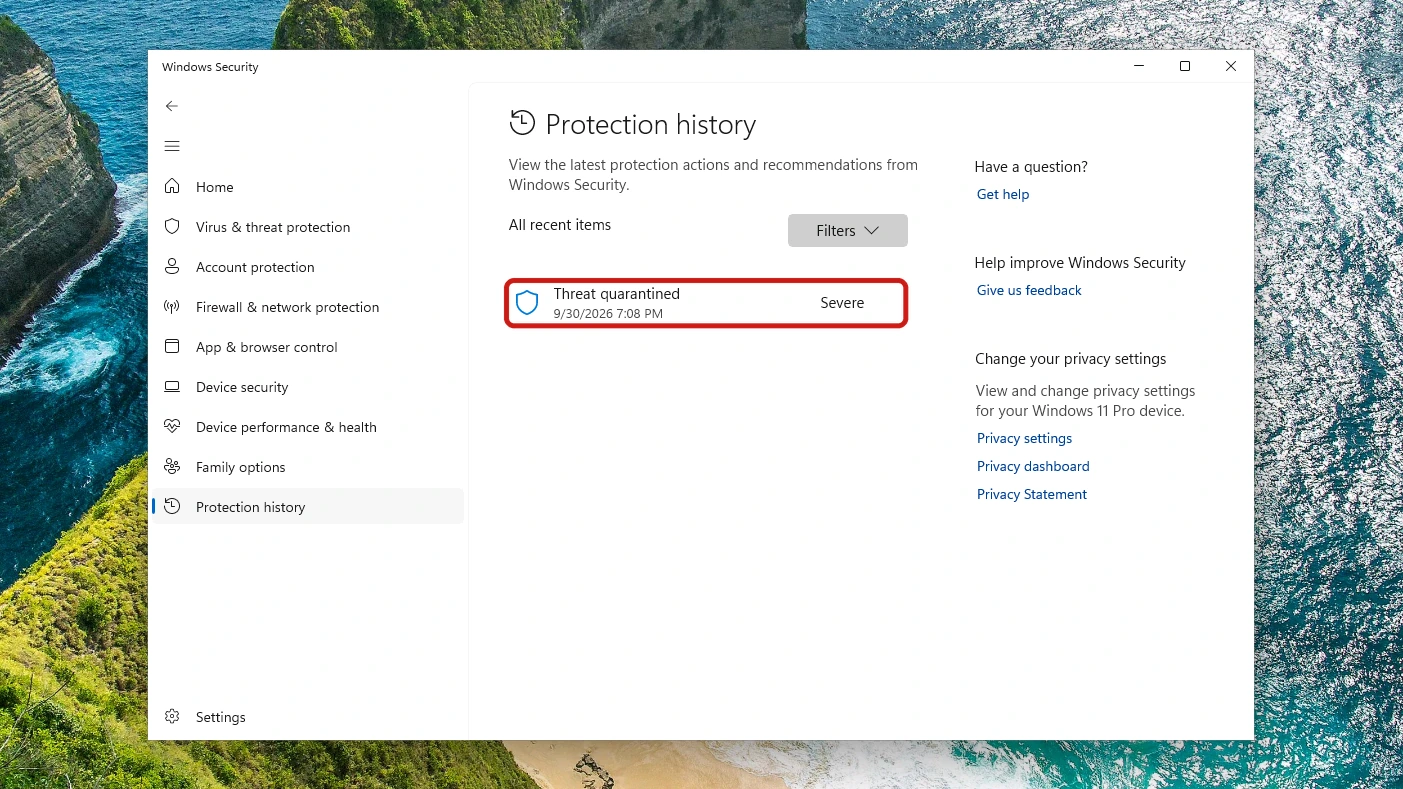
- Select Protection history on the Virus & threat protection page to list what Defender has done.
- Select the entry you want to deal with to expand it.
- Approve the admin prompt, since reviewing a threat’s details needs admin privileges.
If you can’t approve the prompt, sign in with an administrator account or have whoever manages the PC approve it. If the list is empty, the event may have aged out, since Protection history keeps events for only two weeks, so run a fresh scan.
The details panel says quarantined files “can’t harm your device” and “will be removed automatically.” To delete one now instead of waiting, use the Actions dropdown, which offers two choices for a quarantined item:
| Action | What it does | When to choose it |
|---|---|---|
| Remove | Deletes the quarantined item for good | You want the threat gone now |
| Restore | Puts the file back, and Defender detects it again | Only if you are sure the file is safe, and expect Defender to detect it again |
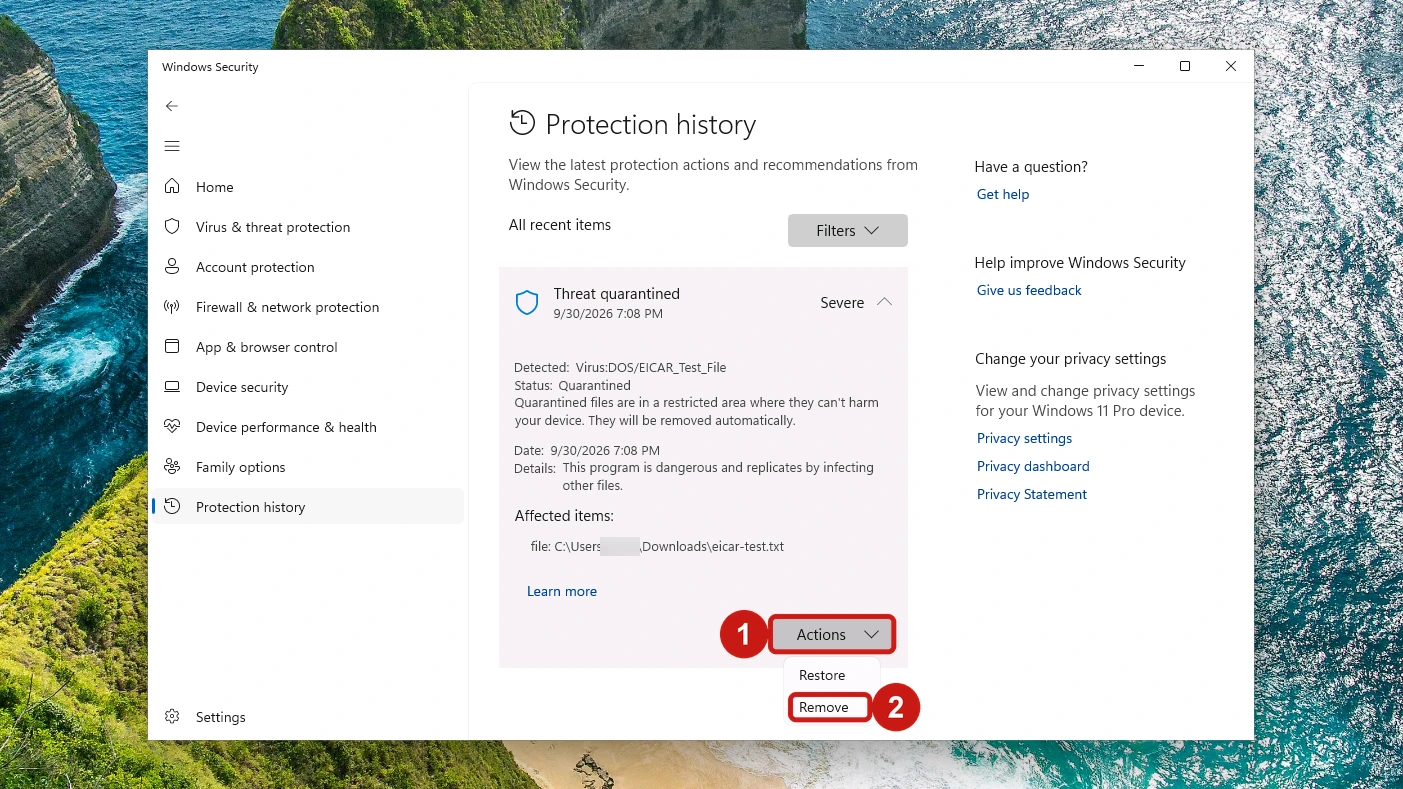
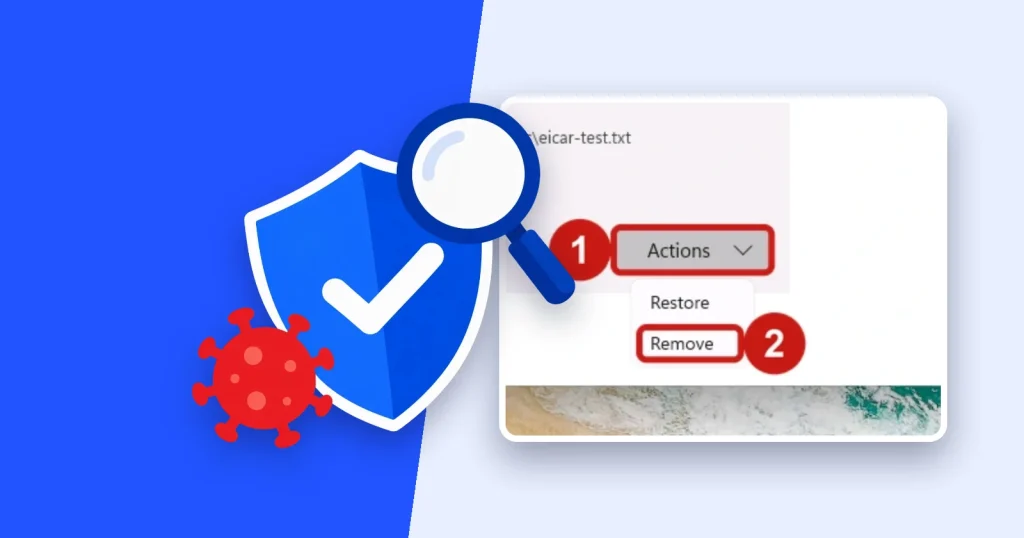
- Select Actions at the bottom of the details panel to open the menu.
- Select Remove to delete the quarantined file.
- Approve the second admin prompt to finish the removal.
The entry’s status then reads Removed, with the line “A threat or app was removed from this device.” We’d finish with another Quick scan to confirm nothing else is listed.
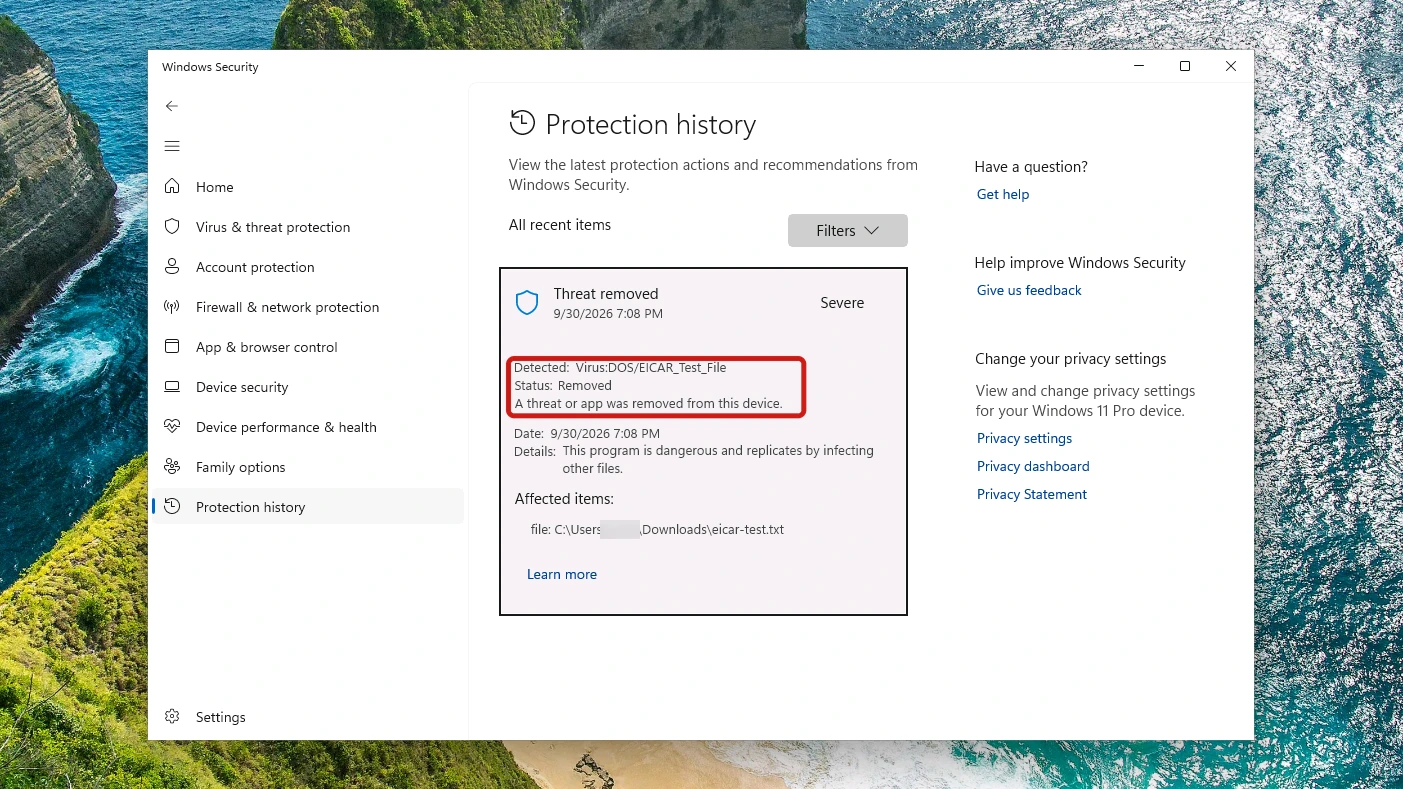
Restore only if you are sure about the file. On its own, Restore just gets the file detected again. If you are certain a flagged file is safe, the steps for a file you trust show the further step you need after Restore.
A pop-up with a phone number to call is not one of these detections, because genuine Microsoft error messages never include a phone number.
What to Do If You Can’t Remove the Virus from Windows 11
When Windows Defender won’t remove a quarantined virus, the fix depends on what you’re seeing: free up disk space, run the offline scan, or reinstall Windows as the last step. Find your situation in this table.
| What you see | What to do next |
|---|---|
| Quick scan finds nothing and the PC still misbehaves | Run Method 2, then Method 4. |
| Something is using the CPU heavily during a scan | Use any of the ways to open Task Manager to see which process it is. |
| A scan or update stops with an error code | Look it up in our Windows error code lookup, which covers Windows Update failures and other common codes, though not every code Windows can produce. |
| Defender can’t finish removing the threat | Free up disk space, since a lack of space can stop Defender completely removing a threat, then scan again. Microsoft’s malware troubleshooting steps cover freeing space and speeding up slow scans. |
| The same threat keeps coming back | Run Method 4, the scan Microsoft points to for recurring malware. |
| Your PC runs on ARM, so there is no offline scan | Go to the reinstall section below. |
| The offline scan never starts and no error appears | WinRE may be disabled. In a Command Prompt opened as administrator, check with reagentc /info and turn it on with reagentc /enable. |
When to Reset or Reinstall Windows
When scans can’t remove a virus from Windows 11, a clean install is the next step. Microsoft’s order is to scan with Windows Security first and, if the problem continues, reinstall from installation media using the clean install option, which “can help remove malware.”
A clean install removes Windows, your personal files, apps and settings from the selected drive, so copy off what you need before you start. Microsoft’s recovery options page sets out the reinstall route next to Reset this PC and the rest.
If you planned to reset your PC to remove a virus, Microsoft’s advice on irreversible malware damage says you can try it, which might mean restoring data from backup. Neither page compares Reset with a clean install, so go by the situation each describes: a suspected infection scans couldn’t clear, or lasting damage from malware.
What to Do After You Remove a Virus from Windows 11
Change your passwords after a virus before anything else, then bring Windows up to date. Start with your Microsoft account. The Sign-in options page in our screenshot has no Password row, and its “only allow Windows Hello sign-in for Microsoft accounts” setting is on, so the steps below use the Microsoft account website.
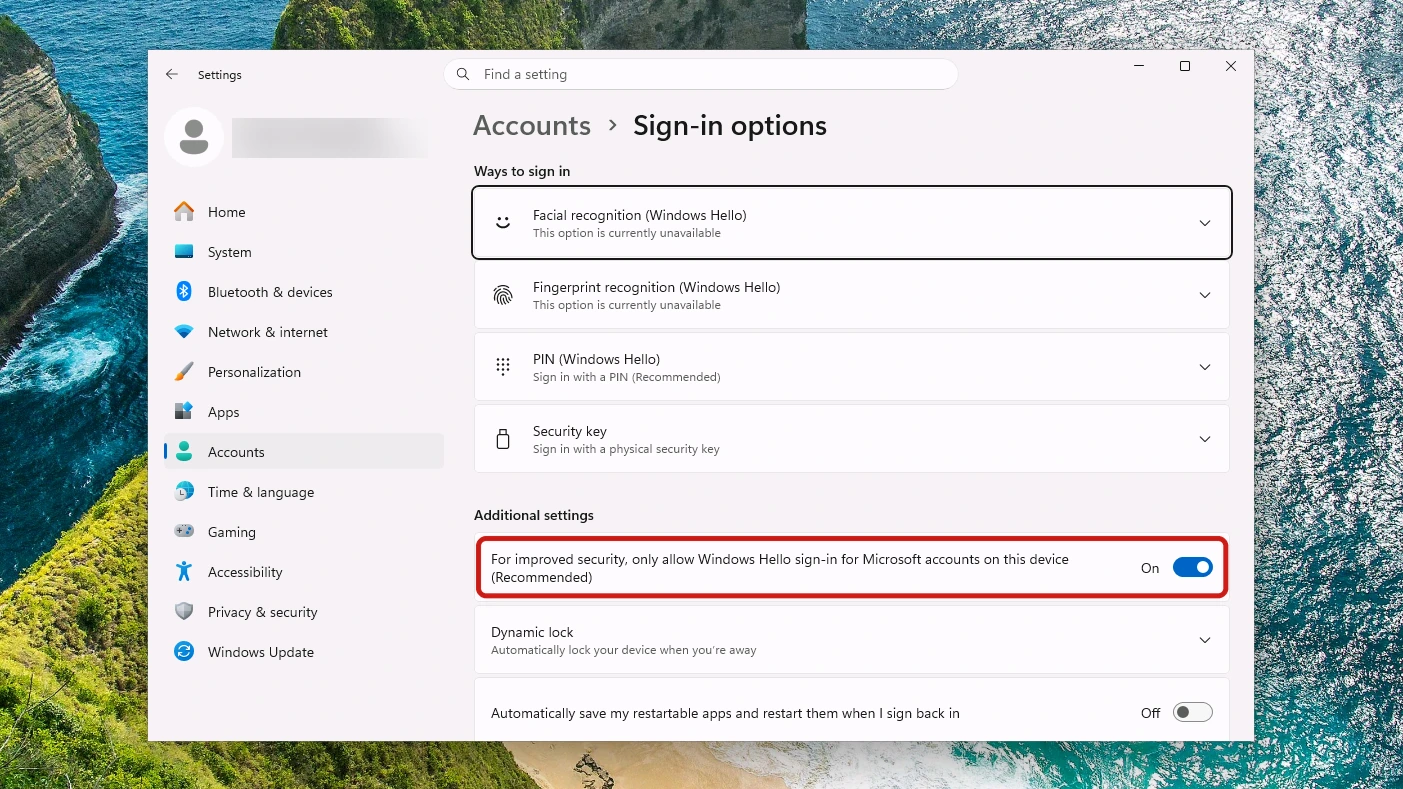
- Sign in at account.microsoft.com with the account you use on this PC.
- Select Security to open your account’s security settings.
- Select Change Password to set a new one.
Forgotten the current password? The account password steps include a route for that.
If your Sign-in options page does show a Password row, Password > Change is the route Microsoft gives for changing it inside Windows. Also change the passwords for any other accounts you signed in to on this PC.
Then install whatever Windows Update has waiting.
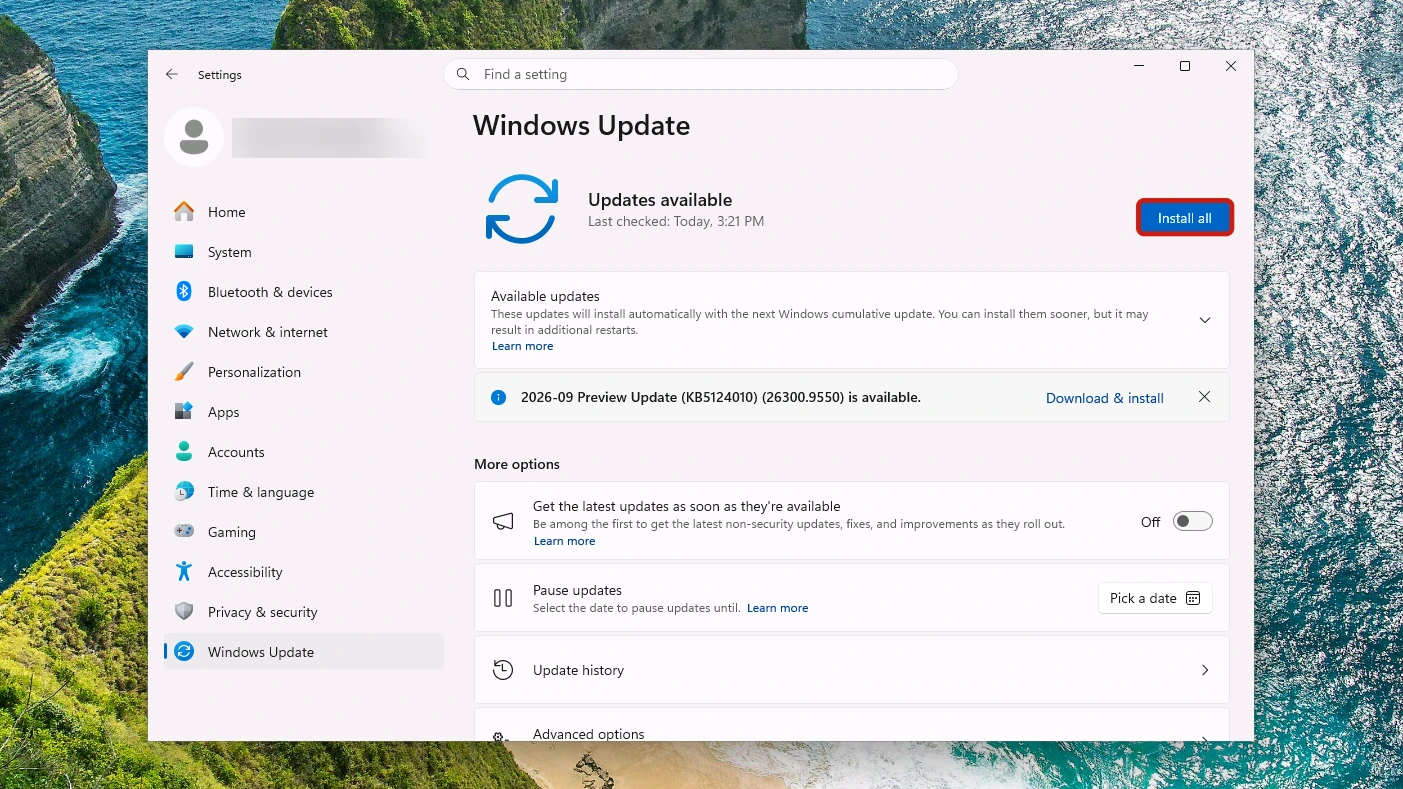
- Open Settings > Windows Update to see what’s available.
- Install any waiting updates. The button reads Install all when updates are ready.
- Restart when asked so the updates can finish.
If the button reads Check for updates instead, select it to see whether anything is waiting. When Windows Update warns there isn’t enough room on the drive, Install Windows updates, on Microsoft Support, links to the steps for freeing up space.
Is Microsoft Defender Enough on Windows 11?
Windows Defender is enough for Windows 11 for most people, with two exceptions Microsoft names itself. Microsoft’s Surface article answers whether antivirus software is necessary on Windows 11 devices with: “Not for general use, but it can come in handy for those with specific security concerns or who handle sensitive data.”
To see which amber cards in Windows Security are worth acting on, and what Windows Firewall and Smart App Control do, read the security basics in our Windows 11 beginner’s guide.
Conclusion
To remove a virus from Windows 11, open Windows Security > Virus & threat protection and run a Quick scan, then a Full scan, then the offline scan if the problem remains. Delete any quarantined threat with Remove in Protection history. If the problem continues, do a clean install from installation media.
Once the PC is clean, change your Microsoft account password and install any waiting updates.