A new phone wants a login your browser has been filling in for months, and you can’t remember what you typed. You need to find saved passwords on Windows 11 to read it. Windows 11 and your browsers keep these logins in a few fixed places, and most of them will reveal a password once you confirm you’re at the PC.
This guide shows you how to find saved passwords on Windows 11 in Credential Manager, Microsoft Edge, Google Chrome and Firefox. For each one, we give the exact menu path, the point where you have to sign in and the control that shows the password. We ran every step on a Windows 11 PC with a throwaway login on example.com. That’s the address you’ll see in our screenshots.
Which Saved Passwords You Can Find on Windows 11
You can find saved passwords on Windows 11 if a browser or Windows itself stored them for a website. Edge, Chrome and Firefox each keep their own list, and Windows keeps one in Credential Manager. Start with the browser you were using when you saved the login.
Use this table to match your login to its home and to see when each one asked us to sign in.
| Where it lives | What it holds | Where you start | When it asked on our test PC |
|---|---|---|---|
| Credential Manager | Web Credentials and Windows Credentials | Taskbar search | After we selected Show |
| Microsoft Password Manager (Edge) | Website passwords | Settings and more (…) > Settings | As soon as we opened the site entry |
| Google Password Manager (Chrome) | Website passwords | Three-dot menu | As soon as we opened the site entry |
| Firefox Passwords page | Website logins | Firefox menu > Passwords | It didn’t ask |
This guide covers passwords saved for websites and apps, though the Windows Credentials entry we opened had no Show option, so an app login stored there may stay hidden. It doesn’t cover the password or PIN you sign in to Windows with. Wi-Fi network passwords are a separate type that it leaves out.
Four Ways to Find Saved Passwords on Windows 11
The methods below start with the built-in Windows tool, move to Edge because it’s the default browser on a fresh install, then cover Chrome and Firefox. To view saved passwords on Windows 11, go straight to the method for the program that saved your login.
On our test PC, Credential Manager, Edge and Chrome all stopped to ask for sign-in before the password showed, while Firefox didn’t. The prompts in each method are what we saw there, and your PC may ask at a different moment or use Windows Hello instead.
Method 1: View Windows Credential Manager Passwords
Windows Credential Manager passwords sit in a Control Panel tool with two sections, and only one of those sections showed us a password. Microsoft describes Credential Manager as the place to view and delete credentials for websites, connected applications and networks, so you can also remove an old login here.
- Type credential manager in the taskbar search box.
- Select Credential Manager, Control panel, listed as the best match.
The tool opens on Web Credentials by default, under the header “Manage your credentials”, with the list heading Web Passwords.
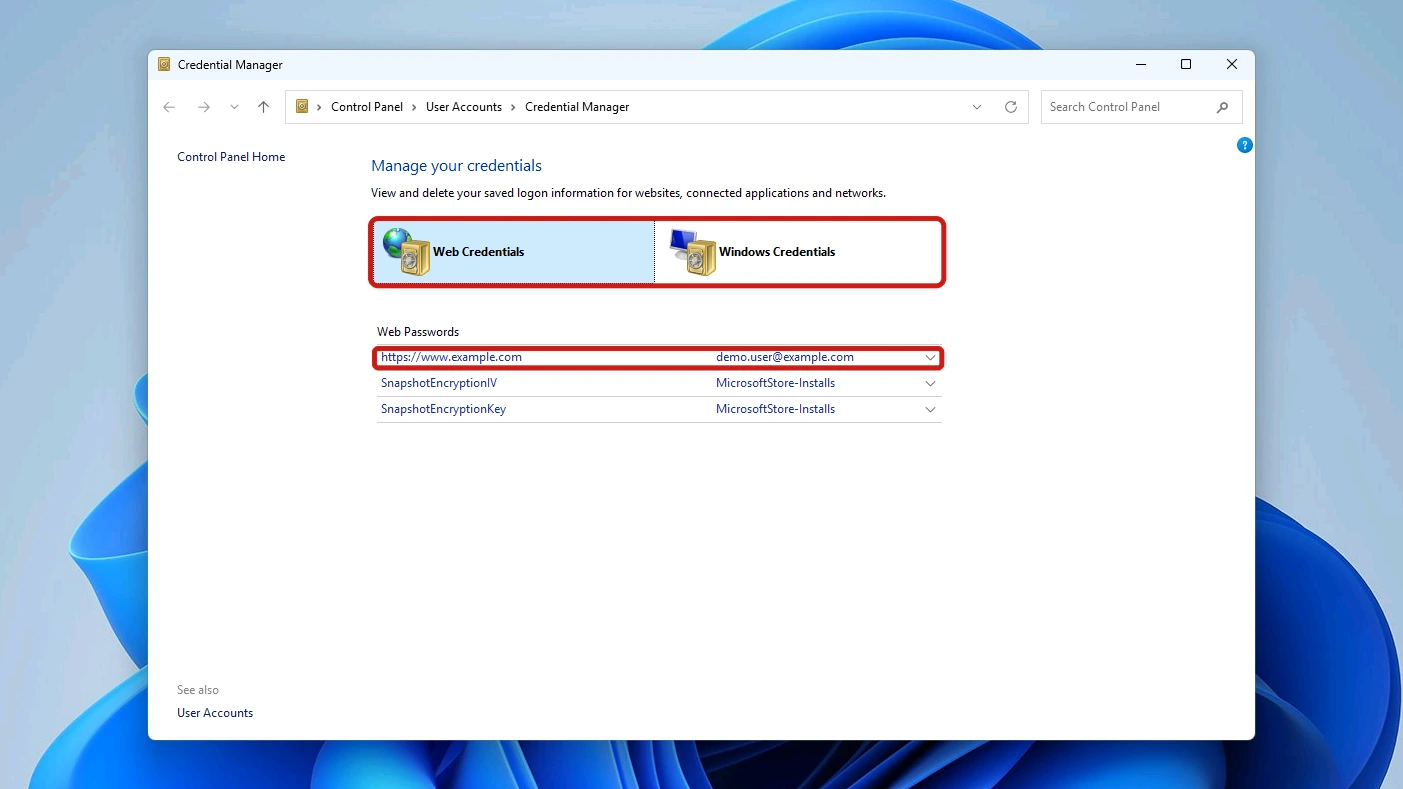
Note: A fresh PC can already list entries you never saved. Ours showed SnapshotEncryption and MicrosoftStore-Installs entries that we didn’t add. Look for the website address you want rather than assuming the list is all yours.
Find the site in the Web Passwords list, then work through its entry in the order the numbers on this screenshot show.
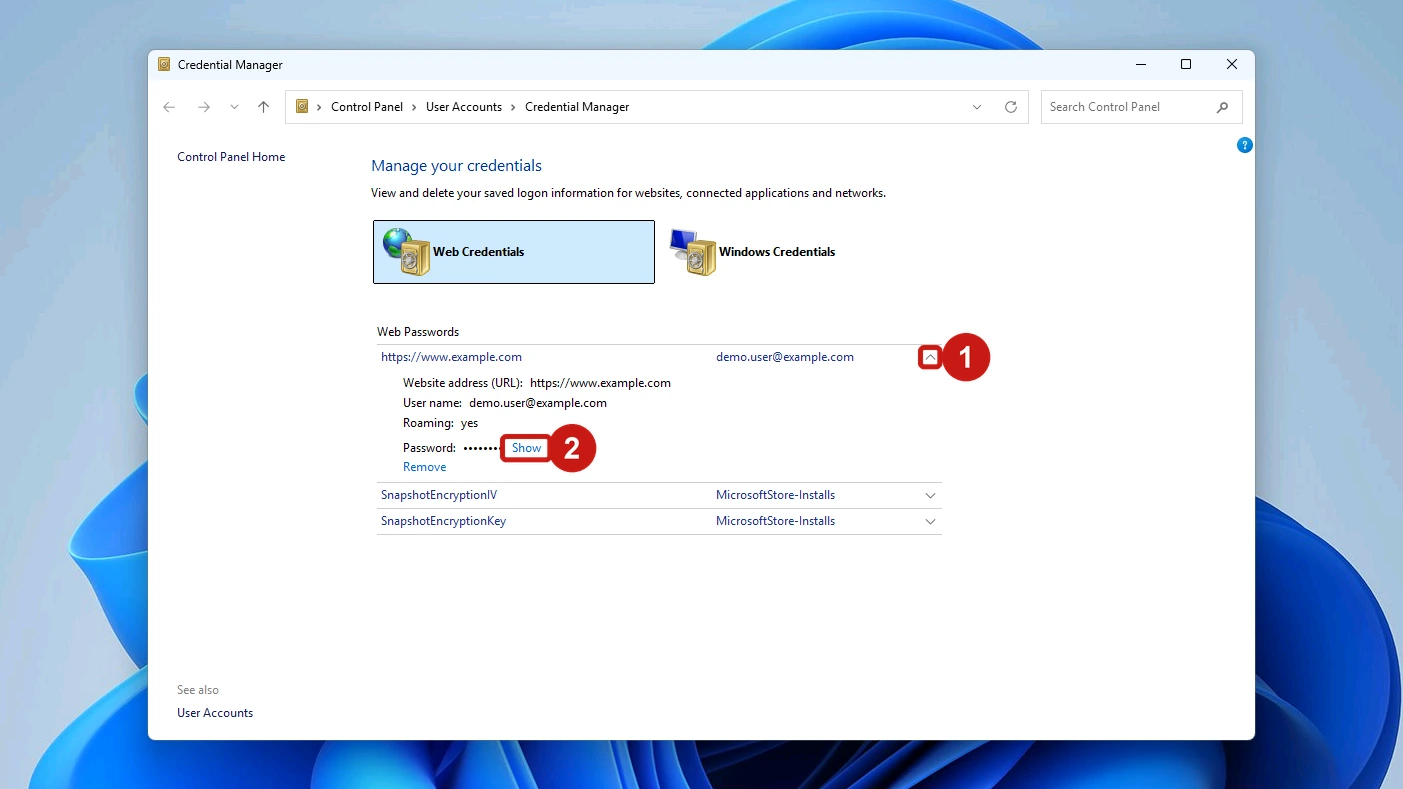
- Select the entry’s expand arrow to open its details. You’ll see the Website address (URL), User name, Roaming, the hidden Password, Show and Remove.
- Select Show beside the hidden password to bring up the Windows Security prompt.
- Enter your PIN or Windows password, whichever Windows asks for, to confirm it’s you.
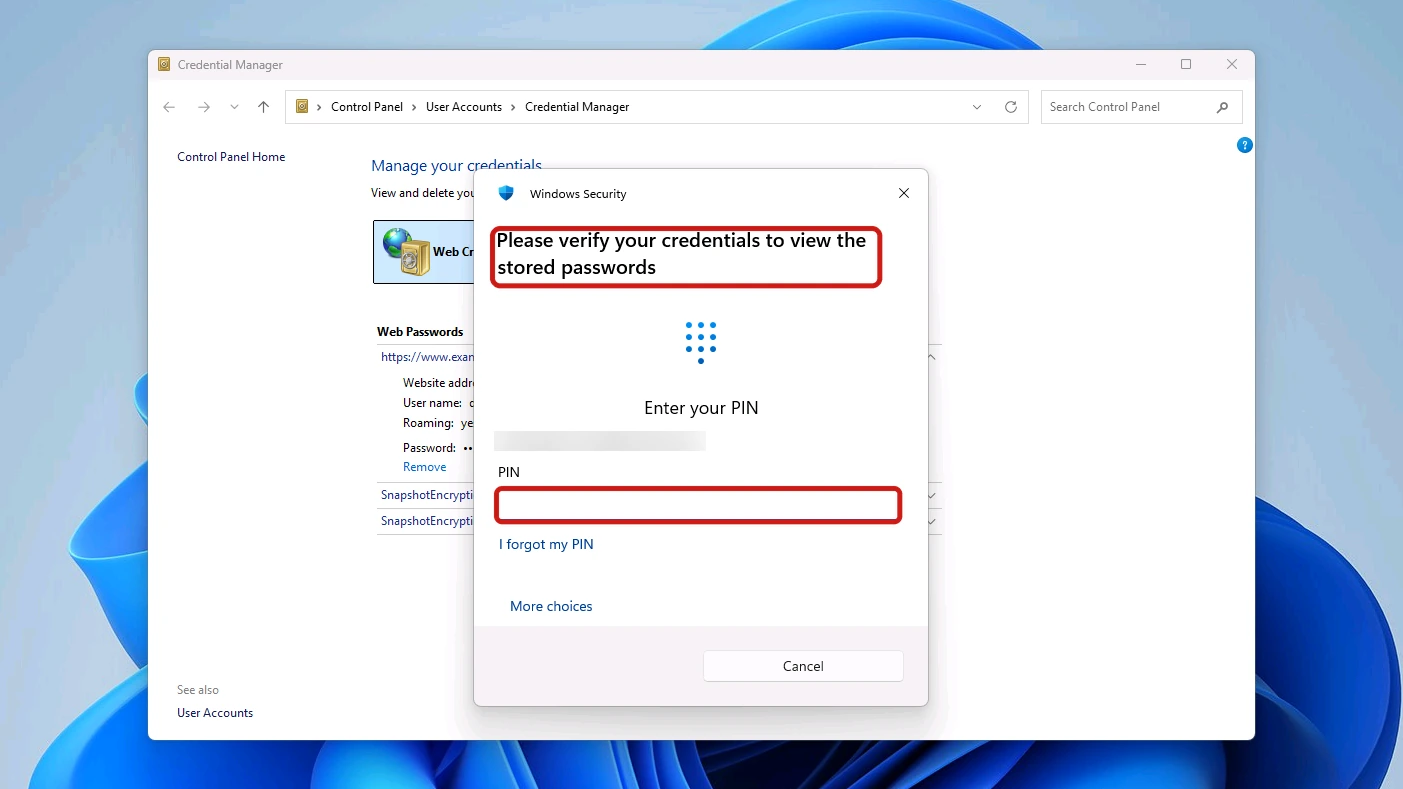
The prompt read “Please verify your credentials to view the stored passwords” and opened on Enter your PIN, with More choices below it. If the box wants a PIN you don’t have, select More choices, then Use a different account, and enter your Windows user name and password. Once you confirm, the password appears in plain text in place, and Show becomes Hide.
The Windows Credentials Tab Has No Show Option
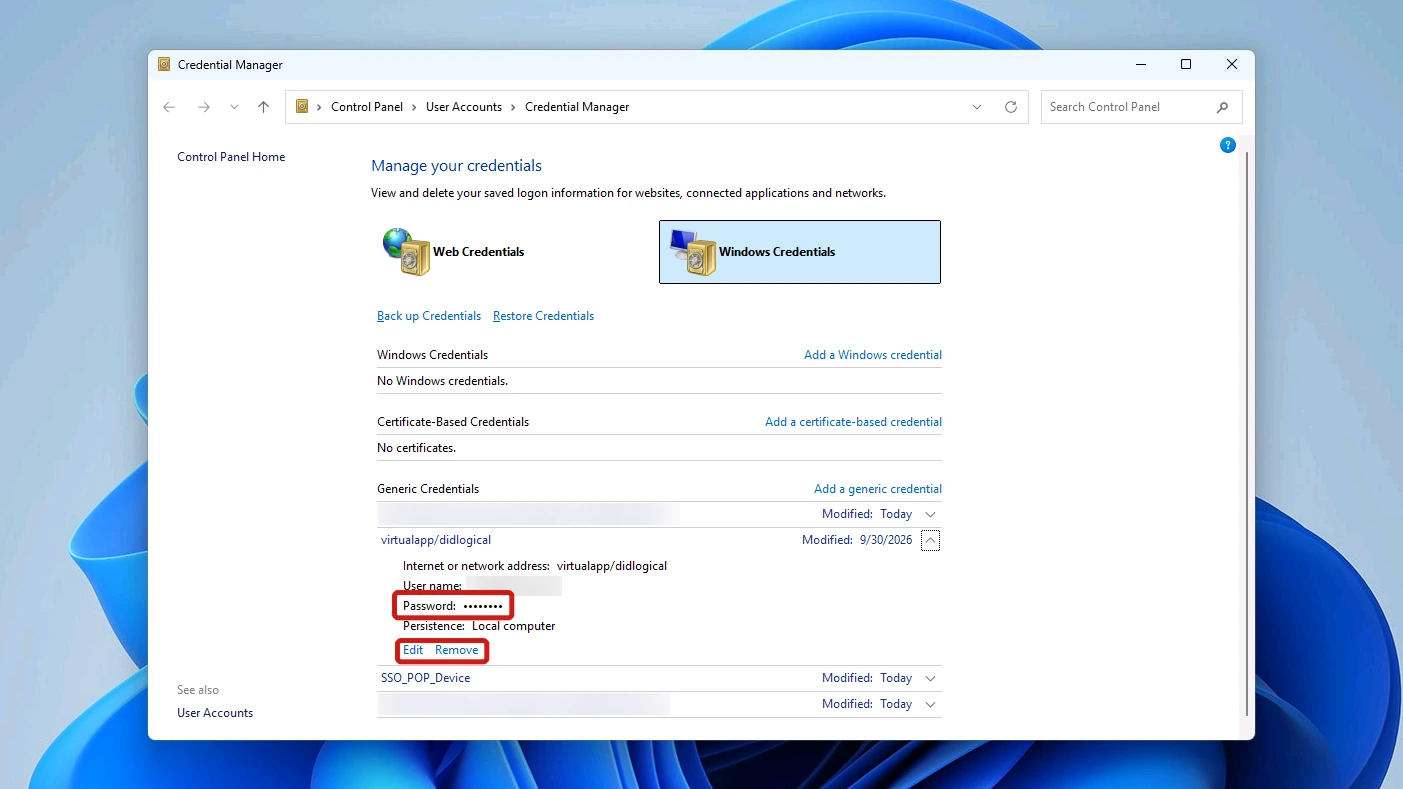
If you try to find saved passwords on Windows 11 in the Windows Credentials tab, you won’t get as far: the entry we opened on our test PC had no Show option. Select Windows Credentials in the same window to switch to it, and you’ll see Back up Credentials and Restore Credentials, followed by sections for Windows Credentials, Certificate-Based Credentials and Generic Credentials.
The PC was signed in with a Microsoft account, and the stored entries were generic ones. Expanding one showed the hidden password dots with Edit and Remove only. If the login you need appears only here, check the browsers in the methods below, then use the app’s own forgot-password option.
Method 2: View Saved Passwords in Microsoft Edge
The next place to find saved passwords on Windows 11 is Microsoft Edge, which stores website logins in Microsoft Password Manager. Because it’s tied to Edge and your signed-in Microsoft account, it’s a Microsoft account password manager rather than a store on one PC. A login saved there works on any device where you sign in to Edge with that account.
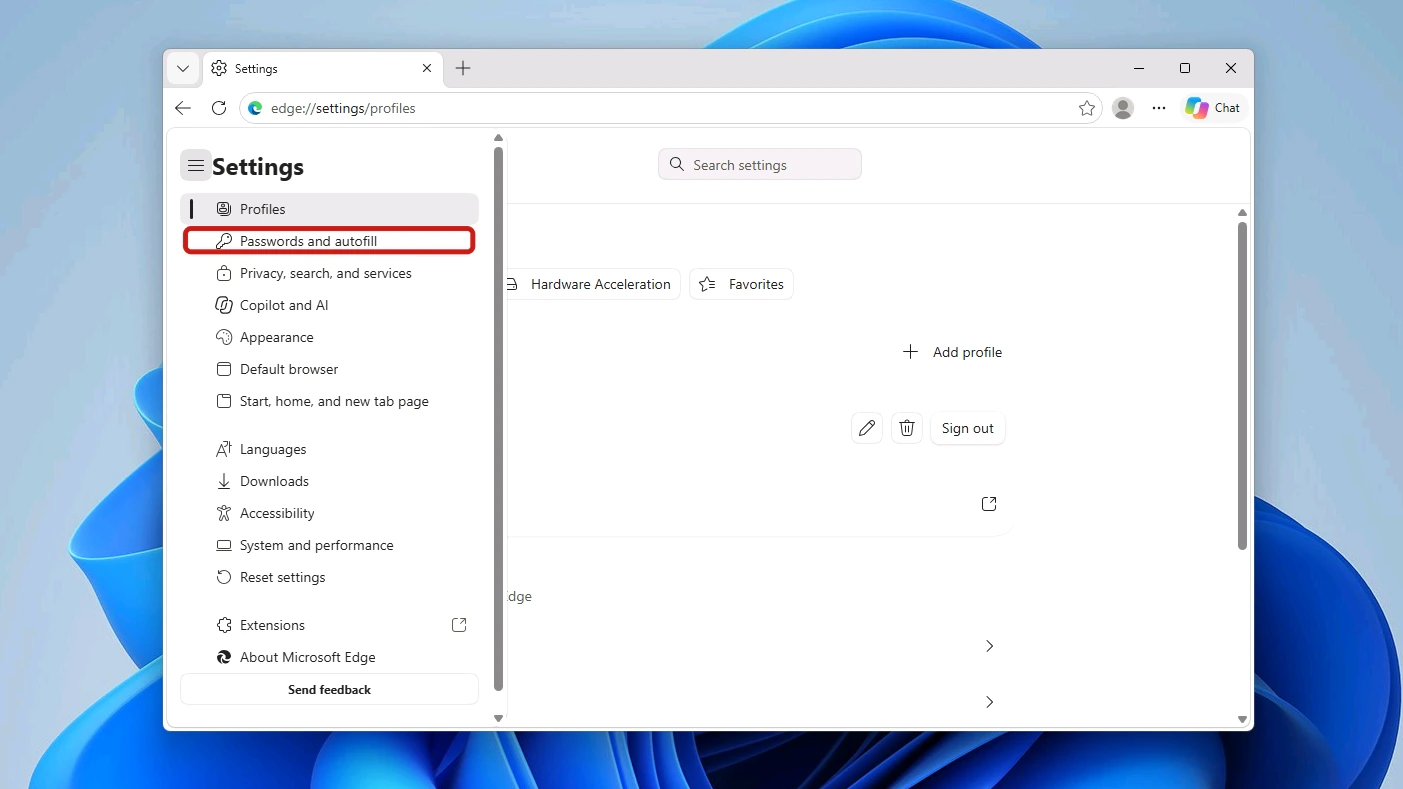
- Select Settings and more (…), then Settings. The Passwords chip under Most searched, at the top of the page that opens, is a quicker way in.
- Select Passwords and autofill in the sidebar, opening the menu icon first if the sidebar is hidden.
- Select Microsoft Password Manager to see your saved logins, grouped by site.
Edge asked for sign-in the moment we opened a site entry, before any eye icon appeared. The prompt said “Microsoft Edge is trying to show passwords. Enter your Windows password to allow this” while the box asked for a PIN. Type what the box asks for, not what the sentence above it says.
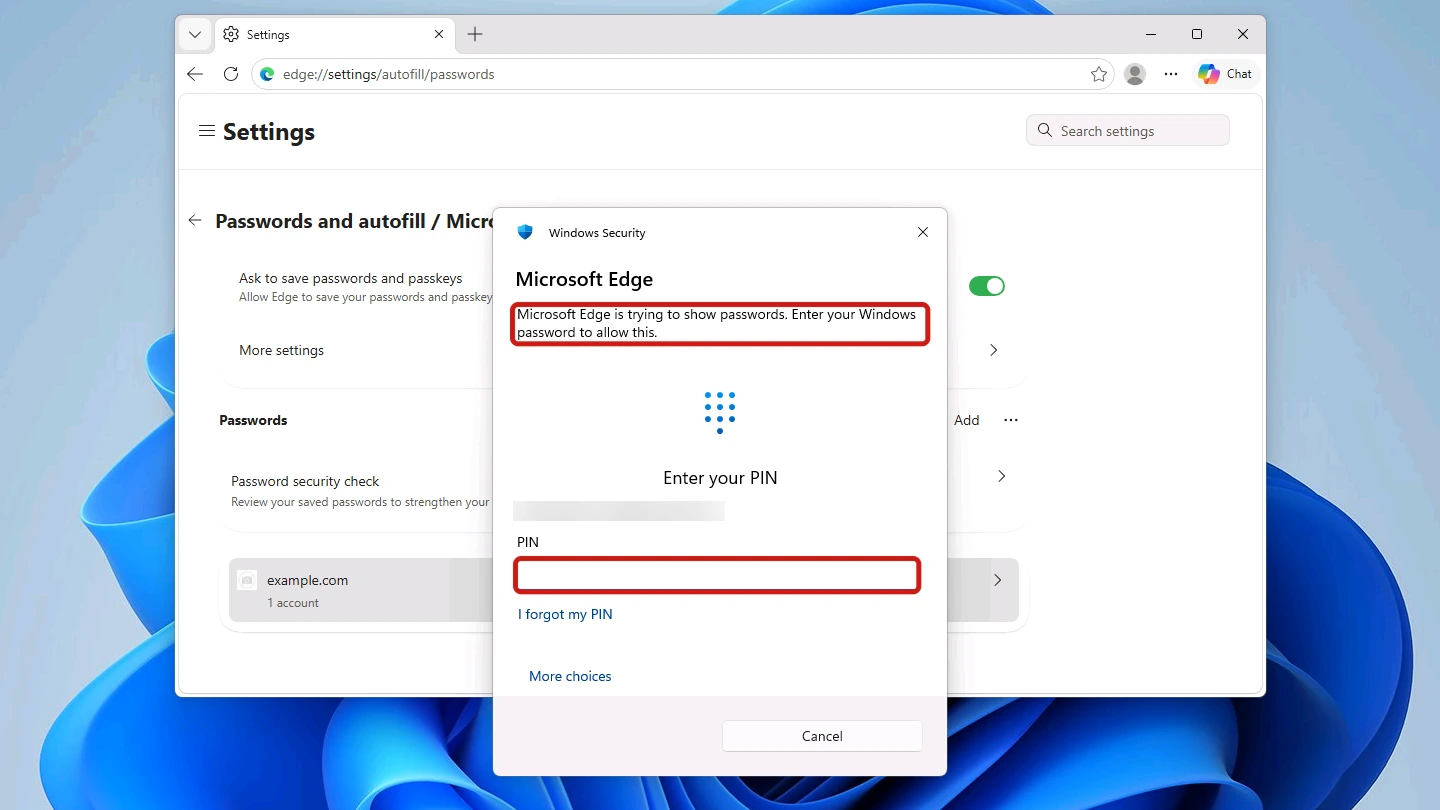
- Select the site entry for the login you want to read.
- Type the PIN or Windows password the box asks for. The entry then opens with the password hidden.
- Select the eye icon beside the hidden password to show it with no second prompt.
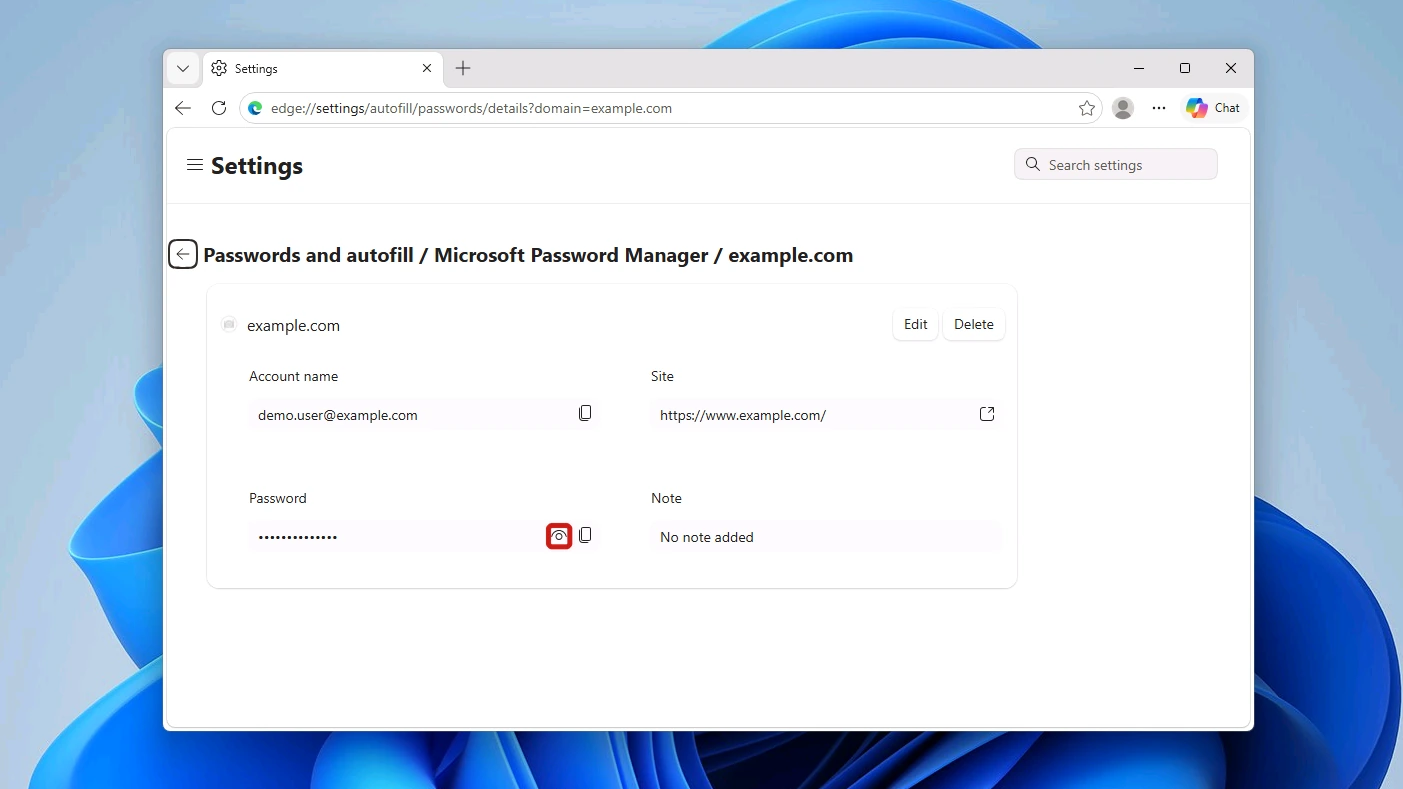
If you’d rather paste the password than read it, the copy icon sits right beside the eye.
Note: More settings, at the top of the Microsoft Password Manager page above your saved logins, holds a device sign-in radio button labeled “Prompt for the device sign-in options before viewing or filling website password”. With the default option, “Fill website password and sign in automatically”, selected, Edge still asked for sign-in. Microsoft’s explanation of the device sign-in option describes how it applies to autofill.
Method 3: Find Chrome Saved Passwords on Windows 11
Chrome keeps website logins in Google Password Manager. You can open it from the three-dot menu, or paste chrome://password-manager/passwords into the address bar and skip the menus. Google’s Chrome Help page covers showing and editing a saved login if you want to change a password once you’ve read it.
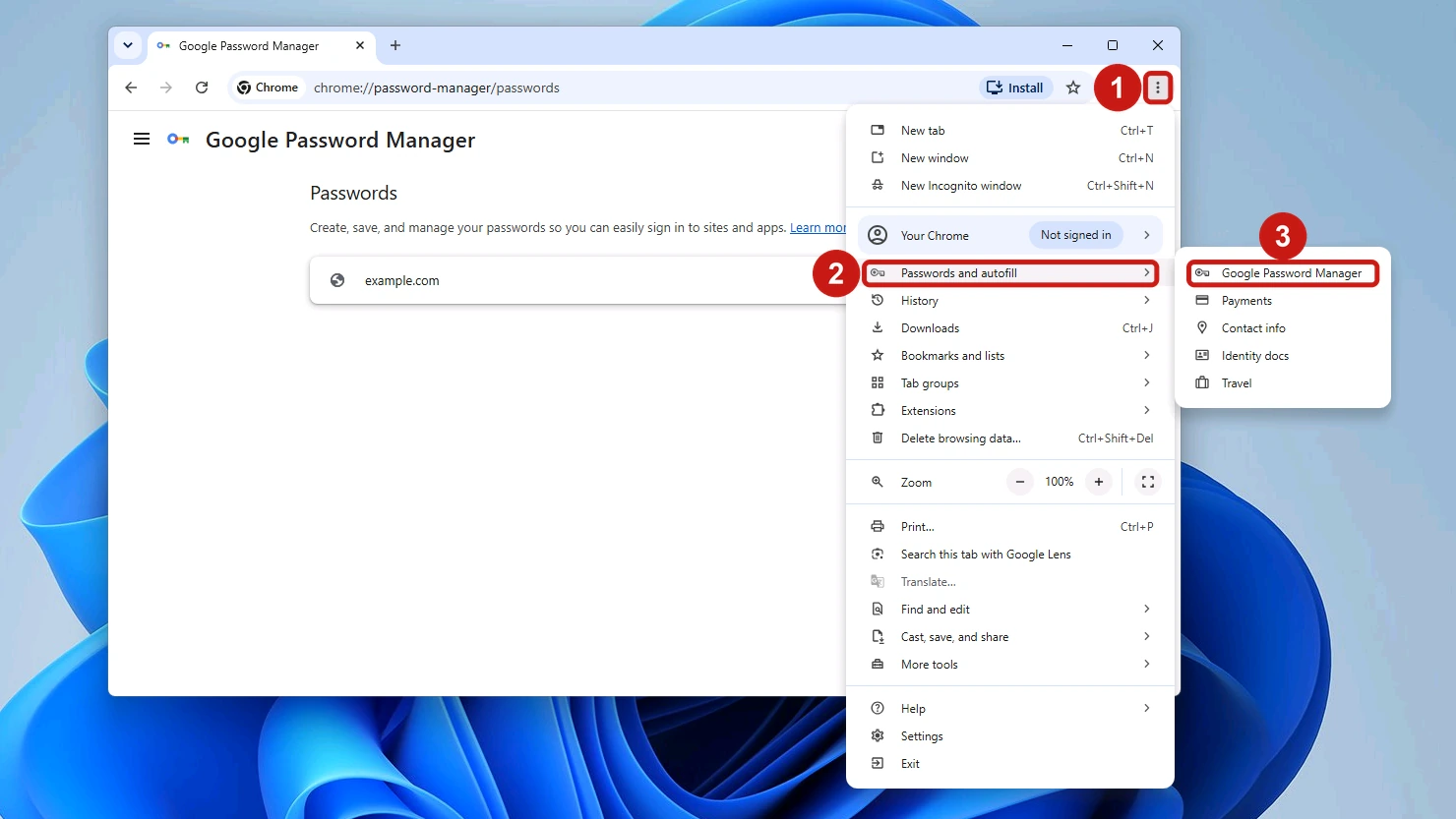
- Select the three-dot menu in Chrome.
- Select Passwords and autofill.
- Select Google Password Manager.
Your logins appear by site, with an arrow on each row and a search icon for a long list.
Chrome stopped us at the same point, once we opened an entry, under the heading “Making sure it’s you”. Its text read “Google Chrome is trying to show passwords. Type your Windows password to allow this” while the box defaulted to a PIN. We never switched on biometric authentication and weren’t signed in to Chrome with a Google account, and it still asked.
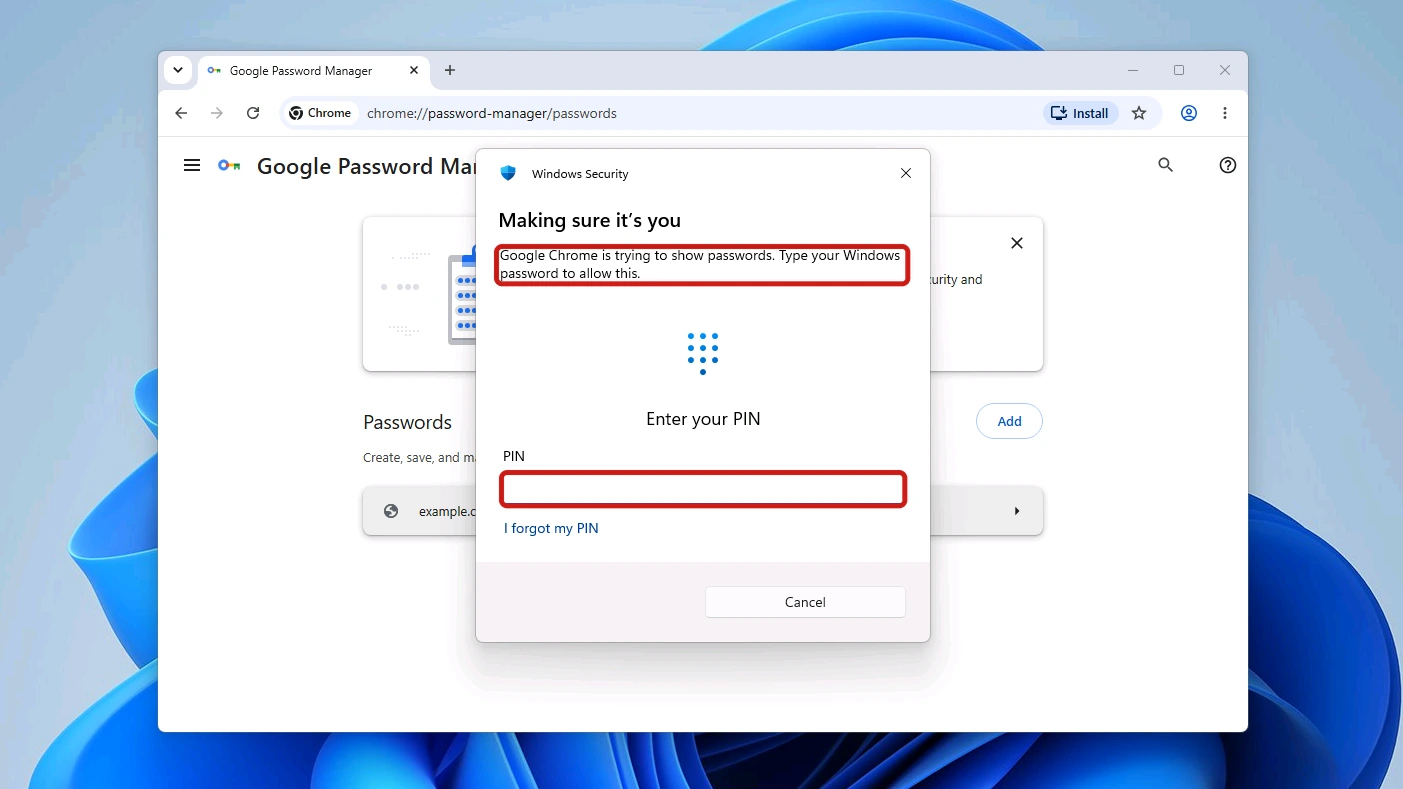
- Select the site entry’s arrow to open the login you want to read.
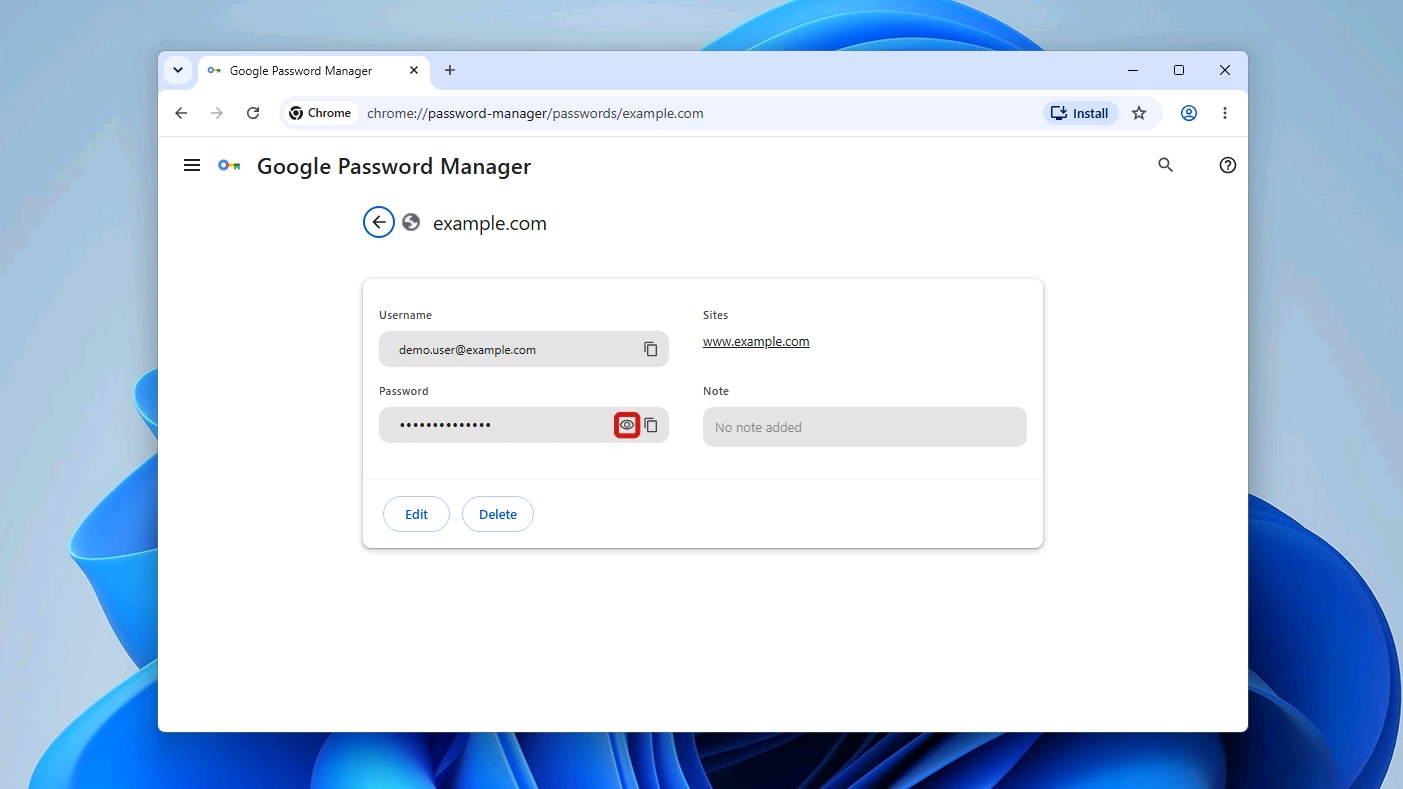
- Confirm with your PIN or Windows password, depending on which one the box shows. The entry then shows your Username above the password dots.
- Select its eye icon to reveal the password with no second prompt. Chrome puts a copy icon beside the eye too, for pasting the password instead of retyping it.
Method 4: Check Firefox Saved Passwords
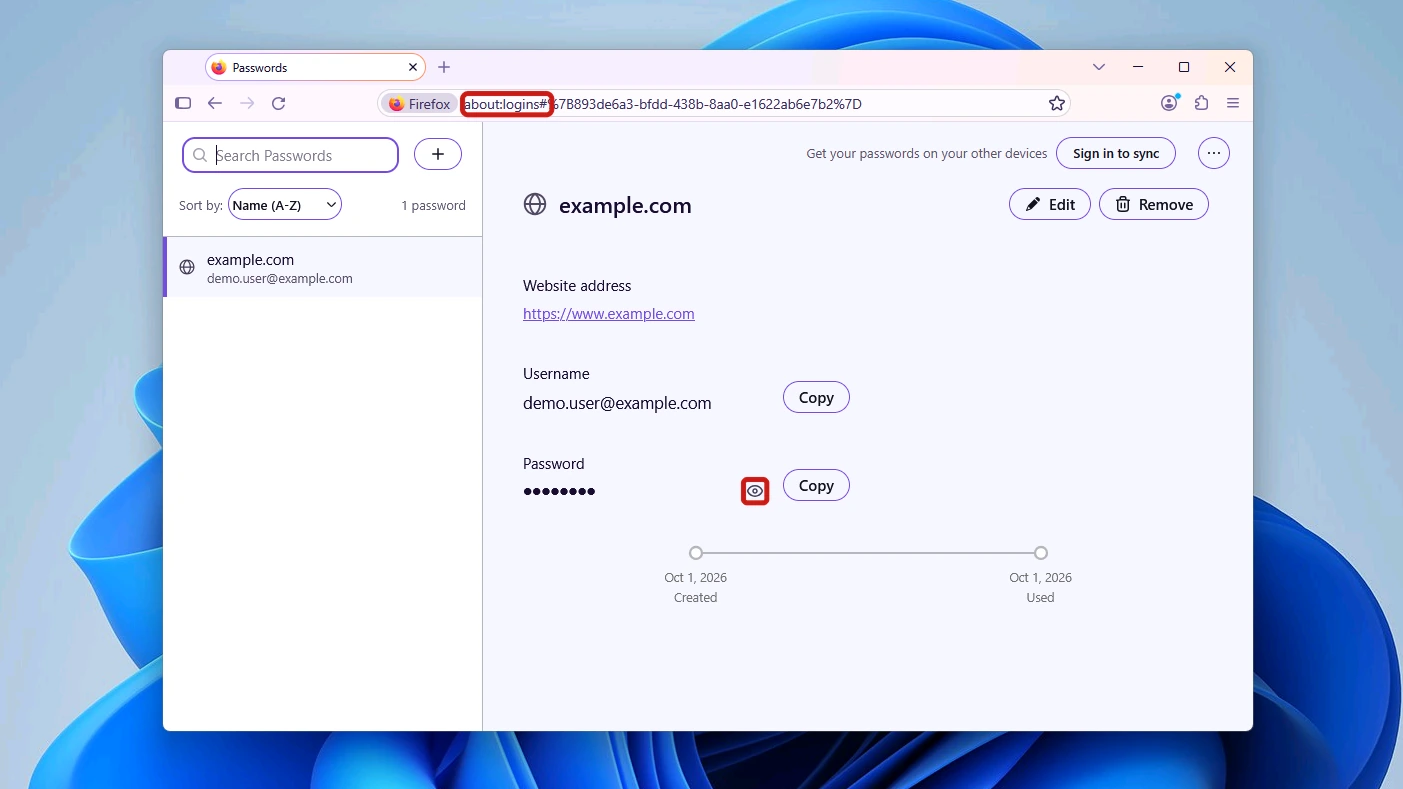
Select Passwords in the Firefox menu to open about:logins. Select the eye icon next to the hidden password, and Firefox may show it with no Windows sign-in, as it did on our test profile with no Primary Password set.
Conclusion
To find saved passwords on Windows 11, open Credential Manager from taskbar search, the Edge or Chrome password manager from the browser’s menu, or Firefox’s Passwords page. Credential Manager, Edge and Chrome can stop for your PIN or Windows password before showing the saved password, while Firefox may show it with no sign-in.
If you’re new to Windows 11, our complete guide to Windows 11 for beginners walks through File Explorer, Settings, security basics and backups.