A cleanup guide told you to empty Prefetch, so you want to know whether you can delete the Prefetch folder without breaking anything. You can, because Windows writes new .pf files as you launch apps.
We count the files on screen before and after, then check that SysMain, which people often mix up with Prefetch, is a separate thing. Along the way we cover the one case where clearing it on purpose makes sense.
Prefer to watch? See the video guide.
What the Prefetch Folder Is and Why Windows Keeps It
The Prefetch folder is a cache of launch data, with one .pf file for each app you have run. Microsoft designed it to speed up the next launch of an app, and it is on by default on Windows desktop editions, though not on Windows Server. Windows keeps the folder at the path below.
%SystemRoot%\Prefetch
Each .pf file name ends in an 8-character hash built from the path of the program it belongs to, and in some cases its command line, so an app such as svchost.exe has several files.
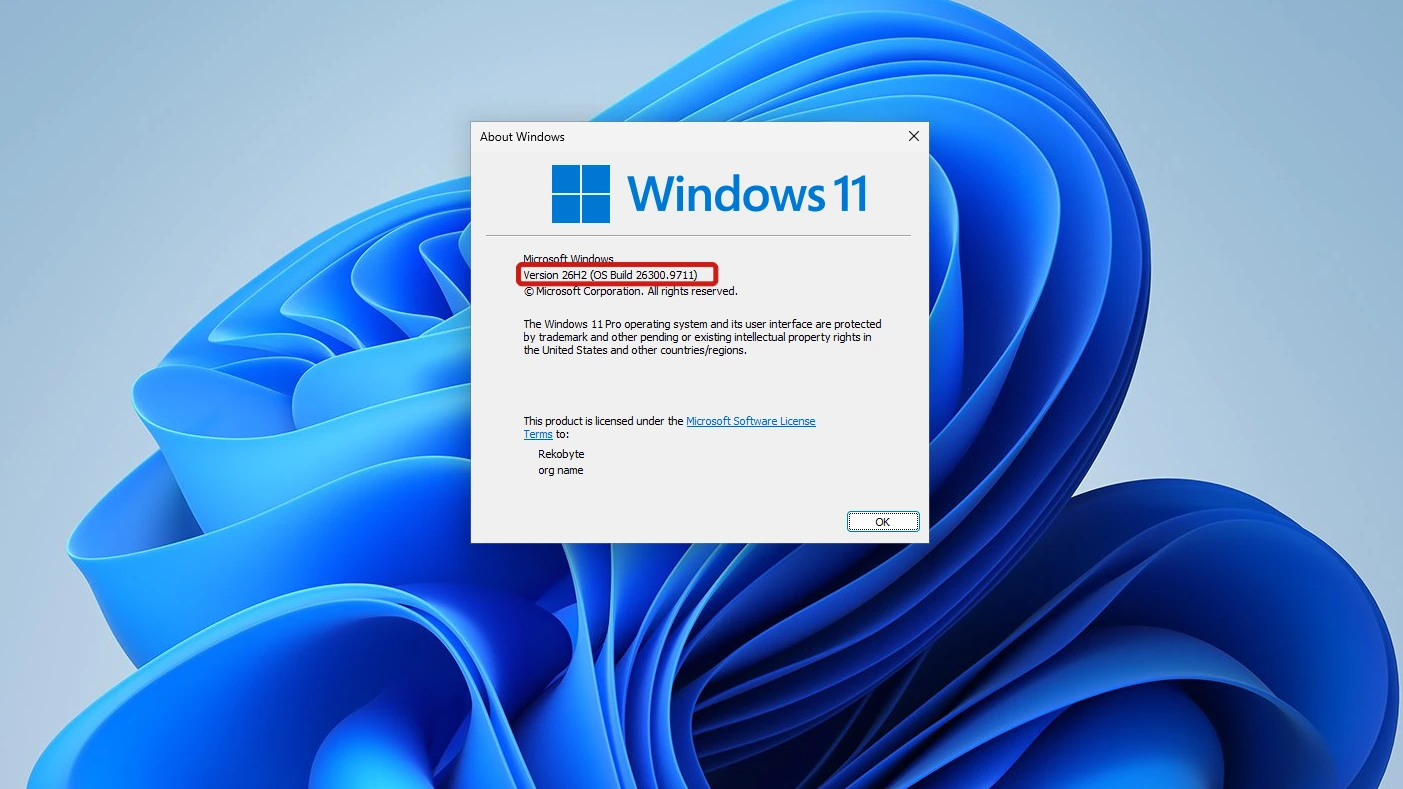
Winver shows the machine we used for every step in this walkthrough: Windows 11 Pro, Version 26H2, OS Build 26300.9711, signed in with a standard user account.
| What | Detail |
|---|---|
| What it holds | One .pf file per app, named with a hash of the program path |
| Where it lives | %SystemRoot%\Prefetch |
| Default state | On for Windows desktop editions, off for Windows Server |
| File cap | 1,024 files in Windows 8 and later, oldest dropped first |
Note: The 1,024 limit comes from Microsoft’s incident response guide (PDF), which covers Windows 8 and later. Older pages and a Vista-era Microsoft thread say 128. That figure is stale: the thread’s own commenters counted 144, 237 and 306 files.
Because the cap drops the oldest files first, the folder never grows without limit and needs no manual cleaning.
Is It Safe to Delete the Prefetch Folder in Windows 11?
Yes, it is safe. A Microsoft support answer calls the folder self-maintaining and says you do not need to empty it. That answer dates from Vista. Nothing you can use is lost, but the run history stored in the files is (see the privacy note near the end).
- What happens: Windows keeps a .pf file for each app you open, created on its first run and updated after, so the folder fills again with use.
- What it costs: the same Microsoft answer says Windows and your programs take longer after you empty the folder, so expect slower launches until the files return.
- What you lose: the run times stored in the files.
The DirectX shader cache is a different case, and the contrast shows how mild the Prefetch cost is. Deleting that cache slows the first launch and can make games stutter while shaders compile again, which the shader cache walkthrough shows on screen.
How to Delete the Prefetch Folder in Windows 11 Step by Step
The short version: to delete the Prefetch folder in Windows 11 you only need the Run box and the Delete key. We deleted the contents, and the folder itself stays. Before you start, note how many items the folder holds and their total size, so you can compare later.
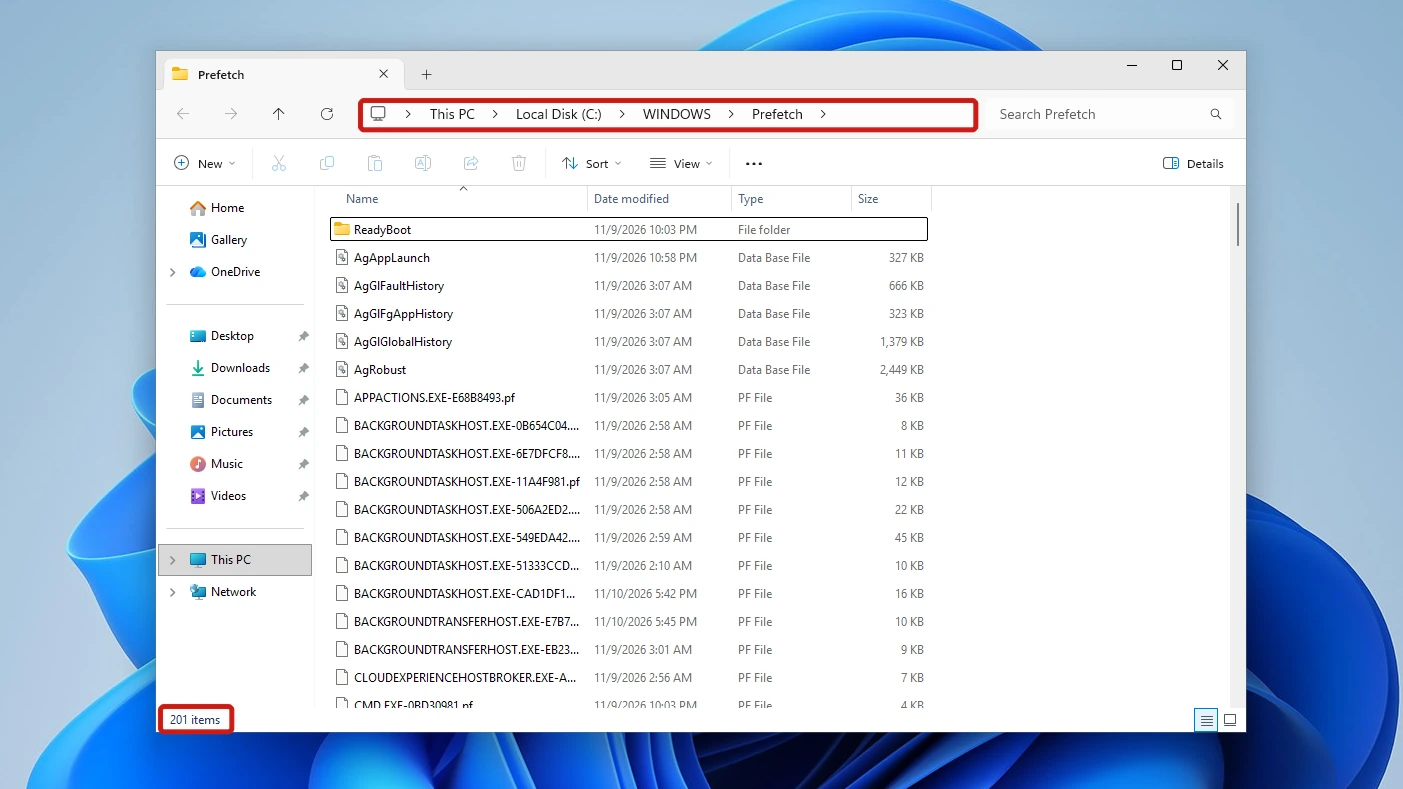
Our folder held 201 items and about 14 MB in total. Of those, 191 were .pf files, taking up about 3 MB.
- Press Windows key + R to open the Run dialog, type %SystemRoot%\Prefetch, and press Enter. Windows opens the folder in File Explorer.
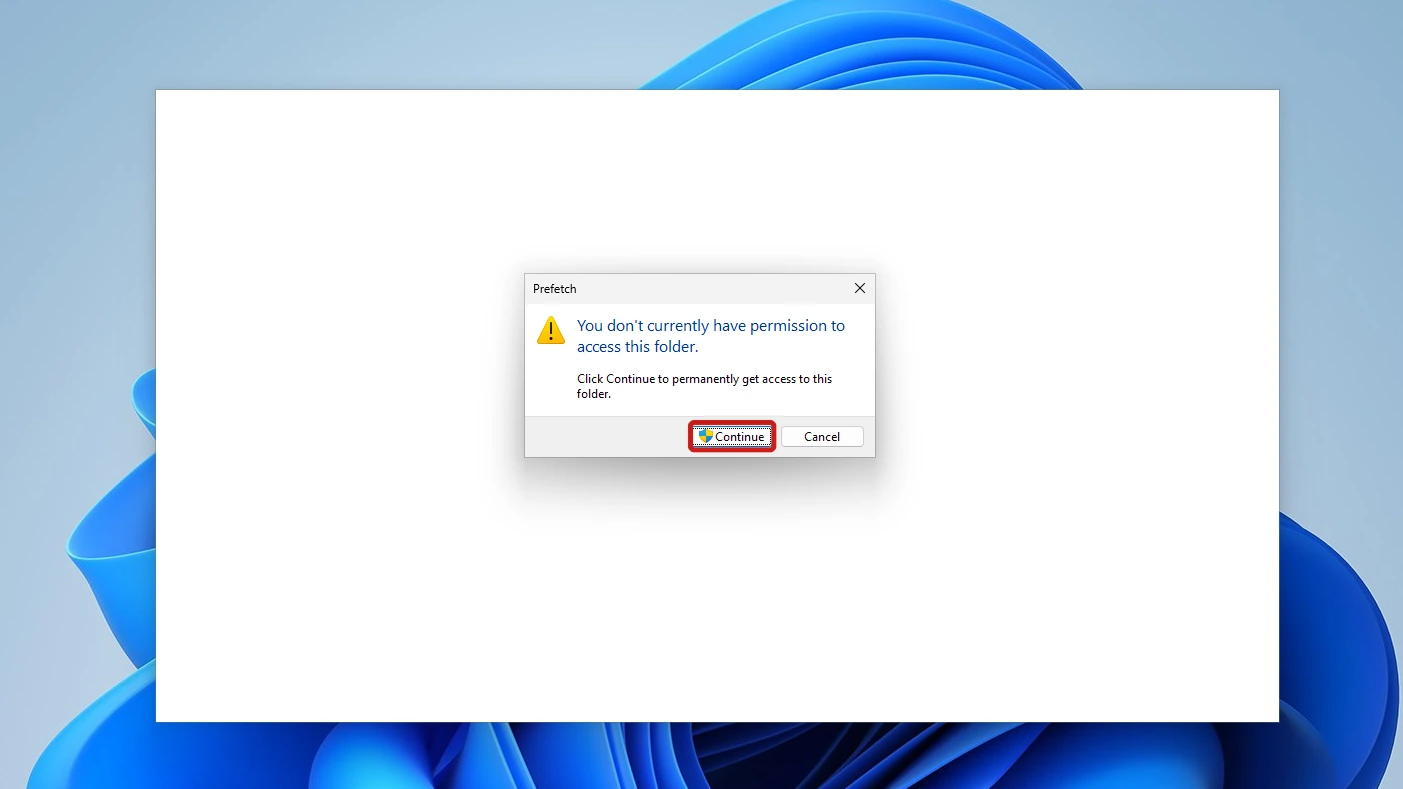
- Click Continue when Windows says you don’t currently have permission to access the folder. The prompt is titled Prefetch and offers Continue and Cancel. No further prompt followed on our standard user account.
- Press Ctrl + A to select everything in the folder. That is more than .pf files: on our machine it also took in a ReadyBoot subfolder, about nine Ag*.db files (such as AgAppLaunch and AgGlFaultHistory), PfPre_*.mkd files and PfSvPerfStats.bin. We saw no layout.ini.
- Press Delete to remove the selected items.
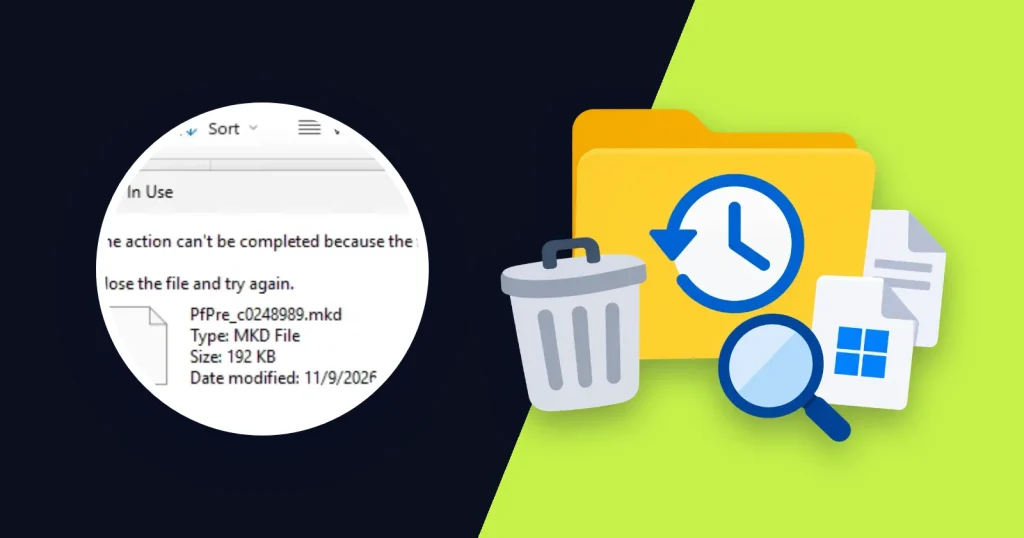
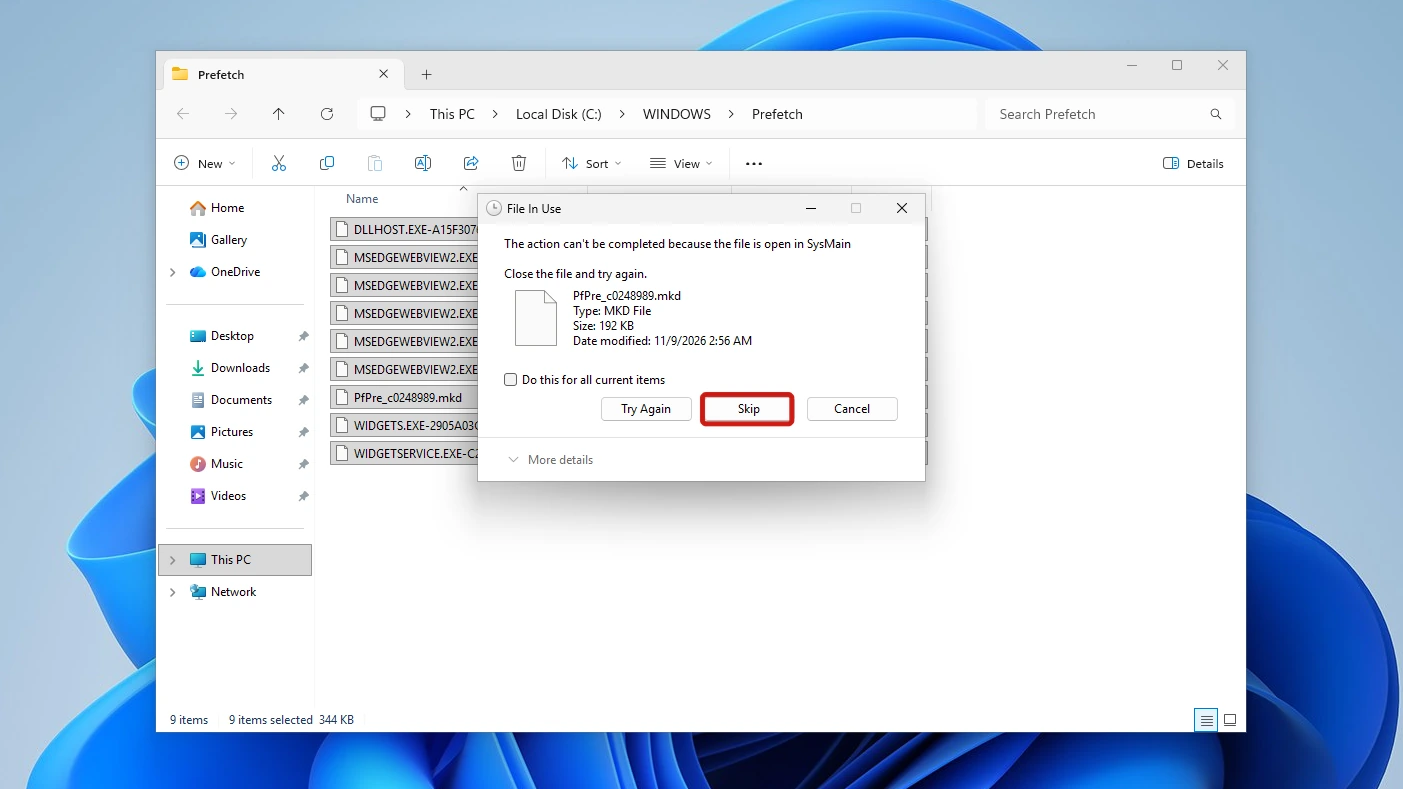
- Click Skip if the File In Use dialog appears. It says the action can’t be completed because the file is open in SysMain, and offers Try Again, Skip and Cancel, plus a Do this for all current items checkbox. We got one dialog, for PfPre_c0248989.mkd (192 KB, not a .pf file). Skip leaves that file in place and deletes the rest.
What Happens After You Delete the Prefetch Folder in Windows 11
Windows starts refilling the folder straight away, then adds a file for each app you open. Background processes recreate .pf files even while the delete runs. Open a few apps, wait a minute or so, then check the folder again. Here are our numbers.
| Items (.pf files) | Folder size | |
|---|---|---|
| Before deleting | 201 (191) | about 14 MB, of which about 3 MB is .pf files |
| Right after Delete and Skip | 12 (11) | 381 KB |
| After opening Notepad, Calculator and Paint and waiting about a minute | 23 (22) | about 0.6 MB |
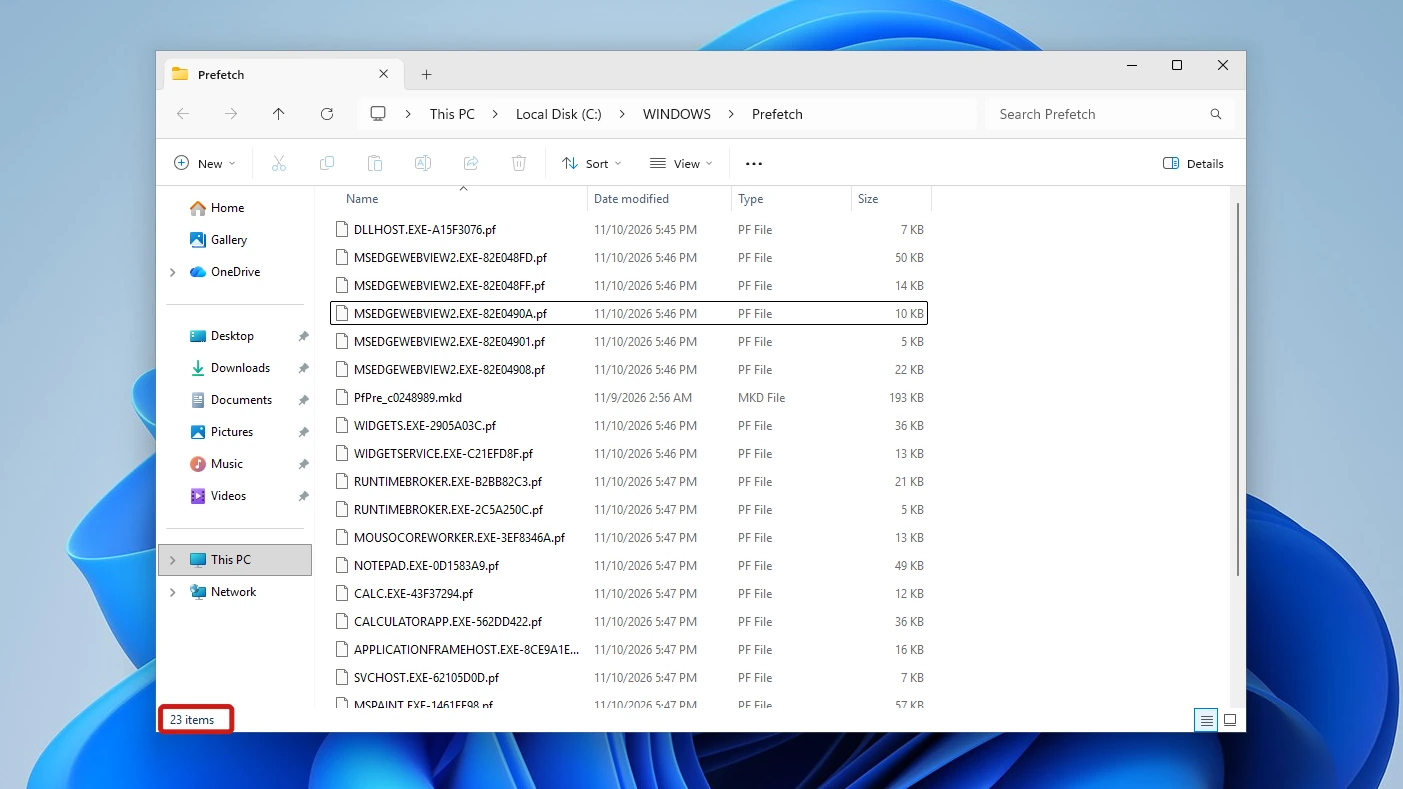
Of the 12 items right after the delete, 11 were .pf files that Windows had recreated within seconds, and the twelfth was the .mkd file we skipped. Opening Notepad, Calculator and Paint then added NOTEPAD.EXE-0D1583A9.pf, CALC.EXE-43F37294.pf and MSPAINT.EXE-1461EE98.pf, which fits the Microsoft answer’s description of a self-maintaining folder.
Prefetch Is Not SysMain
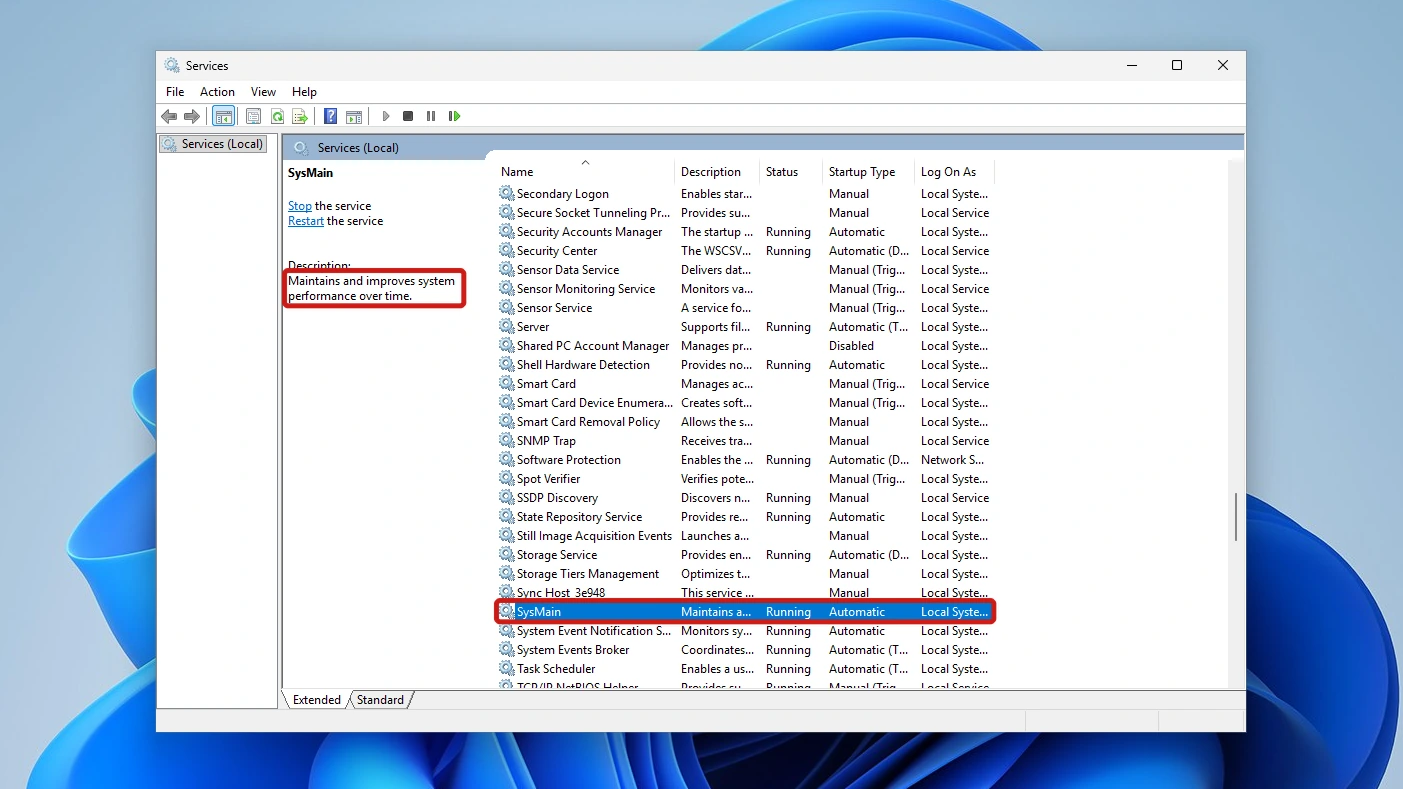
Prefetch is a folder of .pf files, and SysMain is a separate entry in the Services list. You can check this yourself in a few steps.
- Press the Windows key, type Services, and open the Services app.
- Scroll to SysMain in the list.
- Select it and read the description on the left. It says “Maintains and improves system performance over time.”, and the entry shows Running and Automatic.
Will Deleting It Speed Up Your PC?
No. Microsoft’s own page on improving PC performance in Windows never mentions Prefetch. It lists these fixes instead:
- Limit the apps that start with Windows.
- Uninstall apps you no longer use.
- Run Storage Sense or Disk Cleanup to free storage.
- Install Windows updates.
If you want Task Manager open while you work through those fixes, six ways to open it are laid out in a separate walkthrough.
A system folder that does earn a clear-out is SoftwareDistribution, and that post explains it helps when an update fails or will not finish.
When You Might Still Delete the Prefetch Folder in Windows 11
The one reason to clear it is privacy. Microsoft’s incident response guide says each .pf file stores the last 8 run times of its app in Windows 8 and later, so deleting the files removes that history from the folder. You might want the record of what ran on your PC gone.
Privacy: .pf files are execution evidence. Deleting them removes the record of which apps ran and when.
Prefetch Folder Small or Not Opening in Windows 11?
Right after a delete the folder is small, and it refills as you use apps.
- Small: you just cleared it, or a cleaner did. It refills with use.
- Not opening: if Windows says you don’t currently have permission to access the folder, click Continue, as in step 2.
Conclusion
Is it safe to delete the Prefetch folder in Windows 11? Yes. Windows writes new .pf files as you launch apps, so nothing you rely on breaks, though apps may open slightly slower until the files return. It will not speed up your PC, and the one real loss is the run history, so delete it only if you want that gone.
Video Guide
Prefer to follow along on screen? This short video walks through emptying the Prefetch folder in Windows 11.