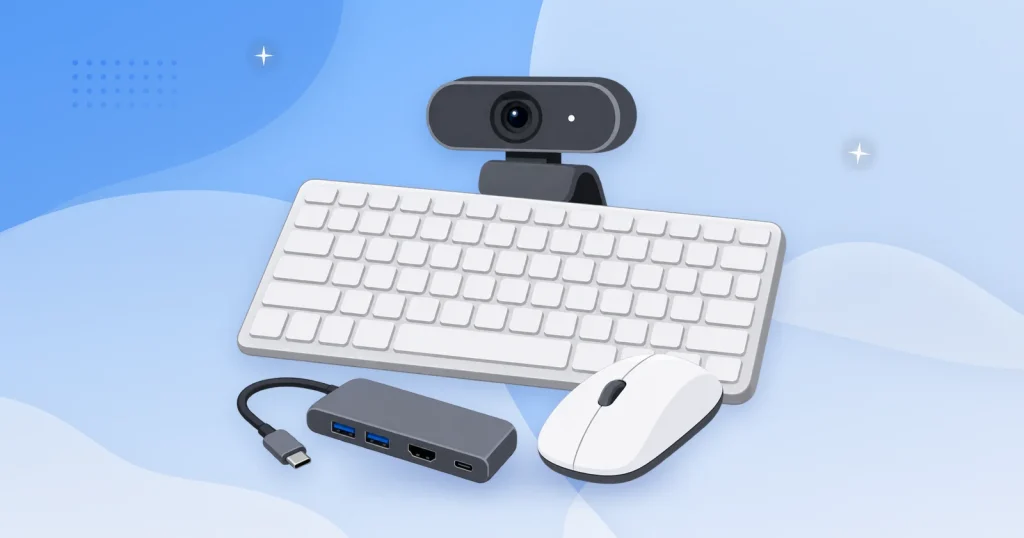
The PC is out of the box, Windows is set up, and the desktop is working. Choosing which Windows 11 accessories to buy next is a harder question than the setup was, because nothing on the machine tells you what it is still missing. That depends on whether your PC is a laptop or a tower, how many ports it has, and what you plan to do with it.
This guide covers seven Windows 11 accessories, one for each job, from the mouse you will touch every day to the drive that holds the only copy of your files. Every pick carries the specification that decides it and the catch that comes with it. The buying questions, the products we left out, and the criteria behind every choice are all set out further down.
If you are still finding your way around the desktop itself, our complete beginner’s guide to Windows 11 is the place to start. Our first-time setup walkthrough covers everything worth doing before you spend anything at all.
Windows 11 Accessories at a Glance
None of the Windows 11 accessories below are ranked against each other. Each one wins a category, so the fastest route through this guide is to find the row that matches what you are missing and jump straight to it.
| Category | Product | Why it is here | Jump to |
|---|---|---|---|
| Wireless mouse | Logitech Signature M650 L | Up to two years on a single AA, with clicks quiet enough for a shared room. | Logitech Signature M650 L |
| Keyboard | Logitech K120 | A full-size wired layout that works the second you plug it in. | Logitech K120 |
| Budget monitor | Dell Pro P2426H | 120 Hz and a fully adjustable stand at the low end of the business range. | Dell Pro P2426H |
| USB-C hub | UGREEN 5-in-1 | Turns one USB-C socket into a monitor output and three more ports. | UGREEN 5-in-1 USB-C Hub |
| External drive | WD My Passport 2TB | 2TB of backup that fits in a coat pocket. | WD My Passport 2TB |
| Laptop stand | Rain Design mStand | Lifts a laptop screen to eye level on one piece of aluminum. | Rain Design mStand |
| Webcam | Logitech C270 | Gives a desktop the camera it never shipped with. | Logitech C270 |
Best Wireless Mouse for a New PC: Logitech Signature M650 L
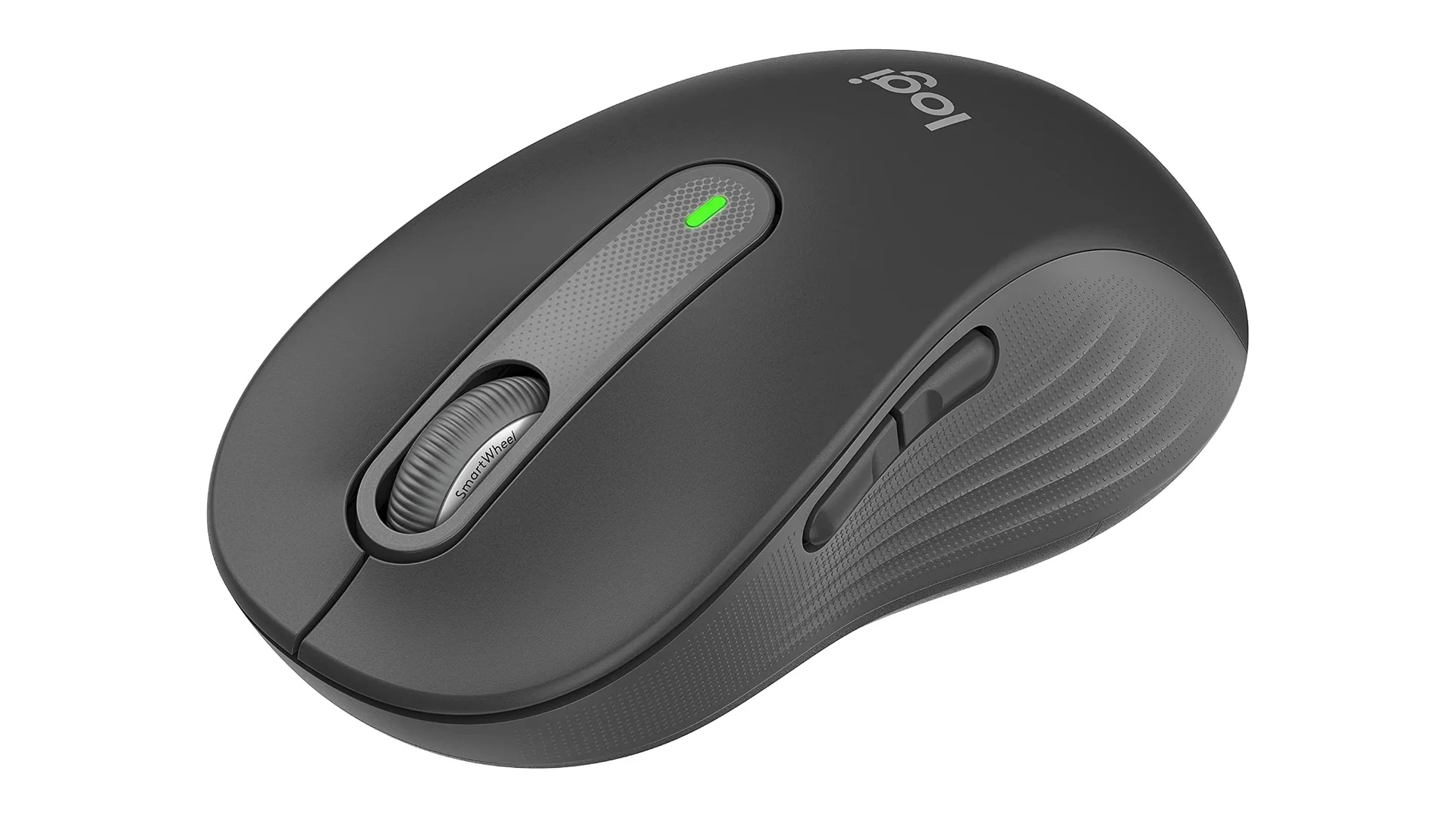
The mouse that came with your PC, if one came with it at all, is the first thing worth replacing. The M650 L is the large-hand size in Logitech’s Signature line, shaped for a palm grip rather than the flat symmetrical shell that ships in most boxes.
Key Specs
- Logitech Advanced Optical Tracking, 400 to 4,000 DPI
- Bluetooth Low Energy or a Logi Bolt USB receiver, 10 m range
- SilentTouch quiet clicks, five buttons including forward and back
- Single AA battery, up to 24 months on the Logi Bolt receiver, 20 over Bluetooth
- 118.7 x 66.2 x 42 mm, 115.4 g
The battery figure is the part that matters day to day. Logitech’s published specifications put it at up to 24 months on one AA through the Logi Bolt receiver, so you will forget the mouse has a battery at all.
It also pairs over Bluetooth, so a PC with Bluetooth built in gives up none of its USB ports for it, at the cost of four months of that battery life. SilentTouch is the other reason this one travels well into shared rooms and open offices, because the clicks are damped rather than sharp.
Two things to know before buying. It takes a replaceable AA rather than charging over USB-C, which is cheap and reliable but not what you may expect from a modern mouse. The L is also a genuinely different size from the standard M650, so if your hand is small or medium, buy the smaller model instead.
- Up to two years of use on one AA battery through the Logi Bolt receiver.
- SilentTouch clicks are quiet enough for a shared room or an open office.
- Shaped for a palm grip in the large-hand size, with forward and back buttons.
Best Keyboard for a New PC: Logitech K120
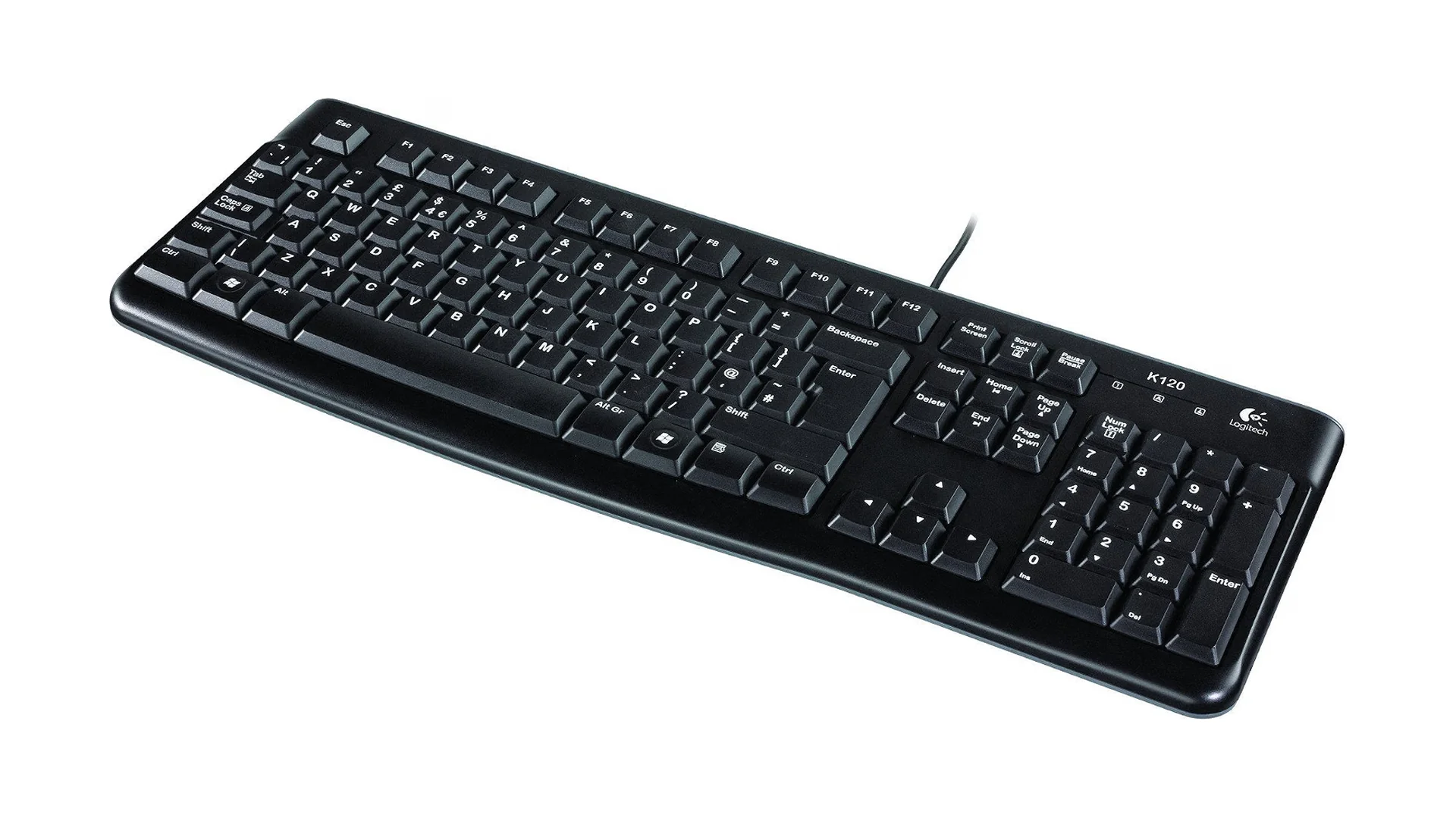
If you do not own a keyboard yet and would rather not think about which one to buy, this is the one. It is full size with a number pad, it has tilt legs, and it works the moment the USB plug goes in.
Key Specs
- Wired USB, 1.5 m cable
- Full-size 104-key layout with number pad
- Adjustable tilt legs, spill-resistant design
- Three-year warranty with Logitech Customer Care
- Windows XP through 11, and Linux kernel 2.6 or later
Longevity is the argument for it. Logitech still sells this keyboard under its original part number, the spill-resistant design shrugs off the small spill that kills a cheaper board, and three years of warranty cover is unusual on a keyboard this basic. Once you are typing on a full-size layout, our guide to the shortcuts worth learning first will get more out of it than any feature on the keyboard itself.
The caveat is what it is not. There is no switch choice, no hot-swap sockets, no backlighting and no software to configure. That is the right trade for a first keyboard and the wrong one if you already know you want a particular switch feel, in which case our roundup of the best wireless mechanical keyboards compares switch types, hot-swap sockets and battery life across eight boards.
- Full-size 104-key layout with the number pad a new desk setup needs.
- Works the moment it is plugged in, with nothing to pair or configure.
- Spill-resistant, with three years of Logitech warranty cover behind it.
Best Budget Monitor for a New PC: Dell Pro P2426H
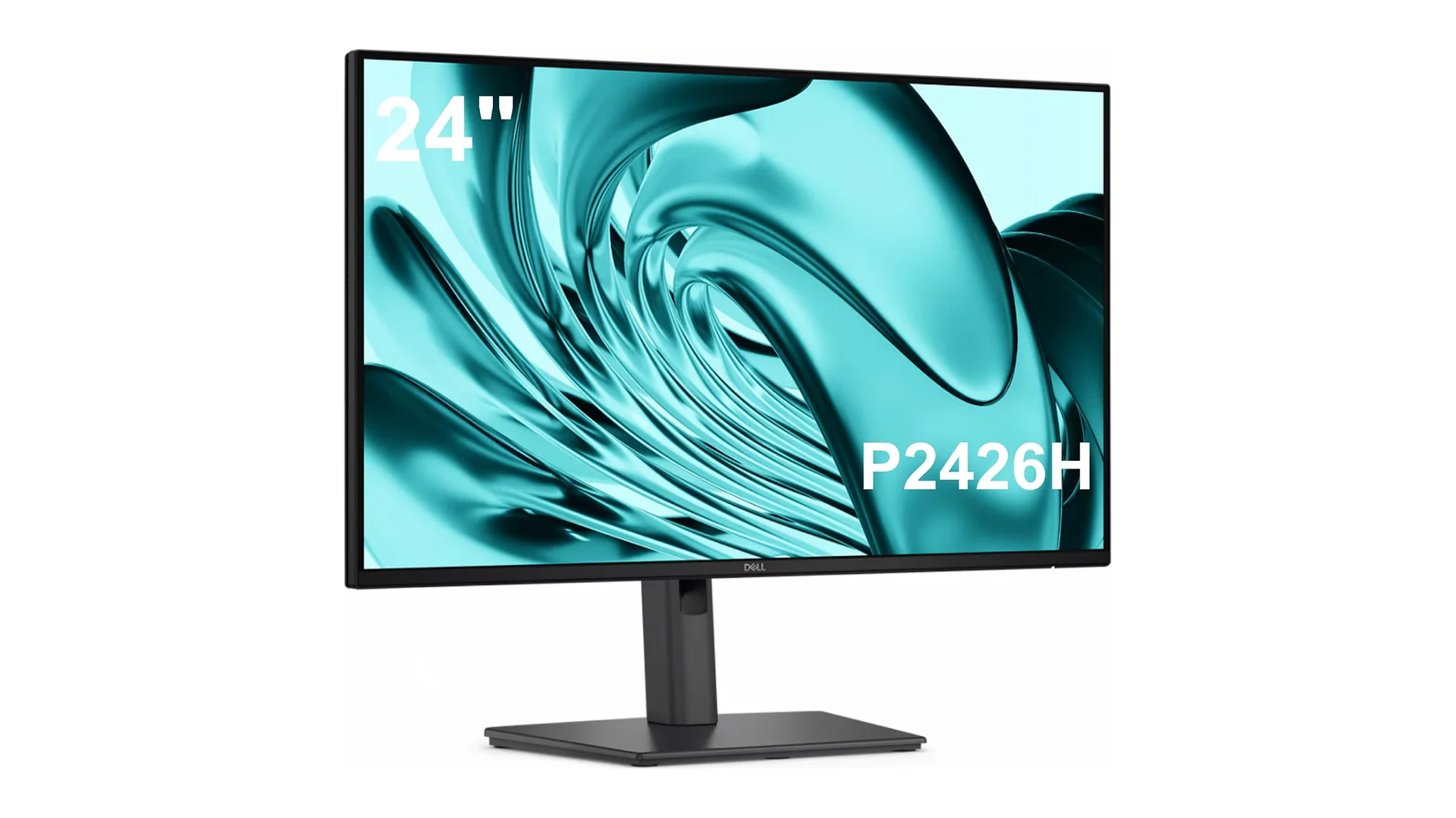
A second screen changes how a PC feels more than any other accessory here. The P2426H is the current Dell Pro 24, and it lands at the bottom of the business range while keeping the stand and the panel quality that separate a work monitor from a cheap one.
Key Specs
- 23.8 inch IPS panel, 1920 x 1080, 120 Hz
- 5 ms GTG response in Fast mode, 8 ms GTG otherwise
- 300 cd/m2 brightness, 99% sRGB and 99% BT.709
- HDMI, DisplayPort 1.4, two USB-A and two USB-C downstream
- Height, tilt, swivel and pivot adjustment, 100 x 100 mm VESA
- Three-year Advanced Exchange with Premium Panel Exchange
The stand is the reason to pick this over a cheaper panel. Height, tilt, swivel and pivot all adjust, so the screen meets your eyes instead of the other way round, and the 120 Hz refresh makes scrolling and window dragging noticeably smoother than the 60 Hz most budget monitors ship at. Dell’s product specifications also list 99% sRGB coverage, a wider color gamut than this tier normally reaches.
The catch is the USB-C ports. They deliver up to 15W each, which runs a peripheral and will not meaningfully charge a laptop, so this is a display with useful ports rather than a docking station. That is also the honest reason the hub below still earns its place.
One thing worth getting right at the point of purchase: buy the P2426H, not the P2425H. The older model it replaced reads almost identically on a search results page.
- Height, tilt, swivel and pivot all adjust, so the screen meets your eyes.
- 120 Hz makes scrolling and window dragging smoother than a 60 Hz panel.
- 99% sRGB coverage and a three-year Advanced Exchange warranty.
Best USB-C Hub for a New PC: UGREEN 5-in-1 USB-C Hub
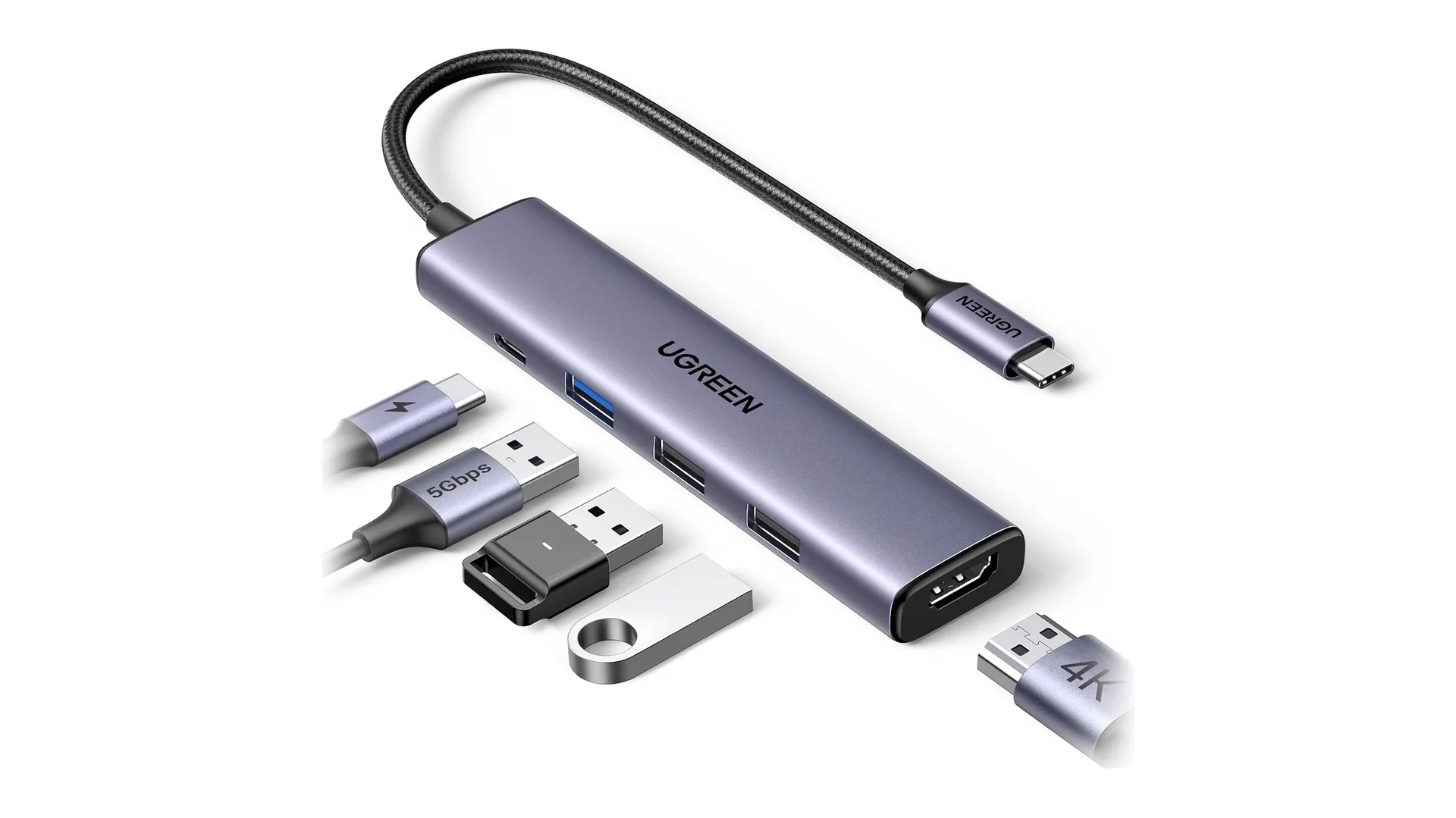
Modern laptops ship with two or three ports and expect you to solve the rest. This hub is the smallest sensible answer, adding an HDMI output and three USB-A ports while passing power through so you keep charging.
Key Specs
- HDMI output at 4K
- USB-C power delivery input at 100W
- One USB-A at 5 Gbps
- Two USB-A at USB 2.0 speed
- Aluminum body
The pass-through is what makes it practical rather than a compromise. You plug the charger into the hub instead of the laptop, and the single remaining USB-C port now drives a monitor, a keyboard, a mouse and a drive. UGREEN’s own product page lists the same five ports as the retail listing, which is less common in this category than it should be.
Read the port speeds carefully, because they are not equal. Only one of the three USB-A ports runs at 5 Gbps, and the other two are USB 2.0 speed, which is fine for a mouse and slow for moving files. Put the external drive below in the fast port.
The HDMI output is built for a second screen for work rather than anything needing a high refresh rate.
- Adds an HDMI output and three USB-A ports to a laptop that has neither.
- 100W power delivery passes through, so the laptop keeps charging.
- Aluminum body small enough to live in a laptop bag permanently.
Best External Drive for Backing Up a New PC: WD My Passport 2TB
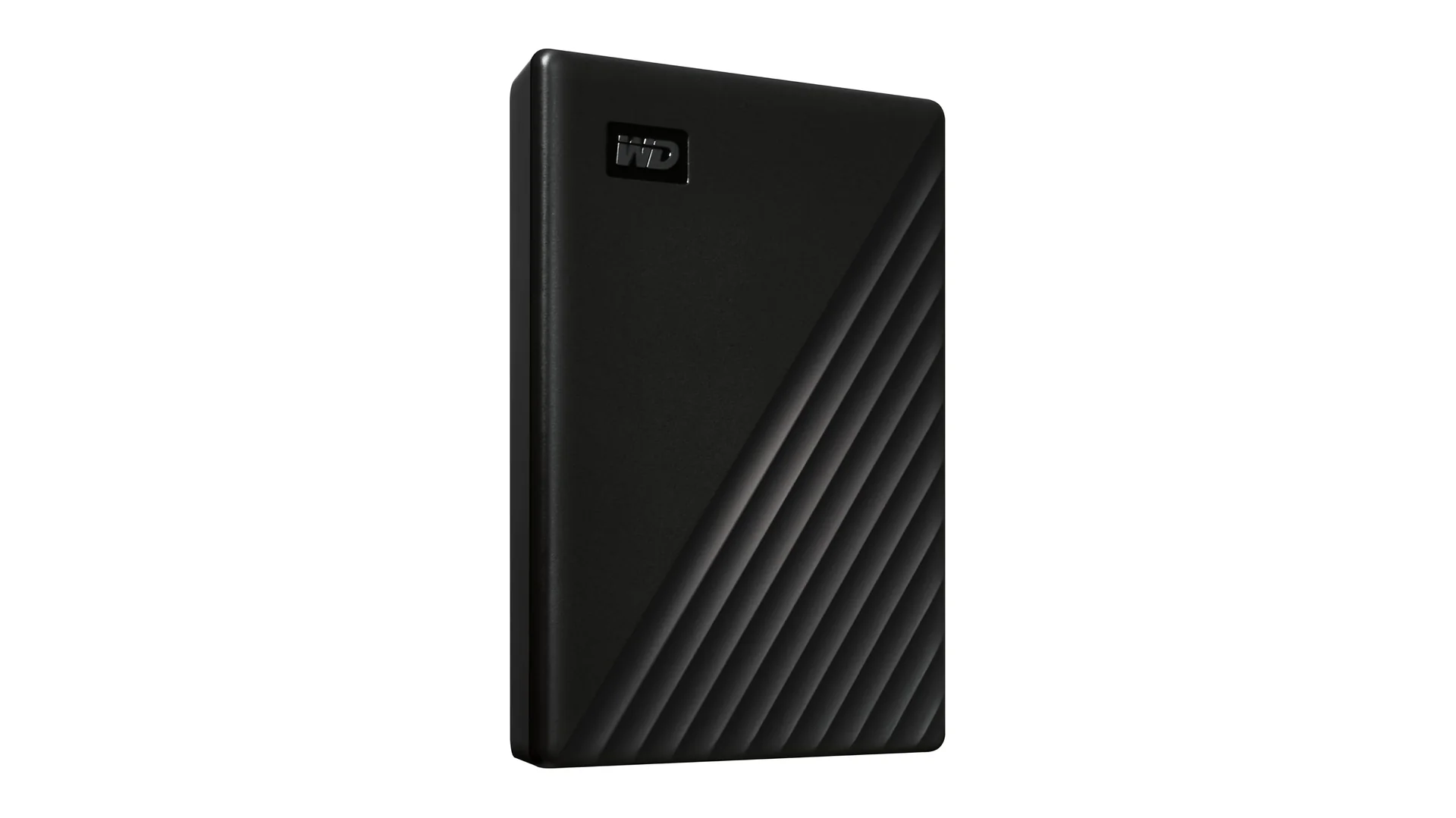
A new PC has one copy of everything on it. This is the accessory that fixes that, and it is the one on this list we would buy first.
Key Specs
- 2TB capacity, also sold at 1TB, 4TB, 5TB and 6TB
- USB 3.2 Gen 1, backwards compatible with USB 2.0
- 107.2 x 75.0 x 13.5 mm, 140 g
- Acronis True Image for Western Digital, with ransomware defense
- Password protection with hardware encryption
- Three-year worldwide warranty
Two terabytes holds a full backup of most new PCs several times over, and the drive is small enough to live in a bag rather than on the desk. Windows 11 can also back up to it through File History in Control Panel, with nothing to install. The bundled Acronis software runs the scheduled backups once it is installed, and Western Digital’s product documentation covers ransomware protection as part of it.
Working out what to back up is easier once the files are somewhere sensible, which is what our guide to organizing files and folders is for.
There are two honest limits. This is a spinning hard drive rather than an SSD, so it is slower and less tolerant of being dropped, and the trade is that you get far more capacity for the money at this size. The password protection also only becomes active once you install the included software, so the drive is not encrypted the moment you unbox it.
- 2TB holds a full backup of most new PCs several times over.
- Works with Windows 11 File History or the bundled Acronis software.
- Small enough to live in a bag, with a three-year worldwide warranty.
Best Laptop Stand for a New PC: Rain Design mStand
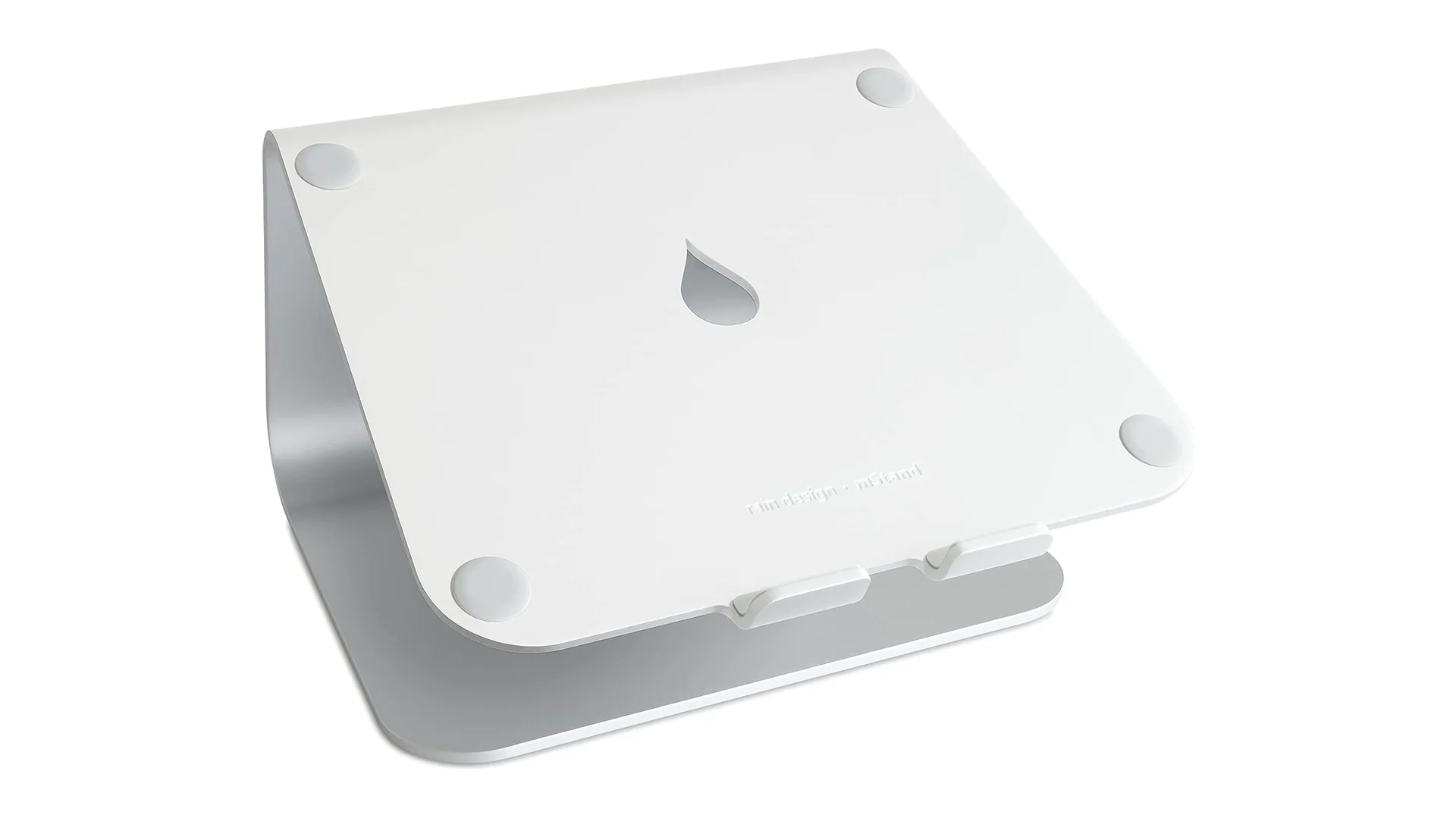
If your new Windows 11 PC is a laptop, the screen sits too low and your neck pays for it. The mStand is a single forged piece of aluminum that raises it to something closer to eye level.
Key Specs
- Single forged piece of anodized aluminum
- Raises the screen 150 mm / 5.9 in
- 253 x 190 x 150 mm, 1.46 kg
- Cable routing hole and thick rubber feet
There are no moving parts and nothing to fail. The cable hole keeps the charger and any hub cabling running behind the stand rather than across the desk, and the rubber padding means no part of the laptop touches the aluminum. Rain Design’s product page lists the compatibility and dimensions in full.
The 150 mm lift is fixed, with no adjustment at all, so it either matches your desk and chair or it does not. Raising the laptop also puts its built-in keyboard and trackpad out of comfortable reach, which is exactly why the mouse and keyboard above are on this list. The platform is 253 mm wide and 190 mm deep, so measure a wide 15 inch or larger chassis against those figures before buying.
- Raises a laptop screen 150 mm, closer to eye level.
- One forged piece of aluminum with no moving parts to fail.
- Cable routing hole keeps the charger running behind the stand.
Best Webcam for Video Calls on a New PC: Logitech C270
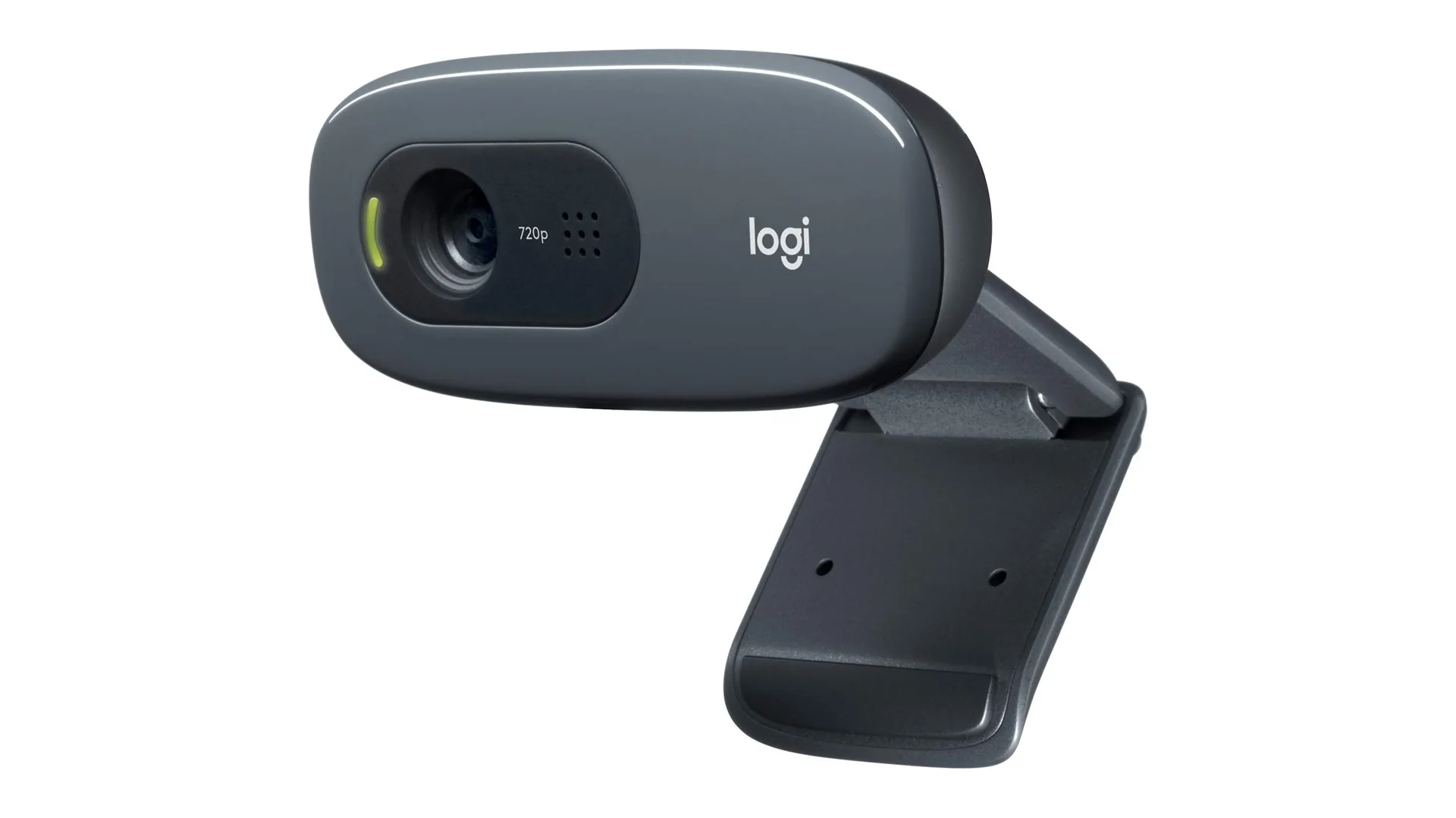
Almost every laptop has a camera built in. A desktop tower never does. If your new PC is a tower, this is the accessory that makes video calls possible at all, and the C270 is the cheapest one worth owning.
Key Specs
- 720p at 30 fps
- Fixed focus
- 60 degree field of view
- Built-in mono microphone with noise reduction, effective to about 1 m
- 1.5 m attached USB-A cable, 75 g
It works without software. You plug it in, Windows finds it, and it appears in Teams, Zoom or Meet with nothing to install, which is the entire point at this price. The built-in microphone is good enough that you do not need a headset for a normal call, and Logitech’s support specifications put the field of view at 60 degrees, wide enough for one person without pulling in the whole room.
The limits are real and worth stating. Logitech’s shop page puts it at 720p rather than 1080p, and the fixed focus means it cannot sharpen anything held close to the lens, so it is right for a face on a call and wrong for showing detail. There is also no privacy shutter, so you will want a piece of tape or a clip-on cover if that matters to you.
- Gives a desktop tower the camera it never shipped with.
- Plug it in and Windows finds it, with no software to install.
- Built-in noise-reducing microphone handles a normal call without a headset.
Windows 11 Accessories That Did Not Make the List
Several things that appear on almost every list of Windows 11 accessories are missing from this one, and the reasons are worth stating.
- A gaming headset. Common on generalist lists, but it narrows the guide to gamers when most people buying a first PC are not.
- A surge protector. Genuinely useful and genuinely boring. It is a safety product rather than a computing one, and there is no meaningful comparison to make between units at this level.
- A portable SSD instead of the hard drive. A fair alternative rather than a wrong choice. It is faster and survives being dropped, and at 2TB it costs considerably more for storage that mostly sits on a shelf.
- A mechanical keyboard. A better keyboard for anyone who knows what switches they want, which makes it a different guide rather than a different pick.
- A 1080p webcam. Something like the Logitech Brio is a clear upgrade on the C270, and it sits well above the budget tier every other pick here occupies.
Why These Windows 11 Accessories Are Worth Buying
None of this is required. Your PC works without every item on this page, and a new machine is not incomplete for lacking any of them. What these Windows 11 accessories buy you is time and comfort, in that order.
A mouse shaped for your hand and a keyboard with a number pad remove friction you only notice once it is gone. A second screen removes the window switching that fills a working day, and Win+P is where you tell Windows 11 to extend your desktop onto it.
Two of these Windows 11 accessories depend on your setup rather than your preferences, and both have a simple test:
- The hub is worth buying only if your machine is short on ports. Count them first, because many desktops have plenty.
- The webcam is redundant on almost every laptop and mandatory on almost every desktop. If your PC is a tower, you need one.
The backup drive is the exception to all of this, and it is the one genuine risk on the list. A new PC holds exactly one copy of your photos and documents, and a drive failure or a ransomware infection takes all of it at once.
What to Look For in Windows 11 Accessories
Four questions settle most purchases of Windows 11 accessories, and they are worth asking in this order.
What does the PC already have? Count the ports before buying anything that plugs in, and check whether the machine has a camera and a card slot. A hub that duplicates ports you already have is money spent on nothing.
Wired or wireless? Wireless removes cable clutter and adds batteries and pairing to your life. Wired removes both of those and adds a cable. For a keyboard that never leaves the desk, wired is usually the easier answer.
How much does it need to move? An accessory that stays on one desk can be heavier, larger and cheaper. One that travels needs to survive a bag, which is where weight and build quality start to matter more than specifications.
What is worth backing up first? Photos and documents, almost always, and neither is replaceable. Get those onto a second drive before you spend money on anything else on this page. Knowing where they live is the first half of that job.
How We Chose These Windows 11 Accessories
Five things decided which Windows 11 accessories made this list. We research products, we do not run a lab, and nothing here was tested in one.
- Real owner feedback, weighted toward people who have lived with a product for a year over anyone reviewing it in launch week. Logitech still sells both the K120 and the C270 under their original part numbers, which is a durability signal that no review can fake.
- Brand support, meaning a documented warranty and a way to get a dead unit replaced. Three picks here carry three-year cover, and where a manufacturer does not publish a warranty length we have not stated one.
- Build quality, which is where the aluminum on the hub and the stand earns its place over cheaper plastic.
- Cost against what is delivered, not cheapest and not most expensive. Every pick sits in the budget to mid tier that suits equipping a first PC.
- Manufacturer specifications, read off the manufacturer’s own spec table rather than a retail listing.
That last one is not a formality, and three claims did not survive it. The Dell monitor we started with was the superseded previous generation, whose model number differs from the current one by a single digit. The Anker hub we looked at first had retail listings whose port mix did not match Anker’s own product page, so we picked the UGREEN and checked its listing against UGREEN’s page line by line.
Logitech’s own two specification tables disagree on the C270’s field of view: the shop page lists 55 degrees, the support specification page lists 60. We used the support page, which is the one we link.
Every pick above also carries a stated downside, because a product with no drawback is a product nobody has looked at properly.
Conclusion
Most new PCs benefit from the same few Windows 11 accessories: a mouse that fits your hand, a full-size keyboard, a second or larger screen, and somewhere to back files up. The rest depends on the machine. Buy a hub only if you are short on ports, and a webcam only if your PC has none.
If you buy one thing from this page, buy the drive. Everything else on this list makes a working PC more comfortable, and that one keeps your files when the PC stops working.