To choose a Shopify theme well, start with the scale: in October 2026 Shopify’s Theme Store listed 24 free themes and 1,300 paid ones. Paid themes are final sale, so picking one from screenshots is an expensive guess. We cover what differs between free and paid themes, the quality bar every listed theme clears, how to try a paid theme in your store before paying, and what happens after you publish.
If you haven’t settled on Shopify yet, our comparison of Shopify, WooCommerce and Squarespace lays out how hosting, fees and selling tools differ across the three.
Free vs Paid: What Changes When You Choose a Shopify Theme
Free or paid, every theme from the Theme Store ends up in the same Draft themes section of your admin before it goes live. What changes is how you get it, who supports it and what the purchase commits you to.
| Free theme | Paid theme | |
|---|---|---|
| How you get it | Add it from the free themes on the Online Store page of your admin | Try theme, then buy it to publish |
| Help with customizations | Shopify | The theme’s developer |
| Updates come from | Shopify | The theme’s developer |
| License | No purchase involved | Licensed exclusively to the store that bought it |
| Refunds | Not applicable | Final sale, no refunds |
| Theme Store requirements | Same bar as paid themes | Same bar as free themes |
Support, the license and refunds matter most after launch, when you need a fix or an update and the answer depends on who built the theme.
The Bar Every Theme Clears Before Shopify Lists It
Before you choose a Shopify theme on looks alone, know that Shopify has already screened every theme in its Theme Store on speed and accessibility. The Theme Store requirements page sets out every rule a submitted theme has to meet, including these four:
- A minimum average Lighthouse performance score of 60 across the theme’s product, collection and home pages, on both desktop and mobile.
- A minimum average Lighthouse accessibility score of 90 across the same three pages, again on desktop and mobile.
- Online Store 2.0 support: JSON templates, and sections on every page except the checkout, customer account and gift card pages. The developer overview of the format explains what its JSON templates changed about sections.
- A minimum list of supported browsers: Safari, Chrome, Firefox and Edge on desktop, plus Safari on iOS, Chrome Mobile and Samsung Internet on mobile.
Inside the Theme Store, then, a free theme is not the slow or inaccessible option: it met the same minimums as a theme you pay for. You also don’t need to check a listed theme for Online Store 2.0 yourself, because Shopify won’t list one without it.
Should You Choose a Free Shopify Theme?
For a first store, yes: a free theme is the sensible starting point. It meets the same Theme Store requirements as a paid one, Shopify helps with its customizations, and Shopify ships its updates.
Shopify has 24 free themes as of October 2026, and the Theme Store’s free theme filter lists all 24 on one page, so you can compare them before adding any. One exception: a store on Shopify’s Starter plan can only use the Spotlight theme, so the choices below start from the Basic plan.
Adding a free theme takes three steps and leaves your live store untouched:
- Open Online Store in your Shopify admin.
- Near the bottom of the page, look over the top free themes or click Visit theme store to see all of them, then pick the one that fits your store.
- Click Add. The theme lands in Draft themes, and the theme your customers see stays live.
If the free set lacks a layout or built-in feature you need, that’s the case for paying.
Dawn and the Horizon Themes
Dawn and the Horizon themes both sit in the Theme Store’s free collection, and they’re built on different tiers of Shopify’s theme architecture:
- Dawn: Shopify’s first source-available theme, built with performance, flexibility and Online Store 2.0 features, and the reference Shopify offers for building themes. Its GitHub repository describes the HTML-first approach behind it in Shopify’s own words.
- The Horizon collection: launched by Shopify on May 21, 2025 as a collection of free themes built with theme blocks. Ten of the 24 free themes belong to it: Horizon, Savor, Ritual, Fabric, Heritage, Atelier, Tinker, Vessel, Pitch and Dwell, and the Horizon collection page groups all ten so you can compare them side by side.
“Horizon” is both the collection’s name and the name of one theme inside it.
Are Paid Shopify Themes Worth It?
A paid theme is worth it when it gives you a layout or feature the free set lacks, and you have tried it in your store first. When you choose a Shopify theme that costs money, you’re buying three things:
- A license that belongs only to the store where you bought the theme.
- Support and updates from the theme’s developer rather than from Shopify.
- A final-sale purchase, which the developer cannot refund.
Those terms come straight from the help center’s page on adding themes, which also covers the trial described further down.
Paid themes in the Shopify Theme Store were priced from $100 to $500 in 2026, and the paid theme listing sorts by price, so you can see where your shortlist falls in that range. Whatever you pay for a theme is separate from your monthly Shopify plan, which ranges from Basic to Plus and is compared tier by tier here.
Heads up: Because a paid theme is final sale, the in-store trial in the steps below is the one step not to skip.
How to Choose a Shopify Theme in Four Steps
The four steps below run from narrowing the Theme Store’s catalog to testing a shortlist inside your store. If you settle on a free theme, you can skip the trial in the third step, because a free theme goes straight into Draft themes.
Search the Theme Store by Feature and Industry
Start with the feature your store needs rather than with a look you like. Shopify’s advice on choosing a theme offers three ways into the catalog, and each one cuts the list down differently.
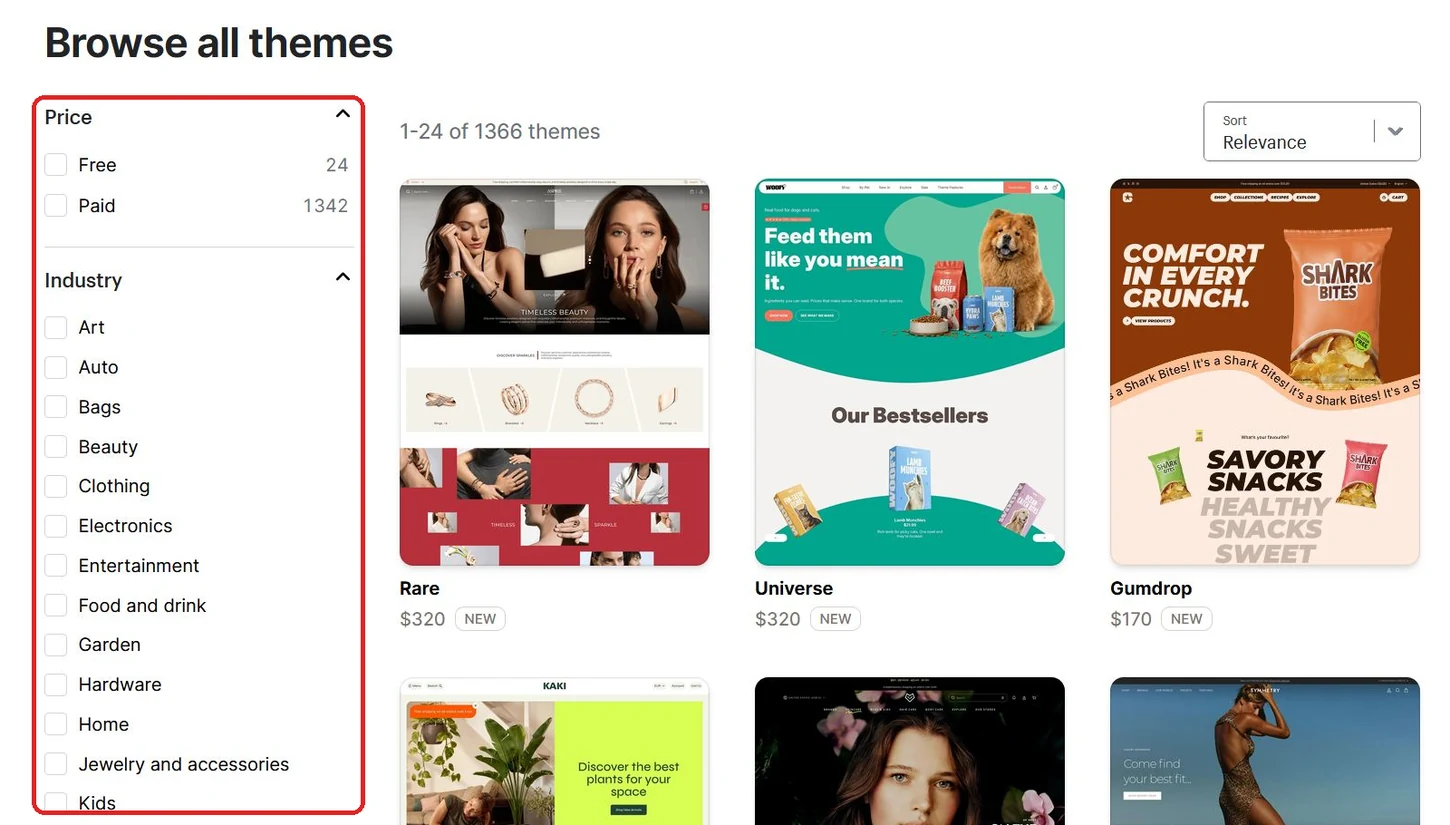
Used together, they narrow more than 1,300 themes to a shortlist:
- Feature search: type the feature you need, such as an FAQ page, an Instagram feed or product filtering.
- Collections and industries: browse collections grouped by style, layout or purpose, or industries for themes designed around a particular kind of store.
- Sidebar filters: narrow any list by Price, Industry and Catalog size.
Check Who Supports a Shopify Theme Before You Choose It
The same help page gives one direct piece of advice about paid themes: “Before you buy a paid theme, make sure that you understand what kind of support is available for that theme.”
That matters because on a paid theme, the developer, not Shopify, is who you go to for help and who ships the updates. The support a developer offers is part of what you’re buying, and unlike the layout, it’s the one part a trial can’t show you.
Try a Paid Theme in Your Own Store First
The lowest-risk way to choose a Shopify theme you’ll pay for is to run it in your own store before buying. Paid themes in the Theme Store carry a Try theme button for exactly that.
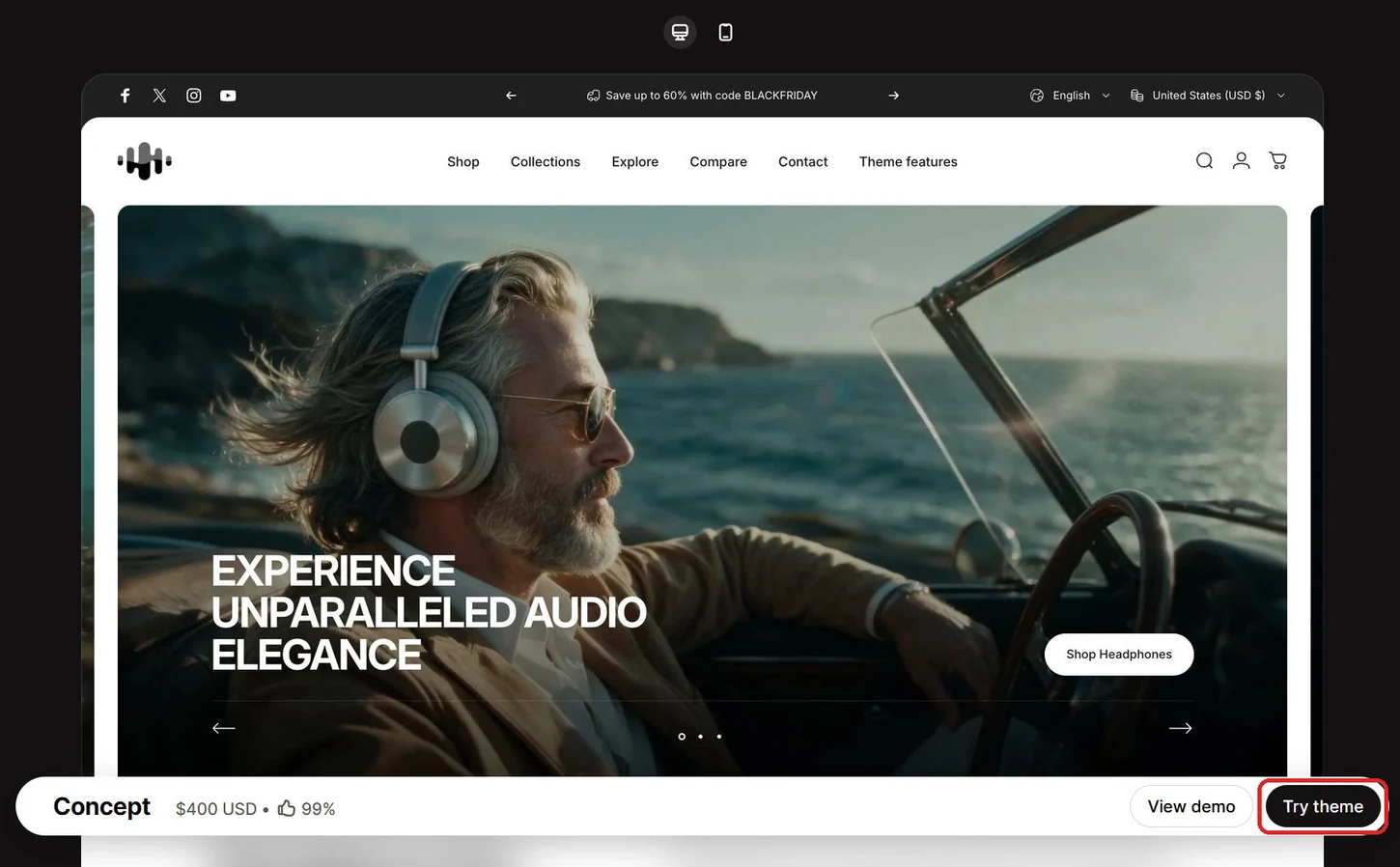
- Open the paid theme’s Theme Store page and click Try theme. The theme is added to your store as a trial.
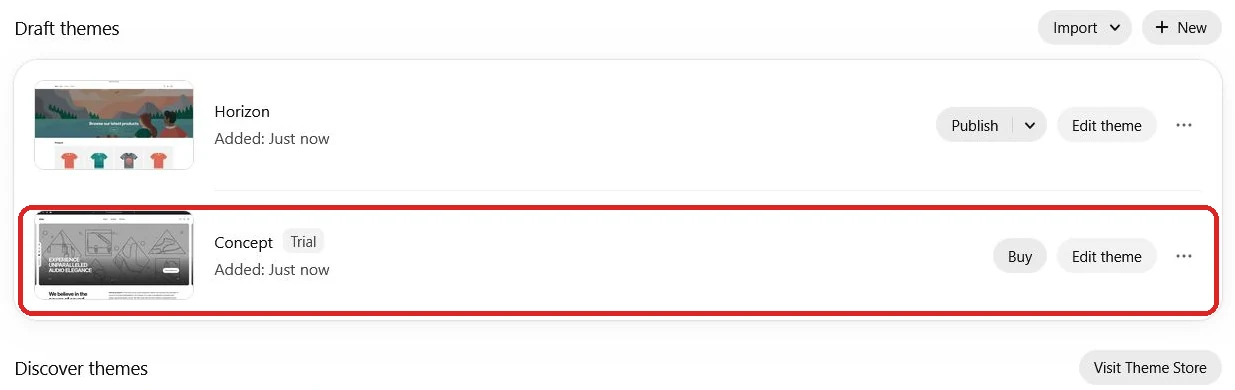
- Find it in the Draft themes section of your admin. It sits next to any themes you already have.
- Open it in the theme editor and customize its settings, such as your brand colors, style and products. Code edits have to wait until you buy it, and any customizations you make carry over when you do.
- Buy the theme when you want it live. Only a purchased theme can be published.
You can have up to 19 paid themes on trial at once, so a whole shortlist can be tested at the same time.
Test the Layout in the Theme Editor
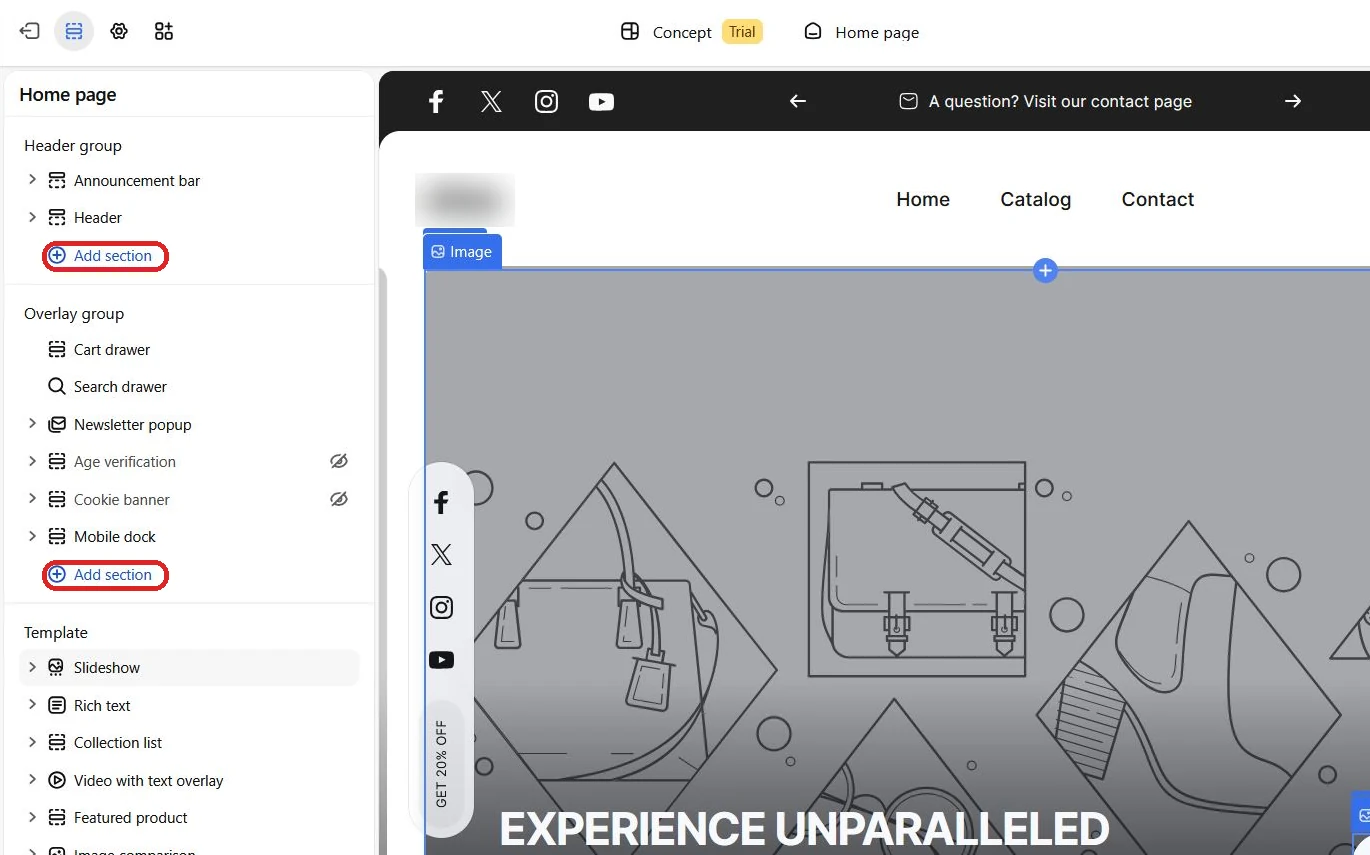
Once you open the editor, Online Store 2.0 lets you add sections to most pages and add or remove sections from any page. That means you can shape a trial theme into your real store layout without relying on a developer.
How much of that control you get depends on which of Shopify’s three theme architecture tiers the theme is built on:
- Vintage: the original architecture, in sectioned and non-sectioned types. Even a sectioned Vintage theme supports sections on the homepage only.
- Online Store 2.0: sections on every page, plus dynamic sources.
- Theme blocks: the newest tier, with everything Online Store 2.0 offers plus advanced customization through theme blocks. The Horizon themes are built on this tier.
Every theme you’d find in the Theme Store is past the Vintage tier, but a theme already in your store might not be. Shopify’s guide to theme versions gives the test: check whether an Add section button appears below the section list on the theme’s default product template.
What Happens After You Choose a Shopify Theme
You publish a theme from the Draft themes list or from the theme editor’s top bar. Only one theme is live at a time, as the steps for publishing a theme explain. A store on the Basic, Grow or Advanced plan can hold up to 20 themes, and a Shopify Plus store up to 100.
Publishing moves your previous theme to Draft themes rather than deleting it. In Shopify’s words, “None of your theme changes are lost.” If the new theme doesn’t work out, publishing the old one again from Draft themes switches you back.
Updates come from Shopify for free themes and from the developer for paid ones. When one is available, a notification replaces the theme’s version number in your admin, and Add to draft themes lets you review the update before it goes live, with View release notes beside it. Accepting one keeps your work, and the help center’s page on updating themes lists what carries over:
- Theme settings and layout
- Sections and blocks
- Templates
- App embeds
- Manual code edits, as long as they don’t conflict with the update
Conclusion
To choose a Shopify theme, start with the free themes in the Shopify Theme Store, since every listed theme, free or paid, must pass the same performance and accessibility requirements. Pay for a theme only when it offers a layout or feature you need, and try it in your store first, because paid themes are final sale.