A desktop.ini file has turned up on your desktop, or opened itself in Notepad when you signed in, and you want to know what it is and whether to delete it. It is a small Windows settings file, it is not a virus, and in most cases the fix is to hide it again rather than delete it. We checked where these files sit and what they hold on a Windows 11 PC.
Below, we cover what a desktop.ini file holds, whether you can delete it, and how to hide it or stop it opening at sign-in.
What Is the desktop.ini File?
A desktop.ini file is a small hidden text file that tells File Explorer how to customize the folder it sits in, such as giving it a custom icon, an infotip or a localized name.
To keep it out of sight in normal use, Microsoft’s guidance is to give the file the Hidden and System attributes, and the copies Windows makes carry both. The folder itself must be marked as a system folder too, which Windows does by giving it the Read-only or System attribute, or File Explorer ignores the file.
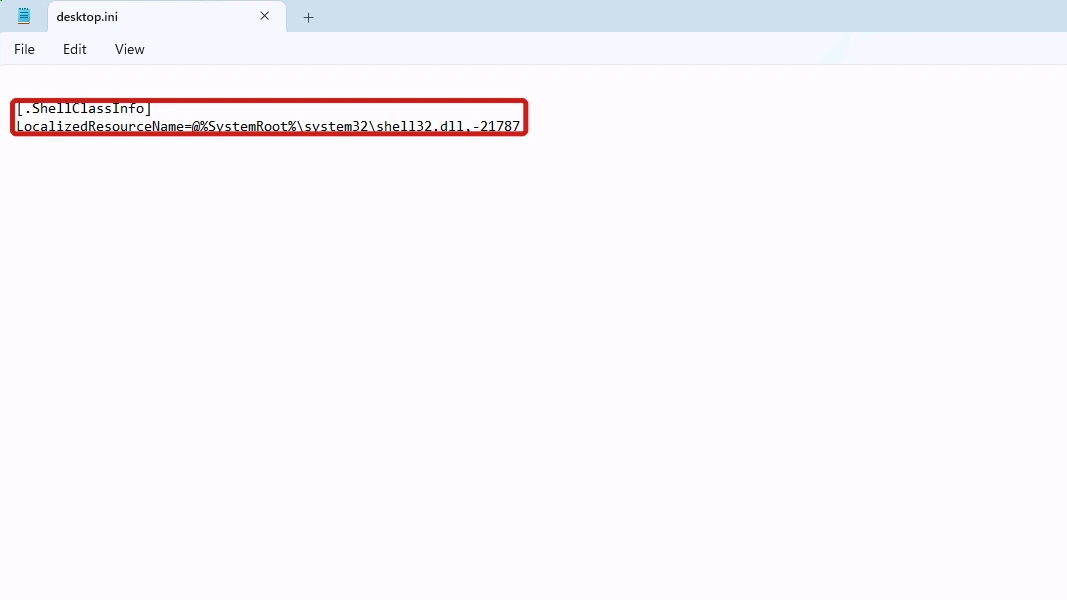
Open one in Notepad and it reads like a short settings list. This is a typical one, from a Startup folder:
[.ShellClassInfo]
LocalizedResourceName=@%SystemRoot%\system32\shell32.dll,-21787
The LocalizedResourceName line points to the name the folder shows in File Explorer. Other keys you may see are IconResource, IconFile, IconIndex and InfoTip.
Is desktop.ini a Virus?
No. A desktop.ini file that Windows creates is a plain text settings file that File Explorer reads to style a folder. The copies in your Desktop, personal and Startup folders, listed in the next section, are all of that kind.
Where You Will Find a desktop.ini File
Windows puts one in folders whose look it changes, so you will meet it in a handful of places rather than in every folder.
| Location | What it does there |
|---|---|
| Your Desktop folder, %userprofile%\Desktop | Stores the folder’s display name and icon settings |
| The Public Desktop | Holds the display name of the desktop every account shares |
| Documents and other personal folders | Holds that folder’s icon and name |
| Your Startup folder and the shared Startup folder | Holds the folder’s display name, with one copy for your account and one for every account |
| A folder that has been given a custom icon or name | Holds that customization |
Why a desktop.ini File Appears on Your Desktop
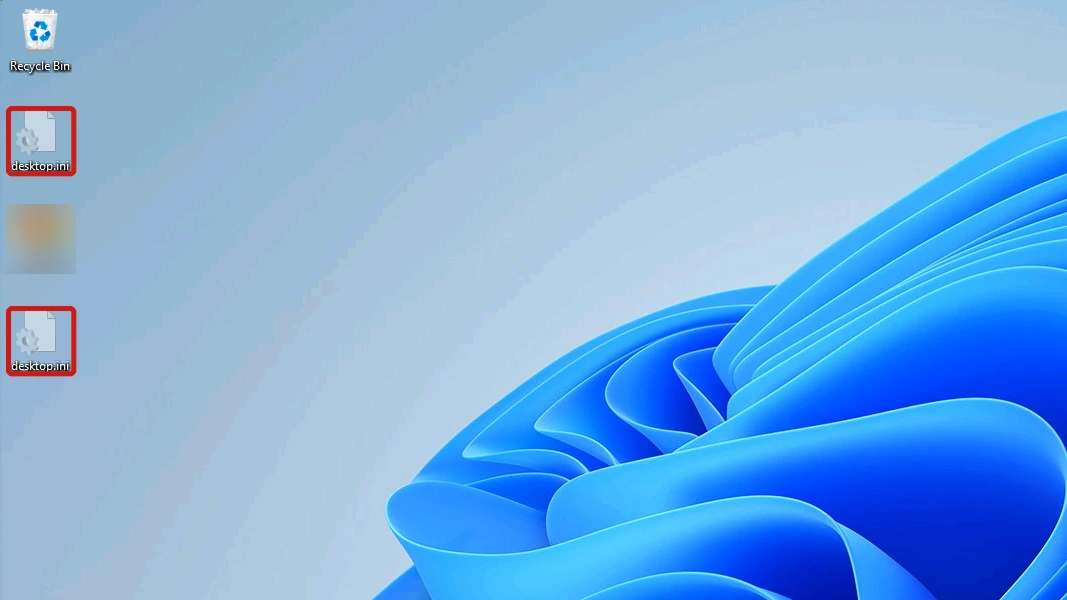
While the file stays Hidden and System, a desktop.ini only shows on your desktop when File Explorer is set to show protected system files. Two details explain what you are looking at:
- Why you see two: your desktop shows your own Desktop folder and the Public Desktop together, and each folder has its own desktop.ini.
- Why Hidden items is not the cause: the file is Hidden and System at once. View > Show > Hidden items only reveals hidden files, so hidden system files stay out of sight until Hide protected operating system files is unticked.
If a desktop.ini stays in view even with protected files hidden, that copy has lost one or both of its attributes, and the fix comes just after the hiding steps.
Is the desktop.ini File Safe to Delete?
Yes. Deleting one does not harm Windows or your files, but it removes that folder’s custom icon or name, and on the desktop it gains you nothing that hiding it does not. Where the file sits decides what you lose:
| Where it is | What deleting it does | Better move |
|---|---|---|
| Desktop and Public Desktop | Removes the desktop’s name and icon settings, and the Public Desktop copy needs an administrator | Hide it again (steps below) |
| Documents and other personal folders | Drops that folder’s icon and name settings | Leave it hidden |
| A folder you customized | The folder goes back to the standard icon | Delete only if you want the default look back |
| Startup folders | Stops the Notepad window | Restore its attributes instead, which leaves the file as Windows made it (steps below) |
How to Hide desktop.ini Files Again
Hiding them again takes one setting in the File Explorer Options window. Open File Explorer, click See more (the three dots) on the toolbar, and choose Options, or search File Explorer Options in the Start menu.
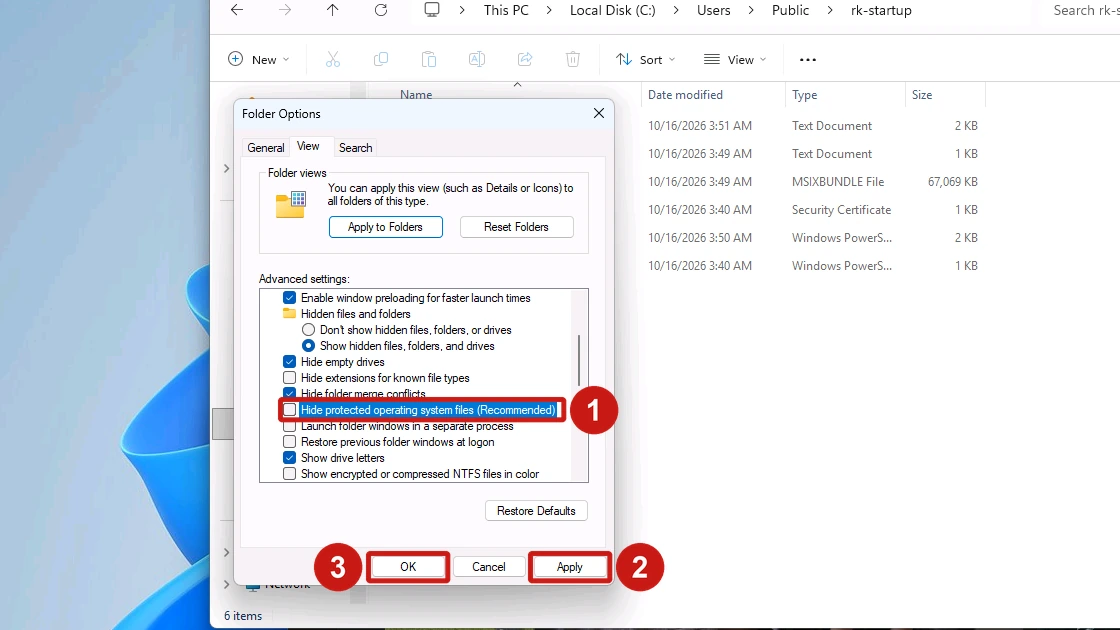
- Select the View tab. The Advanced settings list sits underneath.
- Tick Hide protected operating system files (Recommended). This hides each desktop.ini again, along with the other protected system files.
- Click Apply, then OK to close the window.
You can leave Hidden items switched on in File Explorer’s View > Show menu, since each desktop.ini stays hidden either way. Turn it off only if you want ordinary hidden files out of sight as well. That toggle is one of four ways to show hidden files in Windows 11, and we walk through all of them, Command Prompt included.
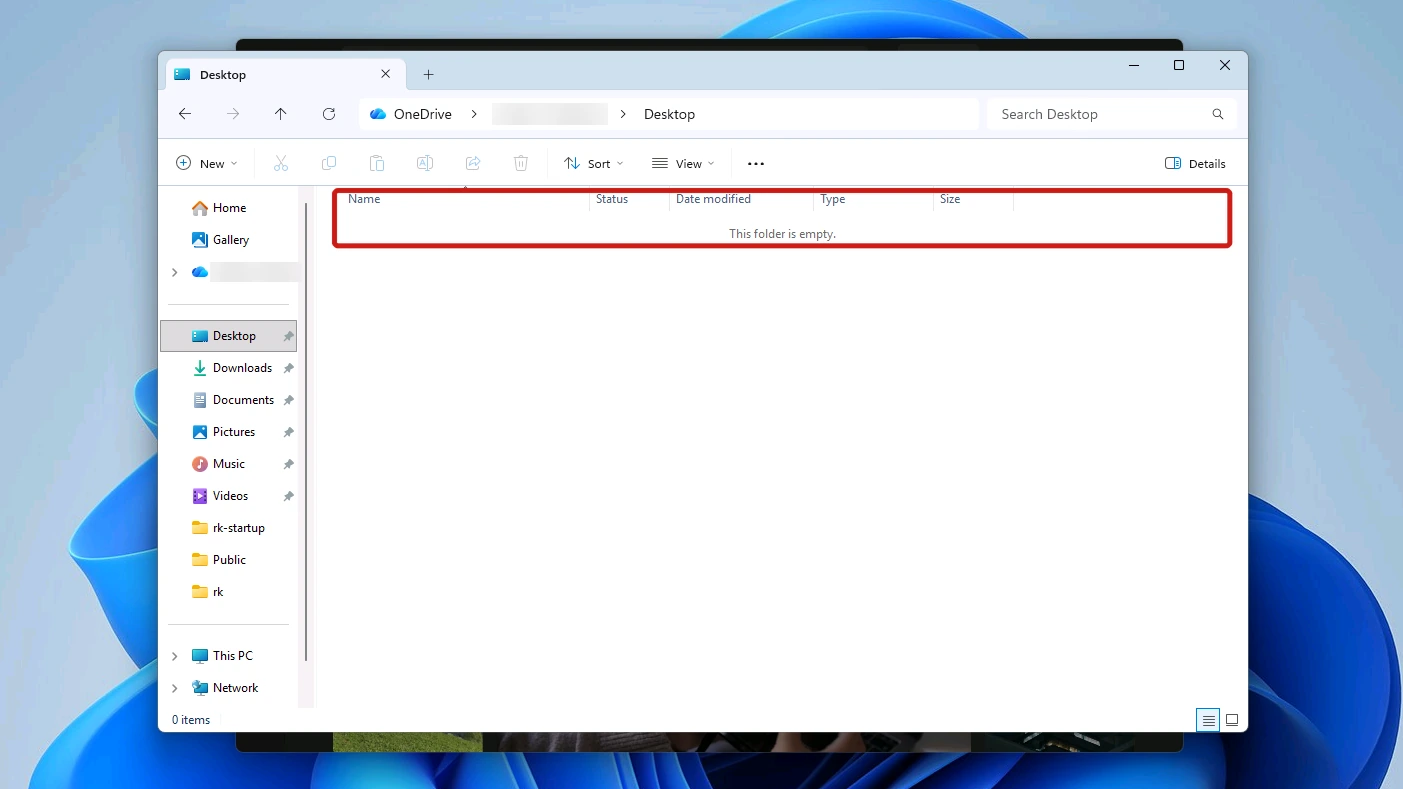
For a desktop.ini still on show after step 2, run this in Command Prompt. It puts both attributes back on the copy in your own Desktop folder, and only that one:
attrib +s +h "%userprofile%\Desktop\desktop.ini"
If OneDrive backs up your desktop, File Explorer shows the Desktop folder under OneDrive, and that is where its desktop.ini lives. Use this path instead:
attrib +s +h "%OneDrive%\Desktop\desktop.ini"
Any desktop.ini still on the desktop after that is the Public Desktop copy, and changing that one needs an administrator.
Tip: Leave the protected-files setting ticked day to day. It also covers system files that Windows depends on, and moving, renaming or deleting one of those can stop Windows starting correctly.
How to Stop desktop.ini Opening in Notepad at Startup
If Notepad opens on its own each time you sign in, with a [.ShellClassInfo] line followed by a LocalizedResourceName line, you are looking at a desktop.ini.
Your Startup folder holds a desktop.ini, and so does the Startup folder shared by every account. When one of those copies loses its two attributes, Windows opens it at sign-in like anything else in a Startup folder, and .ini files open in Notepad by default.
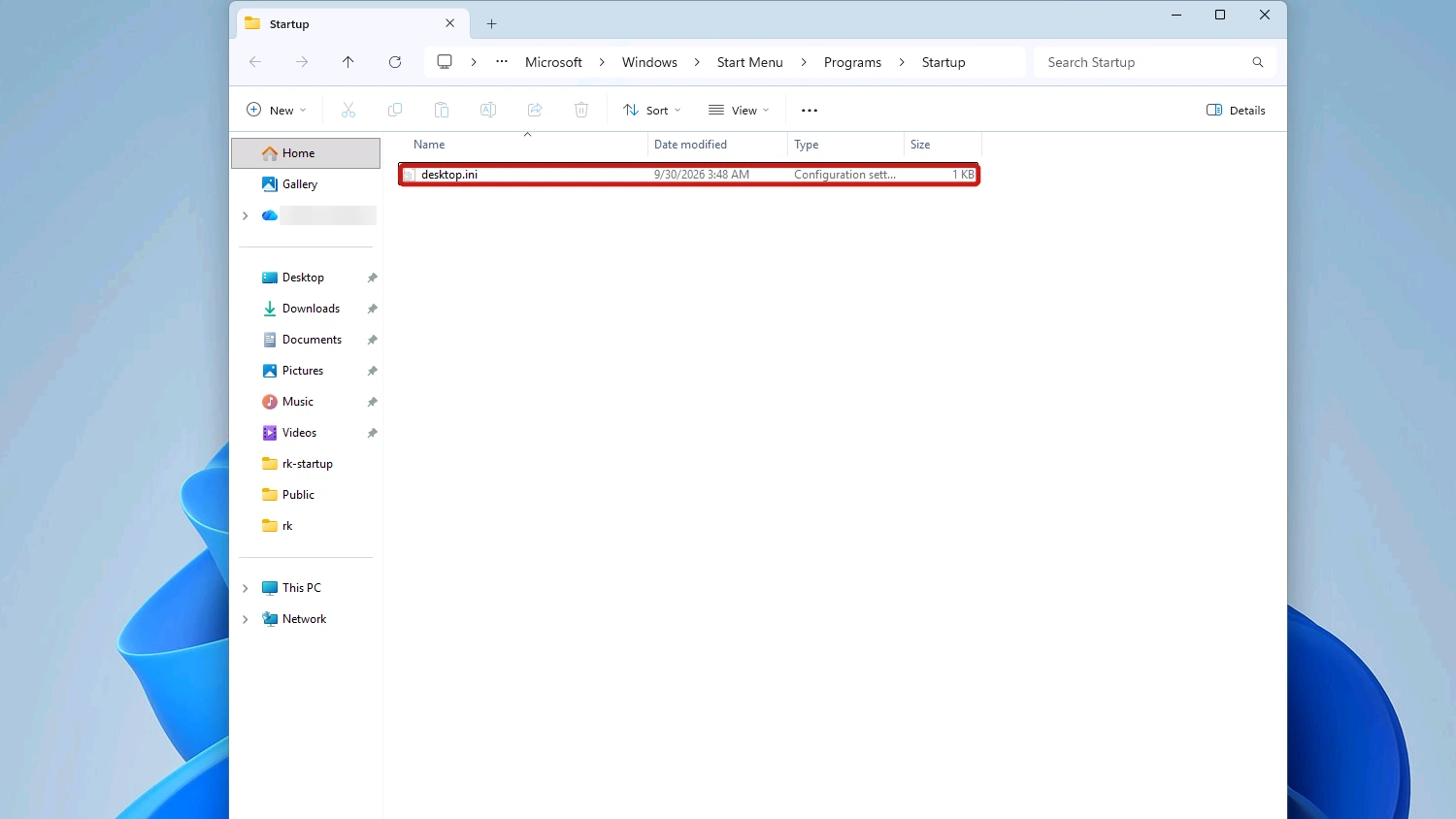
Put the Hidden and System Attributes Back
Two commands do the job, one for each copy.
- Open Command Prompt by searching cmd in the Start menu, then run this command for your own Startup copy:
attrib +s +h "%appdata%\Microsoft\Windows\Start Menu\Programs\Startup\desktop.ini"
- Open Command Prompt again with Run as administrator, because the shared copy needs administrator rights, then run:
attrib +s +h "%programdata%\Microsoft\Windows\Start Menu\Programs\Startup\desktop.ini"
- Sign out and back in. Notepad should no longer open.
To check a copy, run attrib with just the file path. An S and an H at the start of the line mean both attributes are set.
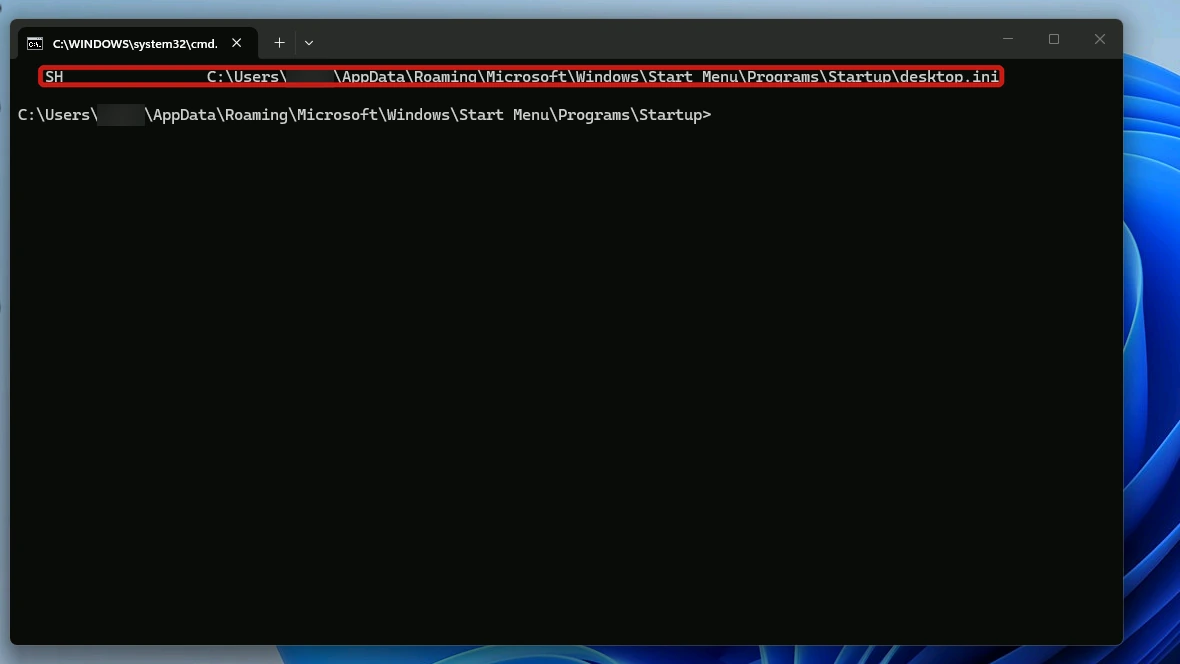
The +s switch sets the System attribute and +h sets Hidden.
Custom Folder Icons Missing After a Windows Update?
Since the June 2026 Windows security update, Windows ignores any desktop.ini whose source it cannot establish as trusted and, in Microsoft’s words, “treats it as if it is not present”.
Microsoft calls this expected behavior and gives examples of sources Windows may treat as untrusted: files downloaded from the internet, which carry a download mark called the Mark of the Web, some WebDAV and web locations, and network paths that are not classed as intranet or trusted. The change only affects how a folder is presented, such as its custom icon or localized name, not access to the folder or the files inside it.
There are three ways to bring an icon back. On a home PC, start with the first; the other two are meant for work or managed PCs:
- Remove the download mark with the PowerShell commands below. Unblock-File strips the Zone.Identifier stream that marks a file as downloaded from the internet, so do this only for a folder you trust.
- Add the source to Trusted Sites. Microsoft recommends this for a known internal or managed source, because it keeps the protection in place for every other location.
- Turn on the policy Allow the use of remote paths in file shortcut icons. It is meant for organizations that need broader compatibility. It restores the old behavior but reduces protection, so we suggest it only if neither of the others fits.
In PowerShell, the first line unblocks a single desktop.ini and the second unblocks every one inside a folder and its subfolders. Replace the example path with your own folder’s path:
Unblock-File "C:\Your\Folder\Path\desktop.ini"
Get-ChildItem "C:\Your\Folder\Path" -Recurse -Filter desktop.ini -Force | Unblock-File
Conclusion
A desktop.ini file is a hidden system text file Windows uses to store a folder’s custom settings, such as its icon or display name. It is not a virus. Deleting it only resets that folder’s icon or name, so it is usually better to hide it again: tick Hide protected operating system files in File Explorer Options.
If Notepad opening at sign-in is your problem rather than the desktop, putting the two attributes back on both Startup copies stops it.