An app you no longer use still takes up storage and a spot in Start, and a greyed-out or failing Uninstall option can leave it stuck there. Here are five methods to uninstall apps on Windows 11, plus the fixes for apps that won’t leave. Three of the methods are the routes on Microsoft’s own support page, and the other two are Microsoft’s command-line tools, winget and PowerShell.
The point-and-click routes come first, then the commands for uninstalling apps on Windows 11 from a terminal. After them come the reasons some apps can’t be removed, what to do when a program lingers after an uninstall, and how removing a Windows update differs from removing an app.
Five Ways to Uninstall Apps on Windows 11
You can uninstall apps on Windows 11 from three places in the interface and with two command-line tools, and the methods below run from the simplest to the most technical.
| Method | Where you run it | Use it when |
|---|---|---|
| Settings | Start > Settings > Apps > Installed apps | You want the default route, with Repair and Reset on the same page |
| Start menu | The All apps list, by right-click or press and hold | The app is already in front of you in Start |
| Control Panel | Programs and Features | Settings can’t remove the program |
| winget | Terminal or PowerShell | You want to remove several apps with one command |
| PowerShell (Remove-AppxPackage) | PowerShell, run as administrator for every account | The app is a packaged .msix or .appx app, for your account or for every account on the PC |
Method 1: Uninstall Apps in Windows 11 Settings
Settings holds your app list on the Installed apps page, one of the routes in Microsoft’s instructions for removing apps and programs. Open Start > Settings > Apps > Installed apps, then scroll or search the list until you find the app.
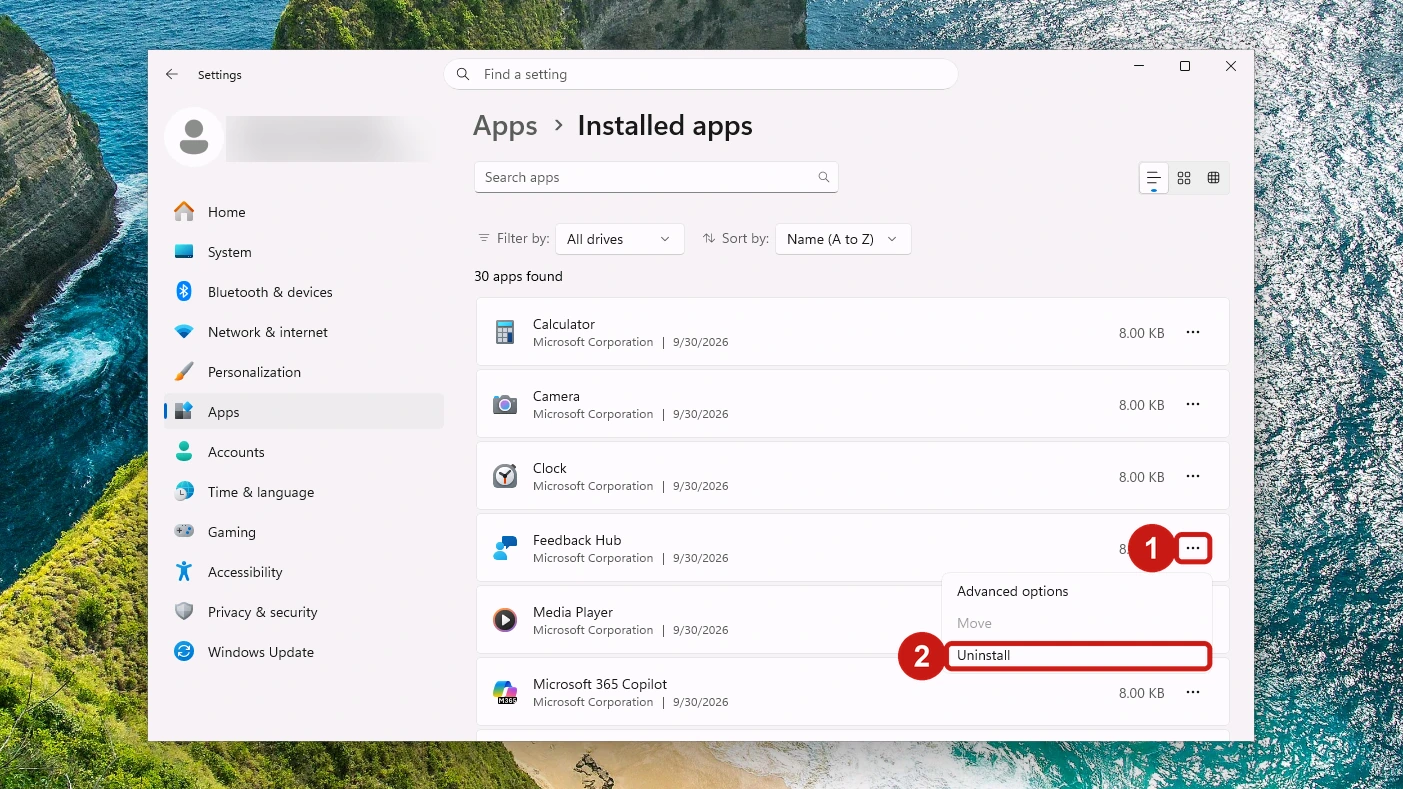
- Select More next to the app to open its menu.
- Select Uninstall from that menu, then confirm when Windows asks. A desktop program may open its own uninstaller at this point, so follow its on-screen instructions to the end.
If Uninstall is greyed out, try Method 3 next. When Control Panel can’t remove the app either, the section on apps you can’t uninstall explains the likely reasons.
An app you got from the Microsoft Store can go back on later: in Microsoft Store, select Library, find the app, then select Install.
If the app came preinstalled on a new PC, run the keep-or-remove test in our first-hour setup checklist before you delete anything, because it flags which driver updaters and hardware control panels are worth keeping.
Method 2: Right-Click the App in the Start Menu
Select Start and scroll down to the All section. If it shows apps in groups, set View to List so each app’s name is in view.
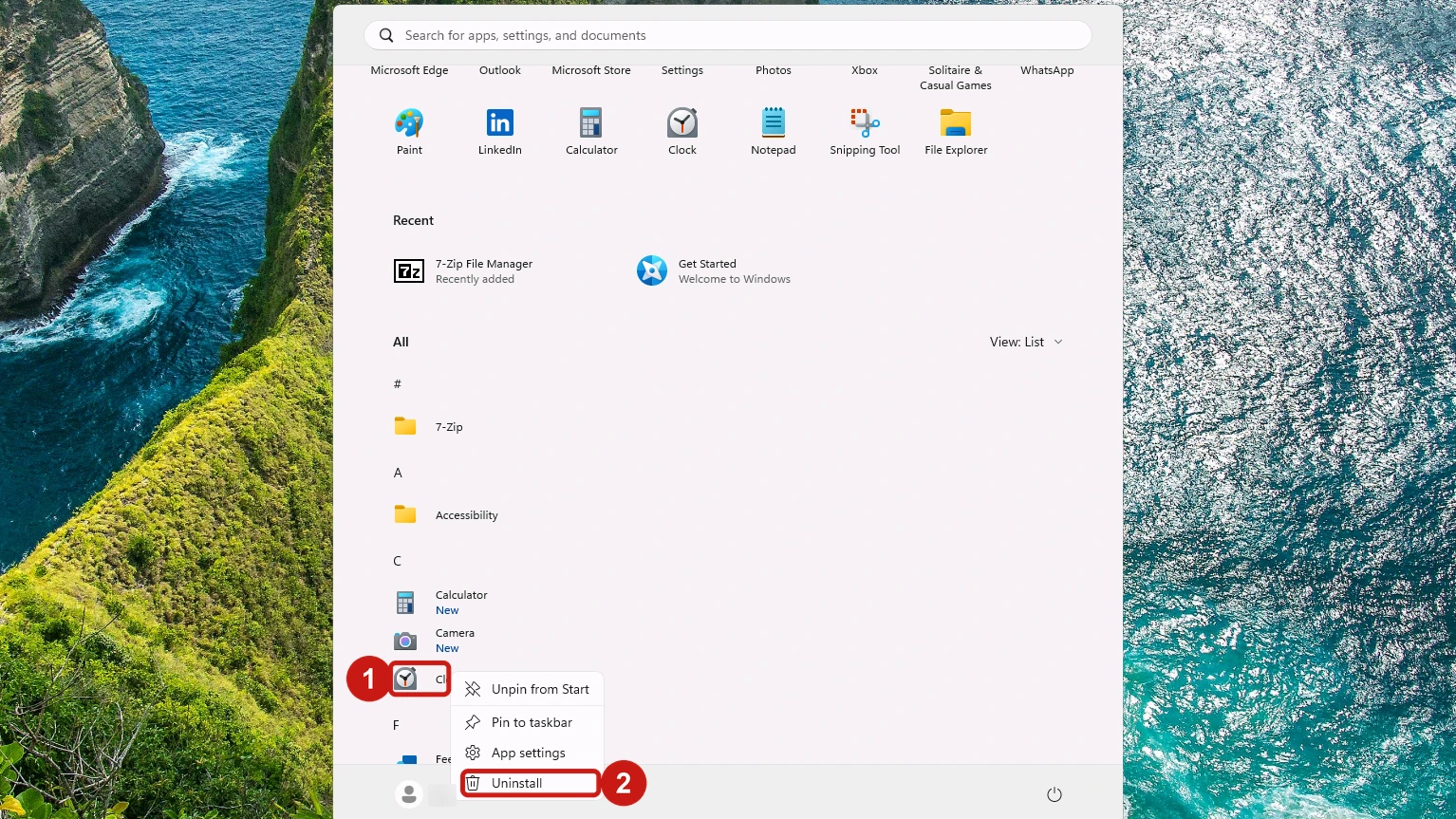
- Right-click the app’s name in All. On a touch screen, press and hold it instead.
- Select Uninstall from the menu, then follow the prompts. For a desktop program, Windows opens Installed apps in Settings so you can finish the removal there.
Method 3: Uninstall a Program From Control Panel
Control Panel is how to uninstall a program on Windows 11 when Settings can’t remove it. Microsoft states that some apps can’t be uninstalled from the Settings app, and Programs and Features is its documented fallback for those programs.
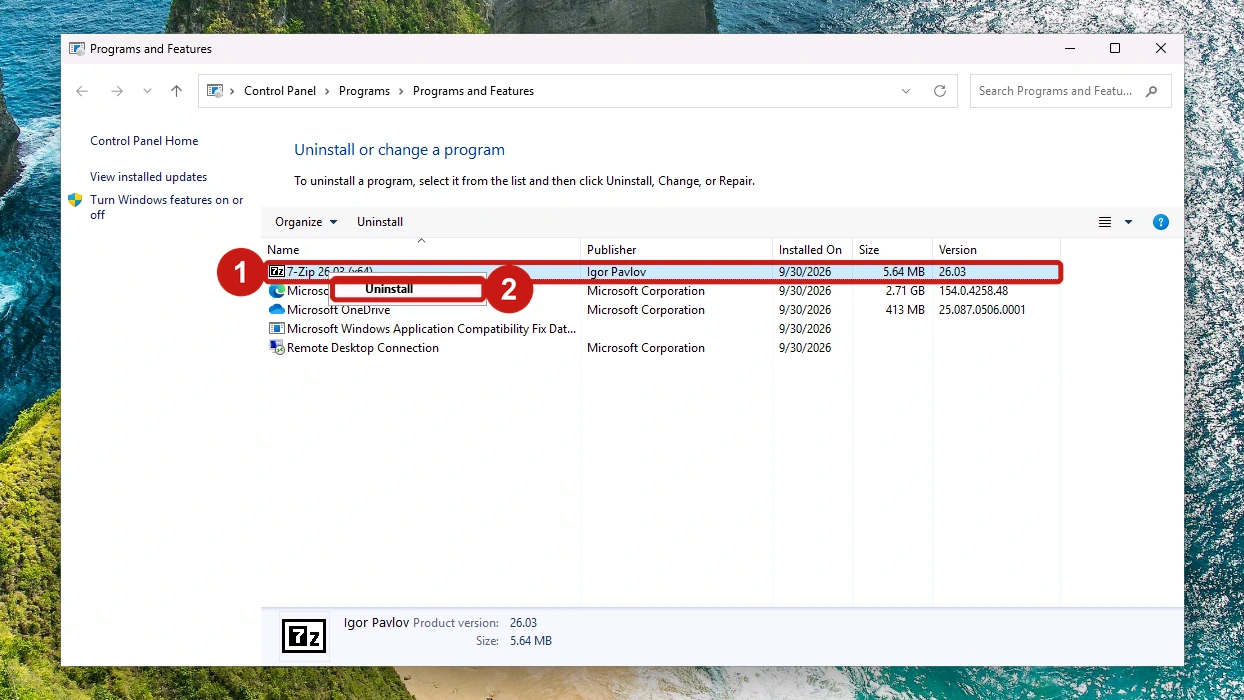
- Search for Control Panel on the taskbar and select it in the results.
- Open Programs > Programs and Features, then find the program in the list.
- Right-click the program and select Uninstall or Uninstall/Change.
- Follow any prompts the program shows to finish the removal.
Uninstall Apps on Windows 11 From the Command Line
A command is quicker than clicking when you want to remove several apps at once, or when you want a removal you can run again later. Windows 11 gives you two tools for it: winget, the Windows Package Manager, and the Remove-AppxPackage cmdlet in PowerShell.
Method 4: Uninstall Apps With winget
winget lets you uninstall apps on Windows 11 with one typed command, and a single command can remove several apps at a time. It ships with Windows 11 inside App Installer, which the Microsoft Store keeps updated.
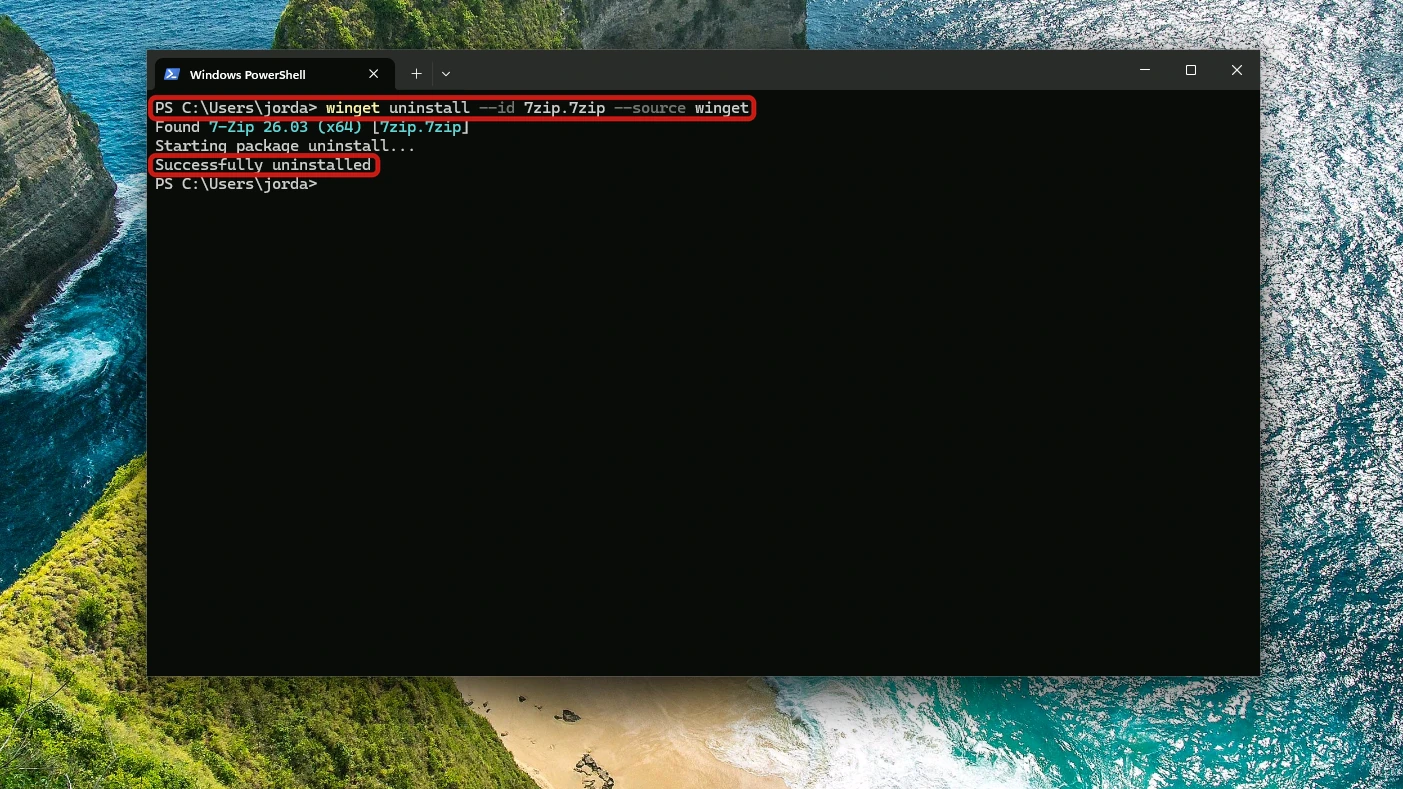
The command follows this pattern, where the query is the app’s name or ID:
winget uninstall [[-q] <query>] [<options>]
- Open Terminal or PowerShell. Search for either one from Start and select it.
- Type winget uninstall followed by the app’s name or ID. Add –version to pick one version; without it, winget removes the highest version installed.
- Press Enter to run the command, and approve any prompt that appears.
Two examples: the first removes one version of PowerToys by name, and the second removes two apps in one command:
winget uninstall --name powertoys --version 0.15.2
winget uninstall Microsoft.NuGet Microsoft.Edit
A few details decide whether the command runs cleanly:
- Aliases: winget remove and winget rm do the same job as winget uninstall.
- Store agreement prompt: an uninstall can ask you to accept the Microsoft Store’s terms. Adding –source winget to the command avoids it.
- Several apps at once: put every app you want gone after winget uninstall, separated by spaces, as the second example does.
- Brand-new sign-in: winget may not be registered yet on a new account. Run the command below in PowerShell, the fix given in Microsoft’s Windows Package Manager overview. If App Installer is missing altogether, get it from the Microsoft Store.
Add-AppxPackage -RegisterByFamilyName -MainPackage Microsoft.DesktopAppInstaller_8wekyb3d8bbwe
Every option the command accepts is listed in the winget uninstall reference, so check there before combining filters in one command.
Method 5: Remove an App Package With PowerShell
The Remove-AppxPackage cmdlet removes an app package, the .msix or .appx format that packaged apps use, from a single account. Its -Package parameter takes one package’s full name, with no wildcards, so you look up that name first. Microsoft’s Remove-AppxPackage reference lists every parameter, along with the single-package example these steps follow.
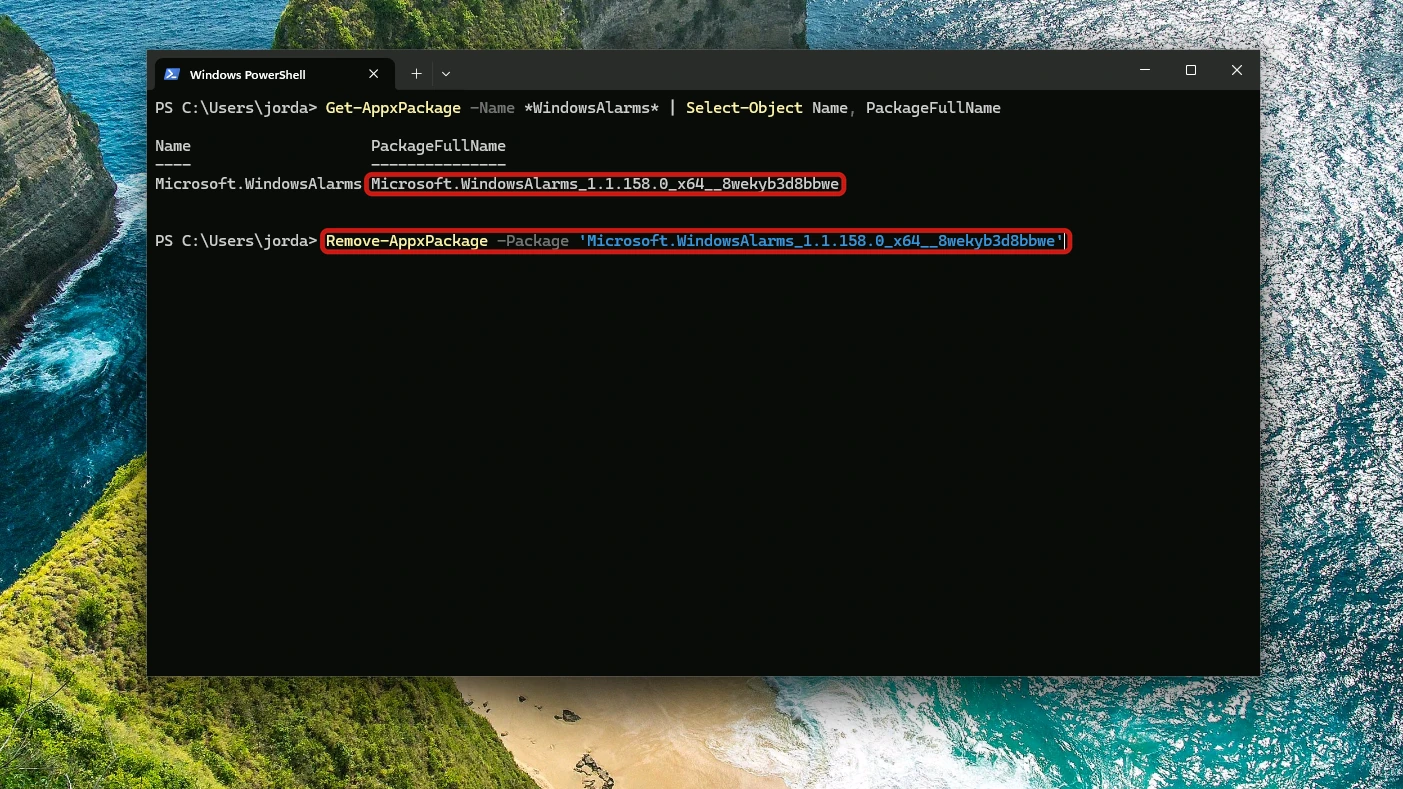
You need two commands, the first to find the name and the second to remove the package:
Get-AppxPackage
Remove-AppxPackage -Package <PackageFullName>
- Open PowerShell from Start. For your own account, a standard window is enough.
- Run Get-AppxPackage and find the app in the output. Copy the value on its PackageFullName line. To shorten the list, add -Name with part of the package name between asterisks; Clock, for example, is Get-AppxPackage -Name *WindowsAlarms*.
- Run Remove-AppxPackage -Package with that name in place of the placeholder. PowerShell removes the package from your account.
The full name is one long string, and it goes in whole, as in this sample:
Remove-AppxPackage -Package 'package1_1.0.0.0_neutral__8wekyb3d8bbwe'
Heads up: Get-AppxPackage with no filter lists every packaged app on your account. Piping that output straight into Remove-AppxPackage targets all of them at once, so always pass one full package name.
Adding the -AllUsers switch removes the package from every account on the PC, which saves repeating the removal on a shared computer. Microsoft requires administrator permissions for that switch, so open PowerShell with Run as administrator before you use it.
Why Can’t You Uninstall Some Apps on Windows 11?
In most cases, you can uninstall apps on Windows 11 with the methods above. The exceptions are some apps built into Windows, such as Microsoft Edge outside the European Economic Area (EEA), and apps whose publisher or your organization has blocked removal. Three different problems can look alike, and each has its own fix:
- Uninstall is greyed out in Settings: try Programs and Features in Control Panel, as in Method 3. If that can’t remove it either, one of the exceptions above applies. A block your organization set is for whoever manages the PC to lift, so ask them.
- Uninstall runs but fails: restart, then repair or reset the app before trying again.
- The program is still listed after an uninstall: restart and check again, then look for the publisher’s own removal tool, as the section on leftover files explains.
Microsoft Edge and Other Built-In Apps
Microsoft explains the Edge case in why can’t I uninstall Microsoft Edge: because Windows supports applications that rely on the web platform, its default browser is “an essential component of our operating system and can’t be uninstalled.” Outside the EEA, a greyed-out Uninstall on Edge means Windows is working as designed, so there is nothing to repair.
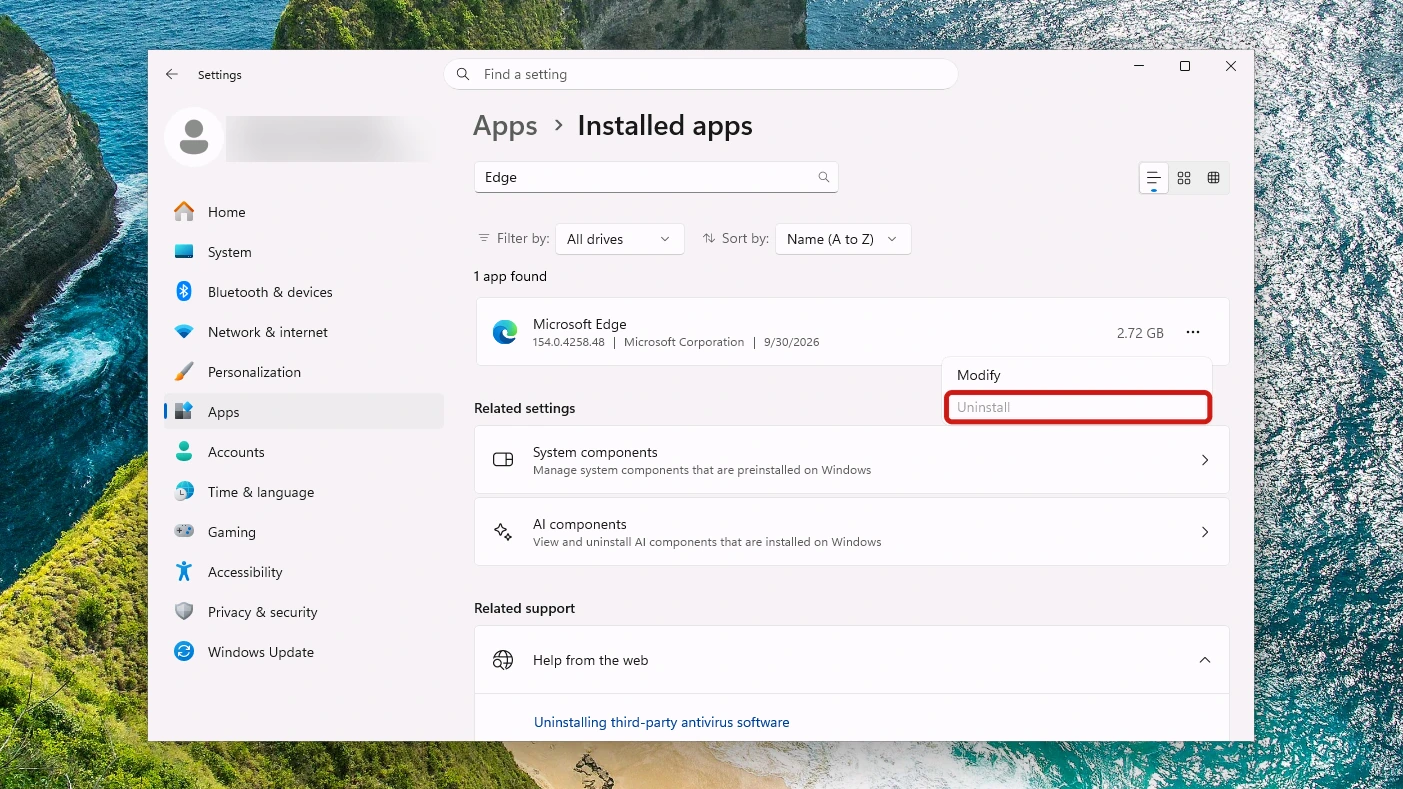
In the EEA, Microsoft Edge can be uninstalled: Microsoft’s Digital Markets Act changes list it among the apps you can remove there. A later round of those changes lets you uninstall the Microsoft Store from Start and Settings like other apps, and once Edge is gone, other Microsoft apps won’t prompt you to reinstall it, apart from Store web apps built on Edge.
Restart, Then Repair or Reset the App
For an app whose uninstall fails, Microsoft’s page on fixing problems that block programs from being installed or removed gives a Windows 11 order: restart first, then repair the app before trying again.
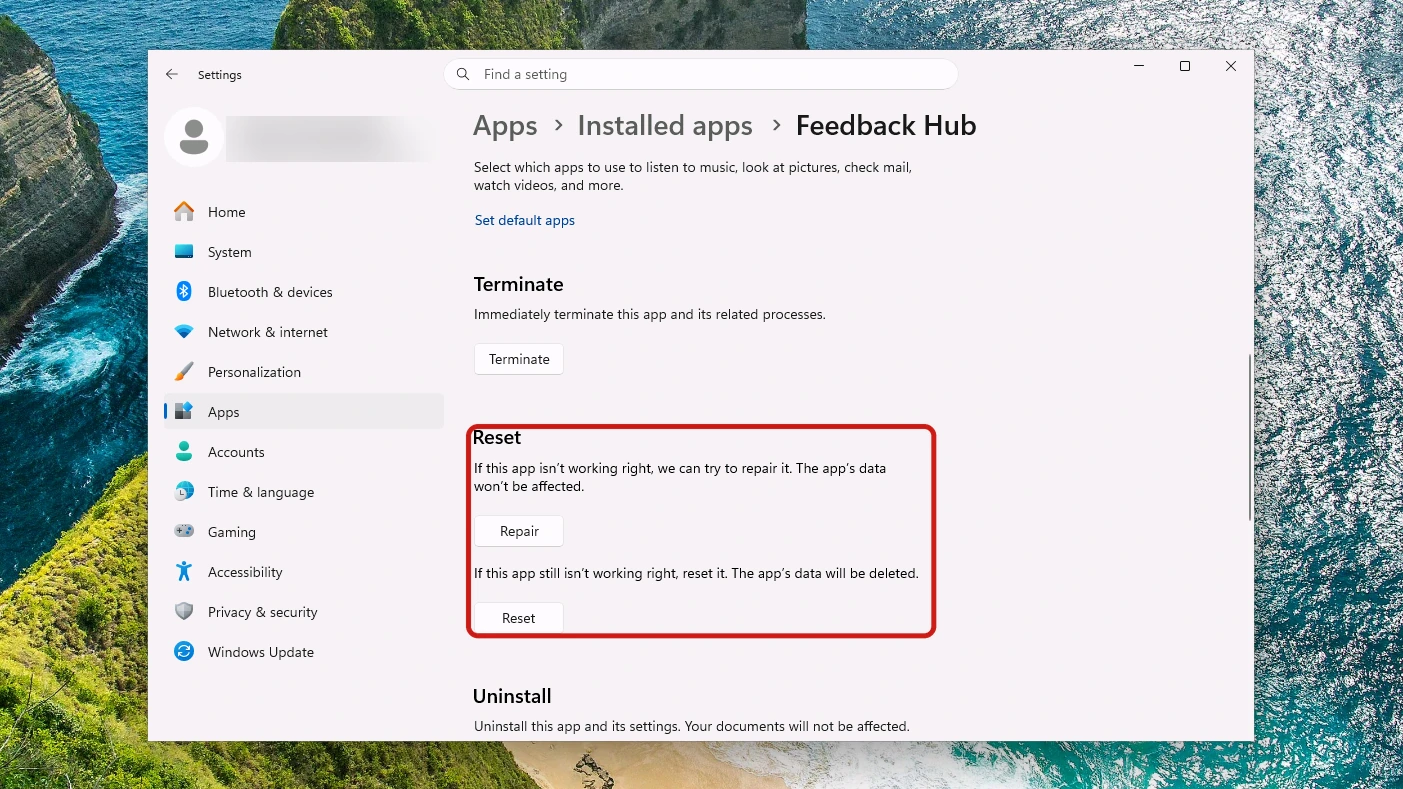
- Restart your PC.
- Open Start > Settings > Apps > Installed apps, select More next to the app, then select Advanced options.
- Select Repair so Windows can try to fix the app’s installation.
- Select Reset if the problem continues.
- Try the uninstall again from Installed apps, following the steps in Method 1.
Not all desktop apps support Repair or Reset, so you may find neither button for the program you’re removing. If the app is still running, end it in Task Manager first, then retry the uninstall. Our page on opening Task Manager in Windows 11 gives six ways in, from a keyboard shortcut to Command Prompt, which helps when an app that won’t uninstall also won’t close normally.
The Uninstall Troubleshooter Is a Windows 10 Tool
That same Microsoft page offers the Program Install and Uninstall Troubleshooter download only in its Windows 10 section. The Windows 11 section doesn’t mention the tool.
On Windows 10, Microsoft lists these problems as the ones the tool fixes:
- Corrupt registry keys on 64-bit operating systems
- Corrupt registry keys that control the update data
- Problems that prevent new programs from being installed
- Problems that prevent existing programs from being completely uninstalled or updated
- Problems that block you from uninstalling a program through Programs and Features
When an uninstall fails with an error code, enter it in our Windows error code lookup, which turns the code into a plain description of what went wrong.
Leftover Files After You Uninstall Apps on Windows 11
Deleting a program’s folder by hand removes the files but leaves Windows convinced the software is still installed. When uninstalling apps on Windows 11, use one of the methods above instead.
If a program still appears in Settings or Control Panel after you uninstall it:
- Restart your PC and check both lists again.
- Go to the publisher’s own support site. Look for a dedicated removal tool for that program.
- Run that tool, following its instructions for your version of the program.
Uninstalling Windows 11 Updates Instead of Apps
The methods that uninstall apps on Windows 11 don’t touch Windows updates, which sit on a different screen in Settings. If a problem began right after Windows installed an update rather than a new app, this is the screen to use. Microsoft’s steps for uninstalling a Windows update add one caveat: some updates cannot be uninstalled.
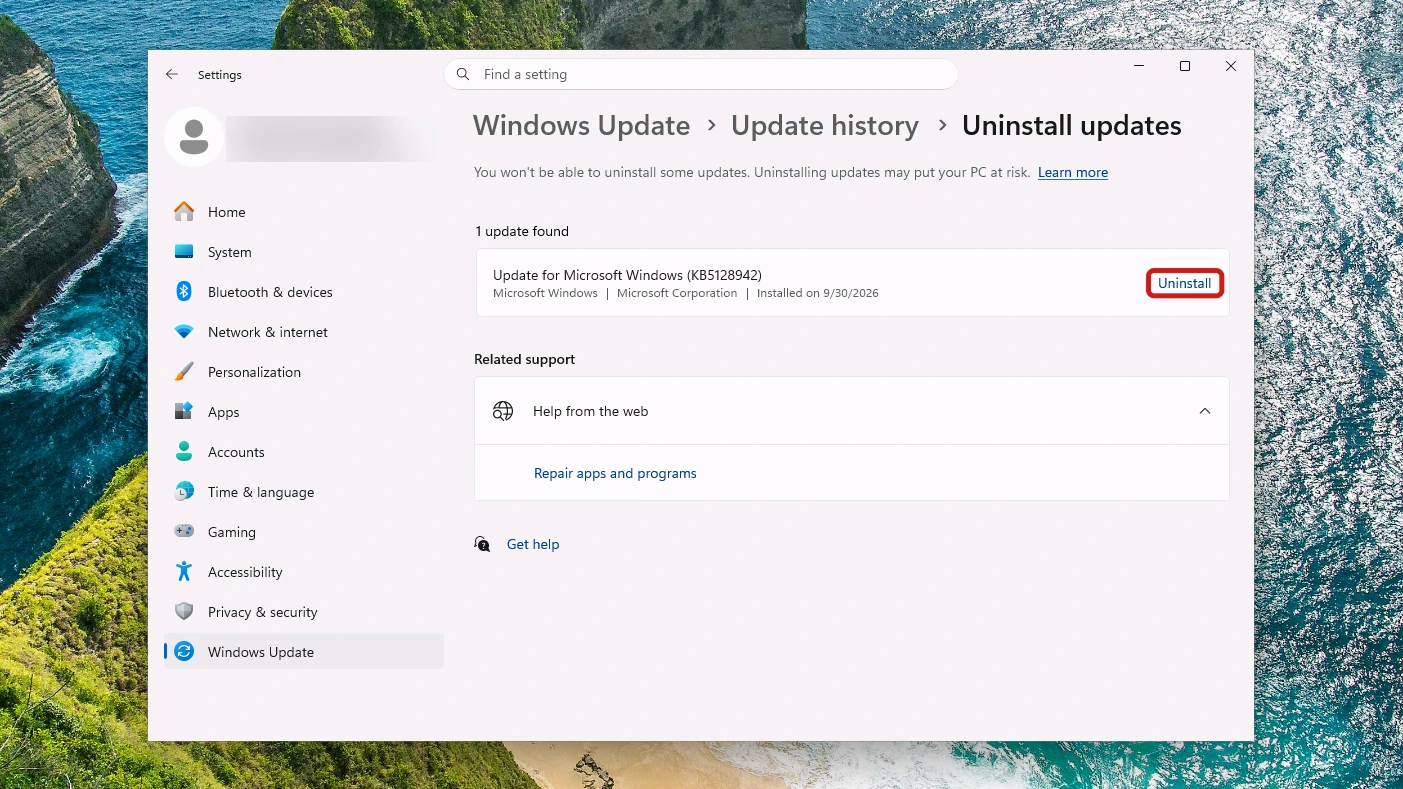
- Open Settings > Windows Update, then select Update history under More options.
- Select Uninstall updates under Related settings to open the list of updates.
- Select Uninstall next to the update, then confirm. Windows removes that update.
Conclusion
To uninstall apps on Windows 11, open Settings, go to Apps > Installed apps, select More next to the app, then Uninstall and confirm. You can also right-click the app in Start’s All apps list, or use Control Panel’s Programs and Features for programs Settings can’t remove. Some built-in apps can’t be uninstalled, including Microsoft Edge outside the European Economic Area.
If an uninstall fails, restart and try Repair or Reset before anything else. Removing software is one part of running a new PC, and our beginner’s guide to Windows 11 picks up the rest, from installing apps safely to backing up your files.