Private browsing is built into every major browser, but each one hides it somewhere different and calls it something else. Chrome calls it Incognito, Edge calls it InPrivate, and Firefox and Safari both call it a Private Window. That naming mismatch is the reason it can be oddly hard to open incognito mode in a browser someone does not use every day.
This guide gives the exact menu steps and the keyboard shortcut for Chrome, Microsoft Edge, Firefox, Safari, Opera, and Brave, on both desktop and mobile. It finishes with what private browsing actually hides, and what it leaves visible.
Where to Open Incognito and Private Browsing in Each Browser
Almost every browser opens a private window with Ctrl + Shift + N on Windows and Linux, or Command + Shift + N on a Mac. Firefox is the exception and uses P instead of N. The table lists every combination, and the full steps to open incognito or a private window in each browser follow underneath.
| Browser | Name for the mode | Windows and Linux | macOS |
|---|---|---|---|
| Google Chrome | Incognito | Ctrl + Shift + N | Command + Shift + N |
| Microsoft Edge | InPrivate | Ctrl + Shift + N | Command + Shift + N |
| Mozilla Firefox | Private Window | Ctrl + Shift + P | Command + Shift + P |
| Safari | Private Window | Not available | Command + Shift + N |
| Opera | Private Window | Ctrl + Shift + N | Command + Shift + N |
| Brave | Private Window | Ctrl + Shift + N | Command + Shift + N |
The combination is worth memorizing rather than looking up each time. The same Ctrl and Shift modifiers drive most of the other Windows keyboard shortcuts that save real time.
Heads up: the shortcut only reaches the browser while the browser is the active window. Click the browser first, then press the keys. Pressing Ctrl + Shift + N while the desktop or a File Explorer window has focus creates a new folder instead, because Windows claims that same combination for itself.
Windows also offers a route that does not need the browser open at all.
Tip: right-click a browser’s icon on the Windows taskbar and its private-window option sits in the jump list that appears. Chrome lists New Incognito Window and Edge lists New InPrivate window, so a private session can be started in two clicks from a pinned icon.
How to Open Incognito Mode in Google Chrome
Chrome is where the Incognito name comes from. An Incognito window is a separate dark window, and it discards history, cookies, and site data once every Incognito window is closed. Google documents what Incognito stores and what it throws away.

Open Incognito on Chrome for Windows, Mac, and Linux
The keyboard shortcut is the fastest way to open incognito: press Ctrl + Shift + N on Windows or Linux, or Command + Shift + N on a Mac, and a dark Incognito window opens right away. The menu route takes two clicks.
- Click the three-dot menu in the top-right corner of Chrome.
- Select New Incognito window from the list. The new window shows the Incognito icon and a summary of what the mode does.
Open Incognito on Chrome for Android and iPhone
The mobile steps match on both platforms, with only the menu position changing.
- Open Chrome and tap the three-dot menu. It sits in the top-right corner on Android and in the bottom-right corner on most iPhones.
- Tap New Incognito tab. Chrome switches to a dark Incognito tab.
- Tap the tab switcher and select the Incognito group to move between normal and Incognito tabs.
On Android, long-pressing the Chrome icon on the home screen also reveals a New incognito tab shortcut.
How to Open InPrivate Browsing in Microsoft Edge
Edge runs on the same engine as Chrome, so anyone used to opening incognito windows in Chrome already knows the shortcut. Edge calls the feature InPrivate, and Microsoft’s support page sets out what the mode keeps and what it clears.
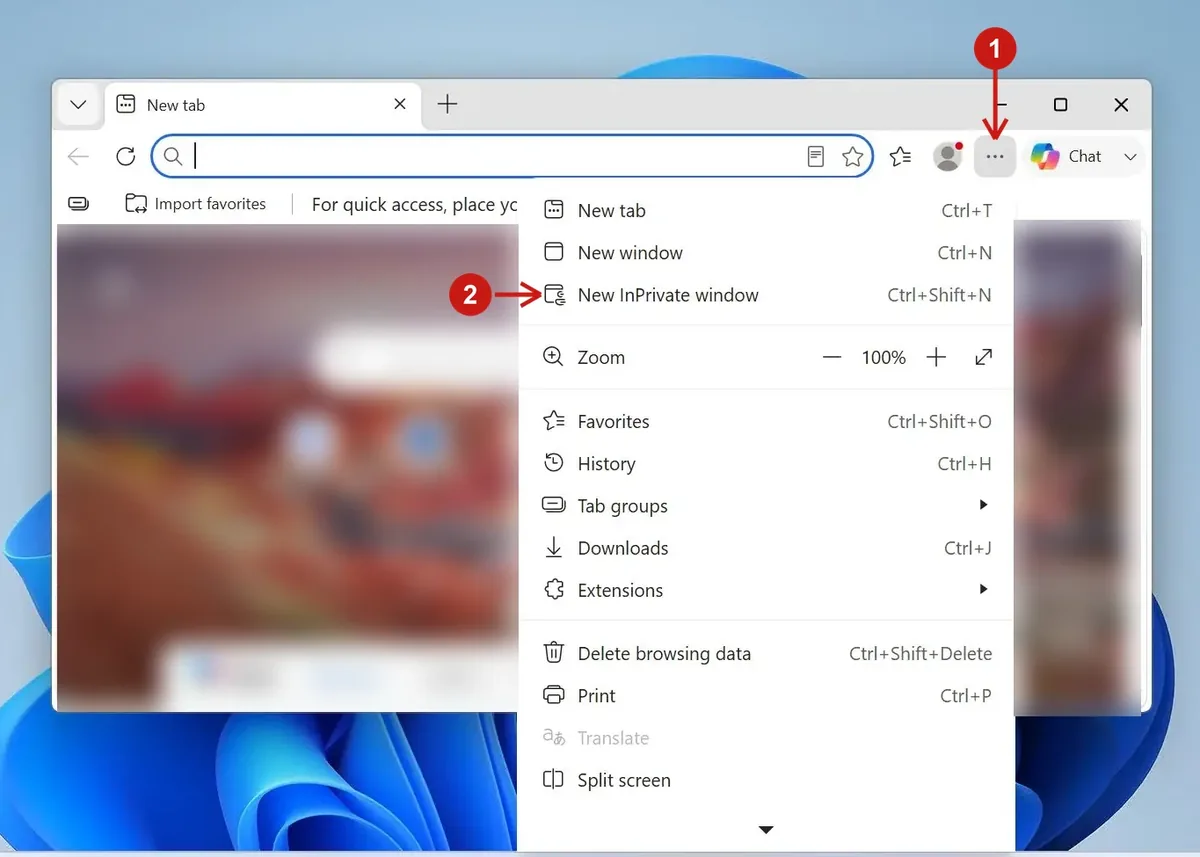
Press Ctrl + Shift + N on Windows, or Command + Shift + N on a Mac, for the fast route. The menu takes two clicks.
- Click the three-dot menu in the top-right corner. Its tooltip reads Settings and more.
- Select New InPrivate window. Edge opens a dark, blue-tinted InPrivate window.
In the mobile app, tap the tabs button at the bottom of the screen, then tap InPrivate and open a new tab.
How to Open a Private Window in Mozilla Firefox
Firefox is the odd one out. Its shortcut uses P rather than N, because Mozilla calls the feature Private Browsing. A purple mask icon marks every private window.

Press Ctrl + Shift + P on Windows or Linux, or Command + Shift + P on a Mac. The menu route runs through the hamburger button.
- Click the hamburger menu, the three stacked lines in the top-right corner.
- Select New private window. The window opens with a dark theme and the private browsing mask in the corner.
In the Firefox app, tap the mask icon near the top of the screen to switch to private tabs, then open a new tab as normal. The main menu also has a New private tab option.
How to Open a Private Window in Safari
Safari puts private browsing in different places on a Mac and on an iPhone, so the two are worth treating separately. Apple’s Safari guide covers the desktop side in detail.
- Press Command + Shift + N on a Mac, or open the File menu and choose New Private Window.
- Check for the dark Smart Search field at the top, which confirms the window is private.
- Open Safari Settings, go to the General tab, and set Safari opens with to A new private window to make every launch private.
On an iPhone or iPad the private option lives inside the tab view rather than a menu.
- Open Safari and tap the Tabs button, the two overlapping squares in the bottom-right corner.
- Tap the tab group button in the center of the bottom bar. It usually reads Start Page or shows the current tab count.
- Choose Private, then tap the plus icon to open a private tab. Recent iOS versions can lock private tabs behind Face ID or a passcode.
How to Open a Private Window in Opera
Opera keeps its private mode in the main menu and uses the same shortcut as Chrome. Opera’s security and privacy documentation describes what the window does.
- Press Ctrl + Shift + N on Windows or Linux, or Command + Shift + N on a Mac.
- Click the Opera menu, the red O in the top-left corner, and select New private window for the menu route.
In the Opera mobile app, tap the tab button, switch to the private tabs section, and open a new tab there.
How to Open a Private Window in Brave
Brave is built around privacy, so it offers two kinds of private window: a standard one, and a stronger option routed through the Tor network. Brave sets out what the Tor window protects and what it does not.

Press Ctrl + Shift + N on Windows or Linux, or Command + Shift + N on a Mac, for a standard private window. Both options also sit in the menu.
- Click the hamburger menu in the top-right corner.
- Select New private window, or New private window with Tor to route the session through Tor for an extra layer of anonymity. Brave lists Shift + Alt + N as the shortcut for the Tor window.
Private Browsing in Other Browsers
Most remaining browsers follow the same pattern of a menu entry backed by a keyboard shortcut.
- Samsung Internet: Tap the tabs button, then Turn on Secret mode. Samsung can protect Secret mode with a password or fingerprint.
- Vivaldi: Press Ctrl + Shift + N, or open the Vivaldi menu and choose New Private Window.
- Tor Browser: No special step is needed. Tor Browser runs in a private, no-history state at all times.
What Incognito Mode Actually Hides
Opening incognito or a private window changes what the browser stores on the device, and nothing else. The protection is local, which is the part that is most often misread.
While a private window is open, the browser does not save:
- The browsing history from that session.
- Cookies and site data, which are cleared once every private window is closed.
- Information typed into forms and the search bar.
Anything saved on purpose is kept. Downloaded files stay in the downloads folder, and new bookmarks remain after the window closes.
Does Opening Incognito Hide Activity From Everyone?
No. Opening incognito stops the browser from storing data on the device being used, and it does not make a person anonymous online. The following can still see the activity:
- Websites can still identify a visitor through the IP address, an account login, or browser fingerprinting.
- Employers and schools that run the network can still log which sites are visited.
- Internet service providers can see the domains being requested.
For network-level privacy, a VPN or Tor is the right tool. The EFF’s Cover Your Tracks test shows how identifiable a browser remains with history turned off, which is a useful check before relying on a private window for anything sensitive.
Conclusion
To open incognito mode, press Ctrl + Shift + N in Chrome, Edge, Opera, or Brave, or Ctrl + Shift + P in Firefox, on Windows and Linux. On a Mac, use Command + Shift + N, or Command + Shift + P in Firefox. Every browser also lists a private window option inside its main menu.
A private window keeps browsing off the local device rather than off the wider internet. Anyone who needs the second thing needs a VPN or Tor alongside it.