Shopping for a tablet to draw on is confusing because three completely different products all answer to the same name. A standalone tablet runs the art app itself and needs nothing else. A pen display is a screen that has to be plugged into a computer. A screenless pen tablet is a mat that moves the cursor while the artist watches the monitor. Buying the wrong class costs more than buying the wrong model. This guide covers all three, with eight picks that are each the best in their own category rather than ranked against one another. Every entry lists its real drawback, and the criteria behind the picks, the buying factors that matter, and the popular models that were left out are all set out further down.
Quick Comparison
The table below summarizes every pick and links down to the full write-up for each one.
| Category | Tablet | Why it wins |
|---|---|---|
| Best Overall | Apple iPad Pro (M5) | The best pen response on any screen, in a tablet that needs no computer behind it. |
| Best Value Tablet | Apple iPad Air (M3) | The same stylus and the same apps as the Pro, without the panel that drives the price. |
| Best Android Tablet | Samsung Galaxy Tab S11 Ultra | A 14.6-inch AMOLED canvas with the pen included rather than sold separately. |
| Best Windows Tablet | Microsoft Surface Pro (12-inch) | Runs desktop Photoshop and Clip Studio on a tablet that fits in a bag. |
| Best Premium Pen Display | Wacom Cintiq Pro 27 | A 4K studio panel with the most refined pen feel available anywhere. |
| Best Portable Pen Display | Wacom Movink 13 | An OLED pen display that weighs 420 g and runs off one USB-C cable. |
| Best Value Pen Display | XPPen Artist Pro 16 (Gen 2) | A 2.5K laminated drawing screen at roughly a third of what Wacom charges. |
| Best Without a Screen | Wacom Intuos Pro (2025) | The most reliable pen input made, for artists who already own a good monitor. |
Best Overall: Apple iPad Pro (M5)

Artists who want one device that draws, edits, exports, and travels should start here. The iPad Pro is the closest thing the category has to a default answer, and the reason is the pen rather than the chip. Apple Pencil Pro registers pressure and tilt with almost no perceptible lag, and it adds a squeeze gesture for tool switching and a barrel roll that turns a flat brush as the pen rotates.
Key Specs
- 11-inch or 13-inch Ultra Retina XDR tandem OLED at 120 Hz, 1,000 nits full-screen SDR and HDR, 1,600 nits peak HDR
- Apple M5 chip with a 10-core GPU and a 16-core Neural Engine
- 12 GB unified memory on 256 GB and 512 GB, 16 GB on 1 TB and 2 TB
- 5.1 mm thin at 13-inch, 5.3 mm at 11-inch
- Apple Pencil Pro with squeeze, barrel roll, haptics, and Find My
- Optional nano-texture display glass on the 1 TB and 2 TB configurations
The tandem OLED panel is what separates this from every other tablet with a stylus. Two OLED layers stacked together hold full-screen brightness that single-layer panels cannot, so a dark canvas stays black while a highlight stays bright, and neither shifts when the tablet tilts. For anyone painting values or grading color work, that consistency matters more than the peak number.
Software is the other half of the case. Procreate, Clip Studio Paint, Affinity, and Adobe’s tablet apps all target iPadOS first, and the M5 with 16 GB of memory holds layer counts that used to require a desktop.
The drawback is a configuration trap. Nano-texture glass, the etched finish that cuts glare and gives the pen nib something to bite into, is only offered on the 1 TB and 2 TB models. Artists who want that surface are pushed into the two most expensive tiers regardless of how much storage they need. The workaround on the standard glossy models is a matte paper-feel screen protector, which adds friction for a fraction of the upgrade cost, at the price of a slightly softer image.
- Apple Pencil Pro adds a squeeze gesture and a barrel roll that rotates a flat brush as the pen turns.
- The tandem OLED panel holds 1,000 nits across the whole screen, not just in small highlights.
- Procreate, Clip Studio, and Affinity all build for iPadOS first, so tablet versions arrive complete.
Best Value Tablet: Apple iPad Air (M3)

The Air exists for the artist who wants the iPad drawing experience and cannot justify the Pro’s panel. It takes the same Apple Pencil Pro, runs the same apps from the same store, and keeps the laminated screen with the anti-reflective coating, which is the single most important display feature for drawing.
Key Specs
- 11-inch or 13-inch Liquid Retina display, laminated with an anti-reflective coating
- Apple M3 chip
- Full Apple Pencil Pro support, including squeeze and barrel roll
- Same iPadOS app library as the iPad Pro
- 60 Hz refresh rate, no ProMotion
Lamination is the reason this belongs in a drawing guide and the cheaper iPad does not. On a laminated screen the glass sits directly against the pixels, so the line appears under the nib rather than a millimeter below it. That gap is small in a specification sheet and obvious in the first ten minutes of drawing.
Pen behavior is identical to the Pro’s, and independent artist reviews of the M3 Air found no jitter or wobble on slow diagonal strokes, which is the test that exposes a weak digitizer. The M3 also handles Procreate files large enough that most illustrators will hit the app’s layer limit before the chip becomes the constraint.
What is missing is ProMotion. The Air runs at 60 Hz against the Pro’s 120 Hz, and the difference shows up in a fast sketch stroke, where the line lags slightly behind the nib before catching up. It is a comfort issue rather than an accuracy one, and artists who have never used a 120 Hz panel generally do not notice it. Those who have find it hard to unsee.
- Takes the full Apple Pencil Pro, so no pen feature is lost against the more expensive Pro.
- The laminated screen puts the line directly under the nib with no visible air gap.
- Artist reviewers found no jitter or wobble on slow diagonal strokes, the test that exposes weak digitizers.
Best Android Tablet: Samsung Galaxy Tab S11 Ultra
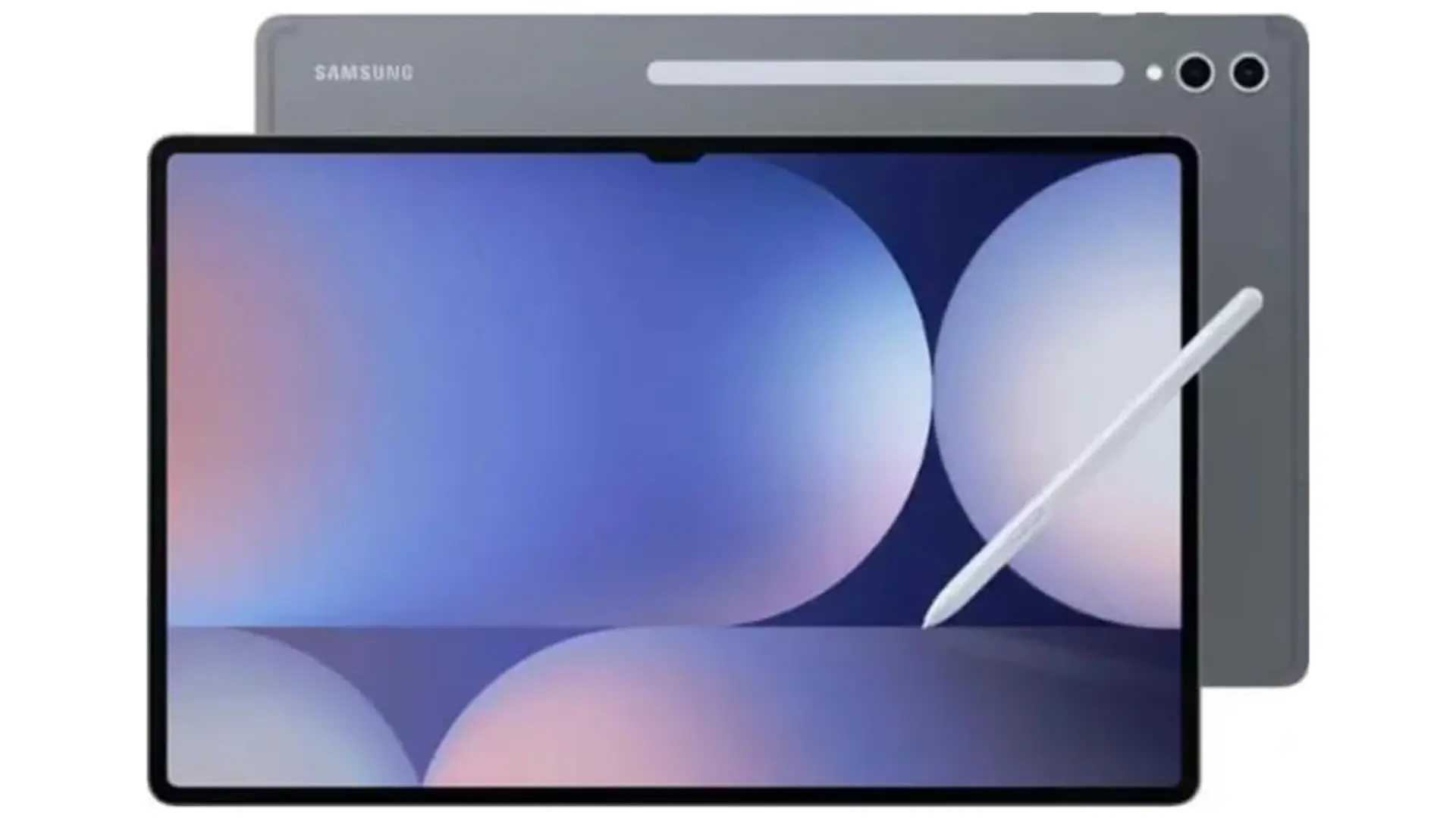
Android artists and anyone who wants the largest possible canvas in a standalone tablet should look at the S11 Ultra. Its 14.6-inch panel is bigger than any iPad, and the S Pen comes in the box rather than as a separate purchase, which closes most of the price gap against an iPad Pro plus Apple Pencil Pro.
Key Specs
- 14.6-inch Dynamic AMOLED 2X at 2,960 x 1,848, 120 Hz, up to 1,600 nits peak
- 5.1 mm thick, the thinnest Galaxy Tab made
- 3 nm processor with a 33% faster NPU than the S10 Ultra
- 12 GB / 256 GB up to 16 GB / 1 TB
- Redesigned hexagonal S Pen using Wacom EMR, included, never needs charging
- 11,600 mAh battery
The S Pen is the interesting part. It runs on Wacom’s electromagnetic resonance technology, which means the tablet powers the pen through the panel and the pen itself holds no battery. There is nothing to charge, nothing to pair, and nothing to replace when a cell degrades three years in. Tilt, pressure, and palm rejection all work as expected, and artist reviewers report clean control over line weight from thin to thick.
Clip Studio Paint runs natively on Android, Infinite Painter and ibis Paint are mature, and Samsung DeX turns the tablet into a windowed desktop when it is docked to a monitor.
The redesign came at a cost. The new hexagonal S Pen dropped Bluetooth, so the air gestures and the remote camera shutter that older S Pens offered are gone. Charging is also slow for a tablet this size, topping out at 45 W against an 11,600 mAh battery. Android’s professional art software, while genuinely good now, is still a shorter list than what iPadOS offers.
- The 14.6-inch AMOLED canvas is larger than any iPad Apple currently sells.
- The S Pen ships in the box and uses Wacom EMR, so it never needs charging or pairing.
- DeX turns the tablet into a windowed desktop the moment it is connected to a monitor.
Best Windows Tablet: Microsoft Surface Pro (12-inch)

The Surface Pro answers a question no iPad can. It runs full desktop Windows, which means desktop Photoshop, desktop Clip Studio Paint, and the plugins and file workflows that come with them, on a fanless tablet that weighs about as much as a large iPad. For an artist whose pipeline already lives on Windows, that removes the export step entirely.
Key Specs
- 12-inch touchscreen running full Windows 11 on a Copilot+ ARM processor
- Fanless and silent under load
- Surface Slim Pen with tilt, pressure, and haptic feedback
- Detachable keyboard, so it works as a tablet or a laptop
- Runs desktop creative software rather than tablet versions
Inking is the strongest part of the hardware. The Slim Pen’s latency is low enough that the line keeps up with a quick stroke, and the haptic motor fires a small vibration as the nib meets the glass, which reads convincingly as pen on paper. Reviewers consistently rate pen accuracy and input lag as top tier for a Windows device.
Running desktop applications is the real argument, though. A commission that has to go out as a layered PSD with specific fonts and effects does not need a round trip through a computer, because the tablet is the computer.
The software around the pen is where it gives ground. Windows still treats stylus input as an add-on rather than a first principle, and app-level problems show up as a result. Adobe Fresco users have reported Slim Pen input lag that does not appear in OneNote on the same machine, which points at the application rather than the hardware. The ARM processor also means a small number of older creative plugins run through a translation layer or not at all, so anyone with a fixed toolchain should confirm compatibility before buying.
- Runs desktop Photoshop and Clip Studio Paint rather than the cut-down tablet versions.
- The Slim Pen fires a haptic pulse at the nib that reads convincingly as pen on paper.
- Detaching the keyboard turns a working laptop into a drawing tablet in one motion.
Best Premium Pen Display: Wacom Cintiq Pro 27

This is the studio purchase. The Cintiq Pro 27 is a 4K pen display that plugs into a workstation and becomes the surface an artist works on for eight hours a day, and it is priced accordingly. Nothing here is aimed at a hobbyist, and the specification sheet does not pretend otherwise.
Key Specs
- 26.9-inch 4K display at 120 Hz, Wacom’s highest resolution panel
- Pro Pen 3 with 8,192 pressure levels and interchangeable grips, weights, and buttons
- Etched surface with a subtle drawing texture
- Requires a connected computer, and a stand or arm is a separate purchase
- Reviewers measured no noticeable parallax and no image distortion under firm pressure
Two things justify the price. The first is parallax, or rather the absence of it: reviewers found no visible offset between the nib and the cursor, and the panel does not distort when the pen presses hard, which cheaper displays do. The second is the Pro Pen 3, which comes apart into components so the weight, the grip thickness, the button layout, and even the center of balance can be rebuilt around one artist’s hand. Nobody else ships that.
The surface texture is the quiet detail. It gives just enough friction to stop the nib skating, which is the complaint that sends iPad owners looking for matte protectors.
Three things are worth knowing before committing. The Pro Pen 3 does not support barrel rotation, so a flat brush or a calligraphic nib will not turn with the pen, and artists who rely on that will find it a real loss on a display at this price. There is no computer inside it, so a capable workstation is a hidden requirement. And the display does not include a stand, which is not an optional accessory on a 27-inch panel.
- Reviewers measured no noticeable parallax between the nib and the cursor.
- The Pro Pen 3 comes apart so weight, grip, buttons, and balance can be rebuilt per artist.
- The etched surface adds enough friction to stop the nib skating across glass.
Best Portable Pen Display: Wacom Movink 13
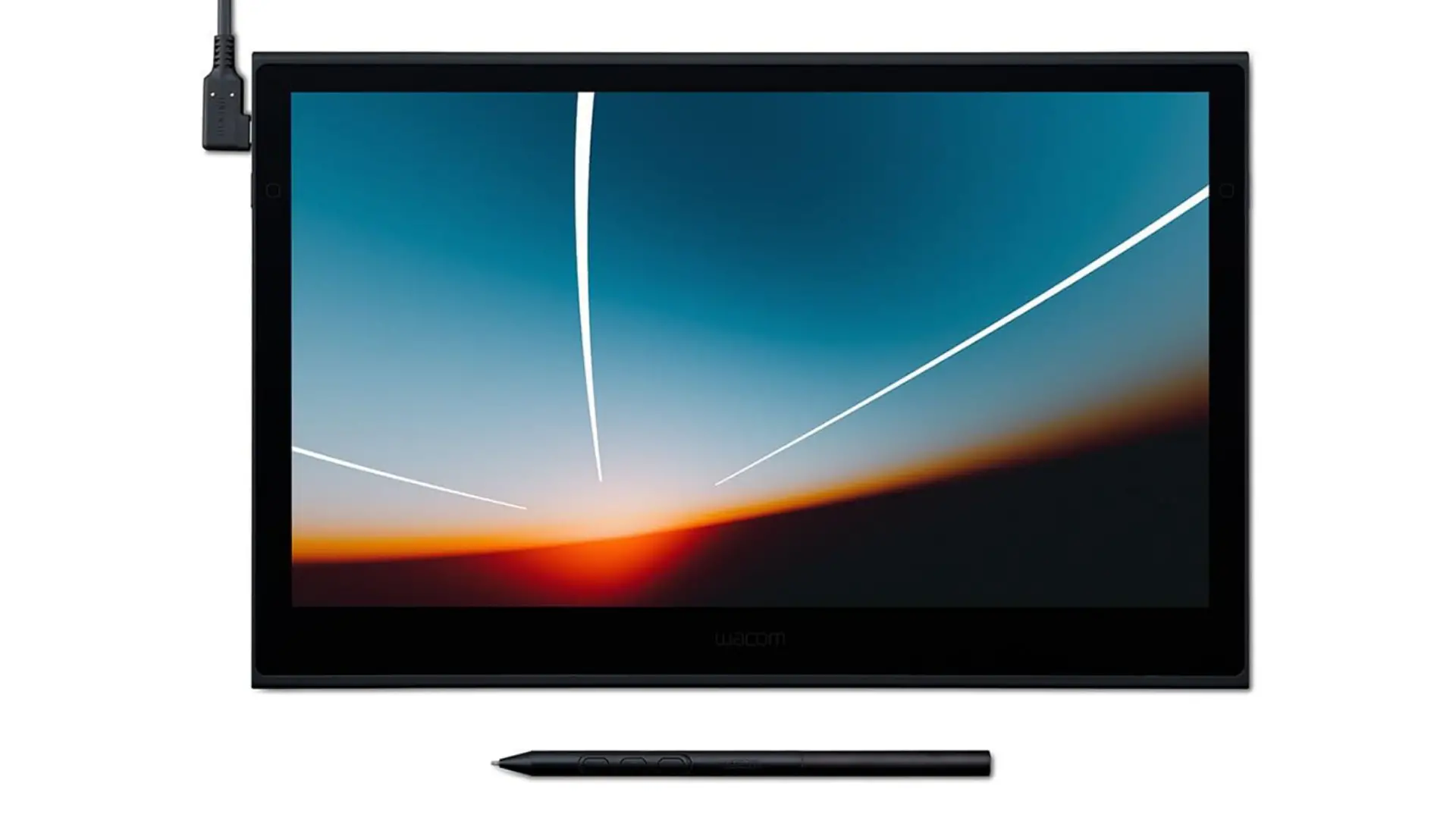
The Movink is for artists who already own a laptop and want a drawing screen that travels with it. Wacom’s first OLED pen display is 4 mm thick and weighs 420 g, which is lighter than an 11-inch iPad Pro, and it draws power and video through a single USB-C cable.
Key Specs
- 13.3-inch OLED at 1920 x 1080, 10-bit color
- 100% DCI-P3 and 95% Adobe RGB coverage with a 100,000:1 contrast ratio
- 420 g and 4 mm thick
- Wacom Pro Pen 3 with three buttons
- Single USB-C connection for power, video, and data
- Multi-touch support
The one-cable setup is the feature that makes it work. Most portable pen displays need a video cable, a data cable, and often a separate power brick, and the resulting tangle is why they stay on the desk. The Movink connects with one cable, so a laptop and a drawing screen fit in the same bag as a genuine mobile setup rather than a theoretical one.
Color coverage is unusually good for a portable panel. Full DCI-P3 and 95% Adobe RGB mean work done on the road does not need re-checking on the studio monitor before it goes to a client.
The compromises are real and mostly forgivable. Resolution is 1080p across 13.3 inches, which is fine for painting and visible on fine linework. There is no pen holder in the box, HDMI needs an adapter that is sold separately, and OLED panels use pulse-width modulation for dimming, which triggers eye strain in a minority of people. Long-term burn-in from a static art interface is also unproven at this point in the panel’s life.
- Weighs 420 g and measures 4 mm thick, lighter than an 11-inch iPad Pro.
- One USB-C cable carries power, video, and data, so nothing else goes in the bag.
- Covers 100% of DCI-P3 and 95% of Adobe RGB, which is studio-grade for a portable panel.
Best Value Pen Display: XPPen Artist Pro 16 (Gen 2)

This is the pick for the artist ready to move up from a screenless tablet without spending Wacom money. The Artist Pro 16 is a 2.5K laminated drawing screen that costs roughly a third of a comparable Cintiq, and the gap in daily use is much smaller than the gap in price.
Key Specs
- 16-inch class display with a 15.4-inch active area, 2.5K QHD, fully laminated
- X3 Pro stylus with 16,384 pressure levels, battery free
- Anti-glare etched surface covering 159% of sRGB
- Requires a connected computer
- Bundled stand and a full accessory kit in the box
Pressure sensitivity has stopped being the argument for Wacom. XPPen’s X3 Pro pen and Huion’s PenTech 4.0 both quote 16,384 levels against Wacom’s 8,192, and both have brought initial activation force down to the point where a light stroke registers immediately. Reviewers place this in the range where hobbyists and early-career professionals are well served, with the screen size and resolution being the main step up from the 14-inch model.
Accessories also come in the box. Wacom charges separately for the stand, and at this price that difference is not trivial.
The trade is drivers. Wacom’s software is the most stable in the category by a wide margin, and third-party drivers are where the owner complaints concentrate. The recurring pattern in support threads is a Windows machine that has previously had a Wacom or Huion driver installed, where the old one has to be removed completely before the new tablet behaves. Pressure dropping out in Photoshop after an update is the usual symptom. It is fixable and it is annoying, and it is the honest price of the saving.
- The X3 Pro stylus quotes 16,384 pressure levels, double what Wacom’s Pro Pen 3 reports.
- A 2.5K laminated panel at roughly a third of what a comparable Cintiq costs.
- The stand and accessory kit are included rather than sold separately.
Best Without a Screen: Wacom Intuos Pro (2025)
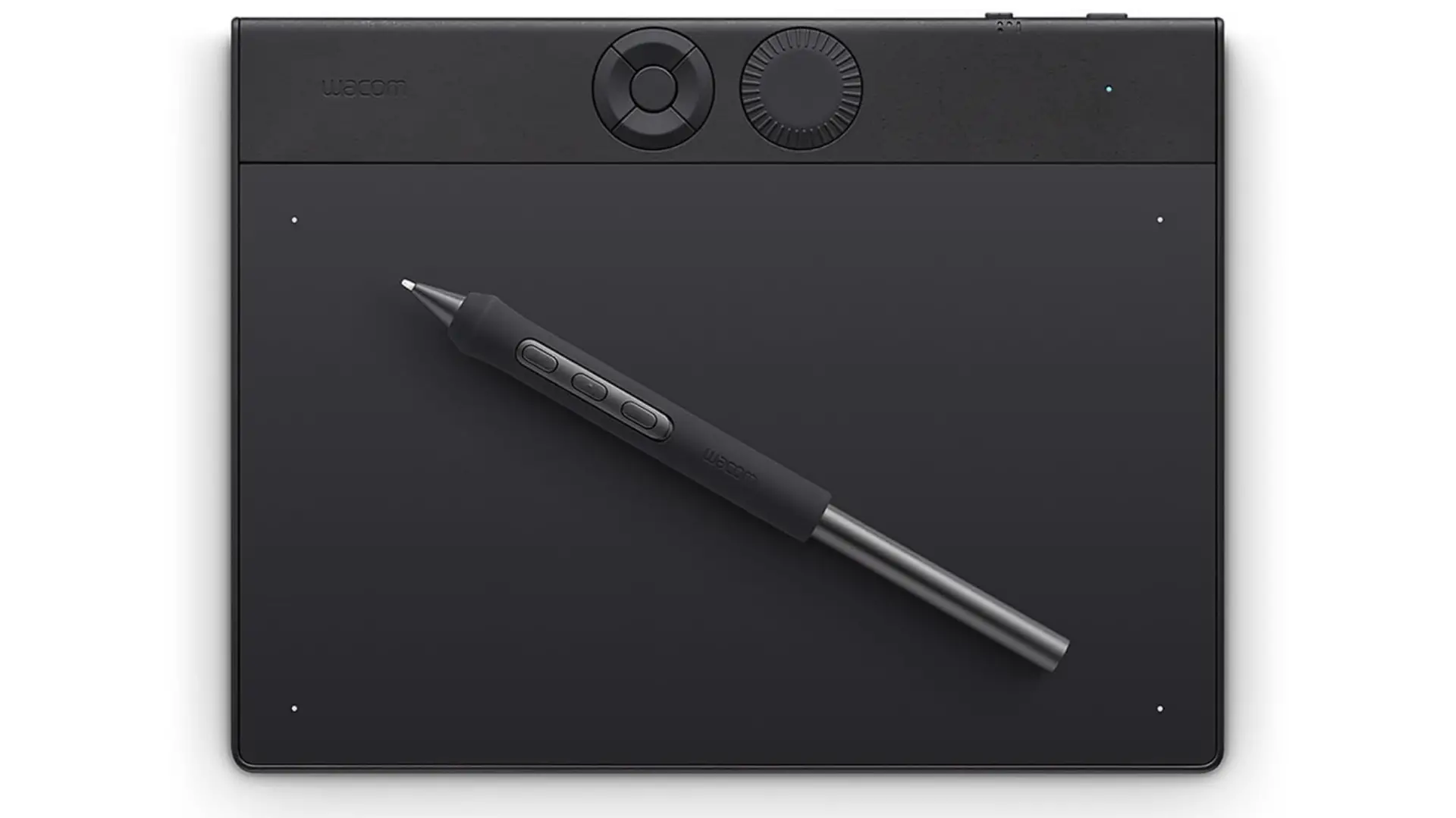
Artists who already own a good monitor do not need to buy another one with a pen attached. A screenless pen tablet puts the drawing surface on the desk and leaves the image on the display that was already color-accurate, and the 2025 Intuos Pro is the first full redesign of the line since 2013.
Key Specs
- 16:9 active area, larger than the previous generation in a physically smaller body
- Pro Pen 3 with 8,192 pressure levels and configurable weight, grip, and buttons
- 10 customizable keys and two customizable dials, moved to the top edge
- Dual Bluetooth with a physical switch between two paired computers
- Rated at around 16 hours of battery life
- Three sizes, all sharing the same Pro Pen 3, control deck, and battery
The redesign fixed the things that had aged badly. Plastic bezels are gone, the control deck moved to the top edge where a hand does not rest on it, and the active area became 16:9 so it maps cleanly to a modern monitor instead of stretching. The two-device Bluetooth switch is the detail people who work across a desktop and a laptop notice first.
Pen performance is the reason this stays the reference. Reviewers describe effectively no latency, smooth pressure transitions, and tracking that does not falter, and Wacom’s drivers remain the most stable in the category. Nothing here goes wrong quietly.
Two caveats. Pressure sensitivity is 8,192 levels, half what XPPen and Huion quote, and while the practical difference is smaller than the numbers suggest, the numbers are on the box. The bigger one is the format itself. Drawing on a mat while watching a monitor takes real practice to internalize, usually a few weeks, and a minority of artists never fully settle into it. Anyone who has already bounced off a screenless tablet should buy a pen display instead. Size is worth a moment of thought as well, because it is the one choice that cannot be undone in software. The small suits a cramped desk and a single monitor, the large maps more comfortably across a wide or multi-monitor setup, and the middle size is the one that goes out of stock first.
- Wacom drivers remain the most stable in the category, which is what a daily tool needs.
- Dual Bluetooth with a physical switch moves the tablet between two computers instantly.
- The 16:9 active area maps cleanly to a modern monitor with no stretching.
Standalone Tablet or Pen Display
This is the decision that comes before the model, and getting it wrong is what makes a tablet gather dust. The three classes are not tiers of the same product. They suit different working habits.
A standalone tablet runs the art software itself. An iPad Pro, an iPad Air, a Galaxy Tab, or a Surface Pro is a complete computer, so it draws on the sofa, on a train, or in a life drawing class. The cost is a smaller canvas and, on iPadOS and Android, tablet versions of applications rather than desktop ones. For most people who are buying their first serious drawing device, this is the right class, because a tablet that can be picked up gets used far more often than one chained to a desk.
A pen display is a screen with a digitizer and no computer inside. It plugs into a desktop or a laptop and shows whatever that machine is running, which means full desktop software with every plugin, every font, and every automation intact. Sizes run past 27 inches, and color accuracy on the better panels beats anything portable. The cost is that it is furniture. It needs a computer, a stand, desk space, and at least two cables in most cases.
A screenless pen tablet puts the pen on a mat and the image on the existing monitor. It is the cheapest way to get professional pen input, it takes almost no desk space, and it wears out slowly because there is no panel to scratch. The cost is hand-eye separation. Drawing in one place while looking at another is a learned skill, and while most artists adapt within a few weeks, some never stop finding it awkward.
One useful sorting question: does the work happen away from a desk? If yes, buy a standalone tablet. If no, and the computer is already capable, a pen display or a screenless tablet puts the money into pen quality and screen size rather than into a second processor.
What to Look For in a Drawing Tablet
Specification sheets in this category are written to obscure the four things that actually decide whether a tablet is pleasant to draw on.
Lamination, not resolution. A laminated screen bonds the glass directly to the panel so the line appears under the nib. An unlaminated screen leaves an air gap, and the resulting offset is visible on every stroke. This is why the base iPad, which has a very good panel, is a poor drawing tablet.
Pressure levels matter less than initial activation force. The jump from 8,192 to 16,384 levels is largely marketing, because no human hand resolves that many gradations. What is noticeable is how much force it takes before the pen registers at all. A high activation force loses the start of every light stroke, which is where a sketch lives.
Drivers are what actually separates the brands. Wacom charges more and the software is why. Third-party tablets from XPPen and Huion have closed most of the hardware gap, and the complaints that remain in owner threads are almost all about drivers: conflicts with a previously installed brand, pressure dropping out after an update, or a settings panel that forgets its configuration. None of it is fatal, and all of it is friction on a tool used every day.
Pen power source. Battery-free pens using electromagnetic resonance, which covers Wacom, XPPen, Huion, and Samsung’s S Pen, never need charging and have no cell to degrade. Apple Pencil Pro and the Surface Slim Pen charge, which buys extra features like squeeze gestures and haptics at the cost of one more thing to keep topped up.
Two smaller factors worth weighing:
- Surface texture. Bare glass is slick under a plastic nib. Etched or nano-texture surfaces add friction, and a matte protector retrofits it to a glossy screen at the cost of a slightly softer image.
- Express keys and dials. Physical shortcuts for undo, brush size, and canvas rotation save more time over a year than any specification on the box.
How These Picks Were Chosen
Rekobyte researches products rather than running a testing lab, and the criteria are stated so readers can judge the recommendations for themselves.
- Real owner feedback over launch coverage. Artist reviews from people who draw on the hardware daily, plus forum and support threads, weighted toward reports from months of ownership rather than first impressions.
- Brand trust and support. Driver update history, how long a model stays supported, replacement nib and pen availability, and what happens when a unit fails inside warranty.
- Build quality. Panel coatings that resist scuffing, hinge and stand construction, and cable and port durability on devices that get connected and disconnected constantly.
- Cost against what is delivered. Not the cheapest and not the most expensive in each category, but the model where the money lands on things that affect drawing.
- Independent measurements. Parallax, latency, color coverage, and brightness figures taken from TechRadar, Creative Bloq, Parka Blogs, and similar independent reviews, cross-checked against the manufacturer’s own specifications.
Every pick was also confirmed to be the current model. Manufacturers refresh quietly, and several competing guides still lead with the iPad Pro M4 and the Galaxy Tab S10 Ultra, both of which have been replaced.
Tablets That Did Not Make the List
These come up constantly in recommendations, and each was left out for a specific reason.
- Apple iPad (A16). The cheap iPad. Its display is not laminated, so there is an air gap between the glass and the image, and it does not support Apple Pencil Pro. It is a good tablet and a poor drawing surface.
- Huion Kamvas Pro 19. A genuine contender that undercuts the equivalent XPPen, but reviewers found the screen surface scuffs and scratches unusually easily, which is a poor trait in something a pen nib crosses thousands of times a day.
- Huion Kamvas 22 (Gen 3). Launched in March 2026 at 21.5 inches, but only 2560 x 1440 across that size. Pixel density that low is visible on fine linework.
- Wacom One 13 Touch. A reasonable first pen display, held back by an entry-level pen and a capped feature set at a price close enough to the XPPen Artist Pro 16 that the XPPen is the better buy.
- reMarkable Paper Pro. Excellent for writing and thinking. It is an e-ink device, and color art is not what it was built for.
Conclusion
Digital artists should buy one of three things. A standalone tablet like the iPad Pro or the Galaxy Tab S11 Ultra draws anywhere with no computer attached. A pen display such as the Cintiq Pro 27 or the XPPen Artist Pro 16 adds a drawing screen to an existing computer. A screenless tablet like the Intuos Pro is the cheapest route to professional pen input.
Beyond that, the choice comes down to where the work happens. Anyone drawing away from a desk should take the iPad Pro, or the iPad Air if the budget is tighter. Anyone with a capable computer already on the desk gets more for the money from a pen display, and the XPPen Artist Pro 16 is where that starts. Artists who spend all day at a workstation and want the surface to disappear underneath them will find the Cintiq Pro 27 and the Intuos Pro are still the reference for a reason.
Specifications shift fast in this category, and models are replaced quietly. Anyone buying should confirm the exact configuration on the listing before ordering, particularly on the iPads, where display options are tied to storage tiers.