


Few things are more frustrating than a Windows 11 taskbar not working. Clicks on pinned apps go nowhere, the Start Menu won’t open, and the entire bar sits there completely unresponsive. The good news is that a broken taskbar is almost always fixable without a full Windows reinstall.
If you’re still getting oriented in Windows 11 overall, our Windows 11 for Beginners guide is worth a look once the taskbar is working again.
This guide covers the most common reasons why the taskbar stops working, followed by six methods to fix it, starting with the easiest and working up to more advanced solutions.
Why Is the Windows 11 Taskbar Not Working?
Before jumping into fixes, it helps to understand what’s causing the problem. Here are the most common culprits behind a taskbar that’s not responding:
- Too many processes running. When a PC is under heavy load, individual components like the taskbar can freeze or become unresponsive. Too many open applications or background processes can push the system past its limits.
- Overheating. Excess heat causes components to throttle or behave erratically. A sluggish or frozen taskbar can sometimes be traced back to a PC that’s running too hot.
- Malware or viruses. Some malware specifically targets Windows system processes, including those that control the taskbar. If the taskbar became unresponsive suddenly with no other explanation, a virus scan is worth running.
- A bad Windows update. Microsoft occasionally ships updates that introduce bugs. If the taskbar stopped working shortly after an update, rolling back that update may fix it.
- A hidden taskbar. If the taskbar isn’t visible at all, rather than just unresponsive, it may simply be set to auto-hide. When this setting is on, the taskbar stays hidden until you hover near the bottom of the screen.
- Corrupted system files. Windows system files can become corrupted through improper shutdowns, failed updates, or disk errors. When this happens, the taskbar and other system components may stop working correctly.
How to Fix a Taskbar Not Working in Windows 11
The methods below are ordered from simplest to most advanced. Start with Method 1 and work through them until the taskbar is working again.
Method 1: Restart Your PC
A full restart is always the first step when the Windows taskbar is not working. Restarting clears temporary files, reloads system services, and resolves many minor software glitches.
- Right-click the Start button. This opens the Quick Link menu even if the taskbar is partially unresponsive.
- Hover over “Shut down or sign out,” then click “Restart.” Windows will close all running processes and restart the system.
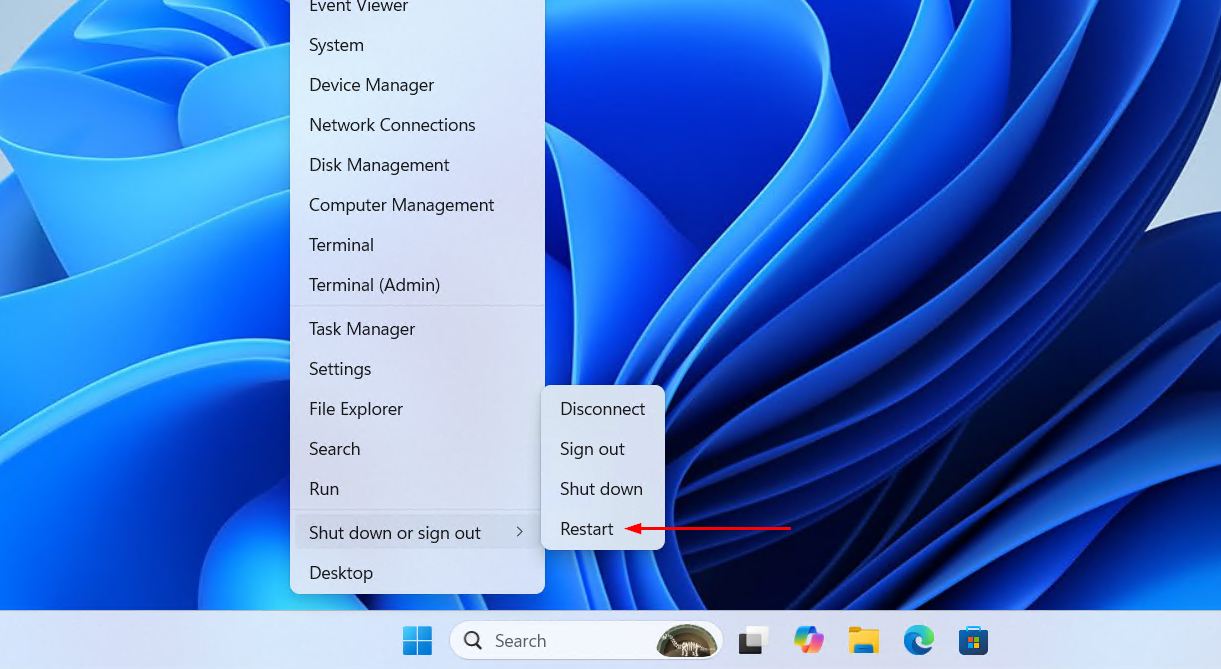
Should Windows refuse to let you right-click the Start button, press Ctrl + Alt + Delete and click the power button icon at the bottom-right instead. If the taskbar is still not responding after the restart, move on to the next method.
Method 2: Restart Windows Explorer
Windows Explorer is the process that controls File Explorer, the Start Menu, and the taskbar. Restarting it often fixes an unresponsive taskbar without requiring a full PC restart.
- Press Ctrl + Shift + Esc to open Task Manager. If that shortcut doesn’t work, press Ctrl + Alt + Delete and select Task Manager from the menu.
- Click the “Processes” tab if it isn’t already selected.
- Scroll down to find “Windows Explorer” and click on it. It may be listed under “Windows processes” near the bottom of the list. You can also search for it.
- Click the “Restart task” button in the bottom-right corner of the Task Manager window. The screen may flash briefly as the taskbar reloads.
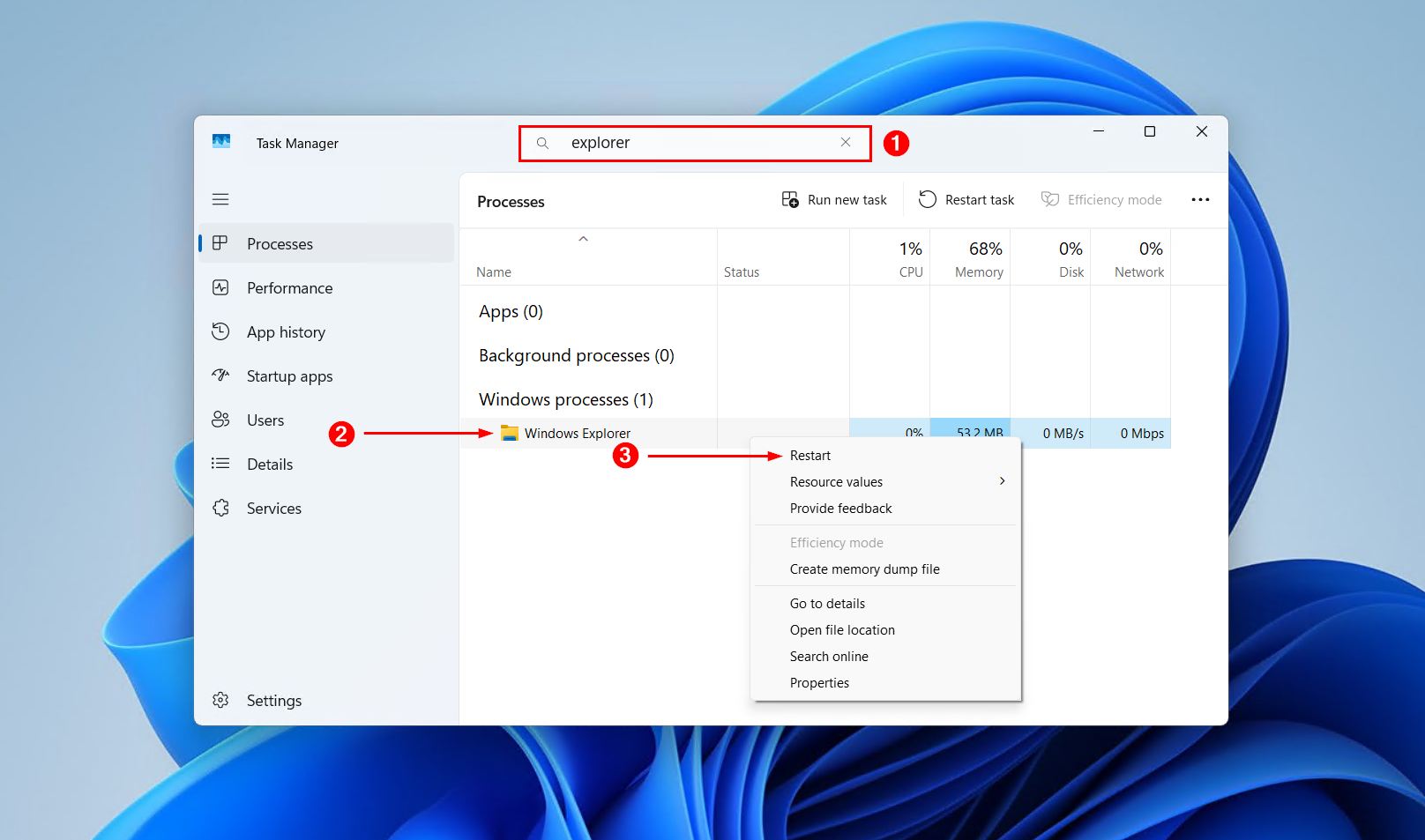
Once Windows Explorer restarts, check if the taskbar is responding again.
Method 3: Run a Command via Command Prompt
If restarting Windows Explorer didn’t help, running a specific command can re-register the taskbar’s core components and clear out corrupt data that may be causing the problem.
- Press Windows + R to open the Run dialog. If the taskbar is completely frozen, this keyboard shortcut should still work. Other combinations that keep working while the taskbar is unresponsive are listed in the Windows keyboard shortcuts cheat sheet.
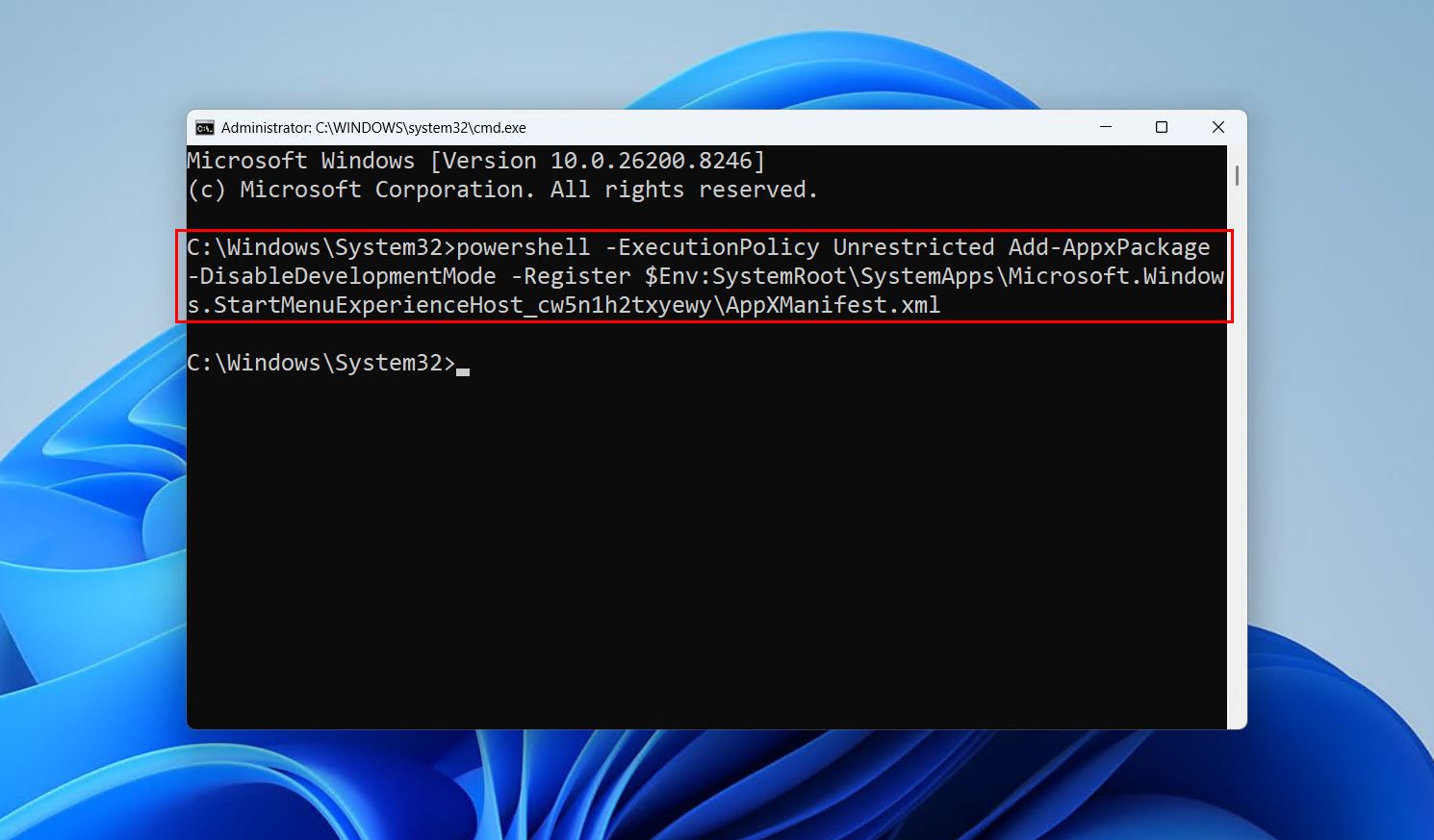
- Type “cmd” and press Ctrl + Shift + Enter to open Command Prompt as an administrator. Click “Yes” if prompted by User Account Control.
- Paste the following command and press Enter:
powershell -ExecutionPolicy Unrestricted Add-AppxPackage -DisableDevelopmentMode -Register $Env:SystemRoot\SystemApps\Microsoft.Windows.StartMenuExperienceHost_cw5n1h2txyewy\AppXManifest.xml
- Wait for the command to finish, then restart your PC. Once the PC restarts, check whether the taskbar is working.
Method 4: Edit the XAML User Experience Host Settings
If the taskbar is still not working in Windows 11, the issue may lie with the XAML User Experience Host, which handles the visual layer of the taskbar. Modifying a setting in the registry can resolve conflicts with this process, but be warned that it can also cause irreversible damage if you make a mistake. It’s always best to back up the registry (export it) before making any changes.
- Press Windows + R, type “regedit,” and press Enter. Click “Yes” if User Account Control asks for permission.
- Navigate to the following path:
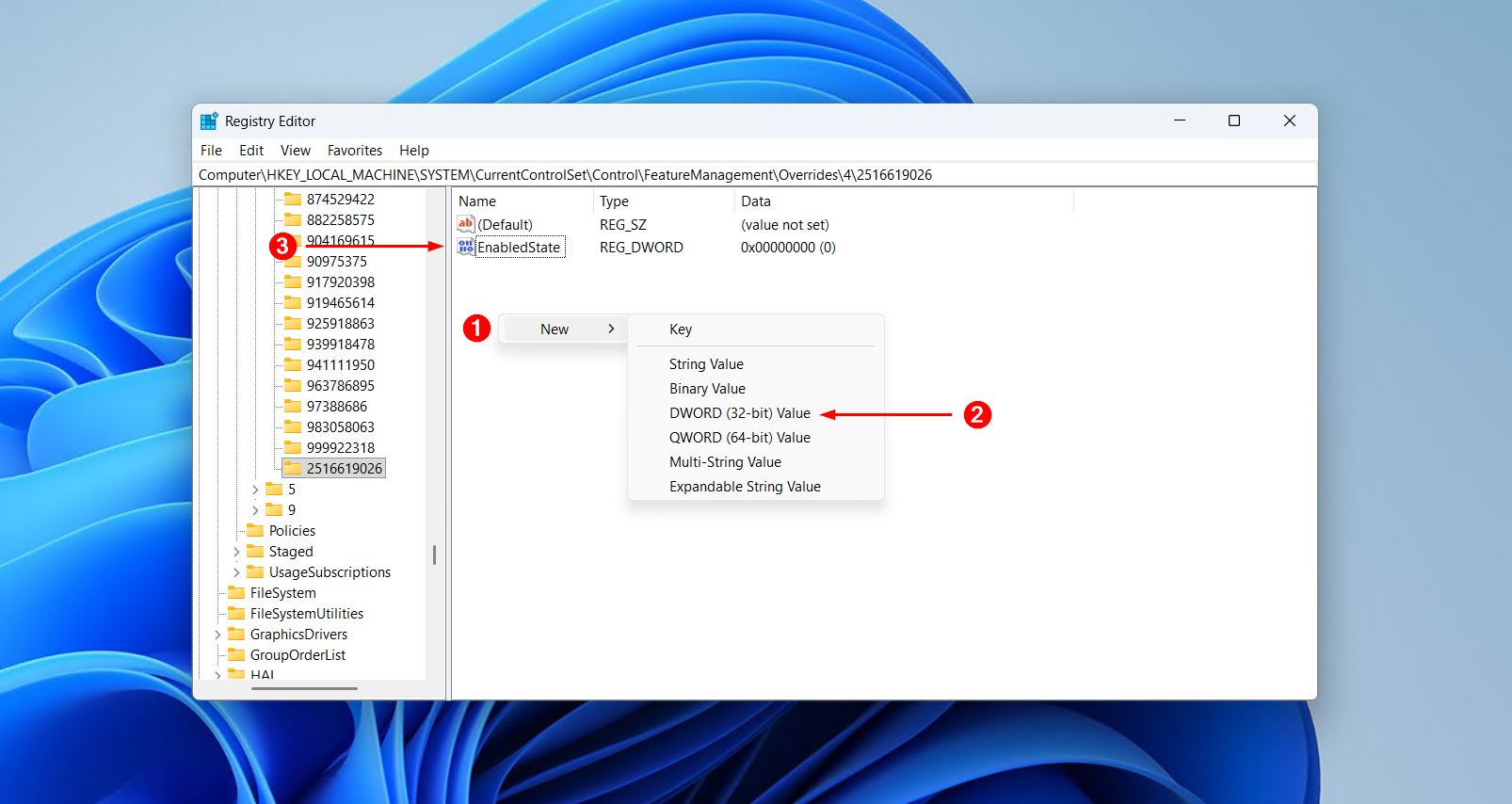
HKEY_LOCAL_MACHINE\SYSTEM\CurrentControlSet\Control\FeatureManagement\Overrides\4\2516619026
If the “2516619026” key doesn’t exist, right-click on “4,” select New > Key, and name it “2516619026.”
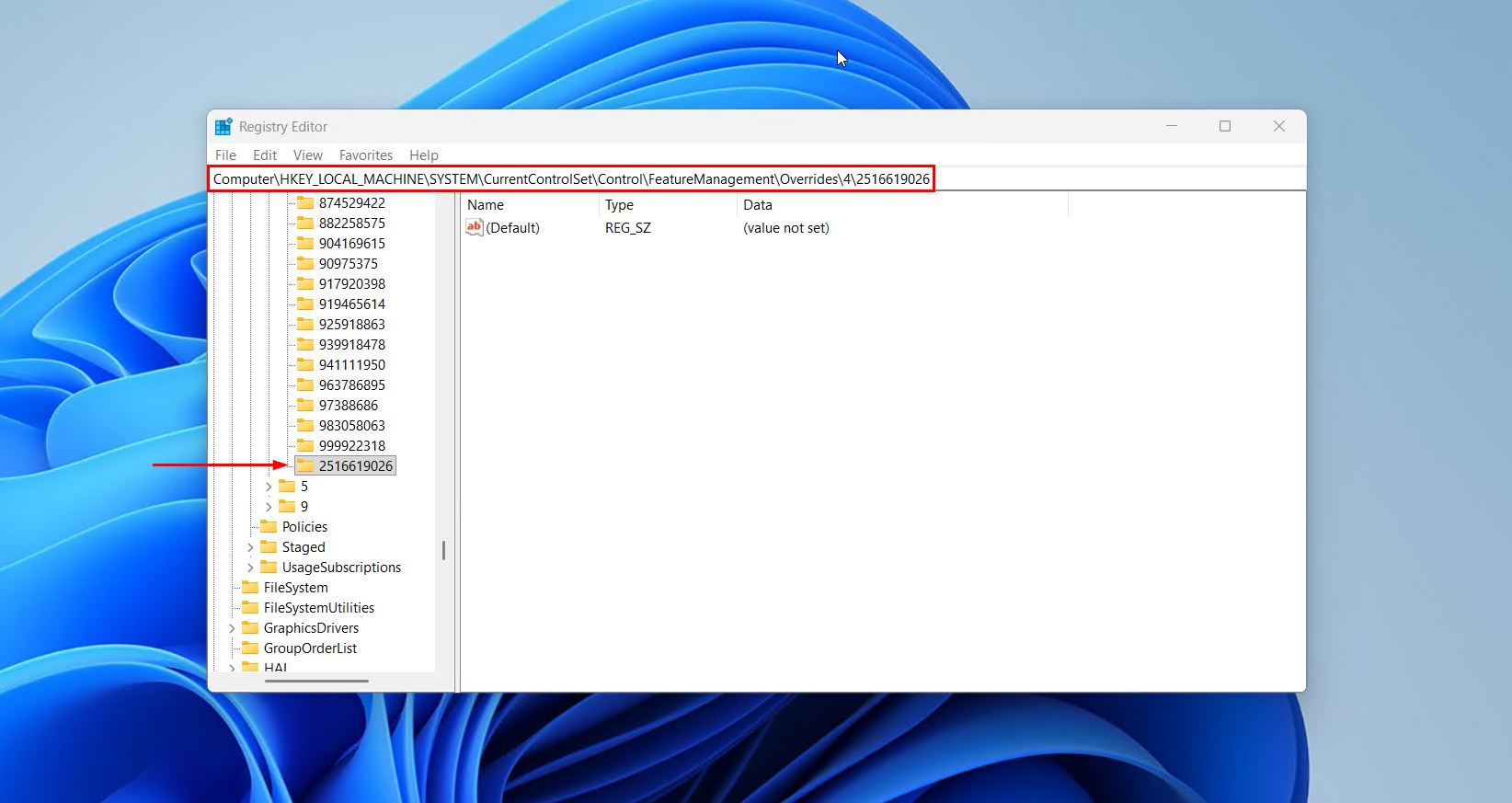
- Right-click inside the key and select “New > DWORD (32-bit) Value.” Name the new value “EnabledState.”
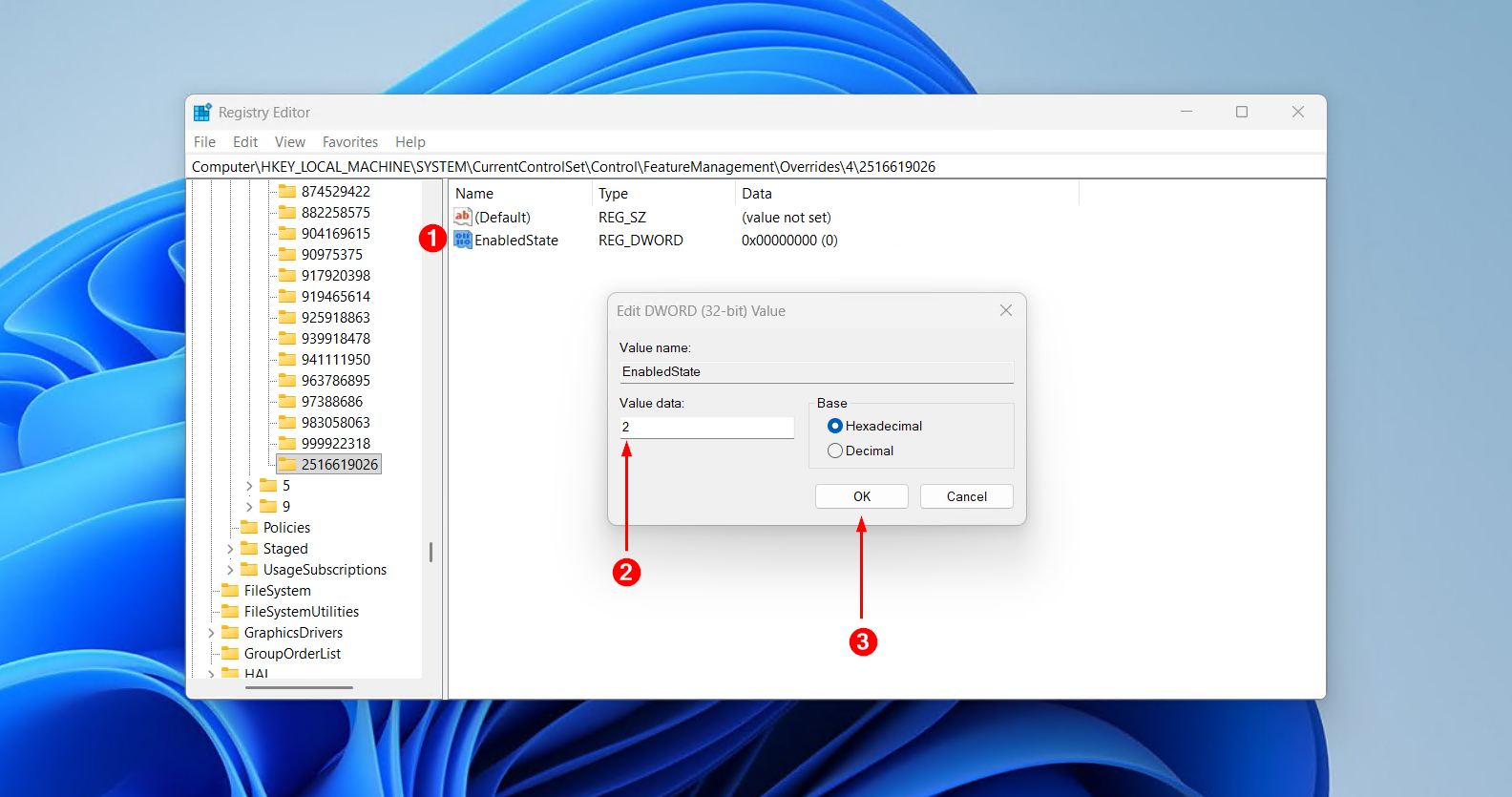
- Double-click “EnabledState” and set the value data to “2.” Click OK to confirm.
- Restart the PC. The taskbar should now load without the XAML Host conflict.
Method 5: Repair System Files
Corrupted system files are a common reason why a Windows 11 taskbar stops working. Windows includes two built-in tools to scan for and repair damaged files: System File Checker (SFC) and Deployment Image Servicing and Management (DISM).
- Open Command Prompt as an administrator. Press Windows + S, type “cmd,” right-click “Command Prompt,” and select “Run as administrator.”
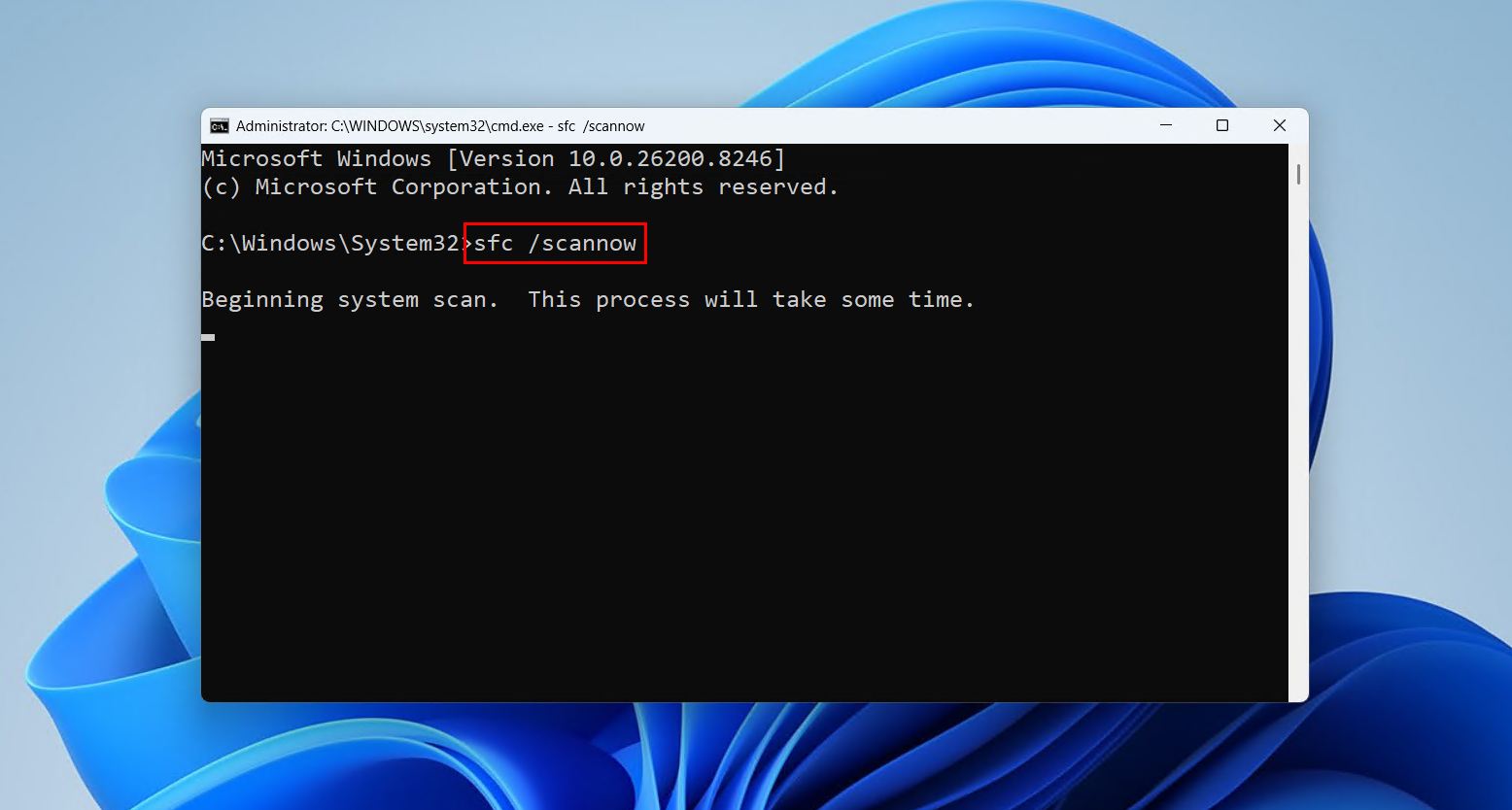
- Type the following command and press Enter:
sfc /scannow
This scan can take several minutes. SFC will check all protected system files and replace corrupted ones automatically.
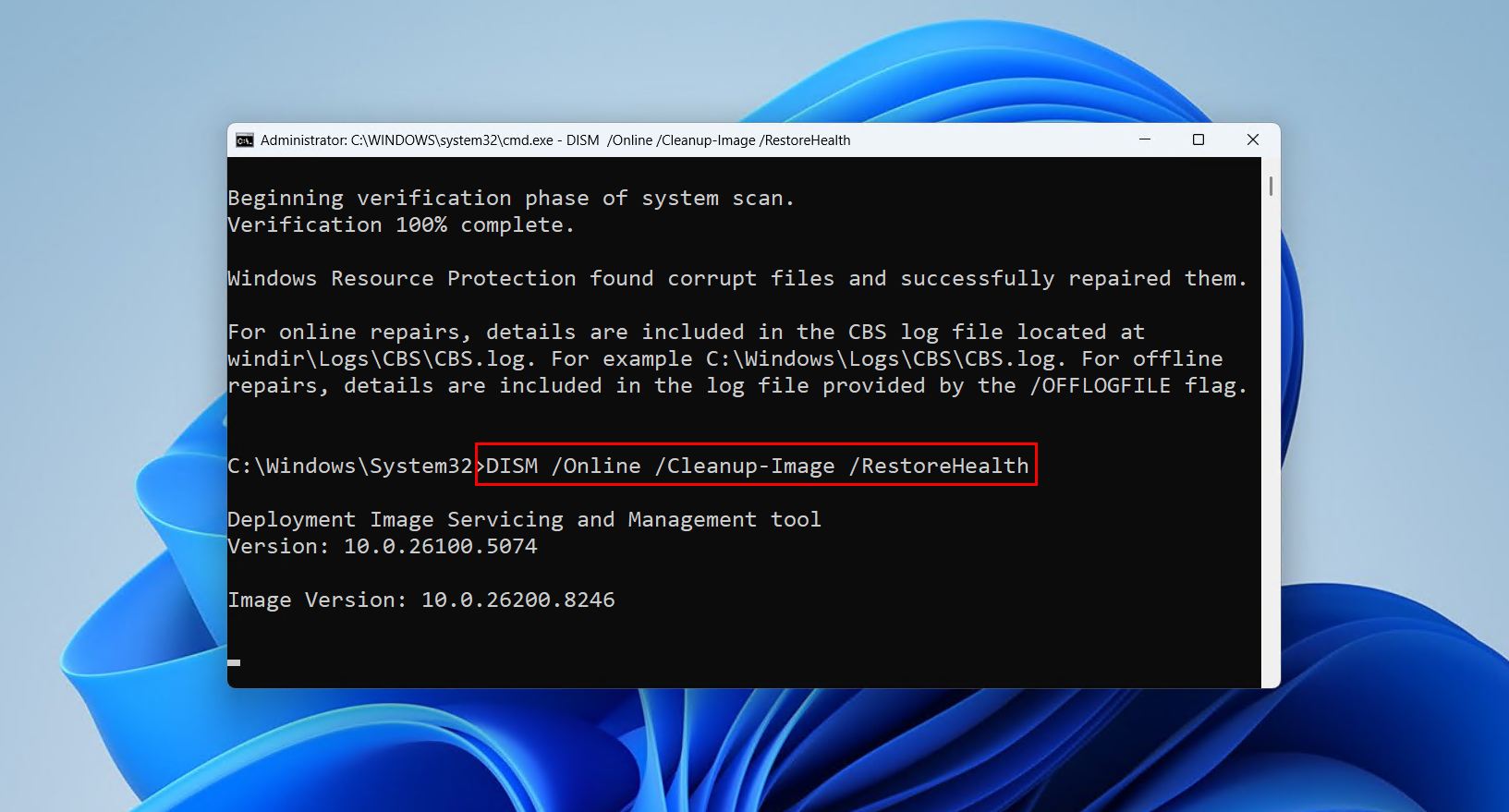
- Once the SFC scan is complete, run the DISM command:
DISM /Online /Cleanup-Image /RestoreHealth
DISM repairs the Windows image itself, which SFC relies on. Running both together gives the best chance of fixing underlying corruption.
- Restart the PC after both commands have finished. Check whether the taskbar is responding normally.
Method 6: Uninstall a Recent Windows Update
If the pc taskbar not working issue started shortly after a Windows update, that update may have introduced a bug. Rolling it back is a straightforward fix.
- Press Windows + I to open Settings.
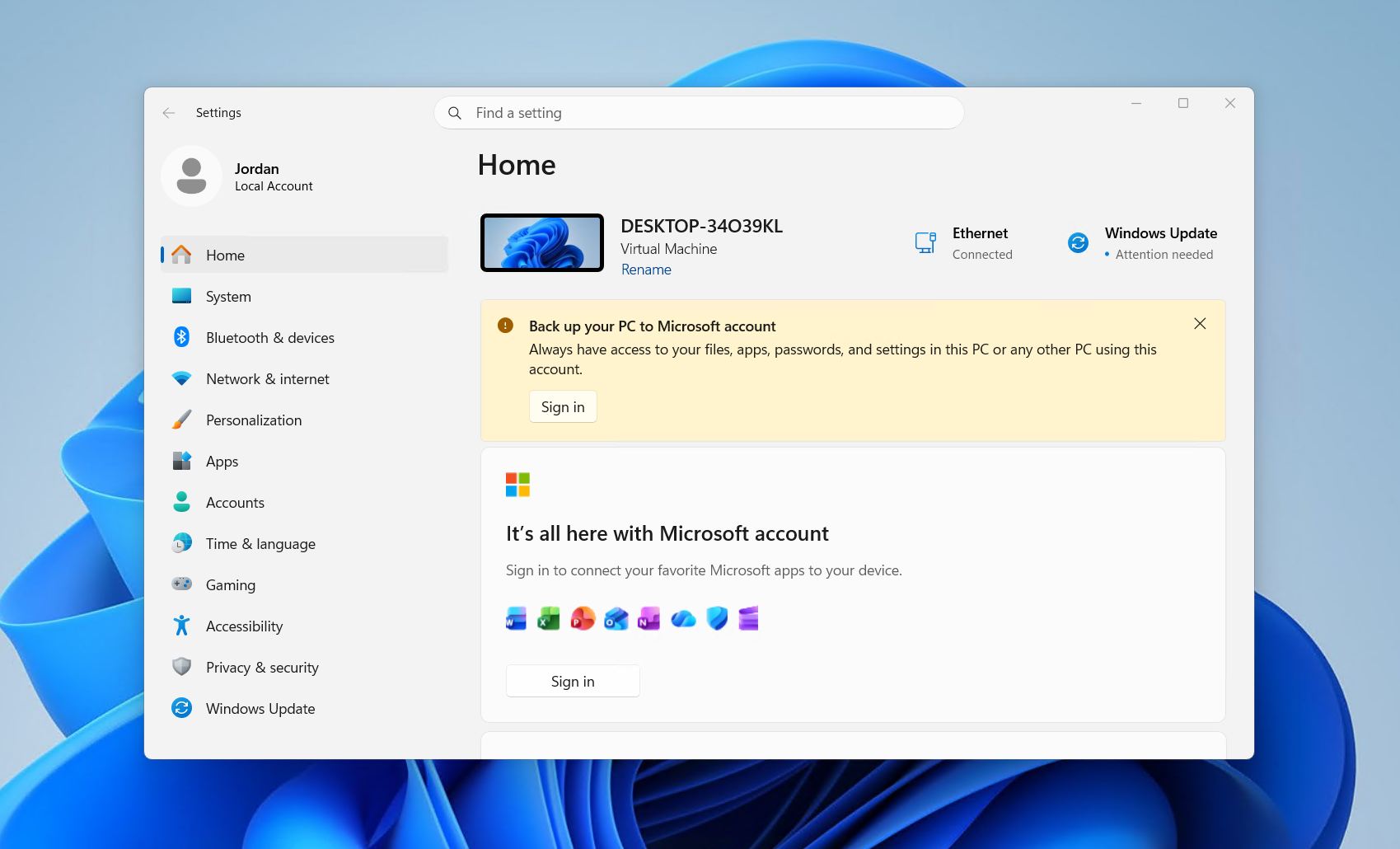
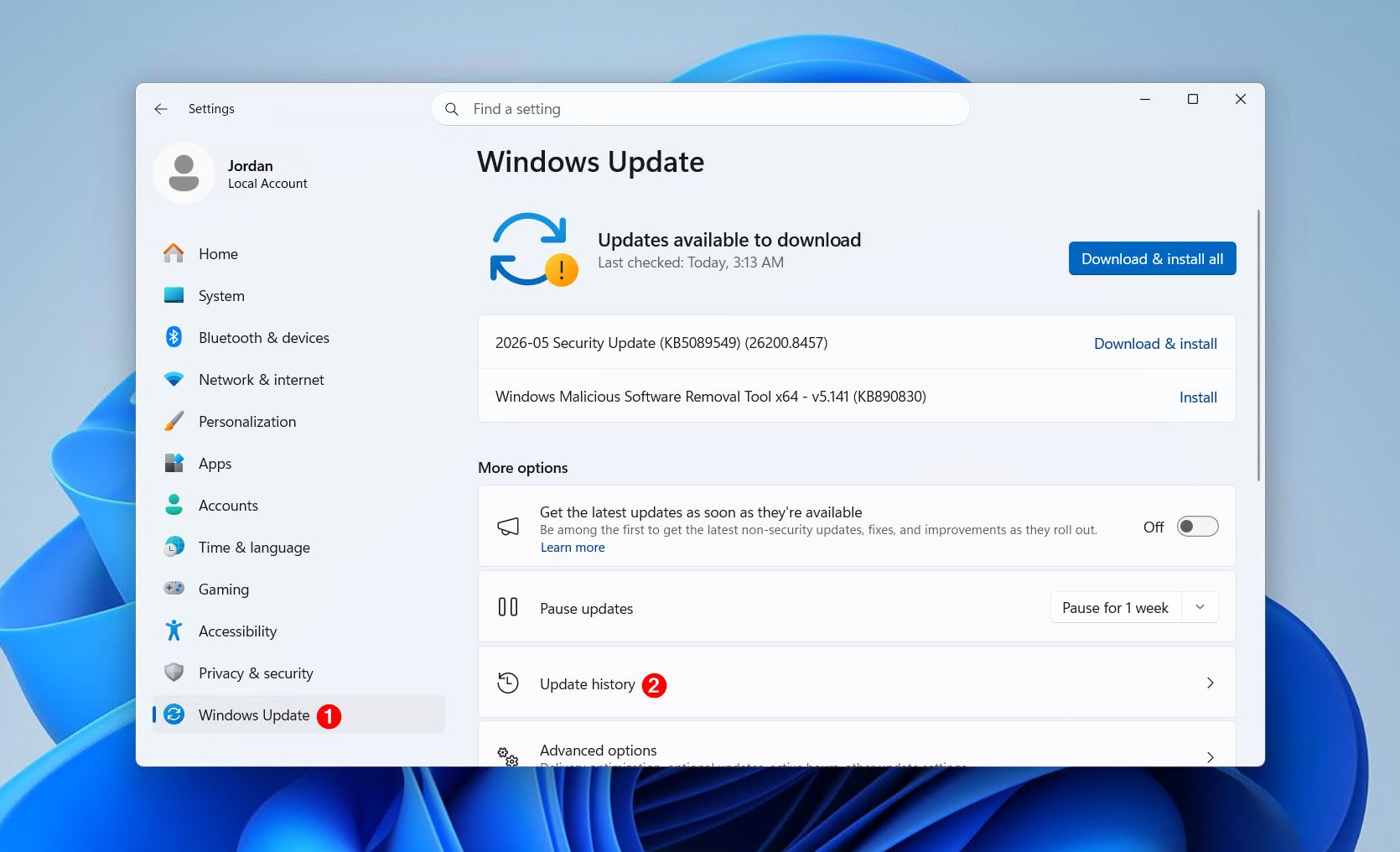
- Go to Windows Update, then click “Update history.”
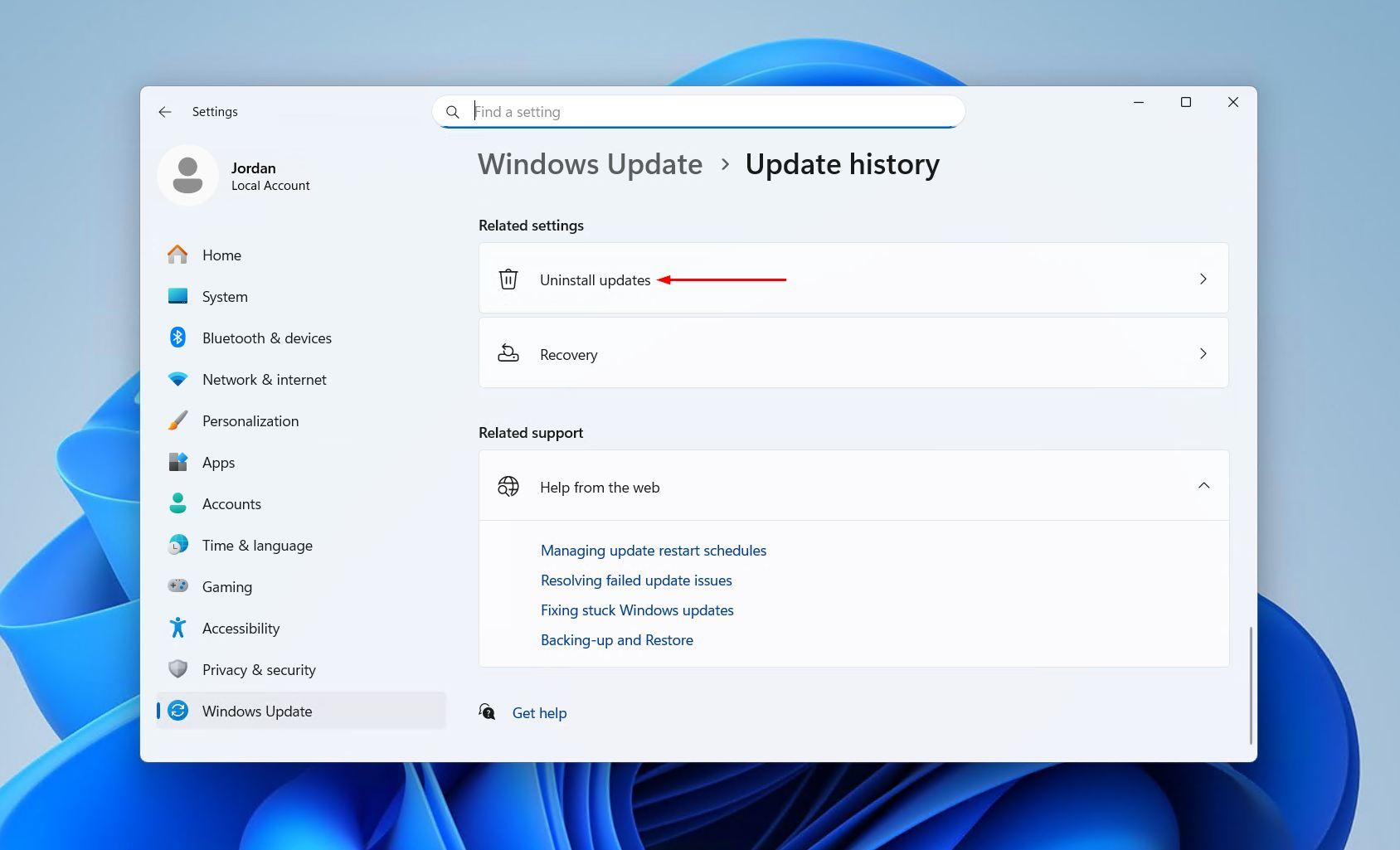
- Scroll down and click “Uninstall updates.” This opens a list of recently installed updates.
- Find the most recently installed update and click “Uninstall” next to it. Focus on Quality Updates or Feature Updates if multiple options are listed.
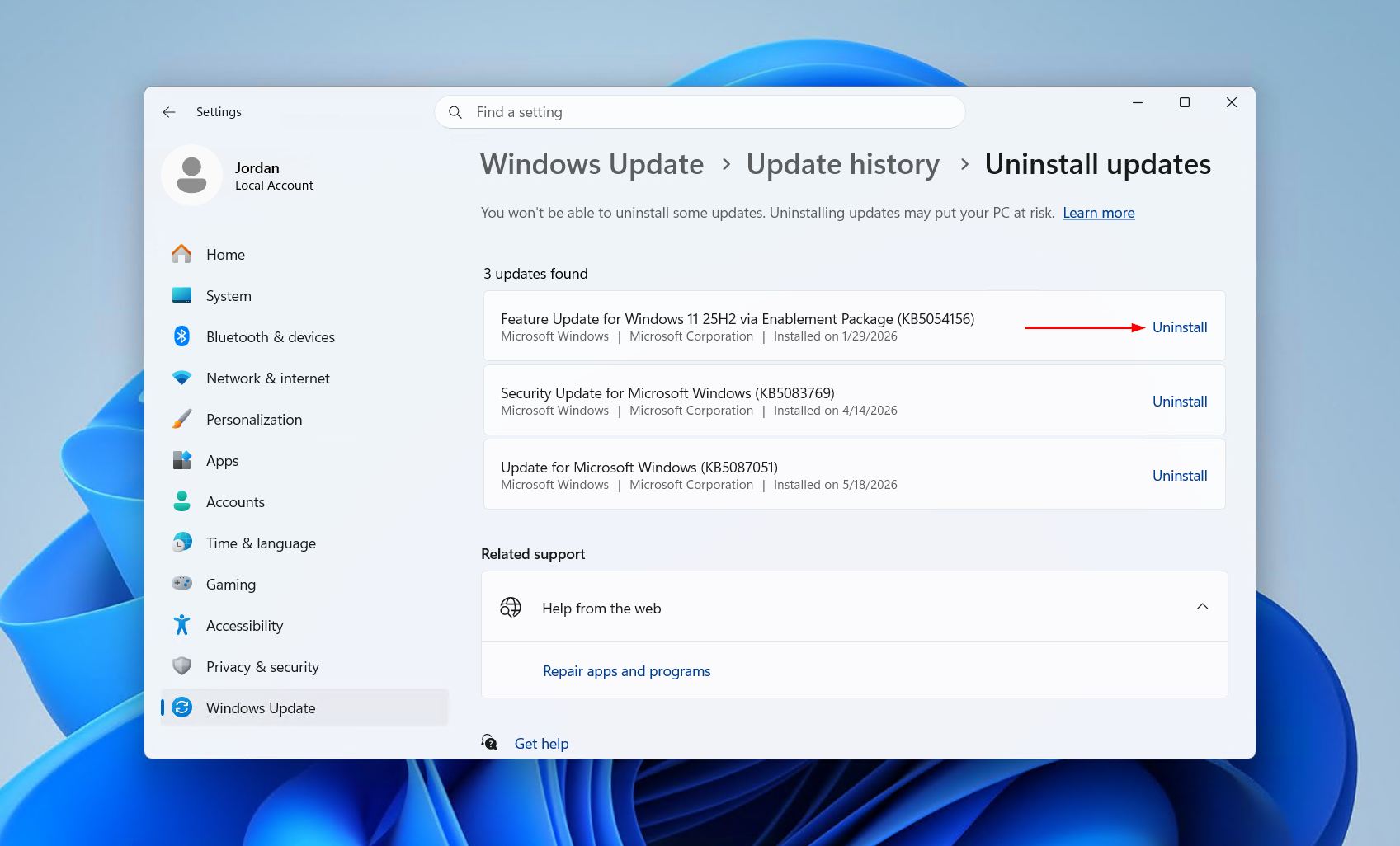
- Follow the on-screen prompts and restart the PC when asked. Once the update is removed, check whether the taskbar issue is resolved.
If the taskbar works after uninstalling the update, consider pausing future Windows updates temporarily until Microsoft releases a patched version. This option is available under Windows Update > Advanced Options in Settings.
Method 7: Run a Windows Security Scan
If none of the above methods have fixed the Windows bar not working, malware may be the cause. Running a full scan with Windows Security can detect and remove any threats affecting system processes.
- Press Windows + I to open Settings.
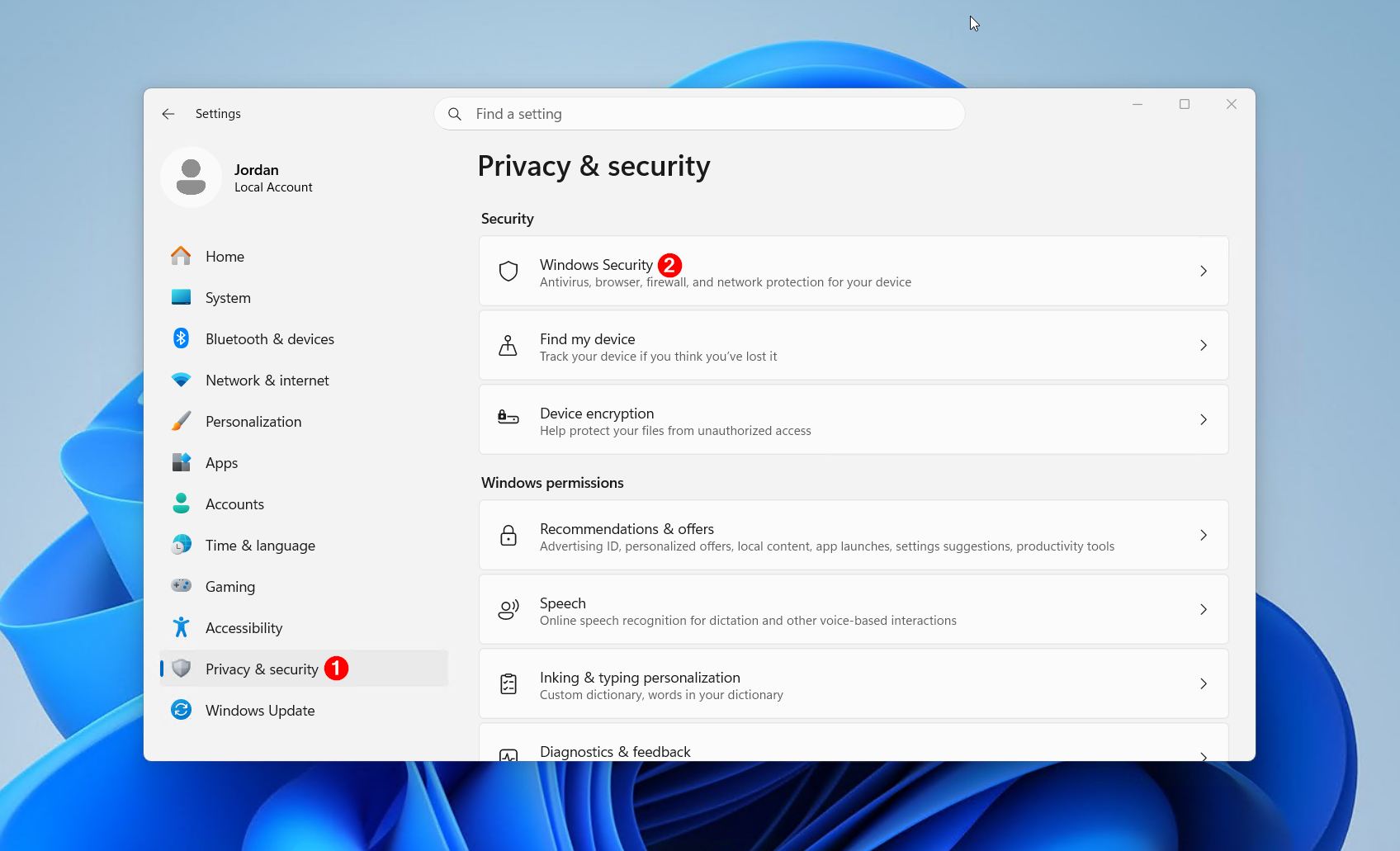
- Go to Privacy & security, then Windows Security.
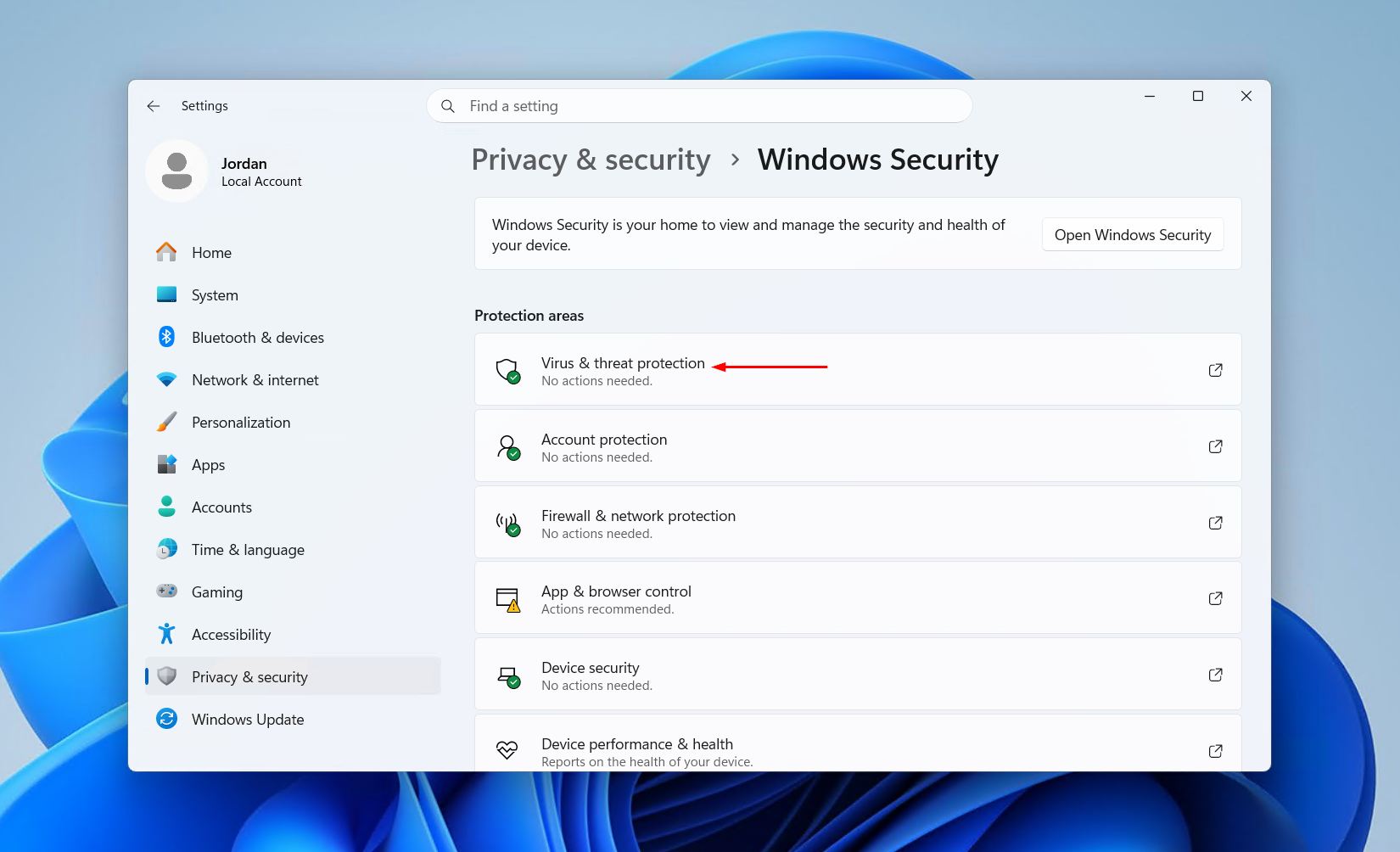
- Click “Virus & threat protection”.
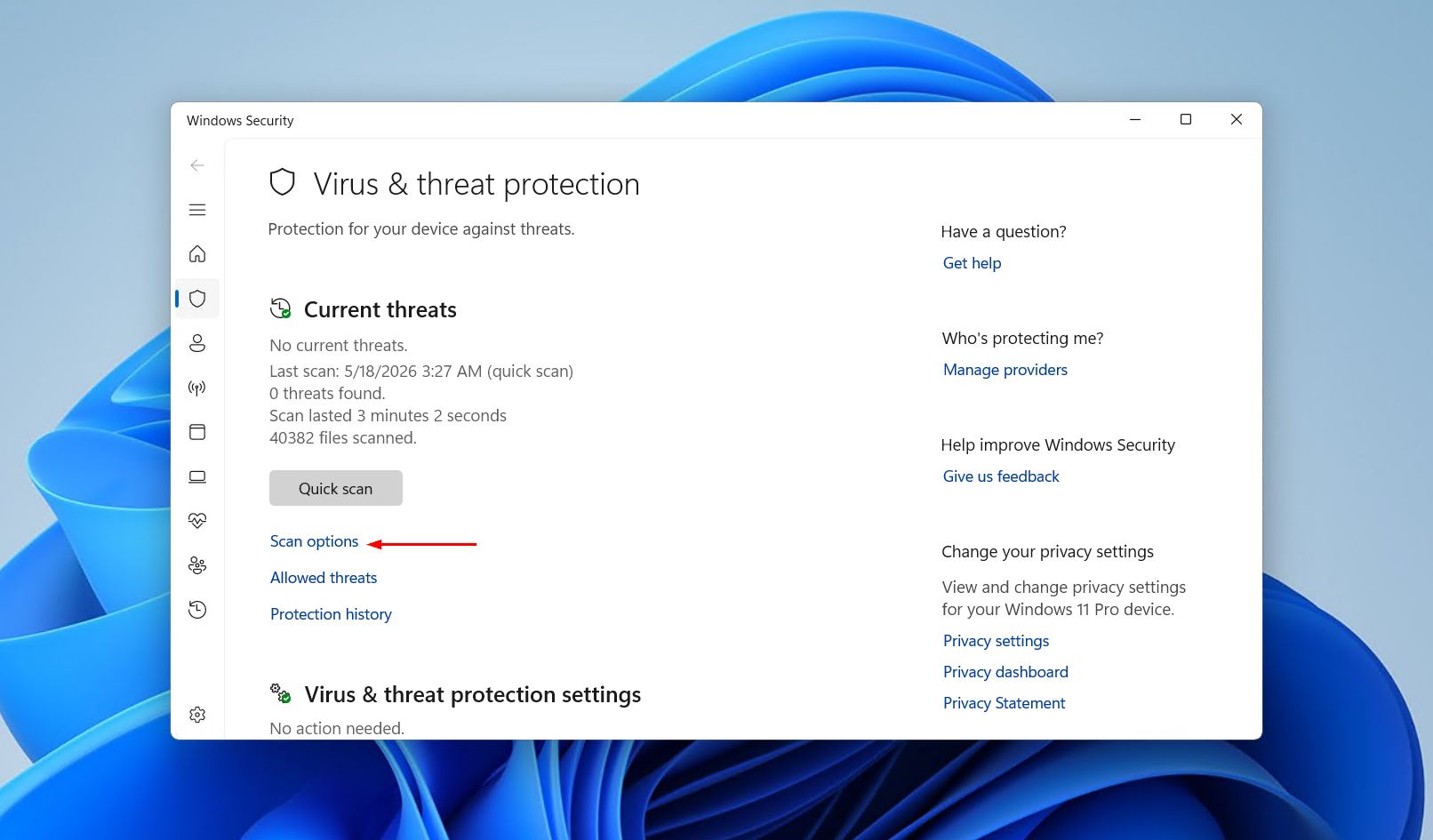
- Click “Scan options” under the Quick Scan button.
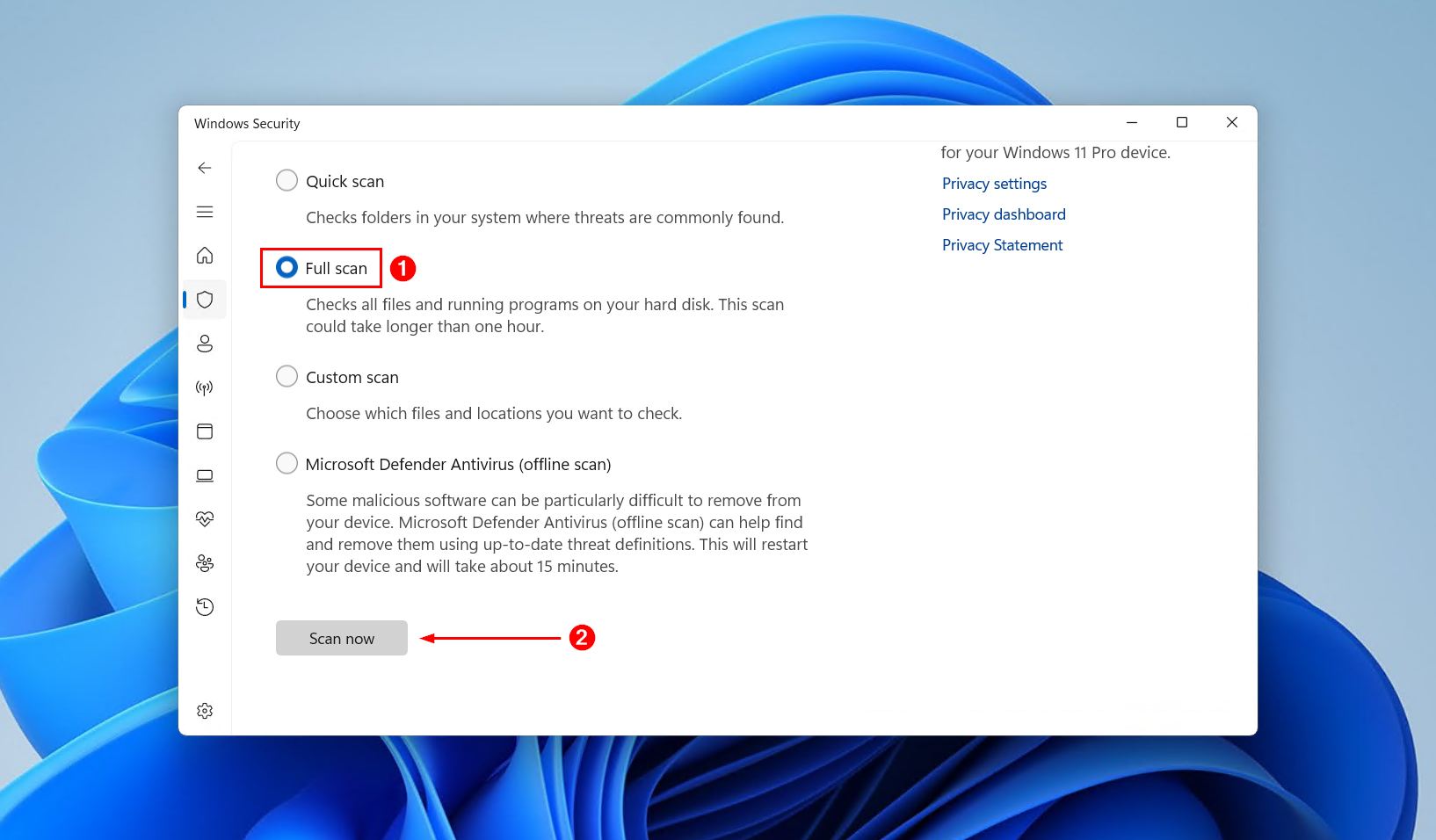
- Select “Full scan” and click “Scan now.” A full scan checks every file on the system and takes longer than a quick scan, but is more thorough.
- Wait for the scan to complete, then follow any prompts to remove detected threats. Restart the PC afterwards and check whether the taskbar is working.
You can also perform the Microsoft Defender Antivirus (offline scan) if you want a more thorough and comprehensive check done – it just takes a little bit longer.
Tips for Keeping the Taskbar Working
Once the taskbar is fixed, a few habits can help prevent the problem from coming back:
- Keep Windows updated. While a bad update can cause problems, falling behind on updates leaves the system vulnerable to bugs and security issues. Install updates regularly and check forums for any known issues before applying major updates.
- Run regular malware scans. Schedule Windows Security to run periodic scans so threats are caught early before they can affect system components.
- Restart the PC regularly.Regular restarts clear memory and reload system services, reducing the chance of processes like Windows Explorer becoming unstable.
Conclusion
A Windows 11 taskbar that’s not working is almost always fixable with one of the methods above. Start by restarting the PC or restarting the Windows Explorer process, since these solve the problem in most cases. If the taskbar is still unresponsive, work through the remaining methods: running the re-registration command, editing the registry, repairing system files, uninstalling a recent update, or running a malware scan.
For most users, the issue will be resolved well before reaching the later steps. If the taskbar continues to malfunction after trying everything on this list, a clean Windows reinstall may be the only remaining option.

