Accidentally overwriting an important document or losing hours of edits to a file stored in OneDrive is a frustrating experience. Whether a collaborator made unwanted changes or an autosave captured a mistake, the damage can feel permanent. Fortunately, OneDrive includes built-in version history that makes it straightforward to restore a OneDrive file to a previous version without losing everything. This article walks through exactly how to do that on the web and in Windows, how to restore a OneDrive folder, and how the versioning system works behind the scenes.
How to Restore a OneDrive File to a Previous Version
OneDrive’s version history feature automatically saves snapshots of files each time they are modified. These snapshots can be accessed and restored through the OneDrive web interface, through File Explorer on Windows, or through the folder restore option for broader rollbacks. The steps vary slightly depending on the platform, so each method is covered separately below.
Version history works with all file types, including Microsoft 365 documents, PDFs, images, videos, and CAD files. It is available on both personal Microsoft accounts and work or school accounts (Microsoft 365), though the number of versions retained and how far back they go depends on the account type and available storage.
Method 1: How to Restore a OneDrive File to a Previous Version on the Web
The web interface is the most reliable way to access version history, and it works regardless of whether the OneDrive desktop app is installed. All that is needed is a browser and a Microsoft account.
- Go to onedrive.live.com and sign in with the Microsoft account linked to the file.
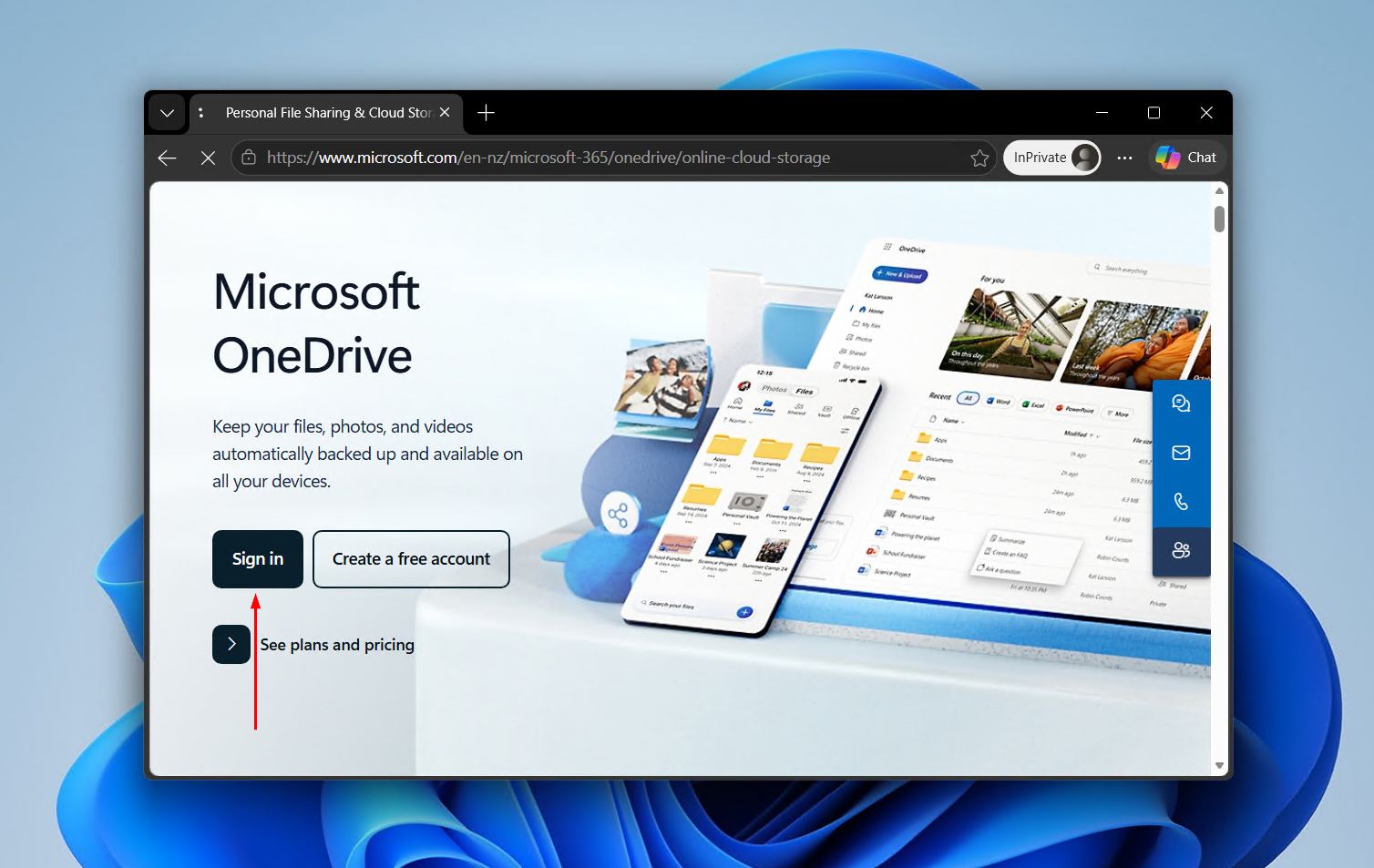
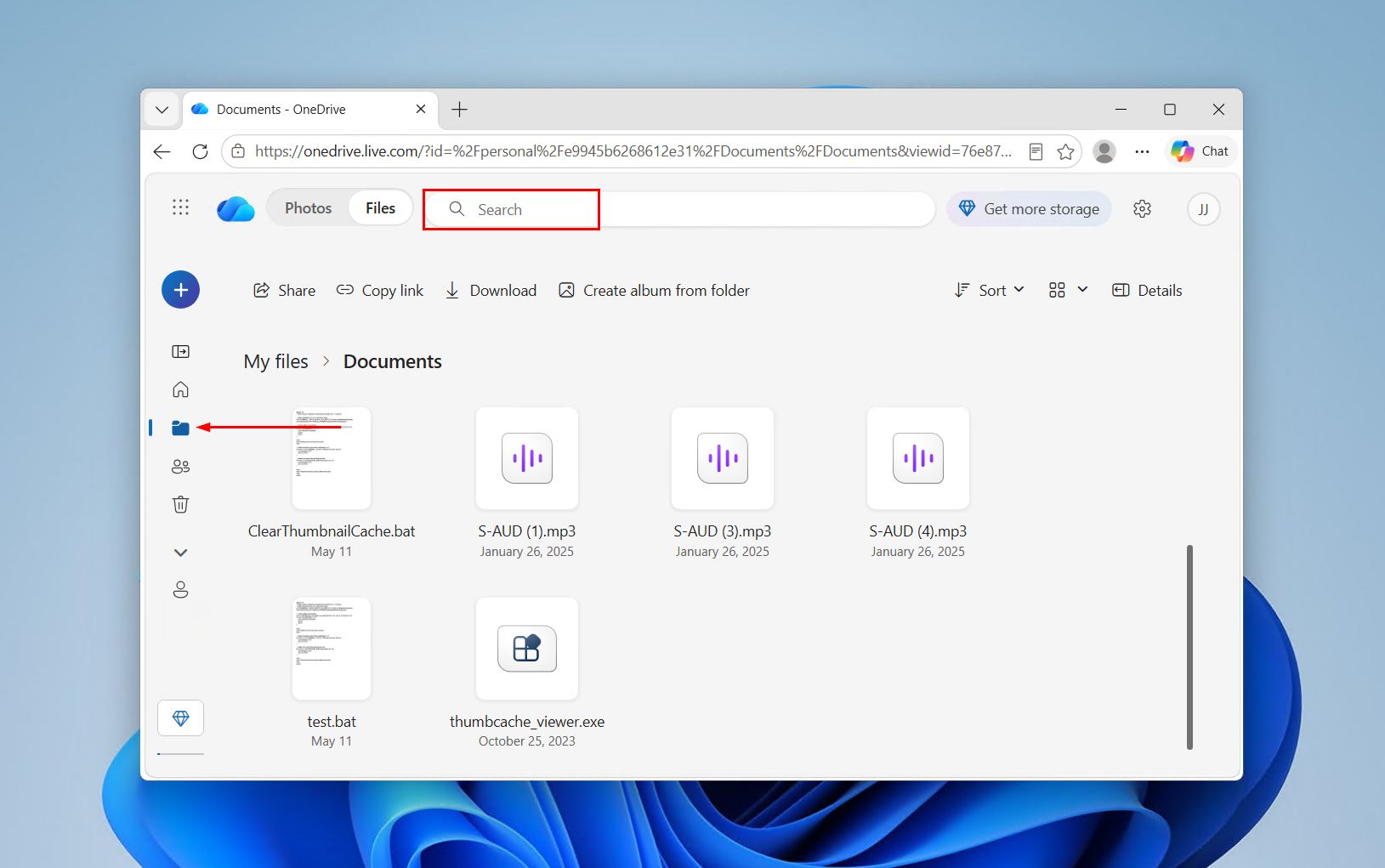
- Locate the file to restore using the folder structure or the Search bar at the top of the page. You can search by file type, for example, by only typing .jpg.
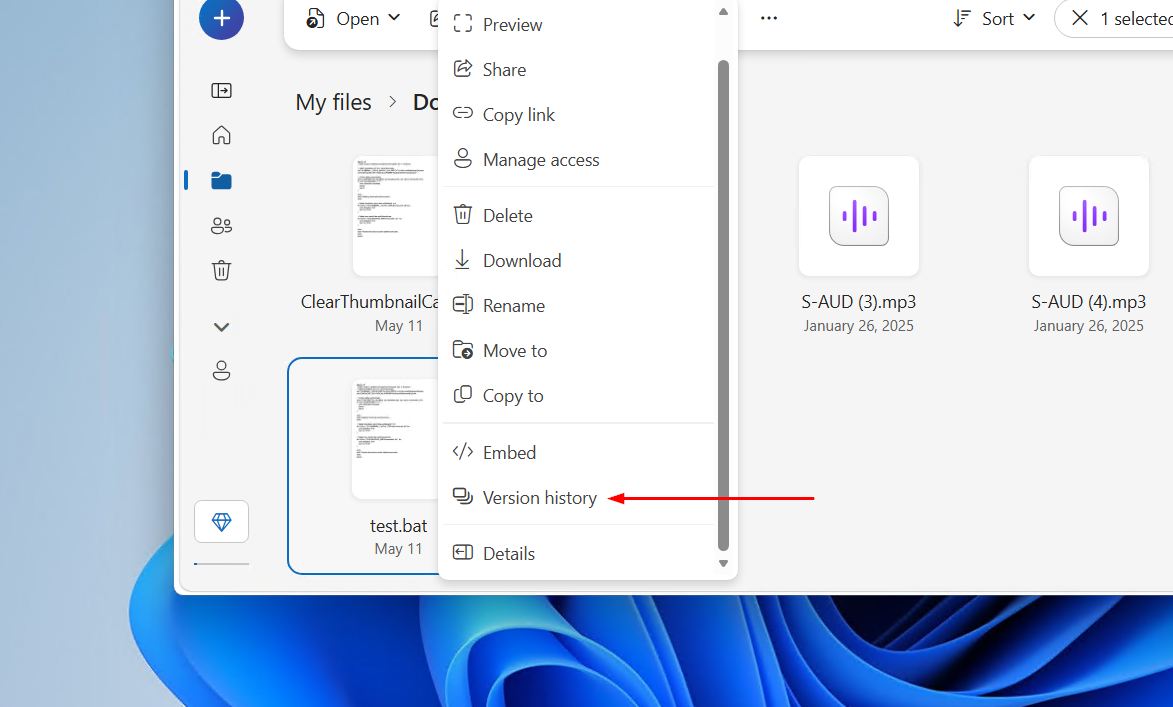
- Right-click the file and select Version history from the context menu. On the Classic view, select the file, click More at the top, then choose Version History.
- Review the list of saved versions in the Version History pane, each showing a date, time, and the account that made the change.
- To preview a version before restoring it, click the version’s timestamp. This opens a read-only copy of the file so the content can be checked first.
- Click the ellipsis (…) next to the version to restore, then select Restore. On work or school accounts (Microsoft 365), this option appears directly in the pane next to each version.
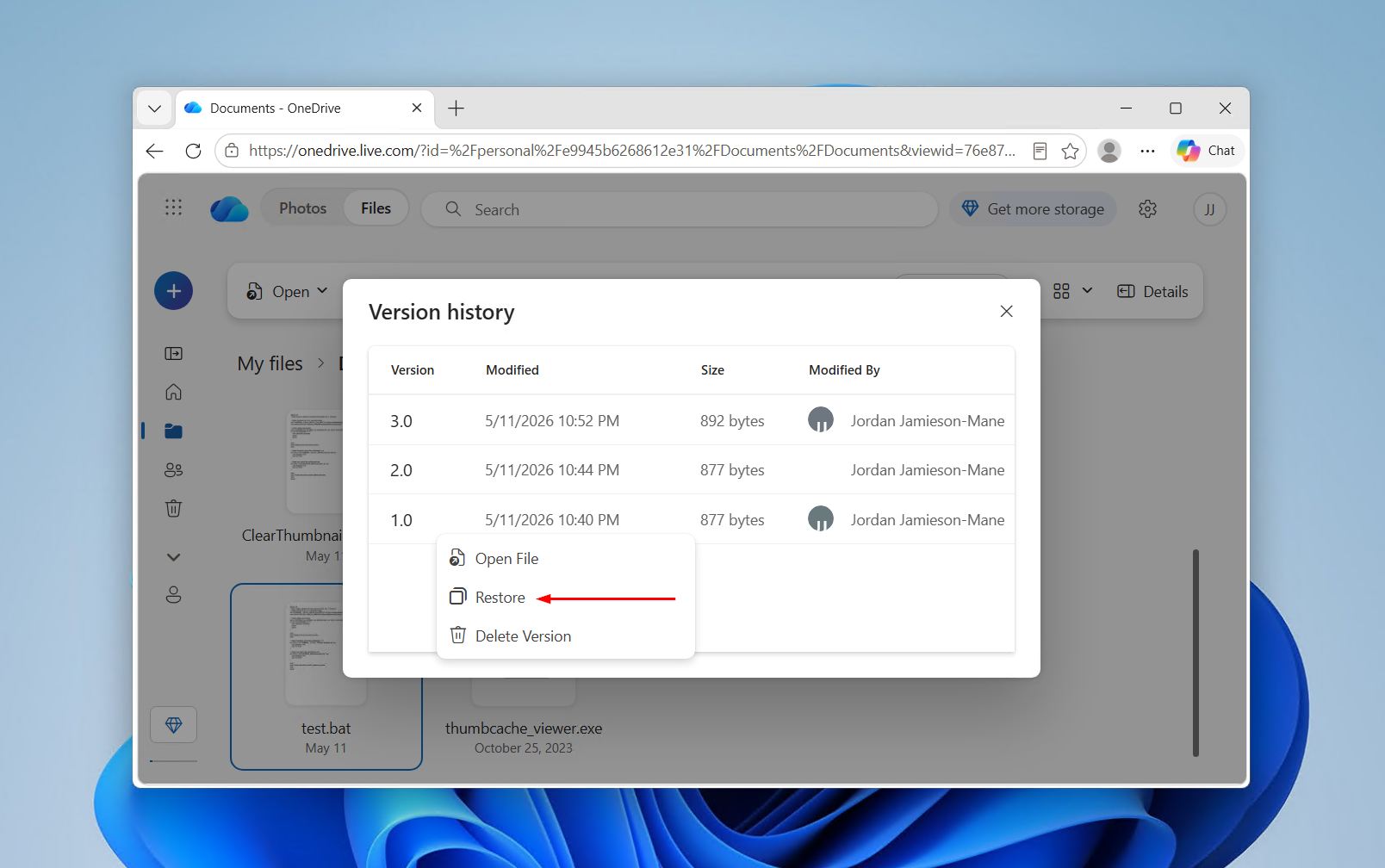
- Confirm the restore when prompted. The selected version becomes the current version of the file, and the previous current version is added to the version history list.
Method 2: How to Restore a OneDrive File to a Previous Version in Windows
For users with the OneDrive desktop app installed and sync enabled, version history can be accessed directly through File Explorer. This is a convenient option for those who prefer to work locally rather than opening a browser.
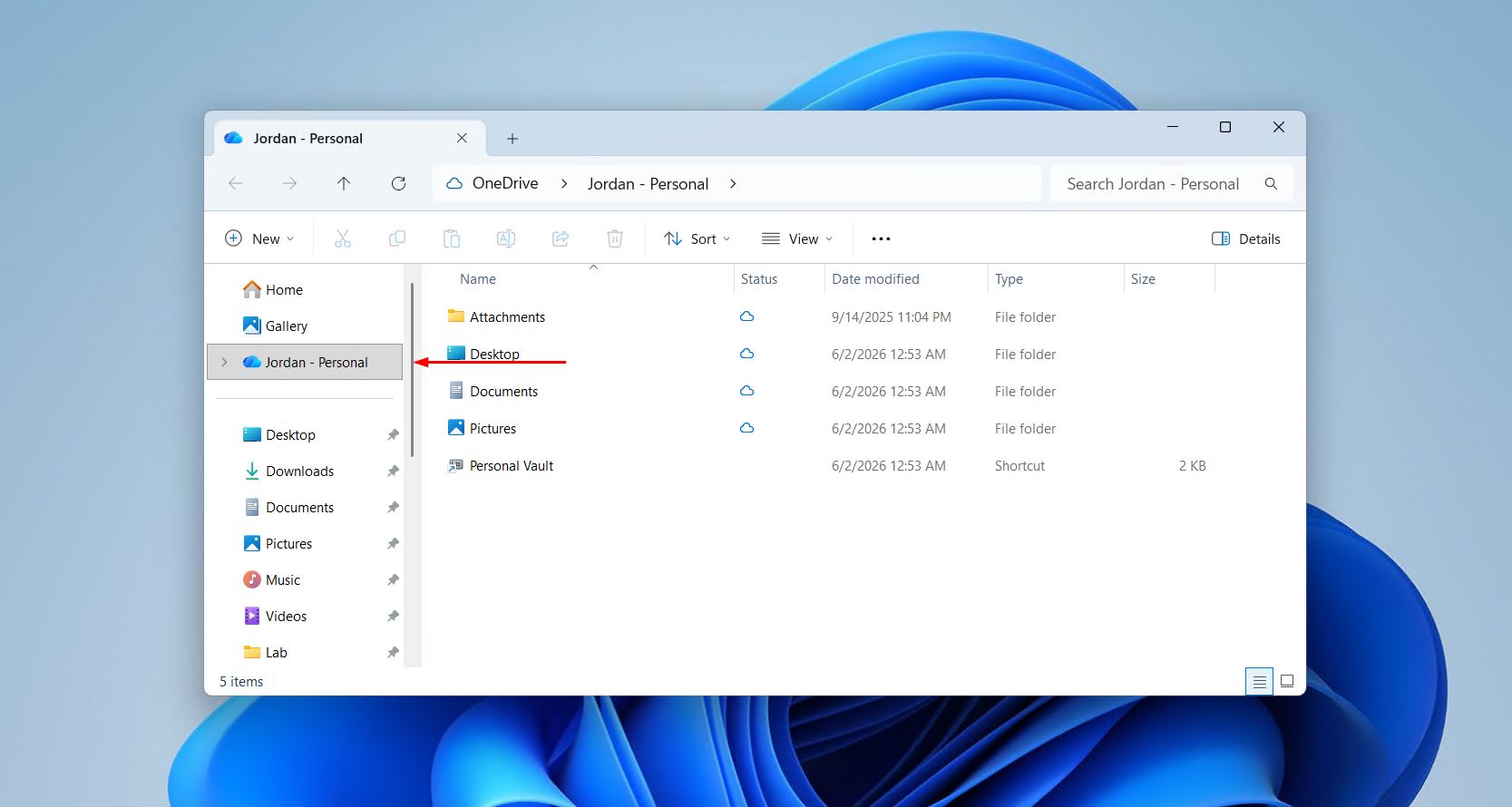
To locate synced OneDrive files, open File Explorer and look for the OneDrive folder in the left sidebar. If the folder is not immediately visible, it may be stored in the user profile directory. Learning how to show hidden files in Windows can help locate the folder if it has been moved or is not appearing in the sidebar.
- Open File Explorer and go to the OneDrive folder.
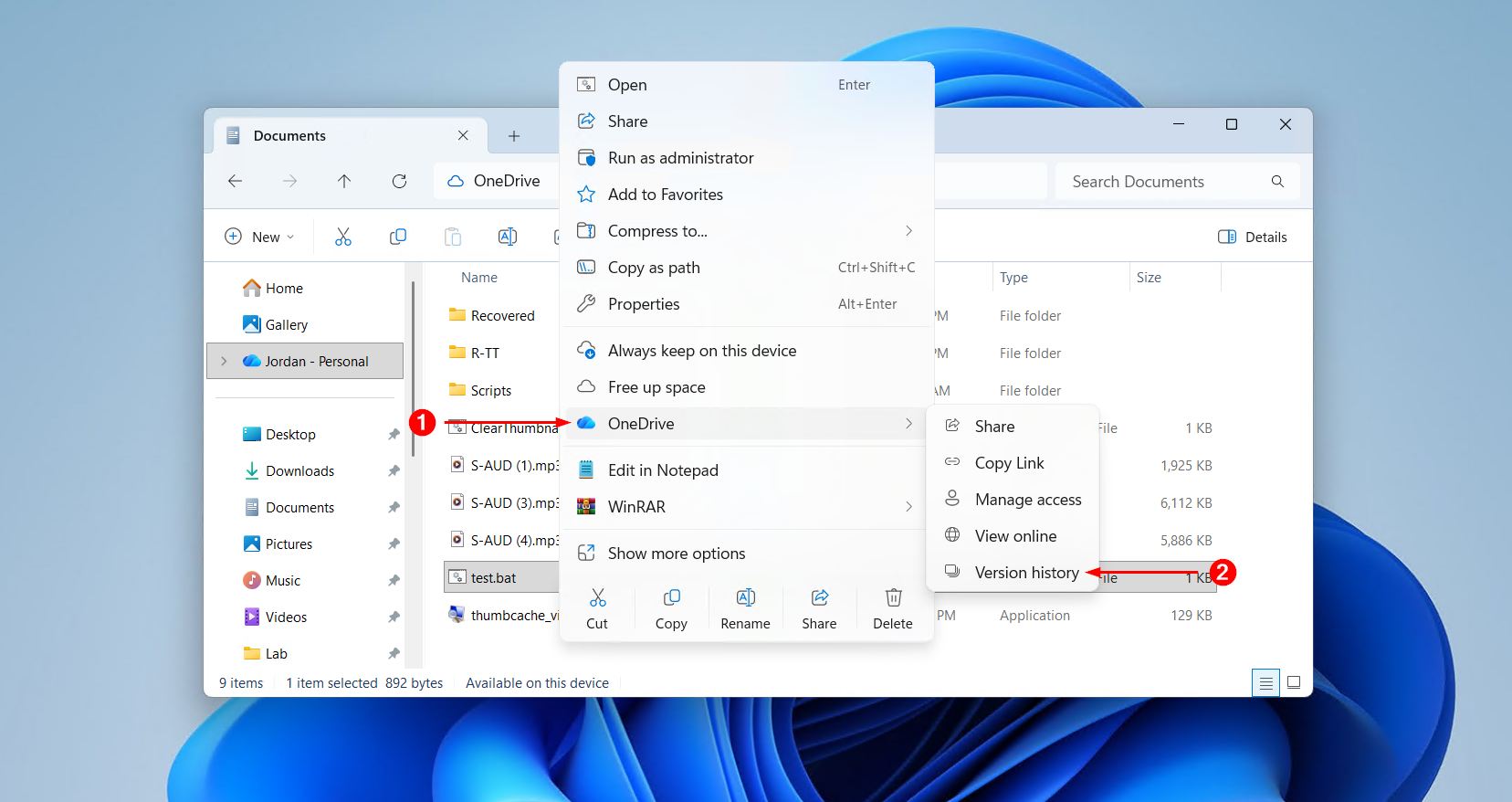
- Right-click the file to restore, hover over OneDrive, and select Version history from the context menu. This option appears when the OneDrive desktop app is installed and the file is synced to the cloud.
- The Version History pane will open in a browser window showing all available versions. This is the same interface as the web method.
- Click the ellipsis (…) next to the desired version and select Restore to revert the OneDrive file to that version.
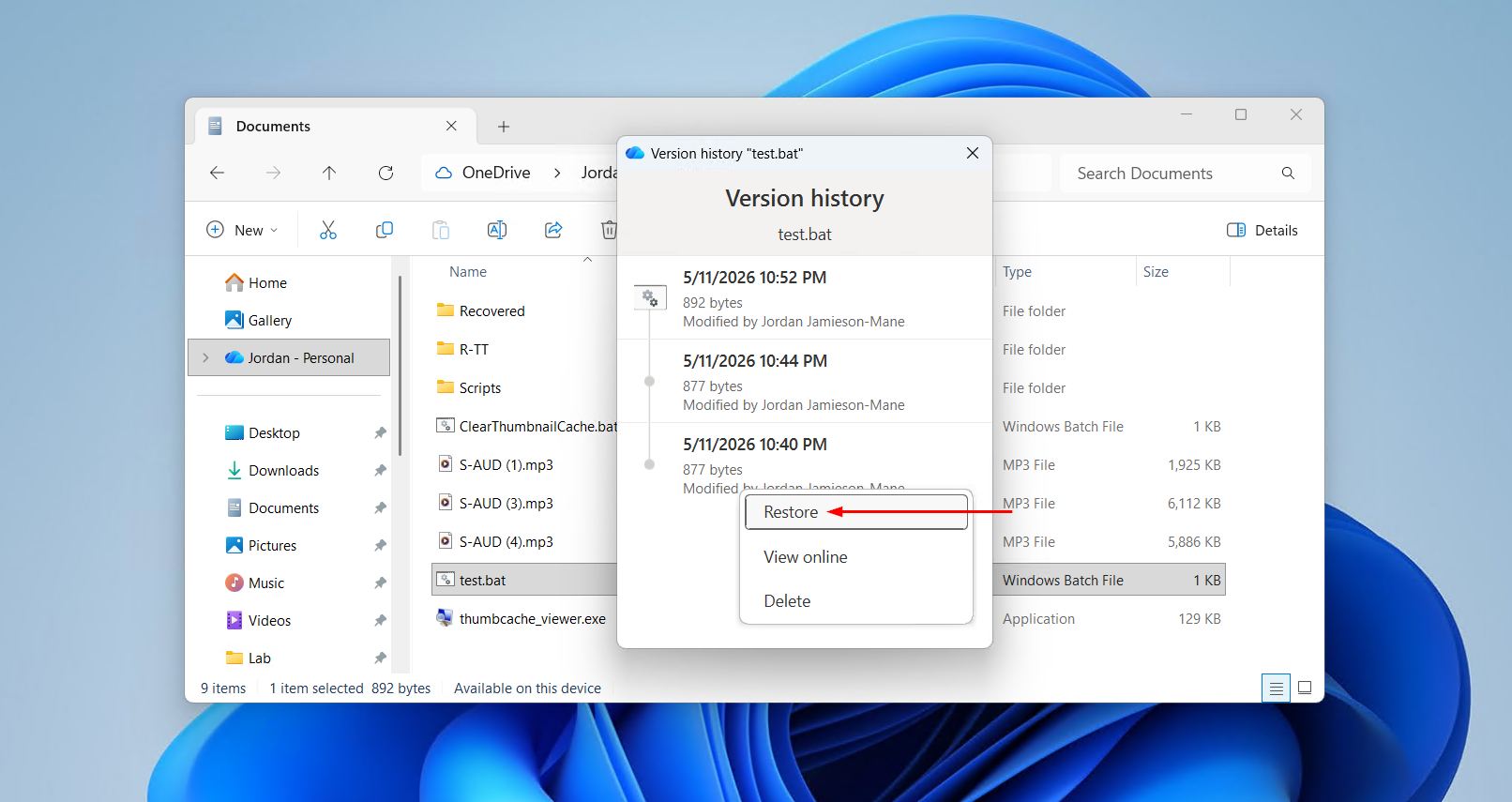
Note that version history through File Explorer still opens the OneDrive web interface to complete the restore. The desktop app does not provide a fully offline version history tool. If the file is not synced or shows an online-only status, right-clicking may not show the version history option until the file has been downloaded locally.
Method 3: How to Restore a OneDrive Folder to a Previous Version
Restoring an entire folder is different from restoring individual files. OneDrive includes a feature called Restore your OneDrive, which rolls back all files in the account (or a specific folder, in some account types) to a point in time rather than targeting one file at a time.
This is the most practical option when multiple files have been affected, such as after a ransomware attack, a sync error, or a batch of unwanted edits across a project folder. This feature is only available if you have Microsoft 365. All files in the selected scope are rolled back, so any changes made after the selected restore point will be lost.
To restore a OneDrive folder or the full OneDrive using this method:
- Sign in to OneDrive on the web at onedrive.live.com.
- Click the Settings gear icon in the upper right corner and select Options or OneDrive Settings.
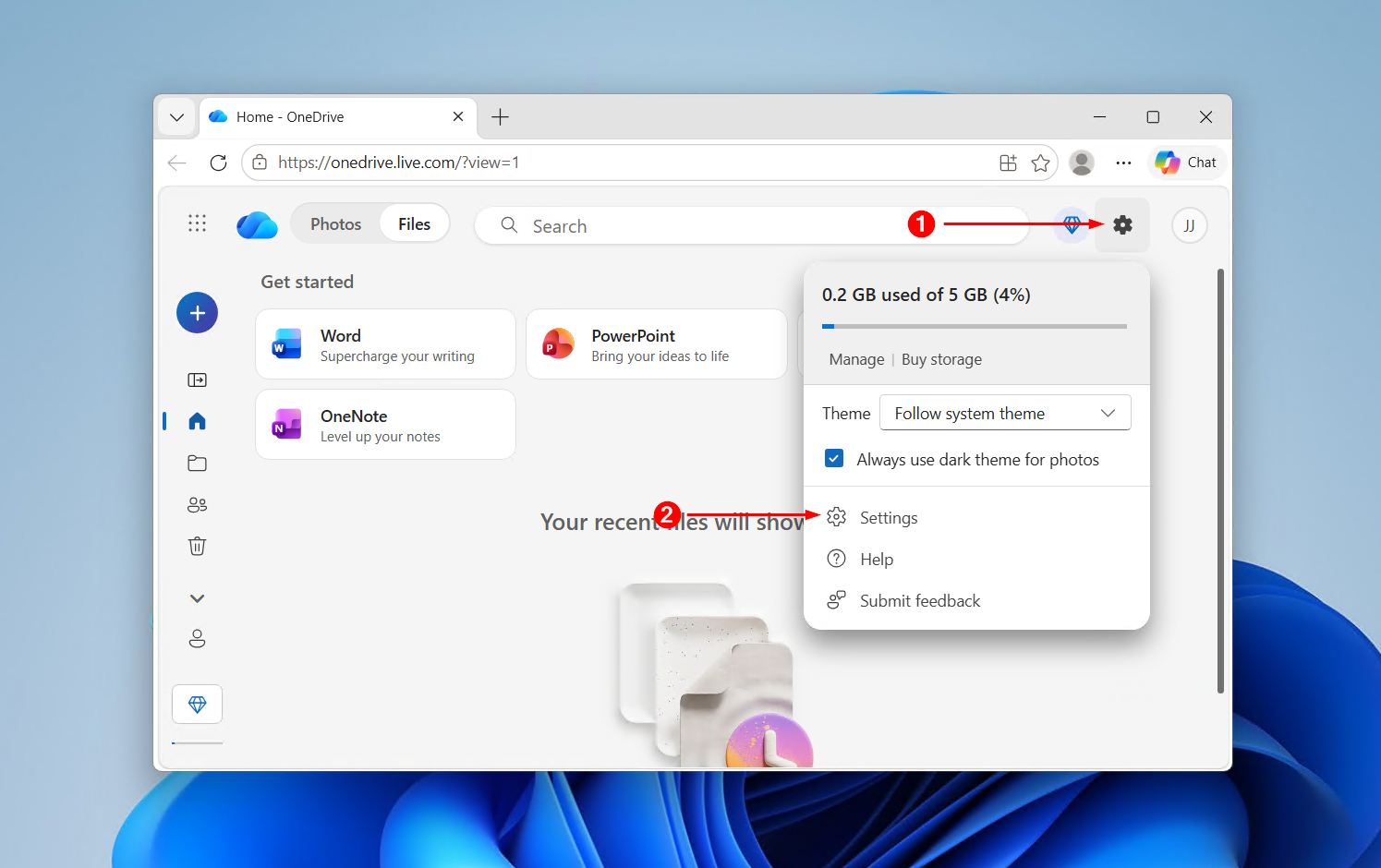
- In the left menu, select Restore your OneDrive.
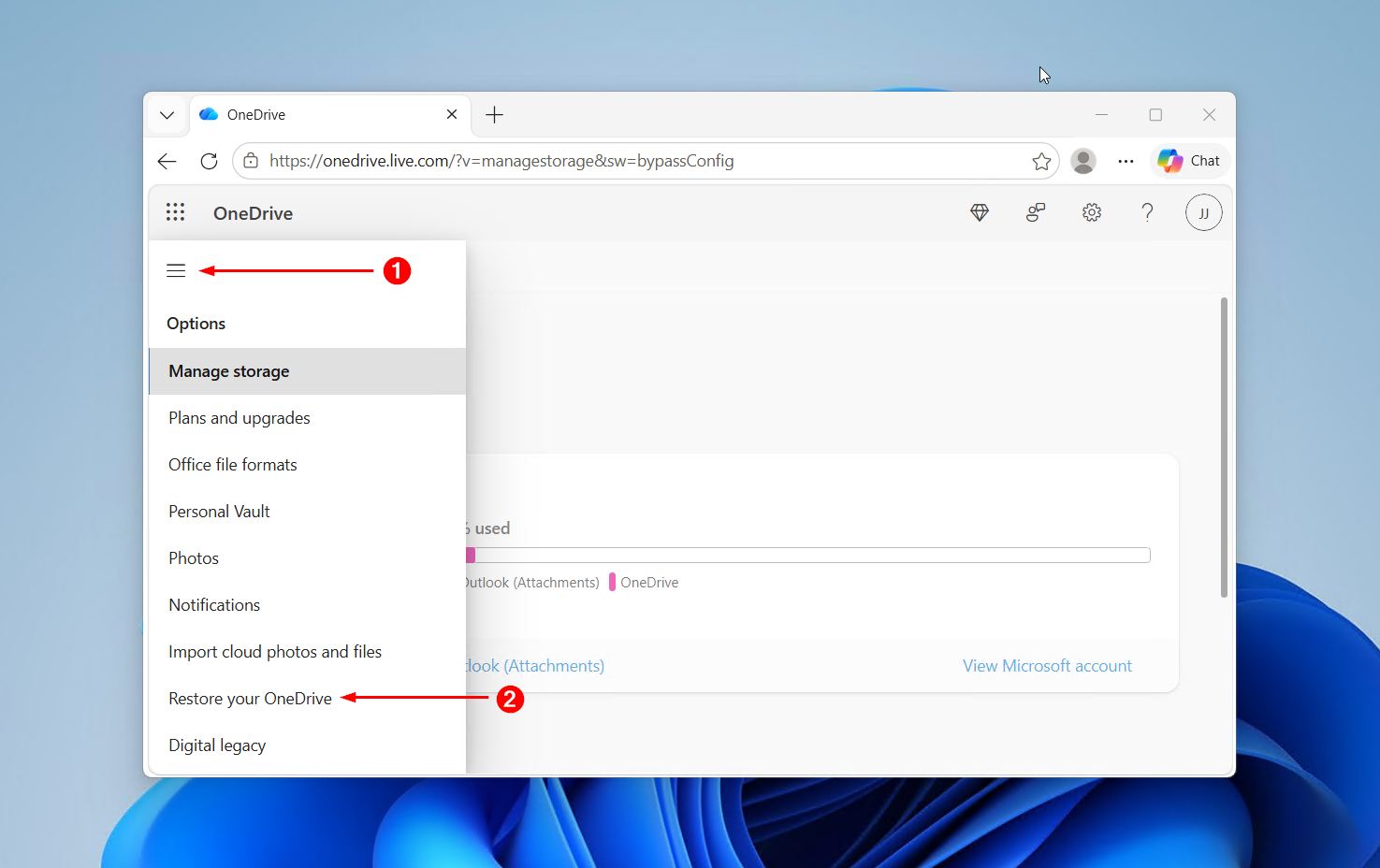
- Choose a date from the dropdown or use the activity chart to select a restore point. The chart shows file activity over time, which makes it easier to identify when changes occurred.
- Review the list of changes that will be undone, then click Restore to confirm. OneDrive will revert the files to the selected state.
For users who only need to revert a OneDrive folder rather than the entire account, the best approach is to restore individual files within that folder using the file-level version history method described above. The full account restore is a broad action and should be used when widespread changes need to be undone.
How OneDrive File Versioning Works
Understanding how versioning works helps set realistic expectations about what can and cannot be recovered.
Each time a file stored in OneDrive is saved or modified, OneDrive automatically creates a new version snapshot. These snapshots are stored alongside the current file and are accessible through version history. The process is automatic and does not require any manual action from the user, as long as the file is being saved to OneDrive and sync is active.
Several factors affect how many versions are available and how far back they go:
- Account type: Microsoft 365 work and school accounts typically retain significantly more versions than personal accounts. Personal accounts are generally limited to 30 days of version history.
- Storage limits: Version history counts toward the total OneDrive storage quota. If storage is full or nearly full, older versions may be purged to make room.
- File type: Version history works with all file types, but the frequency of snapshots may differ. Microsoft Office files (Word, Excel, PowerPoint) tend to generate more version entries due to autosave and AutoRecover behaviour.
- Sync status: Versions are only created for files that are actively synced to OneDrive. Files that exist only on a local drive and have never been uploaded will not have cloud version history.
It is worth noting that restoring a previous version does not delete the version that was current before the restore. That version is added to the history list, which means the action can be undone if needed. For users dealing with broader file access issues outside of OneDrive, it may also be useful to review how to fix common Windows 11 issues that can sometimes interfere with sync and file visibility.
Conclusion
To sum up, restoring a OneDrive file to a previous version is straightforward once version history is located. The web interface offers the most control and works for all account types, while File Explorer provides a quicker path for Windows users with the desktop app installed. For larger rollbacks, the folder-level restore option handles multiple files at once, though the 30-day limit on personal accounts is worth keeping in mind.
The key takeaway is that OneDrive version history is a reliable safety net, but it only works when sync is active. Keeping the OneDrive desktop app running and files synced to the cloud ensures that version snapshots are being created continuously, giving more options to undo OneDrive file changes when something goes wrong.