If you recently made the move to Windows 11 and aren’t sure how to open Task Manager, don’t worry, as many of the methods you previously used in Windows 11 are probably still usable.
We’ll guide you through how to open Task Manager in Windows 11.
What is Task Manager?
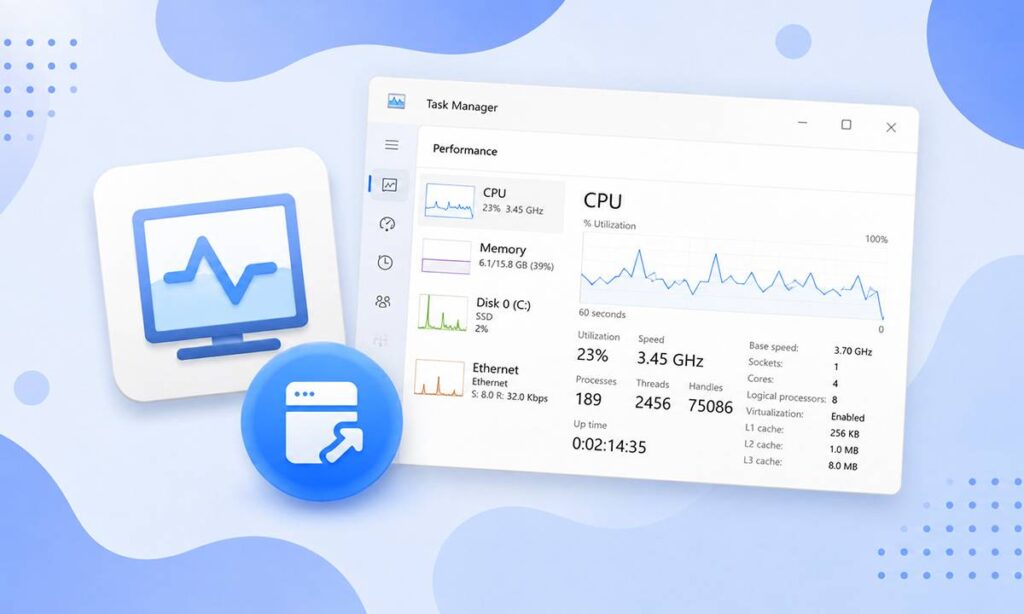
Task Manager is a system utility in Windows 11 (and other versions of Windows) that provides information about processes and programs running on the computer. It can be used to monitor the performance of the system, end processes that are not responding, and start new processes.
With Task Manager, you can see information such as the name of the process, its process ID, the amount of CPU and memory resources it is using, and the user account it is running under. You can also see a list of services and the status of each service, as well as the overall performance of the system in terms of CPU, memory, disk, and network usage.
In addition to monitoring processes, Task Manager also provides options for ending processes, starting new processes, and changing the priority of processes. This can be useful when you want to free up resources for a more important process, or when you want to end a process that is not responding.
How to Open Task Manager in Windows 11 (6 Methods)
Here are six ways to open Task Manager in Windows 11.
Method 1: Keyboard Shortcut
The fastest way to open Task Manager in Windows 11 is using the keyboard shortcut. Here’s how:
- Press CTRL + Shift + Escape all at the same time.
Method 2: Start Menu
Another method of opening Task Manager in Windows 11 is through the power user/WinX menu. Here’s how it’s done:
- Right-click Start.
- Click Task Manager.
Method 3: Run
Run is a useful option for opening various programs on your computer. It can also be used to open Task Manager. Here’s how:
- Press Windows Key + R and type “taskmgr”.
- Click OK.
Method 4: CTRL + Alt + Delete
If your computer isn’t responding, you can open Task Manager through the Ctrl + Alt + Delete menu. Follow these steps to do so:
- Press CTRL + Alt + Delete on your keyboard.
- Click Task Manager.
Method 5: Command Prompt
Should none of the previous methods work, you can always turn to Command Prompt to open Task Manager in Windows 11. Follow these steps:
- Open Command Prompt.
- Type “taskmgr” and press Enter.
Method 6: Windows Search
Finally, you can always just use Windows Search to find and open the Task Manager in Windows 11. Like so:
- Open Start menu.
- Search “Task Manager”.
- Open first result.
How to Pin Task Manager to Start or Taskbar
If you want to make Task Manager just a single click away, why not pin it to your Start menu or taskbar for easy access? If you want to pin the Task Manager to your Windows 11 Start menu or taskbar, follow these steps:
- Search “Task Manager” using the Windows 11 Search function.
- Right-click the first result and click Pin to Start or Pin to Taskbar.