Windows quietly stores image and video previews in hidden database files on your drive. If you’ve ever wanted to know how to open Windows thumbnail files to inspect what’s cached, this guide explains what those files are and walks you through the only tool you need to view them.If you’re still finding your way around Windows 11 in general, our Windows 11 for Beginners guide covers the fundamentals first.
What Are Windows Thumbnail Files?
When you open a folder in File Explorer, Windows generates a small preview for each image, video, and document inside it. Rather than re-rendering those previews every time you revisit the folder, Windows saves them to a set of hidden database files called thumbcache files.
These files live in a dedicated folder on your system drive:
C:\Users\<YourUsername>\AppData\Local\Microsoft\Windows\Explorer
Inside that folder, you’ll find several files with the thumbcache_ prefix and a .db extension. Each file stores previews at a different resolution. For example:
- thumbcache_256.db stores 256px previews
- thumbcache_1024.db stores larger previews for high-resolution displays
- thumbcache_idx.db acts as an index for the other files
Why Does Windows Use Thumbnail Files?
Generating previews from raw image and video files takes processing time. By storing them in a database, Windows only needs to read the cache file rather than re-open every photo or clip each time you navigate to a folder. This keeps File Explorer responsive, especially in folders with a large number of media files.
The cache rebuilds automatically as you browse, so it stays current without any manual input.
How to Open Windows Thumbnail Files
Standard image viewers and file editors cannot read thumbcache .db files. The format is proprietary to Windows, so you need a dedicated tool to open DB thumbnails and browse their contents.
Thumbcache Viewer is the go-to utility for this. It’s free, open-source, and supports thumbcache files from Windows Vista through Windows 11. It displays every cached preview stored in a given file, along with the file path, data size, and other metadata.
There are also a few practical reasons you might want to open DB files directly. Digital forensics professionals use thumbcache files to recover previews of images that may have been deleted from a system. Developers and power users sometimes open them to verify what Windows has cached for a specific folder. If you want to remove the files rather than view them, see our guide on how to clear thumbnail cache in Windows 11.
How to View Windows Thumbnails With Thumbcache Viewer
- Download Thumbcache Viewer. Go to thumbcacheviewer.github.io and download the version that matches your system (32-bit or 64-bit).
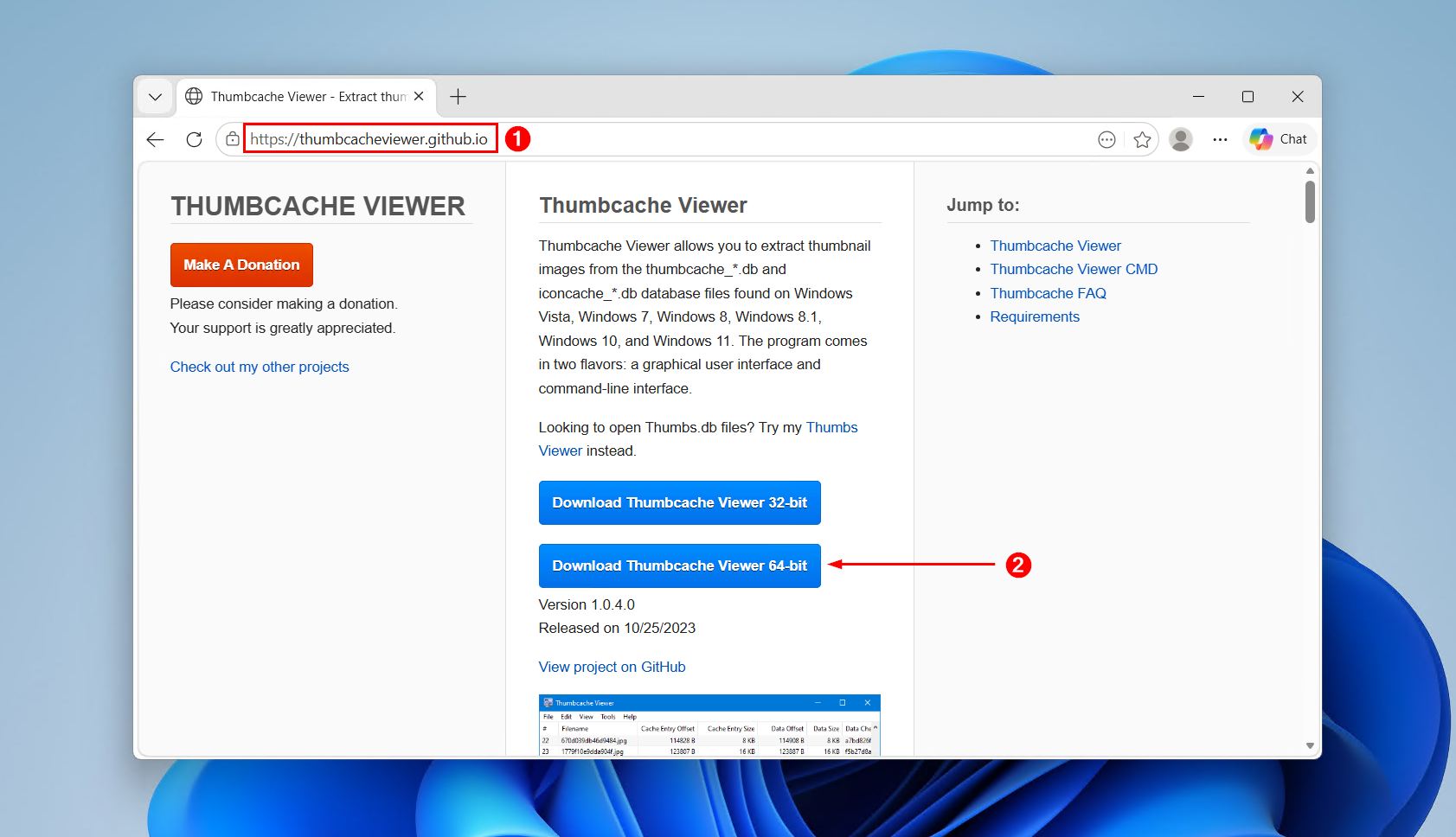
- Run the application. No installation is required. Double-click the executable to launch it.

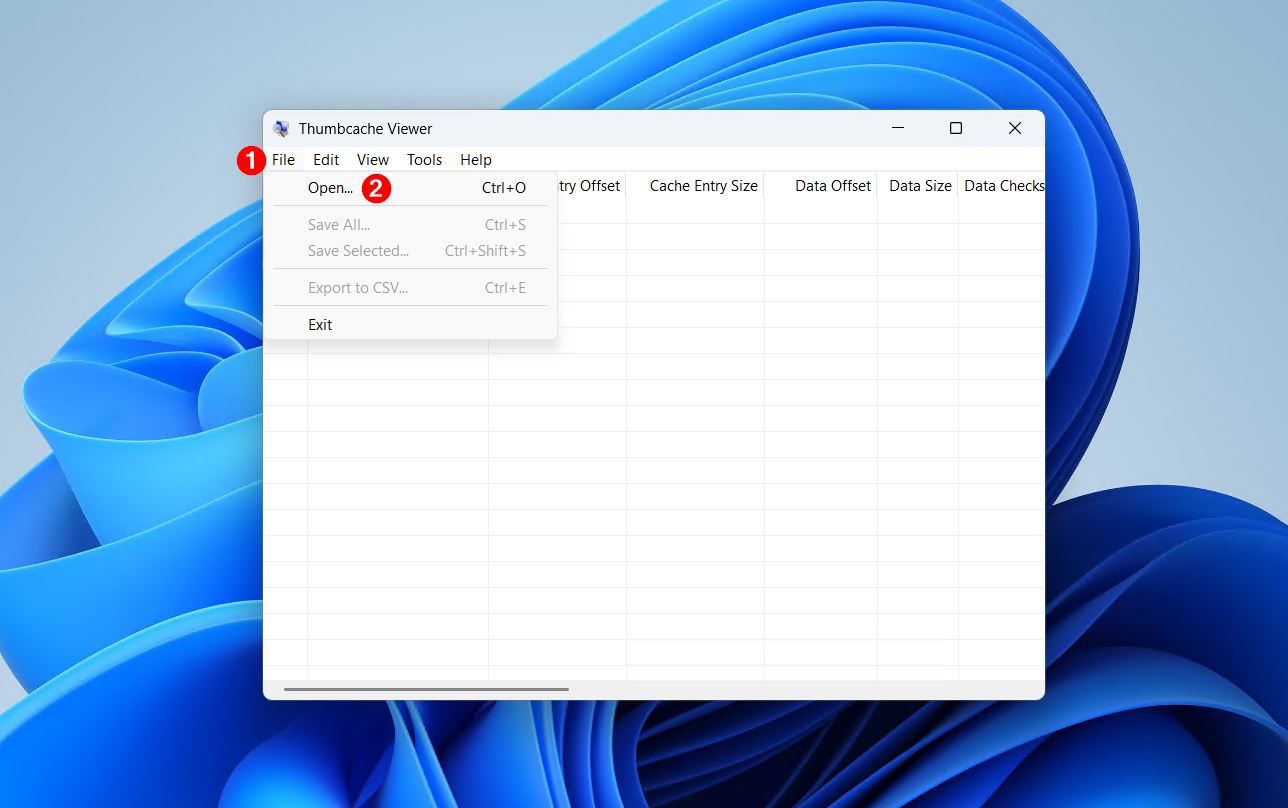
- Open the thumbcache folder in Thumbcache Viewer. In Thumbcache Viewer, click File > Open, then navigate to:
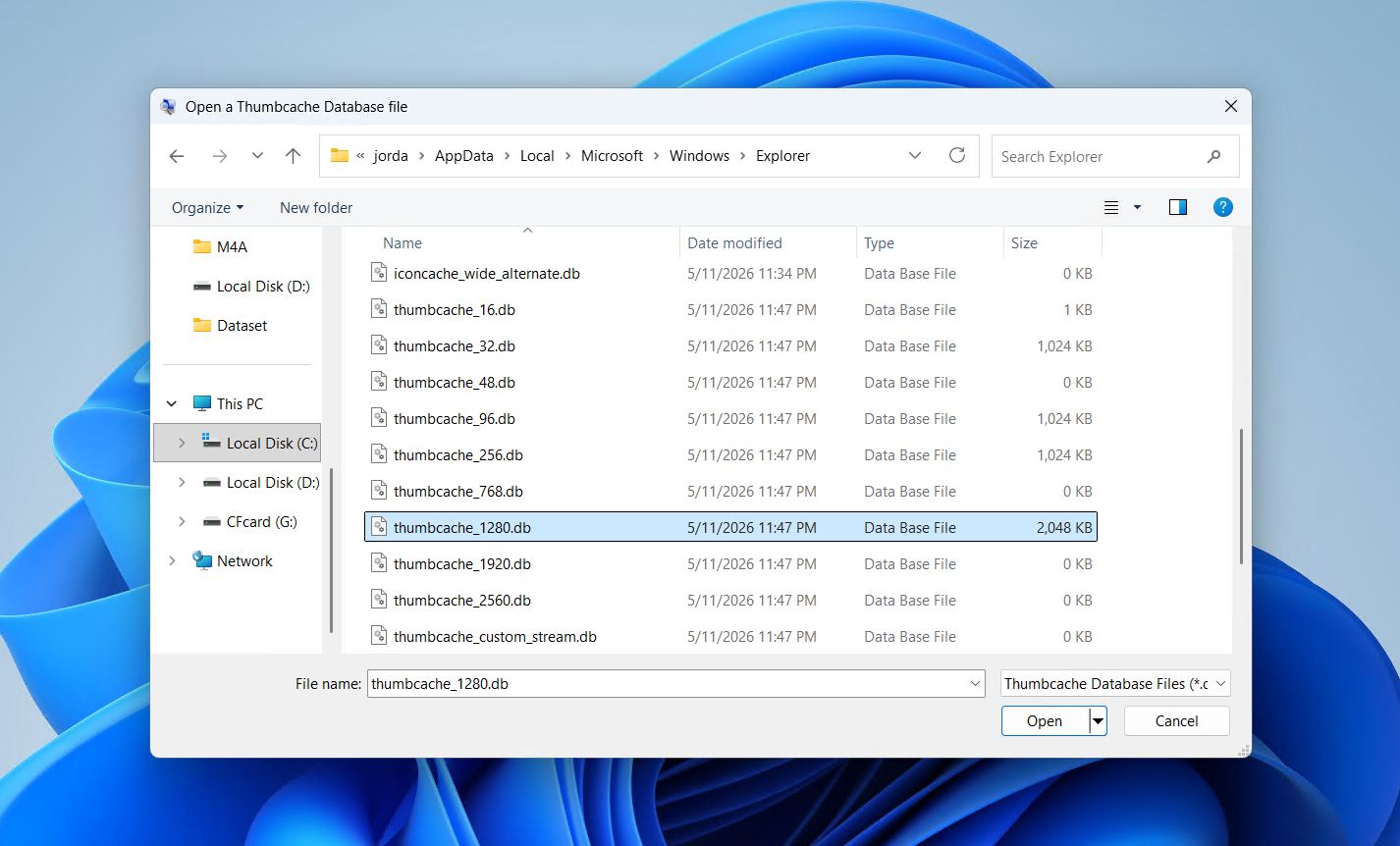
C:\Users\<YourUsername>\AppData\Local\Microsoft\Windows\Explorer
- Select any file starting with thumbcache_ from the Explorer folder. To open DB files at different preview sizes, repeat this step with the other thumbcache files in the folder.
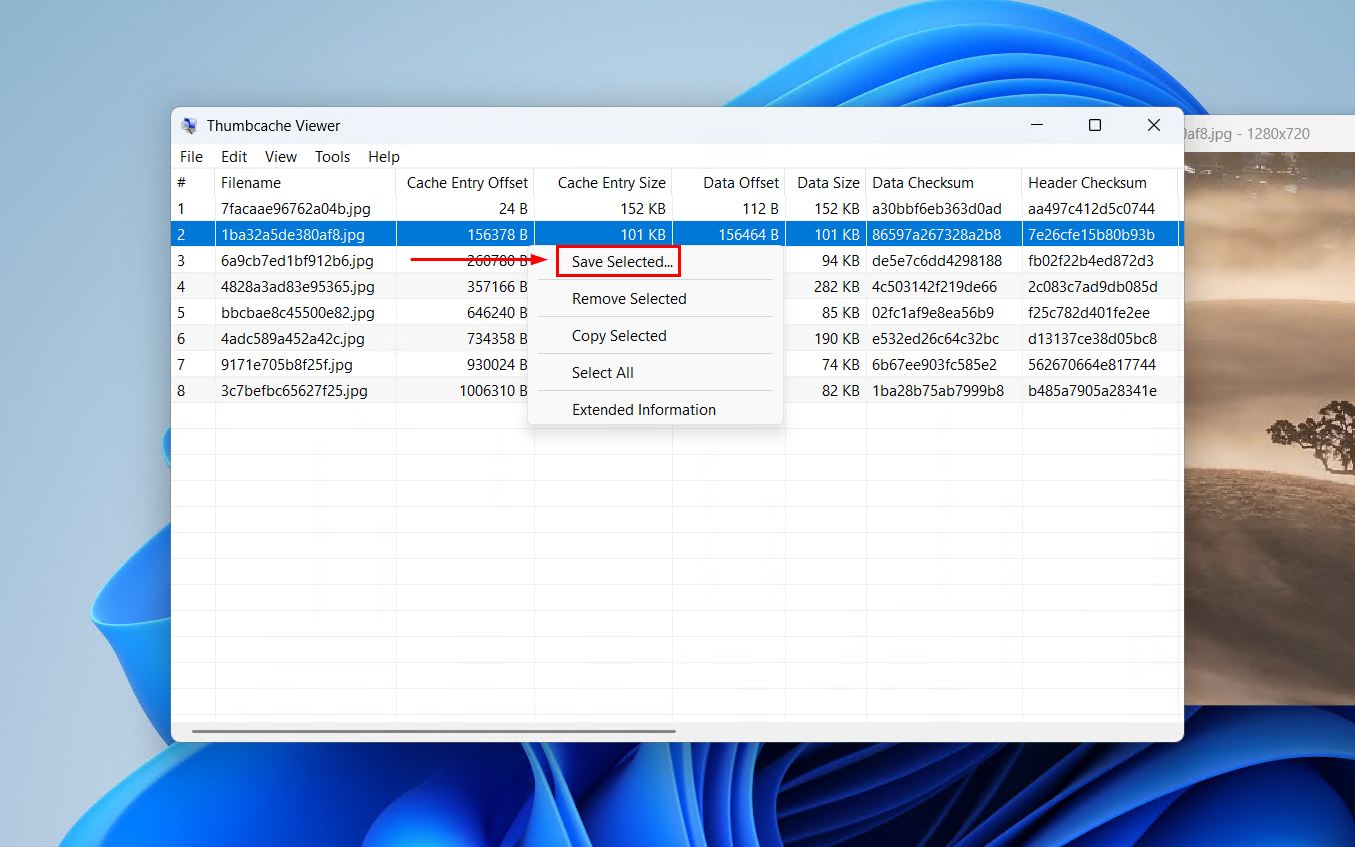
- Browse the cached previews. Thumbcache Viewer displays each stored thumbnail alongside its original file path and hash. Click any entry to see a larger version of the preview on the right.
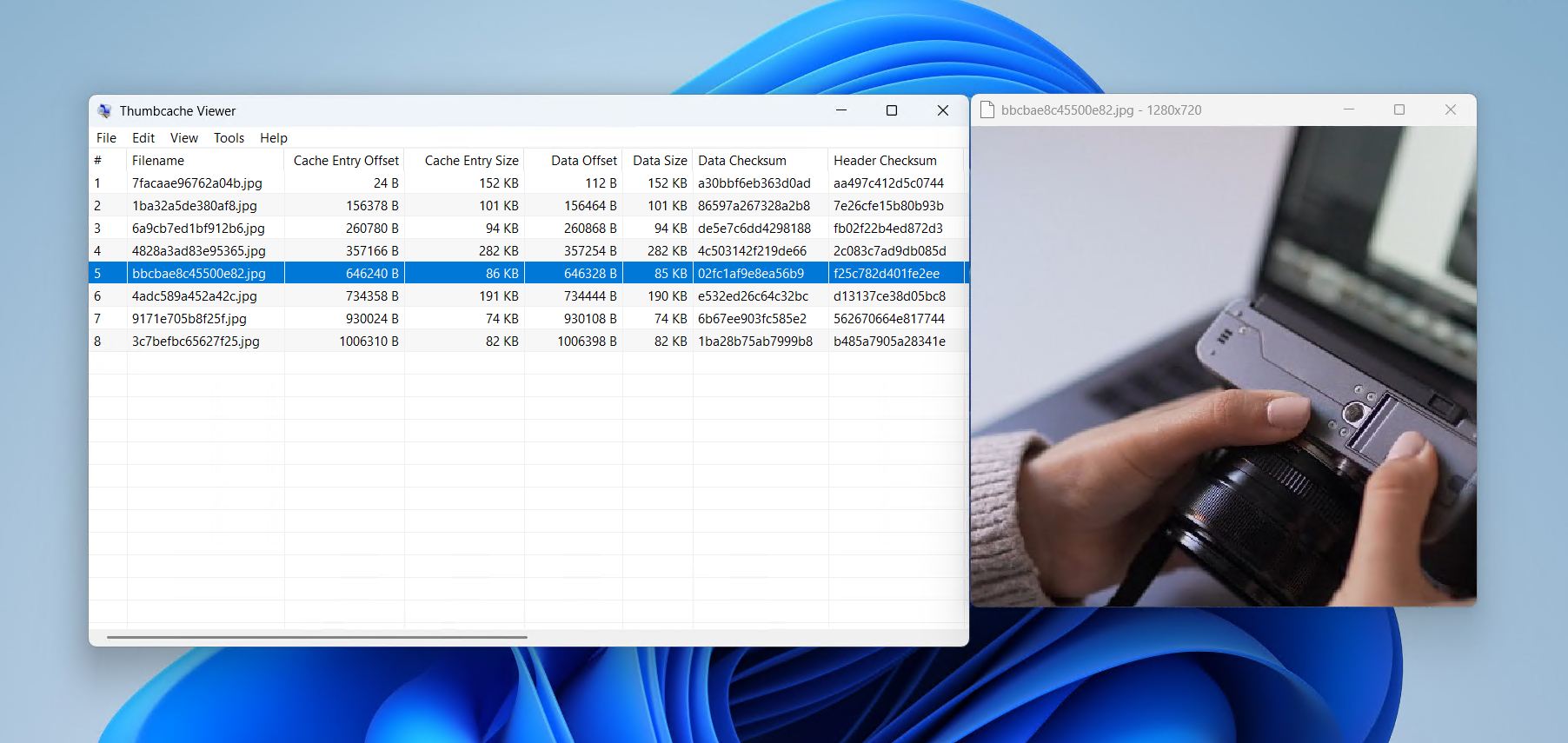
- Export a thumbnail if needed. Right-click any entry and choose Save to export the cached preview as a standalone image file.